

Key Takeaways
- Microsoft Intune now supports advanced reporting with Azure Log Analytics
- Organizations can track device compliance trends over longer periods
- Custom queries allow deeper and more flexible data analysis
- Visual dashboards make it easier to understand and share insights
In this post we are discussing, Microsoft Intune Expands Reporting Flexibility with Azure Log Analytics Integration. Microsoft has introduced a new and practical way for IT administrators to create detailed historical reports by combining Microsoft Intune with Azure Log Analytics. This update helps organizations move basic built-in reports and gives them more control over how they view and understand their device data.
Table of Contents
Table of Contents
Creating 30 Day Device Compliance Reports in Intune using Advanced Analytics
Instead of only seeing limited or short-term information, admins can now analyze and create reports that match their specific needs. This is especially useful for companies that manage many devices and want a clearer picture of compliance and performance over time. Microsoft is making it easier for IT teams to turn raw data into useful insights. With the help of Log Analytics, the diagnostic data that is already being collected in Intune can now be used in smarter ways.
- Intune Device Compliance Reports | Endpoint Manager
- Easiest Method to Enable MFA for Admins using Azure AD Conditional Access
- Managing Windows Bitlocker Compliance Policy Using Intune | MS Graph | Grace Period
What’s New
Microsoft has introduced a more flexible and powerful way to create historical reports by integrating Microsoft Intune diagnostic data with Azure Log Analytics. Administrators can now build custom reports using Kusto Query Language (KQL), allowing them to track device compliance trends over extended periods like 30 days or more.
- In the Microsoft Intune admin center, navigate to Reports > Diagnostic settings, and add a new Diagnostic setting policy to send data to a Log Analytics workspace.
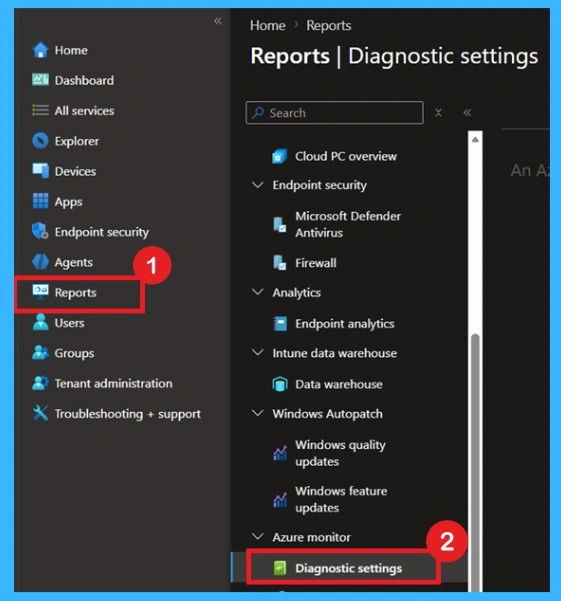
Create Historical Reports with Intune and Log Analytics
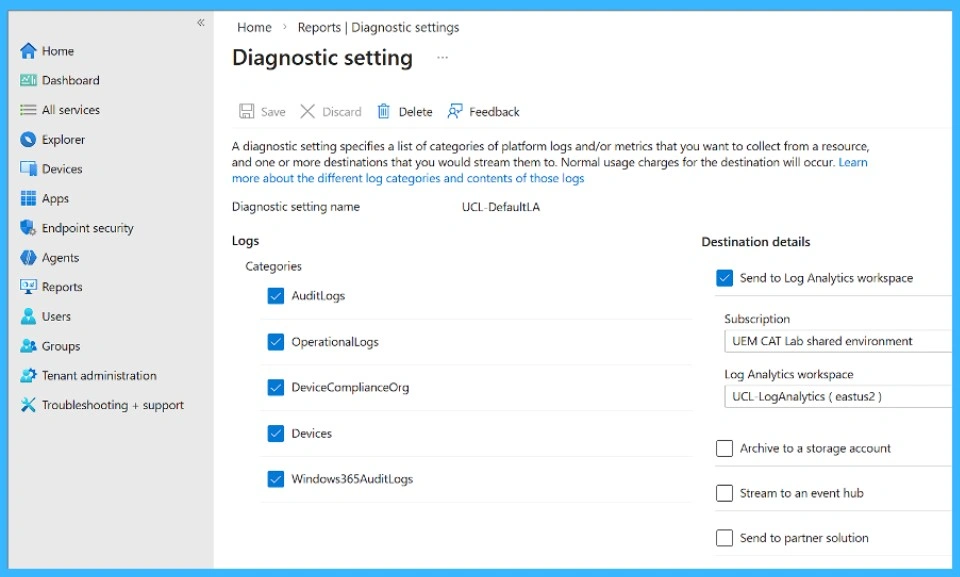
Intune admins can use Azure Log Analytics to build custom reports from diagnostic data. The process starts by creating a diagnostic setting in the Intune admin center, where you select log categories like AuditLogs, OperationalLogs, DeviceComplianceOrg, Devices, and Windows365AuditLogs, then send them to a Log Analytics workspace.

- Once the data flows in, you can query the IntuneDevices table to track compliance states, calculate percentages, and visualize trends such as a 30‑day compliance chart.
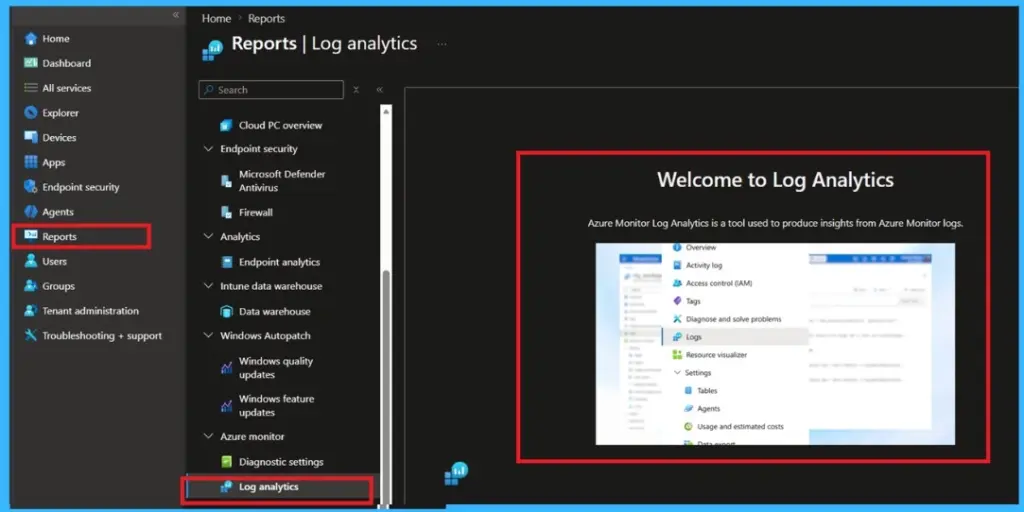
Accessing Log Analytics
Once you’ve finished setting up the diagnostic setting in Intune (choosing which logs to collect and sending them to a Log Analytics workspace), the next step is to go into the Reports section of the Intune admin center. Under Azure Monitor, select Log Analytics. This is where you can query the Intune data, explore tables like IntuneDevices, and build custom reports or dashboards to visualize compliance.
In the New Query window, enter the following query:
IntuneDevices | where TimeGenerated > ago(30d) | summarize Total = count(), Compliant = countif(CompliantState == "Compliant"), NonCompliant = countif(CompliantState == "Noncompliant"), InGracePeriod = countif(CompliantState == "InGracePeriod"), NotEvaluated = countif(CompliantState == "Not Evaluated" or CompliantState == ""), ConfigManager = countif(CompliantState == "ConfigManager") by bin(TimeGenerated, 1d) | extend ComplianceRate = round(100.0 * Compliant / Total, 2) | order by TimeGenerated asc
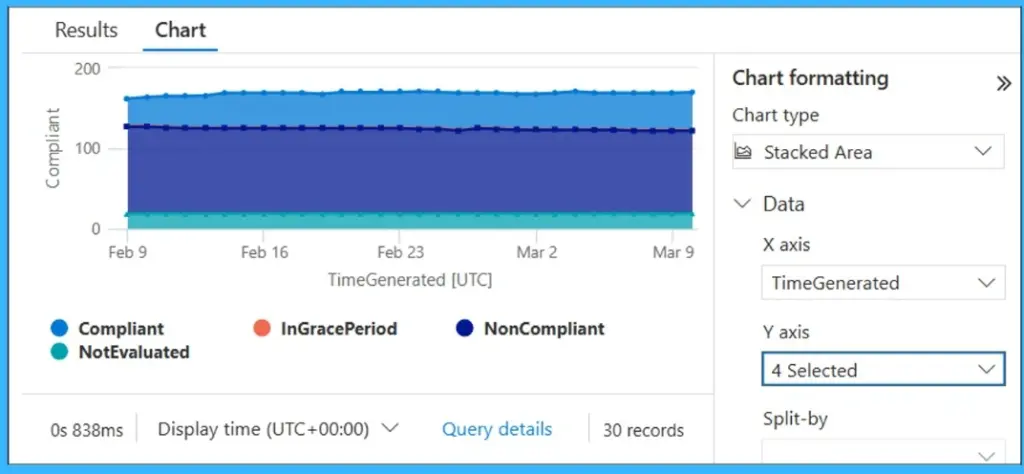
Visual Output of the Log Analytics Query
The Visual Output of the Log Analytics Query screen shows how device compliance data can be turned into a clear visual using a stacked area chart in Azure Log Analytics. This chart displays different device states such as Compliant, Non-compliant, In Grace Period, and Not Evaluated over time. Instead of looking at numbers, administrators can easily understand trends, such as whether compliance is improving or declining.
The chart formatting panel on the right allows users to select the chart type, define axes, and choose how data is grouped, making it simple to customise the visualisation based on reporting needs.
Configuring Dashboard Time Settings
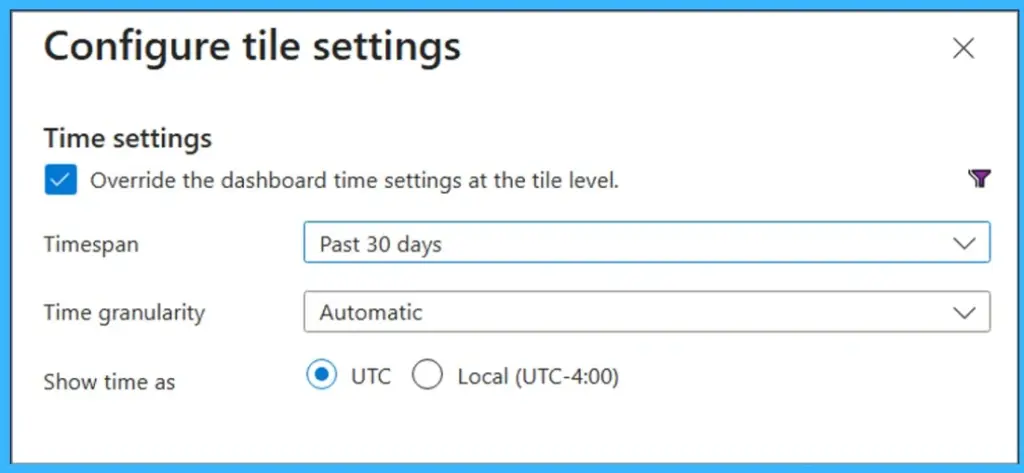
You can customise time settings for a dashboard tile in Log Analytics. By overriding the default dashboard time, you can set the tile to display data for the past 30 days, control the time granularity (automatic or fixed intervals), and choose whether to show timestamps in UTC or local time.
| Time settings | Info |
|---|---|
| Timespan | Past 30 days |
| Time granularity | Automatic |
| Show time as | UTC |
Dashboard Compliance Overview
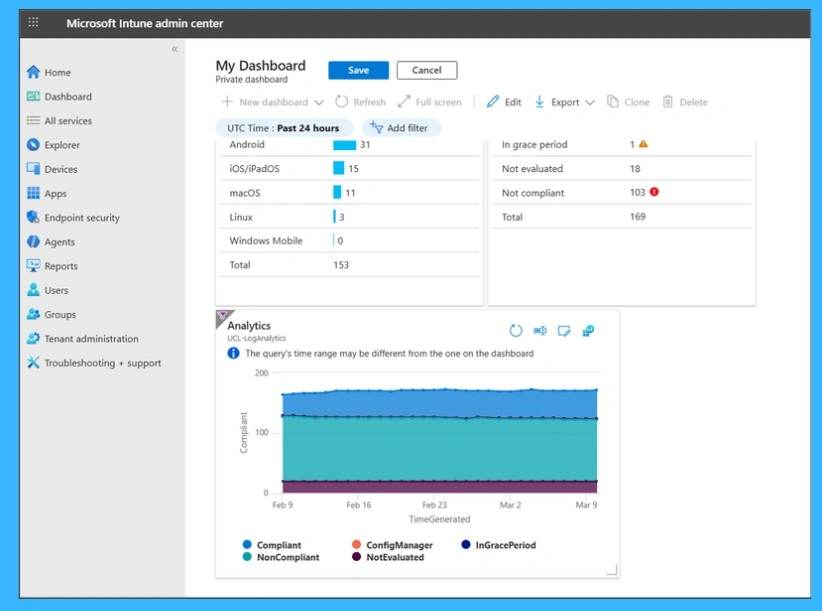
This section shows how Intune dashboards combine device type counts with compliance status summaries and trend charts. It gives admins a quick view of which platforms are in use, how many devices are compliant or noncompliant, and how compliance has shifted over time, all in one view for easier monitoring and decision‑making.
- At the top, you see table device types (like Android, iOS, macOS, Linux) and their counts over the past 24 hours, along with compliance status (compliant, noncompliant, in grace period, not evaluated).
- Below that, the analytics section displays a line chart of compliance states over time, with colour-coded categories such as Compliant, NonCompliant, ConfigManager, InGracePeriod, and NotEvaluated.
Need Further Assistance or Have Technical Questions?
Join the LinkedIn Page and Telegram group to get the latest step-by-step guides and news updates. Join our Meetup Page to participate in User group meetings. Also, join the WhatsApp Community and the Whatsapp channel to get the latest news on Microsoft Technologies. We are there on Reddit as well
Author
Anoop C Nair is a Workplace Technology solution architect with 25+ years of experience. Microsoft Certified Trainer. Microsoft MVP from 2015 onwards for consecutive 11+ years! He is a blogger, Speaker, and Founder of HTMD Community and HTMD Conference. His main focus is on Device Management technologies like Intune, Windows, and Cloud PC. He writes about technologies like Intune, SCCM, Windows, Cloud PC, Entra, and Microsoft Security.