
Key Takaways
- Generate CSR on the Connected Cache node.
- Get it signed by a trusted CA in .crt format and import it back
- Verify HTTPS works on server first, then on client
- Maintain and renew certificates when they expire
Hey, let’s discuss about Steps to Configure HTTPS in Microsoft Connected Cache for Enterprise and Education. Starting June 16th, 2026, Intune will begin enforcing HTTPS content delivery for customers using Microsoft Connected Cache for Enterprise and Education. To continue using Connected Cache for localizing Intune Win32 app downloads and minimizing bandwidth usage, HTTPS must be properly configured on your Connected Cache nodes.
Table of Contents
Table of Contents
Steps to Configure HTTPS in Microsoft Connected Cache for Enterprise and Education
Without this configuration, devices will still fetch the requested content, but they’ll fall back to the Content Delivery Network (CDN) and lose the performance and bandwidth savings that Microsoft Connected Cache provides.
| What You’ll Be Able to Do |
|---|
| Prepare the TLS certificate that your Connected Cache needs |
| Enable HTTPS support on both Windows and Linux‑based Microsoft Connected Cache servers |
| Validate that HTTPS is working end‑to‑end |
| Diagnose the most common setup issues |
- Disable Client Computer Printing Over both HTTP and HTTPS using Intune
- Enforce Automatic HTTPS Upgrades Policy for Microsoft Edge for Secure Connections using Intune
- Enable Disable Secure DNS over HTTPS in Microsoft Edge
Before you Start
Before generating a certificate signing request (CSR) or importing a certificate, perform a few checks to ensure your Connected Cache server can enable HTTPS successfully. Verify in the Azure portal’s Cache Node Management tab that the software version is 2.0.0.2112 or higher, otherwise reinstall Connected Cache. Confirm the hostname or IP address used by client devices, ensure port 443 is available on the host, and check that any TLS-inspection in your network allows the required endpoints, since intercepted traffic can cause certificate rejection. Once these checks are complete, your node is ready for the HTTPS workflow: generate the CSR on the Connected Cache host machine, have it signed by your certificate authority, and import the resulting certificate.
Generate a CSR
The first step in enabling HTTPS support is generating a CSR directly on your Microsoft Connected Cache node, and this step cannot be skipped. Microsoft Connected Cache must create the CSR itself so it can generate and retain the private key that will later be paired with your signed certificate during TLS negotiation. The most important values when configuring the generateCsr script are the Subject and SAN, which must match exactly how client devices connect to the cache node. Any mismatch will not break CSR generation, but it will cause clients to bypass Microsoft Connected Cache later because they won’t trust the certificate during TLS negotiation.

After configuring the parameters, go to the Installer scripts directory using the command Push-Location (deliveryoptimization-cli Microsoft Connected Cache-get-scripts-path) and run the generateCsr command. This starts the CSR generation process in the Microsoft Connected Cache-managed WSL distribution, and the terminal output will show the process details and the location of the generated CSR. This output confirms that Microsoft Connected Cache:
- Validated the CSR request.
- Passed the Subject (Common Name) and SAN values to the internal script.
- Generated the private key and CSR, stored both inside the container.
- Wrote logs to the \Certificates\logs folder.
- Created the CSR file in the Certificates folder.
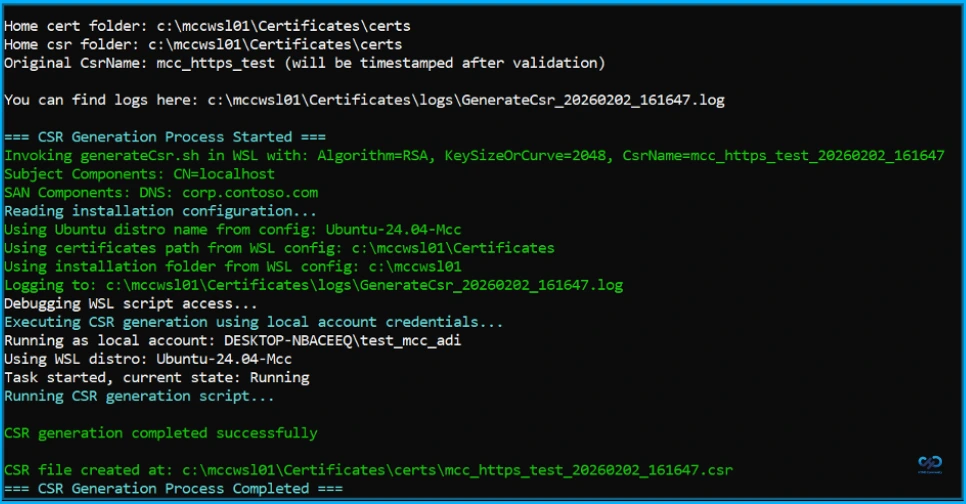
CSR Generation Logs and Key Checkpoints
Every time you run generateCsr, Microsoft Connected Cache creates a full log in a directory ending with …\Certificates\logs, and the terminal output shows the exact path. If you need to troubleshoot, you can always return to this folder and open the most recent log file to understand what happened during CSR generation.
- Algorithm validation passed / CSR name validation passed – Accepted your inputs and is ready to generate the CSR.
- Subject Components: … / SAN Components: … – Microsoft Connected Cache will embed these values into the CSR. If these don’t match your Connected Cache server hostname or IP address, regenerate the CSR.
- Attempting to call http://localhost:5000/csr – Internal controller is generating the keypair and CSR inside the WSL container.
- Key verification succeeded – Successfully generated and validated the private key.
- CSR verification successful – OpenSSL has validated the CSR structure.
- Successfully copied logs to windowsCerts location – The logs were written to the host machine directory.
- CSR generation completed successfully – Completed end-to-end successfully.
- During a successful run, you may still see messages like
mkdir: cannot create directory '/keys': Permission denied chmod: cannot access '/keys': No such file or directory
Sign the CSR
This step is handled outside Microsoft Connected Cache and depends on your organization’s PKI, such as ADCS, an enterprise or external CA like DigiCert or Let’s Encrypt. Cloud PKI is not supported because it requires SCEP-based CSR generation. Ensure client devices trust the CA used for signing, and make sure the certificate is provided in an unencrypted .crt format, as Microsoft Connected Cache does not support password-protected formats like .pfx.
After the CSR is signed, import the certificate back into Microsoft Connected Cache by placing it in the same certs folder where the CSR was created. This allows the system to match the signed certificate with the previously generated private key, ensuring a successful setup.
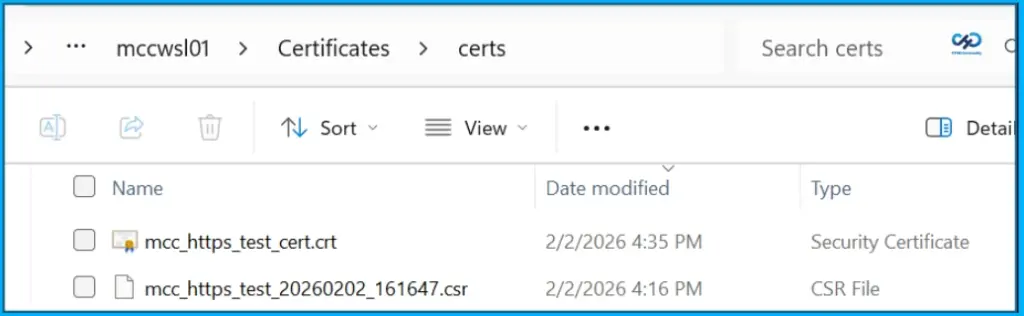
Import the Certificate Back to Microsoft Connected Cache
Before importing the certificate, ensure the CSR was generated on the same Microsoft Connected Cache node, since the private key created during CSR generation is required to pair with the signed certificate. During the import, Microsoft Connected Cache performs a verification process inside its managed WSL distribution. The terminal output is minimal and only confirms basic validation, script execution, and that the import is running as a scheduled task, with logging enabled and the process being monitored. A successful import means Microsoft Connected Cache:
- Found your .crt file in the expected folder.
- Ran cryptographic verification confirming the certificate, CSR, and private key all match.
- Copied the certificate into the container and updated Microsoft Connected Cache internal configuration.
- Restarted the container with the new certificate.
- Enabled HTTPS for Microsoft Connected Cache’s Intune content endpoints.
Troubleshooting
Troubleshooting certificate import is similar to CSR generation, as every run produces a detailed log in the …\Certificates\logs folder. If import fails, the logs show exactly which step did not complete. At this stage, SAN or hostname mismatches do not appear, as they are only detected later during client-side validation. The importCert script only verifies that the certificate, CSR, and private key match and that Microsoft Connected Cache can load them, with the private key stored inside the container and not visible in the Certificates folder.
- Certificate file validation passed – Found the .crt file in the certs folder and its .crt format is valid.
- Using CertName: … / CSR being used: … – Microsoft Connected Cache matched the certificate to the CSR that generated the private key.
- “UCCESS: The CSR, certificate and private key cryptographic materials all match – Verified the keypair, CSR, and certificate are a correct trio.
- Nginx restarted successfully with new certificates – Microsoft Connected Cache is now configured to serve HTTPS on port 443 inside the container.
- Certificate import completed successfully – The end-to-end import succeeded with no errors.

Validating HTTPS Support
Once your certificate is imported, the final step is to validate that Microsoft Connected Cache is serving content over HTTPS. Perform the tests first on the server, then on a client device. This ensures the server is listening on port 443 with the new TLS certificate and that client devices can trust and use the certificate correctly.
Maintaining your HTTPS Configuration
Once your Microsoft Connected Cache node is serving content over HTTPS, the next step is to plan for ongoing certificate maintenance. TLS certificates are not a one-time import, as they expire and CA chains can change over time. Microsoft Connected Cache will soon provide certificate details through a command-line script and the Azure portal, but these features are not yet available. Until then, verification and rotation depend on simple checks performed on the Microsoft Connected Cache host.
Need Further Assistance or Have Technical Questions?
Join the LinkedIn Page and Telegram group to get the latest step-by-step guides and news updates. Join our Meetup Page to participate in User group meetings. Also, join the WhatsApp Community and the Whatsapp channel to get the latest news on Microsoft Technologies. We are there on Reddit as well
Author
Anoop C Nair is a Workplace Technology solution architect with 25+ years of experience. Microsoft Certified Trainer. Microsoft MVP from 2015 onwards for consecutive 11+ years! He is a blogger, Speaker, and Founder of HTMD Community and HTMD Conference. His main focus is on Device Management technologies like Intune, Windows, and Cloud PC. He writes about technologies like Intune, SCCM, Windows, Cloud PC, Entra, and Microsoft Security.