
Key Takeaways
- Prevents unauthorized changes to y Restricting Offline Files settings, ensuring users cannot alter configurations that may weaken security or disrupt organizational standards.
- Strengthens data protection by limiting local file caching, reducing the risk of sensitive corporate data exposure if a device is lost, stolen, or compromised.
- Ensures consistent offline Files behavior across all managed devices, eliminating configuration drift and improving reliability in enterprise environments.
- Reduces synchronization errors and file conflicts, which are commonly caused by user-initiated offline Files misconfigurations.
Let’s discuss Reducing Data Exposure Risks by Restricting offline Files Settings using Intune Policy. This policy is critical for organizations that want to maintain strict control over how offline Files are used on managed Windows devices. By prohibiting user configuration of Offline Files, administrators ensure that end users cannot enable, disable, or modify Offline Files settings on their own. When users are allowed to change Offline Files settings, it can lead to unpredictable behavior, synchronization issues, and increased support tickets
Table of Contents
Table of Contents
Reducing Data Exposure Risks by Restricting Offline Files Settings using Intune Policy
This policy is important because it gives organizations full control over Offline Files on managed Windows devices. By preventing users from changing Offline Files settings, IT teams can reduce security risks, avoid data being stored locally without protection, and ensure all devices follow the same configuration.
It also helps prevent synchronization issues, lowers IT support workload, and supports compliance requirements by enforcing centralized, consistent, and secure management of Offline Files through Microsoft Intune.
- Require Password when Computer Wakes on Battery using Intune
- How to Remove Assigned Group from Energy Saver Battery Threshold Policy in Intune Settings Catalog
- Improve Windows PC Performance by using New Efficiency Mode
Policy Creation in Intune
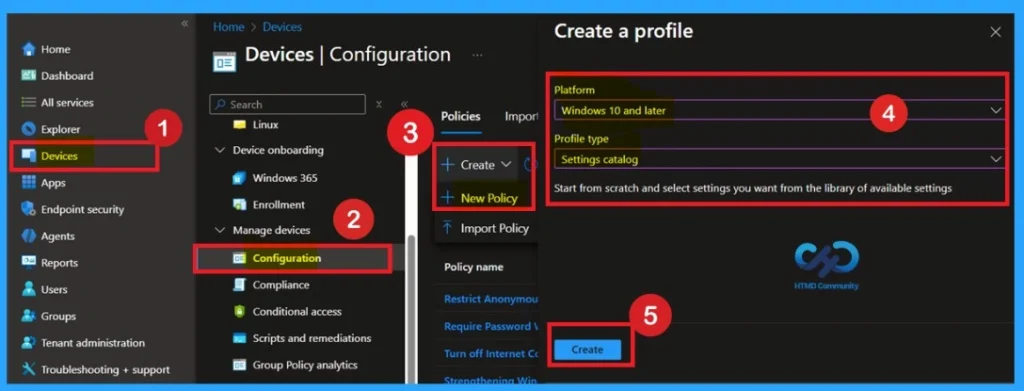
Previously, we discussed various aspects of enabling and disabling the Screen Saver Lock Timing using Intune Policy. First, sign in to the Microsoft Intune admin center. Then navigate to Devices > Configuration > + Create. You will see a window titled Create a Profile.

Define the Policy Name and Description
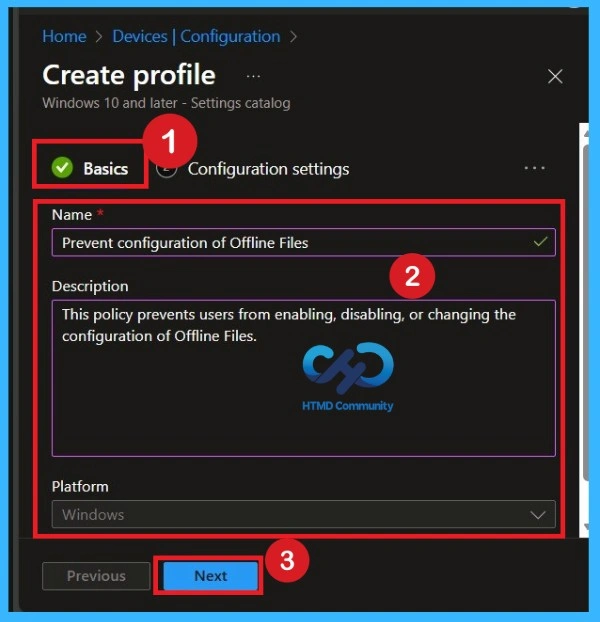
Enter a clear and meaningful name such as Prevent configuration of Offline Files. In the description field, explain the purpose of the policy, for example: This policy prevents users from enabling, disabling, or changing the configuration of Offline Files. This helps administrators quickly understand why the policy exists.
- Click on the Next
Configure Offline Files Settings
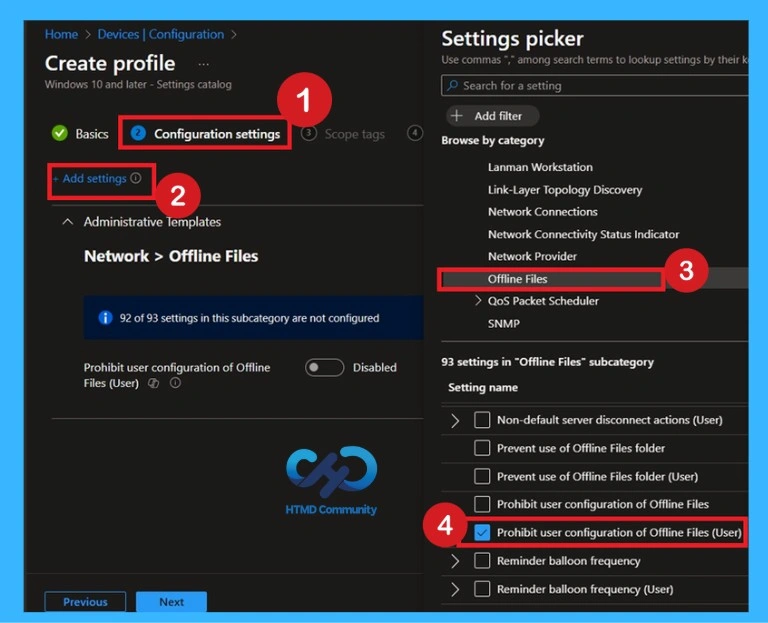
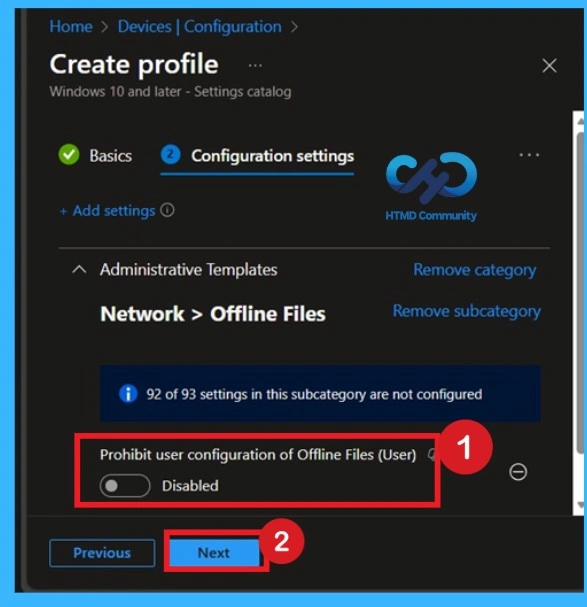
In the Configuration settings section, click + Add settings to open the Settings picker. Expand Administrative Templates, then navigate to Network > Offline Files. From the list, select Prohibit user configuration of Offline Files (User).
Default State of Offline Policy
When this policy is selected, this setting is disabled by default. This setting removes the Offline Files tab from the Folder Options dialog box. It also removes the Settings item from the Offline Files context menu and disables the Settings button on the Offline Files Status dialog box. If you want to continue with this you can click on the next. But I prefer to Enable it.
Activate the Policy
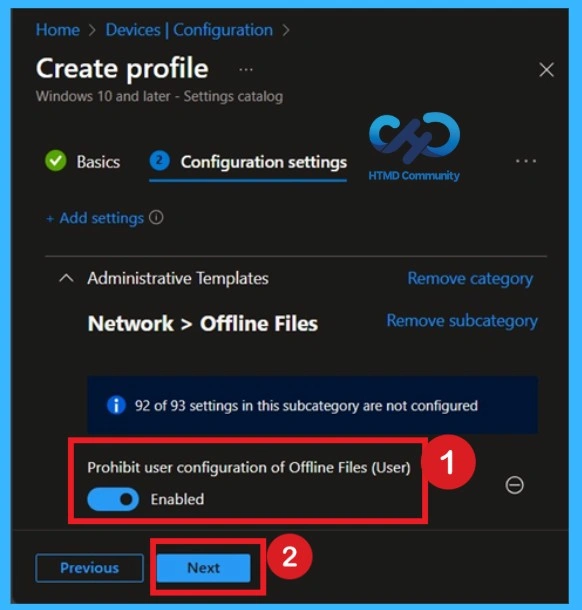
This setting provides a quick method for locking down the default settings for Offline Files. To accept the defaults, just enable this setting. You do not have to disable any other settings in this folder. To enable the policy, toggle the bar left to the right.
Scope Tags
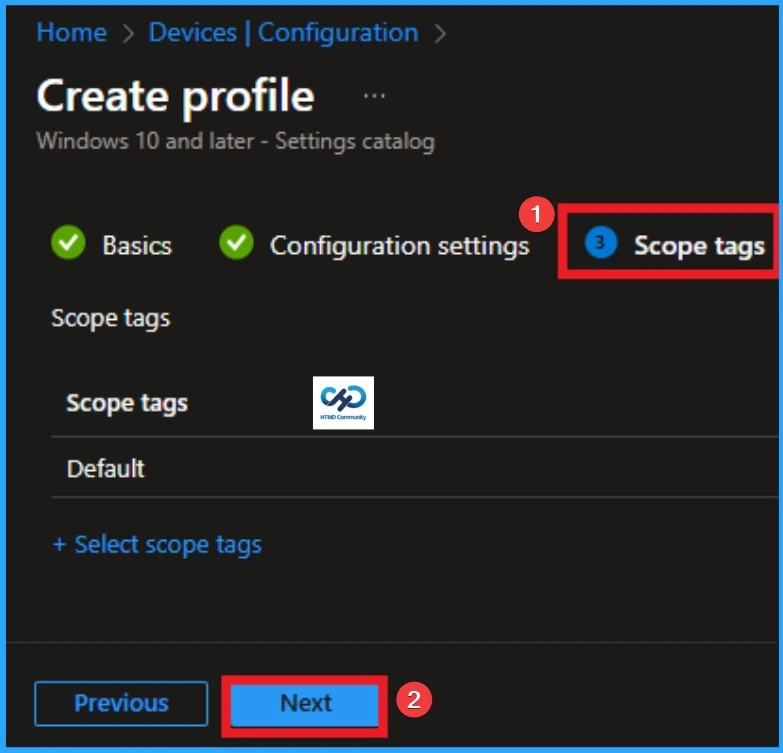
Scope tags are used to control which administrators can see and manage this policy in the Intune admin center. In the Scope tags section, you can assign one or more scope tags to the policy so that only specific IT teams or administrators have access to it. To add a scope tag, click Select scope tags, choose the required tag, and then click Next.
Assign the Policy to Groups
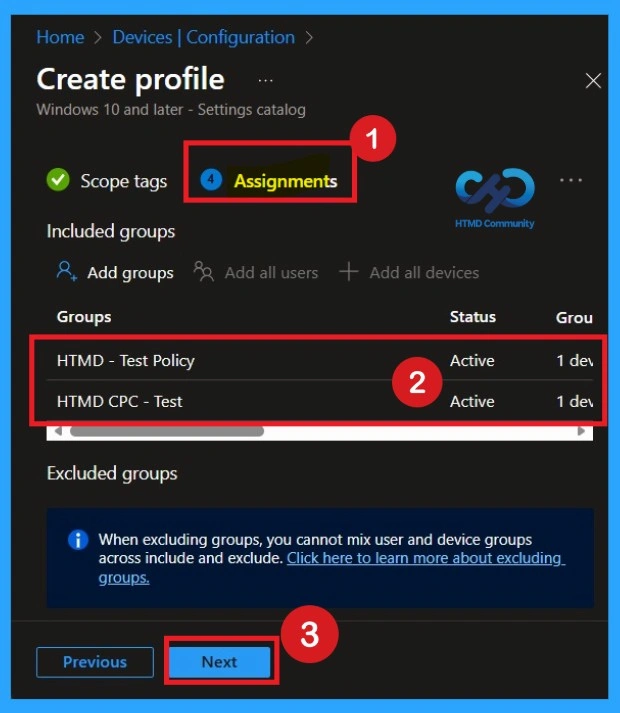
In the Assignments section, click Add groups under Included groups and select the required user or device groups. Assigning the policy ensures it is applied only to the intended users or devices, such as test groups or production environments. Then click on the Next.
Review and Deploy the Policy
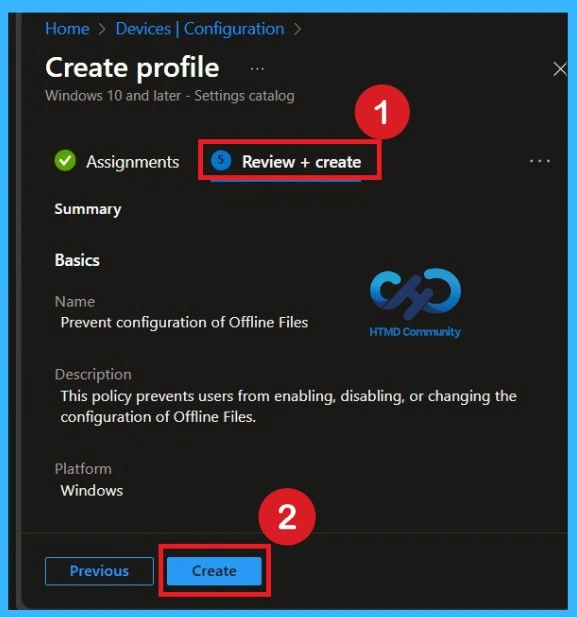
Finally, review all settings, including the policy name, configuration, and assignments. Once everything is verified, click Create to deploy the policy. Intune will then enforce the Offline Files restriction on all targeted devices.
Monitor Policy Deployment Status
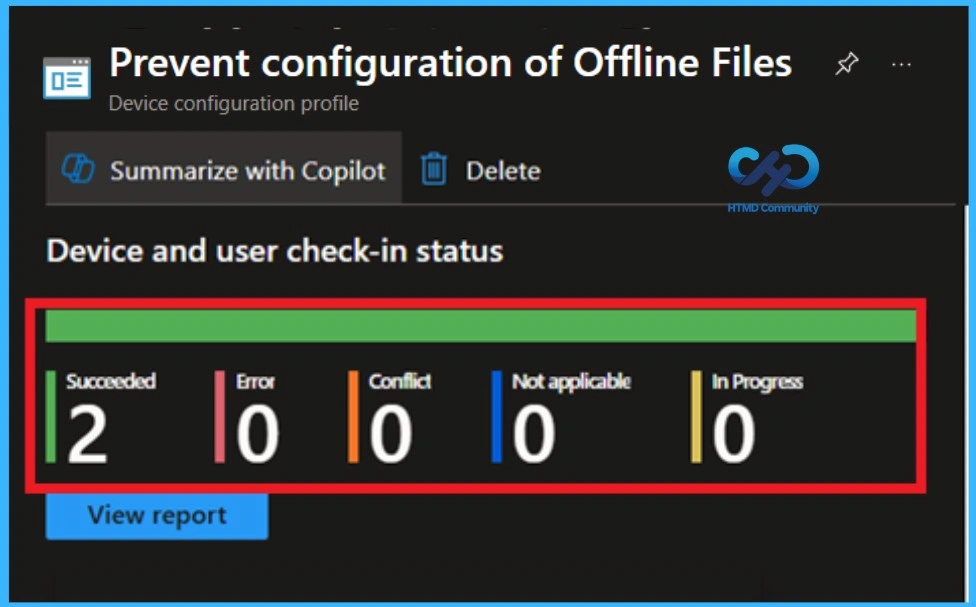
To check whether the policy is successfully applied, sign in to theMicrosoft Intune admin center and go to Devices > Configuration profiles. Select the Offline Files policy from the list. This opens the policy overview page, where you can see a quick summary of its deployment status.
Event Viewer Details
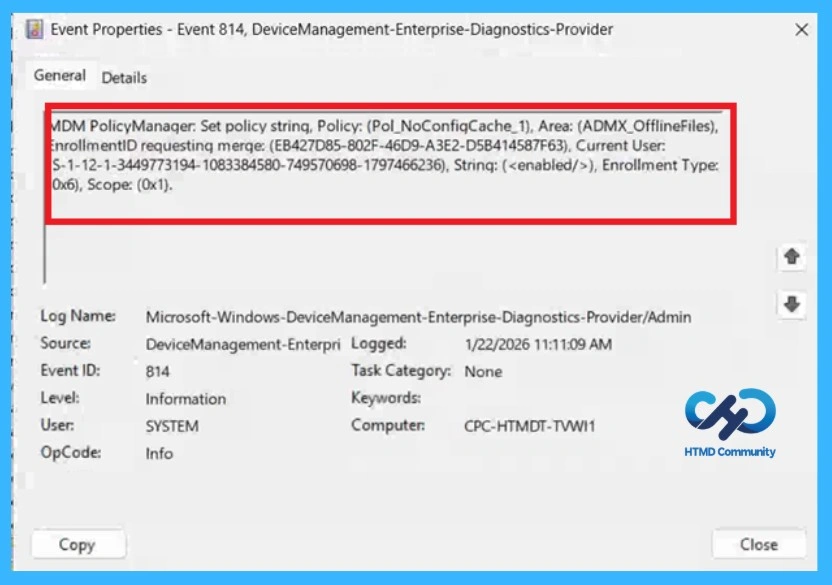
Monitor status can’t be the only way to identify whether the policy succeeds or not. The Event Viewer helps you check the client side and verify the policy status. Open the Client device and open the Event Viewer. Go to Start > Event Viewer. Navigate to Logs: In the left pane, go to Application and Services Logs > Microsoft > Windows> DeviceManagement-Enterprise-Diagnostics-Provider > Admin.
| Policy Details |
|---|
| MDM PolicyManager: Set policy string, Policy: (Pol_NoConfiqCache_1), Area: (ADMX_OfflineFiles), nrollmentID requestinq merqe: (EB427D85-802F-46D9-A3E2-D5B414587F63), Current User: S-1-12-1-3449773194-1083384580-749570698-1797466236), Strinq: (), Enrollment Type: 0x6), Scope: (0x1). |
Remove the Policy from Assigned Groups
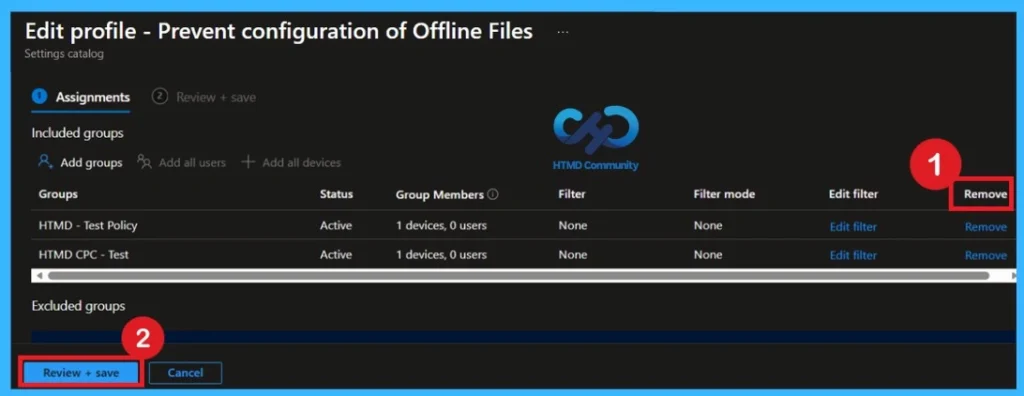
If you want to stop the policy from applying to certain users or devices, you can remove the assigned groups. Go to Devices > Configuration profiles, select the Offline Files policy, and open Assignments. Under Included groups or Excluded groups, select the group you want to remove and delete it from the assignment list. Once the group is removed, the policy will no longer apply to those users or devices after the next Intune sync.
Permanently Delete the Policy
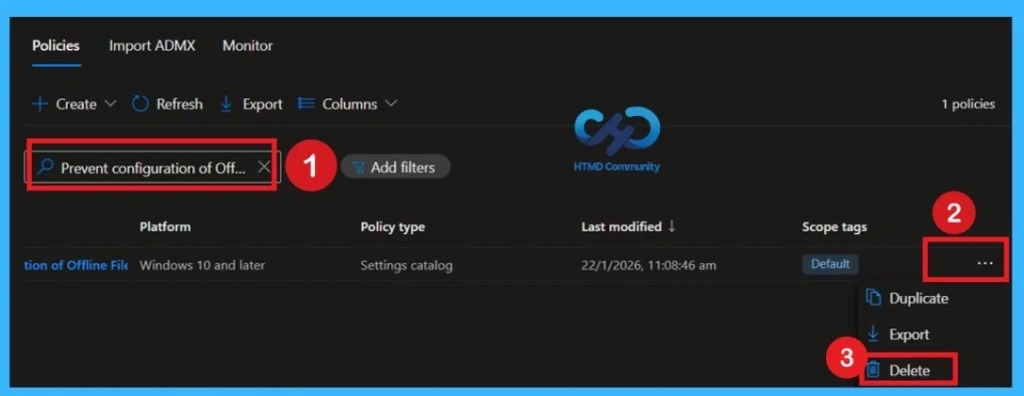
If the policy is no longer required, you can delete it completely from Intune. Navigate to Devices > Configuration profiles, select the policy you want to remove, and click Delete. Confirm the deletion when prompted. Deleting the policy permanently removes it from Intune and stops it from applying to all devices.
Need Further Assistance or Have Technical Questions?
Join the LinkedIn Page and Telegram group to get the latest step-by-step guides and news updates. Join our Meetup Page to participate in User group meetings. Also, Join the WhatsApp Community to get the latest news on Microsoft Technologies. We are there on Reddit as well.
Author
Anoop C Nair has been Microsoft MVP for 10 consecutive years from 2015 onwards. He is a Workplace Solution Architect with more than 22+ years of experience in Workplace technologies. He is a Blogger, Speaker, and Local User Group Community leader. His primary focus is on Device Management technologies like SCCM and Intune. He writes about technologies like Intune, SCCM, Windows, Cloud PC, Windows, Entra, Microsoft Security, Career, etc.