
Let’s discuss Troubleshoot and Fix Devices not Visible in Defender for Business after Intune Onboarding. Microsoft Intune users facing an issue while onboarding devices via Intune and local onboarding scripts are not appearing in the Microsoft Defender portal.
The users follows the necessary instructions provided by Microsoft. Devices are not showing in the Microsoft Defender portal. The local onboarding scripting method and gone directly through Intune. The user is confused, is there any conflict running the two.
To onboarding devices, user used to perform these tasks is a Global Admin (even with Security Administrator rights). In respect of Intune, the Connection service between Intune and Defender for Endpoint (EDR) is fine.
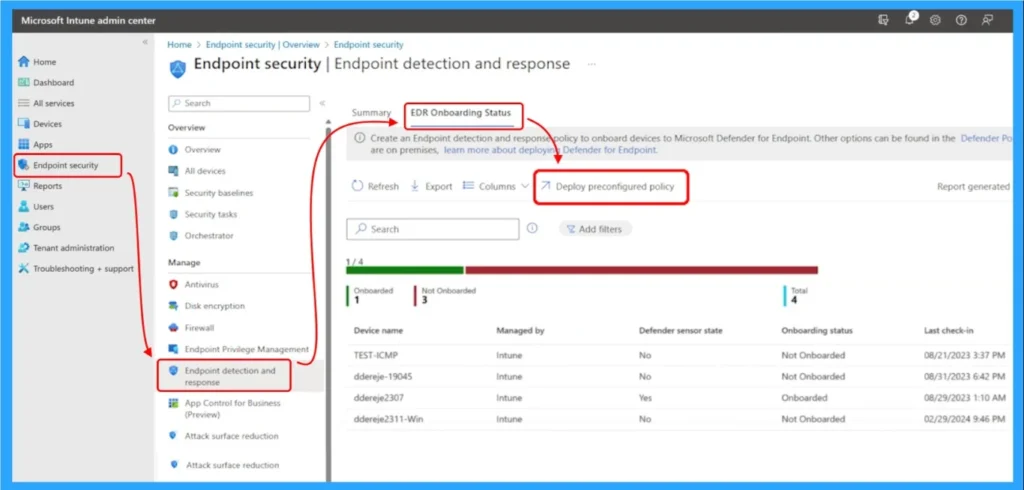
The main reason of this issue is conflict between onboarding methods and compliance policy misalignment. As mentioned above the user applied 2 onboarding methods, like A local onboarding script, and A preconfigured EDR policy via Intune which leads to conflict.

Table of Contents
Troubleshoot and Fix Devices not Visible in Defender for Business after Intune Onboarding
As mentioned, user also followed preconfigured EDR policy option to onboard the device. This dual approach can lead to conflicting registry entries or inconsistent telemetry, preventing devices from registering properly in the Defender portal.
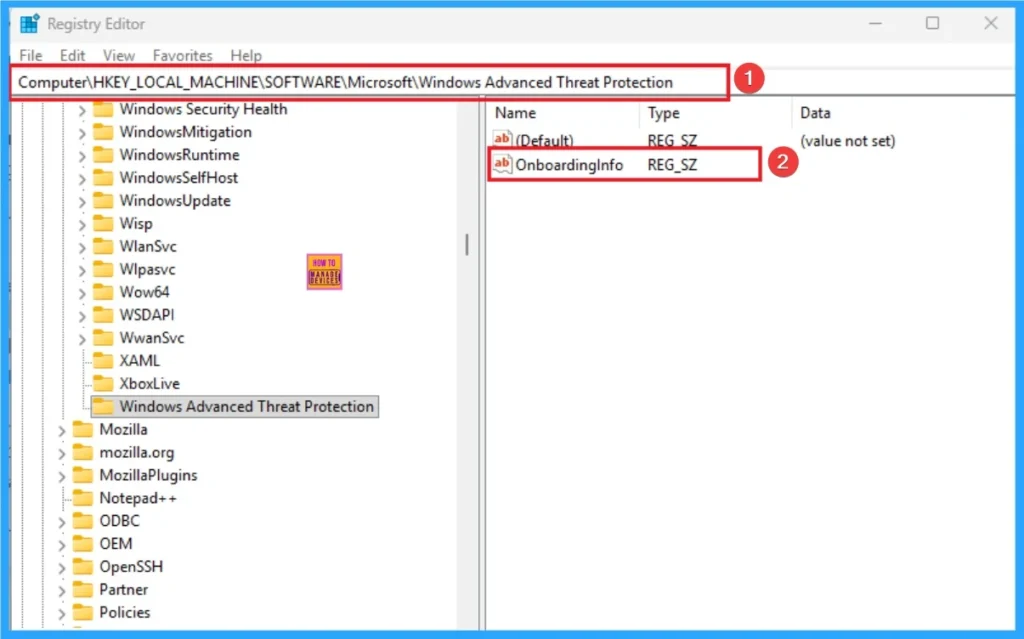
The device shows as compliant in Intune, but there are underlying issues: “Has a compliance policy assigned” warning. Create local admin user account” policy conflict. The below table shows the registry key used to check which states an OnboardingInfo value, indicating that a device has been onboarded to Microsoft Defender for Endpoint.
| Registry Key |
|---|
| HKLM\SOFTWARE\Policies\Microsoft\Windows Advanced Threat Protection |
- Retrieve macOS Microsoft Defender App ID Publisher and Last Modified Date using Intune Copilot Explorer
- 5 Methods to Enable or Disable Automatic Sample Submission for Microsoft Defender Antivirus in Windows Devices
- How to Install Microsoft Defender Browser Protection Extension using Intune PowerShell Script
After Effects of the Issue
Devices not showing in Defender mean missing telemetry no alerts, no threat detection, no automated response. Security teams may assume devices are protected when they’re not, leaving blind spots in endpoint protection. Conditional Access and other security policies relying on Defender signals may not trigger correctly.
Workarounds
You can follow severla troubleshooting methods to resolve this issue. You can try methods like Avoid using both onboarding methods, Try onboarding a new device, Run the MDE Connection Analyzer Tool.
- Avoid using both onboarding methods (script + EDR policy) simultaneouslythis may cause conflicts.
- Try onboarding a new device using only one method to isolate the issue.
- Run the MDE Connection Analyzer Tool – It helps to diagnose connectivity and onboarding problems.
- Create a custom compliance policy – It helps to bypass issues with the default policy.
Need Further Assistance or Have Technical Questions?
Join the LinkedIn Page and Telegram group to get the step-by-step guides and news updates. Join our Meetup Page to participate in User group meetings. Also, Join the WhatsApp Community to get the latest news on Microsoft Technologies. We are there on Reddit as well.
Author
Anoop C Nair has been Microsoft MVP for 10 consecutive years from 2015 onwards. He is a Workplace Solution Architect with more than 22+ years of experience in Workplace technologies. He is a Blogger, Speaker, and Local User Group Community leader. His primary focus is on Device Management technologies like SCCM and Intune. He writes about technologies like Intune, SCCM, Windows, Cloud PC, Windows, Entra, Microsoft Security, Career, etc.