
Today we are discussing the Enable Disable Domain Network Firewall using Intune Policy. A strong firewall is one of the most important protections for any device in an organization. It works like a security gate that checks every connection coming in or going out.
If the firewall is active and properly configured, it can stop unwanted traffic, block dangerous requests, and help prevent attackers from entering the system. Without this layer of protection, a device becomes open to risks, even if other security tools are in place. Security settings must be stable and consistent across all devices.
When these settings are weak, disabled, or changed locally by mistake, it creates chance in protection that attackers can easily exploit. That is why organizations rely on standard policies to make sure every device follows the same security rules. These policies help maintain a safe environment where all endpoints stay protected without depending on the user to configure anything.
If this setting is disabled, the firewall will not block any traffic at all. It will allow every connection, even if other detailed firewall rules exist. This makes the device completely exposed and removes one of the most important layers of defense. This setting also follows a rule that protects the organization.

Table of Contents
Enable Disable Domain Network Firewall using Intune Policy
For the organization, enabling this firewall control ensures that all devices follow a strict default security. Only trusted and approved connections are allowed, while everything else is blocked. This reduces the risk of attacks, prevents unauthorized access, and helps the business stay aligned with security frameworks like CIS Controls and Zero Trust.
- 4 New Intune Windows Firewall Logging Configuration Policies
- Ways to Allow an App through Windows Defender Firewall
- Check Firewall Policy Reports from Intune
Policy Creation
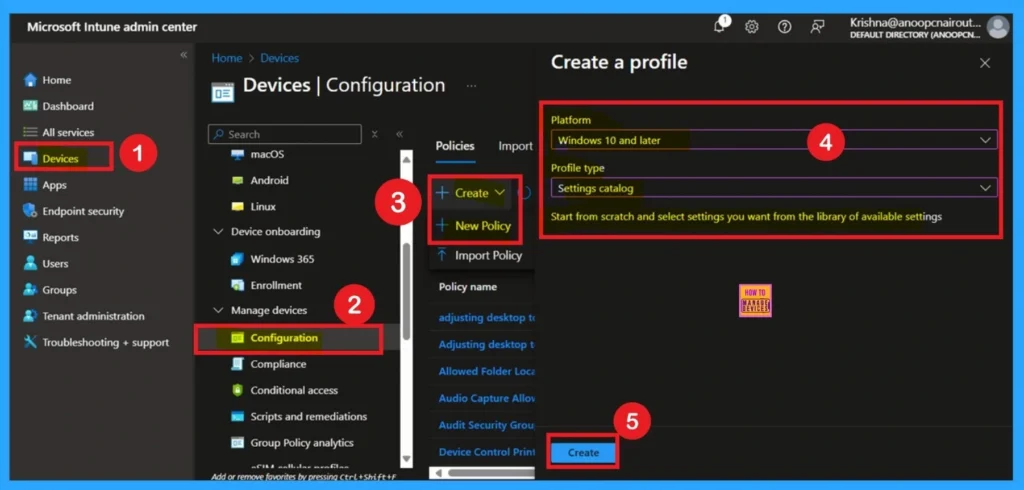
By sign in to Microsoft Intune Admin center you can easily configure Edge policy. Go to the Intune Admin Center portal. Go to Devices > Windows > Configuration > Create > New Policy. In this window, you can create the profile for this policy. For this, you have to select the platform and profile.
- Here, I choose Windows 10 and Later as Platform and Settings Catalog as Profile Type.
- Then click on the Next Create Button.
| Platform | Profile Type |
|---|---|
| Windows 10 and later | Setting Catalog |
Filling Basic Tab
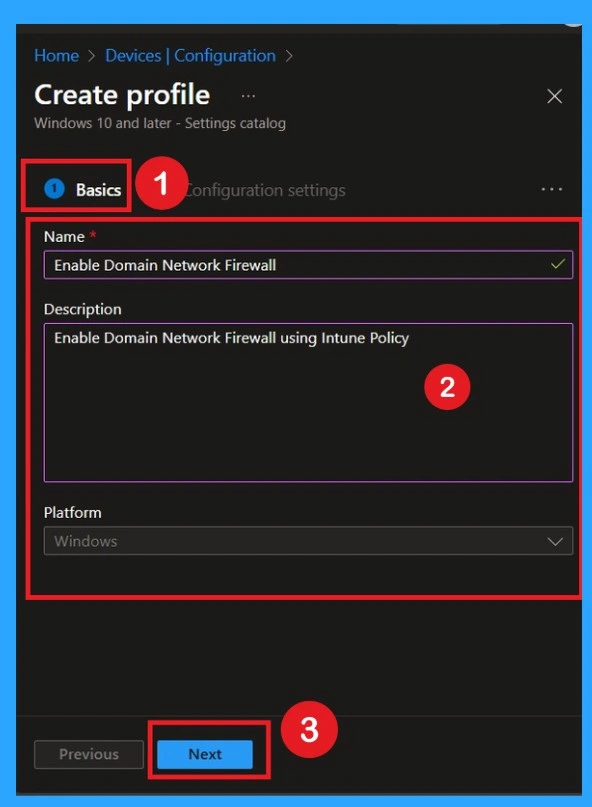
In the Basics section, you start by giving your policy a clear name and description so it’s easy to identify later. This helps your team understand what the policy does and why it’s being created. You also select the platform and profile type so that Intune knows which devices this firewall rule will apply to. Once the basic details are entered, you can move on to configuring the actual firewall setting.
Configuration Settings Tab for Selecting Settings
Under Configuration Settings, you set the firewall option that controls whether the Domain Network Firewall is enabled and how inbound traffic should be handled. This is where you configure the default action to Block so that any connection not matching an allowed rule is automatically denied. You simply pick the correct firewall category, choose the setting, and set it to Block.
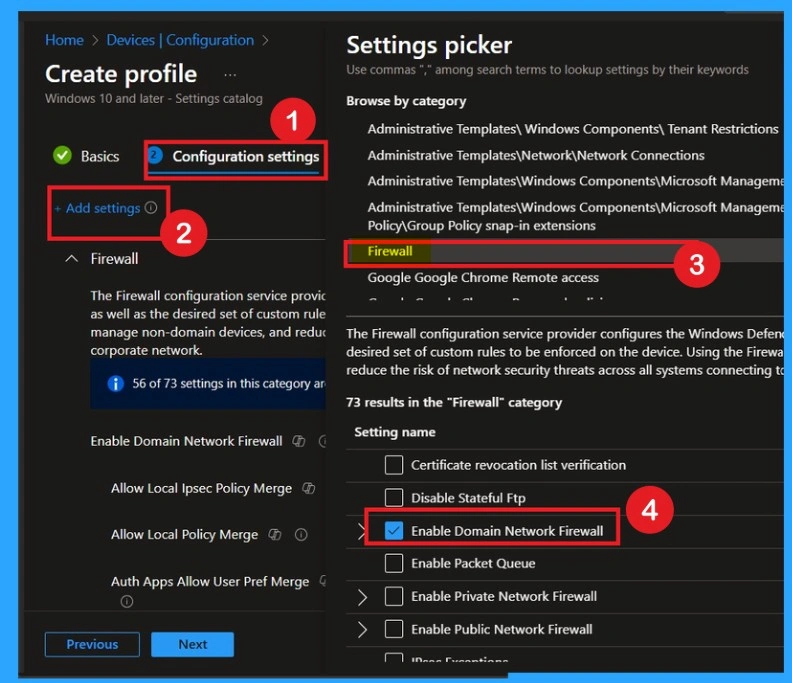
Enable Domain Network Firewall
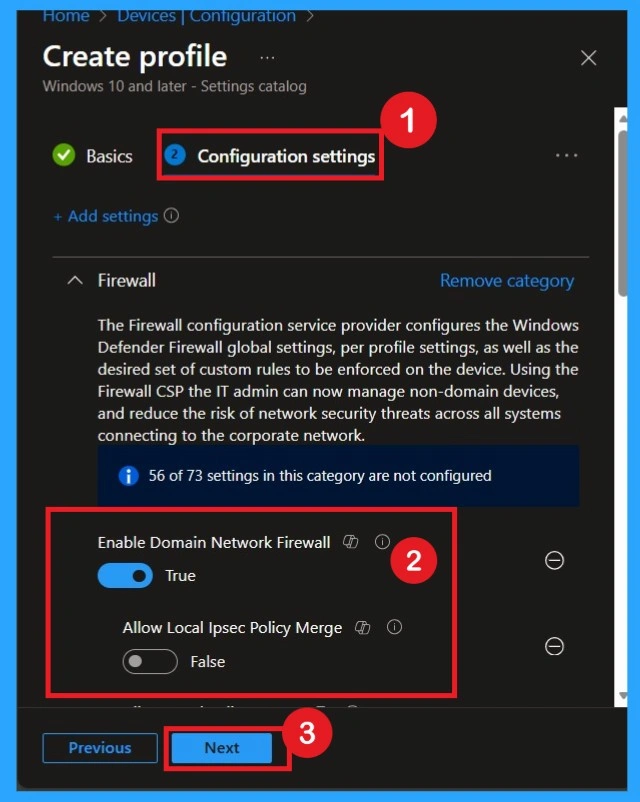
Enabling the Domain Network Firewall ensures that devices connected to the organization’s domain are protected by Windows Defender Firewall using security policies. By setting this option to True, you enforce consistent firewall behavior across all domain-joined devices, helping safeguard corporate resources from unauthorized access and reducing attack surfaces.
- Blocking “Allow Local IPsec Policy Merge” prevents local administrators from merging custom IPsec rules with centrally managed firewall policies, reducing the risk of unauthorized or insecure configurations.
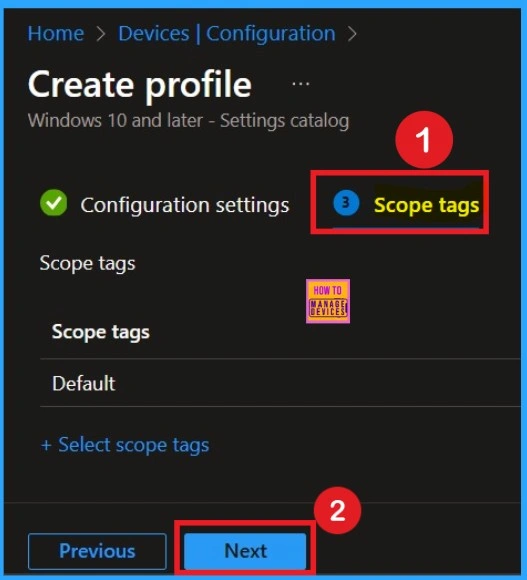
Adding Scope Tags
Scope Tags help you organize and control visibility of the policy within your administrative teams. Adding a scope tag allows only specific Intune admins or groups to view or manage this policy. This is useful in larger environments where different teams handle different sets of devices.
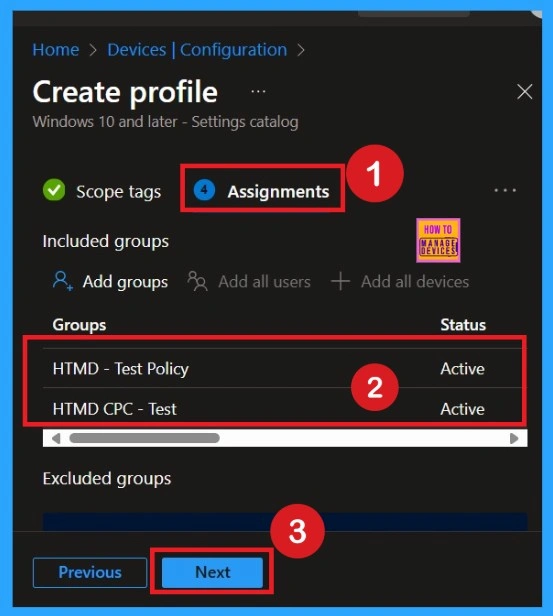
Selecting Group from the Assignment Tab
In the Assignments section, you select the user or device groups that should receive this firewall policy. You can target all devices or only specific groups, depending on your security requirement. Once assigned, any device in those groups will automatically get the firewall configuration and enforce the Block rule for traffic. This ensures consistent protection across the selected devices.
Review + Create Tab
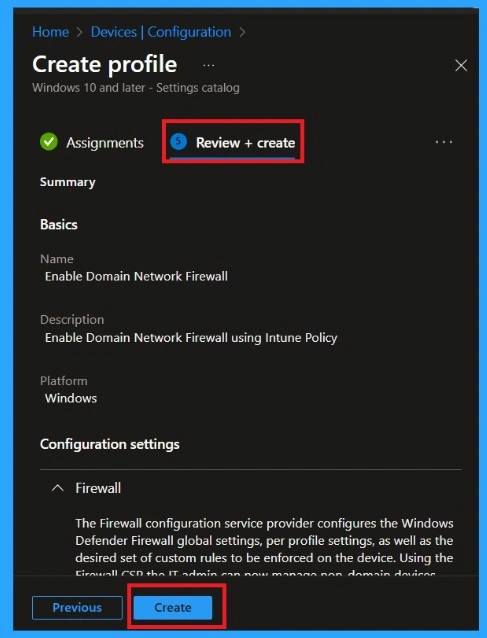
In the Review + Create step, you can check all your selections one final time before deploying the policy. This page gives you a summary of your settings, assignments, and configuration so you can make sure everything is correct. Once you confirm the details, click Create and the policy will be pushed to the assigned devices. Then you will get a policy succeeded notification.
Monitoring Status
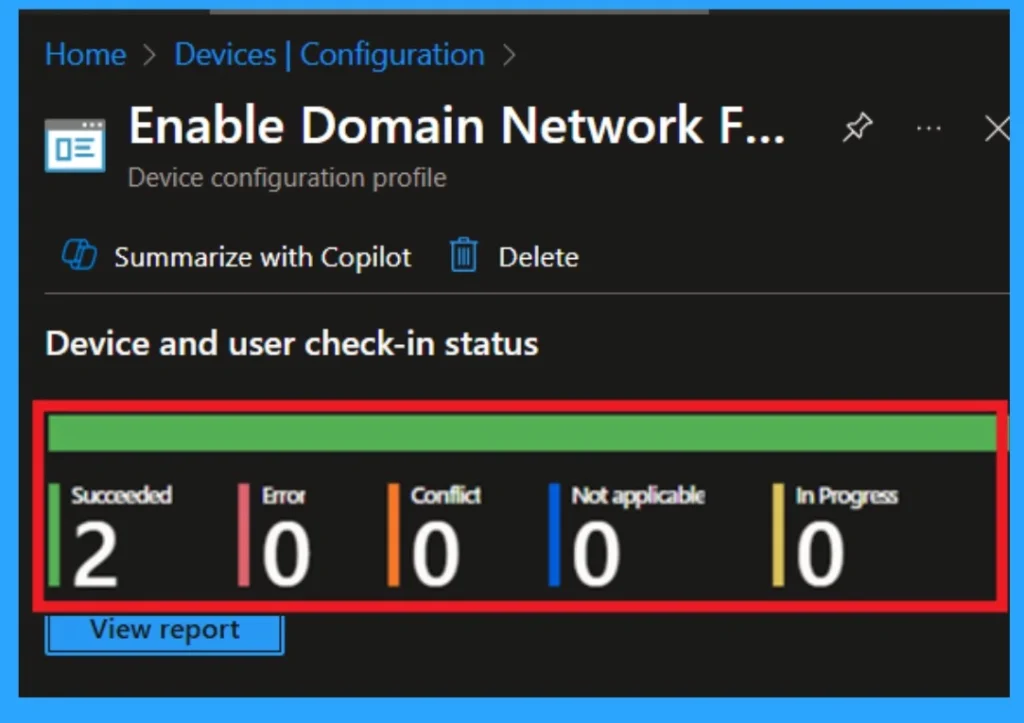
After the policy is deployed, you can go to the Monitoring section to check its status. This page shows whether devices successfully received the policy, if any errors occurred, and how many devices are compliant. Monitoring helps you ensure that the firewall settings are applied properly and remain enforced on all targeted devices.
End User Result
After the policy is applied, the end user will not see any special notification or pop-up. The settings are silently configured at the system level, meaning the firewall is turned on and begins blocking unwanted network traffic as defined by the organization.
Delete the Policy
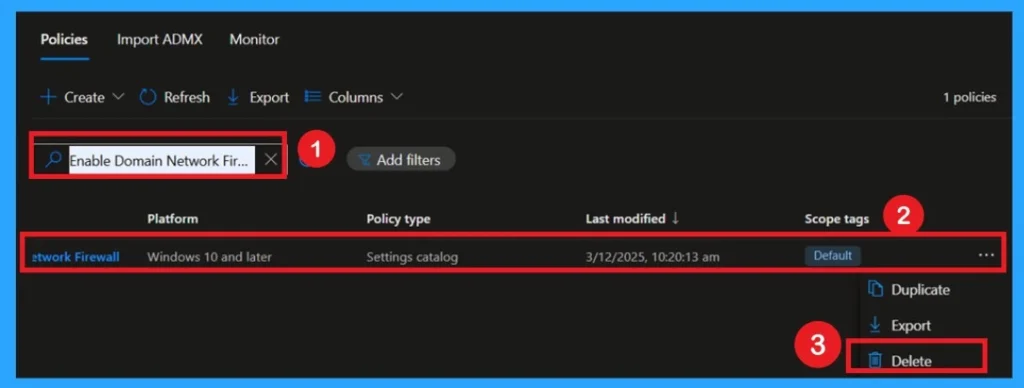
To delete a policy permanently, you start by searching for it on the main Policies page so you can quickly locate the policy. Once the policy appears in the list, select the 3-dot menu (…) next to it to open additional options. Clicking Delete will completely remove the policy from Intune.
Remove Domain Network Firewall Policy
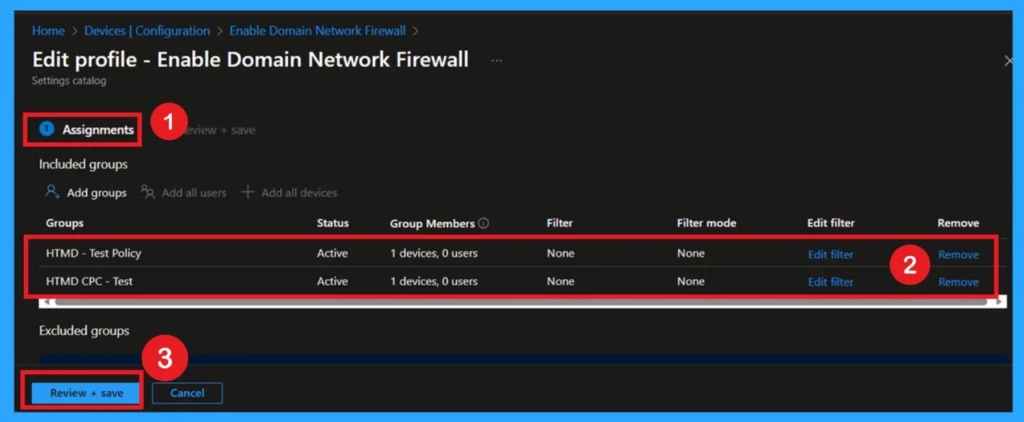
You can you remove the groups that are assigned to it. In the Assignments section of the policy, you can see the list of groups that are currently receiving the settings. By clicking the Remove option next to each group, you can remove the policy from all devices and users. Once all groups are removed, select Review + save to confirm the changes.
- After this, the policy will remain in Intune, but it will not apply to any device because it has no active assignments.
Need Further Assistance or Have Technical Questions?
Join the LinkedIn Page and Telegram group to get the step-by-step guides and news updates. Join our Meetup Page to participate in User group meetings. Also, Join the WhatsApp Community to get the latest news on Microsoft Technologies. We are there on Reddit as well.
Author
Anoop C Nair has been Microsoft MVP for 10 consecutive years from 2015 onwards. He is a Workplace Solution Architect with more than 22+ years of experience in Workplace technologies. He is a Blogger, Speaker, and Local User Group Community leader. His primary focus is on Device Management technologies like SCCM and Intune. He writes about technologies like Intune, SCCM, Windows, Cloud PC, Windows, Entra, Microsoft Security, Career, etc