

Key Takeaways
- Windows 365 Frontline supports two modes: Dedicated mode and Shared mode
- Windows 365 Frontline license is mandatory to provision Frontline Cloud PCs
- In Windows 365 Frontline Dedicated Mode, the Cloud PC automatically powers off when the user signs out and powers on again when the user reconnects.
- After a user signs out, the Cloud PC stays powered on for two hours
- If the user reconnects during this time, the connection speed is similar to a Windows 365 Enterprise Cloud PC.
Let’s check how we can create Windows 365 Frontline Dedicated Cloud PCs using Microsoft Intune. Windows 365 Frontline is designed to help organizations reduce costs by allowing multiple users to access Cloud PCs with a single license. Instead of assigning a Cloud PC to every individual user, the license can be shared among users based on how they work. Administrators can assign Frontline licenses to either Dedicated or Shared modes, depending on the organization’s requirements. Here am explaining about Frontline in Dedicated mode.
Table of Contents
What is Windows 365 Frontline in Dedicated Mode?
Windows 365 Frontline Dedicated Mode allows organizations to provision up to three Cloud PCs per license, each assigned to a specific user, but only one session can be active at a time. This model is ideal for shift-based, part-time, or distributed workers who need their own Cloud PC but don’t require continuous 24/7 access. The table below will provide you with more details about the Frontline concept.
| Feature | Explanation |
|---|---|
| License Usage | One Windows 365 Frontline license allows administrators to provision up to three Cloud PCs. |
| User Assignment | Each Cloud PC is assigned to a specific user, but they cannot be used at the same time. |
| Concurrent Sessions | Only one Cloud PC session can run at a time per license. |
| Purpose of Dedicated Mode | Designed for users who need their own dedicated Cloud PC, but don’t require access all the time. |
| Best Fit For | Ideal for organizations with flexible work environments and users who access Cloud PCs from different devices or locations. |
| Typical User Scenarios | Useful for shift workers, employees in different time zones, part-time staff, and temporary or contract workers. |
| Maximum Active Sessions | The number of active sessions equals the number of Frontline licenses purchased. |
| Example | If you buy 10 licenses, you can provision up to 30 Cloud PCs, but only 10 can be active simultaneously. |
| Session Management | Sessions are automatically managed. When a user signs out, another user can start using their Cloud PC. |
| Concurrency Buffer | A small buffer allows the active session limit to be exceeded occasionally for short periods during the day. |
- Easy Method to Deploy Windows Cloud Input Protection Driver Setup using Intune
- How to Configure Windows Cloud Keyboard Input Protection on Entra Joined Devices
- How to Set Up Windows 365 Cloud PCs with Autopilot Device Preparation
- Cloud PC Zero to Hero Journey DaaS solution Windows 365
Create a Windows 365 Cloud PC Provisioning Policy for Frontline Dedicated
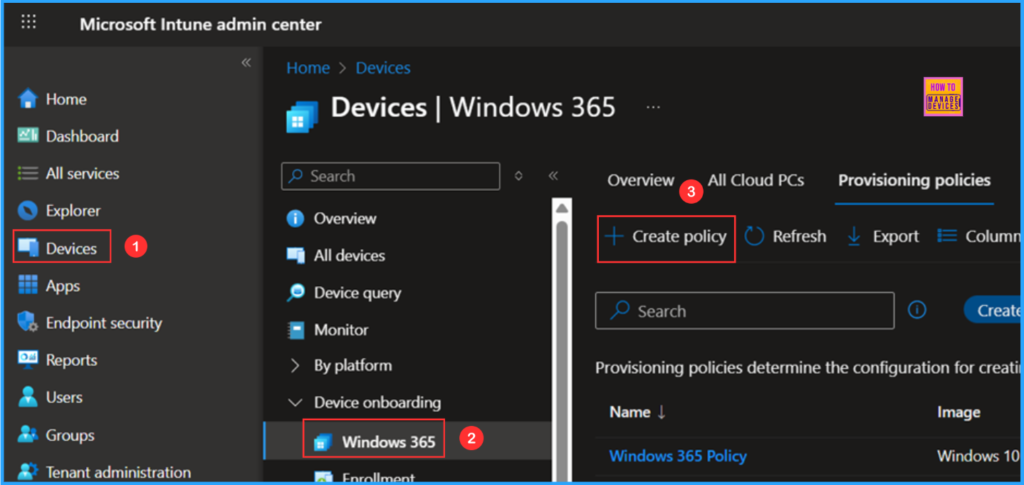
To create a Windows 365 Provisioning Policy for Frontline Dedicated Cloud PCs, log in to the Microsoft Intune Admin Center using your administrator credentials.
- Navigate to > Devices > Device onboarding > Windows 365
- Click on Provisioning policies > +Create policy
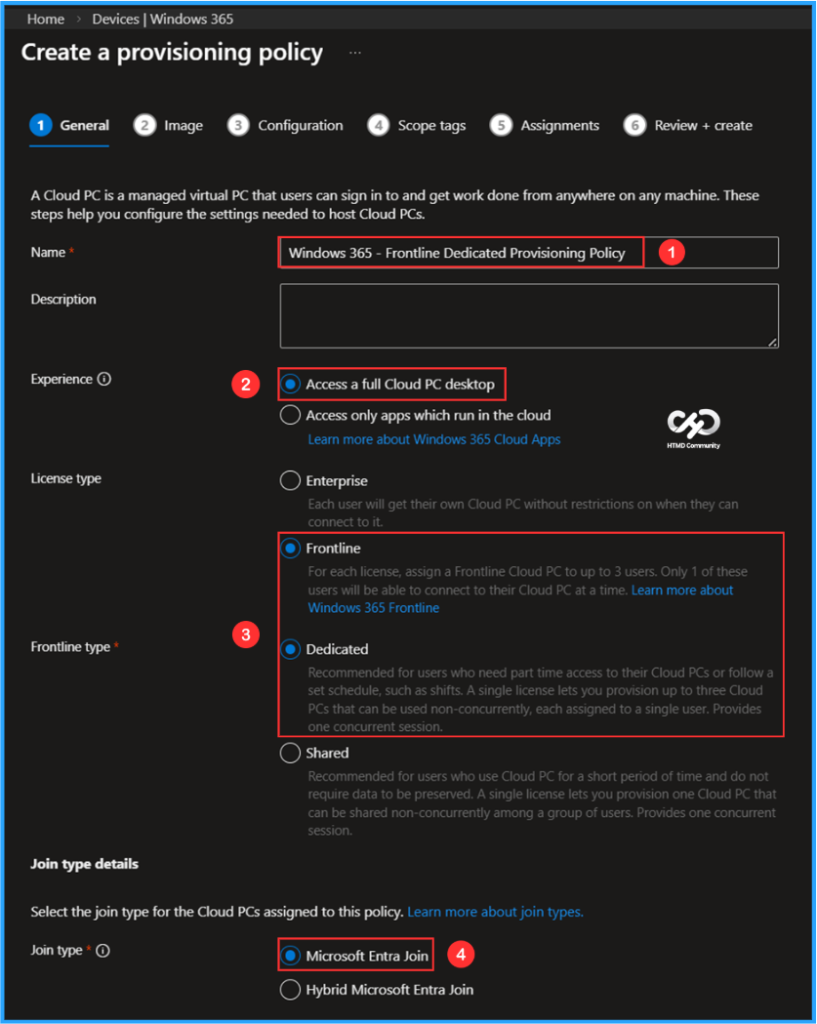
In the General tab, you can now add the following settings. Keep in mind A Cloud PC is a managed virtual PC that users can sign in to get work done from anywhere on any machine. These steps help you in configure the settings needed to host Cloud PCs.

- Name: Windows 365 – Frontline Dedicated Provisioning Policy
- Description: Optional
- Experience: Access a full Cloud PC desktop
- License type: Frontline
- Frontline type: Dedicated
- Join type: Microsoft Entra Join
- Network: Microsoft hosted network
- Geography: India
- Region groups/regions: India/Central India
- Use Microsoft Entra single sign-on: Yes (Check the box)
You can choose an existing image to create the session or create a new custom image if available. I will select the latest available Gallery image, which is Windows 11 Enterprise + Microsoft 365 Apps 25H2.

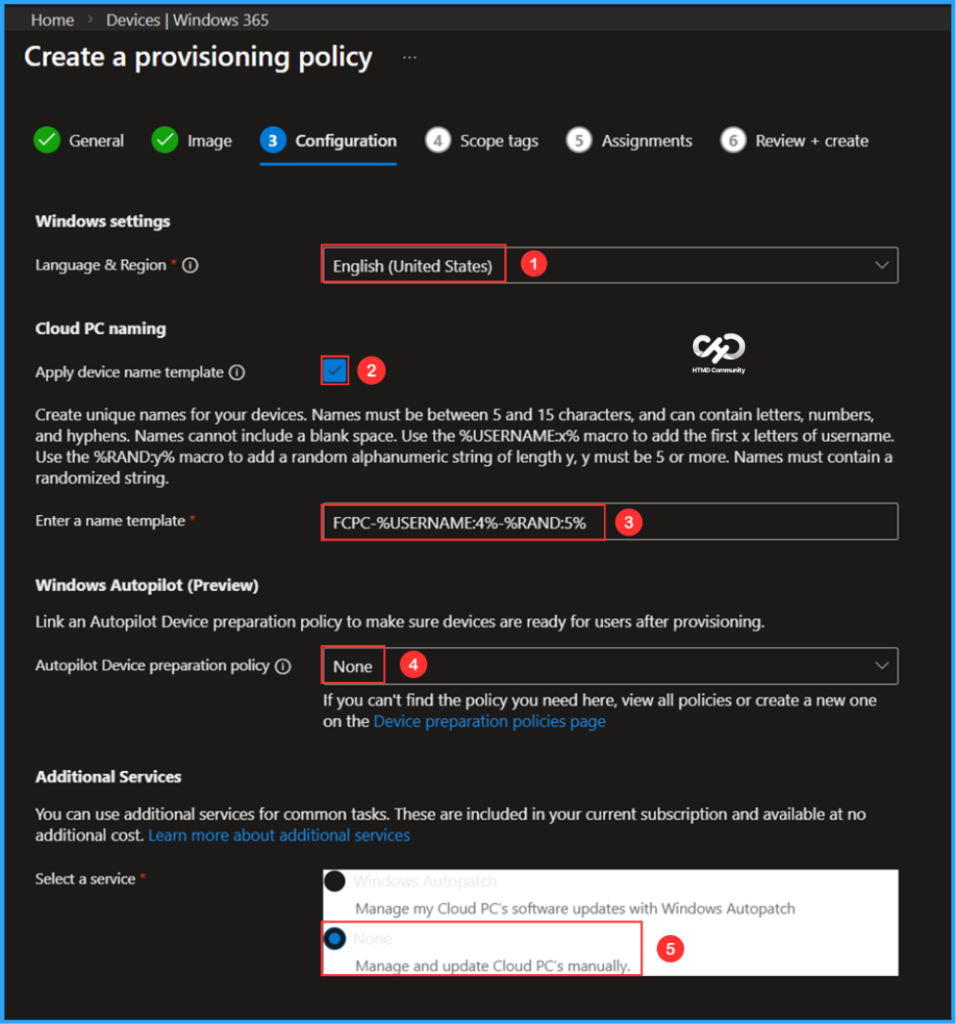
The next tab focuses on Windows settings, Cloud PC naming, Windows Autopilot (Preview) and Additional Services configuration. You can select the options listed below.
- Language & Region: English (United States)
- Apply device name template: Yes (Check the box)
- Enter a name template: FCPC-%USERNAME:4%-%RAND:5%
- Autopilot Device preparation policy: None
- Select a service: None
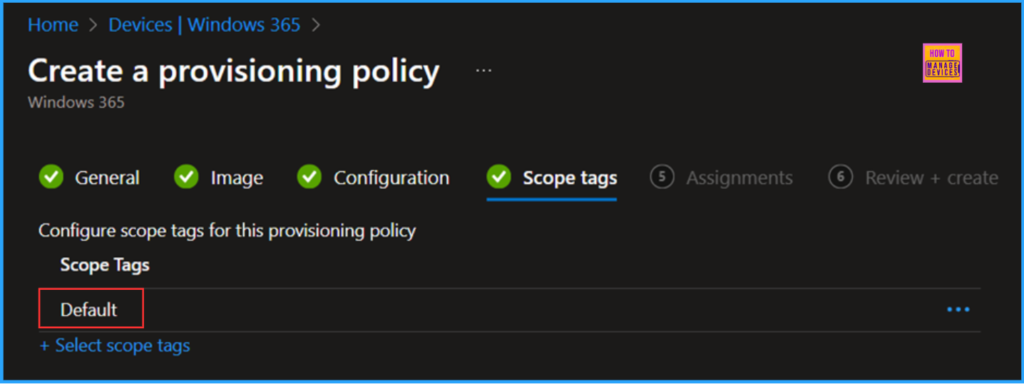
On the next page, keep the Scope tags set to Default. If your tenant has custom scope tags, select them based on your policy needs, and then click Next.
In this section, select the group that will receive Cloud PCs. I will assign the policy to the W365 – Frontline CPC Users group, which consists of three different users in my organization. To do this, click on Add groups and choose the appropriate user group. To set the Cloud PC size, click on the Select one hyperlink.

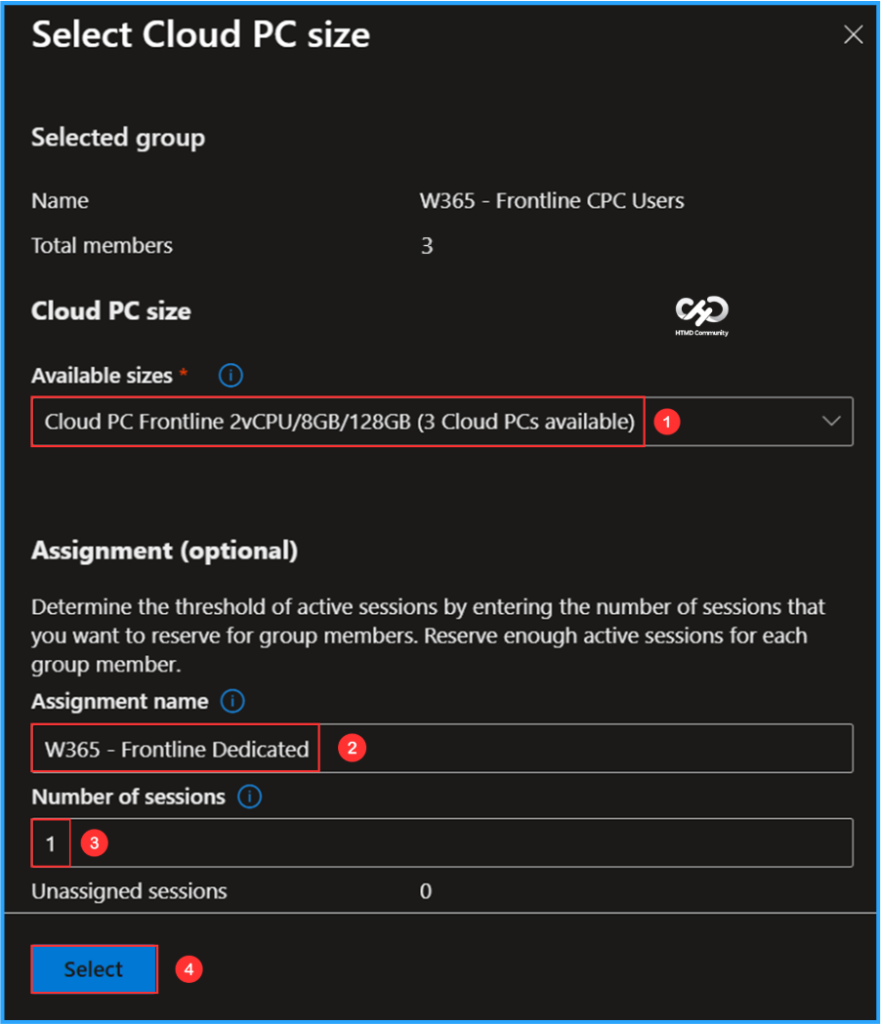
Now it will open the Select Cloud PC Size pane. Choose the Cloud PC size; you can find the available sizes in the drop-down menu based on your Windows 365 Frontline license. Here, I am selecting the following options.
Note: Determine the threshold of active sessions by entering the number of sessions that you want to reserve for group members. Reserve enough active sessions for each group member.
- Available sizes: Cloud PC Frontline 2vCPU/8GB/128GB (3 Cloud PCs available)
- Assignment name: W365 – Frontline Dedicated
- Number of sessions: 3
On the Review + create page, review all settings for the Windows 365 – Frontline Dedicated Provisioning Policy. After confirming, click Create to deploy the policy.
- How to Provision Windows 365 Cloud PC for an External Identity using Intune
- Ensuring Fast and Reliable Windows Device to Cloud PC Connections using Azure Front Door
- Best Guide to use PowerShell Scripts in Intune Enterprise Catalog App

Monitor the Windows 365 – Frontline Dedicated Provisioning Policy Deployment
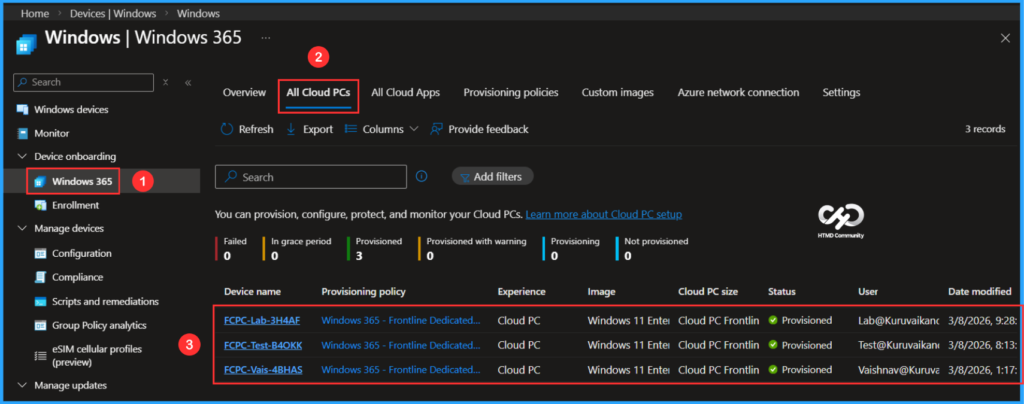
The newly created Windows 365 – Frontline Dedicated Provisioning Policy has been deployed to the W365 – Frontline CPC Users. Please allow some time, around 15-20 minutes, for the policy to provision Windows 365 Frontline Cloud PCs in dedicated mode. To monitor the status of the policy deployment, follow the steps outlined below in the Intune Portal.
- Navigate to Devices > Windows 365 > All Cloud PCs > Find the “Windows 365 – Frontline Dedicated Provisioning Policy”.
According to our configuration, three Frontline Cloud PCs with the device names FCPC-Vais-4BHAS, FCPC-Test-B4OKK and FCPC-Lab-3H4AF have been successfully provisioned and assigned to three different users in the targeted group.
End User Experience with Windows App
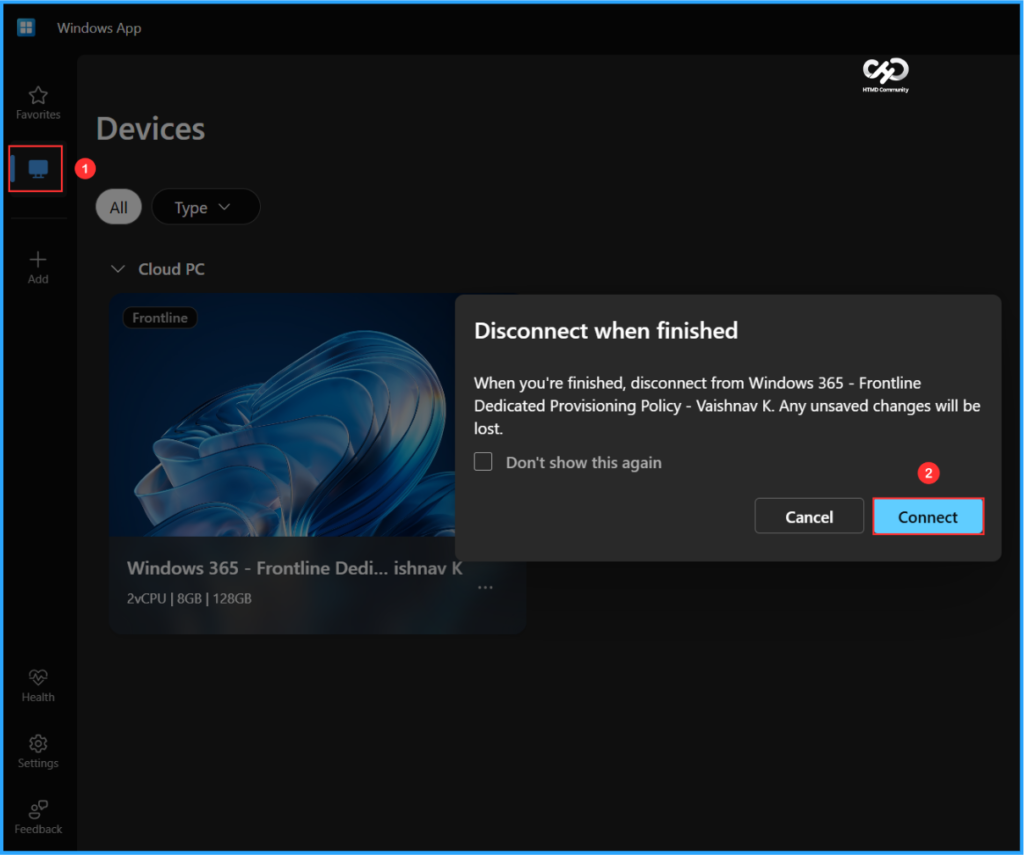
It’s time to evaluate the end-user experience of the newly provisioned Windows 365 Frontline Cloud PC in dedicated mode. Start by opening the Windows App and signing in using the credentials assigned to the Cloud PC user. In the left pane, click on Devices. The assigned Cloud PC should appear in the list. Double-click on the Frontline Cloud PC. You will receive a warning message stating, “When you’re finished, disconnect from Windows 365 – Frontline Dedicated Provisioning Policy – Vaishnav K. Any unsaved changes will be lost.” You can proceed by clicking on Connect to use it.
Need Further Assistance or Have Technical Questions?
Join the LinkedIn Page and Telegram group to get the latest step-by-step guides and news updates. Join our Meetup Page to participate in User group meetings. Also, join the WhatsApp Community to get the latest news on Microsoft Technologies. We are there on Reddit as well.
Author
Vaishnav K has over 12 years of experience in SCCM, Intune, Modern Device Management, and Automation Solutions. He writes and shares knowledge about Microsoft Intune, Windows 365, Azure, Entra, PowerShell Scripting, and Automation. Check out his profile on LinkedIn.