
Let’s discuss Prevent Installation of Devices using Drivers that Match these Device Setup Classes using Intune. This policy setting allows you to specify a list of device setup class globally unique identifiers (GUIDs) for driver packages that Windows is allowed to install.
This policy setting is intended to be used only when the “Apply layered order of evaluation for Allow and Prevent device installation policies across all device match criteria” policy setting is enabled, however it may also be used with the “Prevent installation of devices not described by other policy settings” policy setting for legacy policy definitions.
When this policy setting is enabled together with the “Apply layered order of evaluation for Allow and Prevent device installation policies across all device match criteria” policy setting, Windows is allowed to install or update driver packages whose device setup class GUIDs appear in the list you create, unless another policy setting at the same or higher layer in the hierarchy specifically prevents that installation.
Enabling the Policy Blocking Specific Device Classes. By blocking the USB Device setup class, users cannot plug in personal flash drives or external hard drives, which stops them from copying sensitive corporate data.

Table of Contents
Prevent Installation of Devices using Drivers that Match these Device Setup Classes using Intune
This policy is a critical component of Device Control and Data Loss Prevention (DLP) strategies. Alternatively, if this policy setting is enabled together with the “Prevent installation of devices not described by other policy settings” policy setting, Windows is allowed to install or update driver packages whose device setup class GUIDs appear in the list you create, unless another policy setting specifically prevents installation.
For example, the “Prevent installation of devices that match these device IDs” policy setting, the “Prevent installation of devices for these device classes” policy setting, the “Prevent installation of devices that match any of these device instance IDs” policy setting, or the “Prevent installation of removable devices” policy setting).
- How to Set Deadline for Automatic Installation of Quality Updates on Windows Devices using Intune
- How to Track Windows Security Patch Installation Details using Intune Inventory
- How to Stop Automatic Driver Installation in Windows11
Steps to Configure Installation of Devices using Drivers
You can start the policy creation of the Installation of Devices using Drivers Policy in Intune. Using simple steps, you can easily complete the policy creation. Open the Intune admin center. Go to Devices > Configuration > Policies> + Create > + New policy.
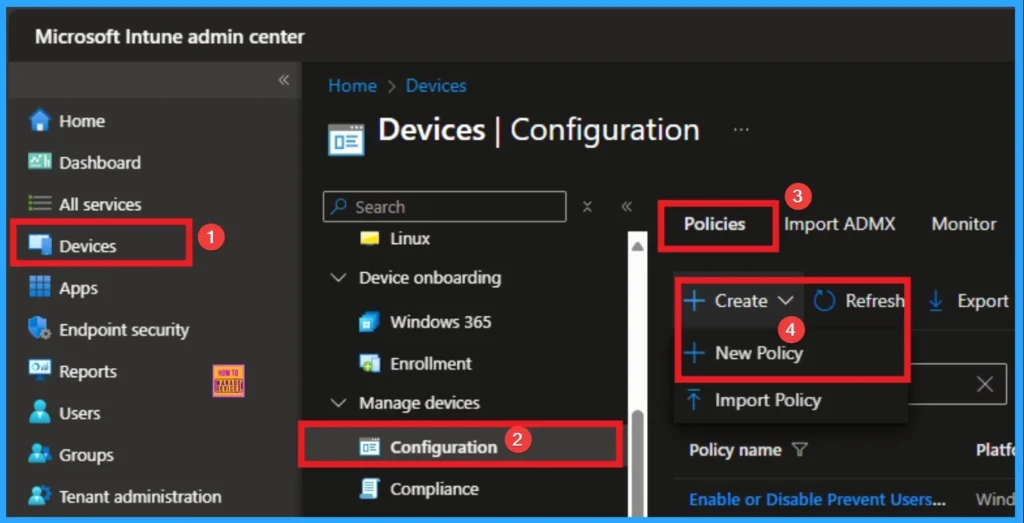
Profile Creation
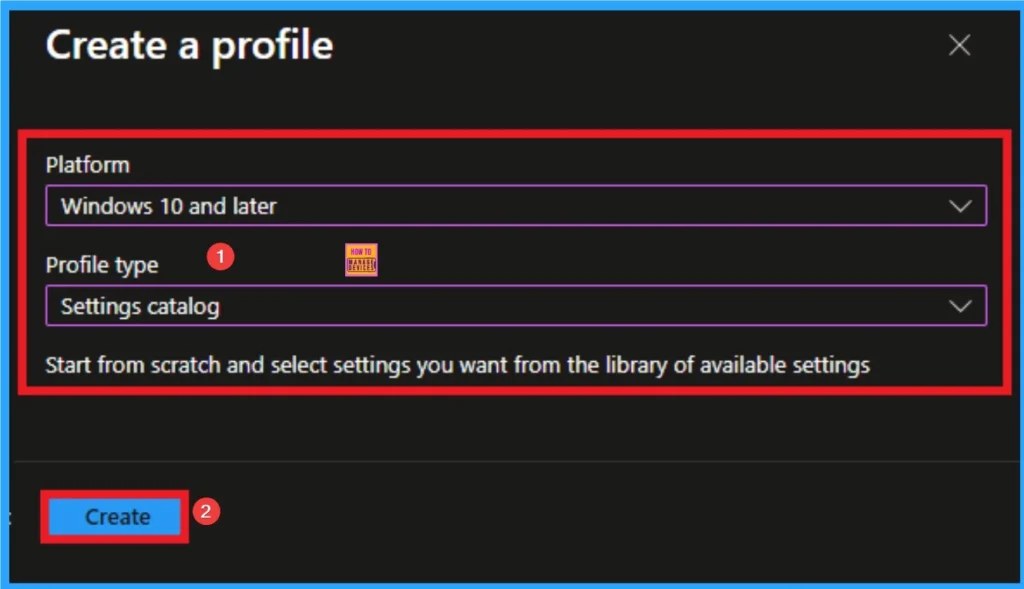
After that, you will get a profile window to select the platform and profile type. First of all, you select the platform, then you can select the profile type. Select Windows 10 and later as the platform, and select settings catalog as the profile type. Click on the create button.
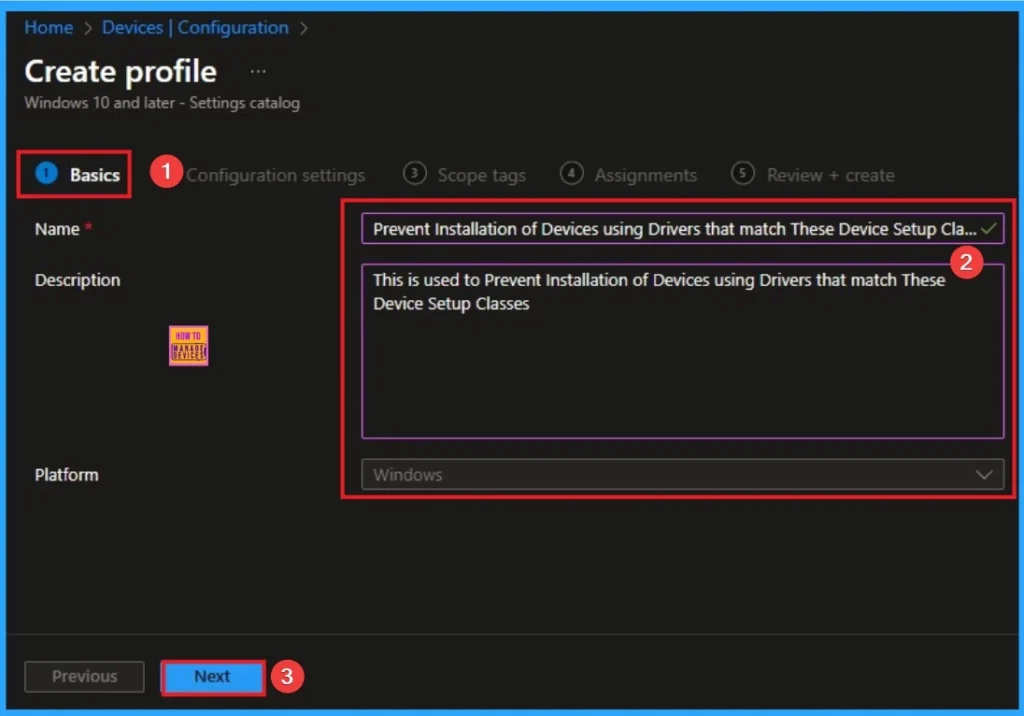
Basic Tab
The basic tab is starting step of policy creation. On this tab, you have to give a name for the policy that you want to create. The name field is mandatory. Without giving a name, you can’t create a policy on the basic tab. You can also describe the policy, which description is not compulsory. Click on the next button.
Configuration Settings
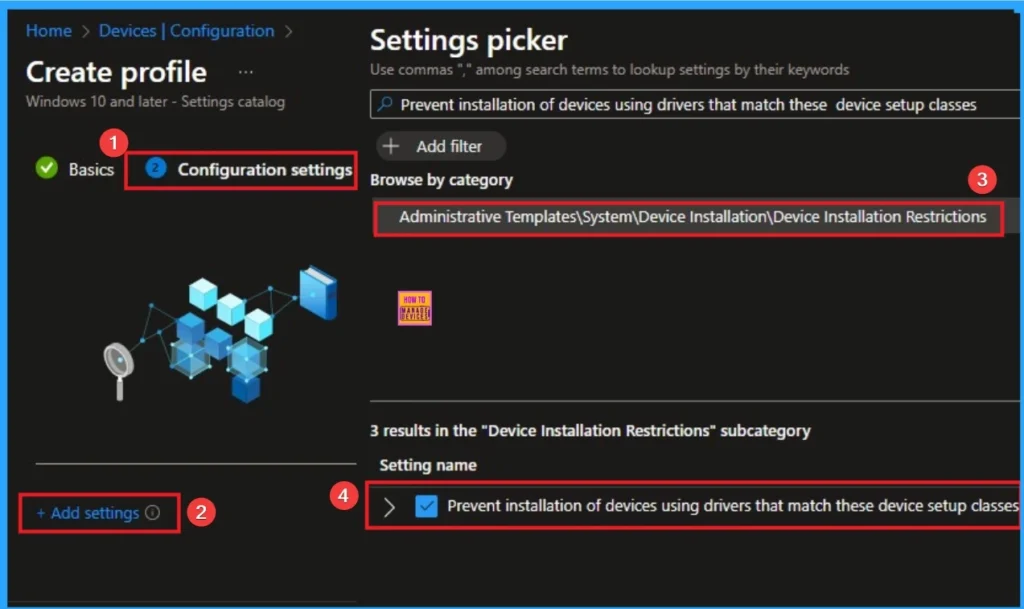
The configuration tab allows you to select specific policy settings to manage your organisation’s devices. On this page, we click on the + Add Settings hyperlink. Then you will get a settings picker that will show different types of categories to select specific settings. Here, I choose Administrative Templates\System\Device Installation\Device Installation Restrictions\Prevent installation of devices using drivers that match these device setup classes settings.
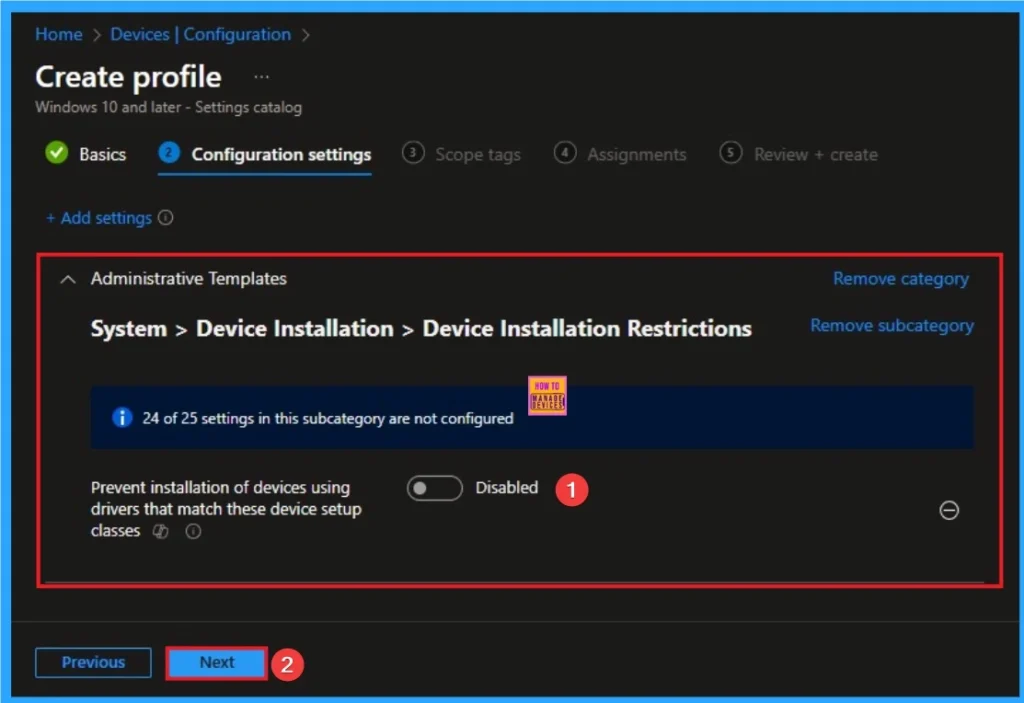
Disable Prevent Installation of Devices
If you disable or don’t configure this policy setting, and no other policy setting describes the device, the “Prevent installation of devices not described by other policy settings” policy setting determines whether the device can be installed.
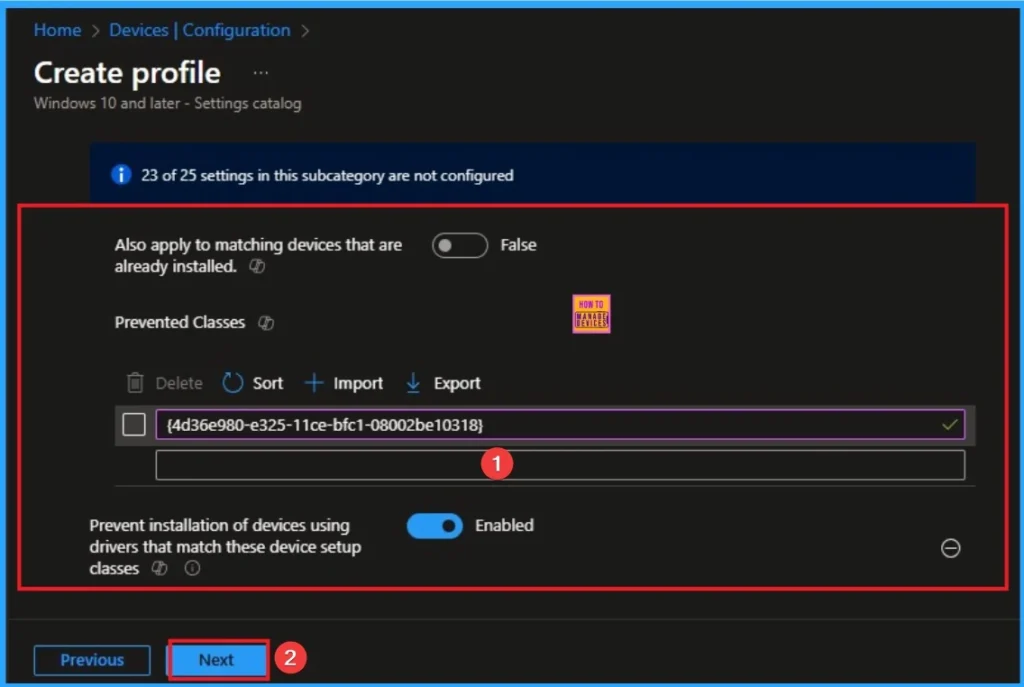
Enable Prevent Installation of Devices using Drivers
If you enable this policy setting on a remote desktop server, the policy setting affects redirection of the specified devices from a remote desktop client to the remote desktop server. To enable this policy, use Floppy Disks, ClassGUID = {4d36e980-e325-11ce-bfc1-08002be10318}.
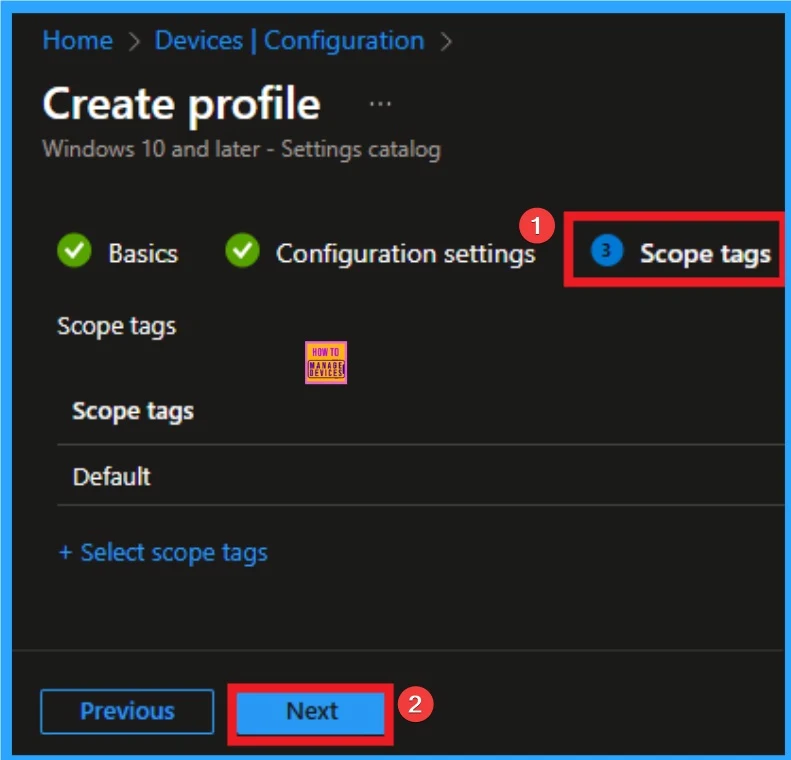
Scope Tags
The next section is the Scope tag and which is not a compulsory step. It helps to assign this policy to a defined group of users or devices. Here, I skip the section and click on the next button.
Assignments Tab
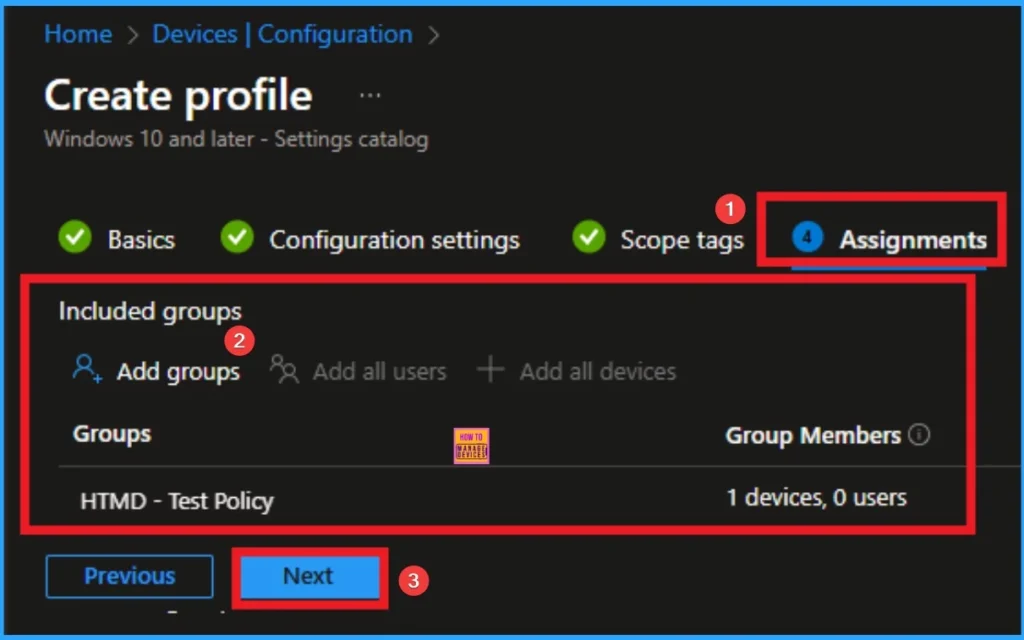
The assignments tab is the crucial step that determines which groups can be selected to assign the policy. Click on the +Add groups option under included groups. Select the group from the list of groups on your tenant.
Click on the Select button. And you can see the selected group on the Assignments tab. Click on the Next button in the window below.
Review + Create
The Review + Create tab is the last step of policy creation. On this tab, you can verify every detail of the policy which are added in the previous steps (basic configuration settings, scope tag assignments s etc). If you want to make any changes, click on the previous button; otherwise, you can click on the Create button.

Device Check-in Status
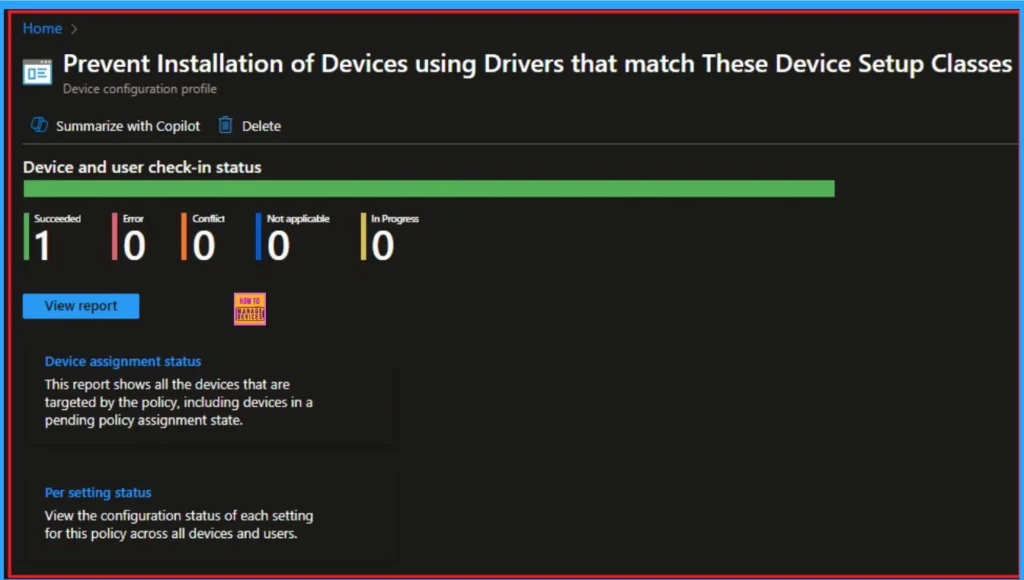
When the policy is created successfully, you can sync the device on the Company portal for faster deployment. After syncing is completed, you can check the status on the Intune Portal. Go to Devices > Configuration and search for the policy.
Client-Side Verification – Event Viewer
Event Viewer helps you to check if the policy succeeded or not. Event Viewer can be used as a client side verification. Here first go to the Event Viewer and check the Event ID that is usually in 813 or 814. Navigate to Applications and Services Logs > Microsoft > Windows > Device Management > Enterprise Diagnostic Provider > Admin.
| Event ID Details |
|---|
| MDM PolicyManager: Set policy string, Policy: (PreventInstallationOfMatchingDeviceSetupClasses), Area: (Devicelnstallation), EnrollmentID requesting merge: (EB427D85-802F-46D9-A3E2-D5B414587F63), Current User: (Device), String: (), Enrollment Type: (0x6), Scope: (0x0). |

How to Remove Installation of Devices using Drivers Policy
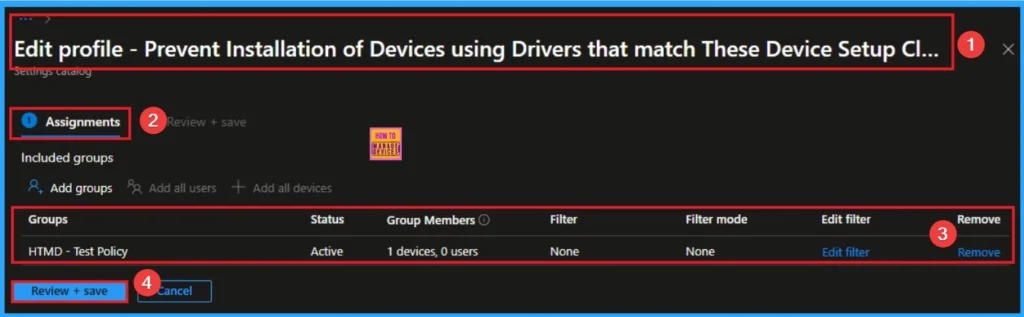
If you want to remove the Installation of Devices using Drivers policy on the Intune portal, it is a very easy process. To do this, open the policy from the Configuration tab., and click on the Edit button on the Assignment tab. Click on the Remove button on this section to remove the policy.
For more detailed information, you can check our previous post – Learn How to Delete or Remove App Assignment from Intune using by Step-by-Step Guide.
How to Delete Installation of Devices using Drivers
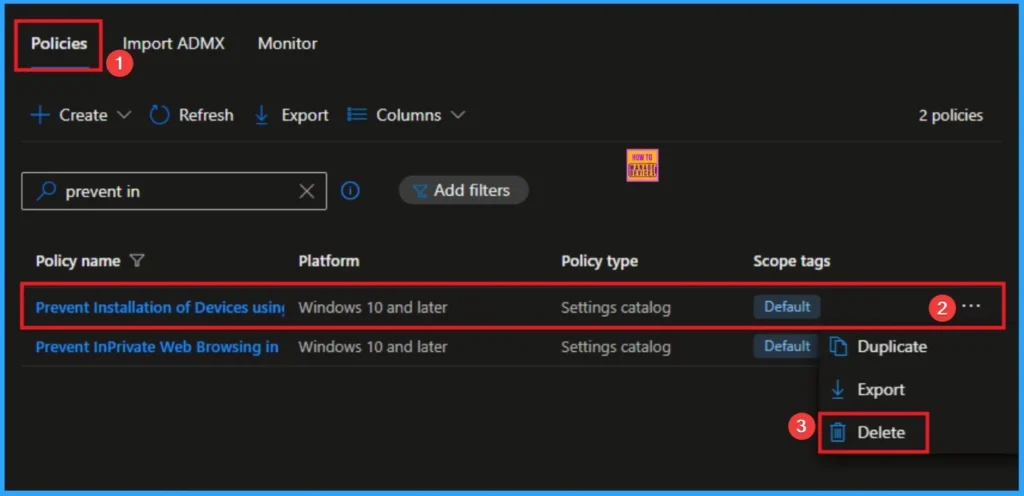
Intune allows you to easily delete a policy within the Intune Portal. Policy deletion is necessary in an organization due to different reasons. To delete the policy, click on the 3-dot option and then click on the Delete button.
For more information, you can refer to our previous post – How to Delete Allow Clipboard History Policy in Intune Step by Step Guide.
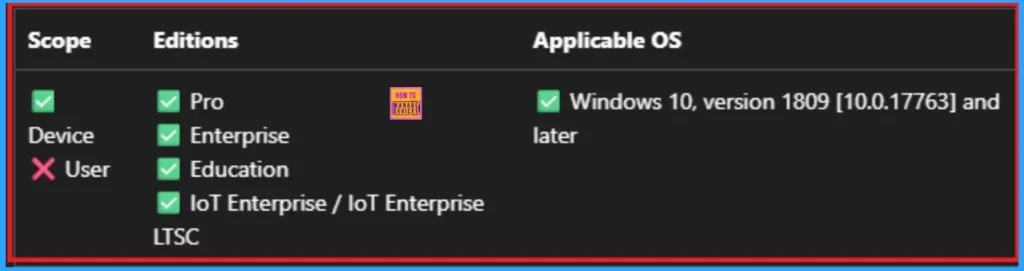
Windows CSP Details
The “Prevent installation of devices not described by other policy settings” policy setting has been replaced by the “Apply layered order of evaluation for Allow and Prevent device installation policies across all device match criteria” policy setting for supported target Windows 10 versions. It’s recommended that you use the “Apply layered order of evaluation for Allow and Prevent device installation policies across all device match criteria” policy setting when possible.
Need Further Assistance or Have Technical Questions?
Join the LinkedIn Page and Telegram group to get the step-by-step guides and news updates. Join our Meetup Page to participate in User group meetings. Also, Join the WhatsApp Community to get the latest news on Microsoft Technologies. We are there on Reddit as well.
Author
Anoop C Nair has been Microsoft MVP for 10 consecutive years from 2015 onwards. He is a Workplace Solution Architect with more than 22+ years of experience in Workplace technologies. He is a Blogger, Speaker, and Local User Group Community leader. His primary focus is on Device Management technologies like SCCM and Intune. He writes about technologies like Intune, SCCM, Windows, Cloud PC, Windows, Entra, Microsoft Security, Career, etc