
Today we are discussing How Activation Lock Protects Lost or Stolen iOS and iPadOS Devices using Intune Policy. Every company keeps important information like employee details, customer data, and business files on their devices. If this information is lost or stolen, it can cause big problems.
To prevent this, companies follow security rules from trusted groups like the Center for Internet Security (CIS). These rules help protect important data and make sure the company follows data protection laws. Without strong protection, this data can easily be seen or shared by the wrong people.
To stop this from happening, companies use special tools and settings to keep data safe. One important setting we are focusing on is the “Allow Activation Lock” feature for supervised Apple devices. This feature works with Apple’s Find My app to stop anyone from using a device if it gets lost or stolen.
When this setting is turned on, and if it is set to true, a supervised device automatically turns on Activation Lock when the user enables Find My. This feature is available for supervised devices with iOS 7 or later, and for macOS 10.15 or later. It

Table of Contents
How Activation Lock Protects Lost or Stolen iOS and iPadOS Devices using Intune Policy
This policy makes sure that even if a device is lost or stolen, it stays locked to the company and cannot be used again without the correct Apple ID. This feature helps IT administrators manage devices securely, as they can verify or enforce the setting in Microsoft Intune under MDM Options by enabling Activation Lock Allowed While Supervised.
- How to Configure Check for Signatures before Running Scan Policy using Intune
- How to Allow or Block Email Scanning using Intune Policy
- Allow or Disallow Scanning of Archives using Intune Policy
Create a Profile
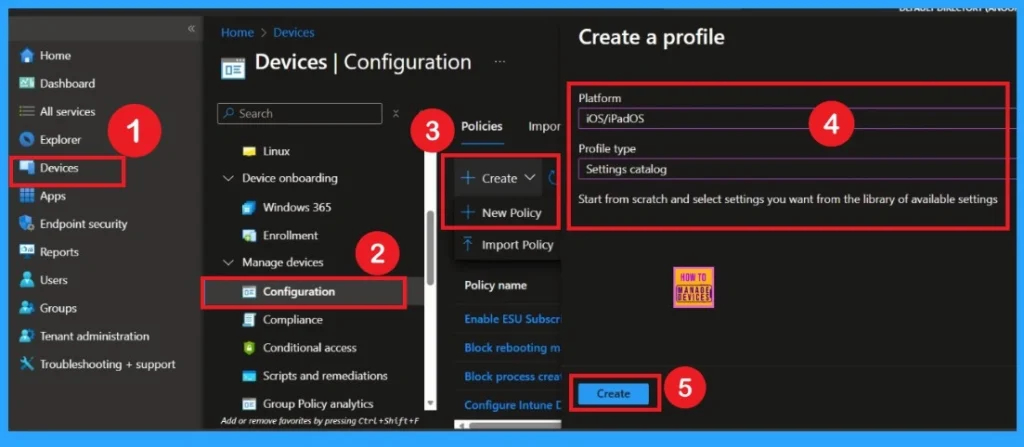
To deploy a policy for iOS or iPadOS devices, start by signing in to the Microsoft Intune admin center. Navigate to Devices and select Configuration profiles. Next, click Create profile to open the profile setup window. Under Platform, choose iOS/iPadOS, and for Profile type, select Settings catalog. Finally, click Create to begin configuring your new policy.
Know the Basic Steps
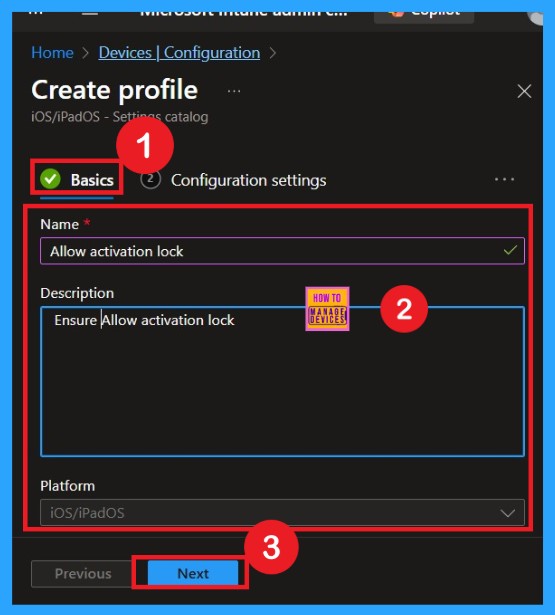
Once you proceed, you’ll be taken to the Basics tab. Here, enter a clear name and description for the policy to define its purpose. For instance, you might call it Allow activation lock Policy and add a description like Allow activation lock. Providing these details makes it easier to manage and identify the policy later. After completing this section, click Next to continue with the configuration process.
Configuration Settings
Next, you will be in the Configuration settings tab. In this section, click on Add settings to open the settings picker window. In the search bar, type activation lock or select the managed settings MDM Option from the list. Once you search for activation lock, you will find related policies now you can select them and close settings picker window.

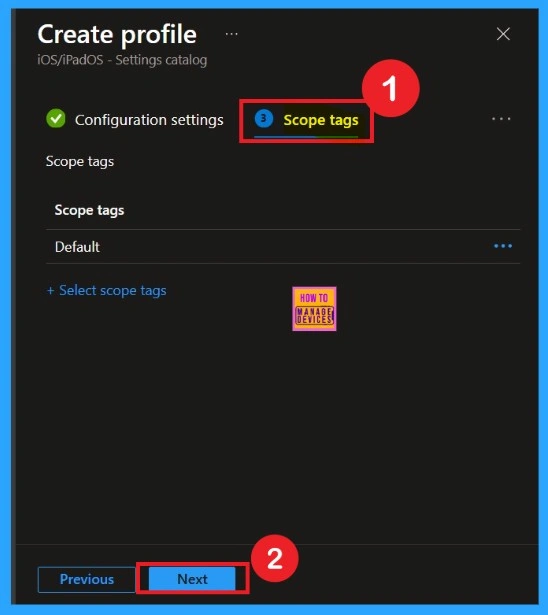
Know the Scope Tags
By using scope tags, you can give control to which admin can see and manage specific settings. This is not a mandatory setting, so you can skip this. Here I skip these settings and Click on the Next button to continue.
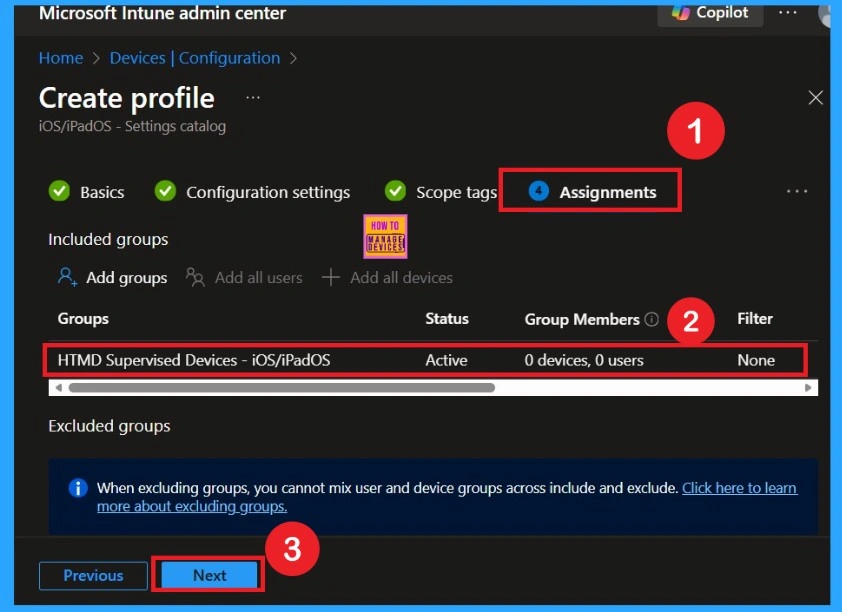
Assignments
To assign the policy to specific groups you can use Assignment Tab. Here I click, +Add groups option under Included groups. I choose a group from the list of groups and Click on the Select button. Again, I click on the Select button to continue.
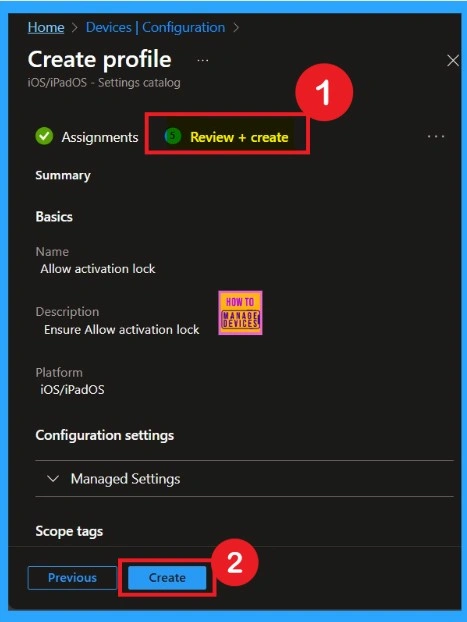
Review+ Create
After completing the Assignments step, you’ll arrive at the Review + Create page. This section allows you to verify all the details and settings you’ve configured. If everything appears accurate, click Create to finalize the process.
End Result of Enabling Activation Lock for iOS and iPadOS
After turning on the “Allow Activation Lock” policy in Microsoft Intune, all supervised iOS, iPadOS, and macOS devices are now better protected. When a user switches on Find My on the device, it automatically turns on Activation Lock. If the device is lost or stolen, no one can erase it or set it up again without the company’s permission.
By setting this policy to Yes (Enable) in Intune, the IT team can easily manage lost or stolen Apple devices, keeping them secure and safe. For End user, this feature can be found in the device Settings app under Apple ID > Find My > Find My iPhone or iPad. Once it is turned on, Activation Lock works in the background.
Need Further Assistance or Have Technical Questions?
Join the LinkedIn Page and Telegram group to get the latest step-by-step guides and news updates. Join our Meetup Page to participate in User group meetings. Also, Join the WhatsApp Community to get the latest news on Microsoft Technologies. We are there on Reddit as well.
Author
Anoop C Nair has been Microsoft MVP from 2015 onwards for 10 consecutive years! He is a Workplace Solution Architect with more than 22+ years of experience in Workplace technologies. He is also a Blogger, Speaker, and Local User Group Community leader. His primary focus is on Device Management technologies like SCCM and Intune. He writes about technologies like Intune, SCCM, Windows, Cloud PC, Windows, Entra, Microsoft Security, Career, etc