
Key Takeaways
- Prevents users from manually making network files available offline
- Helps protect sensitive corporate data
- Automatic caching of designated shares still works
- “Make Available Offline” is called Always Available Offline in newer systems
Let’s discuss how to Configure Prevent Users from Making Network Files Available Offline using Microsoft Intune. This policy, Prevent Users from Making Network Files Available Offline policy controls whether users can manually make network files and folders available for offline access. When this policy is enabled, users are restricted from selecting files or folders on network shares to store locally for offline use.
How to Configure Prevent Users from Making Network Files Available Offline using Microsoft Intune
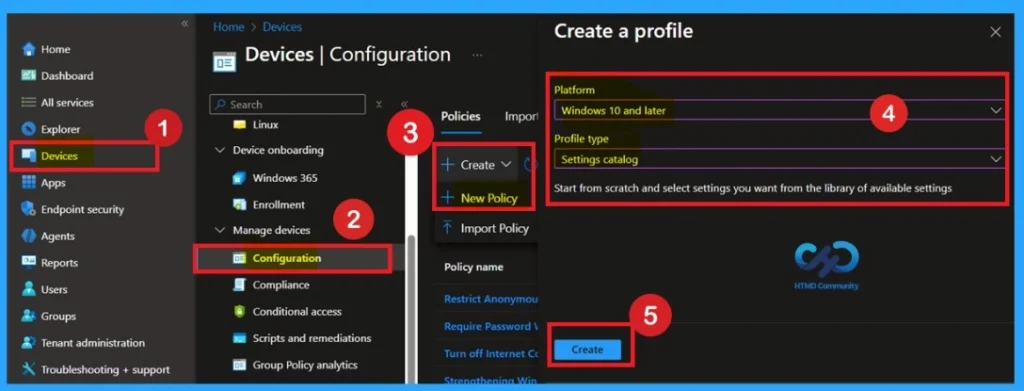
This helps organizations maintain control over data access and reduces the risk of sensitive data being stored on unmanaged or shared devices. To start policy creation, sign in to the Microsoft Intune admin center. Then go to Devices > Configuration > +Create >+ New Policy. Choosing Platform and Profile is the next step after selecting New policy. It is a very necessary step to effectively configure the policy to appropriate platform.
- Managing Network Visibility by Disabling User Access to Connection Status using Intune Policy
- Enable or Disable Microsoft Account Connection Policy using Intune
- Intune Allow Microsoft Accounts to be Optional Policy
What is a Basic Tab
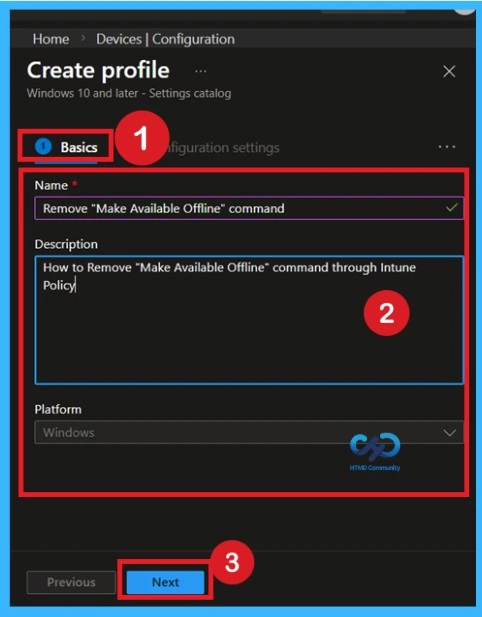
The Basics tab is the quickest step. Here, you need to enter the basic details such as the Name, Description, and Platform information. Since the platform is already set to Windows, you only need to provide a specific name and description for the policy, then click Next.
| Basic Details | Info |
|---|---|
| Name | Remove “Make Available Offline” command |
| Description | How to Remove “Make Available Offline” command through Intune Policy |
| Platform | Windows |
Configuration Settings – Settings Picker
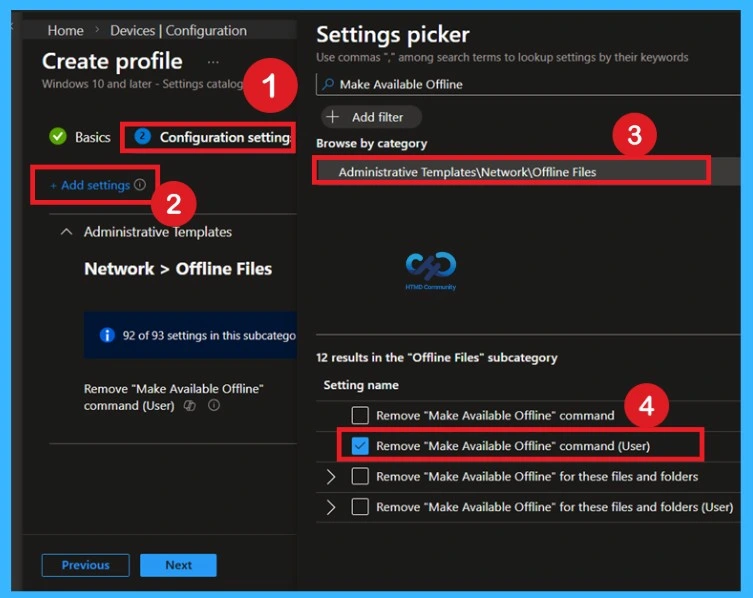
In the Configuration setting click on the + Add Settings then you will get the settings Picker window. In the Settings Picker window, search for the policy by typing “Make Available Offline” in the search bar to quickly locate the setting. If you prefer to navigate through the full path, go to: Administrative Templates > Network > Offline Files under Offline Files, you will find the policy named Remove “Make Available Offline” command Click on the policy to configure the setting.

- After selecting it, close the Settings Picker window to return to the configuration page.
Disabled State of the Settings
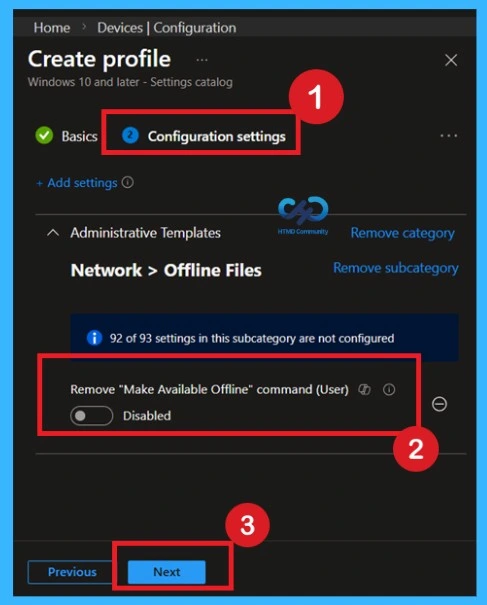
When you close the settings picker now you can see the setting in disabled state. If you want to continue with the selected settings, click on the Next option to proceed the section.
Activate the Policy Settings
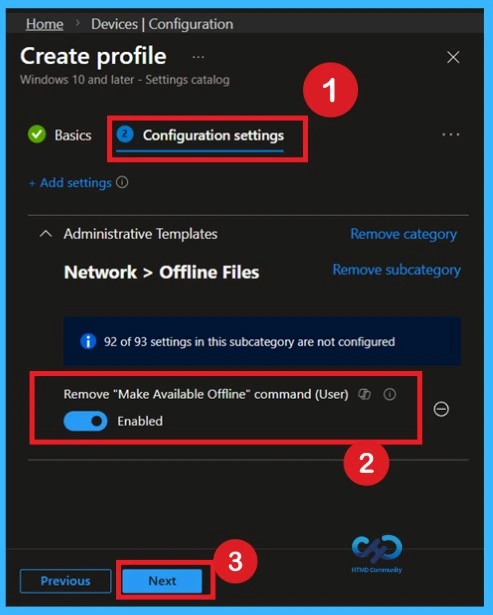
If you want to enable this policy, toggle the switch from left to right. Once enabled, the toggle button will turn blue, indicating that the policy is active. When this policy is Enabled, the “Make Available Offline” option is removed from the context menu. This prevents users from manually selecting network files or folders to be stored locally for offline access.
What are the Scope Tags
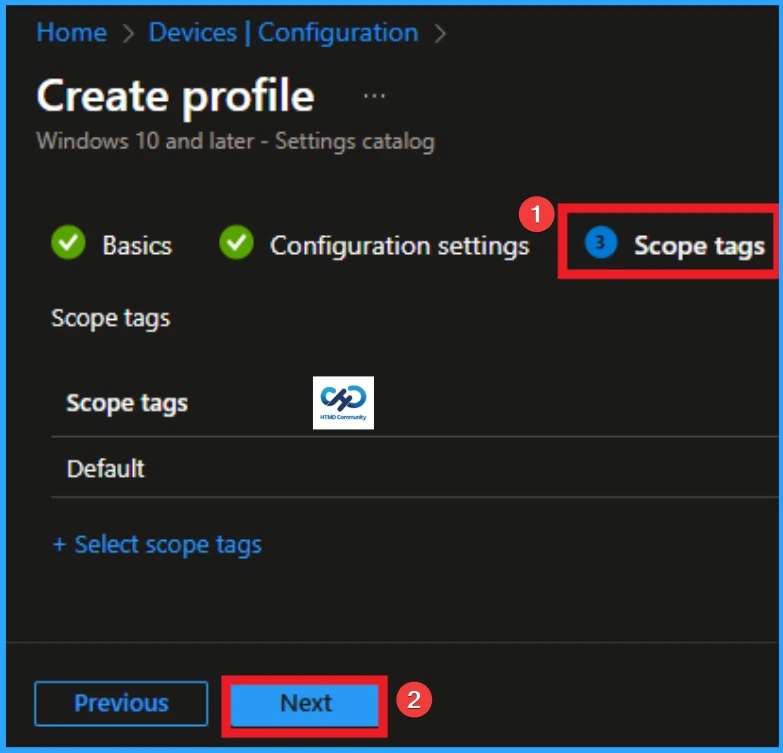
The next section is the scope tag, and which is not a compulsory step. Scope Tags are used in Intune to filter and control which IT admins can see and manage a policy. Here, I skip the section and click on the next button. If you want to add Scope tags, click on the +Select Scope tags option. Otherwise, you can continue.
Assignments
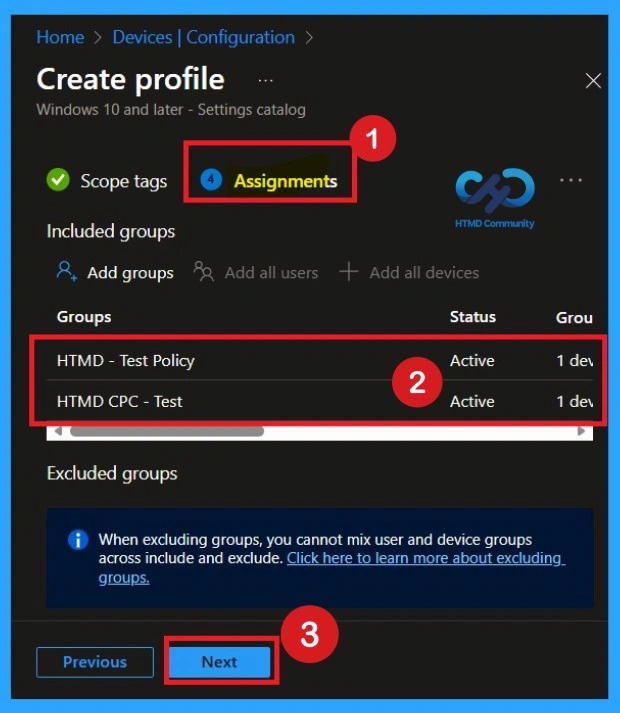
Assignments decide which devices receive the policy. Choose Included groups and select a test device group first to avoid issues. If you are assigning a policy to a specified group, the policy should be applied to the ad specific devices. So here I selected 2 groups that I needed If you want to add more it will possible. After the You can click on the next for the next step.
Final Step of Policy Creation
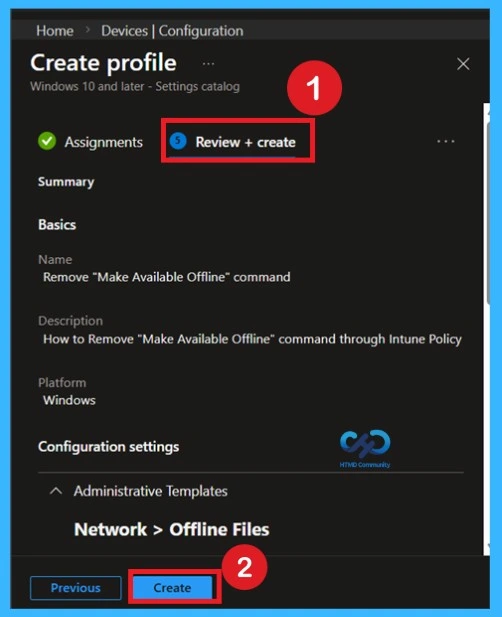
To complete the policy creation you can review all the policy details on the Review + create tab. It helps to avoid mistakes and successfully configure the policy. After verifying all the details click on the Create Button. After creating the policy you will get success message.
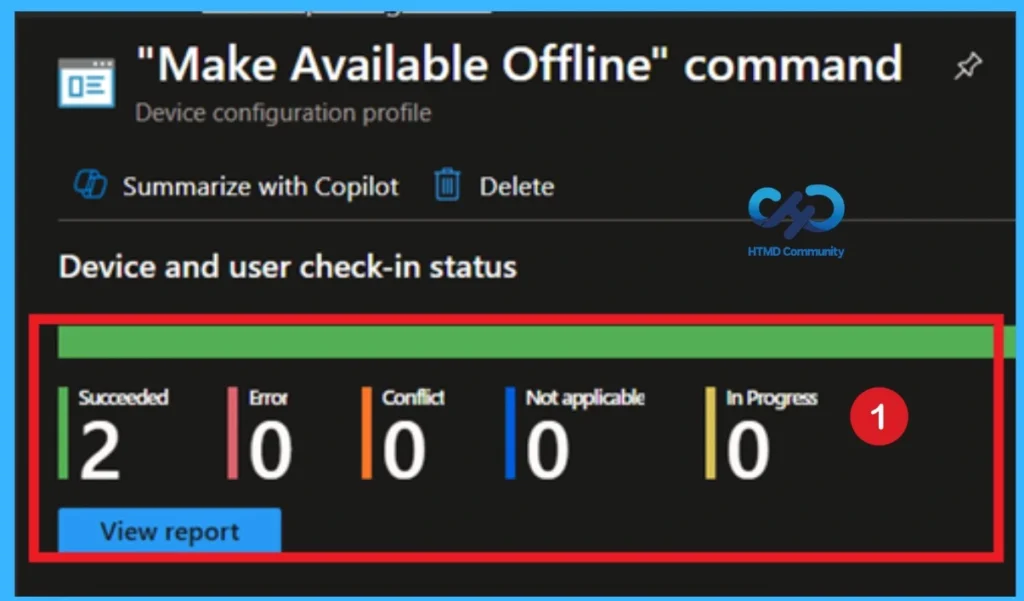
Conforming to the Policy Successfully or Not Through the Monitoring Status
After deployment, go to Devices > Configuration profiles and select this policy. Check Device status and User status to see whether it applied successfully. Devices should show a Succeeded status once the policy is active. Monitoring helps quickly identify any failed or pending devices. This step is important for compliance and troubleshooting.
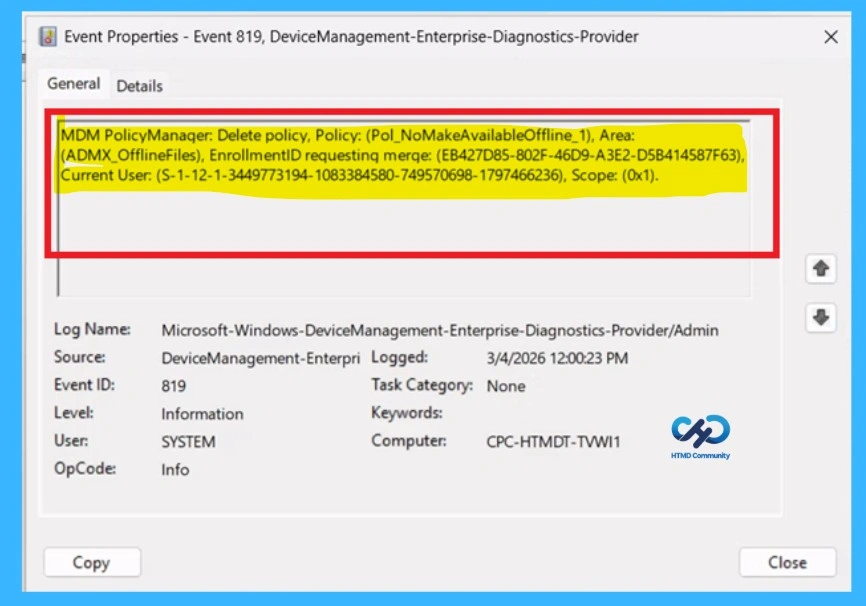
Event Viewer Results
To enable client-side verification, open Event Viewer and navigate to Applications and Services Logs > Microsoft > Windows > Device Management > Enterprise Diagnostic Provider > Admin. Once there, you can search for specific policy results by using the Filter Current Log feature located in the right pane. This helps quickly get the relevant results within the log.
- I get the Event Details from the Event ID 819.
| Policy Details |
|---|
| MDM PolicyManaqer: Delete policy, Policy: (Pol_NoMakeAvailableOffline_1), Area: (ADMX_OfflineFiles), EnrollmentID requestinq merqe: (EB427D85-802F-46D9-A3E2-D5B414587F63), Current User: (S-1-12-1-3449773194-1083384580-749570698-1797466236), Scope: (0x1). |
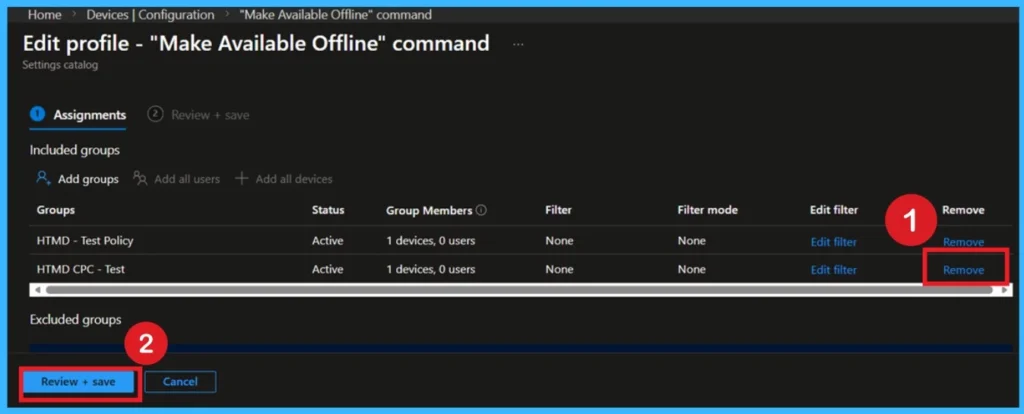
Removing the Assigned Group
If you want to remove the Assigned group from the policy, it is possible from Intune Portal. To do this, open the Policy in the Intune Portal, edit the Assignments tab, and Remove the Policy.
To get more detailed information, you can refer to our previous post – Learn How to Delete or Remove App Assignment from Intune using by Step-by-Step Guide.
Delete the Policy Permanantly from your Tenant
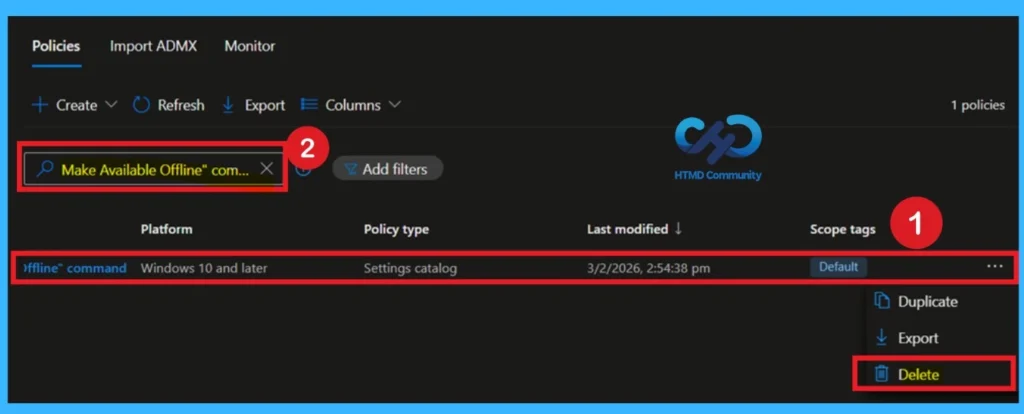
If you want to permanently delete a policy from deployment, you can do so easily. First, go to Device Configuration Profiles in Intune and search for the policy by its name. Once you locate the policy, click on the 3 dots (More options) next to it. You will see a list of options and select Delete.
For detailed information, you can refer to our previous post – How to Delete Allow Clipboard History Policy in Intune Step by Step Guide.
Need Further Assistance or Have Technical Questions?
Join the LinkedIn Page and Telegram group to get the latest step-by-step guides and news updates. Join our Meetup Page to participate in User group meetings. Also, Join the WhatsApp Community to get the latest news on Microsoft Technologies. We are there on Reddit as well.
Author
Anoop C Nair has been Microsoft MVP for 10 consecutive years from 2015 onwards. He is a Workplace Solution Architect with more than 22+ years of experience in Workplace technologies. He is a Blogger, Speaker, and Local User Group Community leader. His primary focus is on Device Management technologies like SCCM and Intune. He writes about technologies like Intune, SCCM, Windows, Cloud PC, Windows, Entra, Microsoft Security, Career, etc.