
Key Takeaways
- Introduction of Web UI for a more interactive and user-friendly experience
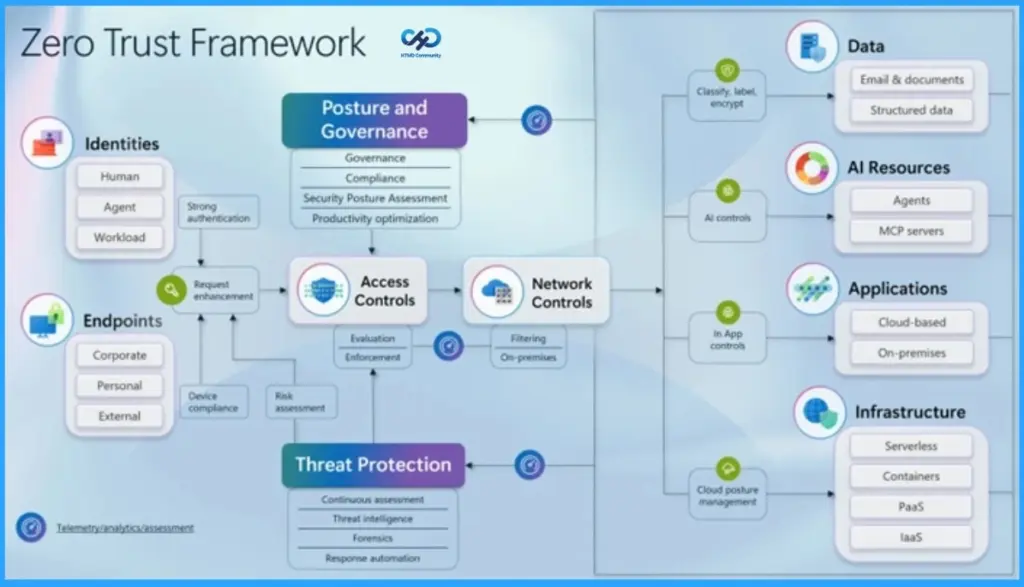
- Addition of the AI Pillar to align with modern security needs
- Enhanced productivity with keyboard navigation and autosave
- Improved usability through filters, shortcuts, and tooltips
- Ability to generate per-pillar reports for better insights
- Strong collaboration across Microsoft teams and community contributors
New Microsoft Zero Trust Workshop 3.0 now Enhanced with a Modern Web UI and New AI Pillar! Microsoft has introduced Zero Trust Workshop 3.0, now featuring a modern web-based interface and a new AI-focused pillar, making it easier to use and more interactive. Along with this, ZT Assessment 2.2 helps organizations evaluate and improve their security setup more effectively. Overall, these updates simplify the Zero Trust approach and make it more practical for real-world use.
Table of Content
Table of Contents
New Microsoft Zero Trust Workshop 3.0 now Enhanced with a Modern Web UI and the New AI Pillar
The new Web UI makes the workshop much easier to use by adding features. You can filter and focus only on the areas you are working on, use the keyboard to move around quickly without a mouse, and your work gets saved automatically. These changes help make the experience faster, simpler, and more convenient for everyone.
New Microsoft Zero Trust Workshop 3.0 is now enhanced with a modern web UI and a new AI pillar. This project was led and successfully launched by Tarek Dawoud, who played a key leadership role in driving the initiative forward and bringing all teams together to make it a success.
- Keyboard shortcuts help you quickly open documents and navigate easily
- Tooltips show useful information like licensing, effort, and user impact when you hover
- Reports allow you to generate insights for each pillar
- Provides better visibility into your progress
- Gives more control during the Zero Trust journey
- Reduces effort and makes decision-making easier
| Feature | Details |
|---|---|
| Filters | Show only the specific areas of each pillar you are currently working on |
| Keyboard Navigation + Autosave | Use keyboard to navigate easily and automatically save notes and status |
| Keyboard Shortcuts | Quickly open documents (e.g., Ctrl + Click to open in a new tab) |
| Mouse-over Tooltips | Hover to see details like licensing, effort, and user impact |
| Reports | Generate reports for each pillar in your workshop |
- 7 Effective Ways to Secure Data in Zero Trust with Microsoft Intune
- 7 Stages of Windows Zero Trust Lifecycle Management Helps Organizations Secure Update and Retire Devices Efficiently
- 6 Core Security Pillars of Windows 11 Chip-to-Cloud Protection
- Protecting Endpoints with Zero Trust Principles and Microsoft Intune Capabilities
- Easy Method to Deploy Windows Cloud Input Protection Driver Setup using Intune
Need Further Assistance or Have Technical Questions?
Join the LinkedIn Page and Telegram group to get the latest step-by-step guides and news updates. Join our Meetup Page to participate in User group meetings. Also, join the WhatsApp Community and the Whatsapp channel to get the latest news on Microsoft Technologies. We are there on Reddit as well.

Author
Anoop C Nair is a Workplace Technology solution architect with 25+ years of experience. Microsoft Certified Trainer. Microsoft MVP from 2015 onwards for consecutive 11+ years! He is a blogger, Speaker, and Founder of HTMD Community and HTMD Conference. His main focus is on Device Management technologies like Intune, Windows, and Cloud PC. He writes about technologies like Intune, SCCM, Windows, Cloud PC, Entra, and Microsoft Security.