
Key Takeaways
- Three-tier region selection provides flexible Cloud PC placement
- We can update the configuration for new policies and exciting policies also
- Automatic region selection improves resiliency
- The new Multi-Region Selection offers High availability
In this article I’ll explain how to update new multi-region selection in Windows 365 using Intune. Since Ignite, Microsoft introduced enhanced Microsoft-hosted network resiliency for Windows 365 Cloud PCs with multi-region support. This update brings a new three-tier region selection experience and an improved deployment service that intelligently spreads Cloud PCs across the maximum number of available regions to increase resiliency.
Table of Content
Table of Contents
New Three Tiers Concept of Multi-Region Selection
With automatic region selection as a core Windows 365 capability, admins now have greater flexibility and control over Cloud PC placement. Starting December 2025, these enhancements will further strengthen reliability while simplifying regional management.
The table below provides a clear overview of the new three-tier region selection model, explaining how each tier works and how it helps administrators balance resiliency, availability, and data sovereignty when provisioning Cloud PCs.
| Three Tiers | Description |
|---|---|
| Geography level (Recommended) | By default, this option selects all region groups and regions within a chosen geography, delivering the highest level of resiliency. It allows new Cloud PCs to be automatically placed across the maximum number of available regions – for example, selecting Europe distributes Cloud PCs across all Azure regions in Europe. |
| Region group level (new addition) | A region group usually represents a defined geographic boundary, such as US East or US West. Choosing this level helps meet data sovereignty requirements while still providing strong resiliency by spreading Cloud PCs across all regions within that region group. For example, to provision Cloud PCs within the Japan boundary, you would select the Japan region group. |
| Region level | This option restricts provisioning to a specific Azure region that you choose. For example, selecting Germany West Central ensures Cloud PCs are hosted only in that region. You can also choose multiple individual regions, such as France Central and Germany West Central, to balance compliance and resiliency—whether your priority is data sovereignty or higher availability. |
- How to Configure New Windows App Settings for Windows 365 using Intune
- Explore the Windows 365 Cloud PC Overview Reports in Intune
- Seamless Provisioning of Windows 365 Cloud PCs for External Identities with Intune
- Cloud PC Zero to Hero Journey DaaS solution Windows 365
How to Edit a Provisioning Policy to Update Multi-Region
To update multi-region option for an exciting provisioning policy for Windows 365, log in to the Microsoft Intune Admin Center using your administrator credentials.

- Navigate to > Devices > Device onboarding > Windows 365
- Click on Provisioning policies > Locate the Provisioning Policy that has to update the multi-region.
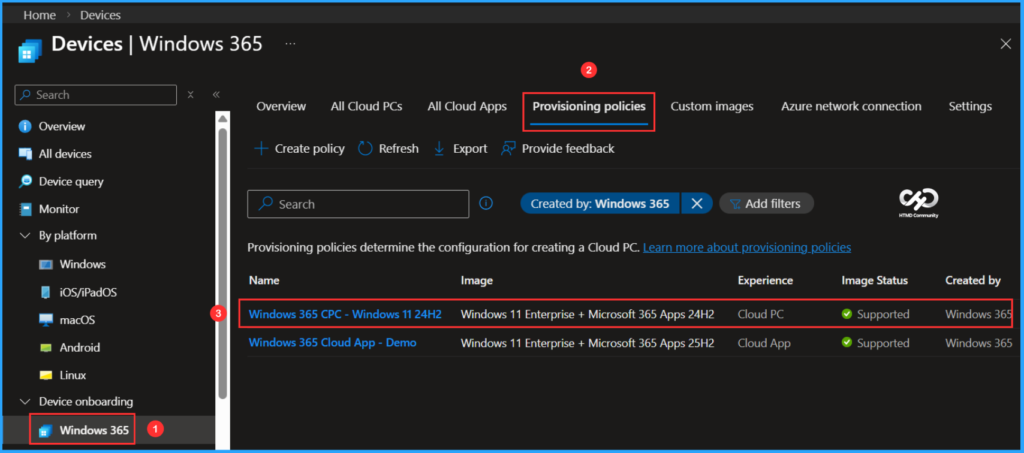
In my case, I will open the Windows 365 CPC – Windows 11 24H2 provisioning policy. We can see that the selected image is Windows 11 Enterprise + Microsoft 365 Apps 24H2. The current general configurations are as follows.
- Region groups/regions – South Korea & Korea Central respectively
- Auto select new region groups – No
- Auto select new regions – No
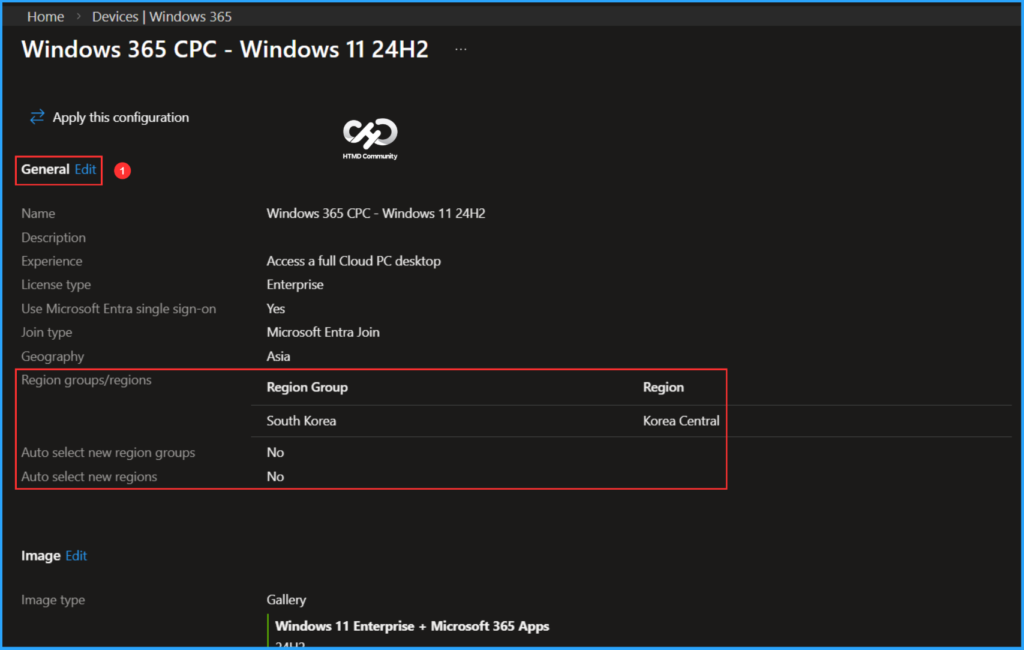
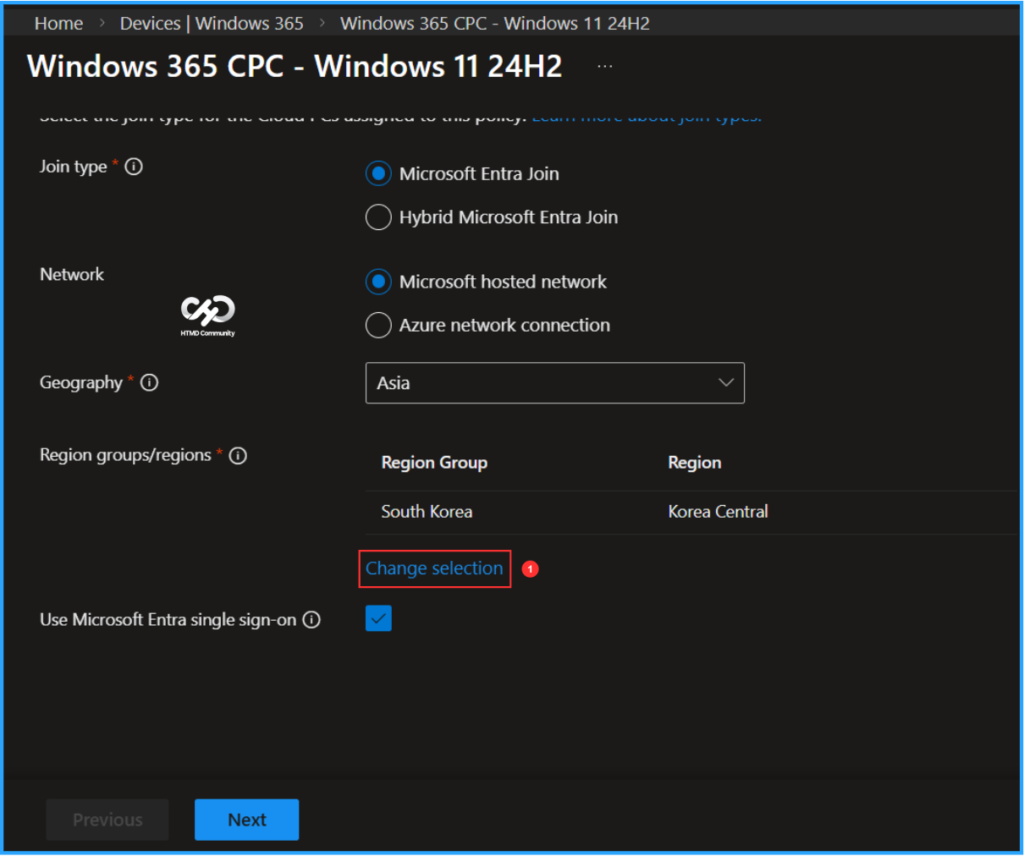
Click on the General section Edit option, this will allow you to update the exciting provisioning policy’s configuration. Under Region groups/regions click on Change selection.
In the Select Region Group and Region screen that has appeared, Select all, choose the region group and region for the Microsoft-hosted network. Select the option to opt-in for new region groups and regions. Additionally, choose Auto select new region groups and Auto select new regions. Once you have made your selections, click on Submit.
Note: For the best Cloud PC experience, keep all region groups and regions selected. This lets Windows 365 use all available regions to optimize deployment, reduce provisioning issues, and improve resiliency. Selecting specific region groups or regions might limit your ability to take advantage of new regions as they’re added.
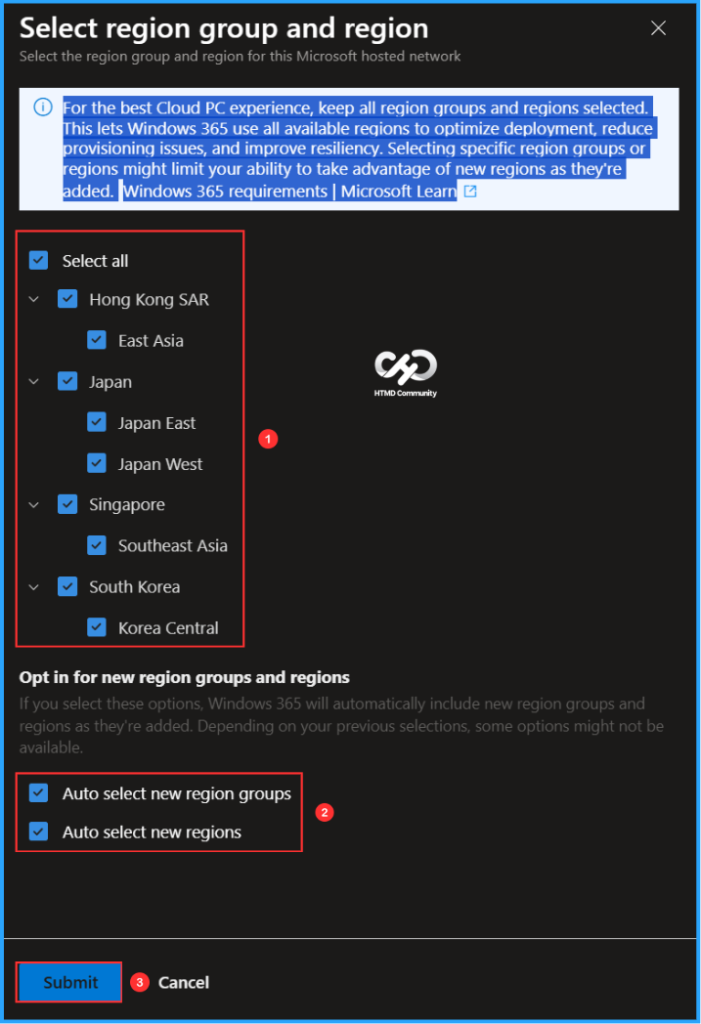
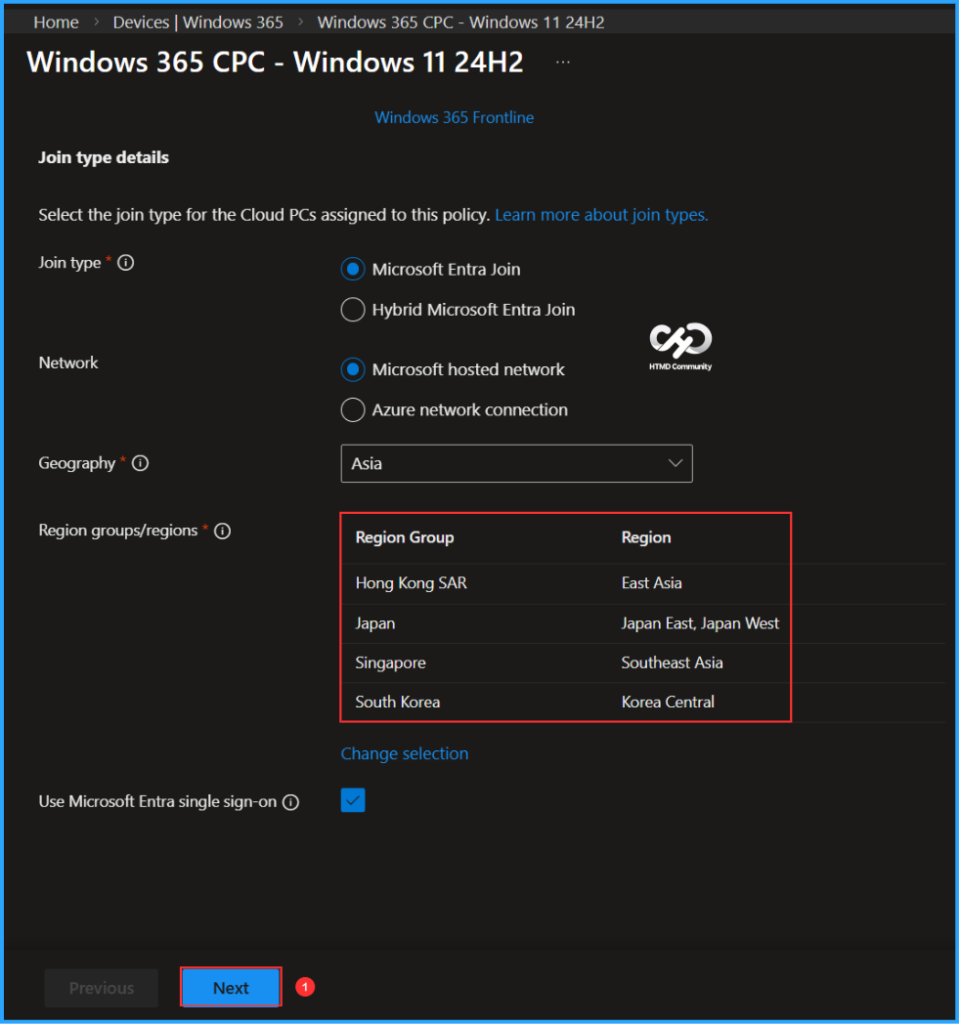
In this example, my Geography is Asia. After clicking Select all for region groups and regions, we can see that the region groups and regions have been updated as follows.
| Region Group | Region |
|---|---|
| Hong Kong SAR | East Asia |
| Japan | Japan East, Japan West |
| South Korea | Korea Central |
| Singapore | Southeast Asia |
Opt in for new region groups and regions: If you select these options, Windows 365 will automatically include new region groups and regions as they’re added. Depending on your previous selections, some options might not be available. Once you verified the updated settings click on Next.
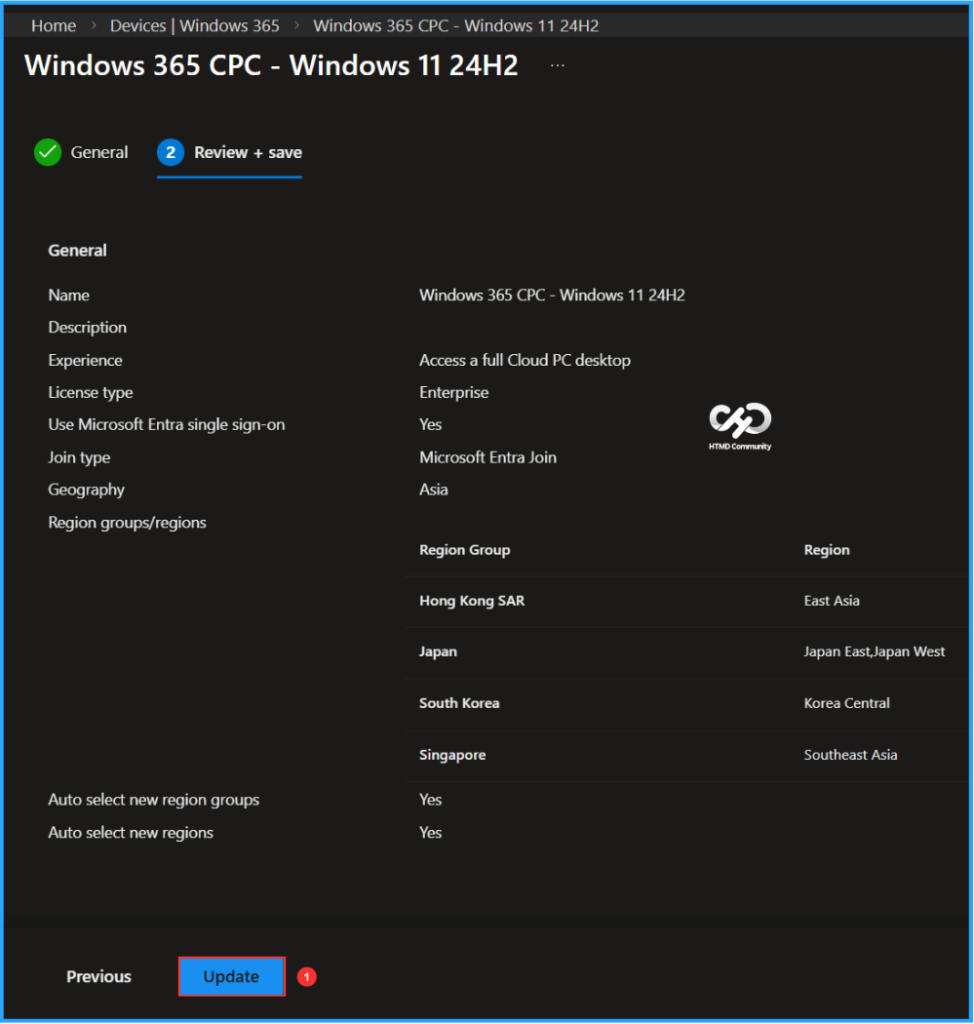
Now in the Review + save pane, review the changes again and if they are good to implement, so click on Update option.
- Microsoft Now Allows Up to 25 Apps in Intune Autopilot Deployment Profile Policy Including Windows 365
- How to Provision Windows 365 Cloud PC for an External Identity using Intune
- How to List all Windows 365 Cloud PCs in your Tenant using Microsoft Graph API
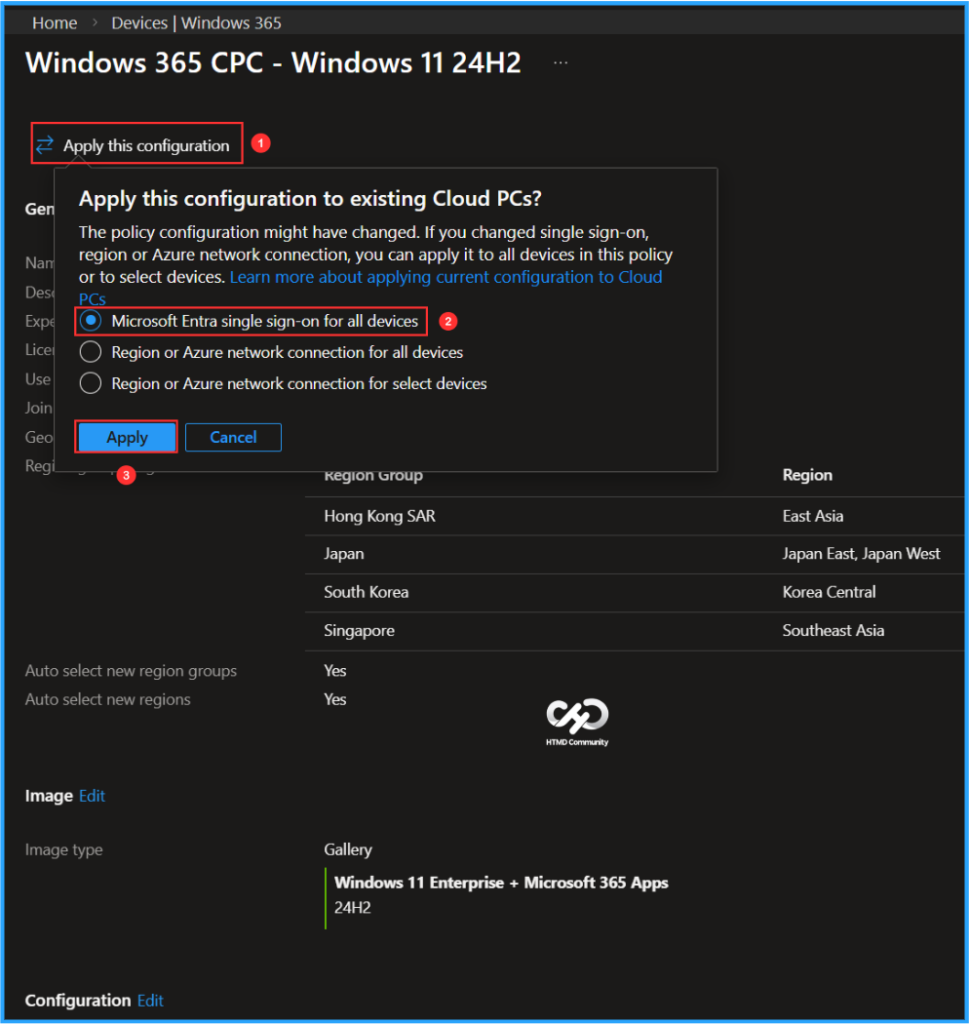
Apply the Configuration Changes to Existing Cloud PCs
To apply this configuration changes to your exciting Cloud PCs. The policy configuration might have changed. If you changed the single sign-on, region or Azure network connection, you can apply it to all devices in this policy or to select devices.
- Navigate to > Devices > Device onboarding > Windows 365
- Click on Provisioning policies > Select the same Provisioning Policy that has to apply this configuration changes (i.e Windows 365 CPC – Windows 11 24H2)
- Click on Apply this configuration choose Microsoft Entra single sign-on for all devices and Apply
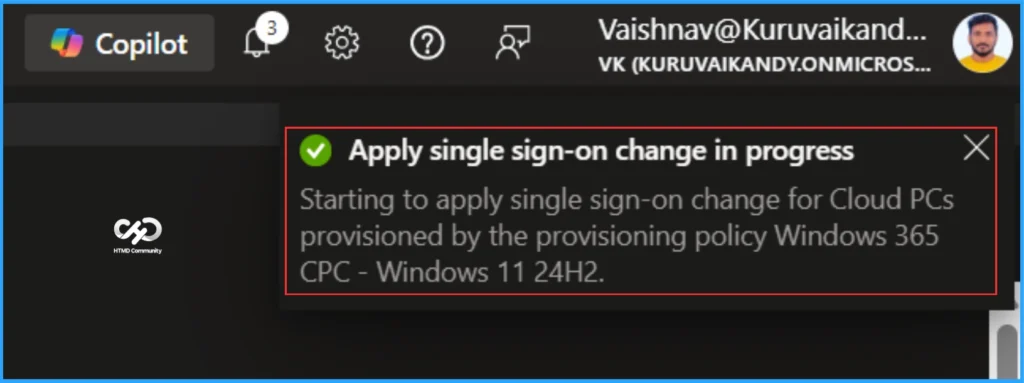
In the notification bar, we can see that the application of single sign-on changes is in progress. This will initiate the implementation of single sign-on changes for Cloud PCs provisioned by the provisioning policy Windows 365 CPC – Windows 11 24H2.
Need Further Assistance or Have Technical Questions?
Join the LinkedIn Page and Telegram group to get the latest step-by-step guides and news updates. Join our Meetup Page to participate in User group meetings. Also, join the WhatsApp Community to get the latest news on Microsoft Technologies. We are there on Reddit as well.
Author
Vaishnav K has over 12 years of experience in SCCM, Intune, Modern Device Management, and Automation Solutions. He writes and shares knowledge about Microsoft Intune, Windows 365, Azure, Entra, PowerShell Scripting, and Automation. Check out his profile on LinkedIn.