
Let’s discuss Require Password when Computer Wakes on Battery using Intune. This policy Specifies whether or not the user is prompted for a password when the system resumes from sleep. E.g., by pressing the power button, a keyboard key, or opening the laptop lid) and is not connected to AC power.
Enabling this setting ensures that anyone who wakes an unattended computer from sleep state will have to provide logon credentials before they can access the system. That means, the user must enter a password to regain access to the desktop. This is the recommended security state and often the default for enhanced protection.
By enabling this policy, you can Prevents unauthorized access to sensitive company data if a mobile device (laptop, tablet) is lost, stolen, or simply left unattended in a public or shared space while on battery power.
By preventing easy access to a device that has been left unattended, the policy reduces the number of security incidents (unauthorized access attempts, data exposure reports) that the IT security team must investigate and remediate.

Table of Contents
Require Password when Computer Wakes on Battery using Intune
This policy is applicable for different scenarios. Let me explain with an example, A corporate laptop containing confidential client data, financial reports, or proprietary code is accidentally left at an airport or coffee shop. If this policy is Enabled, the thief cannot access the device’s contents without the user’s password when they try to wake it up. This is vital for regulatory compliance (e.g., GDPR, HIPAA).
- How to Remove Assigned Group from Energy Saver Battery Threshold Policy in Intune Settings Catalog
- Improve Windows PC Performance by using New Efficiency Mode
- How to Set an Absolute Max Cache Size in GBs for Delivery Optimization using Intune
Sign in with Intune Portal
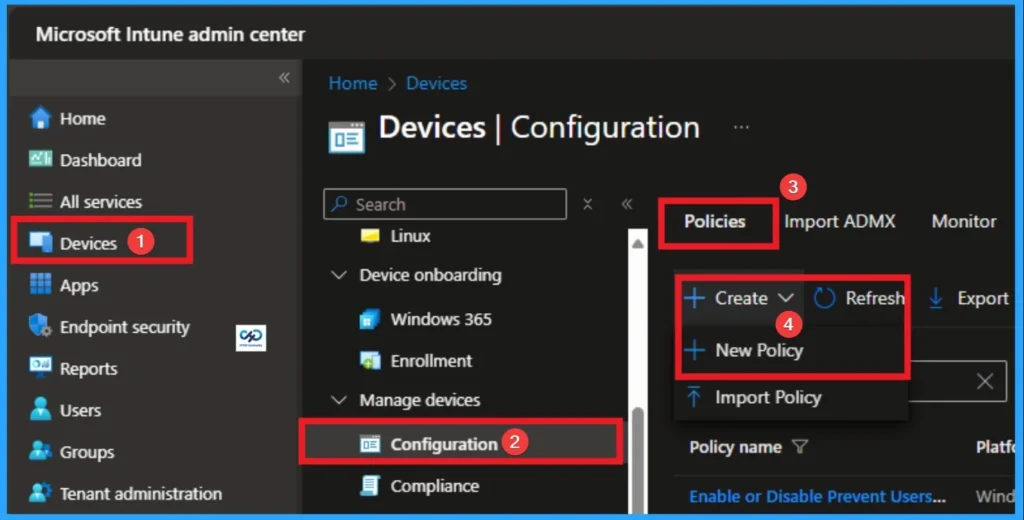
To configure, Require Password when Computer Wakes on Battery, you have to sign with Intune Portal with your credentials. Navigate to Devices > Configuration > + Create > New Policy.
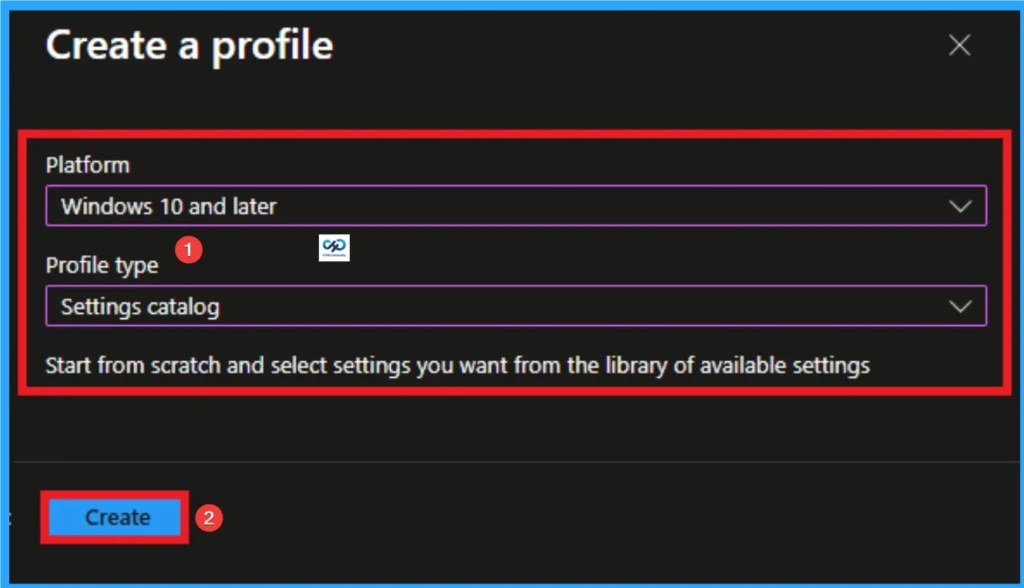
Profile Creation
Profile creation is the next step after clicking on Create button. On this step you can choose platform and profile type. Here I would like to configure the policy to Windows 10 and later platform and settings catalog profile. Then click on the Create button.
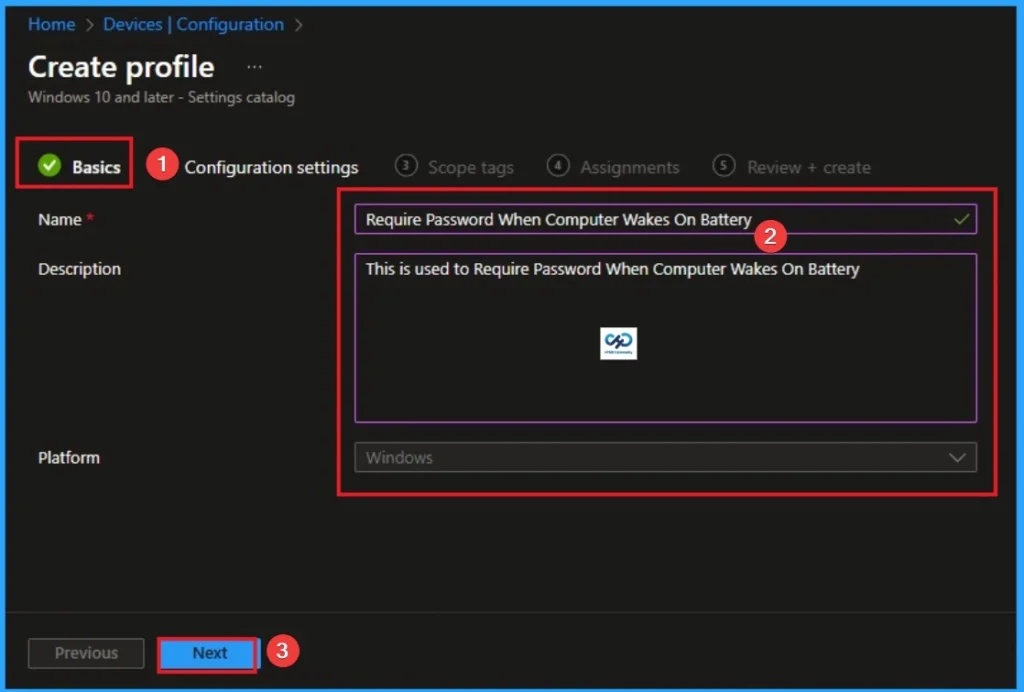
Basic Tab
Basic Tab is the first tab that used to add Name and Description for the policy. This is very important step that gives an identity for your policy. Here Name is Mandatory and Description is optional. After adding this, click on the Next button.
Configuration Tab for Selecting Setting
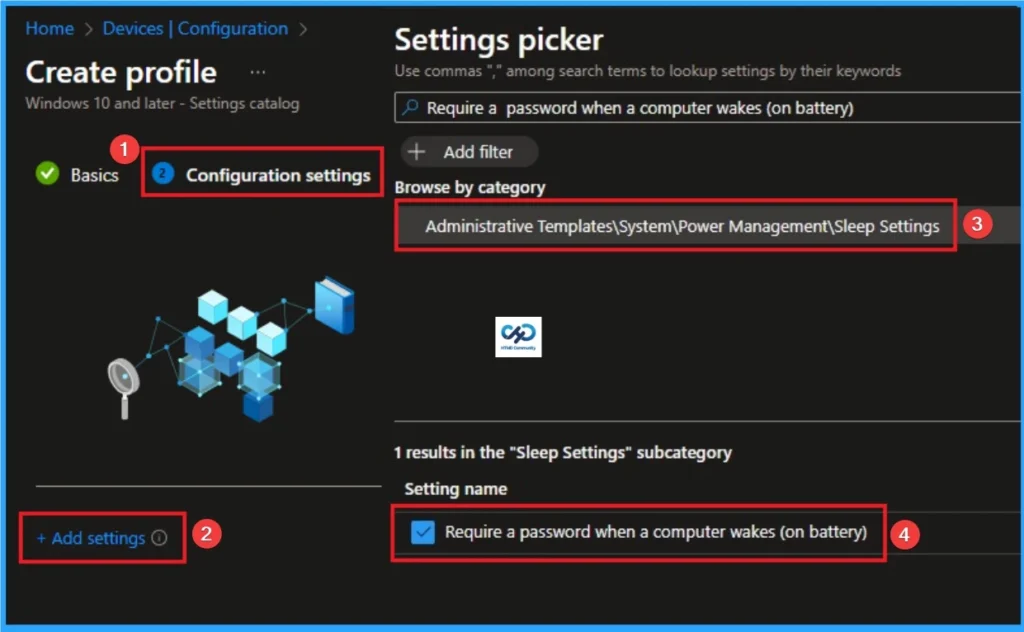
Configuration tab is the crucial step that helps you to choose a settings from different categories available on Microsoft Intune portal. Click on the +Add settings on the Configuration Settings tab. Then choose the Administrative Templates\System\Power Management\Sleep Settings\Require a password when a computer wakes (on battery) settings from Settings Picker.
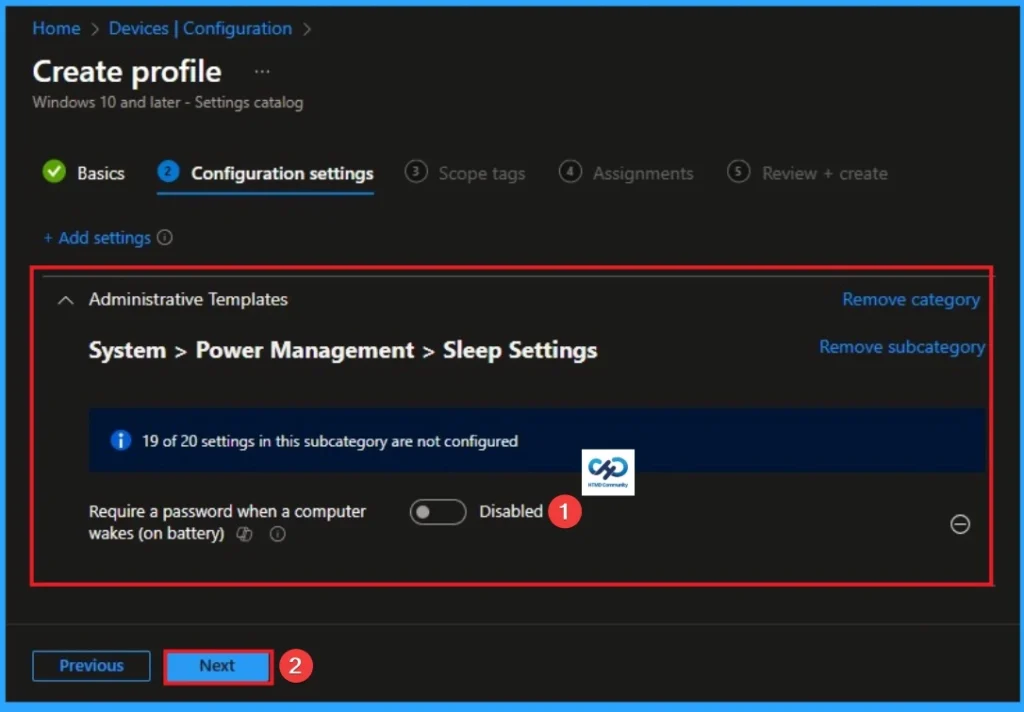
Disable Require a Password when a Computer Wakes on Battery
If you disable this policy setting, the user isn’t prompted for a password when the system resumes from sleep. This is the default value of this policy. Click on the Next button to continue.
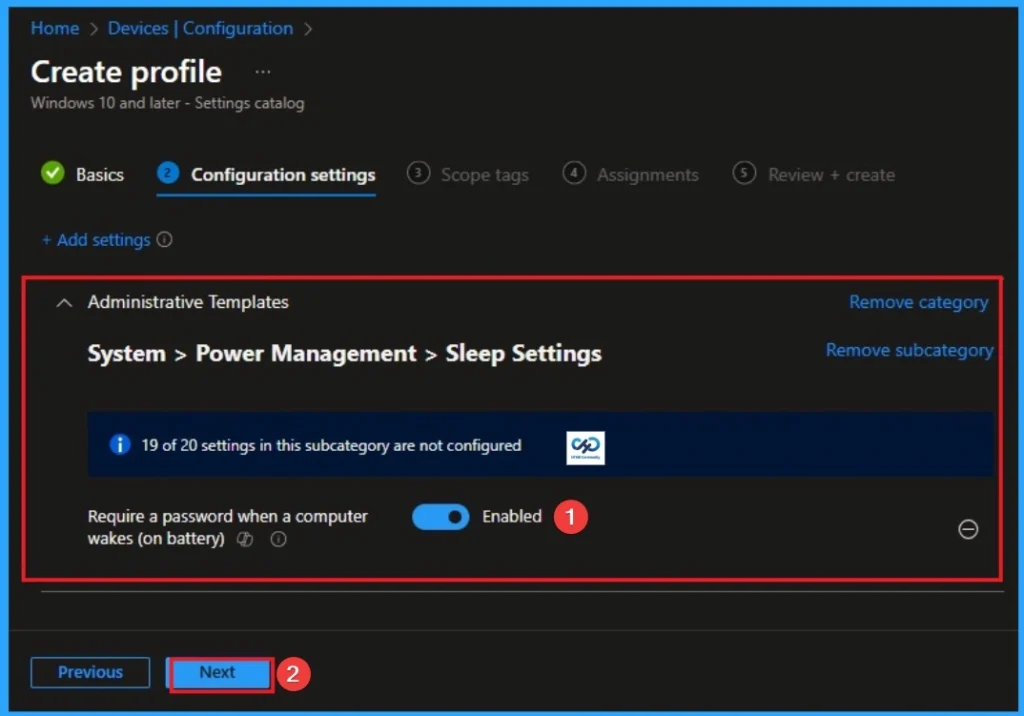
Enable Require a Password when a Computer Wakes on Battery
If you enable or don’t configure this policy setting, the user is prompted for a password when the system resumes from sleep. Click on the Next button.
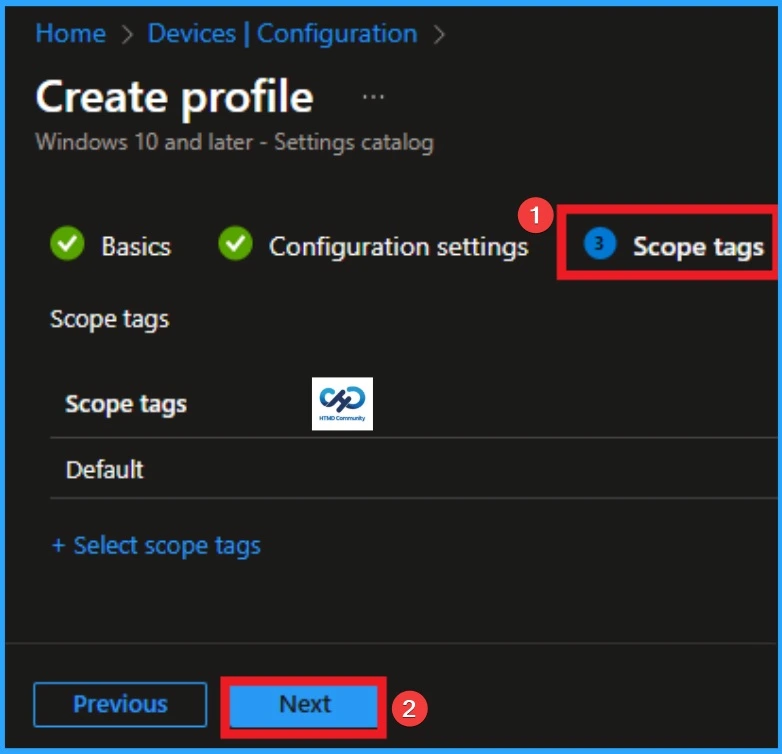
Scope Tags
The next section is the Scope tag and which is not a compulsory step. It helps to assign this policy to a defined group of users or devices. Here, I skip the section and click on the next button.
Assignments
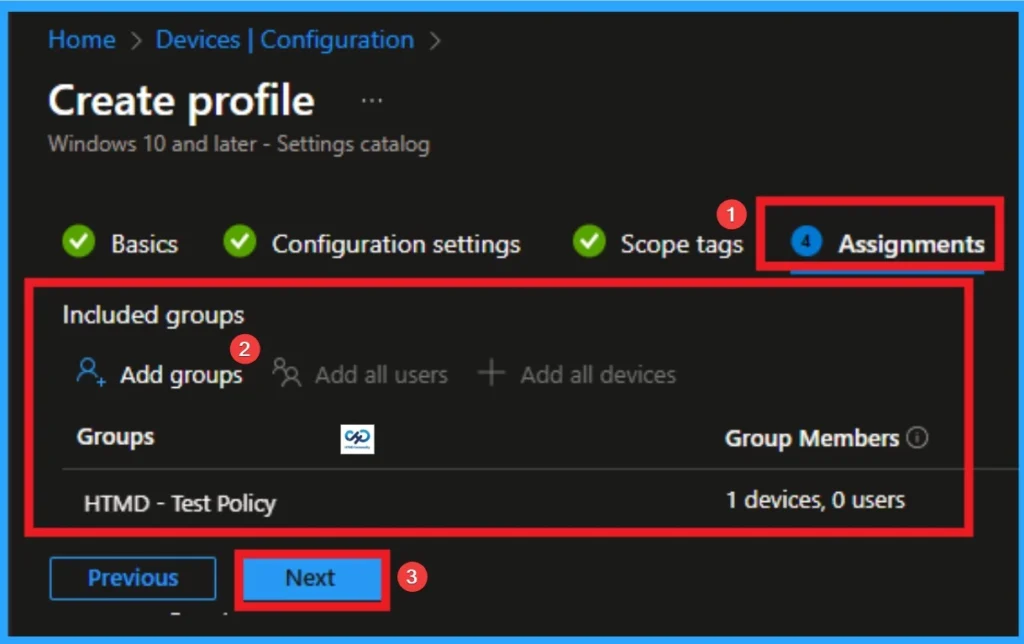
The next step is Assignments. In this section, you can specify which group the policy should be applied to. Our aim is to deploy this policy to a specific group; this step is essential. Look for the Add Groups option under the Include Groups section and click on it.
- After selecting the group, click Next to proceed to the next step.
- A list of available groups will appear and select the group you want to target.
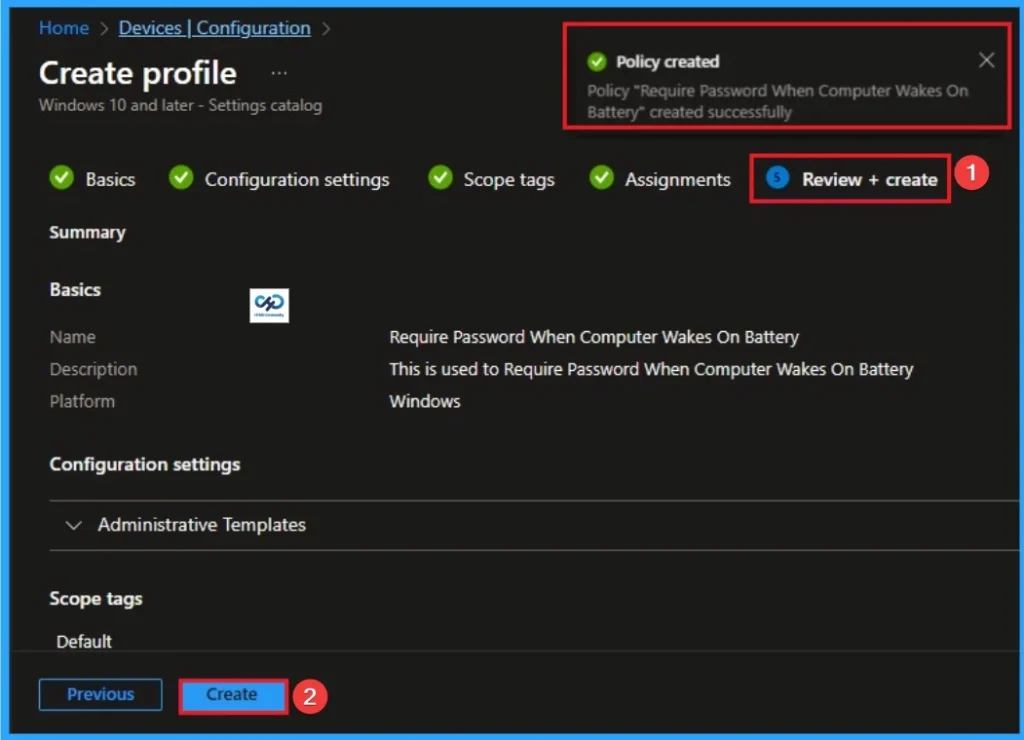
Review + Create Tab
Before completing the policy creation, you can review each tab to avoid misconfiguration or policy failure. After verifying all the details, click on the Create Button. After creating the policy, you will get a success message.
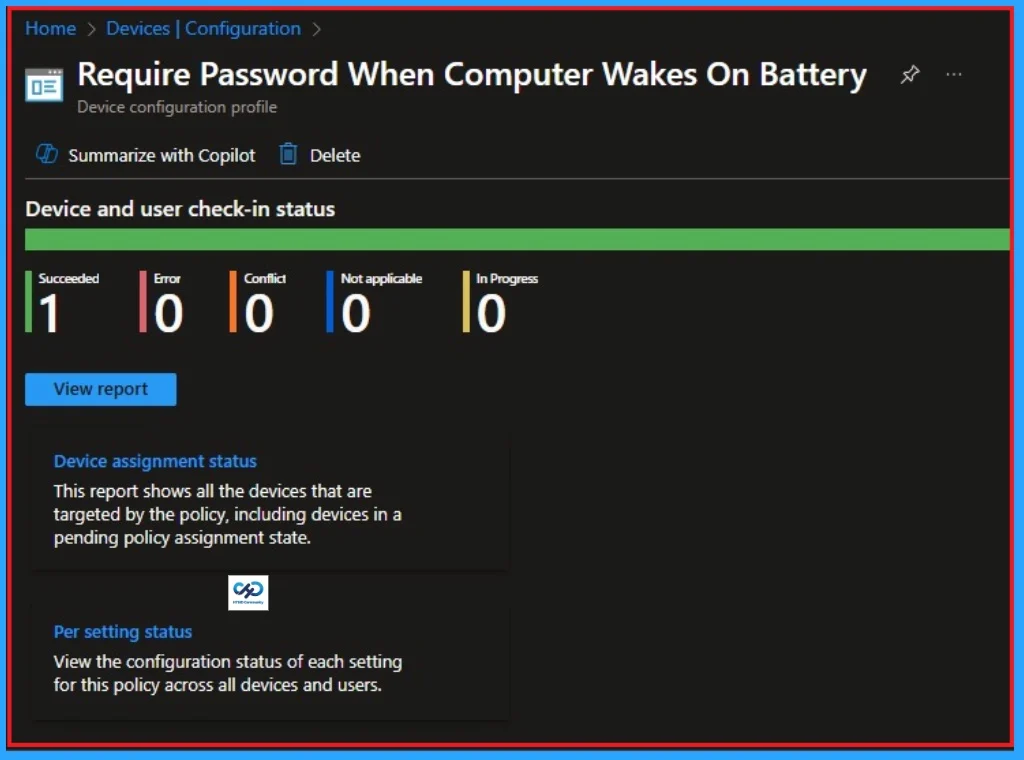
Device and User Check in Status
After creating a policy, we have to monitor that whether the policy was created successfully or not. To check this, you can either wait for up to 8 hours for the policy to apply automatically, or you can reduce the waiting time by manually syncing the policy through the Company Portal.
- It will show is this error successfully deployed or not.
- After syncing, you can check the policy’s status through the Intune Portal.
- To do this, go to Devices > Configuration Profiles.
- In the Configuration policy section, search for the name of the policy you created.
- Then you can get the details below from that Policy
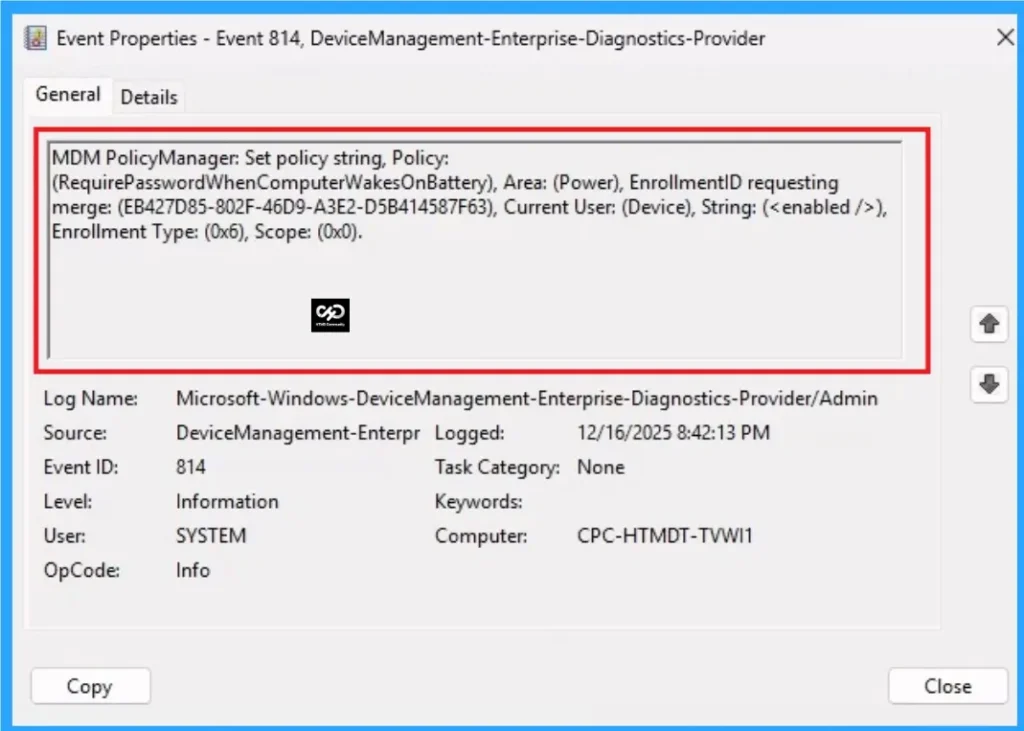
Client-Side Verification
To confirm the policy is successful or not, you can use the Event Viewer. First, open Event Viewer and navigate to Applications and Services Logs > Microsoft > Windows > Device Management > Enterprise Diagnostic Provider > Admin. Look for Event IDs 813 or 814, as these typically contain policy-related information.
| Event Viewer Details |
|---|
| MDM PolicyManager: Set policy string, Policy: (RequirePasswordWhenComputerWakesOnBattery), Area: (Power), EnrollmentID requesting merge: (EB427D85-802F-46D9-A3E2-D5B414587F63), Current User: (Device), String: (), Enrollment Type: (0x6), Scope: (0x0). |
Removing the Assigned Group from Require a Password when a Computer Wakes on Battery Policy Settings
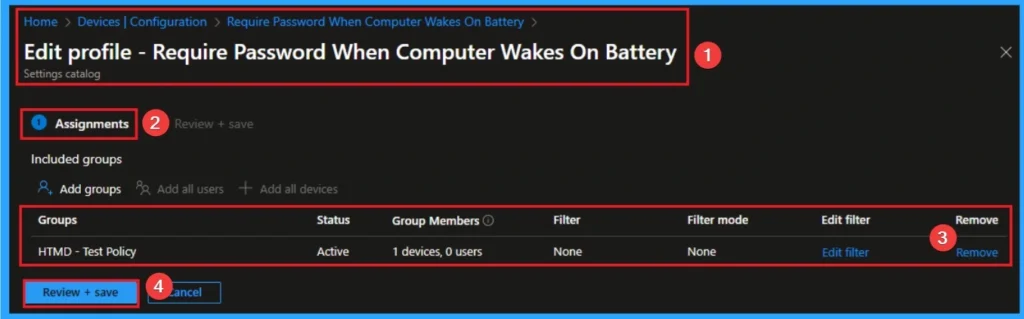
If you want to remove the Assigned group from the policy, it is possible from the Intune Portal. To do this, open the Policy on Intune Portal and edit the Assignments tab and the Remove Policy.
To get more detailed information, you can refer to our previous post – Learn How to Delete or Remove App Assignment from Intune using by Step-by-Step Guide.
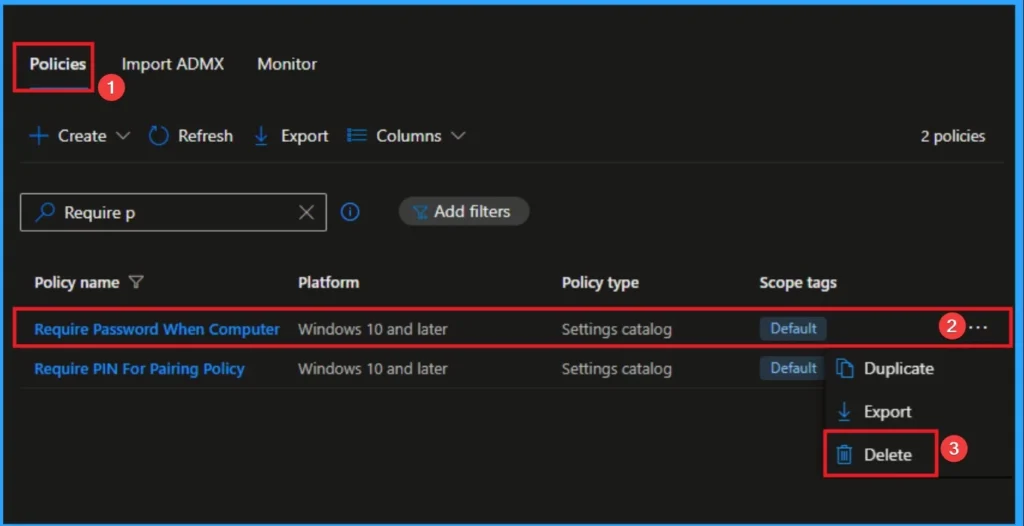
How to Delete Require a Password when a Computer Wakes on Battery Policy
You can easily delete the Policy from the Intune Portal. From the Configuration section, you can delete the policy. It will completely remove it from the client devices.
For detailed information, you can refer to our previous post – How to Delete Allow Clipboard History Policy in Intune Step by Step Guide.
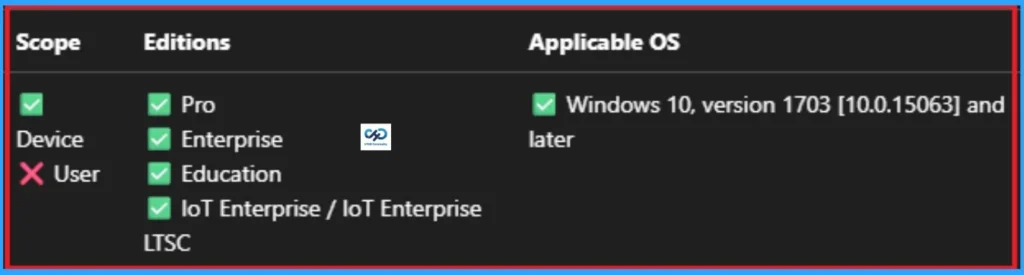
Windows CSP Details
This policy setting specifies whether or not the user is prompted for a password when the system resumes from sleep. This policy is applicable for Windows 10, version 1703 [10.0.15063] and later.
| Name | Value |
|---|---|
| Name | DCPromptForPasswordOnResume_2 |
| Friendly Name | Require a password when a computer wakes (on battery) |
| Location | Computer Configuration |
| Path | System > Power Management > Sleep Settings |
| Registry Key Name | Software\Policies\Microsoft\Power\PowerSettings\0e796bdb-100d-47d6-a2d5-f7d2daa51f51 |
| Registry Value Name | DCSettingIndex |
| ADMX File Name | Power.admx |
Need Further Assistance or Have Technical Questions?
Join the LinkedIn Page and Telegram group to get the latest step-by-step guides and news updates. Join our Meetup Page to participate in User group meetings. Also, Join the WhatsApp Community to get the latest news on Microsoft Technologies. We are there on Reddit as well.
Author
Anoop C Nair has been Microsoft MVP from 2015 onwards for 10 consecutive years! He is a Workplace Solution Architect with more than 22+ years of experience in Workplace technologies. He is also a Blogger, Speaker, and Local User Group Community leader. His primary focus is on Device Management technologies like SCCM and Intune. He writes about technologies like Intune, SCCM, Windows, Cloud PC, Windows, Entra, Microsoft Security, Career, etc.