
Block Untrusted Executables to Prevent Ransomware Attacks using Intune ASR Rule! This policy in Microsoft Defender helps strengthen your organization’s defense against ransomware attacks. Ransomware is a type of malware that encrypts data and demands payment to restore access.
This rule helps you to provides an additional layer of protection by analyzing executable files (.exe and .dll) that try to enter or run on a device. It uses advanced detection algorithms and machine learning to determine if the files are safe or potentially harmful.
Once you turn on this policy, Microsoft Defender for Endpoint starts watching all executable files. These include files you download from the internet, receive in emails, or copy from a USB drive. If a file behaves in this suspicious way, Defender immediately blocks it from running.
The policy also includes an allow or exclusion list this list giving administrators control over what gets blocked. If a file or application is trusted and verified, it can be added to the exclusion list so it won’t be blocked by the rule.

Table of Contents
Block Untrusted Executables to Prevent Ransomware Attacks using Intune ASR Rule
The Administrators can easily review the blocked files in the Microsoft Defender Security Center and take corrective actions, such as allowing safe files or investigating malicious ones further. For activating this policy, you need to follow the below steps.
- First sign in to the Microsoft Intune Admin Portal with your credentials.
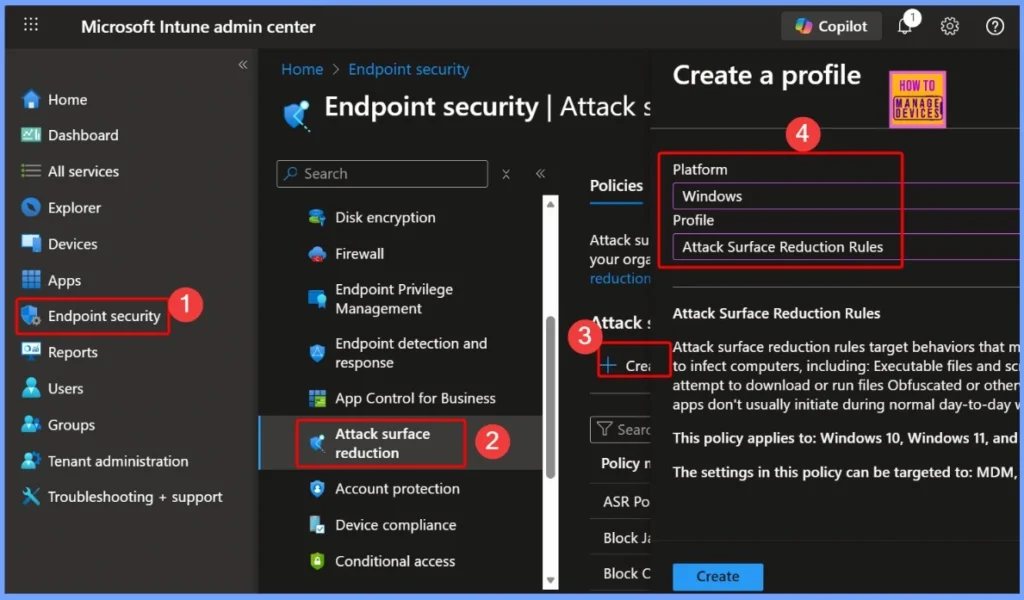
- Then navigate to Endpoint security > Attack surface reduction > Create Policy to begin configuring the necessary security settings.
| Platform | Profile |
|---|---|
| Windows | Attack Surface Reduction Rules |
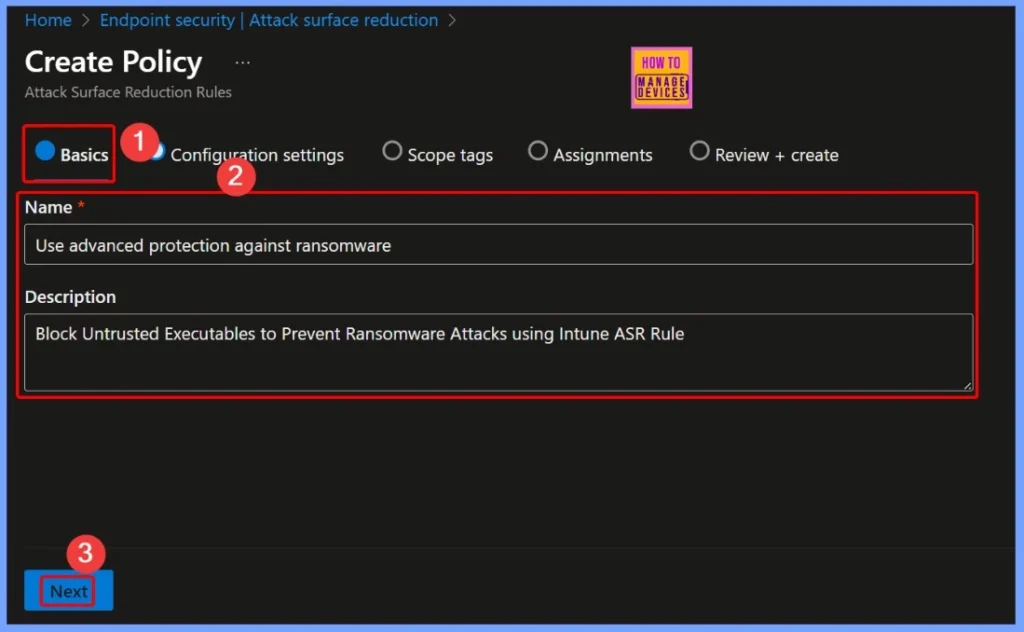
Basic Tab of the Policy Creation Window
In the Basic tab of the policy creation window, you need to provide a Name and Description to clearly identify the purpose of the rule. Enter the Name as “Block Untrusted Executables to Prevent Ransomware Attacks”. This helps you easily recognize the policy in the Intune console when managing or reviewing multiple ASR rules.
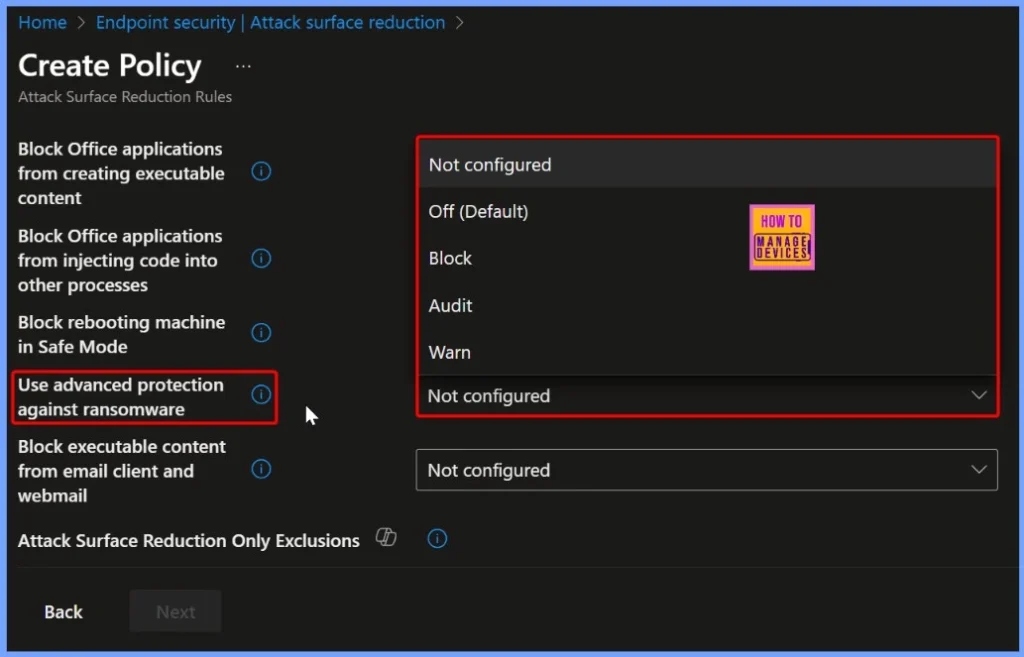
Use Advanced Protection Against Ransomware
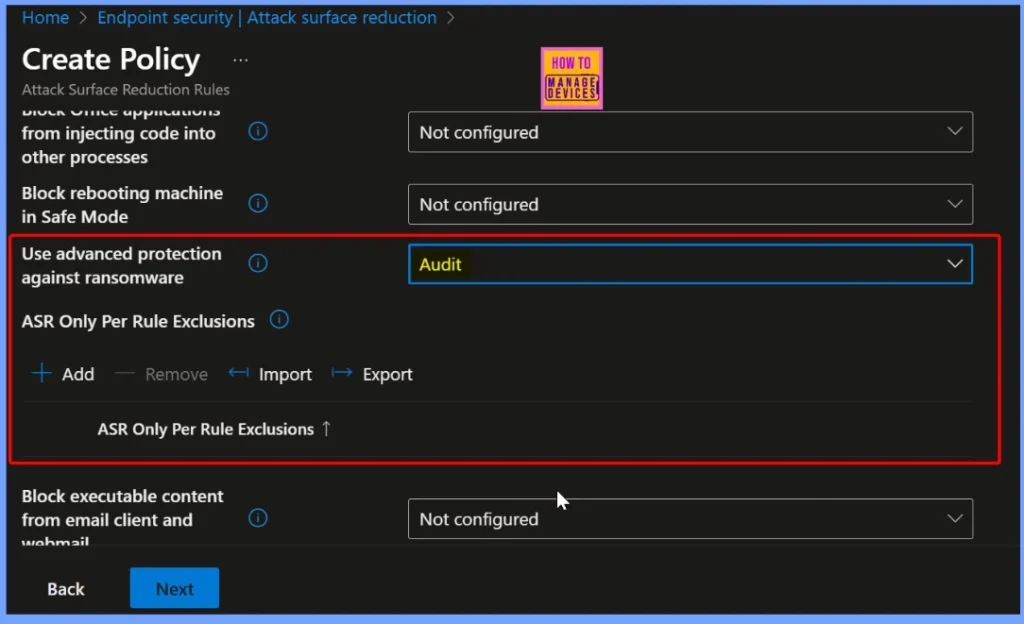
In this section, you need to choose how the “Use advanced protection against ransomware” ASR rule should behave on your devices. You’ll find several configuration options such as Not configured, Off (Default), Block, Audit, and Warn.
Select Audit Mode for Testing the Policy
Here we select the Audit mode for the Use advanced protection against ransomware rule. The Audit mode is useful for testing how the rule behaves before applying it in a production environment. It does not block any executable files, even if they appear suspicious or resemble ransomware. Instead, it records all related activities in the security logs.
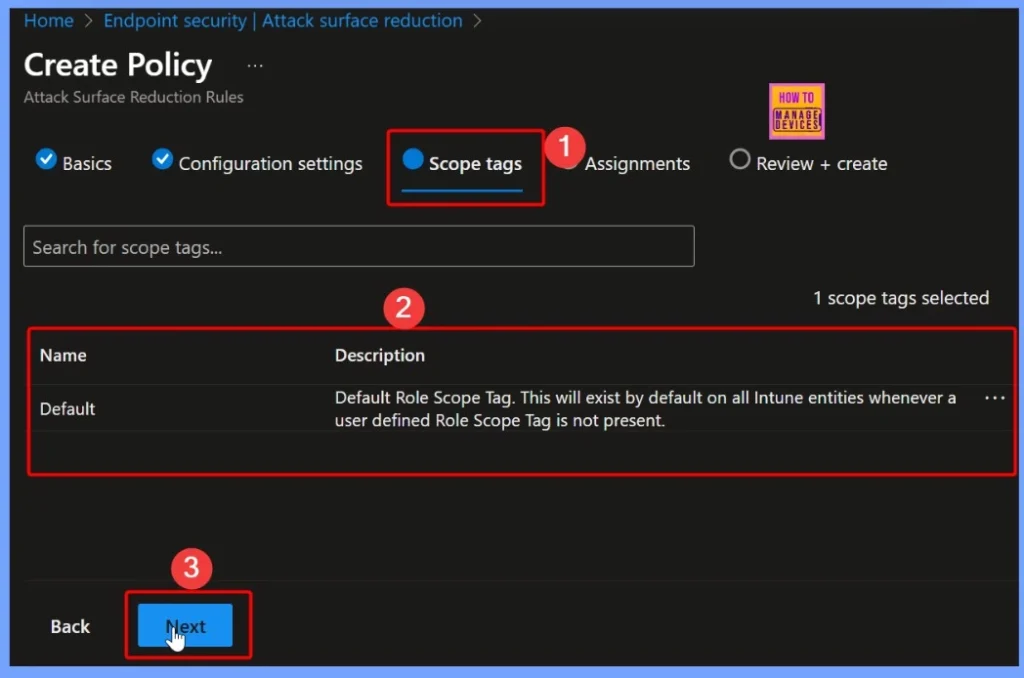
Scope Tags for the Use Advanced Protection Against Ransomware Rule
This policy helps administrators observe and analyze how the rule would affect real-world operations without disrupting users or legitimate applications. The Scope tag in Intune defines which administrators or groups can view and manage a specific policy.
Assignments of the Rule
In the Assignments section, you define which users or devices will receive the Use Advanced Protection Against Ransomware rule. For example, first testing it on a small group using Audit mode, and later expanding it to all users with Block mode.

Review + Create – Summary of Key Details
This section provides a summary of key details, including the policy name, description, mode selection (Audit, Block, etc.), scope tags, and assigned user or device groups. Reviewing these settings ensures that everything is configured correctly and aligns with your organization’s security requirements.

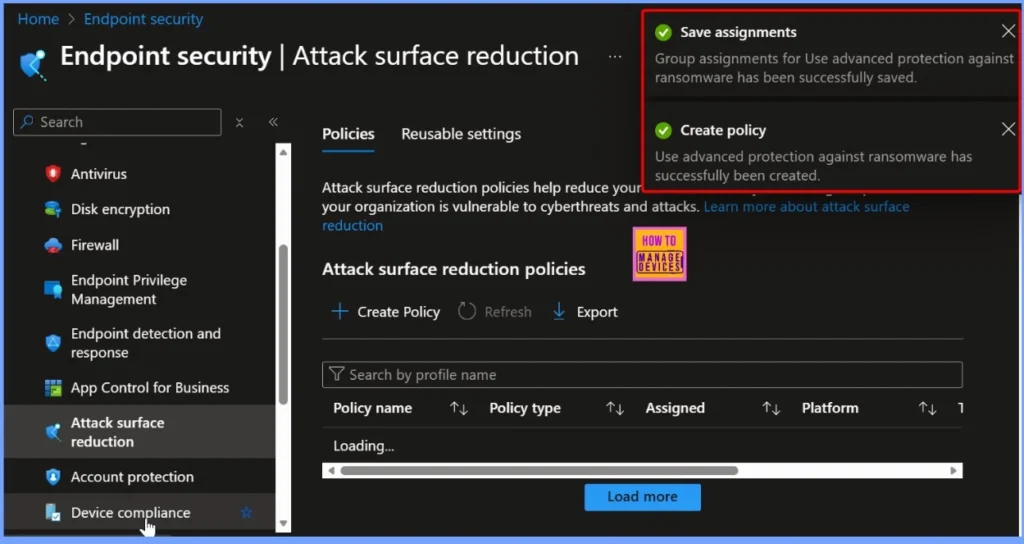
Successful Notification from Intune Portal
After creating the Use Advanced Protection Against Ransomware policy, you will receive a successful notification in the Intune portal confirming that the policy has been created and saved successfully. This notification appears at the top-right corner of the Intune admin center and indicates that the configuration process is complete without any errors.
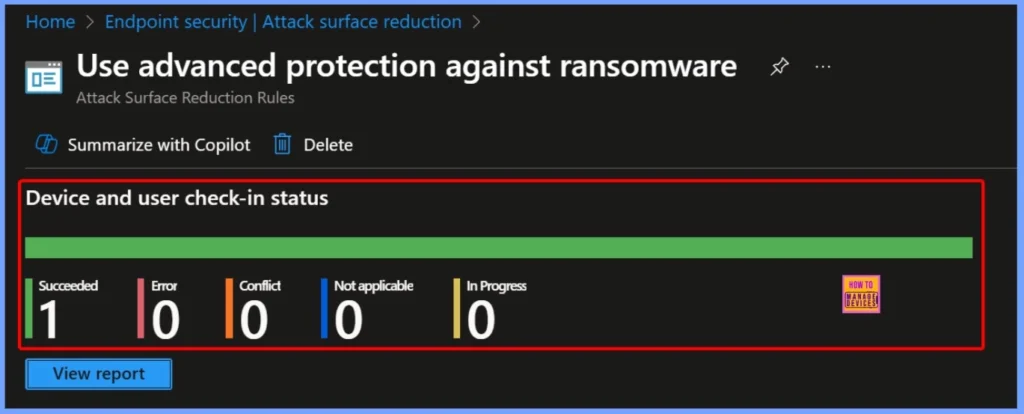
Device and User Check in Status
The Device and User Check-in Status section in Intune helps you to show whether the Use Advanced Protection Against Ransomware policy has been successfully applied to the targeted devices and users. It provides detailed information such as the number of devices in each state such as Succeeded, Error, Conflict, Not Applicable, and In Progress.
| Succeeded | Error | Conflict | Not Applicable | In progress |
|---|---|---|---|---|
| 1 | 0 | 0 | 0 | 0 |
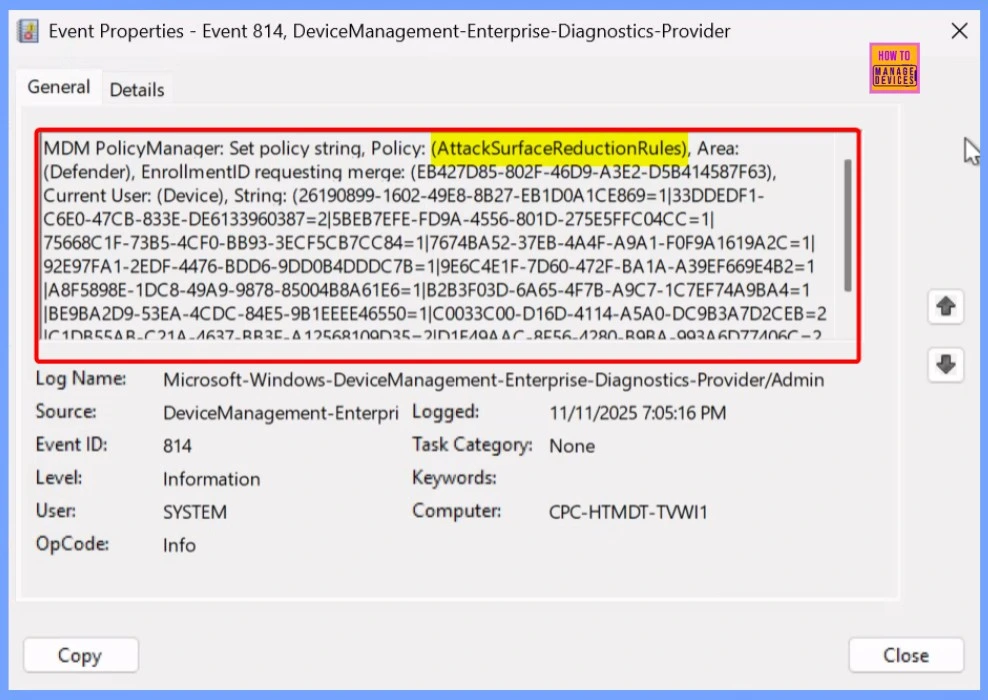
Client Side Verification
The Event Viewer provides detailed logs that help administrators verify and monitor how the Use Advanced Protection Against Ransomware policy is functioning on a device. To view these details, open Event Viewer on the target device and navigate to: Applications and Services Logs – Microsoft – Windows – Devicemanagement-Enterprise-Diagnostics-Provider – Admin.
Need Further Assistance or Have Technical Questions?
Join the LinkedIn Page and Telegram group to get the latest step-by-step guides and news updates. Join our Meetup Page to participate in User group meetings. Also, Join the WhatsApp Community to get the latest news on Microsoft Technologies. We are there on Reddit as well
Author
Anoop C Nair has been Microsoft MVP from 2015 onwards for 10 consecutive years! He is a Workplace Solution Architect with more than 22+ years of experience in Workplace technologies. He is also a Blogger, Speaker, and Local User Group Community leader. His primary focus is on Device Management technologies like SCCM and Intune. He writes about technologies like Intune, SCCM, Windows, Cloud PC, Windows, Entra, Microsoft Security, Career, etc