
Key Takeaways
- Restricts Microsoft Edge sign-ins to approved accounts only.
- Blocks users from signing in with accounts that do not match the configured pattern.
- Helps protect organizational data by preventing personal account usage.
- Existing signed-in profiles that do not meet the policy requirements are automatically signed out
Configure Edge Sign-in Restrictions for Organizational Accounts using Intune Policy! Let’s learn how toConfigure Edge Sign-in Restrictions for Organizational Accounts using Intune Policy. In the Microsoft Edge browser, you can determine which accounts can be used as Microsoft Edge primary accounts during the Sync. Restricting Microsoft edge personal accounts sync allows you to have a great experience with secure browsing when signed in with an organizational account.
Table of Contents
Table of Contents
Configure Edge Sign-in Restrictions for Organizational Accounts using Intune Policy
By configuring this policy, administrators can control which user accounts are allowed during the Microsoft Edge Sync sign-in process. If a user attempts to sign in with an account that does not match the configured pattern, Microsoft Edge blocks the sign-in attempt and displays an error message.
- Block Microsoft Edge Extensions using Intune
- Enable Microsoft Edge Sleeping Tabs using Intune
- Configure Edge Chromium Favorites Using Intune | Endpoint Manager
Get Started Policy Creation
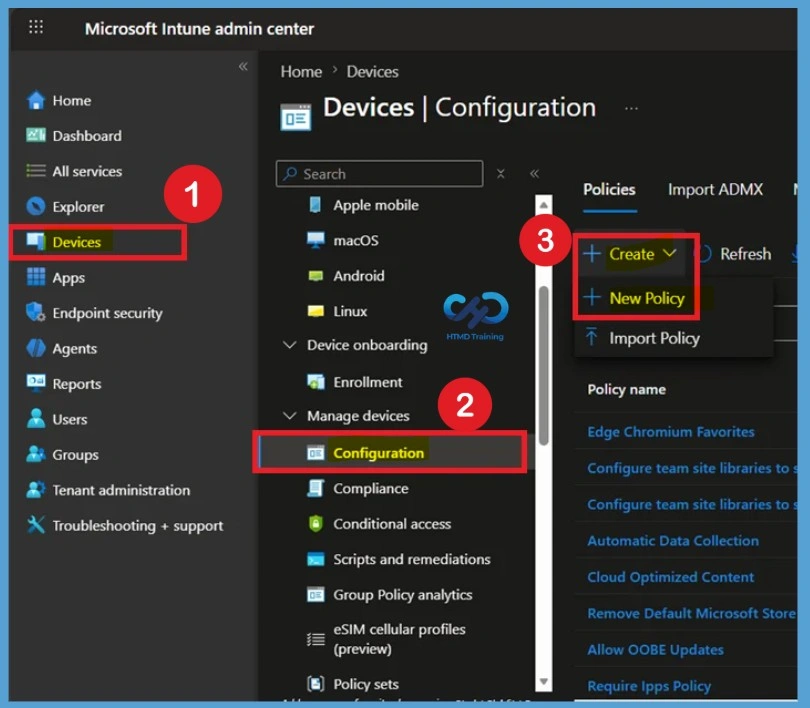
First, sign in to the Microsoft Intune Admin Center using your administrator account. After signing in, go to Devices from the left-side menu. Next, select Configuration, then click + Create. From the available options, choose New Policy. This will open the policy creation page, where you can start configuring your new policy.
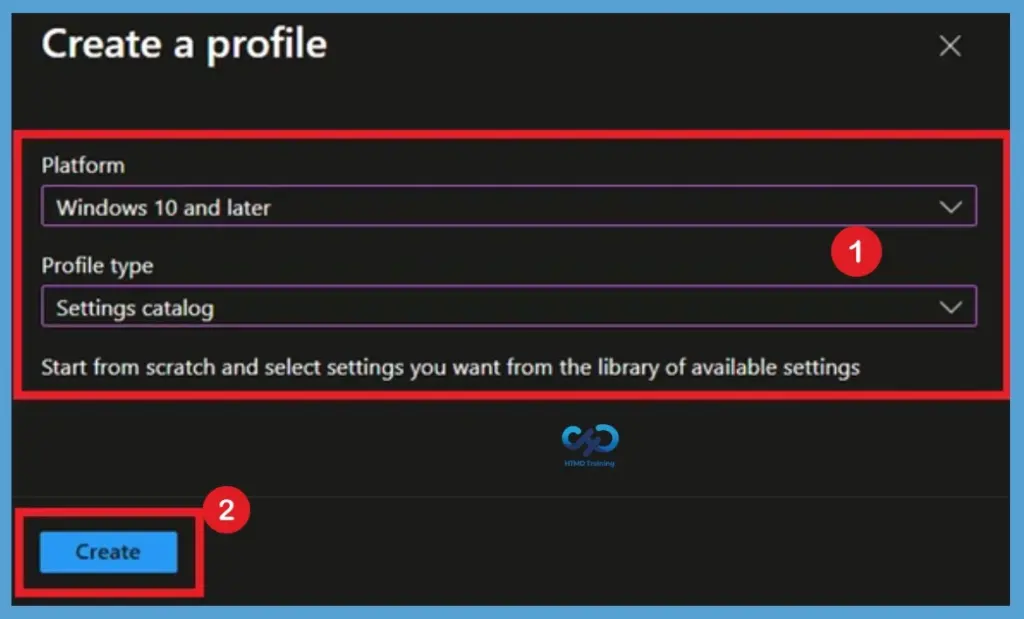
In Create a profile, Select Platform, Windows 10, and later and Profile, Select Profile Type as Settings catalog. Click on Create button.

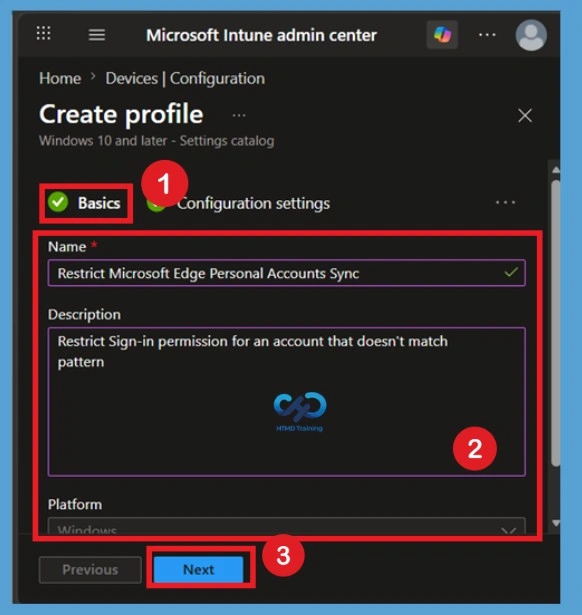
Provide Policy Name and Description
In the Basics tab, enter a name for the policy, such as Restrict Microsoft Edge Personal Accounts Sync. A clear policy name helps administrators quickly identify the purpose of the configuration when managing multiple policies in the Intune. Add a detailed description that explains the objective of the policy. For example, you can specify that the policy restricts Microsoft Edge sign-ins to approved organizational accounts and blocks personal accounts from being used for browser synchronization.
Once the information is entered, click Next to continue to the Configuration Settings page.
Add the Microsoft Edge Setting
On the Configuration Settings page, click Add Settings to open the Settings Picker. This allows you to search and select the specific policy settings that you want to configure within the profile. In the search box, type Restrict which accounts can be used as Microsoft Edge primary accounts. Select the Microsoft Edge category and check Restrict which accounts can be used as Microsoft Edge primary accounts (User).
- After selecting the setting, close the Settings Picker and proceed to configure the policy.
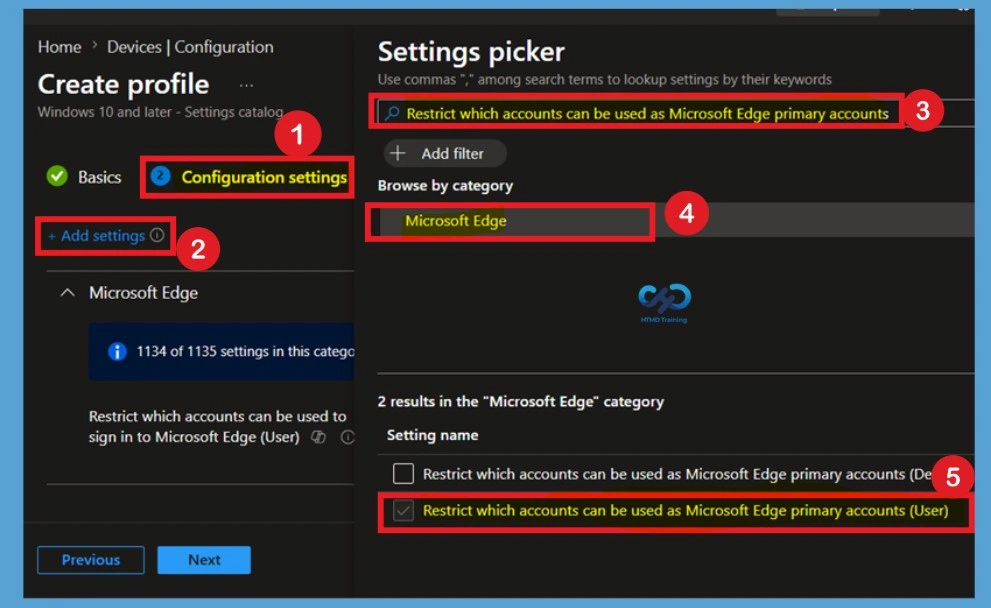
Disable State of the Policy
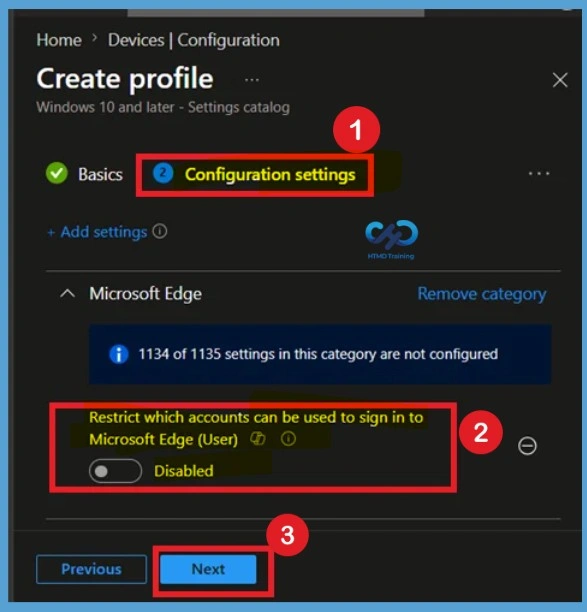
After adding the setting, it appears under the Microsoft Edge category. By default, the policy is set to Disabled, which means users can sign in to Microsoft Edge using any Microsoft account. If you don’t configure this policy or leave it blank, users can use any account to sign in to Microsoft Edge.
Note – In policy, use the search box to find specific settings. You can search by category or a keyword, such as Edge Primary Accounts. It will display the related settings available.
Enable the Policy
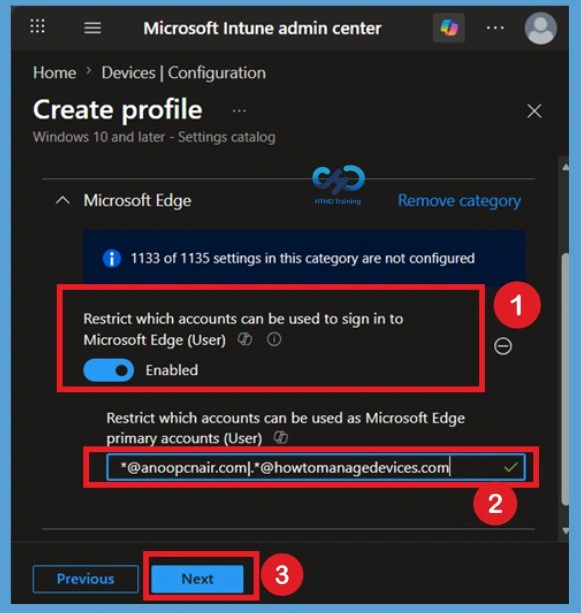
The setting is shown and configured with a default value Disabled. Set Restrict which accounts can be used as Microsoft Edge primary accounts to Enabled. Add the domain to allow sign-in to the browser, in format starts with.*@YourDomain.com if you want to add multiple domains separated by | and click Next.
Restrict which accounts can be used as Microsoft Edge primary accounts – Determines which accounts can be set as primary browser accounts in Microsoft Edge (the account chosen during the Sync opt-in flow).
- If a user tries to set a primary browser account with a username that doesn’t match this pattern, they are blocked and see an appropriate error message.
- For Example, *@anoopcnair.com|.*@howtomanagedevices.com
Scope Tag
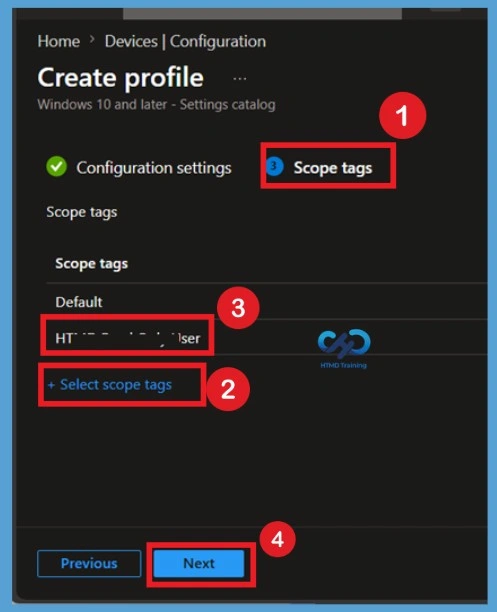
After configuring the policy settings, click Next to move to the Scope Tags page. Scope tags are used to control which administrators can view and manage the policy in Microsoft Intune. If your organization uses role-based access control (RBAC), assigning the correct scope tag helps ensure that only authorized administrators can manage this policy.
What are Assignments
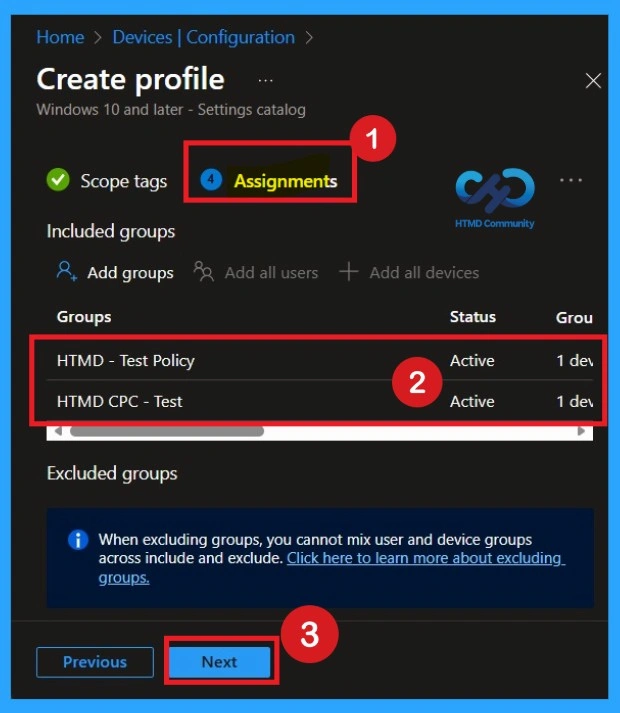
In the Assignments page, choose the user or device groups that should receive the policy. Click Add groups under Included Groups and select the required Microsoft Entra ID groups. Users within these groups will receive the policy after synchronization.
Carefully review the selected groups before continuing. Assigning the policy to the wrong group may prevent intended users from signing in to Microsoft Edge with their approved accounts. After selecting the required groups, click Next.
Process of Review + Create
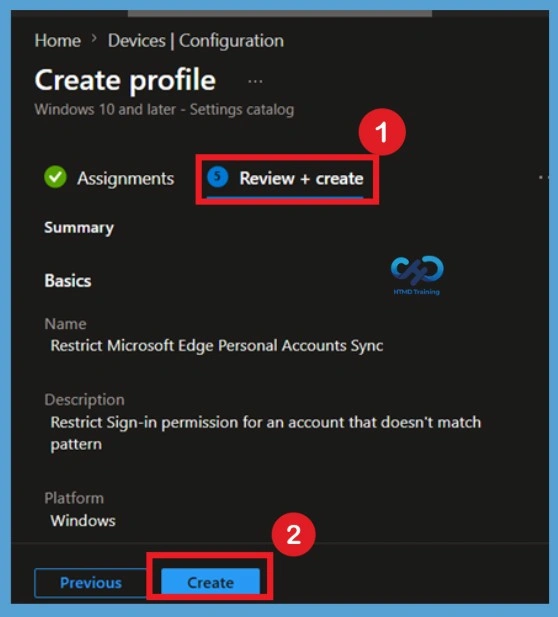
The Review + Create page displays a summary of all configured settings. Verify that the policy name, description, platform, profile type, and the account restriction pattern are configured correctly before creating the policy. If any changes are required, use the Previous button to return to the earlier pages and make modifications. Once you have confirmed all settings, click Create. The policy will then be created and deployed to the assigned devices or users.
- A notification will appear automatically in the top right-hand corner with a message. .
Monitoring Status Importance
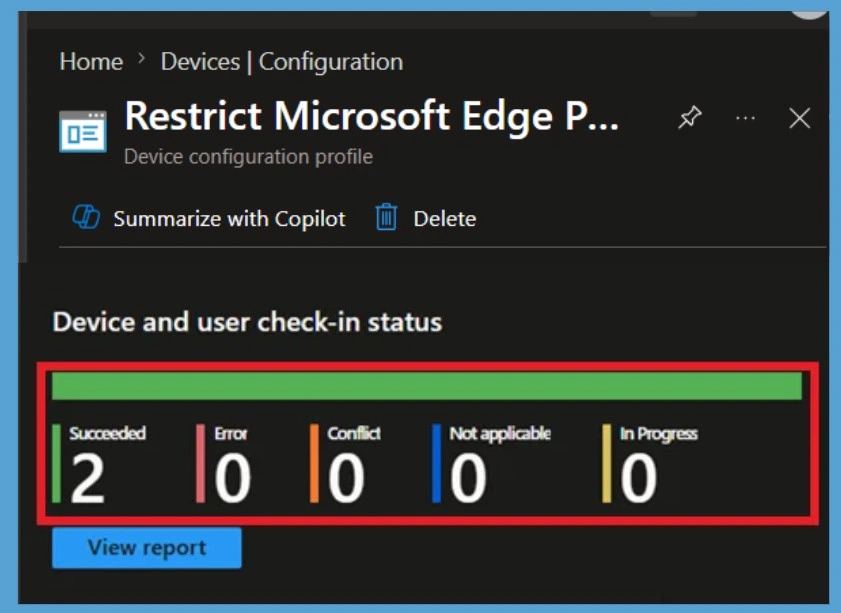
After the policy is created, navigate to Devices > Configuration Profiles and select the policy. Open the Overview page to monitor the deployment status and verify whether devices have received the policy successfully.
The monitoring section displays details such as Succeeded, Pending, Error, and Not Applicable statuses. A successful deployment indicates that the policy has been applied to the targeted devices or users. Any errors should be investigated and resolved before proceeding.
Importance of Client-Side Verifications
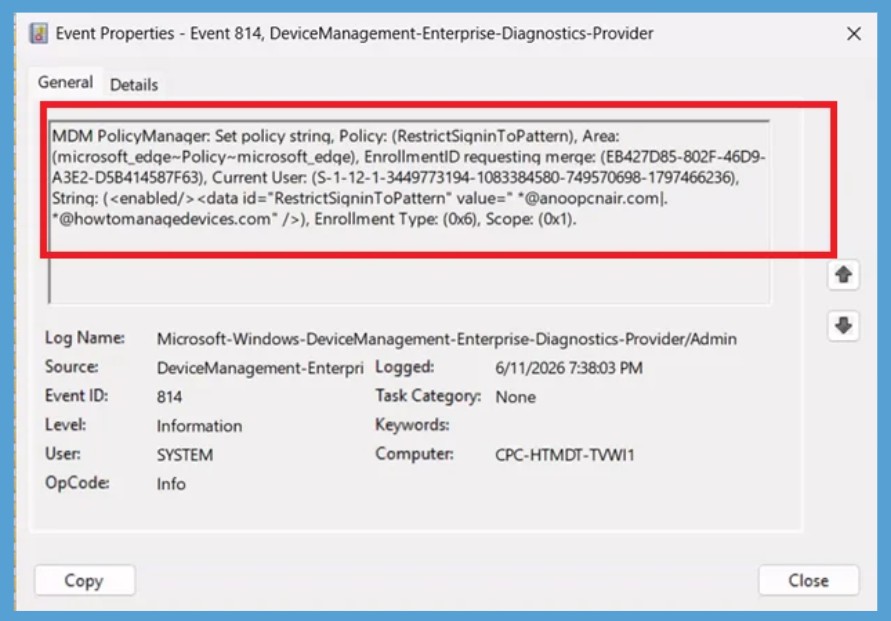
This step is very important to understand that to confirm if a policy has been applied, use the Event Viewer on the client device. Go to Applications and Services Logs > Microsoft > Windows > Device Management > Enterprise Diagnostic Provider > Admin. From the list of policies, use the Filter Current Log option and search for Intune event 814.
| Policy Details |
|---|
| MDM PolicyManager: Set policy strinq, Policy: (RestrictSigninToPattern), Area: (microsoft_edqe~Policy~microsoft_edqe), EnrollmentID requestinq merqe: (EB427D85-802F-46D9- A3E2-D5B414587F63), Current User: (S-1-12-1-3449773194-1083384580-749570698-1797466236), Strinq: (), Enrollment Type: (0x6), Scope: (0x1). |
Remove Assigned Groups
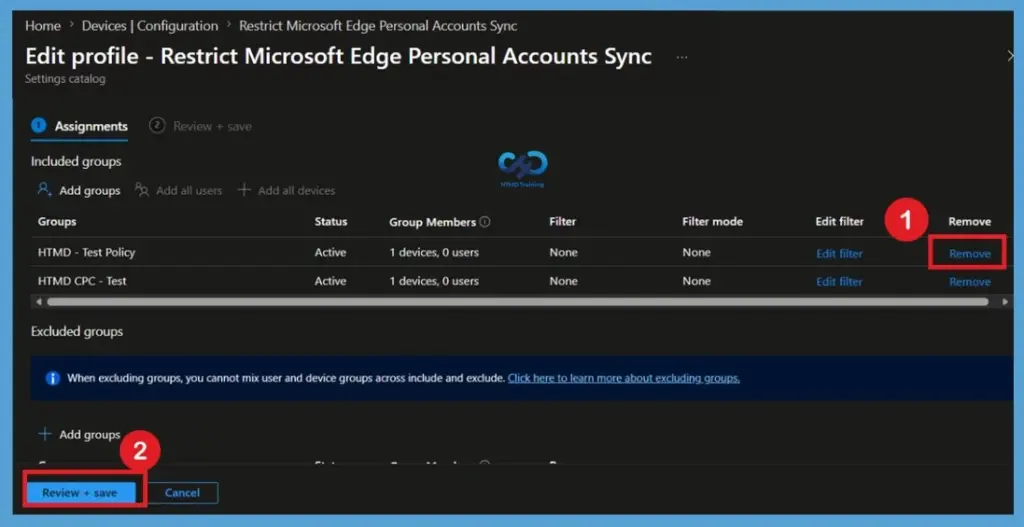
If you no longer want the policy to apply to a specific group, open the policy and navigate to the Assignments section. Locate the assigned group and remove it from the Included Groups list. After saving the changes, Intune will stop targeting that group. During the next device synchronization cycle, the policy settings will be removed from devices or users that are no longer assigned to the policy.
- For Remove Assigned Groups open the policy from the configuration tab and click on the edit button. Then, click on the Remove button.
- Click Review + Save
How to Delete the Policy Permanently
Deleting a policy permanently is an important action because the policy and its settings will be removed from Intune. Before proceeding, make sure that the policy is no longer required and that it is safe to remove it from your environment.
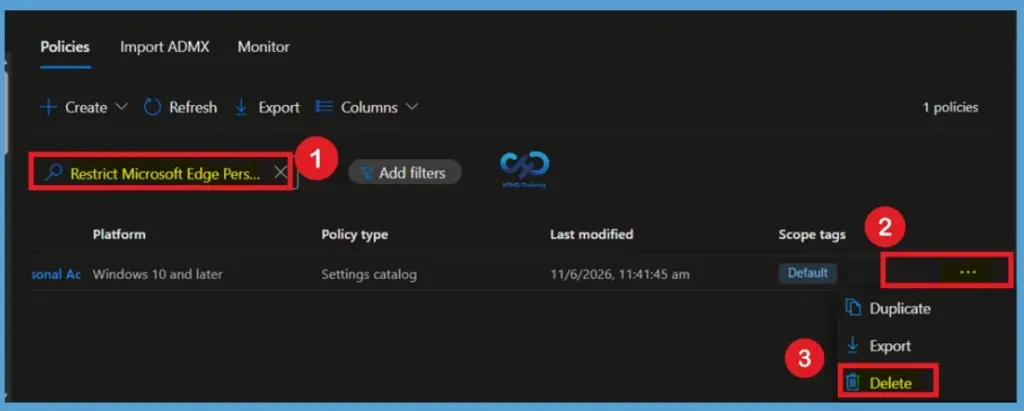
To delete a policy, sign in to the Intune admin center and go to Devices > Configuration. Search for the policy you want to remove and select it. Click the three-dot (More options) menu and choose Delete. A confirmation pop-up window will appear. Review the details carefully, then click Yes to confirm.
- The policy will be permanently deleted from Intune and will no longer be available for management.
Need Further Assistance or Have Technical Questions?
Join the LinkedIn Page and Telegram group to get the step-by-step guides and news updates. Join our Meetup Page to participate in User group meetings. Also, Join the WhatsApp Community and WhatsApp Channel to get the latest news on Microsoft Technologies. We are there on Reddit as well.
Author
Anoop C Nair has been Microsoft MVP for 10 consecutive years from 2015 onwards. He is a Workplace Solution Architect with more than 22+ years of experience in Workplace technologies. He is a Blogger, Speaker, and Local User Group Community leader. His primary focus is on Device Management technologies like SCCM and Intune. He writes about technologies like Intune, SCCM, Windows, Cloud PC, Windows, Entra, Microsoft Security, Career, etc.
I enabled this policy on my tenant and it promptly broke my Automatic Sign-in and Sync configuration. Have you experienced the same thing? If go back and disable this policy, then Edge will automatically sign-in and sync again.
Andrew, have you found a solution to this problem? I’m attempting to auto sign in AND force sync.
Try to enable the below policy
https://learn.microsoft.com/en-us/deployedge/microsoft-edge-policies#aadwebsitessousingthisprofileenabled