
Hey, let’s discuss about Secure iOS Devices by Blocking Call Initiation using Intune. This policy blocks users from starting phone calls when the iOS device is locked. It prevents any call from being dialed until the phone is unlocked. This gives the device an extra level of protection. It helps keep the device safe from misuse.
The policy helps avoid accidental calls from the lock screen. Phones sometimes dial numbers by mistake in a pocket or bag. This setting stops those unwanted actions completely. It ensures calls happen only when the user unlocks the device.
It is useful for organizations managing company devices. It makes sure employees cannot make calls without unlocking their phones. This keeps communication controlled and secure. It supports safe device usage in the workplace.
The policy works separately from voice dialing features like Siri. It does not change how Siri handles voice commands. It only focuses on stopping call initiation from a locked state. This keeps the policy clear and easy to manage.

Table of Contents
Secure iOS Devices by Blocking Call Initiation using Intune
This policy strengthens the security of iOS devices. It reduces the chance of accidental or unauthorized calls. It provides better control over device behavior. Intune makes it simple to apply this policy to supervised devices.
- Simple Method to Deploy Natural Voice Pack to Windows 11 using Intune
- Enable Disable Talk a Voice Conversation with Copilot in Windows
- Deploy Intune Let Apps Activate With Voice Above Lock Policy
Create a Profile
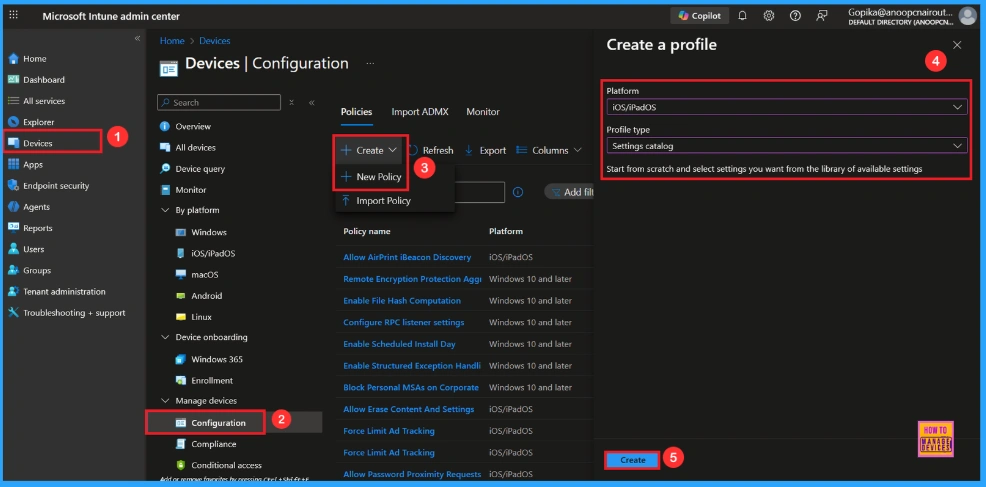
To deploy a policy for iOS or iPadOS devices, first sign in to the Microsoft Intune admin center. Go to Devices and select Configuration profiles. Then clickCreate profile to open the profile creation window. Under Platform, choose iOS/iPadOS, and for the Profile type, select Settings catalog. After that, click Create to begin configuring your new policy.
Basic Step
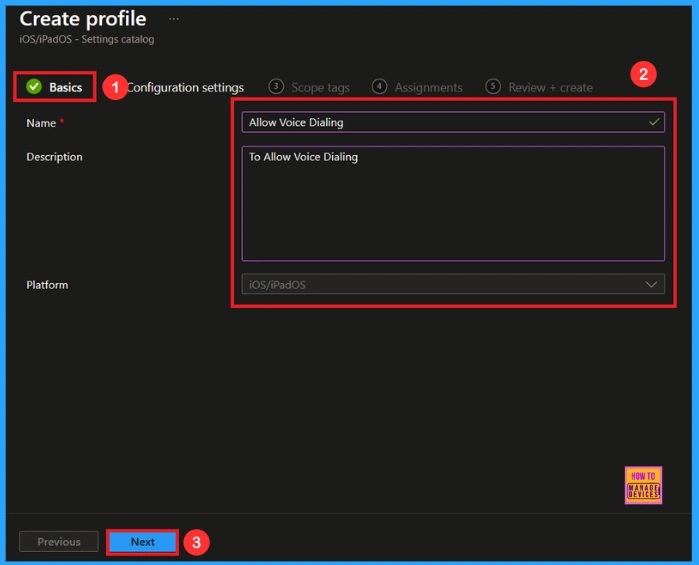
After this, you will be directed to the Basics tab. In this section, you need to provide a name(Allow Voice Dialing) and description(To Allow Voice Dialing) for the policy to clearly identify its purpose. Click Next to continue.
Configuration Settings
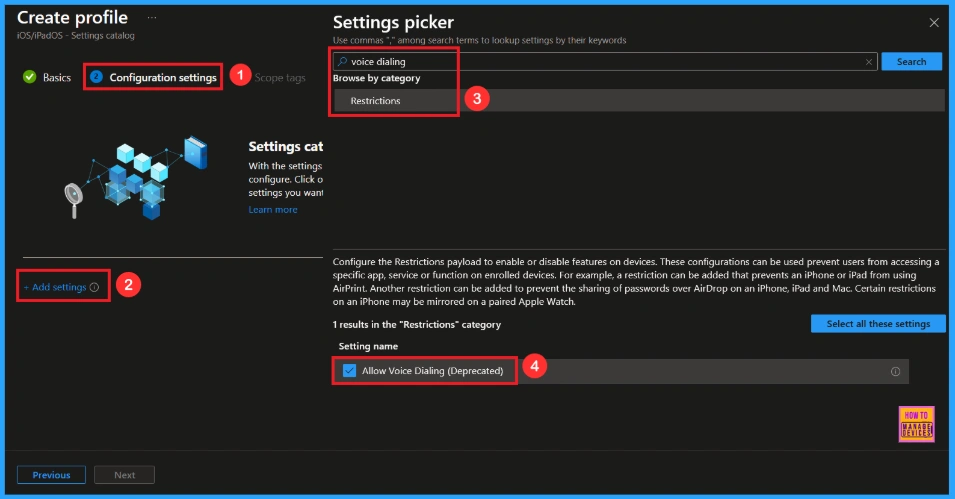
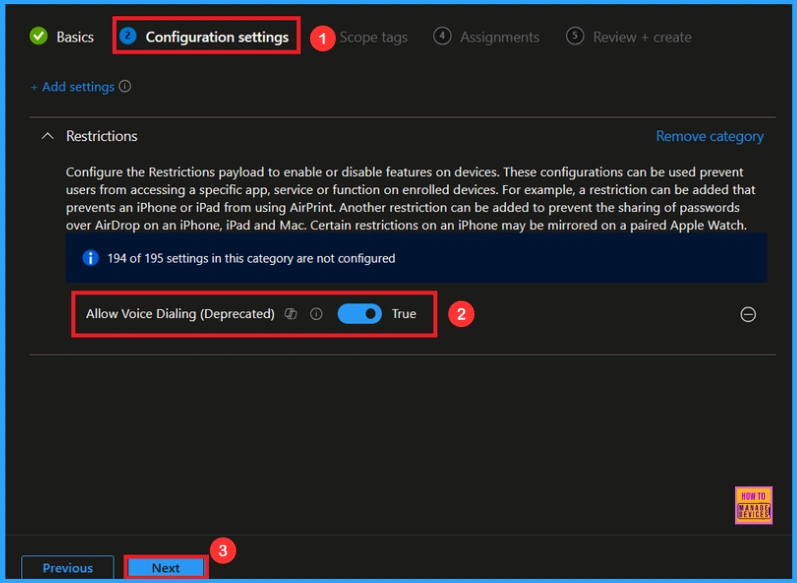
Next, you will be in the Configuration settings tab. In this section, click on Add settings to open the settings picker window. In the search bar, type Voice dialing or select the Restrictions category from the list. Then, select Allow Voice Dialing policy.
Once you have selected Allow Voice dialing and closed the Settings picker. You will see it on the Configuration page. Here we have only two settings True or False. By default, it will be set to True. If you want to allow these settings, click on the Next button.
Block Voice Dialing
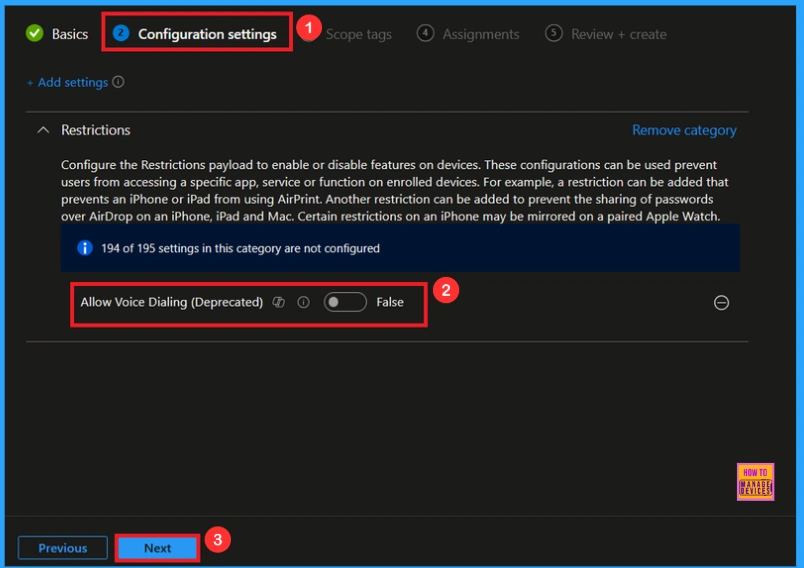
If we Not allowed or don’t configure this policy, you can block the Voice Dialing policy by toggling the switch. Then you can click the Next button to proceed.
Scope Tags
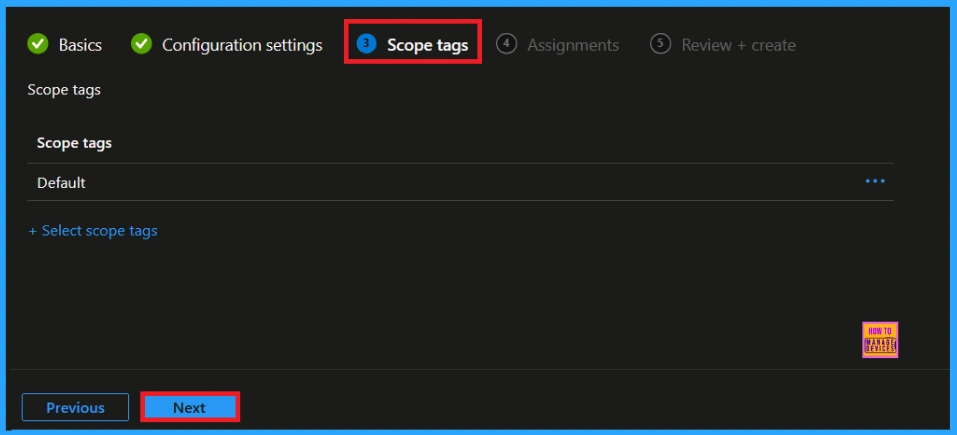
After configuring the settings, click Next. You will then reach theScope Tag section. Scope tags help you organize and filter policies based on departments, locations, or roles. They make it easier to manage and assign policies to theright groups. If you want to add a scope tag for your policy, you can easily do that. Once done, click Next to continue further.
Assignments
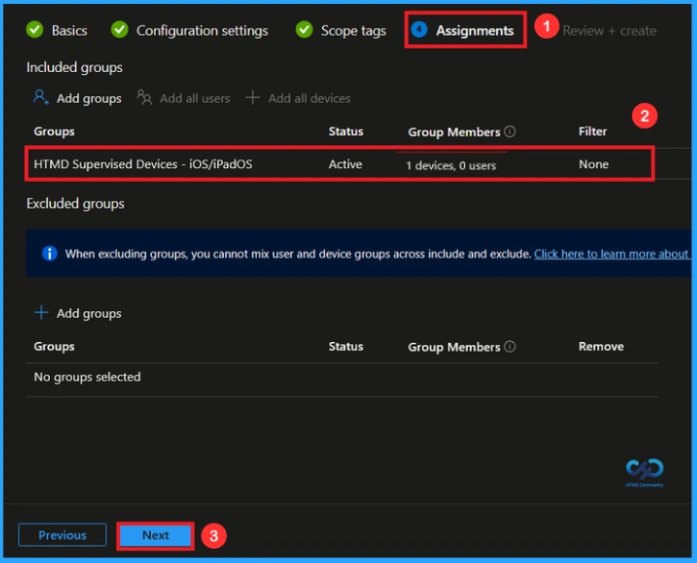
After the Scope Tags, you will reach the Assignment section. In this section, you can assign the policy to specific groups. Assignments ensure that the policy is applied only to the devices or users, helping maintain control and compliance. To assign a group, click Add Group and select group ( HTMD Supervised Devices – iOS iPadOS) then click Next to continue.
Final Step
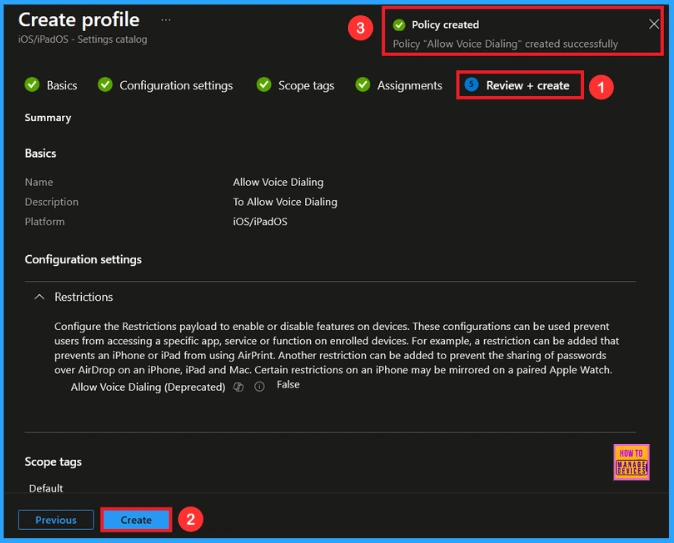
After Assignments, you will reach the Review + Create page. Here, you can review all the information and settings you have entered. If everything looks correct, click Create to proceed. If you need to make any changes, you can go back to the previous tabs and edit the configurations. Once you click Create, the policy will be successfully created.
Monitoring Status
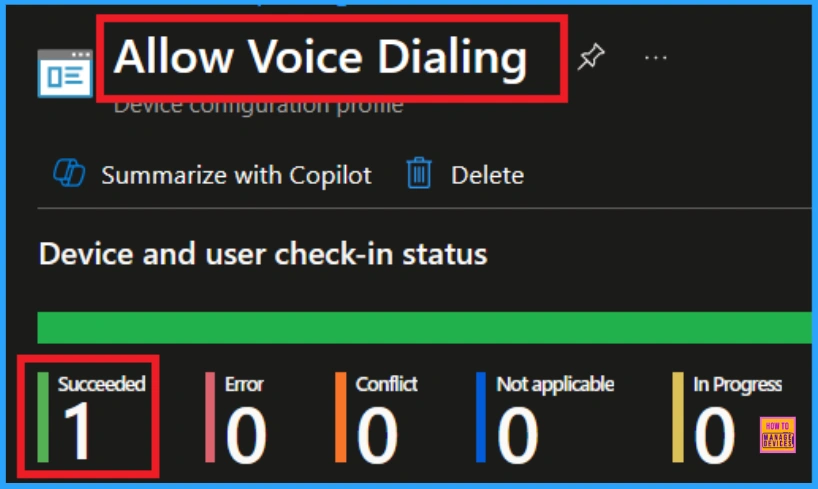
When the policy is created successfully, you can sync the device on the Company portal for faster deployment. After syncing is completed, you can check the status on the Intune Portal. Go to Devices > Configuration and search for the policy.
How to Check on End User Device
You can check this on an end-user iOS device by locking the phone and trying to start a call from the lock screen. When the restriction is applied, the device will block the call and show that calling is not allowed until it is unlocked. After unlocking, calling will work normally again. This shows the policy is active on the supervised device.
How to Remove Assigned Group from Voice Dialing Policy
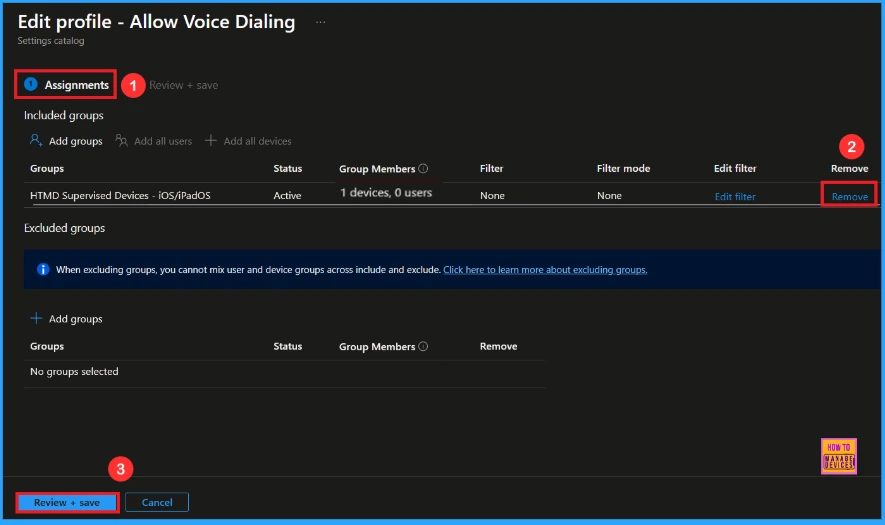
After creating the policy, if you want to remove the specific group that you previously selected, you can easily do that. First, go to Devices > Configuration policies. In the Configuration policy section, search and select thepolicy. In the Assignment section, you will find an Edit option and click on it. Then, click the Remove option.
For detailed information, you can refer to our previous post – Learn How to Delete or Remove App Assignment from Intune using by Step-by-Step Guide.
How to Delete Voice Dialing Policy from Intune
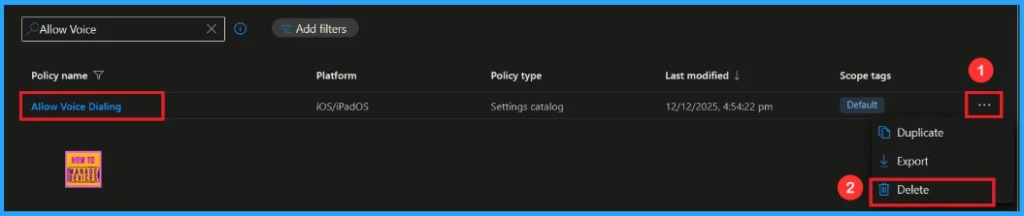
If you want to delete this policy for any reason, you can easily do so. First, search for the policy name in the configuration section. When you find the policy name, you will see a 3-dot menu next to it. Click on the 3 dots, then click the Delete button.
For detailed information, you can refer to our previous post – How to Delete Allow Clipboard History Policy in Intune Step by Step Guide.
Need Further Assistance or Have Technical Questions?
Join the LinkedIn Page and Telegram group to get the latest step-by-step guides and news updates. Join our Meetup Page to participate in User group meetings. Also, Join the WhatsApp Community to get the latest news on Microsoft Technologies. We are there on Reddit as well.
Author
Anoop C Nair has been Microsoft MVP from 2015 onwards for 10 consecutive years! He is a Workplace Solution Architect with more than 22+ years of experience in Workplace technologies. He is also a Blogger, Speaker, and Local User Group Community leader. His primary focus is on Device Management technologies like SCCM and Intune. He writes about technologies like Intune, SCCM, Windows, Cloud PC, Windows, Entra, Microsoft Security, Career, etc