
Key Takeaways
- Improves Device Security Updates During OOBE using ESP
- Windows can now install monthly security (quality) updates during OOBE when using Autopilot and Intune.
- Microsoft added a new setting in the Intune Enrollment Status Page to control this behavior.
- Existing profiles must be updated manually.
Let’s discuss How to Install Windows Security Updates During OOBE using ESP with Intune and Autopilot. Microsoft has introduced a new control in Microsoft Intune that changes how Windows devices receive security updates during their first setup. While Windows has always aimed to keep devices secure during the out-of-box experience (OOBE).
Table of Contents
Table of Contents
How to Install Windows Security Updates During OOBE using ESP with Intune and Autopilot
IT admins can now choose whether monthly security updates should install automatically during setup. By default, Windows installs the latest monthly security updates during OOBE, so devices are protected and up to date before users start working. In Microsoft Intune and Windows Autopilot, this setup happens through the Enrollment Status Page.
- Managing Real Time Protection and Security Updates During Windows OOBE using Intune
- New Capabilities in Windows Autopilot Device Provisioning Real Time Monitoring App and Script Provisioning
- Intune Enrollment Status Page Troubleshooting
See More: Install Required Apps in Windows Autopilot Enrollment Status Page
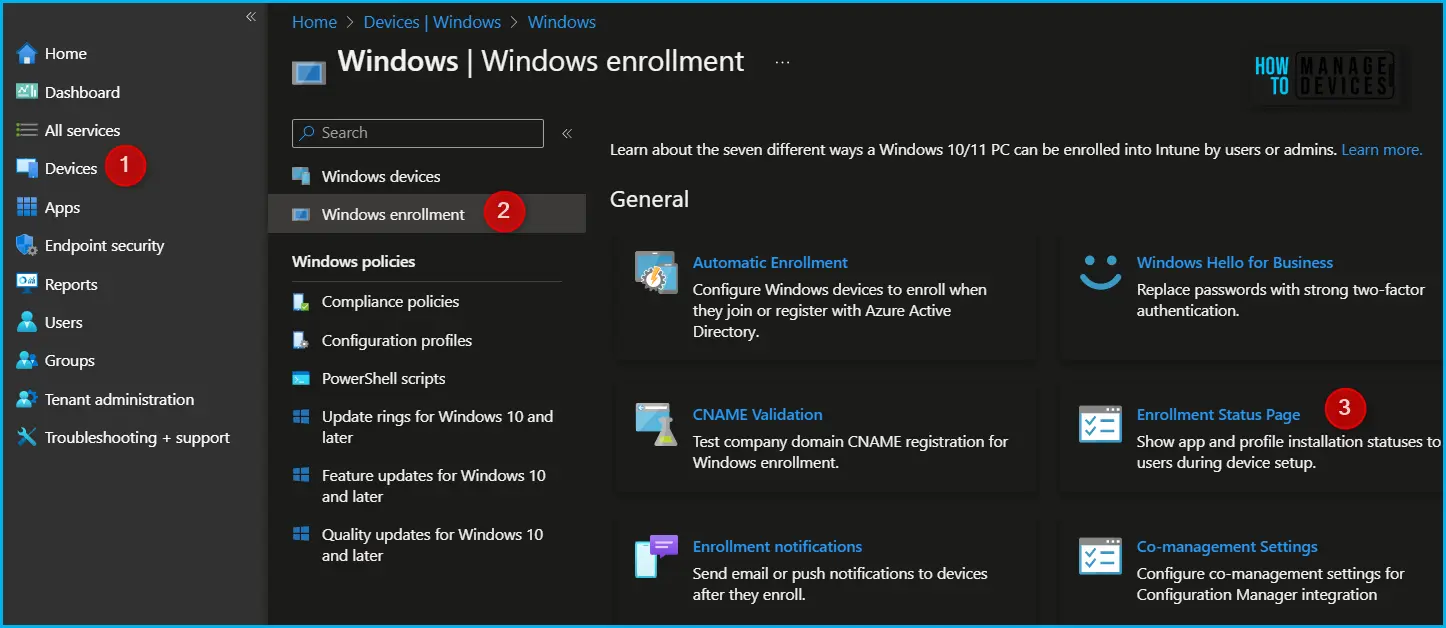
New Feature in Intune ESP
The new feature added by Microsoft that allows Windows to install security (quality) updates during the out-of-box experience (OOBE) when devices are set up using Intune and Windows Autopilot. You know this capability became available starting with the January 2026 Windows quality update.

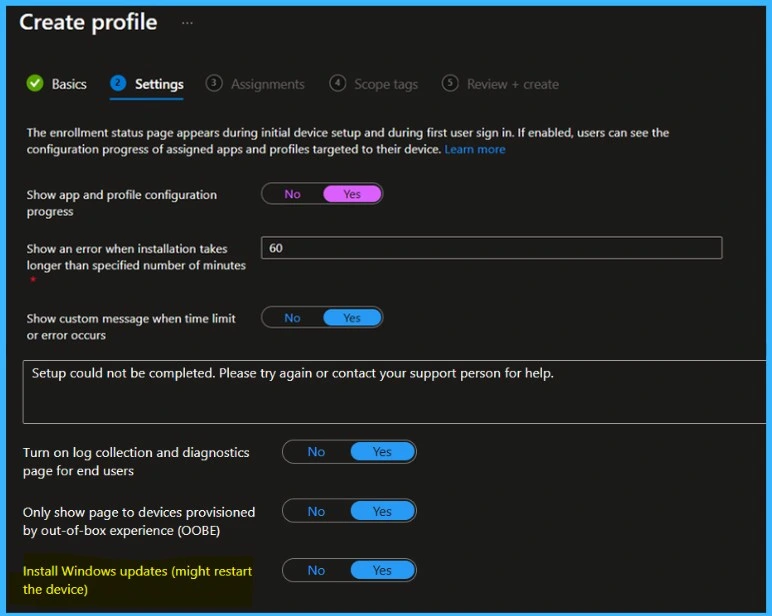
- A new setting has been added to the Intune Enrollment Status Page called “Install Windows updates (might restart the device).
- It helps admins decide whether these updates should be installed during device setup or delayed until later.
- Preexisting ESP profiles will have the option Install Windows quality updates set to “No” by default, meaning devices won’t automatically apply updates during provisioning unless admins manually edit the profile.
- New ESP profiles created now will default to Yes, ensuring devices install the latest quality updates during the out‑of‑box experience (OOBE).
| What Happens When It Enabled or Disabled | Info |
|---|---|
| Enable | If it is Enabled (Yes), the device installs the latest security updates during setup, which may include restart. |
| Disable | If it is Disabled (No) Updates are skipped during OOBE |
Need Further Assistance or Have Technical Questions?
Join the LinkedIn Page and Telegram group to get the step-by-step guides and news updates. Join our Meetup Page to participate in User group meetings. Also, Join the WhatsApp Community and WhatsApp Channel to get the latest news on Microsoft Technologies. We are there on Reddit as well.
Author
Anoop C Nair has been Microsoft MVP for 10 consecutive years from 2015 onwards. He is a Workplace Solution Architect with more than 22+ years of experience in Workplace technologies. He is a Blogger, Speaker, and Local User Group Community leader. His primary focus is on Device Management technologies like SCCM and Intune. He writes about technologies like Intune, SCCM, Windows, Cloud PC, Windows, Entra, Microsoft Security, Career, etc.