
Key Takeaways
- This policy makes sure computers lock quickly when not in use
- The screen saver lock happens within 5 seconds or less
- It prevents others from using or viewing computer
- Reduces risk of data theft and unauthorized access
Today we are discussing Prevent Unauthorized Access by Configuring Screen Saver Lock Timing using Intune Policy. This policy is created to make sure that a computer locks itself quickly when it is not being used. In offices and shared work areas, people may step away from their desks for a short time. If the computer stays unlocked during this time, anyone nearby could see or use it.
This policy helps prevent that risk by making the system lock automatically. Windows computers already have a screen saver and lock feature, but it depends on how it is set up. If the grace period is too long, the computer may stay open for a few seconds even after the screen saver starts. Those few seconds can be enough for someone to touch the keyboard or mouse and stop the lock. This policy removes that chance.
Having the same lock settings on all company devices is important. When every device follows the same rule, it is easier to manage and more secure. This policy helps the organization keep all computers protected in a simple and consistent way.
The most important part of this policy is setting the screen saver grace period to five seconds or less. This means the computer will lock almost immediately after the screen saver turns on. Users will not be able to keep the system unlocked by small movements.

Table of Contents
Table of Contents
Prevent Unauthorized Access by Configuring Screen Saver Lock Timing using Intune Policy
This setting is very important because many security problems happen due to physical access. Someone does not need hacking skills if a computer is left unlocked. By locking the system quickly, this policy protects the device from misuse when the user is away.
This policy helps the organization protect important data such as files, emails, and business information. It reduces the chance of data being seen, copied, or changed by someone who should not have access. This is especially useful in offices with visitors or shared desks.
- How to Fix Conditional Access Misconfiguration Causing Edge Authentication Loop in Intune
- How to Set Up White Dark Theme Sign-In Experience Passkeys and Enhanced Authentication
- Enable or Disable Hotspot Authentication in Networks using Intune Policy
Create Profile
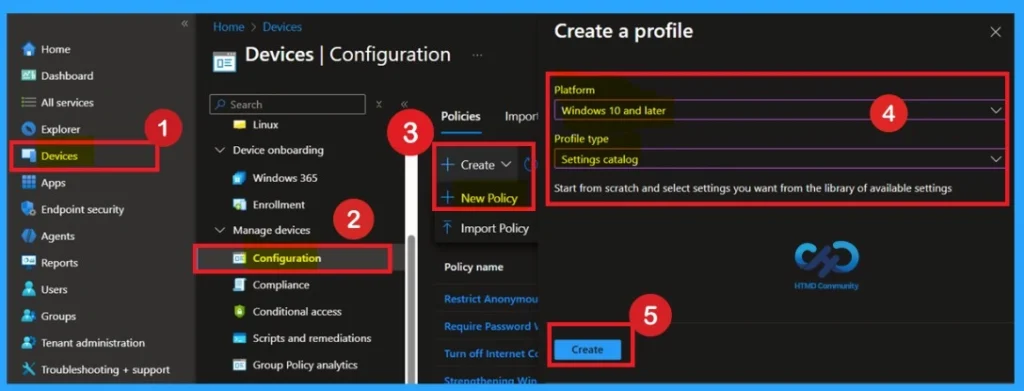
Previously, we discussed various aspects of enabling and disabling the Screen Saver Lock Timing using Intune Policy. First, sign in to the Microsoft Intune admin center. Then navigate to Devices > Configuration > + Create. You will see a window titled Create a Profile.
Help of Basics Tab
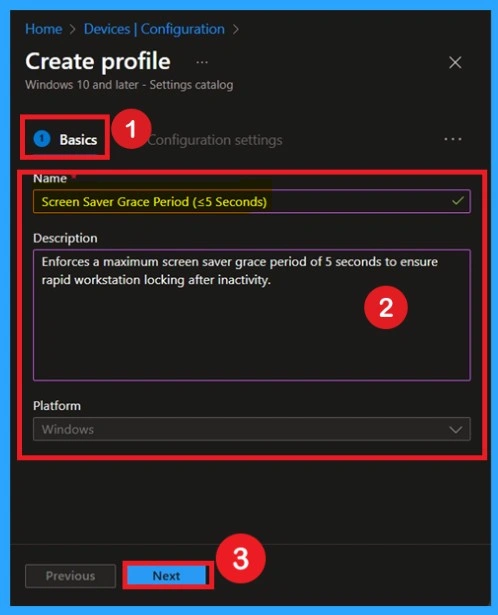
Now you are on the first tab called Basics. Here, you need to enter the basic details such as the Name and Description of the policy. The policy name is very important because it act as the identifier for the policy after it is created. Once you’ve filled in the basic details, click Next to move to the next tab.
Important Aspects of Configuration Settings
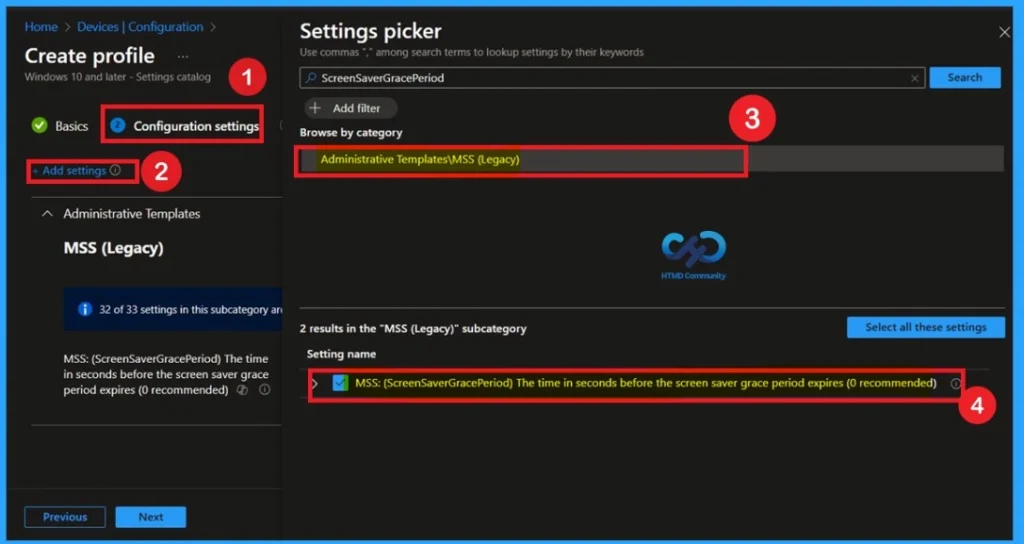
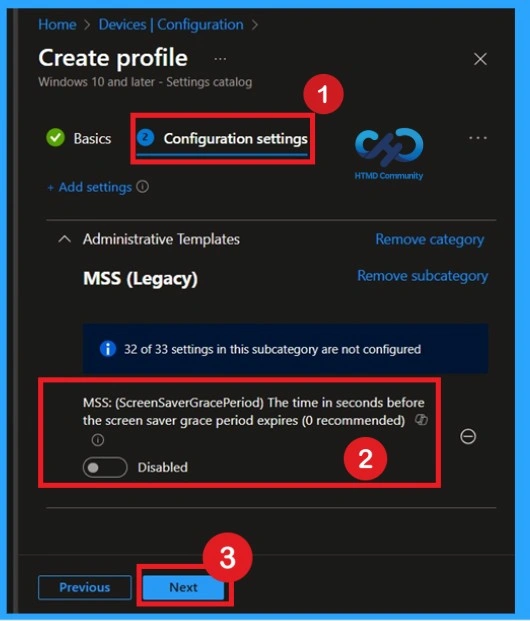
Now you are on the Configuration settings page. Here, you can see the + Add settings option. Click on it and navigate to Settings Picker> Administrative Templates. Under Administrative Templates, select the MSS (Legacy) category. In this category, you will find different types of policy settings. From the list, select MSS: Screen Saver Grace Period. After selecting the policy, close the Settings Picker window to proceed.
Disable the Policy
After selecting the policy, you can close the Settings picker window. You will now return to the Configuration settings tab. Here, you’ll see that the selected policy is disabled by default. If you want to proceed with the default setting, simply click Next to continue.
Enable the Policy to Activate the Settings
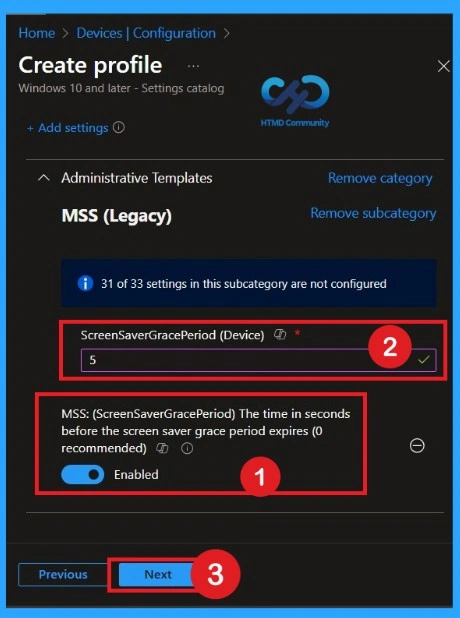
To enable this policy, toggle the switch from left to right. Once enabled, the policy status changes to blue, indicating that it is active. When the policy is enabled, a text box appears in the Enabled section above. In this field, enter the value 5. The default value is 3, which has been removed and replaced with 5 in accordance with the CIS documentation
Know the Scope Tag Details
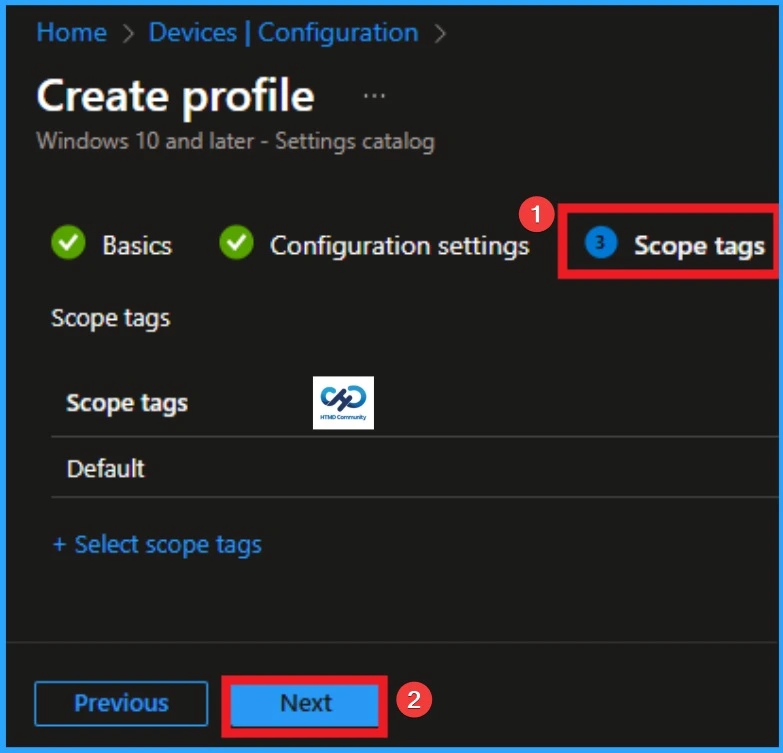
Now you are on the Scope tags tab in the policy creation process. Scope tags have no required role in this configuration, so you can skip this section by clicking Next. Scope tags are used for role-based access and organizational control, but they are not necessary in this case. Skipping this step will not affect the functionality of the policy.
Importance of Assignments
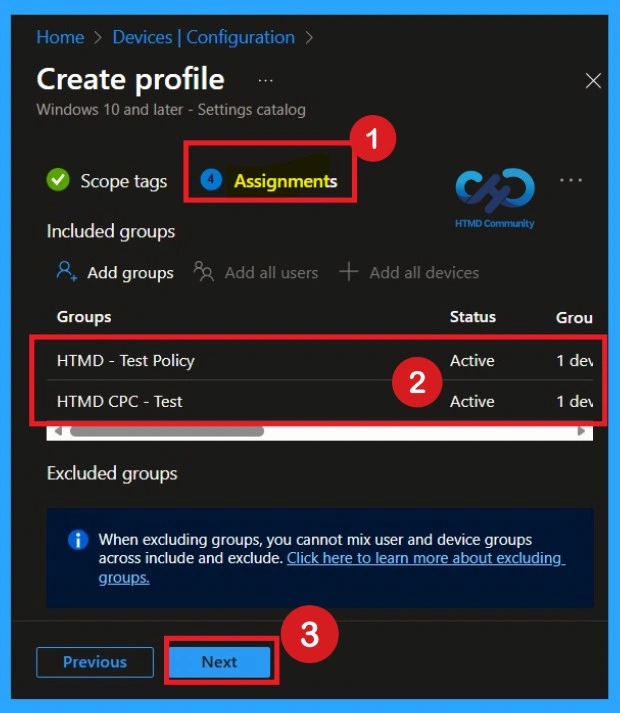
The Assignments section is very important because it allows you to add groups to the policy. Here, you can select the appropriate organizational group. After selecting the group, click Next to proceed. Always remember to add groups only from the “Include” section to ensure the policy is applied correctly.
Review + Create Tab
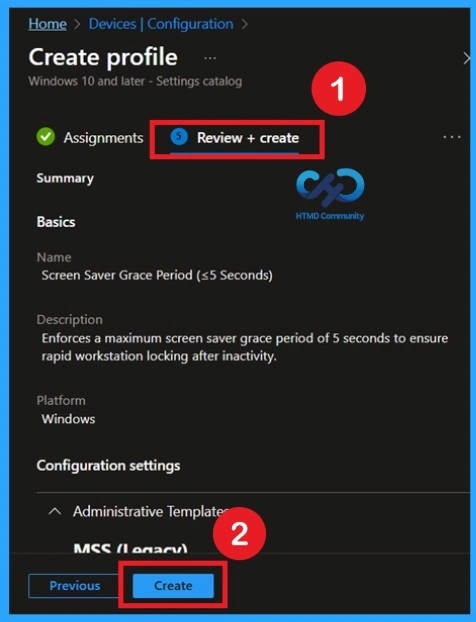
Before completing the policy creation, you can review each tab to avoid misconfiguration or policy failure. After verifying all the details, click on the Create Button. After creating the policy, you will get a success message.
Monitoring Status
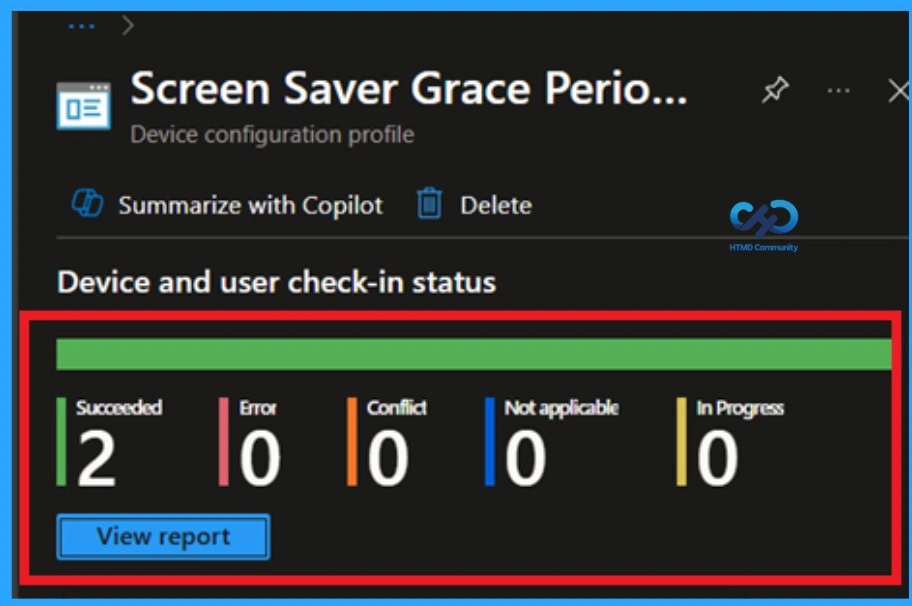
The Monitoring Status page shows whether the policy has succeeded or not. To quickly configure the policy and take advantage of the policy sync the assigned device on Company Portal. Open the Intune Portal. Go to Devices > Configuration > Search for the Policy. Here, the policy shows as successful.
Client Side Verification with Event Viewer
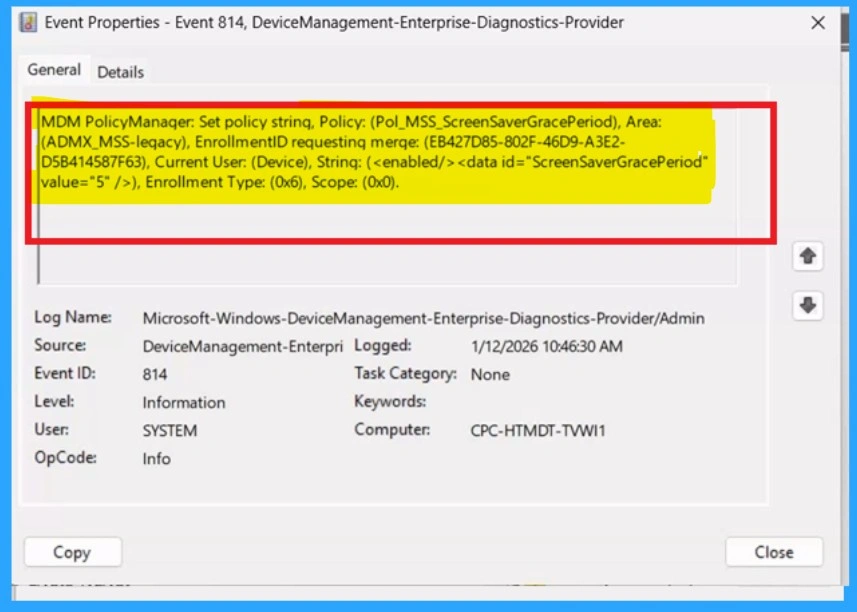
If you get success message, that doesn’t mean you will get the policy succeeded. To verify the policy successfully configured to client device check the Event Viewer. Open Event Viewer: Go to Start > Event Viewer. Navigate to Logs: In the left pane, go to Application and Services Logs > Microsoft > Windows > DeviceManagement-Enterprise-Diagnostics-Provider > Admin. Filter for Event ID 813: This will help you quickly find the relevant logs.
| Policy Info |
|---|
| MDM PolicyManager: Set policy strinq, Policy: (Pol_MSS_ScreenSaverGracePeriod), Area: (ADMX_MSS-leqacy), EnrollmentID requestinq merqe: (EB427D85-802F-46D9-A3E2- D5B414587F63), Current User: (Device), Strinq: ( ), Enrollment Type: (0x6), Scope: (0x0). |
Removing Assigned Groups
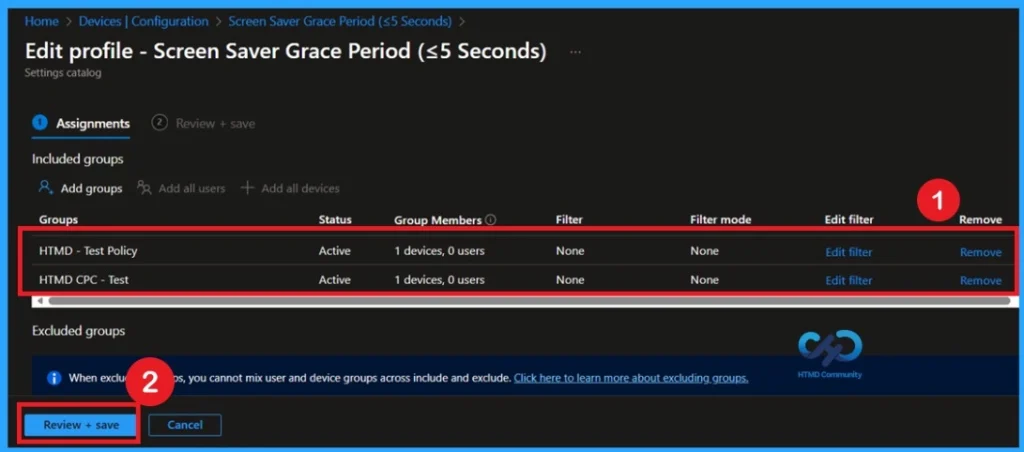
If you want to remove the Assigned group from the policy, it is possible from Intune Portal. To do this open the Policy on Intune Portal and Edit the Assignments tab and Remove the Policy.
To get more detailed information, you can refer to our previous post – Learn How to Delete or Remove App Assignment from Intune using by Step-by-Step Guide.
How to Delete the Policy that you created
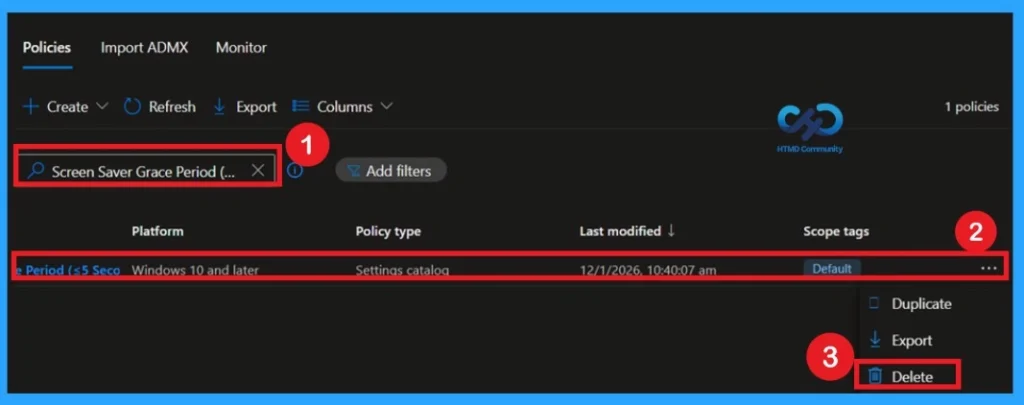
You can easily delete the Policy from the Intune Portal. From the Configuration section, you can delete the policy. It will completely remove it from the client devices. For that search the picy name in the configuration profiles. Locate and select the specific policy you want to remove.
For detailed information, you can refer to our previous post – How to Delete Allow Clipboard History Policy in Intune Step by Step Guide.
Need Further Assistance or Have Technical Questions?
Join the LinkedIn Page and Telegram group to get the latest step-by-step guides and news updates. Join our Meetup Page to participate in User group meetings. Also, Join the WhatsApp Community to get the latest news on Microsoft Technologies. We are there on Reddit as well.
Author
Anoop C Nair has been Microsoft MVP from 2015 onwards for 10 consecutive years! He is a Workplace Solution Architect with more than 22+ years of experience in Workplace technologies. He is also a Blogger, Speaker, and Local User Group Community leader. His primary focus is on Device Management technologies like SCCM and Intune. He writes about technologies like Intune, SCCM, Windows, Cloud PC, Windows, Entra, Microsoft Security, Career, etc.