
How to Control the Visibility of App and Browser Protection in Windows Defender using Intune Antivirus Policy. This policy setting controls whether the App and Browser Protection section is shown in the Windows Defender Security Center.
When the policy is enabled (set to disable the UI), the App and Browser Protection area is hidden from users. This helps administrators restrict user access to security settings and keep device protection managed centrally. This policy helps IT administrators by giving them centralized control over security settings without relying on end users.
When the App and Browser Protection area is hidden, users cannot view or attempt to change protection features such as SmartScreen or exploit protection. This reduces the risk of accidental misconfiguration and ensures that all devices follow the organization’s approved security standards.
This policy is also useful in kiosk, shared, or frontline worker devices, where users should not access advanced security options. Overall, the policy improves security governance by limiting user interaction with critical protection features while still keeping those protections active in the background.

Table of Contents
How to Control the Visibility of App and Browser Protection in Windows Defender using Intune Antivirus Policy
When users open Windows Defender Security Center (built-in security dashboard in Windows that shows the overall protection status of your device) they may see warnings, alerts, or advanced security options under App and Browser Protection. Most users don’t understand what these mean. When they see a warning, they often think something is wrong with the laptop, even if IT has already configured everything correctly.
- By hiding this App and Browser Protection section, users don’t see those confusing messages at all.
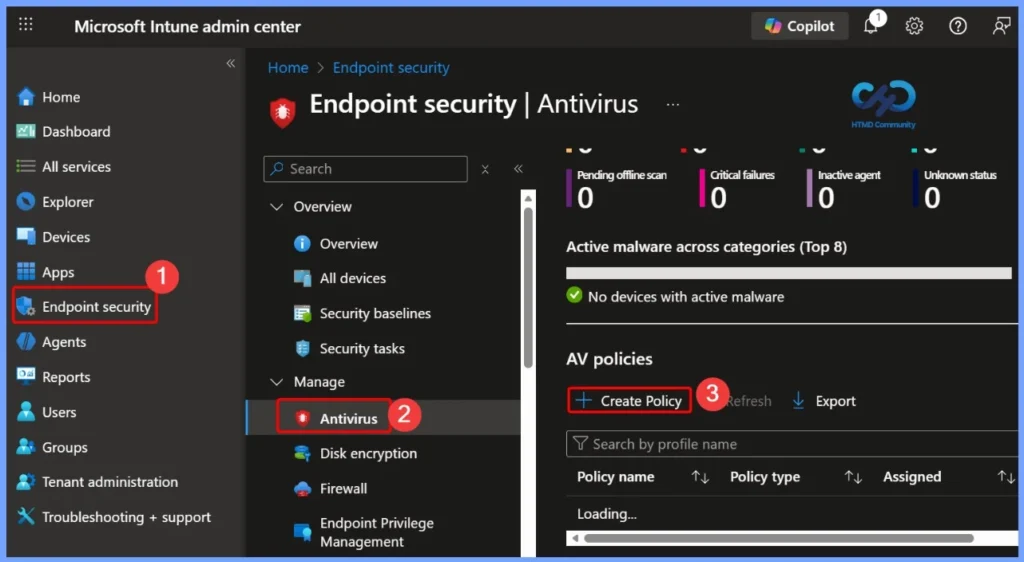
- Sign in to the Microsoft Intune admin center.
- From the left navigation pane, select Endpoint security.
- Under Endpoint security, choose Antivirus.
- Click + Create to start creating a new policy.
- How to Fix Missing Threat Severity Settings in Intune Antivirus Policy
- Best Antivirus for Windows 11 Microsoft Defender | App Browser Protection | Firewall Protection
- 3 Ways to Configure Microsoft Defender Antivirus Policies for Windows 11 using Group Policy Intune Policy
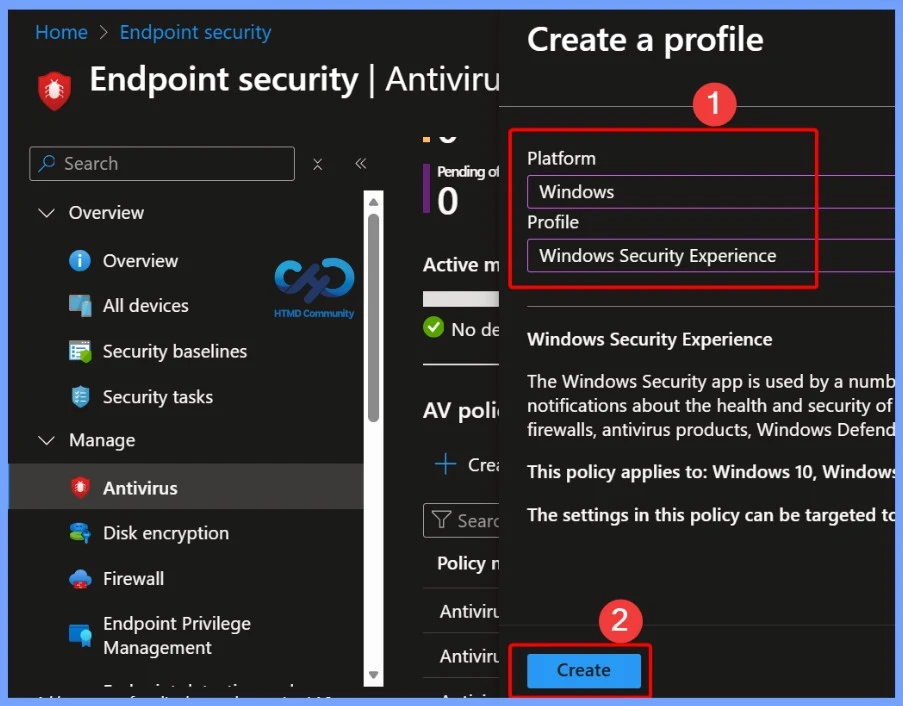
Create Windows Security Experience Profile
When the Create a profile window appears, enter the basic configuration details required to proceed. Select Windows as the platform and choose Windows Security experience as the profile type. After selecting these options, continue to the next step to configure the policy settings.
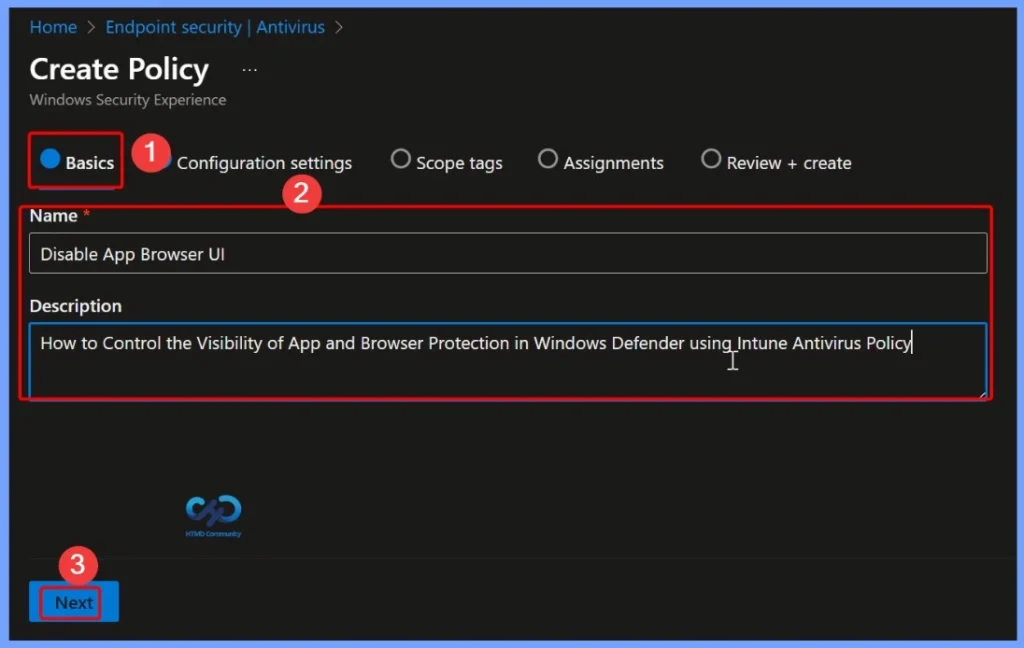
Configure Basic Settings for the Policy
In the Basics settings tab, provide the required policy details to help identify and understand its purpose. Enter Disable App Browser UI as the policy name. In the Description field, add How to Control the Visibility of App and Browser Protection in Windows Defender using Intune Antivirus Policy.
Disable App Browser UI
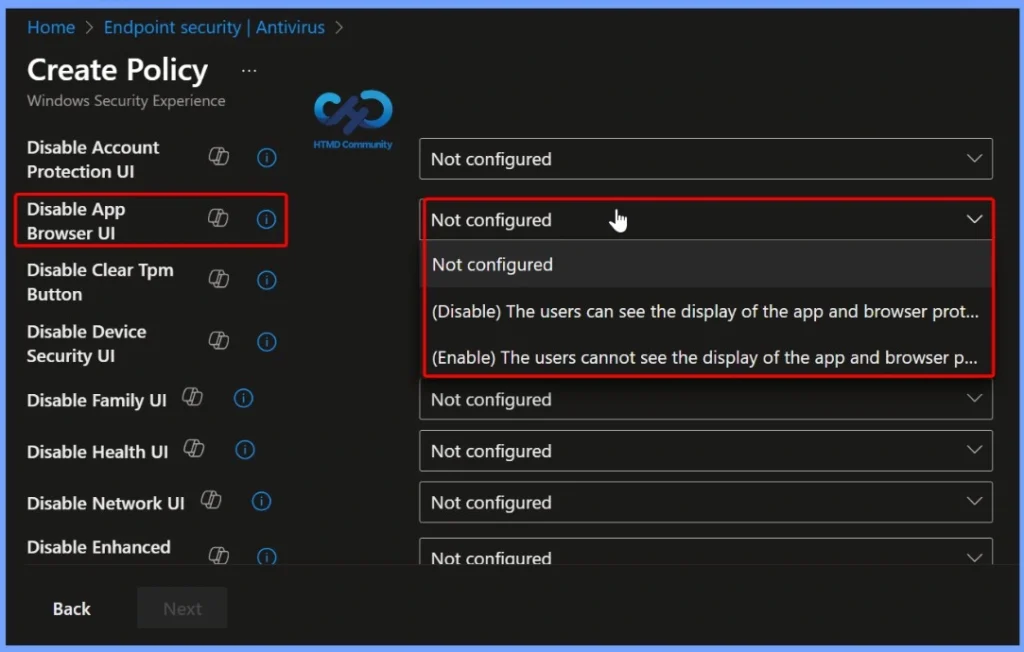
The Disable App Browser UI policy in Intune provides 3 configuration options that control the visibility of the App and Browser Protection area in Windows Defender Security Center. When set to Not configured, Intune does not apply any change, and Windows uses its default behavior.
| Disable App Browser UI Policy |
|---|
| Not configured |
| Disable App and Browser Protection area is visible |
| Enable App and Browser Protection area is hidden |
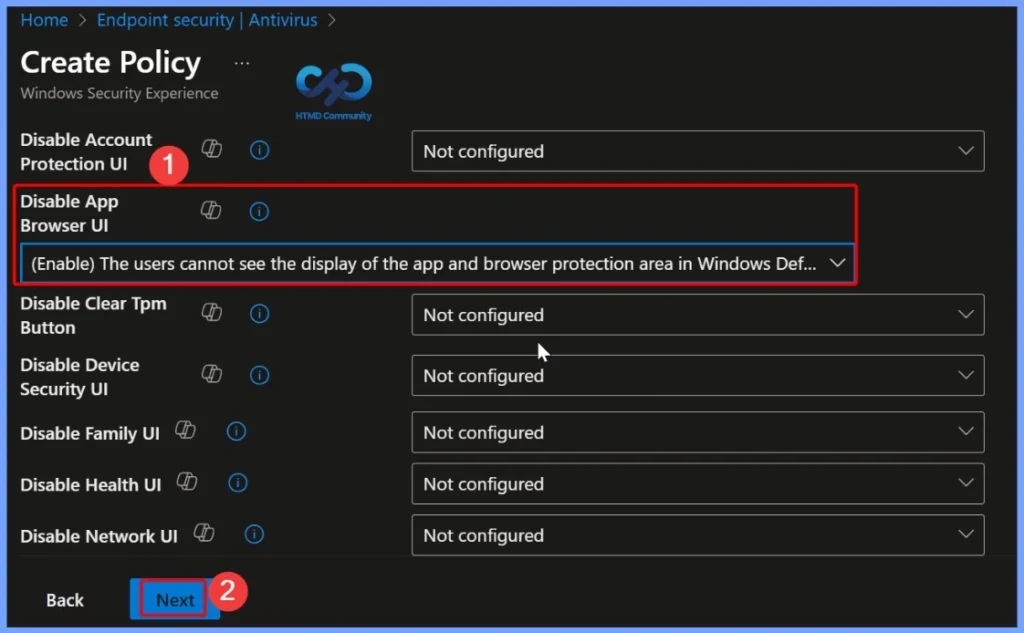
Enable Setting – Hide App and Browser Protection UI
When the policy is set to Enable, the App and Browser Protection section is completely hidden from the Windows Defender Security Center. Users will not be able to see this area or access related options, even though the protection features continue to work in the background as configured by IT.
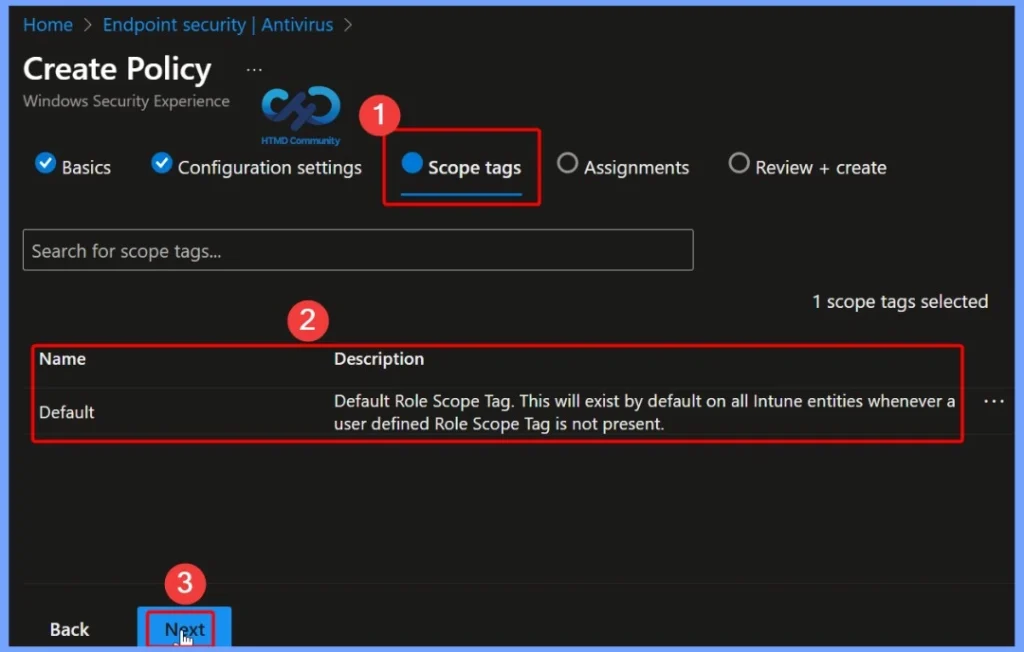
Scope Tag of the Policy
For the Disable App Browser UI policy, assigning a scope tag ensures that only the intended administrators (for example, Windows management teams can view, edit, or assign the policy. This is especially useful in large organizations with multiple IT teams, as it improves role separation, reduces accidental changes, and keeps policy management well organized.
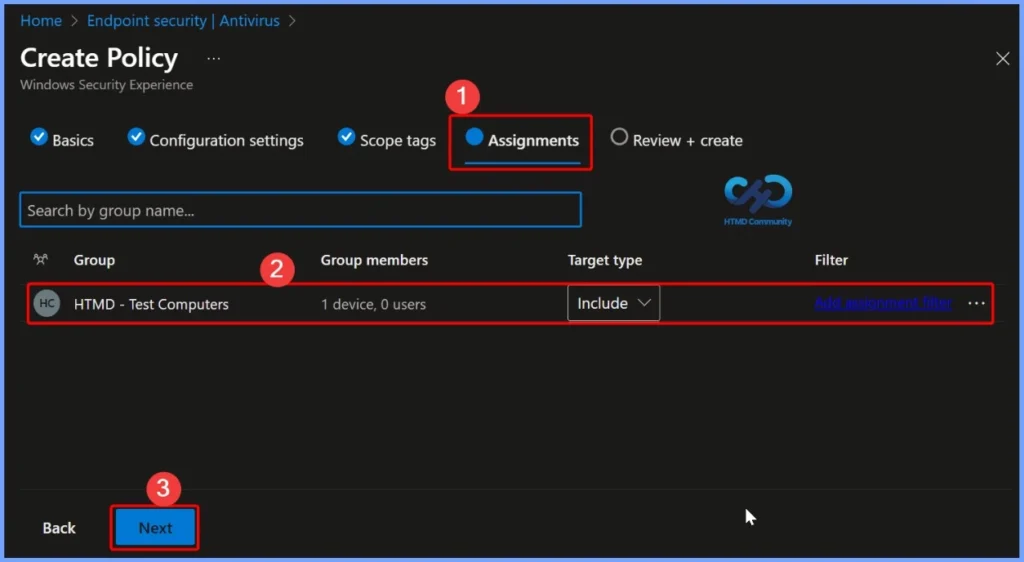
Assignments of the Policy
The Assignments section determines which devices or users will receive the Disable App Browser UI policy. Proper assignments help avoid unintended impact on personal or test devices and ensure consistent policy enforcement across the intended environment.
Review + Create the Policy
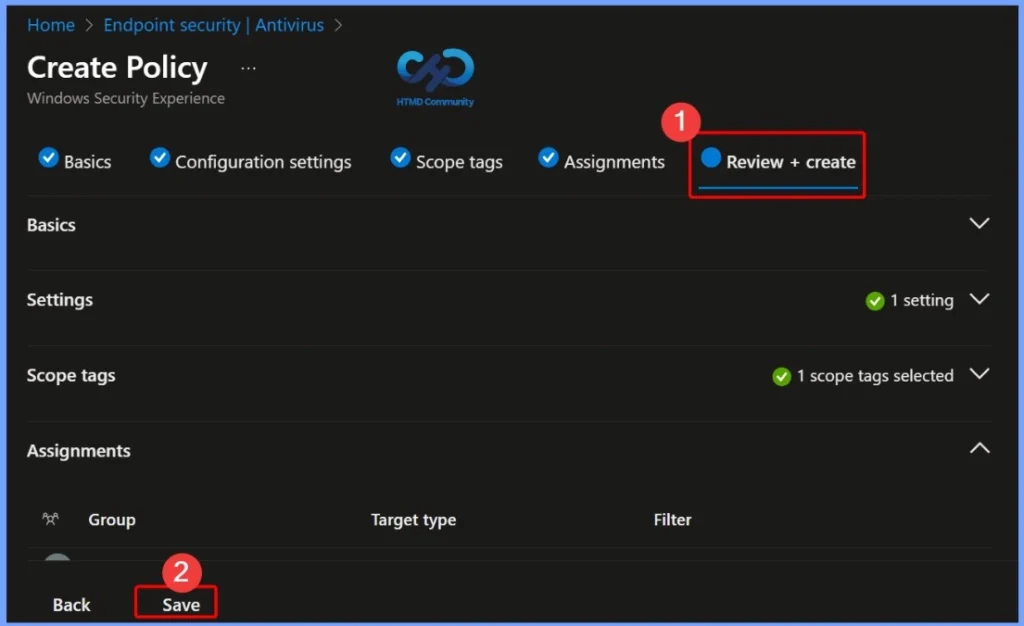
In the Review + Create section, Intune displays a summary of all the settings configured for the policy, including the platform, profile type, policy settings, scope tags, and assignments. This step allows administrators to verify that everything is correctly configured before deployment.
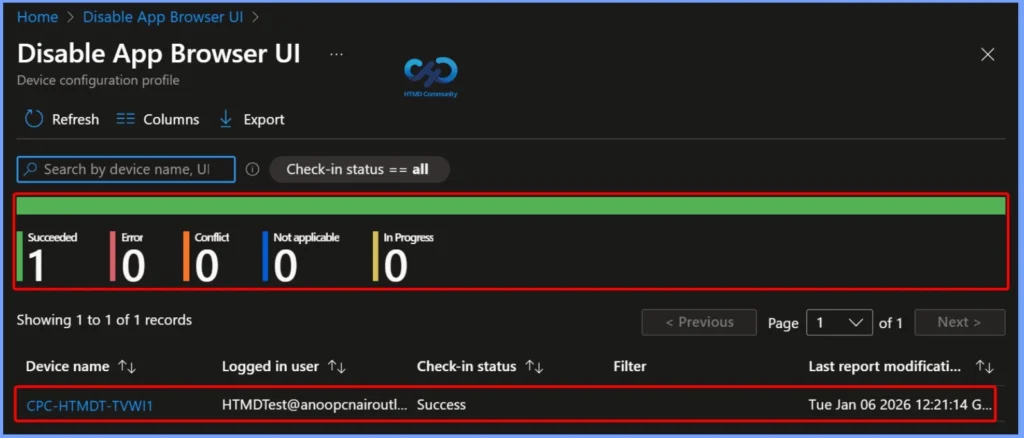
Policy Deployment Status – Disable App Browser UI
This screen shows the deployment status of the Disable App Browser UI Intune policy. The policy has been successfully applied to the targeted device, as indicated by the Succeeded status. There are no errors, conflicts, or pending states, which confirms that Intune processed the policy without issues.
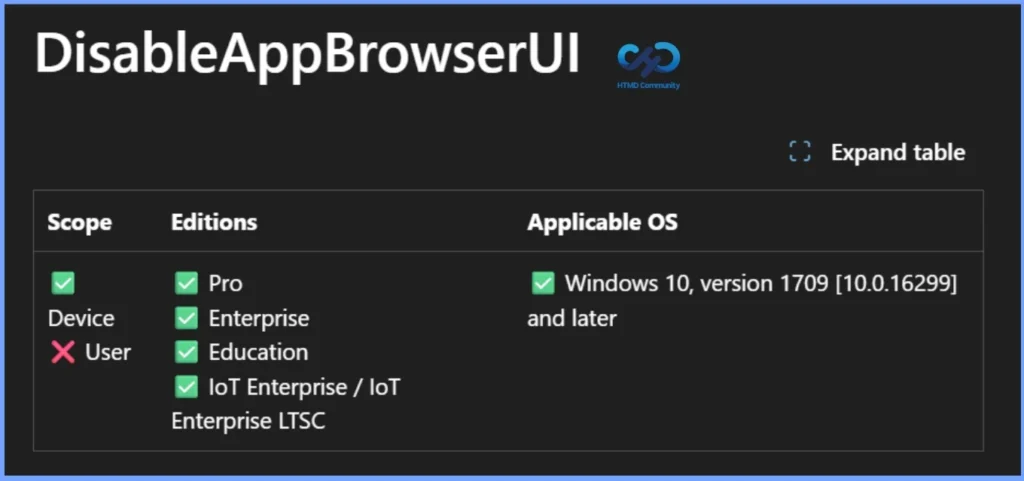
DisableAppBrowserUI – Windows CSP Policy Overview
The DisableAppBrowserUI policy allows administrators to control the visibility of the app and browser protection area within Windows Defender Security Center. When this setting is enabled, the app and browser protection section is hidden from the user interface, preventing end-users from accessing or modifying these protections.
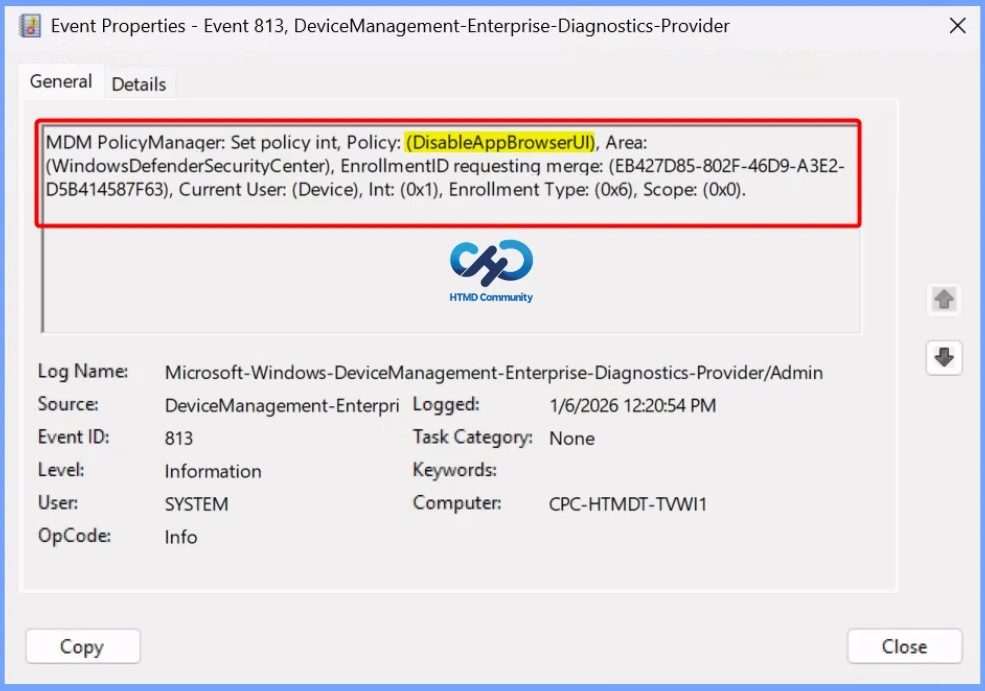
DisableAppBrowserUI Policy Applied via MDM – Client Side Verification
The DisableAppBrowserUI policy has been successfully configured on the device using MDM PolicyManager. This policy targets the Windows Defender Security Center area and is set at the device level (Current User: Device) with a value of 0x1, effectively disabling the app and browser protection UI for end-users.
- To get the client-side verification, open the Event Viewer and navigate to Applications and Services Logs > Microsoft> Windows > Device Management > Enterprise Diagnostic Provider > Admin.
Need Further Assistance or Have Technical Questions?
Join the LinkedIn Page and Telegram group to get the latest step-by-step guides and news updates. Join our Meetup Page to participate in User group meetings. Also, Join the WhatsApp Community to get the latest news on Microsoft Technologies. We are there on Reddit as well.
Author
Anoop C Nair has been Microsoft MVP for 10 consecutive years from 2015 onwards. He is a Workplace Solution Architect with more than 22+ years of experience in Workplace technologies. He is a Blogger, Speaker, and Local User Group Community leader. His primary focus is on Device Management technologies like SCCM and Intune. He writes about technologies like Intune, SCCM, Windows, Cloud PC, Windows, Entra, Microsoft Security, Career, etc.