
Key Takeaways
- Windows 365 Boot provides direct Cloud PC login at startup.
- Windows 365 Reserve offers temporary backup Cloud PC access.
- Ideal for hybrid and remote work environments.
- Supports secure and centralized IT management.
In this post we are discussing about Zero-Touch Deployment and Instant Cloud PC Access with Windows 365 Boot and Reserve using Intune. Microsoft has introduced two powerful features in Windows 365 called Windows 365 Boot and Windows 365 Reserve. These features are designed to make cloud computing simpler, faster, and more helpful for businesses.
Table of Contents
Table of Contents
Zero-Touch Deployment and Instant Cloud PC Access with Windows 365 Boot and Reserve using Intune
The main purpose of Windows 365 reverse is that Secure, temporary Cloud PC access when a physical device is unavailable. But in the case of Windows 365 boot is to allows users to sign directly into their Reserve Cloud PC. If a device got lost or have any issue to start, these things to be sorted by giving users’ faster access to their Cloud PC and a backup option when needed. Windows 365 Boot and Windows 365 Reserve help organizations reduce downtime, improve security.
- What is Windows 365 Boot
- How to Set Up Windows 365 Cloud Apps Using Microsoft Intune
- Seamless Provisioning of Windows 365 Cloud PCs for External Identities with Intune
- How to Enhance Windows365 AI-Enabled Endpoint Management using Copilot in Intune
- Missing Intune Autopatch Secure Boot Certificate Status Report in Intune Console
Windows 365 Reserve
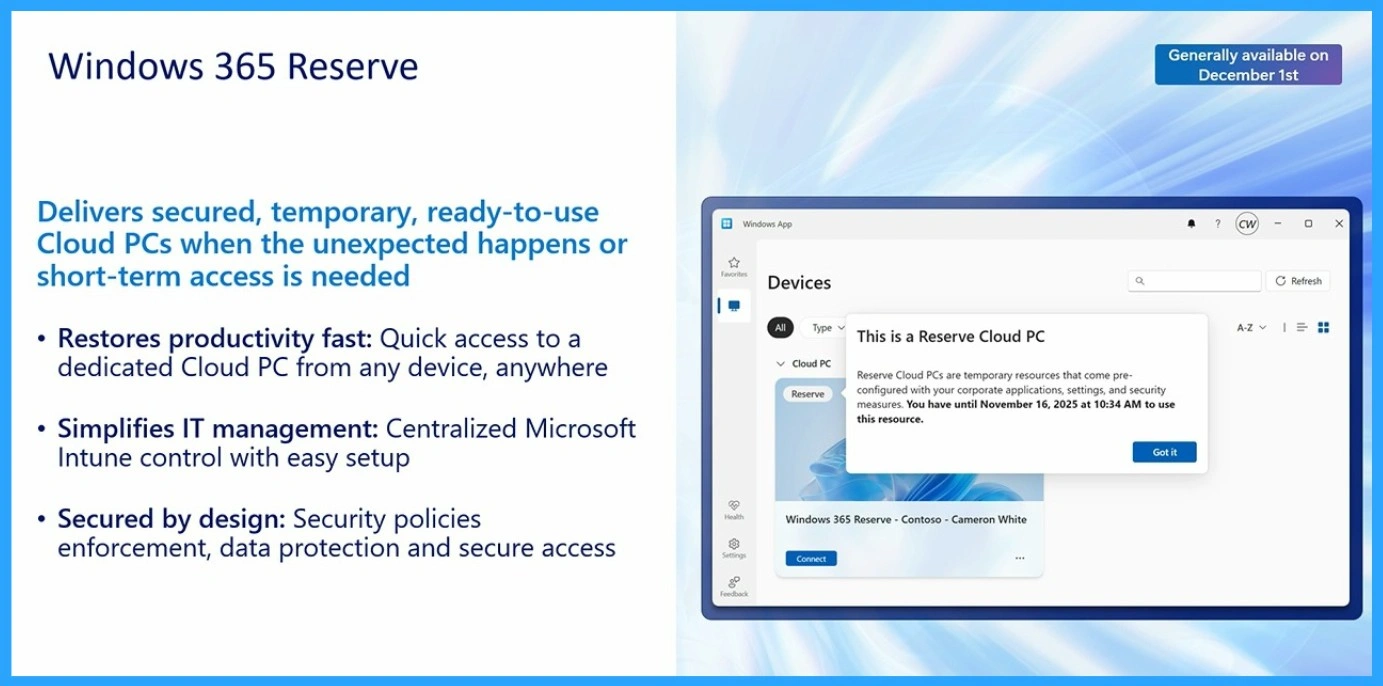
Windows 365 Reserve acts as a backup for Cloud PC. If a user’s primary device is lost, or temporarily unavailable, they can access a temporary Cloud PC from another device. The Reserve feature provides a limited number of Cloud PC usage days per year for each licensed user. During this period, users can log in from a supported device and access a secure cloud desktop that includes company applications, policies, and security settings.
Windows 365 Boot
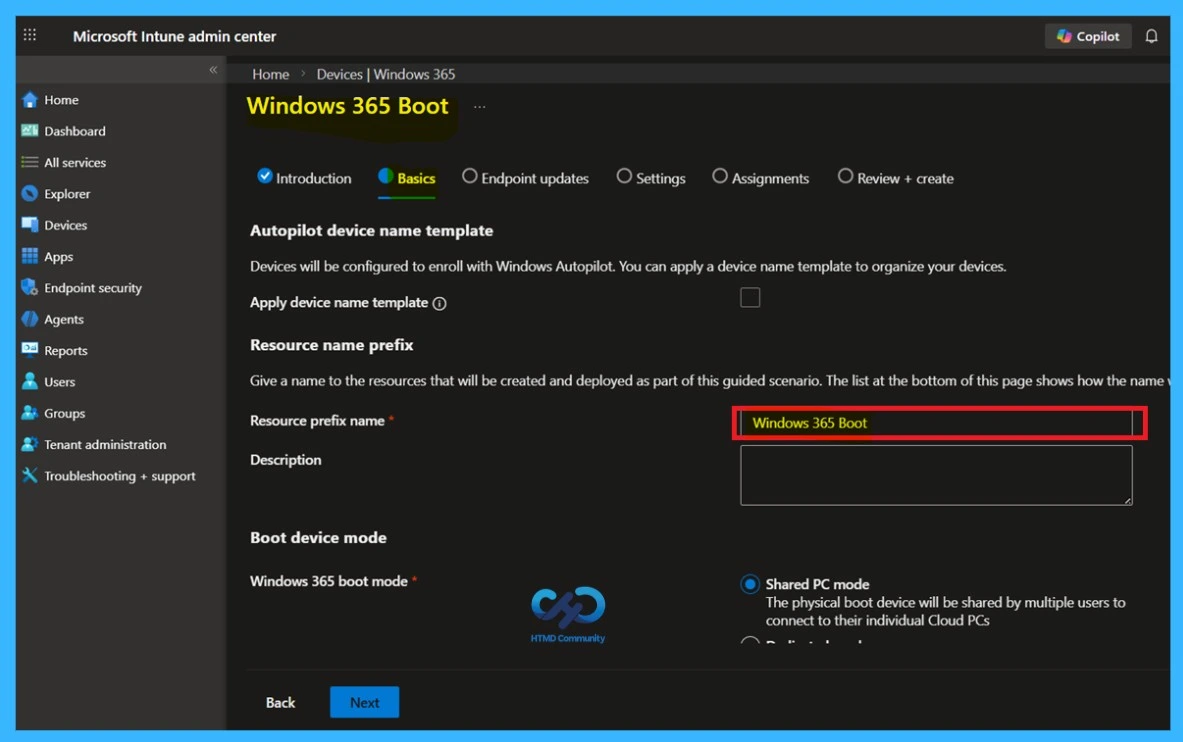
Windows Boot is a feature that help when a user powers on a Windows 11 device, they’re signed straight into their Cloud PC instead of the local OS. Users can use the same sign in option that they know. Once users signed in, they’re working in their Cloud PC with all apps, files, and settings.

- Cuts down the time of accessing Cloud PCs.
- It Works for both personal devices and shared PCs
- Devices must run Windows 11 Enterprise/Pro version 22621.3374 or later.
- A Windows 365 Enterprise license is required.
- Admins need the Intune Service Administrator role.
| How Admins enables Windows 365 Reserve on a Windows 365 Boot device |
|---|
| Provision a Windows 11 device with Windows 365 Boot using Microsoft Intune. |
| Assign a Windows 365 Reserve license to the user in Intune. |
Instant Cloud Access When Devices Fail
Windows 365 Boot + Windows 365 Reserve work together to make device replacement easy. With Windows 365 Boot, a device can be preconfigured so that when it turns on, the user signs in and goes directly to their Cloud PC. If the user’s main device is lost, or unavailable, Windows 365 Reserve provides temporary Cloud PC access. IT admins only need to prepare the device using Windows 11 and assign a Reserve license through Microsoft Intune.
| Feature | Windows 365 Boot | Windows 365 Reserve |
|---|---|---|
| Log in from any Windows 11 device | It Boots directly to Cloud PC | It has Temporary license flexibility |
| Familiar Windows experience | Uses standard Windows 11 Boot login screen | User’s Cloud PC is fully pre-configured |
| Availability | Available 24/7 on any device | Ideal for short-term use, like device loss |
Need Further Assistance or Have Technical Questions?
Join the LinkedIn Page and Telegram group to get the step-by-step guides and news updates. Join our Meetup Page to participate in User group meetings. Also, Join the WhatsApp Community and WhatsApp Channel to get the latest news on Microsoft Technologies. We are there on Reddit as well.
Author
Anoop C Nair has been Microsoft MVP for 10 consecutive years from 2015 onwards. He is a Workplace Solution Architect with more than 22+ years of experience in Workplace technologies. He is a Blogger, Speaker, and Local User Group Community leader. His primary focus is on Device Management technologies like SCCM and Intune. He writes about technologies like Intune, SCCM, Windows, Cloud PC, Windows, Entra, Microsoft Security, Career, etc.