
Key Takeaways
- Acts as an official legal and security notice, clearly informing users that system access is monitored and restricted, which is critical for audits.
- Displayed before authentication, ensuring even unauthorized users see the warning before any access attempt is made.
- Sets the seriousness and authority of the logon message, preventing users from ignoring or misinterpreting it as a normal system prompt.
- Helps meet compliance and security benchmark requirements such as CIS
Lets discuss Enhancing User Awareness with Interactive Logon Message Title Using Intune Policy. This security policy lets you set the title shown at the top of the logon message that appears before a user sign in to a Windows device. This title is displayed together with the logon message text and helps users understand what the message is about.
Table of Contents
Table of Contents
Configure Windows Interactive Logon Message Title using Intune Policy
In a Microsoft Intune-managed environment, configuring this policy ensures the same logon warning appears on all Windows devices, including remote and personal (BYOD) devices. When used along with the logon message text policy, it improves user awareness, helps prevent unauthorized access, and supports company security rules at every sign-in.
Because this message appears before login, it is one of the best ways to clearly communicate to users by ensuring Security, which is why it is strongly recommended to configure this policy instead of leaving it unset.
- How to Fix Conditional Access Misconfiguration Causing Edge Authentication Loop in Intune
- How to Set Up White Dark Theme Sign-In Experience Passkeys and Enhanced Authentication
- Enable or Disable Hotspot Authentication in Networks using Intune Policy
Create Profile
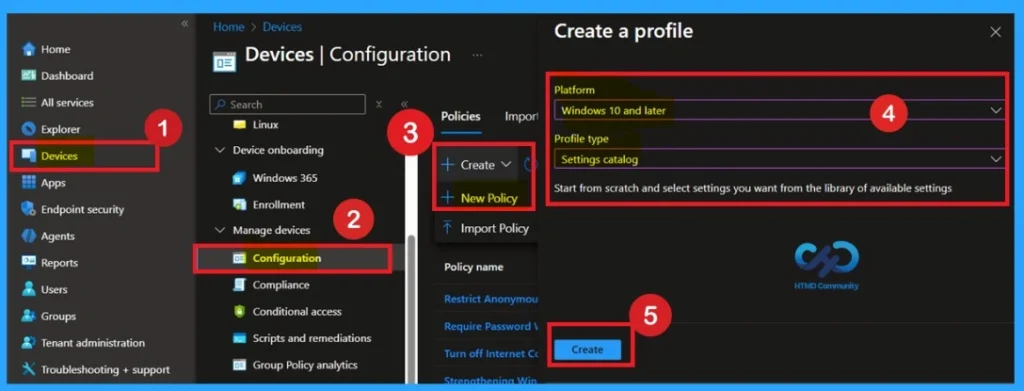
Previously, we discussed various aspects of enabling and disabling the Screen Saver Lock Timing using Intune Policy. First, sign in to the Microsoft Intune admin center. Then navigate to Devices > Configuration > + Create. You will see a window titled Create a Profile.

| Platform | Profile Type |
|---|---|
| Windows 10 and Later | Setting Catalog |
Filling Basic Tab
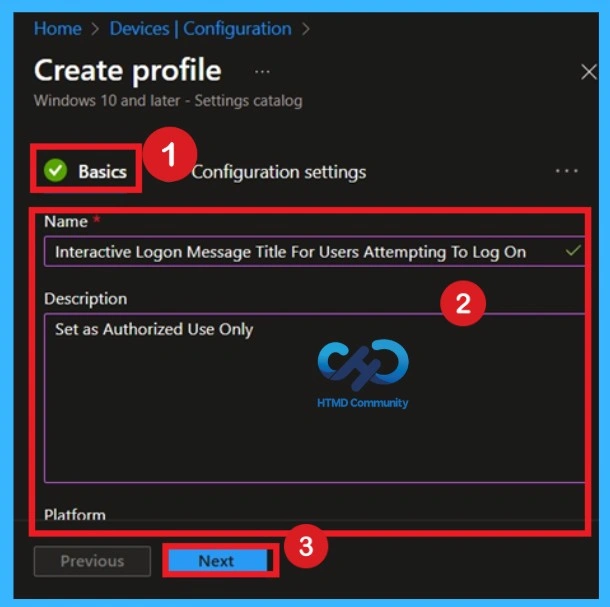
Basic tab is designed to add basic details like Name and description for Intune Policy. It is a necessary step that helps you to know the purpose of the policy. Here Name is Mandatory and Description is optional. After adding these details click on the Next button.
Assign Policy Settings through Configuration Settings
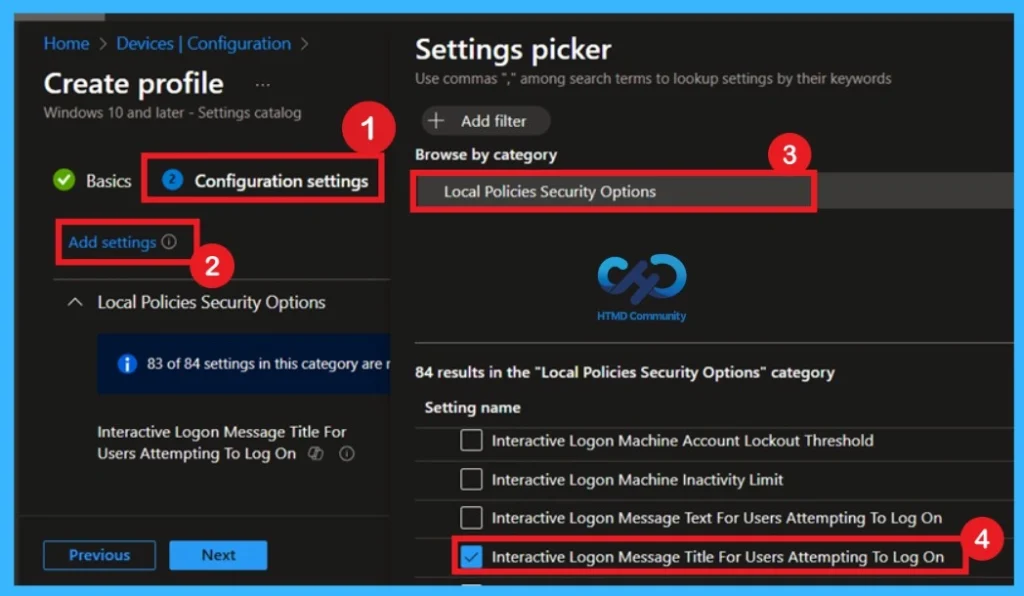
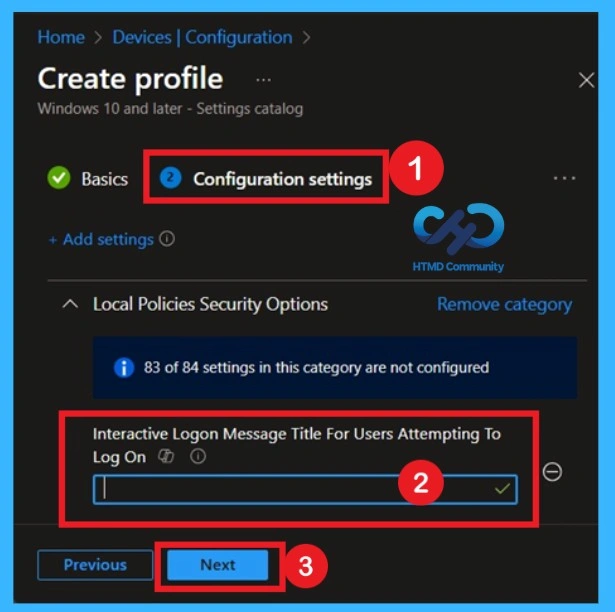
Here you can see that the +Add settings in a blue color, click on that. Here now you can see the settings picker when you click the add settings. Then, select the Local policies and security options, and there you can see different policies. So, in those policies select the Interactive Logon Message Title for Users Attempting to Log On.
- Close the Settings Picker Window
Default State of Policy– Default: No Message
The default value is therefore No message, meaning Windows will not display any heading above the interactive logon message text unless you explicitly configure one through Group Policy or local security settings. This ensures that, out of the box, no legal notice or custom title appears during logon.
Activating the Policy
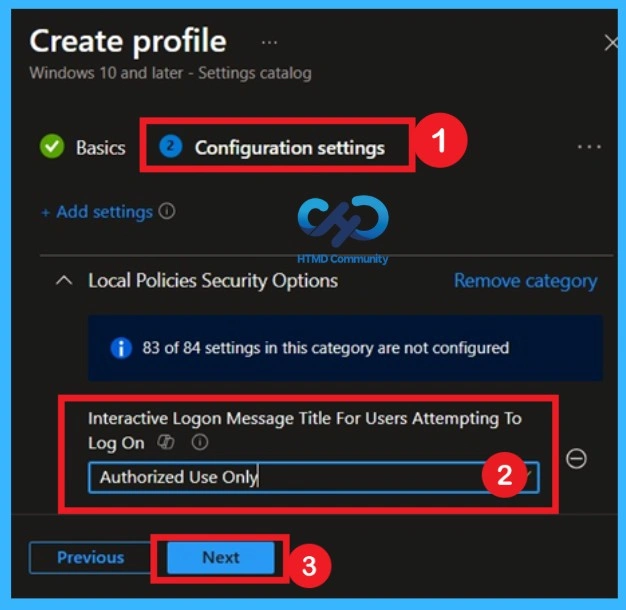
After selecting the Interactive logon Message title for users attempting to log on setting, a text box appears. Enter the title you want users to see before signing in. In this example, “Authorized Use Only” is entered to show that access is limited to approved users. Then click on the Next.
Know the Scope Tag Details
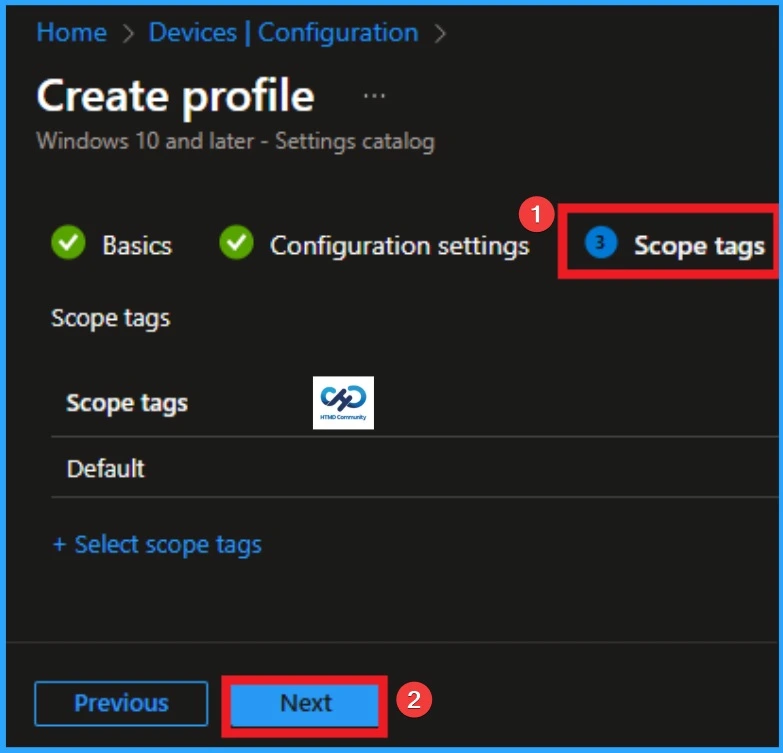
Now you are on the Scope tags tab in the policy creation process. Scope tags have no required role in this configuration, so you can skip this section by clicking Next. Scope tags are used for role-based access and organizational control, but they are not necessary in this case. Skipping this step will not affect the functionality of the policy.
Importance of Assignments
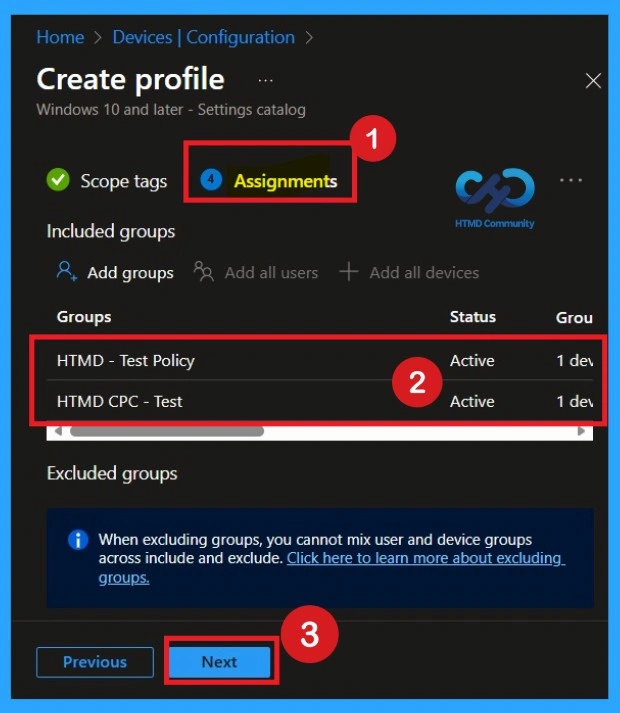
The Assignments section is very important because it allows you to add groups to the policy. Here, you can select the appropriate organizational group. After selecting the group, click Next to proceed. Always remember to add groups only from the “Include” section to ensure the policy is applied correctly.
Review + Create Tab
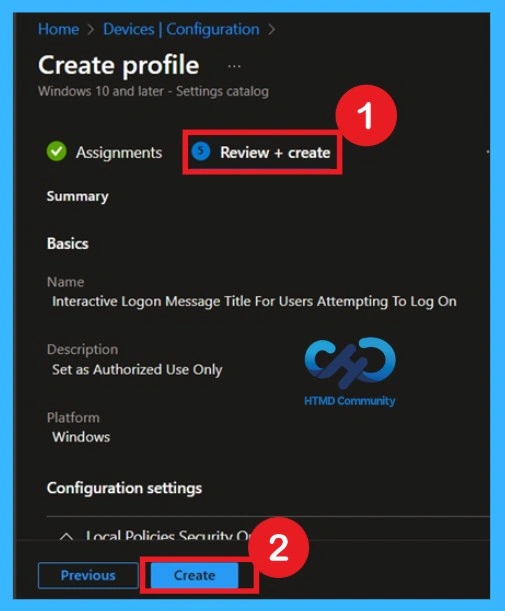
Before completing the policy creation, you can review each tab to avoid misconfiguration or policy failure. After verifying all the details, click on the Create Button. After creating the policy, you will get a success message.
Monitoring Status
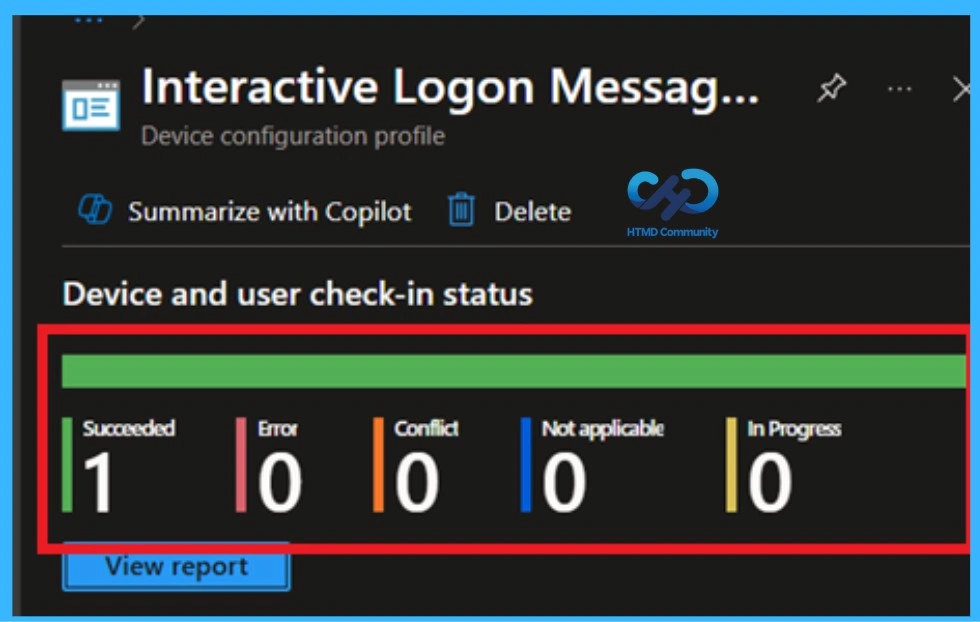
The Monitoring Status page shows whether the policy has succeeded or not. To quickly configure the policy and take advantage of the policy sync the assigned device on Company Portal. Open the Intune Portal. Go to Devices > Configuration > Search for the Policy. Here, the policy shows as successful.
Removing Assigned Groups
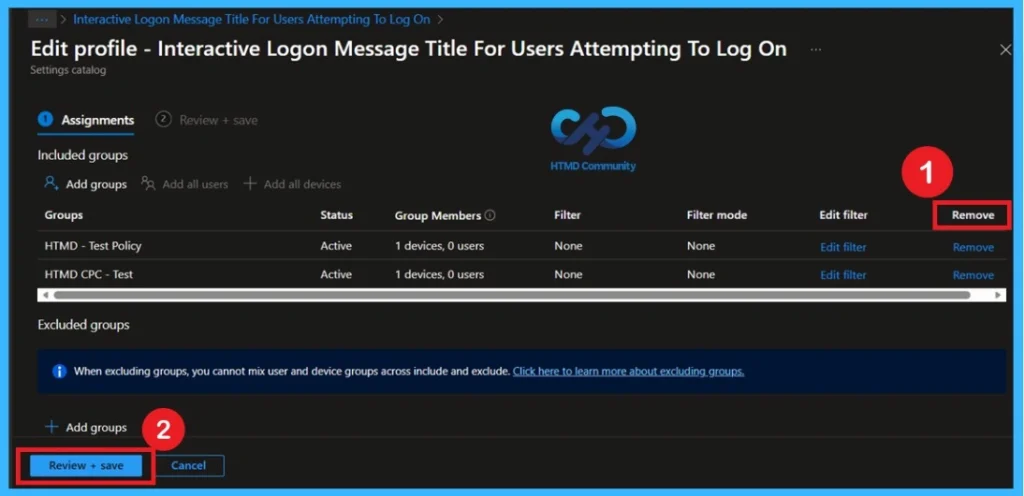
If you want to remove the Assigned group from the policy, it is possible from Intune Portal. To do this open the Policy on Intune Portal and Edit the Assignments tab and Remove the Policy.
How to Delete the Policy Permanently
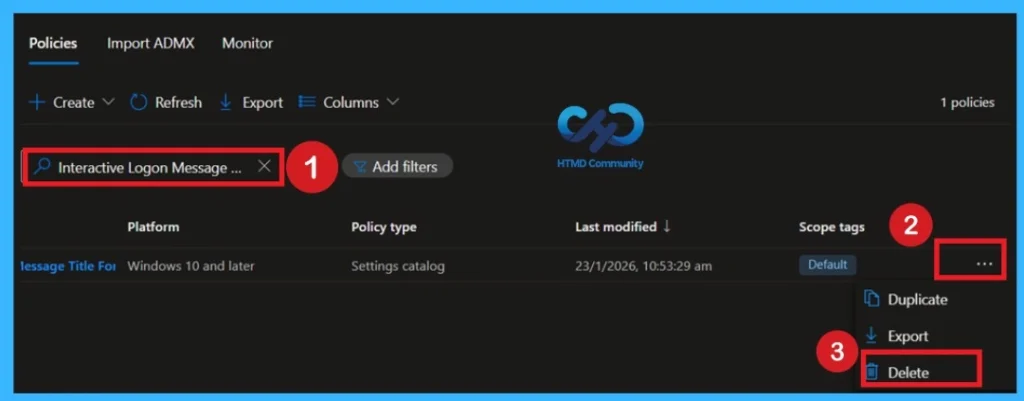
If a policy is no longer needed, you can delete it entirely from Intune. Navigate to Devices > Configuration profiles and select the policy you want to remove. Before proceeding, ensure that all group assignments have been cleared to prevent conflicts. Then, click Delete at the top of the policy page and confirm the action.
- Once deleted, the policy is permanently removed and will no longer be applied to any devices.
Need Further Assistance or Have Technical Questions?
Join the LinkedIn Page and Telegram group to get the latest step-by-step guides and news updates. Join our Meetup Page to participate in User group meetings. Also, Join the WhatsApp Community to get the latest news on Microsoft Technologies. We are there on Reddit as well.
Author
Anoop C Nair has been Microsoft MVP for 10 consecutive years from 2015 onwards. He is a Workplace Solution Architect with more than 22+ years of experience in Workplace technologies. He is a Blogger, Speaker, and Local User Group Community leader. His primary focus is on Device Management technologies like SCCM and Intune. He writes about technologies like Intune, SCCM, Windows, Cloud PC, Windows, Entra, Microsoft Security, Career, etc.