
Enforce Zero-Trust TLS Certificate Enforcement Policies for iOS in Intune! The Block untrusted TLS certificates policy protects iOS devices from unsafe connections. TLS certificates are like digital security badges that websites and apps use to prove they are real and trustworthy.
When this policy is enabled, the device will only connect to servers with a valid, approved certificate. If a website or service attempts to connect using an untrusted certificate, the device will automatically terminate the connection. This ensures users cannot accidentally access fake or unsafe websites, keeping company data and user information secure at all times.
For IT administrators, enabling Block untrusted TLS certificates provides strong control over secure communication on managed iOS devices. It prevents users from making risky security choices, such as trusting unknown or self-signed certificates.
This reduces the chances of cyberattacks like phishing or data interception and helps maintain compliance with organizational security standards. IT admins can be confident that all data flowing between devices and company services is fully protected, without relying on end-users to make the right security decisions.

Table of Contents
Enforce Zero-Trust TLS Certificate Enforcement Policies for iOS in Intune
iOS devices already have a list of trusted certificates from well-known and secure providers. Organizations can also add their own certificates for internal apps or services. But if users are allowed to trust certificates on their own, they might accidentally accept a fake or unsafe certificate.
Cyber attackers can create a self-signed certificate that looks real and trick users into connecting to a dangerous server. This can allow them to steal data or listen to private communication. By blocking untrusted certificates, the device prevents these risky connections, protecting users from phishing, fake websites, and security attacks.
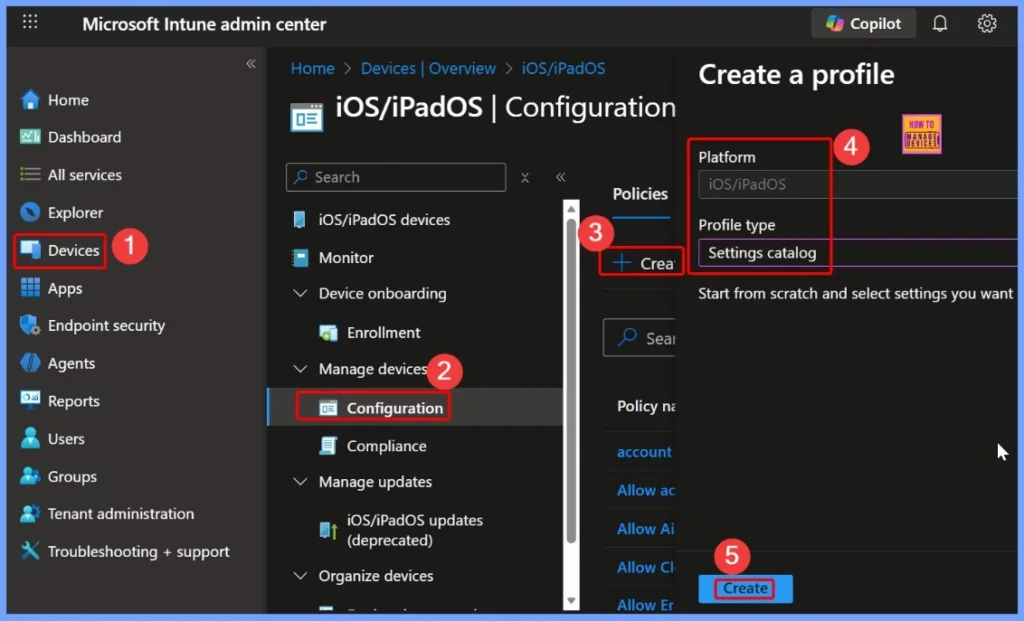
- Go to the Intune Admin Center.
- Navigate to Devices.
- Select Windows.
- Go to Configuration.
- Click Create → New Policy.
- Choose Windows 10 and later as the Platform.
- Select Settings Catalog as the Profile type.
- Click Next to continue and create the policy.
- Allow or Block VPN Roaming Over Cellular in Connectivity using Intune Policy
- Microsoft Going to End Support for Old VPN Protocols PPTP and L2TP | Use SSTP and IKEv2 for Security
- Easy Guide to Deploy Azure VPN Client Microsoft Store App using Intune
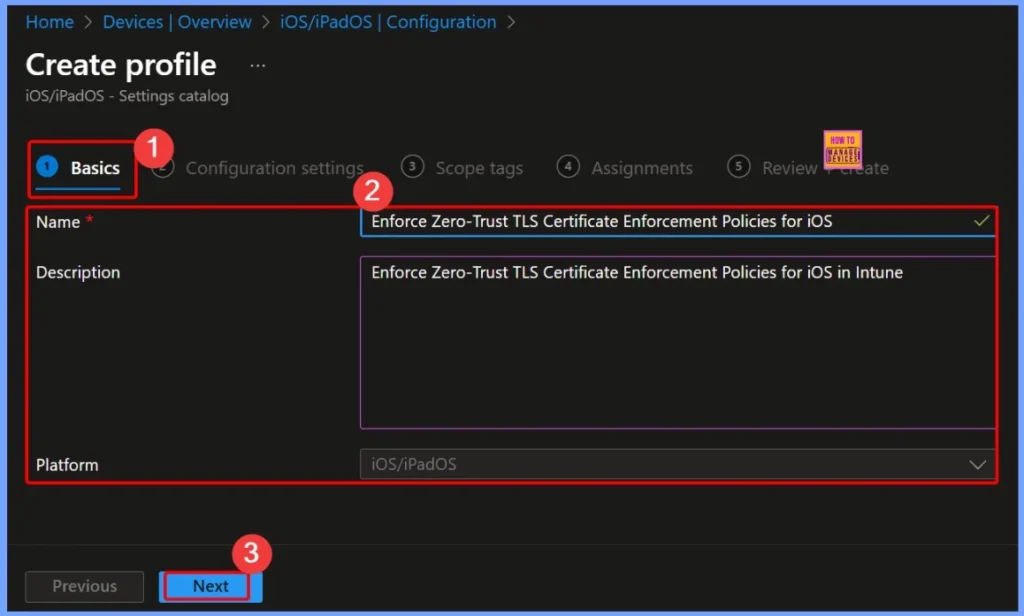
Basics – Provide Policy Name and Description
In the Basics tab, you will enter the policy details such as Name and Description. You can provide a clear and meaningful title like Enforce Zero-Trust TLS Certificate Enforcement Policies for iOS. In the description field, briefly explain that this policy will enforce strict certificate validation on iOS devices managed through Intune.
Configuration Settings for the Policy
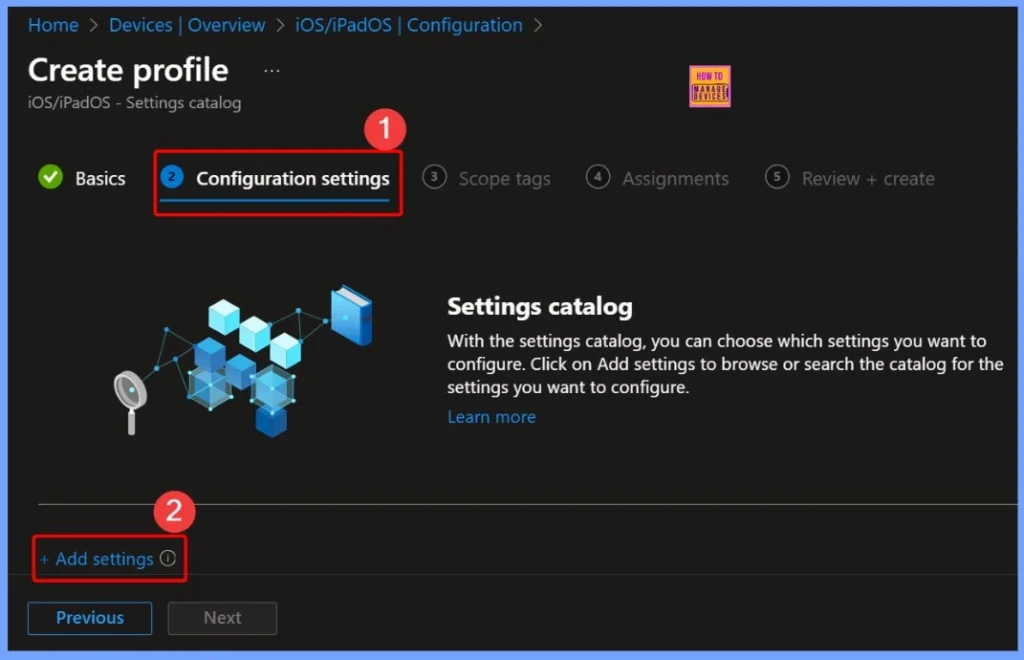
This policy helps organizations ensure that iOS devices only connect to secure and trusted services. By enforcing Zero-Trust principles, the device will automatically block any untrusted or invalid TLS certificates without giving users the option to allow them.
- In the configuration settings window select the +Add settings hyperlink
Configure Restrictions Payload on iOS Devices
The Restrictions payload allows IT administrators to control and limit specific features on enrolled iOS devices. By configuring these settings, you can prevent users from accessing certain apps, services, or device functions.
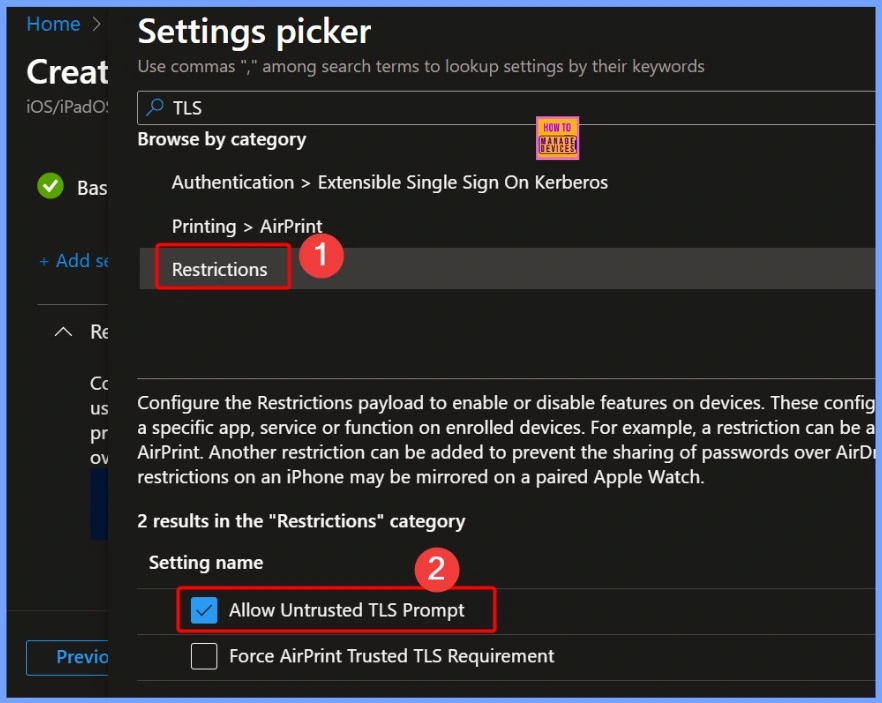
In the Settings Picker window, you can search for the keyword TLS to quickly find related options under Restrictions. Two settings will appear: Allow untrusted TLS prompt and Force AirPrint trusted TLS requirement. For this configuration, select Allow untrusted TLS prompt. This setting controls whether users are allowed to manually approve untrusted TLS certificates on their devices, which is an important step in enforcing strict certificate security policies.
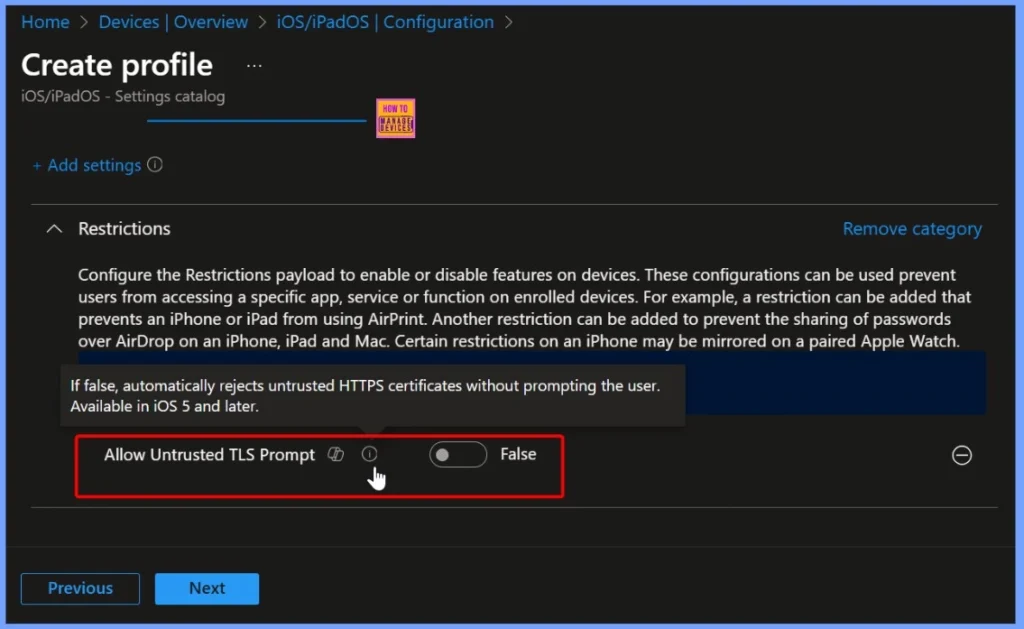
Allow Untrusted TLS Prompt
When this setting is configured as false, the device will automatically reject any untrusted HTTPS certificates without asking the user for confirmation. This ensures that connections are only made to servers with valid and trusted certificates, eliminating the risk of users accidentally accepting unsafe or malicious certificates. This feature is available on iOS 5 and later, helping organizations enforce strict security policies across all managed devices.
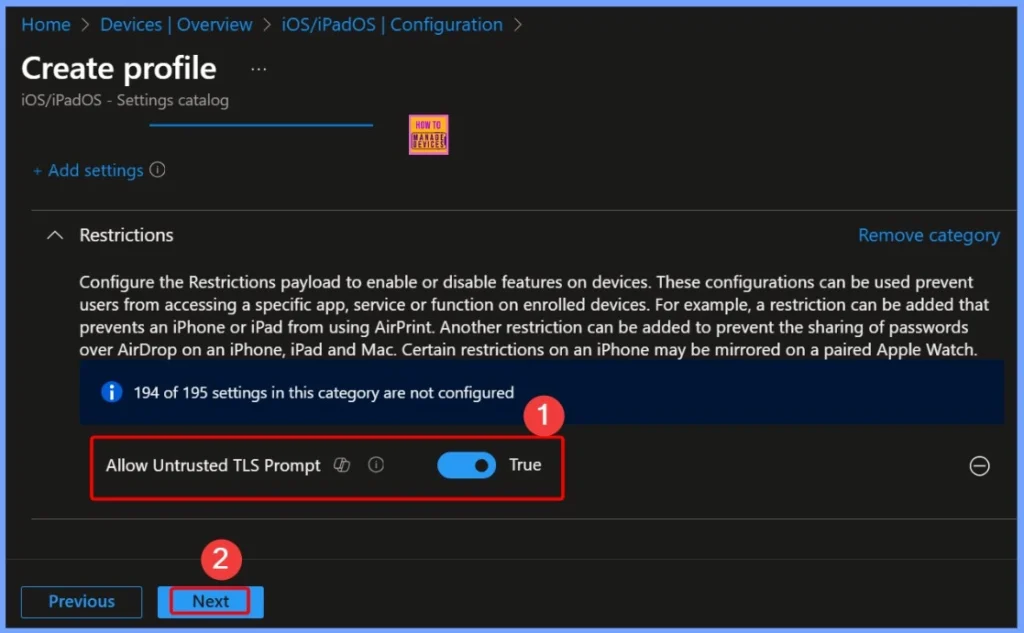
Allow Untrusted TLS Prompt – True Setting Explained
When the Allow untrusted TLS prompt setting is configured as true, the device will display a prompt to the user whenever it encounters an untrusted HTTPS certificate. The user can then choose to accept or reject the certificate manually.
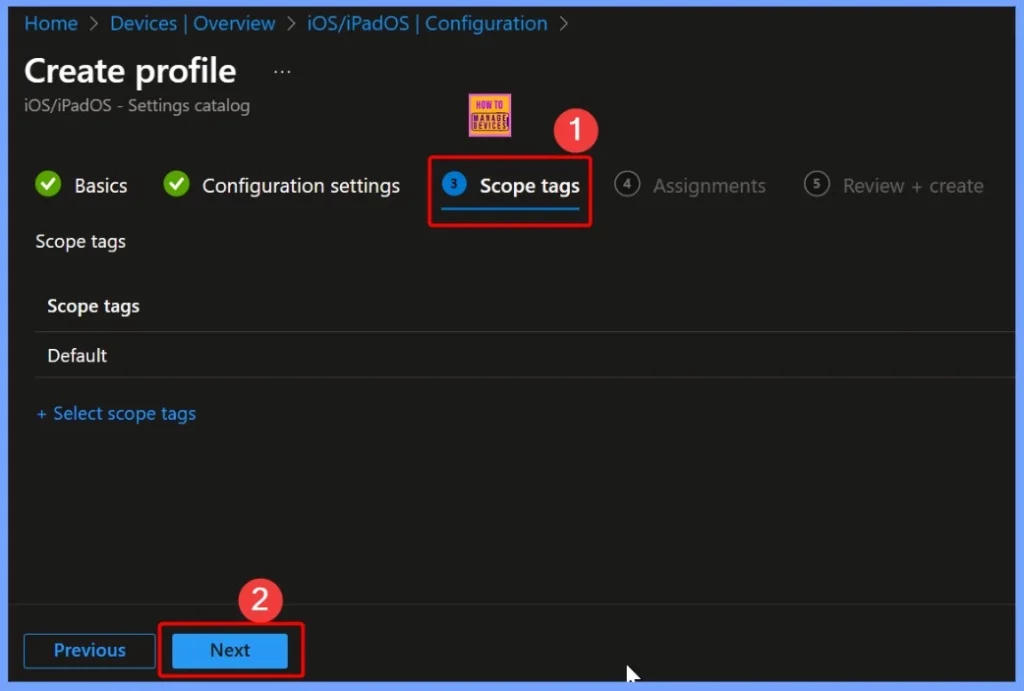
Scope Tag of the Settings
Scope tags in Intune are used to assign specific policies or profiles to certain groups, locations, or administrative roles within an organization. By applying a scope tag to a setting like Allow untrusted TLS prompt, IT administrators can control which devices, users, or teams the policy applies to.
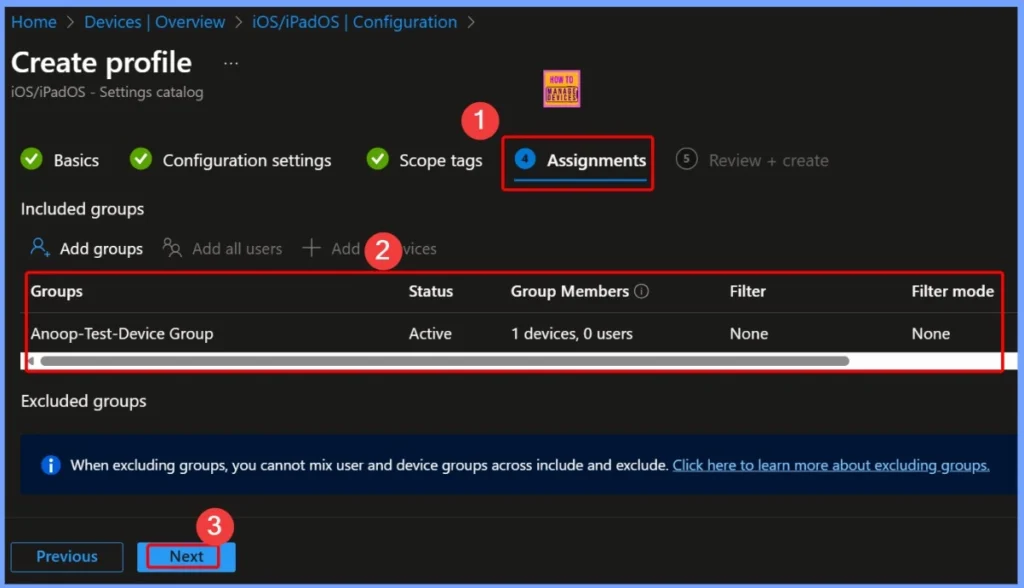
Assignments of the Settings
Assignments in Intune determine which devices or users a particular policy or profile will apply to. When configuring a setting like Allow untrusted TLS prompt, you assign it to specific groups, such as all iOS devices, a department, or a security group.
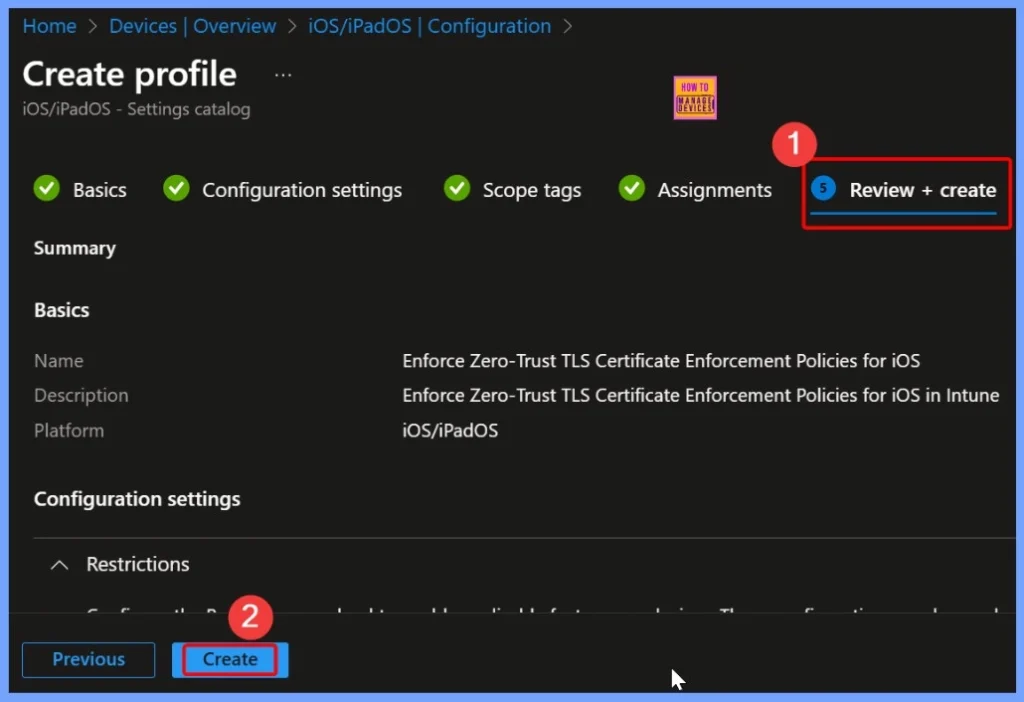
Review and Create the Settings
In the Review + Create step, you can verify all the configurations you have made for the policy before it is applied. This includes checking the Basics, Restrictions, Scope tags, and Assignments to ensure everything is set correctly.
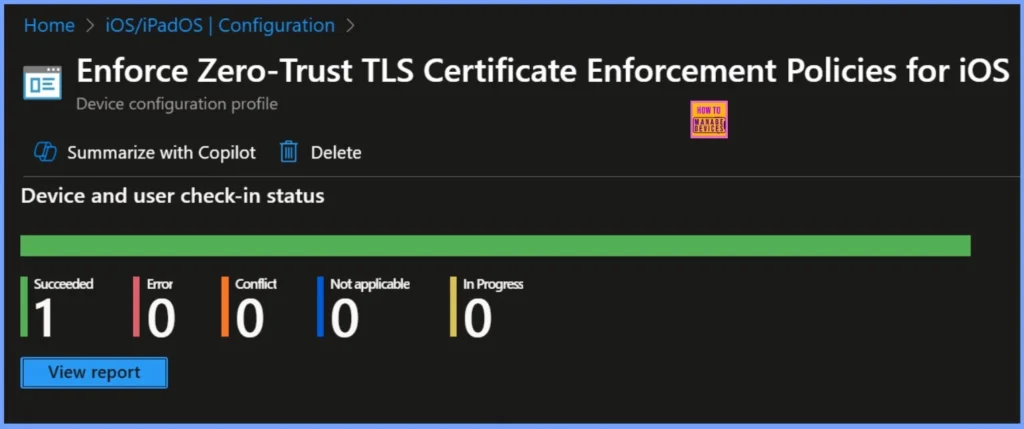
Device and User Check In Status
The Enforce Zero-Trust TLS Certificate Enforcement Policies for iOS device configuration profile has been successfully deployed. According to the device and user check-in status, 1 device has successfully applied the policy (Succeeded), and there are no errors (Error: 0) or conflicts (Conflict: 0). The policy is not applicable to any other devices in the scope (Not applicable: 0).
Need Further Assistance or Have Technical Questions?
Join the LinkedIn Page and Telegram group to get the step-by-step guides and news updates. Join our Meetup Page to participate in User group meetings. Also, Join the WhatsApp Community to get the latest news on Microsoft Technologies. We are there on Reddit as well.
Author
Anoop C Nair has been Microsoft MVP for 10 consecutive years from 2015 onwards. He is a Workplace Solution Architect with more than 22+ years of experience in Workplace technologies. He is a Blogger, Speaker, and Local User Group Community leader. His primary focus is on Device Management technologies like SCCM and Intune. He writes about technologies like Intune, SCCM, Windows, Cloud PC, Windows, Entra, Microsoft Security, Career, etc