
Key Takeaways
- The May 2026 Windows 11 cumulative update (KB5089549, KB5087420) includes important security fixes and stability improvements.
- No zero-day vulnerabilities were reported in this update
- Microsoft addressed 120 security flaws across Windows and related products
- New Xbox Mode experience for Windows 11 gaming PCs
- File Explorer enhancements with expanded archive format support
- Microsoft Store download and installation reliability fixes
The Windows 11 May 2026 Patch KB5089549 KB5087420 Update brings important security fixes, performance improvements, and reliability enhancements across the operating system. The update introduces new features such as Xbox Mode for gaming, File Explorer improvements, enhanced input and sharing experiences, better taskbar and Windows Hello reliability, and additional enterprise management capabilities for IT administrators.
Table of Content
Table of Contents
2026 May KB5089549 KB5087420 Windows 11 Patch | 0 Zero Day Vulnerabilities and 120 Flaws
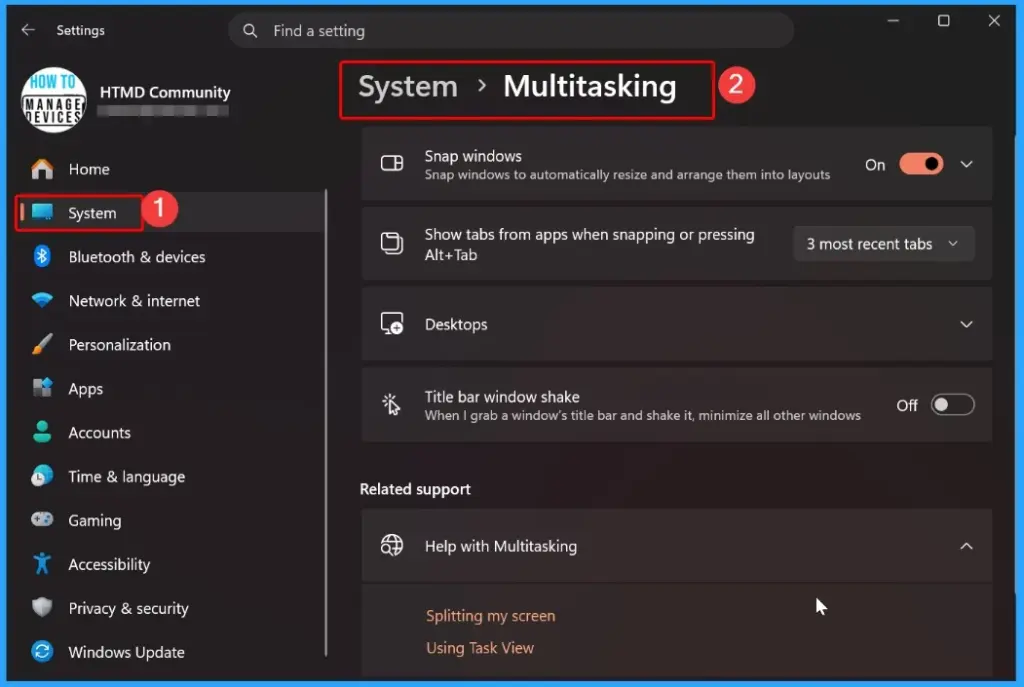
The Windows 11 May 2026 Patch Update introduces improvements to the sharing experience by renaming Drag Tray to Drop Tray and moving its settings to Settings > System > Multitasking. The updated Drop Tray now uses a smaller peek view, helping prevent accidental openings and making it easier to dismiss while working near the top of the screen.
| Windows 11 26H1 | Windows 11 25H2 and 24H2 | Windows 11 23H2 |
|---|---|---|
| KB5089548 | KB5089549 | KB5087420 |
- How to Check Your Windows 11 Edition
- Easy Methods to Know the Version of Installed Apps in Windows 11
- Windows 11 Version Numbers Build Numbers Major Minor Build Rev
- Updated Windows 11 End-of-Life Dates
- Top 83 Windows 11 Desktop Admin Interview Questions
Updated Version of Windows 11 after Installing KB5089549 KB5087420 May 2026 Patch
The Windows 11 May 2026 Patch Update introduces an important Windows Driver Policy security enhancement by changing how the Windows kernel trusts third-party drivers. With this update, default trust for cross-signed drivers is removed, while drivers certified through the Windows Hardware Compatibility Program (WHCP) and trusted legacy drivers continue to be allowed.
Windows also performs extended compatibility auditing before enforcement, helping improve overall driver security and reduce potential risks from untrusted drivers.

- Windows 11 version 25h2 and 24h2 – May 12, 2026—KB5089549 (OS Builds 26200.8457 and 26100.8457)
- More Details on Windows 11 version Numbers: Windows 11 Version Numbers Build Numbers Major Minor Build Rev.
- Windows 11 Version 23h2 – May 12, 2026—KB5087420 (OS Build 22631.7079)
- Windows 11 Version 26h1 – May 12, 2026—KB5089548 (OS Build 28000.2113)
Windows 11 Features and New Improvements – KB5089549 KB5087420
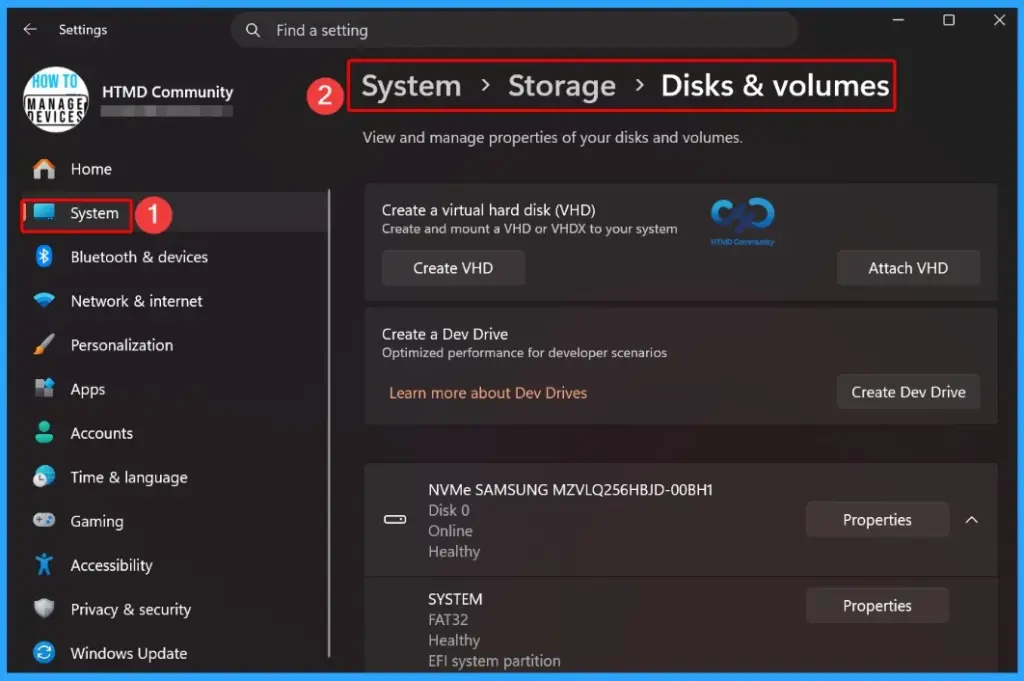
The Windows 11 May 2026 Patch Update improves storage management by making it faster to view storage information for large drives in Settings. The update also increases the FAT32 formatting limit from 32GB to 2TB when using the command line, giving users more flexibility when formatting larger storage devices.
| New Improvements | Details |
|---|---|
| Xbox Mode on Windows 11 PCs | New Xbox mode is now available on Windows 11 PCs, including laptops, desktops, and tablets. |
| Expanded Archive Format Support | File Explorer now supports additional archive formats, including uu, cpio, xar, and NuGet Packages (nupkg). |
| Preserved View & Sort Preferences | View and Sort preferences are now retained in folders like Downloads and Documents when apps open File Explorer directly to those locations. |
| Dark Mode Visual Fix | This update removes the white flash issue that could appear when opening This PC or resizing the Details pane in dark mode. |
| Improved Explorer Reliability | Reliability improvements ensure relevant explorer.exe processes stop properly after closing File Explorer windows. |
| Haptic Feedback Support | Compatible input devices can now provide haptic feedback for actions such as aligning objects in PowerPoint, snapping windows, or resizing windows. |
| Haptic Signal Settings | Haptic signals can be enabled or disabled under Settings > Bluetooth & devices > Mouse, Touchpad, or Pen > Haptic signals. |
| Supported Haptic Devices | Supported devices include Surface Slim Pen 2, ASUS Pen 3.0, and MSI Pen 2 with haptic feedback. Support for more devices, including select mice like Logitech MX Master 4, may arrive through future hardware updates. |
| Simplified Voice Typing UI | Voice typing on the touch keyboard now has a cleaner and more intuitive design without the full-screen overlay. |
| Inline Dictation Animations | Voice typing animations now appear directly on the dictation key to reduce distractions and improve focus. |
| Arabic 101 Legacy Keyboard Layout | The Arabic 101 Legacy keyboard layout is now available for users who prefer the older keyboard design used before recent AltGr changes. |
| Improved Wheel Custom Tool Reliability | Reliability improvements have been made for setting custom tools under Settings > Bluetooth & Devices > Wheel. |
| Better Fluid Dictation Persistence | The Fluid Dictation setting in voice typing now persists more reliably. |
| ADLaM Keyboard Typing Reliability | Typing reliability has been improved when using the ADLaM keyboard. |
| Improved Emoji Panel Navigation | Keyboard navigation reliability has been improved for emoji panels using Windows key + Period. |
| Drop Tray Enhancements | Drag Tray is now renamed to Drop Tray. Its settings have moved to Settings > System > Multitasking (previously Nearby sharing). The updated Drop Tray now uses a smaller peek view to reduce accidental openings and make it easier to dismiss when working near the top of the screen. |
| Introducing Agents on Taskbar | Windows now provides a new taskbar experience to monitor agents from first- and third-party apps. The first implementation is Researcher in the Microsoft 365 Copilot app, allowing users to track report progress directly from the taskbar, view real-time updates by hovering over the icon, and receive notifications when tasks are complete. |
| Enterprise State Roaming (ESR) | ESR can now be managed through Windows Backup for Organizations policies, simplifying setup for IT administrators. |
| Policy-Based Removal of Preinstalled Microsoft Apps | Windows Enterprise and Education now support a dynamic app removal list for the “Remove Default Microsoft Store packages” policy, allowing admins to remove additional MSIX/APPX apps using Group Policy or custom OMA-URI. |
| Printing Improvements | A new icon now indicates when a printer supports Windows Protected Print Mode in print settings. |
| Windows Driver Policy Update | Windows security is improved by changing how the kernel trusts third-party drivers. Default trust for cross-signed drivers is removed, while WHCP-certified and trusted legacy drivers remain allowed. Compatibility auditing occurs before enforcement. |
| Enhanced Security for Batch Files | Administrators can enable a secure processing mode for batch files and CMD scripts to prevent changes during execution using the LockBatchFilesWhenInUse registry setting or Application Control for Business policy. |
| Microsoft Store Reliability | Reduces unexpected Microsoft Store download and installation errors, including 0x80070057, 0x80240008, and 0x80073d28. |
| Font Improvements | Enhancements to the Leelawadee UI font family improve glyph sequencing, positioning, and rendering for Thai, Lao, Khmer, and Lontara scripts. |
| Audio Improvements | Improves third-party driver compatibility with midisrv.exe. |
| Taskbar Reliability | Improves reliability when loading the taskbar system tray area. |
| Windows Hello Improvements | Enhances reliability of Windows Hello Face and improves persistence of Windows Hello Fingerprint across upgrades. |
| Delivery Optimization | Improves memory usage to reduce the likelihood of excessive memory consumption. |
| Display and Graphics | Improves persistence and availability of color profile options for supported monitors. |
| Kiosk Mode Improvements | Simplifies configuration of allowed packaged apps in kiosk mode when Microsoft Edge is included. |
| General Performance Improvements | Improves startup app launch performance after device boot. |
| General Reliability Improvements | Introduces underlying changes to improve explorer.exe reliability during sign-in, taskbar interactions, Task View usage, Quick Access actions, and more. |
| Storage Improvements | Improves performance when viewing large storage volumes and increases FAT32 command-line formatting limit from 32GB to 2TB. |
Intune Windows 11 KB5089549 KB5087420 Deployment
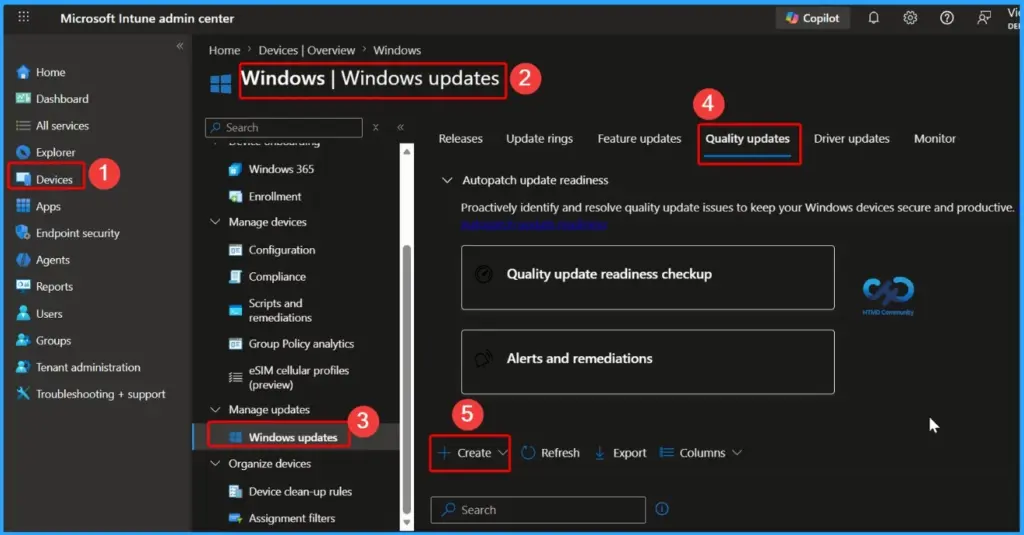
You can easily configure the May 2026 quality updates by signing in to the Microsoft Intune admin center and navigating to Devices → Windows → Windows updates → Quality updates. From there, select the Quality updates tab and click Create to start a new update profile. IT teams can then configure and deploy expedited Windows 11 quality updates, ensuring devices receive the latest security patches and improvements faster and stay up to date with minimal delay.
Read More – Software Update Patching Options with Intune Setup Guide
More Details on Zero Day Out Of Band Patch Deployment Using Intune MEM Expedite Best Option and Intune Reporting Issue: Expedite Windows Security Patch Deployment.
SCCM Windows 11 KB5089549 KB5087420 Deployment
You can deploy the Windows 11 May 2026 Cumulative Updates using SCCM, WSUS, or Microsoft Intune. In the SCCM console, go to Software Library → Overview → Software Updates → All Software Updates, then right-click and select Synchronize Software Updates to start WSUS synchronization.
After the sync completes, search for the May 2026 Windows 11 cumulative update using the KB number or a keyword like “May 2026 Cumulative Update for Windows 11.” Once found, select the update and deploy it to the required device collections to begin installation.
Direct Download Links of Windows 11 KB5089549 KB5087420
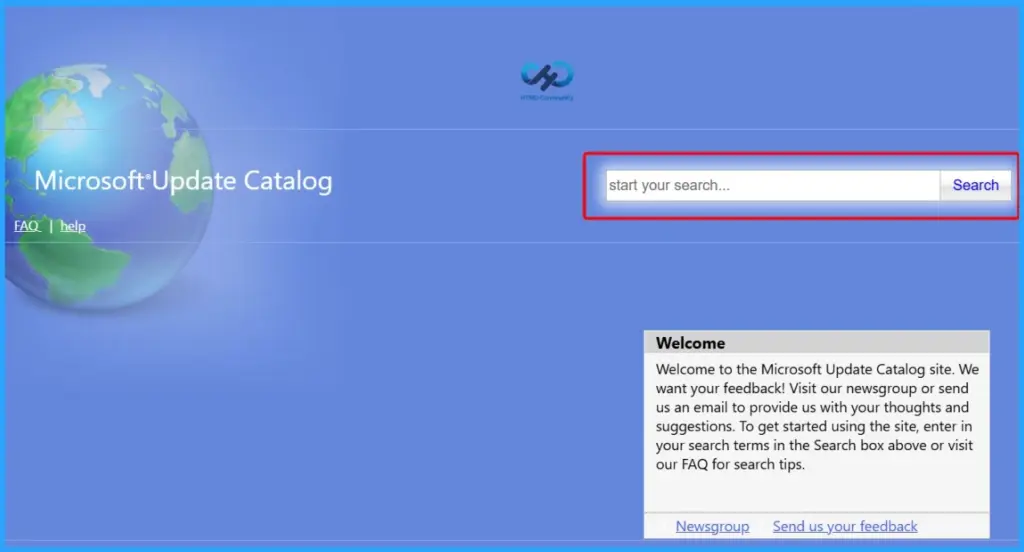
You can manually download the May 2026 Cumulative Updates for Windows 11 from the Microsoft Update Catalog. The catalog provides direct download links for the latest Windows 11 Cumulative Updates (LCUs), which can be used for manual installation or offline and custom deployment scenarios.
To get the update, go to the Microsoft Update Catalog, search for the May 2026 Windows 11 cumulative update using the KB number, and download the package that matches your device architecture. This method is useful for restricted networks or environments where automatic update deployment is not possible.
Direct Download Links – Microsoft Update Catalog
| Cumulative Update for Windows 11 | Products | Size | Direct Download |
|---|---|---|---|
| 2026-01 Cumulative Update for Windows 11, version 25H2 for x64-based Systems(KB5089549) | Windows 11 25H2 | 5232.8 MB | Download |
| 2026-01 Cumulative Update for Windows 11 Version 24H2 for x64-based Systems (KB5089549) | Windows 11 24H2 | 5232.8 MB | Download |
| 2026-01 Cumulative Update for Windows 11 Version 23H2 for x64-based Systems (KB5073455) (KB5087420) | Windows 11 23H2 | 1054.6 MB | Download |
Resources
May 12, 2026—KB5089548 (OS Build 28000.2113) – Microsoft Support
Need Further Assistance or Have Technical Questions?
Join the LinkedIn Page and Telegram group to get the latest step-by-step guides and news updates. Join our Meetup Page to participate in User group meetings. Also, join the WhatsApp Community and the Whatsapp channel to get the latest news on Microsoft Technologies. We are there on Reddit as well.
Author
Anoop C Nair is a Workplace Technology solution architect with 25+ years of experience. Microsoft Certified Trainer. Microsoft MVP from 2015 onwards for consecutive 11+ years! He is a blogger, Speaker, and Founder of HTMD Community and HTMD Conference. His main focus is on Device Management technologies like Intune, Windows, and Cloud PC. He writes about technologies like Intune, SCCM, Windows, Cloud PC, Entra, and Microsoft Security.