
Key Takeaways
- Manage and Monitor 40 Local AI Agents in Microsoft 365 Admin Centre
- Local Agents include developer-controlled tools such as IDE plugins, command-line interfaces (CLIs), and code editor extensions that improve software development productivity.
- Local Agents are intentionally selected developer tools, while Shadow AI refers to unmanaged AI applications used without organizational awareness.
- Administrators can detect tools such as Claude Code, Codex CLI, Cursor, GitHub Copilot, Gemini CLI, Windsurf, and Antigravity.
- Microsoft 365 Admin Center provides visibility into supported local agents, helping IT administrators identify which AI tools are being used in their organization.
To use Local Agents detection and governance in the Microsoft 365 admin center, your organization must have a Microsoft 365 E3 license and at least one supported administrator role, such as Security Administrator, AI Administrator, Global Reader, Security Reader, Security Operator, Reports Reader, User Experience Success Manager, or Intune Administrator.
Table of Content
Table of Contents
Manage and Monitor 40 Local AI Agents in Microsoft 365 Admin Centre
Windows devices must be enrolled in Microsoft Intune, and the organization must opt in to the Frontier preview experience. To access additional agent activity metadata, such as network requests, endpoints, and data sent or received, Global Secure Access (GSA) must be enabled for the tenant and enrolled devices with a Microsoft Entra Internet Access, Microsoft Entra Suite, or Microsoft 365 E7 license.
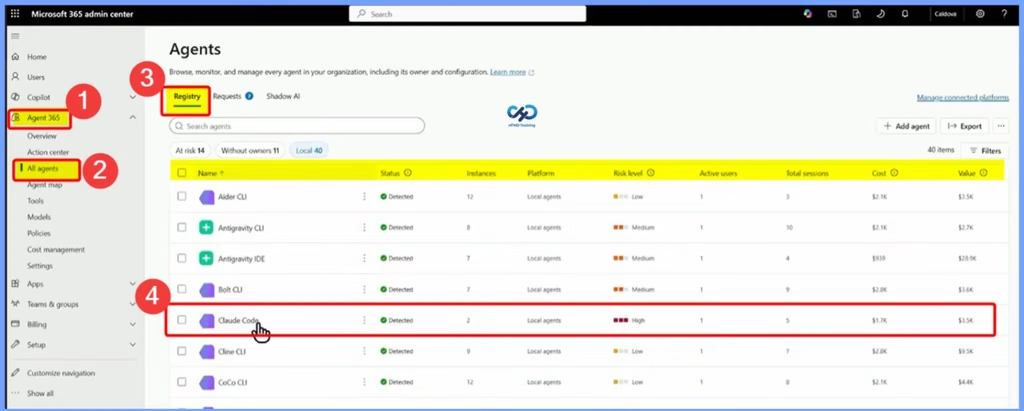
- Sign in to the Microsoft 365 Admin Center.
- Navigate to Agent 365 > All Agents.
- Select Local Agents under Registry.
- Find Claude Code in the agent list.
- Select Claude Code to view its details.
| Name | Detection | Blocking |
|---|---|---|
| Antigravity CLI | Available | Not Available |
| Antigravity Desktop | Available | Not Available |
| Antigravity IDE | Available | Not Available |
| Claude Code | Available | Not Available |
| Codex CLI | Available | Not Available |
| Codex Desktop | Available | Not Available |
| Cursor | Available | Not Available |
| Devin Desktop | Available | Not Available |
| GitHub Copilot App | Available | Not Available |
| GitHub Copilot CLI | Available | Not Available |
| Junie CLI | Available | Not Available |
| Kiro CLI | Available | Not Available |
| Kiro IDE | Available | Not Available |
| Microsoft Scout | Available | Not Available |
| Warp | Available | Not Available |
| Windsurf | Available | Not Available |
| Gemini CLI | Available | Available |
| VSCode Claude Code Extension | Available | Available |
| VSCode Cline Extension | Available | Available |
| VSCode Codex Extension | Available | Available |
| VSCode Gemini Code Assist Extension | Available | Available |
| VSCode GitHub Copilot Extension | Available | Available |
| VSCode Roo Code Extension | Available | Available |
- Learn Course AB-900T00-A Introduction to Microsoft 365 and AI Administration
- Microsoft 365 E7 has Arrived with E5 Security Copilot Agent 365 Entra ID Suite Defender and Intune
- How Microsoft M365-E7 2026 Delivers an AI-First Premium Experience with Integrated Copilot Governance and Entra Identity
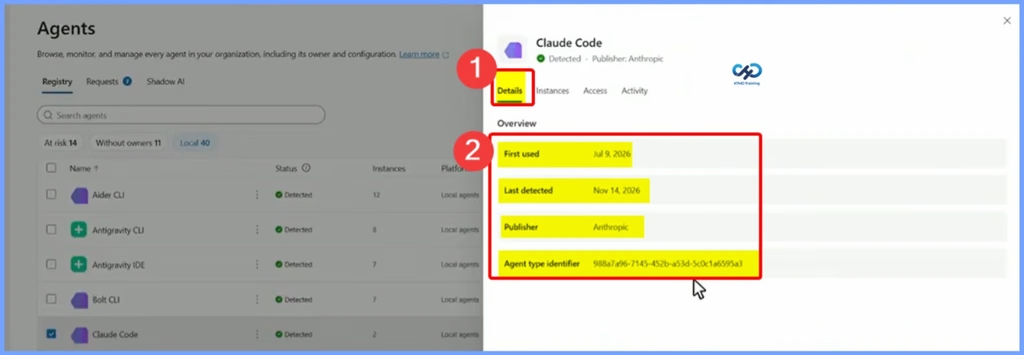
Details Tab in Claude Code
In the Details tab, under the Overview section, you can view important information about the detected Claude Code agent, such as its first-used date, last-detected date, publisher (Anthropic), and unique agent type ID. These details help administrators track agent usage and identify the agent easily.
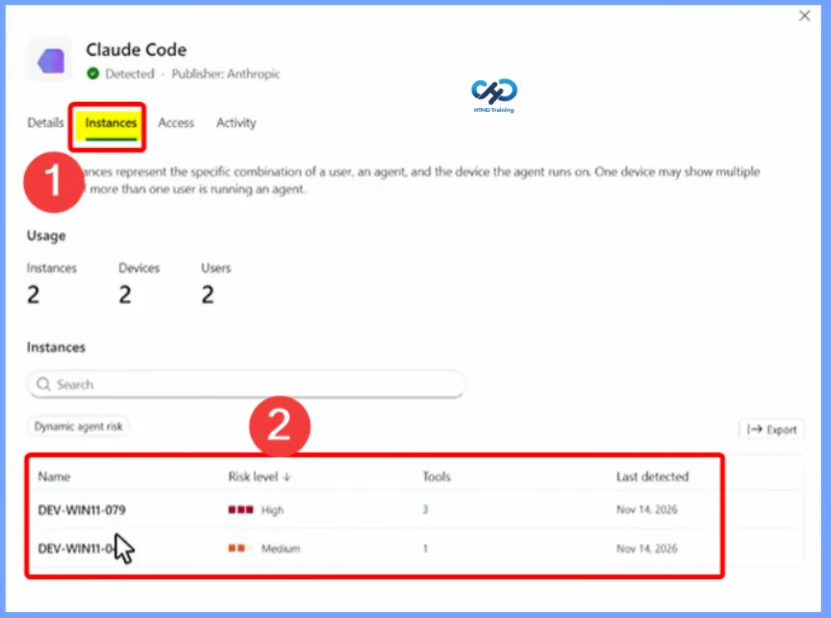
Instances Tab in Claude Code Agent
In the Instances tab, you can view the detected instances of the agent across different users and devices. The Usage section shows 2 instances across 2 devices and 2 users. Below the search bar and Dynamic Agent Risk filter, the instances table displays the device name, risk level, number of tools, and last detected date.

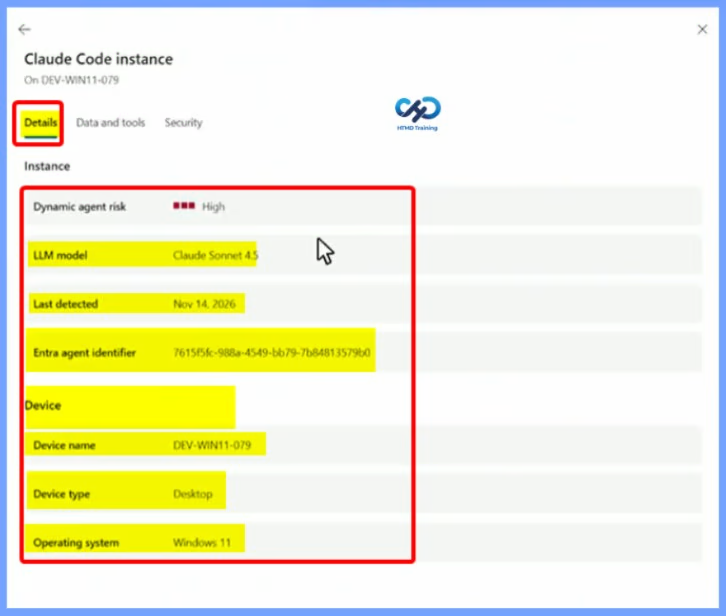
Details tab of the Claude Code instance on DEV-WIN11-079
In the Details tab of the Claude Code instance on DEV-WIN11-079, the Instance section displays the Dynamic Agent Risk level as High, the LLM model as Claude Sonnet 4.5, and the last detected date as November 14, 2026. It also shows a unique Entra Agent ID for identification. The Device section provides information about the device, including its name (DEV-WIN11-079), device type (Desktop), and operating system (Windows 11).
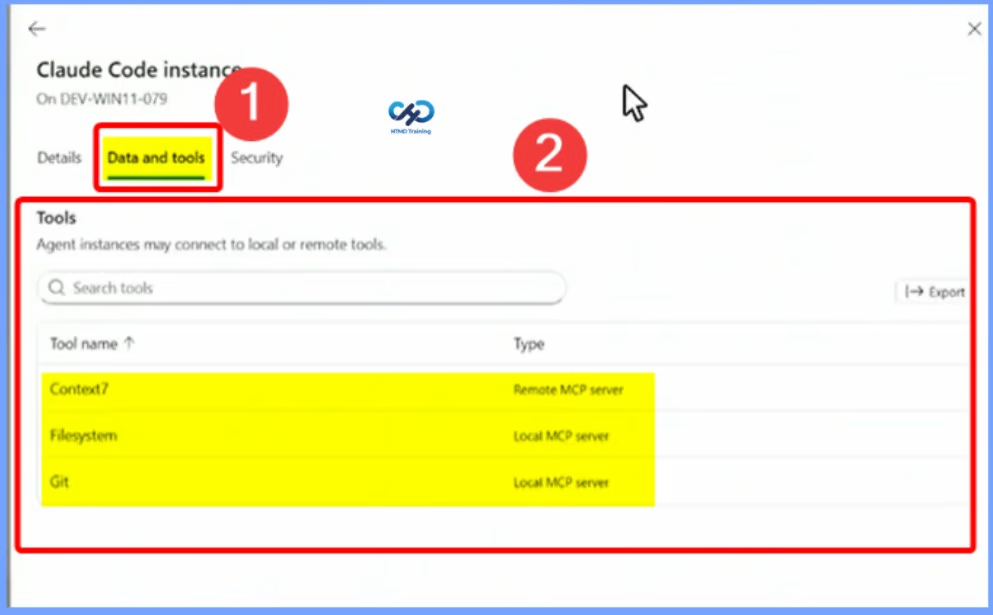
Tools are Connected to the Claude Code Agent on the Device
In the Data and tools tab, you can see which tools are connected to the Claude Code agent on the device DEV-WIN11-079. Administrators can search and export this list to understand which tools the Claude Code agent is using.
The Tools section shows three connected tools:
- Context7 – Remote MCP server (connects to an external service).
- Filesystem – Local MCP server (works with files on the device).
- Git – Local MCP server (helps manage and track code changes).
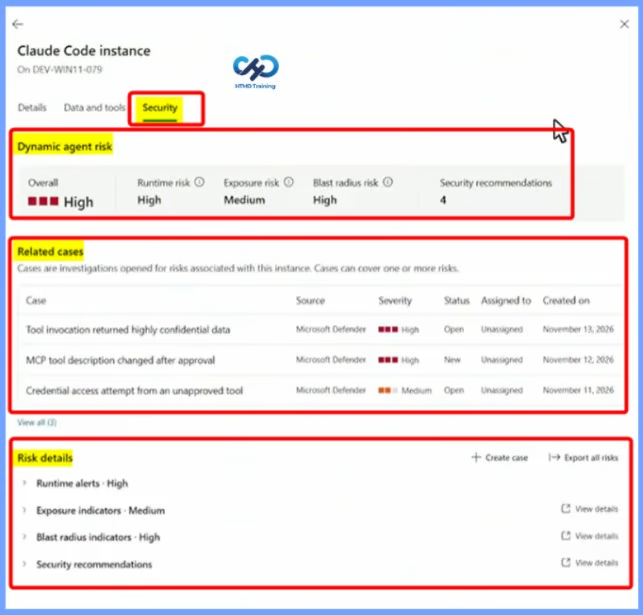
In the Security tab of the Claude Code instance on DEV-WIN11-079, administrators can view the security risks associated with the agent. The Dynamic Agent Risk section shows an overall risk level of High, based on three factors: Runtime Risk (High), Exposure Risk (Medium), and Blast Radius Risk (High). It also provides 4 security recommendations to help reduce these risks.
The Related Cases section displays three active security investigations from Microsoft Defender, related to confidential data access, changes to MCP tool descriptions, and attempts to access credentials using an unapproved tool. Each case shows its severity, status, and creation date.
At the bottom, the Risk Details section provides options to create a security case or export all identified risks. Administrators can also expand the sections to review Runtime Alerts, Exposure Indicators, Blast Radius Indicators, and Security Recommendations.
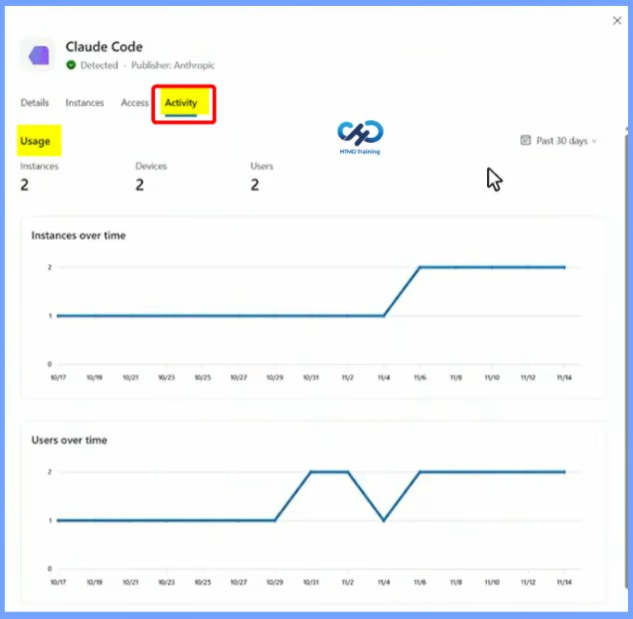
In the Activity tab, administrators can view the usage summary of Claude Code, including the total number of instances, devices, and users. The Instances Over Time and Users Over Time graphs show changes in agent usage and user activity over the selected time period. This helps administrators monitor adoption trends and understand how the agent is being used across the organization.
Managing Access and Security Policies for Claude Code
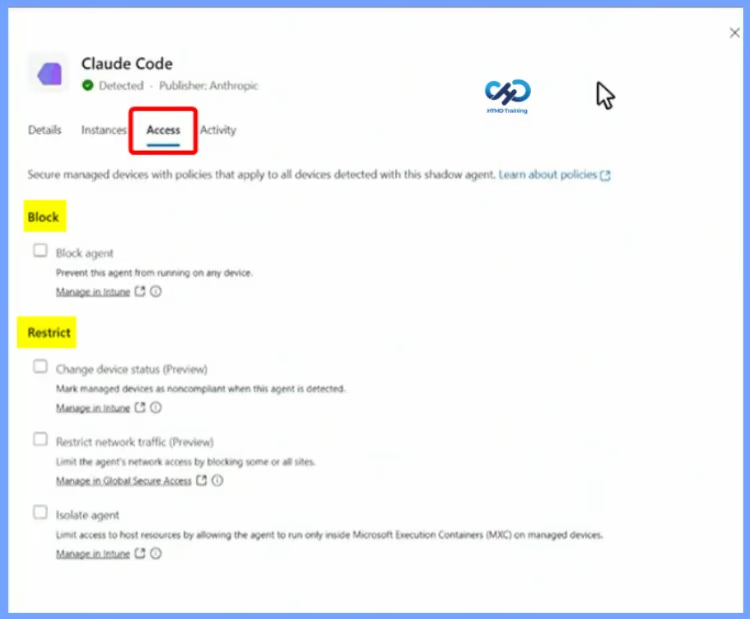
In the Access tab, administrators can manage how Claude Code is used across managed devices. Microsoft provides Block and Restrict options that work with Microsoft Intune and Global Secure Access (GSA). These settings help administrators control whether the agent can run, access network resources, or operate on managed devices.
| Category | Policy | Details |
|---|---|---|
| Block | Block agent | Completely blocks Claude Code from running on managed devices using Microsoft Intune. |
| Restrict | Change device status (Preview) | Automatically marks the device as noncompliant in Intune when Claude Code is detected. |
| Restrict | Restrict network traffic (Preview) | Blocks Claude Code from accessing specific or all websites using Global Secure Access. |
| Restrict | Isolate agent | Runs Claude Code inside Microsoft Execution Containers (MXC) to protect the device and its resources. |
Need Further Assistance or Have Technical Questions?
Join the LinkedIn Page and Telegram group to get the latest step-by-step guides and news updates. Join our Meetup Page to participate in User group meetings. Also, join the WhatsApp Community and the Whatsapp channel to get the latest news on Microsoft Technologies. We are there on Reddit as well.
Author
Anoop C Nair is Workplace Technology solution architect with 25+ years of experience in global enterprise organizations such as JP Morgan, Capgemini, etc. He is Microsoft Certified Trainer. Microsoft MVP from 2015 onwards for consecutive 11 years! He also conducts Intune and modern workplace tech training for enterprise organizations. He is Blogger, Speaker, and Founder of HTMD Community and HTMD Conference. His focus is on Device Management technologies such as Intune, Windows, Cloud PC. He writes about technologies like Intune, SCCM, Windows, Cloud PC, Windows, Entra, Microsoft Security.