
Today we are discussing how Improve Device Security and Reduce Malicious IP Access with Remote Encryption Protection Aggressiveness Policy using Intune. This feature works silently in the background and focuses on stopping harmful connections before they cause any damage.
It uses Microsoft Defender’s intelligence to judge how risky an IP address is and then blocks it based on how confident it is that the IP is dangerous. By setting it to the right level, you help your organization stay safe from threats coming through the network without disturbing users.
This control mainly decides how strict the blocking should be. When it is set to Medium, Defender uses cloud-based signals and blocks only when it is more than 99% sure that the connection is harmful. When it is set to High, the system becomes slightly more aggressive and blocks when the confidence level is above 90%. These settings help create a balance between strong protection and smooth user experience.
Organizations usually go with Medium or High because Low protection waits for 100% certainty, which may allow harmful connections. This Policy reduce the chances of users reaching malicious websites or IP addresses that may trigger encryption attacks, ransomware, or data theft. By adjusting the aggressiveness level, you decide how much risk you want to tolerate. Medium and High provide stronger protection while still keeping legitimate websites.

Table of Contents
Improve Device Security and Reduce Malicious IP Access with Remote Encryption Protection Aggressiveness Policy using Intune
By deploying this through Intune, you ensure every managed device receives consistent protection. This aligns with CIS Controls such as deploying and maintaining anti-malware software across all enterprise assets. Once active, the policy helps reduce malicious IP access, lower the chance of remote encryption attacks, and strengthen your device security.
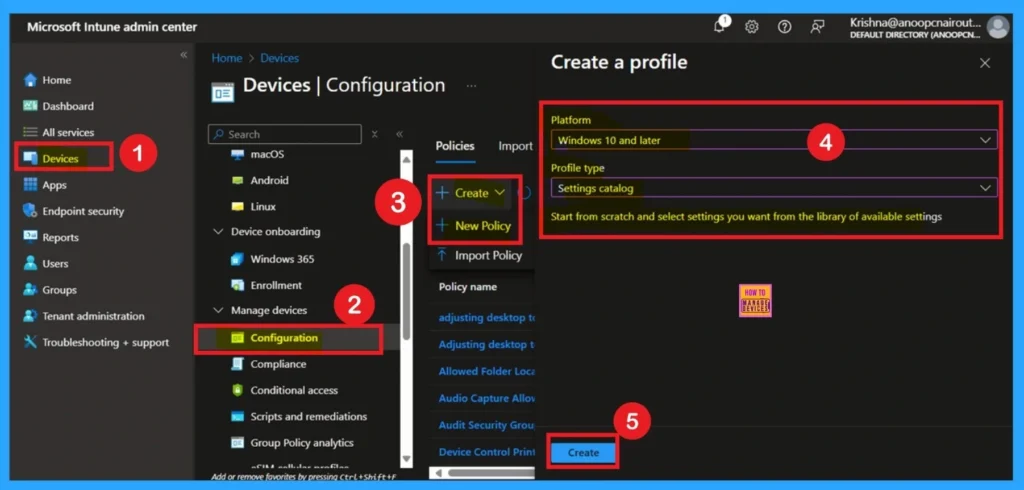
Now, let’s focus on how to deploy this policy through Microsoft Intune. First, the admin needs to log in to the Microsoft Intune portal. After logging in, go to the Devices section from the left menu. Under Devices, click on Configuration profiles. In the Configuration profiles page, click on the “Create + Create profile > New Policy.
- Platform as Windows 10 and later
- Profile Type Setting catalog
- Click on the Create
- How to Remove Assigned Group from Energy Saver Battery Threshold Policy in Intune Settings Catalog
- Improve Windows PC Performance by using New Efficiency Mode
- How to Set an Absolute Max Cache Size in GBs for Delivery Optimization using Intune
Basics Page
To create this policy in Intune, you start by opening the Intune portal and selecting the option to make a new configuration profile. On the basics page, you simply give the policy a clear name so that anyone in your IT admins knows what it is for. You can also write a small description saying that this policy protects devices from harmful IP addresses by adjusting the Remote Encryption Protection Aggressiveness level.
- Once this part is filled, you move to the next step.

Configuration Settings
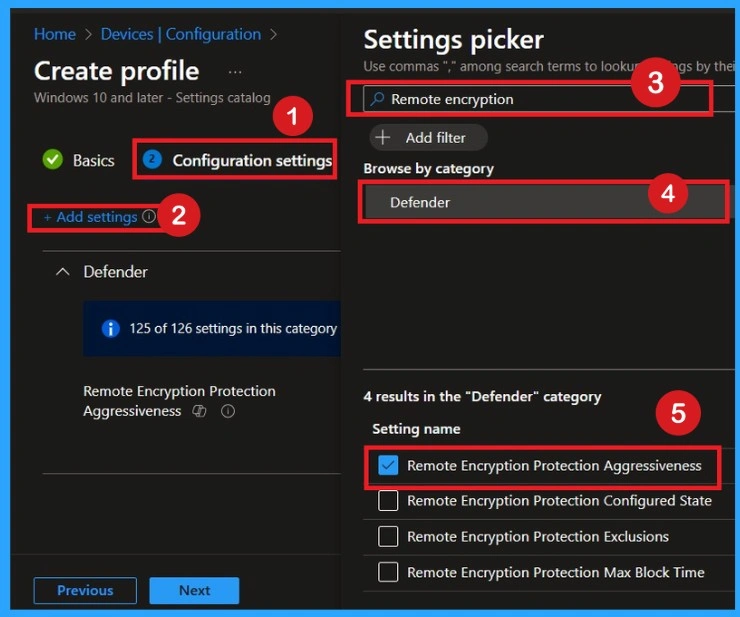
In the configuration settings area, you search for Microsoft Defender or Remote Encryption under the Add settings. Inside Defender, you look for the option called Remote Encryption Protection Aggressiveness. Click on that and close the settings picker.
Enable the Policy
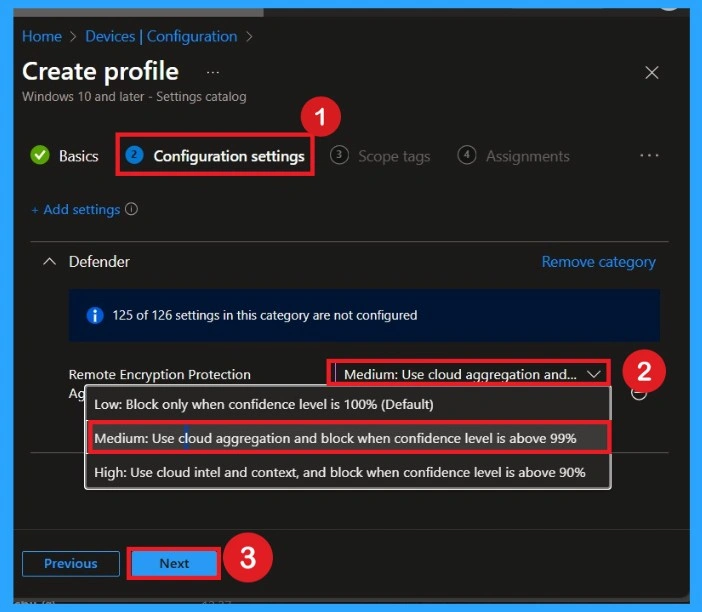
When you select the policy, you will see choices like Low, Medium, and High. Here, you set it to Medium or High based on your organization’s security needs. Medium blocks only when confidence is above 99%, while High blocks when confidence is above 90%. After selecting the preferred level, you save the configuration, so Intune knows exactly what to apply to the devices.
| Settings Level | Policy Settings |
|---|---|
| Low | Block only when confidence level is 100% (Default) |
| Medium | Use cloud aggregation and block when confidence level is above 99% |
| High | Use cloud intel and context, and block when confidence level is above 90% |
Scope Tags
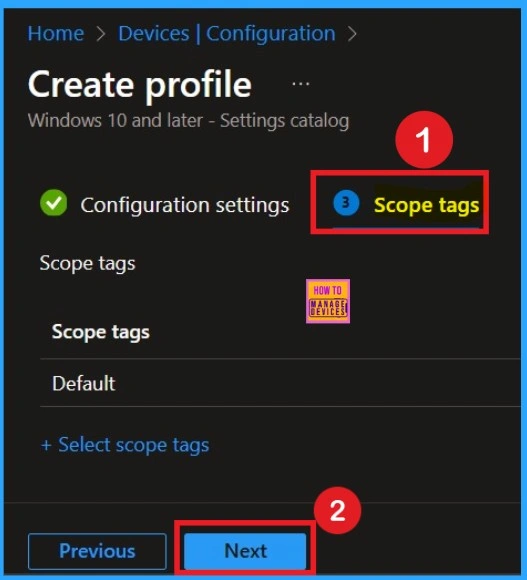
The next step that you can see that the Scope tags section. Scope tags are used to assign policies to specific admin groups for better management and filtering. If needed, you can add a scope tag here. However, for this policy, I chose to skip this section
Assignments
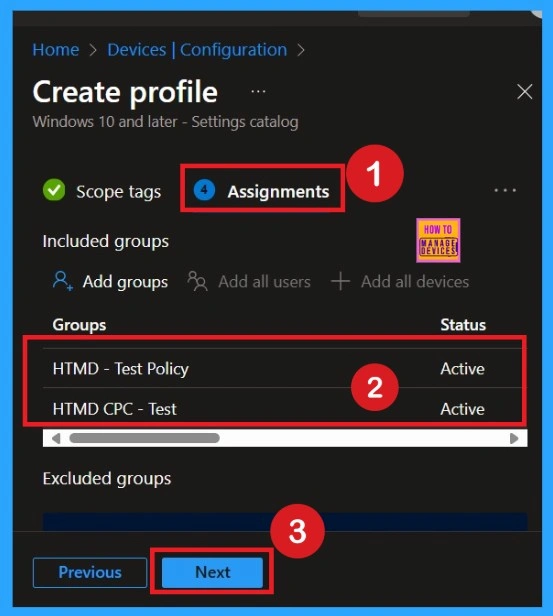
Then you go to assignments. This step decides which devices or users will receive the policy. You can choose “Add groups” and select device groups such as, specific departments, or only a testing group if you want to try it first. Assignments are important because the policy will only apply to the groups you select. Once chosen, the policy is ready to deploy to those devices.
Review + Create Tab
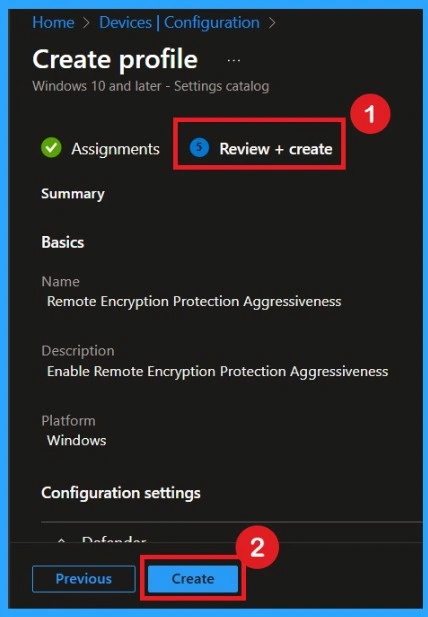
Before finishing the policy creation, you can review each tab to avoid misconfiguration or policy failure. After verifying all the details, click on the Create Button. After creating the policy, you will get a success message.
Monitoring Details
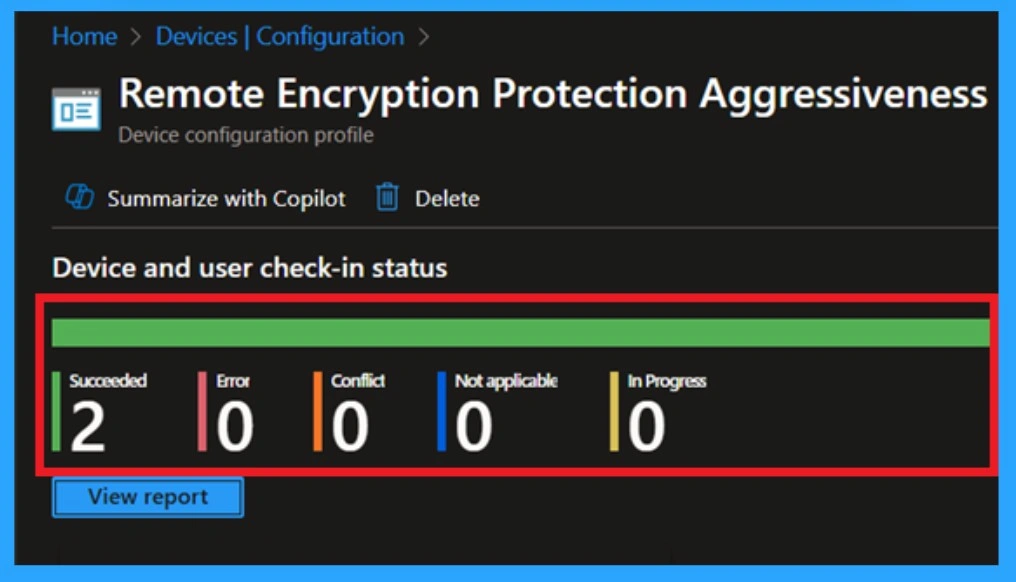
Using this method ensures the policy is applied more quickly and you can confirm the outcome without waiting the full sync time. To check the Monitoring status and Click on the policy to view its deployment status and details. Then follow the below steps.
- Navigate to Devices > Configuration Policies.
- In the Configuration Policies list, look for the policy you created.
Remove the Assigned Policy Group
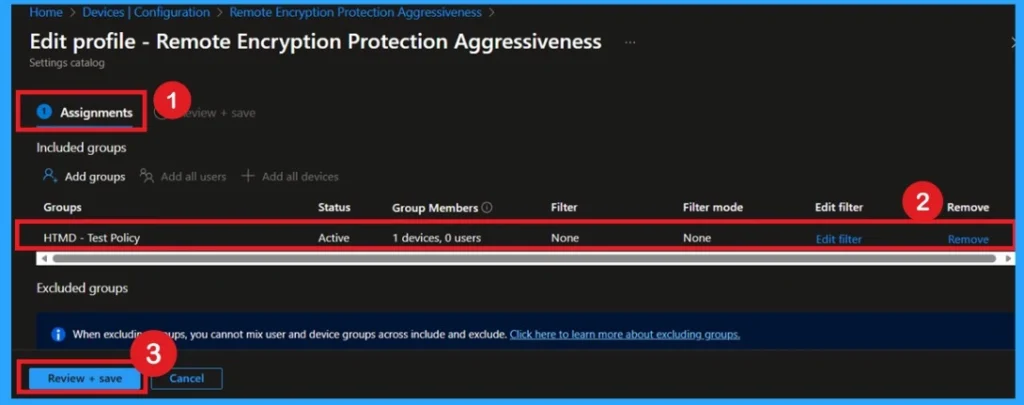
Removing a group from a policy is very simple. First, go to the Monitoring status page and scroll down until you see the Assignments Edit option. Click on it, and you will be taken directly to the Assignments section that you had previously configured. Here, you will find the Remove option.
For detailed information, you can refer to our previous post – Learn How to Delete or Remove App Assignment from Intune using by Step-by-Step Guide.
Delete the Policy
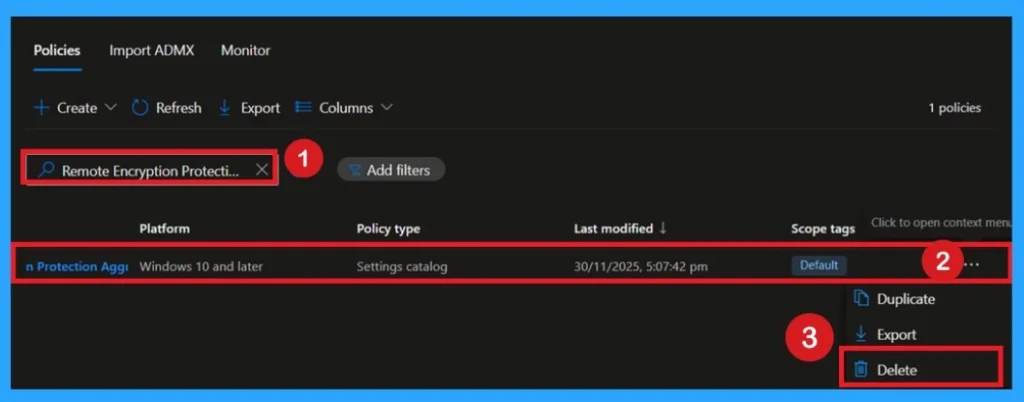
If you want to delete a policy permanently, you simply go to the Intune portal, open Configuration Profiles, and select the policy you want to remove. Once you click on it, you choose Delete, and Intune will ask for confirmation because it cannot be undone. After confirming, the policy is fully removed, and devices will stop receiving or applying that rule during their next sync.
For more information, you can refer to our previous post – How to Delete Allow Clipboard History Policy in Intune Step by Step Guide.
Need Further Assistance or Have Technical Questions?
Join the LinkedIn Page and Telegram group to get the latest step-by-step guides and news updates. Join our Meetup Page to participate in User group meetings. Also, Join the WhatsApp Community to get the latest news on Microsoft Technologies. We are there on Reddit as well.
Author
Anoop C Nair has been Microsoft MVP for 10 consecutive years from 2015 onwards. He is a Workplace Solution Architect with more than 22+ years of experience in Workplace technologies. He is a Blogger, Speaker, and Local User Group Community leader. His primary focus is on Device Management technologies like SCCM and Intune. He writes about technologies like Intune, SCCM, Windows, Cloud PC, Windows, Entra, Microsoft Security, Career, etc.