
Force Authentication Before AutoFill on iOS and iPadOS using Intune Policy! Force Authentication Before Auto Fill is an iOS/iPadOS security restriction that ensures users must authenticate before Safari or apps can automatically fill saved passwords or credit card details.
When this setting is enabled, Face ID or Touch ID verification is mandatory, adding an extra layer of protection to sensitive information stored on the device. When the restriction is set to True, users cannot bypass biometric authentication for AutoFill actions.
Even if a password or card is already saved in the Keychain, the system will always prompt for Face ID or Touch ID before completing the AutoFill process. This prevents unauthorized access, especially in scenarios where the device is temporarily unlocked or shared.
If the restriction is not enforced, users are allowed to control this behavior themselves from the device Settings. They can enable or disable authentication for AutoFill, which may reduce security in high-risk environments. Because of this, organizations managing corporate or shared devices typically enforce this restriction to maintain consistent security standards.

Table of Contents
Force Authentication Before AutoFill on iOS and iPadOS using Intune Policy
This setting is supported only on devices that have Face ID or Touch ID and must be applied to a supervised device. It is available starting from iOS 11 and later, making it a relevant and recommended control for enterprises using Intune or other MDM solutions to protect credentials and payment data on managed Apple devices.
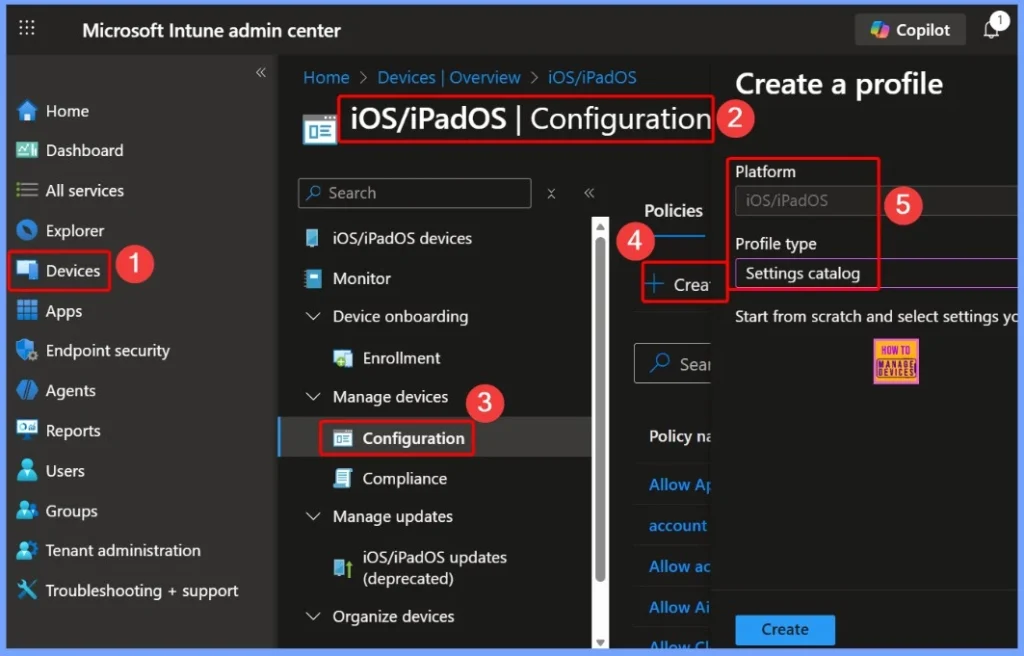
- Sign in to the Intune Admin Center.
- Go to Devices from the left navigation pane.
- Under Devices, select the iOS/iPadOS device platform
- Open the Configuration section.
- Click + Create to start creating a policy.
- Choose New policy
- In the Create a profile window, select iOS/iPadOS as the Platform and Settings catalog as the Profile type.
- How Microsoft Entra ID Account Recovery Supports Users Who Lose All Authentication Methods
- Non-Human Identities and Agent Identities Gain Access Package Support with Entra Identity Governance for AI Agents
- Understanding Entra Agentic AI in Security From Manual Work to Fully Autonomous Agents
Basics – Force Authentication Before Auto Fill using Intune Policy
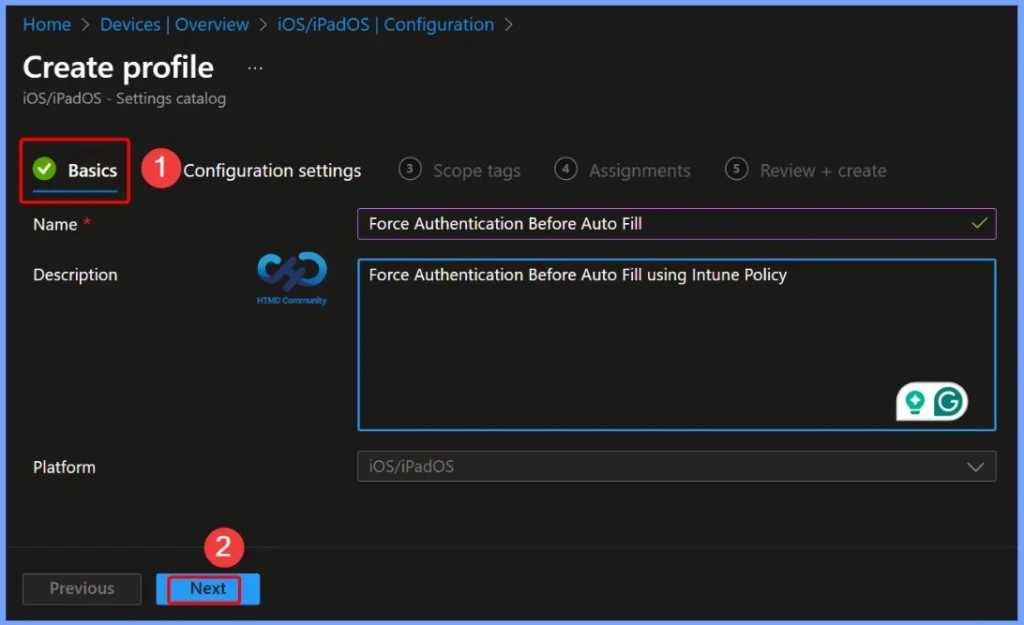
On the Basics settings page, you define the core details of the policy, including the Name and Description. Provide a clear and meaningful name, such as Force Authentication Before Auto Fill, and add a description like Force Authentication Before Auto Fill using Intune Policy. These details help administrators easily identify the purpose of the policy.
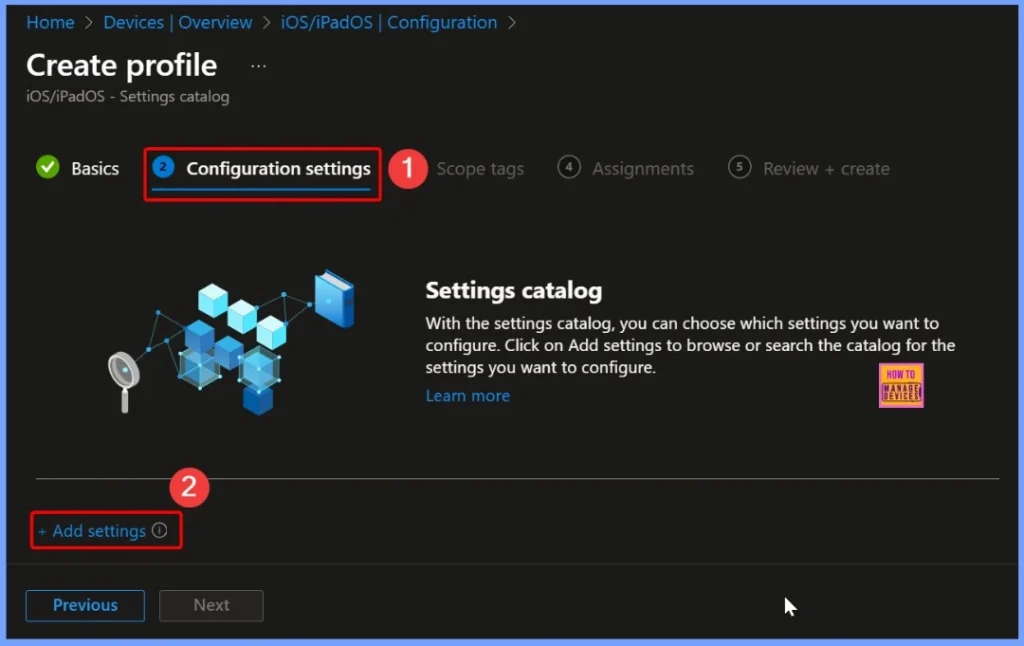
Locate and Click the + Add Settings Hyperlink
On the Configuration settings page, locate and click the + Add settings hyperlink. This opens the Settings Picker window, where you can browse through available options and select the specific settings to include in your policy.
Selecting Force Authentication Before Auto Fill in Intune Settings Catalog
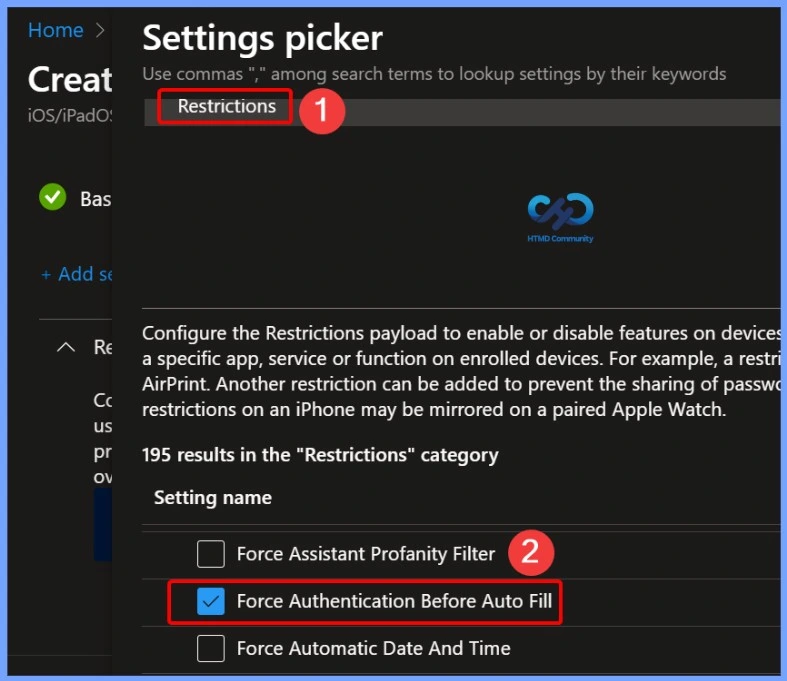
In the Settings Picker window, use the search box to type the keyword Restrictions, which will display a list of available settings. From the search results, locate Force Authentication Before Auto Fill and select it by clicking the checkbox next to it. Enabling this option ensures that the policy enforces authentication via Face ID or Touch ID before passwords or credit card information can be autofilled on managed iOS/iPadOS devices
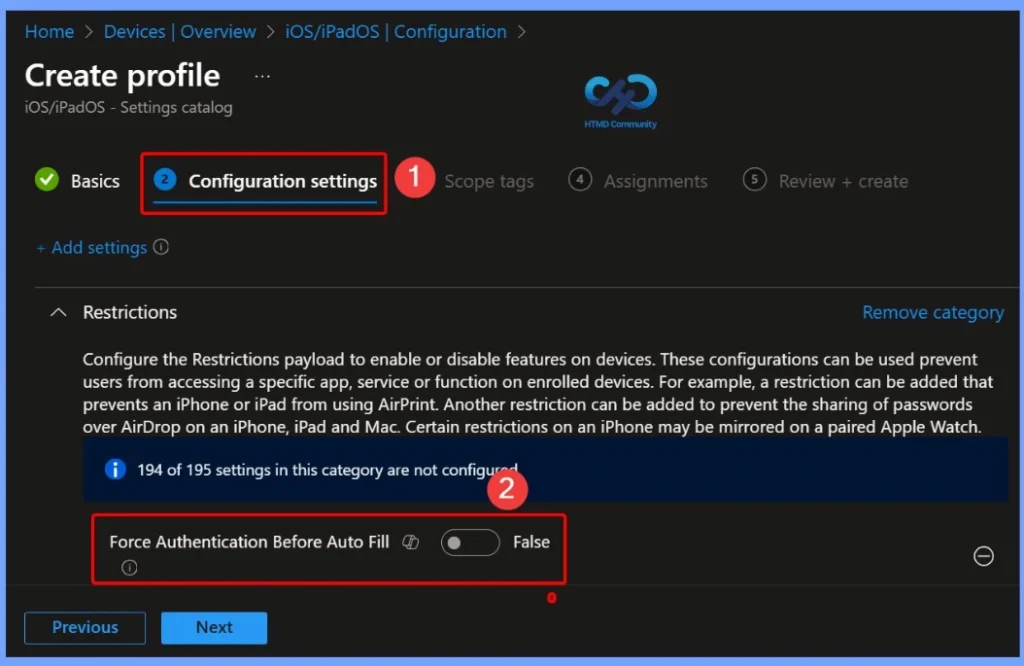
Force Authentication Before Auto Fill – Default Setting
The Force Authentication Before Auto Fill setting is disabled by default (False) on iOS/iPadOS devices. This means that, unless explicitly configured through an Intune policy, users can autofill passwords and credit card information without being required to authenticate using Face ID or Touch ID.
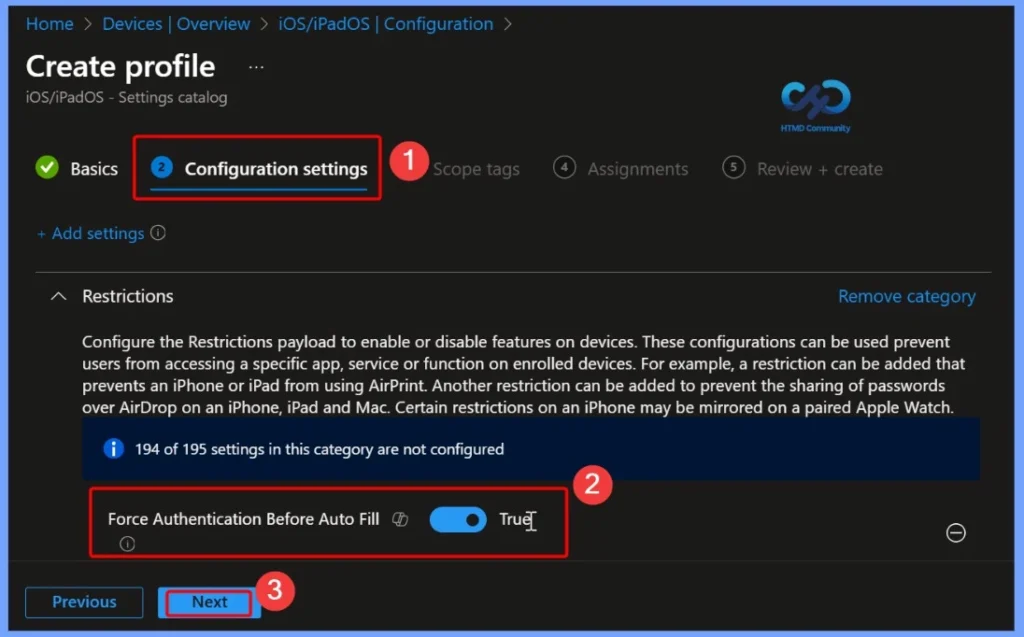
Force Authentication Before Auto Fill – Enabled (True)
When the Force Authentication Before Auto Fill setting is enabled (True), users must authenticate using Face ID or Touch ID before Safari or apps can autofill saved passwords or credit card information. This ensures that sensitive data is protected and cannot be accessed automatically.
- AI Agent Tool that Brings the Power of Microsoft Graph and MS Entra
- Best Guide to Invite B2B Guest Users to Entra ID using Intune
- Key Scenarios of MS Entra External Identity Deployment Architectures
- New External Authentication Methods in Microsoft Entra ID
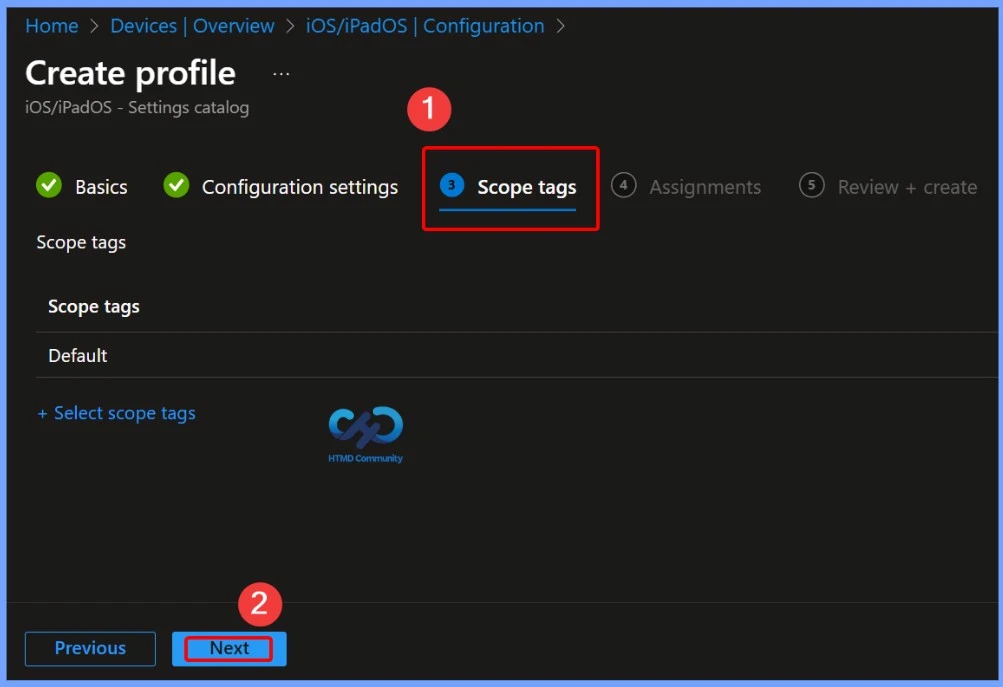
Scope Tag for the Force Authentication Before Auto Fill policy
The Scope Tag for the Force Authentication Before Auto Fill policy allows administrators to control which IT groups or users can view and manage the policy within Microsoft Intune. By assigning a scope tag, you can ensure that only specific teams or roles have access to this configuration
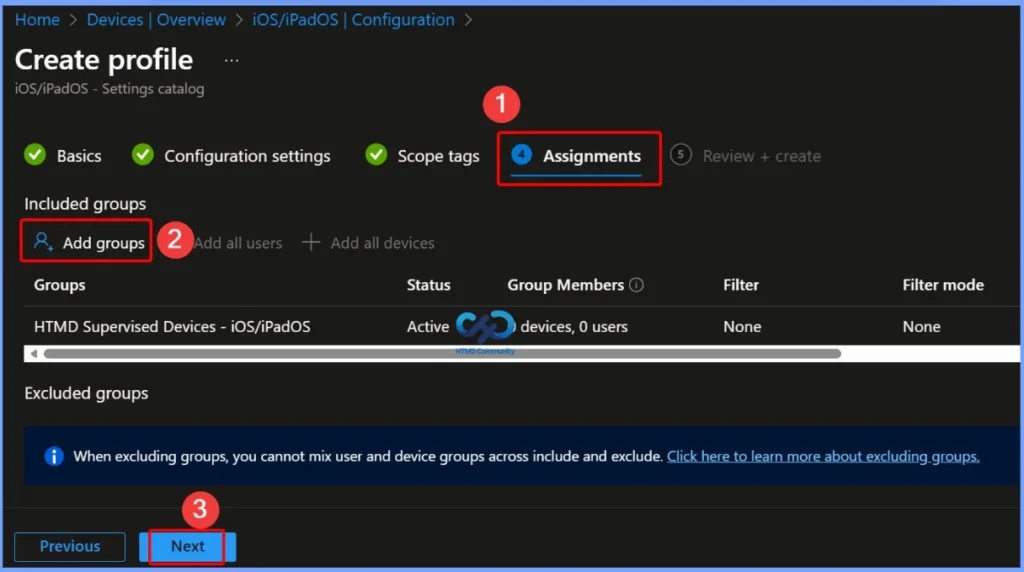
Assignments Section of the Force Authentication Before Auto Fill policy
The Assignments section of the Force Authentication Before Auto Fill policy allows administrators to specify which devices or user groups the policy will apply to. By assigning the policy to targeted groups, you ensure that only selected iOS/iPadOS devices enforce authentication before autofilling passwords or credit card information.
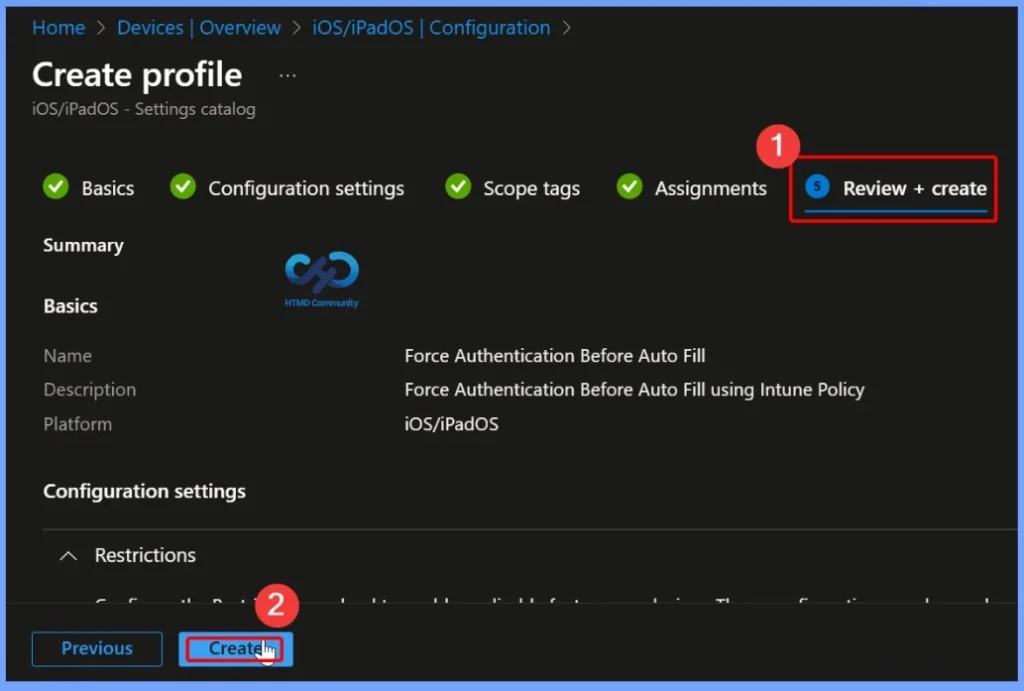
Administrators Can Verify All the Settings
In the Review + Create step, administrators can verify all the settings configured for the Force Authentication Before Auto Fill policy before deploying it. This includes checking the Name, Description, Configuration settings, Scope tags, and Assignments. Once everything is confirmed to be correct, clicking Create
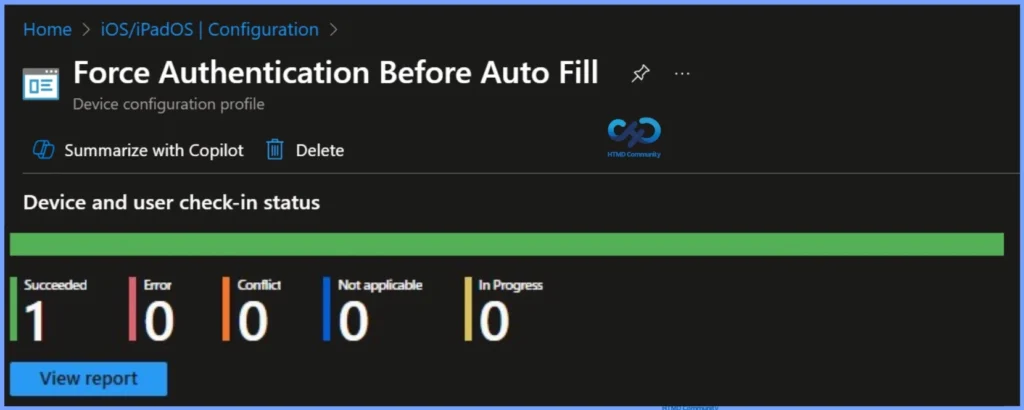
Device and User Check-in Status – Force Authentication Before Auto Fill
The Device and User Check-in Status provides a summary of how the Force Authentication Before Auto Fill policy has been applied across targeted devices and users. In this case:
| Force Authentication Before Auto Fill Policy | Status |
|---|---|
| Succeeded | 1 |
| Not applicable | 0 |
| In Progress | 0 |
| Error | 0 |
| Conflict | 0 |
Need Further Assistance or Have Technical Questions?
Join the LinkedIn Page and Telegram group to get the latest step-by-step guides and news updates. Join our Meetup Page to participate in User group meetings. Also, Join the WhatsApp Community to get the latest news on Microsoft Technologies. We are there on Reddit as well.
Author
Anoop C Nair has been Microsoft MVP for 10 consecutive years from 2015 onwards. He is a Workplace Solution Architect with more than 22+ years of experience in Workplace technologies. He is a Blogger, Speaker, and Local User Group Community leader. His primary focus is on Device Management technologies like SCCM and Intune. He writes about technologies like Intune, SCCM, Windows, Cloud PC, Windows, Entra, Microsoft Security, Career, etc.