
Key Takeaways
- AI-enabled Cloud PCs bring enhanced Windows Search and Click to Do capabilities.
- These features are currently exclusive to Copilot+ PCs.
- Future availability of these features depends on the outcomes of the Frontier Public Preview.
- Allow up to 48 hours for AI enablement to complete on the assigned Cloud PCs.
- On the Cloud PC, check for updates, install any available updates, and restart the device.
In this article, I will elaborate on how to configure AI-enabled features for Windows 365 Cloud PCs. By enabling AI-fueled services for Windows 365 Cloud PCs, organisations can offer more intelligent, productive, and secure virtual desktops. Such services use Microsoft Copilot, cloud smarts, and Windows skills to improve how a user interacts with a Windows 365 Cloud PC. First of all, it is necessary for IT pros to meet prerequisites like supported Windows 11 versions, Windows 365 licensing, and Intune enrollment with Windows 365.
Most AI experiences can be administered using Intune and Microsoft Entra ID. This ensures easy configuration and governance. After satisfying all prerequisites, administrators can use Intune Configuration Profiles, security baselines, or policy settings to turn off or turn onAI capabilities.
Windows capabilities like Microsoft Copilot, smart search, contextual suggestions, or productivity capabilities can be switched off or limited depending on user roles or device groups. This is crucial for securing AI capabilities usage, specifically for access to cloud PCs via unmanaged or untrusted computers.
From a user experience perspective, AI-enabled Windows 365 Cloud PCs provide faster task completion, better multitasking, and more personalized workflows. Intelligent assistance helps users find information quickly, automate routine actions, and stay focused, while IT teams benefit from improved manageability and insights. By thoughtfully configuring these AI features, organizations can balance innovation with security, ensuring Cloud PCs remain compliant, efficient, and ready for the future of work.

Table of Content
Table of Contents
Prerequisites for Enabling Frontier Preview on Windows 365 Cloud PCs
Refer to the table below for detailed steps on enabling the Frontier Preview for Windows 365 Cloud PCs.
It outlines the key prerequisites/requirements and configuration settings to get started.
| Category | Details |
|---|---|
| Windows Insider Program | The Frontier preview is available via the Windows Insider Program. Ensure you are enrolled and that the Cloud PC is assigned to the appropriate Insider ring. |
| Windows 365 License | A Windows 365 Enterprise SKU is required with a minimum configuration of 8 vCPUs, 32 GB RAM, and 256 GB disk space. |
| Deployment Region | The Cloud PC must be provisioned in a supported Azure region where Frontier preview features are available. |
| Supported OS Version | Only Windows 11 24H2 and 25H2 are supported. Confirm the Cloud PC is running the correct build number. |
| PowerShell Configuration | Set the PowerShell execution policy to RemoteSigned on the Cloud PC to allow required scripts to execute. |
| Servicing Features | Enable Windows features introduced via servicing that are disabled by default by configuring the required local Group Policy settings. |
- How to Set Up Windows 365 Cloud Apps Using Microsoft Intune
- Seamless Provisioning of Windows 365 Cloud PCs for External Identities with Intune
- Simple way to Enable Boot To Cloud PC Enhanced Mode using Intune
- How to Fix Windows App Authentication Error 0x80080005 for AVD and Windows 365 After January Updates
Create a Cloud PC Configuration for AI-Enabled Features in Intune
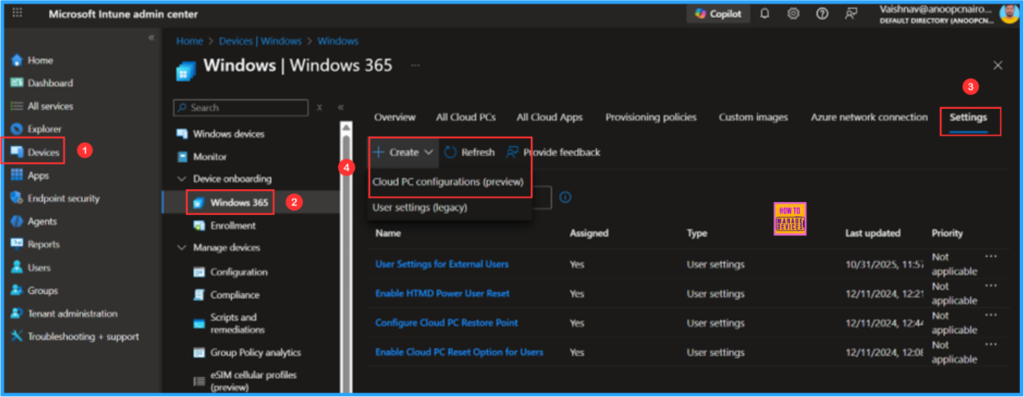
To set AI-enabled features (Frontier) using Microsoft Intune, follow these steps. First, sign in to the Microsoft Intune Admin Center with your administrator credentials.
- Navigate to Devices > Device onboarding > Windows 365> Settings
- Click on +Create > Cloud PC configurations (preview)
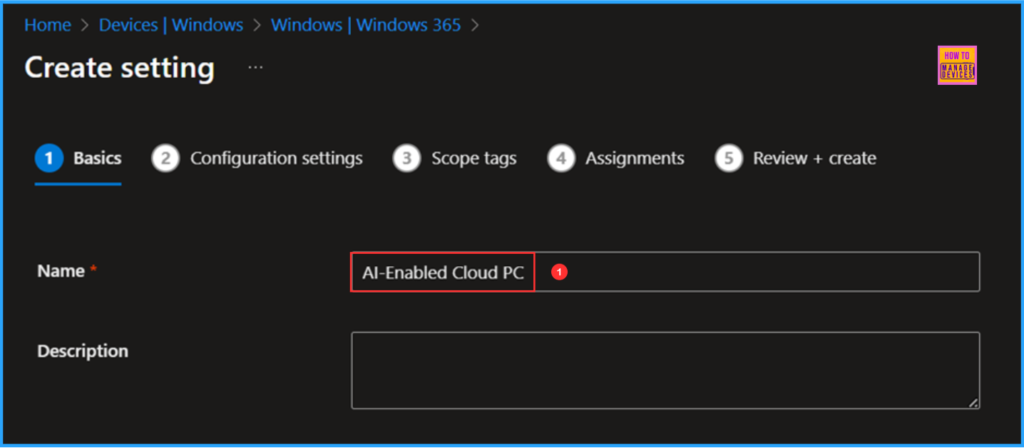
Next, in the Basics details pane, name the Cloud PC configuration policy AI-Enabled Cloud PC. It is also good to provide a brief description of the policy’s purpose. After that, click Next.
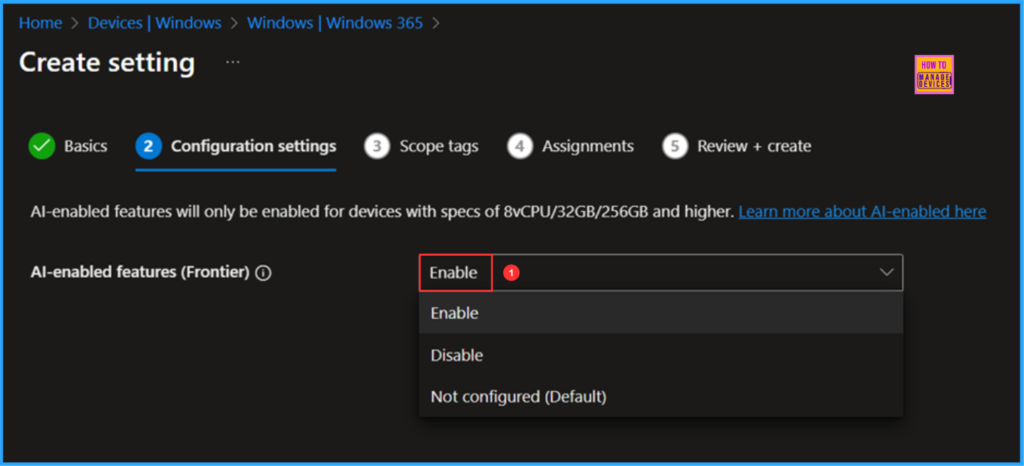
In the Configuration settings, the option is set to Not configured by default. Click the AI-enabled features (Frontier) drop-down menu and change the setting to Enable.
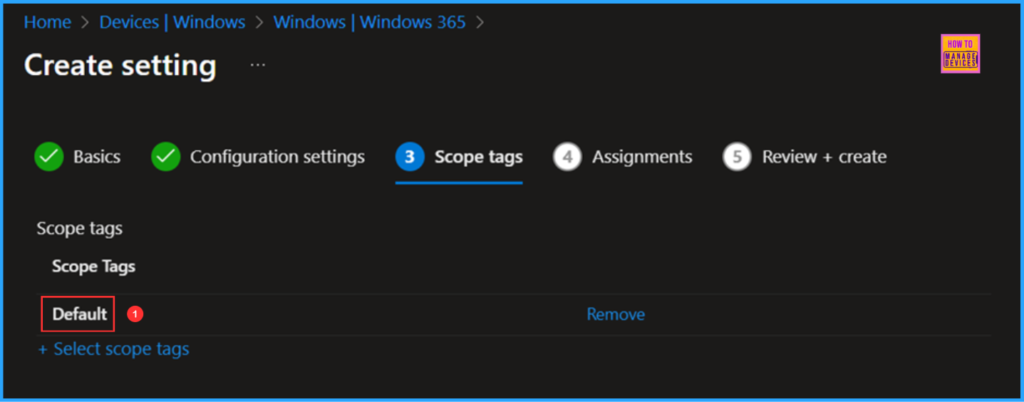
On the next pane, keep the Scope tags set to Default. If your tenant has custom scope tags, you can choose them according to your policy needs, then click Next.
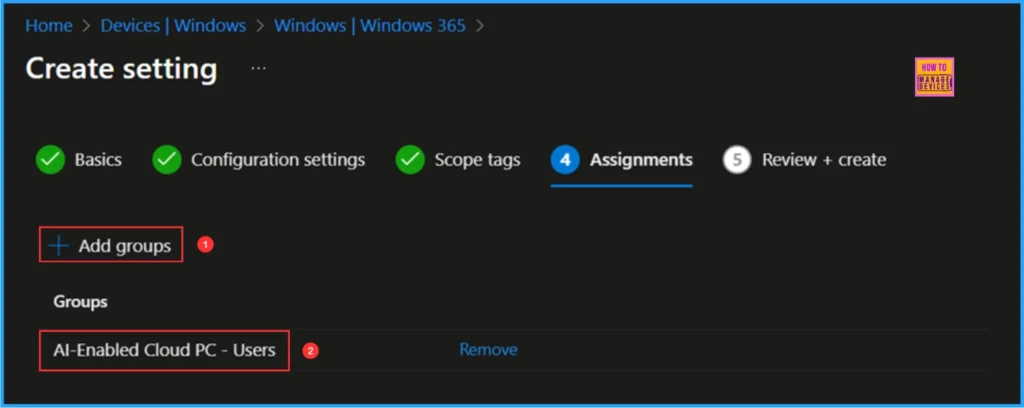
I am assigning the configuration policy to the AI-Enabled Cloud PC – Users group. This Entra ID group contains users who require an AI-enabled Cloud PC. To do this, click on Add groups and select the desired user group under the Select groups section.
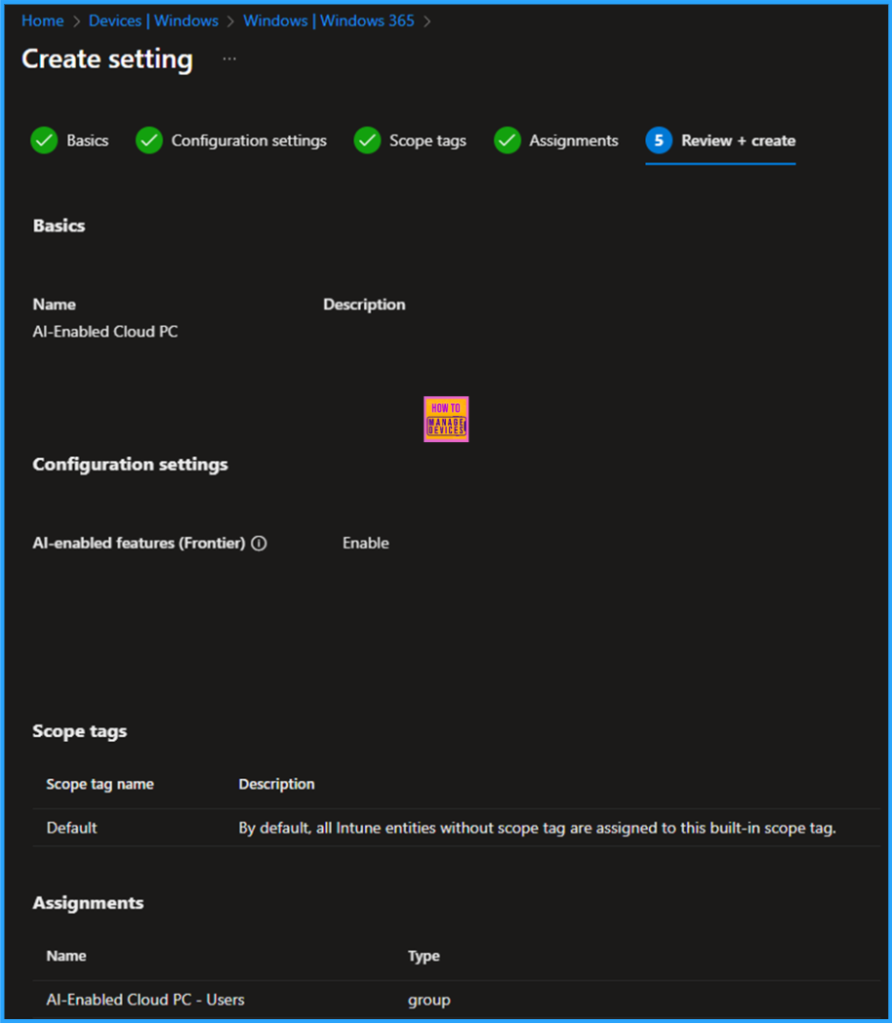
On the Review + create page, carefully review all the settings you’ve defined for the AI-Enabled Cloud PC configuration. Once you’ve confirmed everything is correct, select Create to deploy.
- Cloud PC Zero to Hero Journey DaaS solution Windows 365
- How Autopilot Device Preparation Improves Windows 365 Cloud PC Readiness
- How to Create Entra Joined Azure Network Connection for Windows 365 Cloud PCs in Intune
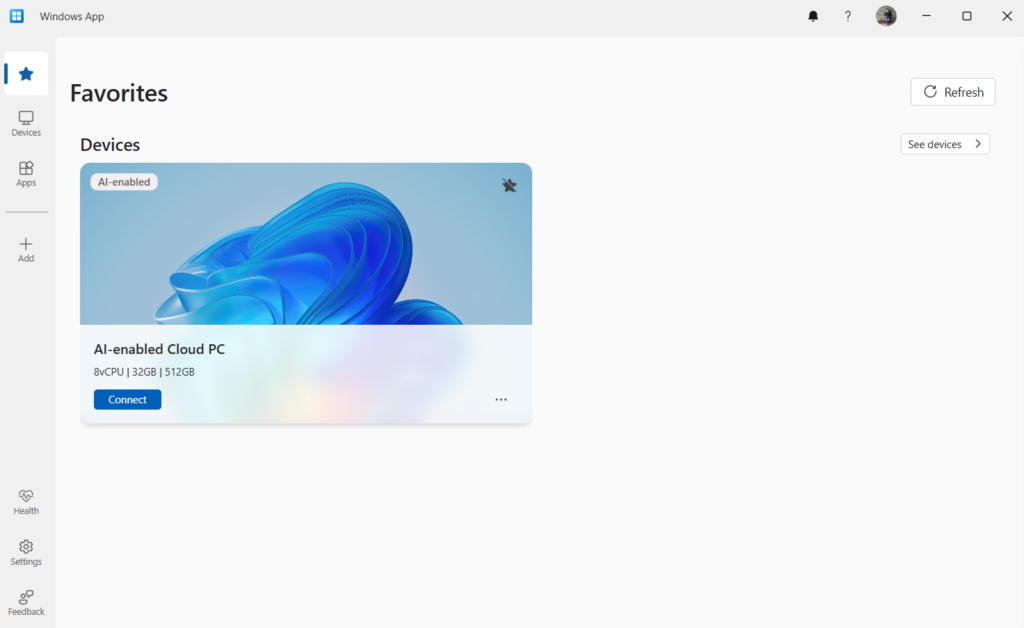
End User Experience – Windows App
After the Cloud PC is provisioned, it’s important to verify that the AI features are successfully enabled. You can confirm this in a few different ways.
Note! – Unfortunately, we do not have a Windows 365 Enterprise license that meets the requirements of at least 8 vCPUs, 32 GB of RAM, and 256 GB of total disk storage. Therefore, we will proceed by using a Microsoft image as the final solution.
- In the Windows App, the Cloud PC will be labelled with the AI-Enabled tag (update: this will appear as AI-Enabled (Frontier)).
- On the taskbar, the standard search magnifying glass icon changes to a sparkling icon, an easy visual sign that AI capabilities are active.
- In Microsoft Intune, the Cloud PC status will reflect that the device is AI-enabled, confirming the feature is enabled from a management perspective.
End User Experience – AI-Enabled Windows 365 Cloud PC’s Taskbar
On AI-enabled Cloud PCs, the search box on the taskbar displays a magnifying glass with sparkles icon. After installing a Windows update, the sparkles may sometimes disappear. If clicking inside the Windows search box does not restore the sparkling magnifying glass icon, it indicates that the AI visual indicator has not been reactivated yet.

Need Further Assistance or Have Technical Questions?
Join the LinkedIn Page and Telegram group to get the latest step-by-step guides and news updates. Join our Meetup Page to participate in User group meetings. Also, join the WhatsApp Community to get the latest news on Microsoft Technologies. We are there on Reddit as well.
Author
Vaishnav K has over 12 years of experience in SCCM, Intune, Modern Device Management, and Automation Solutions. He writes and shares knowledge about Microsoft Intune, Windows 365, Azure, Entra, PowerShell Scripting, and Automation. Check out his profile on LinkedIn.