
Key Takeaways
- Automate Microsoft Entra User Offboarding with Microsoft Graph API and PowerShell
- Proper user offboarding is essential to maintain security, compliance, and effective resource management
- Automated offboarding ensures that former employees and test accounts no longer have access to corporate data
- Manual offboarding processes are time-consuming and prone to human error
- PowerShell automation helps standardise and speed up the offboarding workflow
- Microsoft Graph API enables centralised management of Microsoft 365 and Entra ID resources
Automating the removal of Microsoft Entra users is a critical yet often complex responsibility for IT teams. Offboarding goes far beyond simply disabling an account – it requires a careful, methodical approach to revoke access across multiple services. This includes removing licenses, relinquishing assigned roles, and reassigning application ownership to ensure that no dependencies or responsibilities are left unmanaged.
Without a structured process, organisations face significant risks. Orphaned resources, lingering permissions, or overlooked entitlements can create vulnerabilities that compromise both security and compliance. These gaps not only expose sensitive data but also increase administrative overhead when unmanaged accounts or assets surface later. To mitigate these risks, automation becomes a necessity rather than a convenience.
By harnessing the capabilities of Microsoft Graph API and PowerShell, IT teams can design workflows that streamline user offboarding. Automation enforces consistency, reduces human error, and ensures that every step of deprovisioning is executed reliably and consistently. This approach transforms what was once a manual, error-prone process into a predictable and repeatable system that scales with organisational needs.
Ultimately, a well‑designed automated workflow delivers more than efficiency – it strengthens the overall security posture of the organisation. Departing users are fully deprovisioned, all access is revoked, and resources are safeguarded in a manner that is both reliable and auditable. In doing so, IT teams not only save valuable time but also reinforce trust in their systems, ensuring that offboarding is handled with precision and confidence.

Table of Content
Table of Contents
Strengthening Security Through Automated User Offboarding in Microsoft Entra
Microsoft Entra is Microsoft’s suite of identity and network access solutions, built to secure access to apps, resources, and services across cloud and on‑premises environments. It delivers key capabilities, such as single sign-on, multi-factor authentication, and Zero Trust security, for employees, customers, and partners.
- How to Change the Region Name and Geography of Microsoft 365 Cloud PCs using Microsoft Graph API
- How to Fix Windows 365 Inactive Azure Network Connection in Intune
- Easy way to Enable Windows Backup using Microsoft Intune Configuration
- How to Resolve Windows 365 Provisioning Policy Unsupported Image Status in Intune
User offboarding is one of the most critical yet often overlooked aspects of identity and access management. When employees, contractors, or partners leave an organisation, their accounts must be carefully deprovisioned to prevent lingering access. Simply disabling a user is not enough; licenses, roles, and application ownership must be reassigned to ensure no orphaned resources remain. Without a structured offboarding process, organisations risk exposing sensitive data, leaving behind unused assets, or creating compliance gaps.
These oversights can lead to costly breaches and undermine trust in IT systems. By treating offboarding as a security priority rather than an administrative task, organisations can close potential vulnerabilities before they are exploited.
Permissions Required for User Offboarding in Microsoft Entra
You need certain permissions to offboard users in Entra. There are two types of API permissions: Application permissions and Delegated permissions. The Application permissions run without a signed-in user present and require admin consent, and Delegated permissions run on behalf of a signed-in user. We have used application permissions in this automation. Here’s a detailed table explaining the Microsoft Graph permissions used in your offboarding script:
| Permission | Scope | What It Allows | Used For in Script | Why Required |
|---|---|---|---|---|
| User.ReadWrite.All | Application | Read and write all users’ full profiles | • Get user information • Block user sign-in ( accountEnabled: false)• Revoke user sessions • Remove user licenses | Essential for user account management – needed to disable the user account and manage their profile |
| Group.ReadWrite.All | Application | Read and write all groups | • Get user’s group memberships • Remove user from all groups • Read group details (name, type) | Required to remove the user from all security groups and distribution lists to revoke group-based access |
| Directory.ReadWrite.All | Application | Read and write directory data | • Get the user’s group memberships • Remove user from all groups • Read group details (name, type) | Needed to check and display what administrative roles the user has in Entra ID (Azure AD) |
| AppRoleAssignment.ReadWrite.All | Application | Manage app role assignments for all users | • Get the user’s enterprise app assignments • Remove app role assignments • Read service principal information | Critical for removing the user’s access to enterprise applications (SSO apps) |
- HTMD Community Free Python Intune Tool | HTMD – Microsoft Intune Reports Export Tool v1.0
- Best way to deploy Shell Scripts using Intune
- Run Remediation Script on-demand for Windows Devices using Intune
- PowerShell Script to Create a Local Admin Account using Intune
Key Activities Performed by the User Offboarding Automation
We’ve already discussed the permissions required to execute the code. Now, let’s explore the activities performed by the offboarding automation. This section will give you a clear idea of the tasks that can be automated and how they streamline the user offboarding process in Microsoft Entra.
When a user’s offboarding process is triggered, the script begins by identifying the target account and immediately blocks sign-in access to prevent any further activity. It then revokes all active sessions, ensuring that the user is forcibly signed out across all devices and applications. This step is crucial for cutting off real-time access and mitigating any potential security risks from lingering sessions.
Next, the automation systematically removes the user from all assigned groups, including security and Microsoft 365 groups, and strips access to enterprise applications. It also checks for and clears any app registrations owned by the user, preventing orphaned resources or lingering permissions. Licenses are unassigned to free up resources and ensure that no paid subscriptions remain tied to the offboarded account.
Finally, the script performs a comprehensive access audit to confirm that the user holds no directory roles, group memberships, application access, or license entitlements. The account is then disabled, and a detailed checklist is generated to validate that the offboarding is complete and compliant. This end-to-end automation ensures a secure, scalable, and non-destructive offboarding process, reducing manual effort while maintaining full visibility and control.
NOTE! The automation will not DELETE the user from Microsoft EntraPowerShell Script for User Offboarding
You have learned the permissions that you required to automate the Microsoft Entra User Offboarding and key the Activities Performed by the User Offboarding Automation. Now, it’s time to dive into the automation. Remember, you must install the Microsoft Graph Module before you run this automation, and open the PowerShell ISE or Visual Studio Code as Administrator.
- Best Guide to Install Microsoft Graph PowerShell Modules
- Best Guide to Run Intune Device Query with Microsoft Graph API
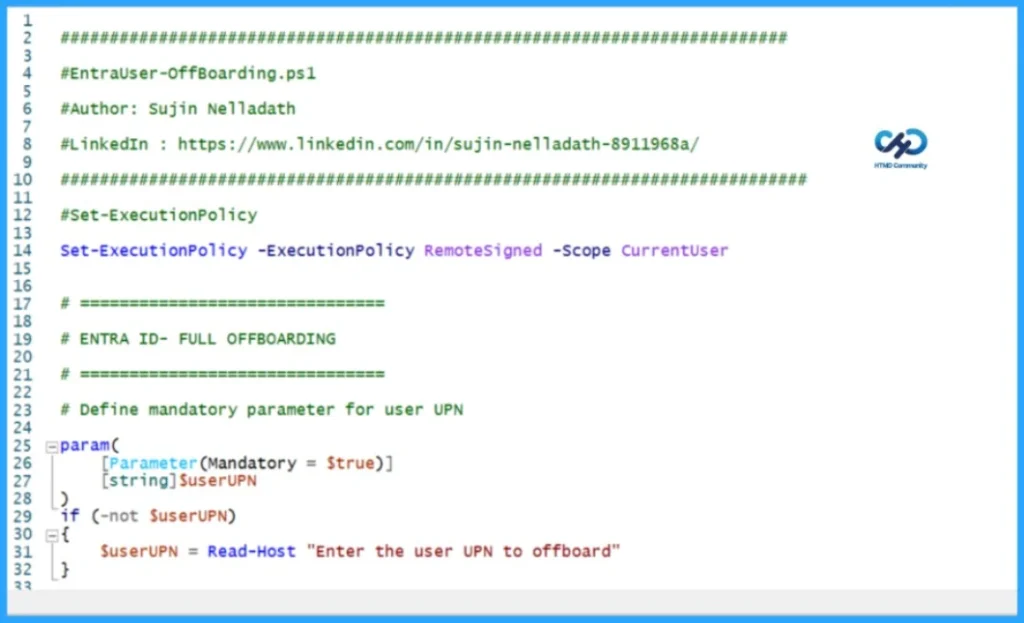
##########################################################################

#EntraUser-OffBoarding.ps1

#Author: Sujin Nelladath

#LinkedIn : https://www.linkedin.com/in/sujin-nelladath-8911968a/

############################################################################

#Set-ExecutionPolicy

Set-ExecutionPolicy -ExecutionPolicy RemoteSigned -Scope CurrentUser


# ===============================

# ENTRA ID- FULL OFFBOARDING

# ===============================

# Define mandatory parameter for user UPN

param(
    [Parameter(Mandatory = $true)]
    [string]$userUPN
)
if (-not $userUPN)
{
    $userUPN = Read-Host "Enter the user UPN to offboard"
}


# Connect to Microsoft Graph

Connect-MgGraph -Scopes  "User.ReadWrite.All", "Group.ReadWrite.All", "Directory.ReadWrite.All", "AppRoleAssignment.ReadWrite.All"


# -------------------------------

# USER TO OFFBOARD

# -------------------------------


# Get user with error handling
try

{
    $UserEndpoint = "https://graph.microsoft.com/v1.0/users/$userUPN"
    $user = Invoke-MgGraphRequest -Method GET -Uri $UserEndpoint

    Write-Host "Found user: $($user.displayName)" -ForegroundColor Green
}
catch

{
    Write-Host "Error: User not found - $userUPN" -ForegroundColor Red
    exit 1
}


Write-Host "Offboarding user:" $user.displayName -ForegroundColor Cyan


# -------------------------------

# 1. BLOCK SIGN-IN

# -------------------------------

# Block user sign-in using Graph API
$updateEndpoint = "https://graph.microsoft.com/v1.0/users/$($user.id)"
$updateBody = @{
    accountEnabled = $false
} | ConvertTo-Json

Invoke-MgGraphRequest -Method PATCH -Uri $updateEndpoint -Body $updateBody -ContentType "application/json"

Write-Host "User sign-in blocked"


# -------------------------------

# 2. REVOKE ACTIVE SESSIONS

# -------------------------------

# Revoke user sessions using Graph API
$revokeEndpoint = "https://graph.microsoft.com/v1.0/users/$($user.id)/revokeSignInSessions"
Invoke-MgGraphRequest -Method POST -Uri $revokeEndpoint

Write-Host "Sessions revoked"


# -------------------------------

# 3. REMOVE FROM ALL GROUPS

# -------------------------------

# Get user group memberships using Graph API
$groupsEndpoint = "https://graph.microsoft.com/v1.0/users/$($user.id)/memberOf"
$groupsResponse = Invoke-MgGraphRequest -Method GET -Uri $groupsEndpoint
$groups = $groupsResponse.value


foreach ($group in $groups)

{
    try

    {
        # Remove user from group using Graph API
        $removeGroupEndpoint = "https://graph.microsoft.com/v1.0/groups/$($group.id)/members/$($user.id)/`$ref"
        Invoke-MgGraphRequest -Method DELETE -Uri $removeGroupEndpoint -ErrorAction Stop
        Write-Host "Removed from group: $($group.displayName)" -ForegroundColor Yellow
    }
    catch

    {
        Write-Host "  Warning: Could not remove from group $($group.id) - $($_.Exception.Message)" -ForegroundColor Yellow
    }
}


Write-Host "Removed from all groups"


# -------------------------------

# 4. REMOVE ALL APP ASSIGNMENTS

# -------------------------------

# Get user app role assignments using Graph API
$appAssignmentsEndpoint = "https://graph.microsoft.com/v1.0/users/$($user.id)/appRoleAssignments"
$appAssignmentsResponse = Invoke-MgGraphRequest -Method GET -Uri $appAssignmentsEndpoint
$appAssignments = $appAssignmentsResponse.value


foreach ($app in $appAssignments)

 {
    try

    {
        # Remove app role assignment using Graph API
        $removeAppEndpoint = "https://graph.microsoft.com/v1.0/users/$($user.id)/appRoleAssignments/$($app.id)"
        Invoke-MgGraphRequest -Method DELETE -Uri $removeAppEndpoint -ErrorAction Stop
        Write-Host "  Removed app assignment: $($app.resourceDisplayName)" -ForegroundColor Yellow
    }
    catch

    {
        Write-Host "  Warning: Could not remove app assignment $($app.id) - $($_.Exception.Message)" -ForegroundColor Yellow
    }
}


Write-Host "Application access removed"


# -------------------------------

# 5. REMOVE ALL LICENSES

# -------------------------------

# Get user licenses using Graph API
$licensesEndpoint = "https://graph.microsoft.com/v1.0/users/$($user.id)/licenseDetails"
$licensesResponse = Invoke-MgGraphRequest -Method GET -Uri $licensesEndpoint
$licenses = $licensesResponse.value | ForEach-Object { $_.skuId }


if ($licenses.Count -gt 0)

 {
    try

    {
        # Remove licenses using Graph API
        $assignLicenseEndpoint = "https://graph.microsoft.com/v1.0/users/$($user.id)/assignLicense"
        $licenseBody = @{
            addLicenses    = @()
            removeLicenses = $licenses
        } | ConvertTo-Json -Depth 3
        Invoke-MgGraphRequest -Method POST -Uri $assignLicenseEndpoint -Body $licenseBody -ContentType "application/json" -ErrorAction Stop
        Write-Host "Licenses removed" -ForegroundColor Yellow
    }
    catch

    {
        Write-Host "Warning: Could not remove licenses - $($_.Exception.Message)" -ForegroundColor Yellow
    }
}
else

{
    Write-Host "No licenses assigned"
}


# -------------------------------

# OFFBOARDING COMPLETE

# -------------------------------

Write-Host "User has NO remaining access" -ForegroundColor Green

# USER ACCESS INVENTORY (Console Output Only)
# Covers:
# Directory (Entra ID) roles
# Group memberships
# Enterprise applications (SSO access)
# App registrations owned

# ================================

# USER ACCESS INVENTORY- CONSOLE

# ================================


# -------------------------------

# Connect (Read-only scopes)

# -------------------------------


$user = Invoke-MgGraphRequest -Method GET -Uri $UserEndpoint


Write-Host "`n===============================" -ForegroundColor Cyan

Write-Host " USER ACCESS CHECKLIST" -ForegroundColor Cyan

Write-Host "===============================" -ForegroundColor Cyan

Write-Host "User        : $($user.displayName)"

Write-Host "UPN         : $($user.userPrincipalName)"

Write-Host "Account     : $(if ($user.accountEnabled) {'Enabled'} else {'Disabled'})"

Write-Host "--------------------------------"


# ===============================

# 1. DIRECTORY (ENTRA ID) ROLES

# ===============================

Write-Host "`n[1] DIRECTORY ROLES" -ForegroundColor Yellow


# Get directory role assignments using Graph API
$directoryRolesEndpoint = "https://graph.microsoft.com/v1.0/roleManagement/directory/roleAssignments?`$filter=principalId eq '$($user.id)'"
$directoryRolesResponse = Invoke-MgGraphRequest -Method GET -Uri $directoryRolesEndpoint
$directoryRoles = $directoryRolesResponse.value


if ($directoryRoles)

{

    foreach ($role in $directoryRoles)

    {

        # Get role definition using Graph API
        $roleDefEndpoint = "https://graph.microsoft.com/v1.0/roleManagement/directory/roleDefinitions/$($role.roleDefinitionId)"
        $roleDef = Invoke-MgGraphRequest -Method GET -Uri $roleDefEndpoint
        Write-Host " - $($roleDef.displayName)"

    }

}
else

{

    Write-Host " - None"

}


# ===============================

# 2. GROUP MEMBERSHIPS

# ===============================

Write-Host "`n[2] GROUP MEMBERSHIPS" -ForegroundColor Yellow


# Get user group memberships using Graph API
$groupsEndpoint = "https://graph.microsoft.com/v1.0/users/$($user.id)/memberOf"
$groupsResponse = Invoke-MgGraphRequest -Method GET -Uri $groupsEndpoint
$groups = $groupsResponse.value


if ($groups)

 {

    foreach ($group in $groups)

    {

        # Get group details using Graph API
        $groupEndpoint = "https://graph.microsoft.com/v1.0/groups/$($group.id)"
        $g = Invoke-MgGraphRequest -Method GET -Uri $groupEndpoint -ErrorAction SilentlyContinue
        if ($g) {
            $type = if ($g.securityEnabled) { "Security" } else { "M365 / Distribution" }
            Write-Host " - $($g.displayName) [$type]"
        }

    }

}

else

{

    Write-Host " - None"

}


# ===============================

# 3. ENTERPRISE APPLICATION ACCESS

# ===============================

Write-Host "`n[3] ENTERPRISE APPLICATION ACCESS" -ForegroundColor Yellow


# Get user app role assignments using Graph API
$appAssignmentsEndpoint = "https://graph.microsoft.com/v1.0/users/$($user.id)/appRoleAssignments"
$appAssignmentsResponse = Invoke-MgGraphRequest -Method GET -Uri $appAssignmentsEndpoint
$appAssignments = $appAssignmentsResponse.value


if ($appAssignments)

{
    foreach ($app in $appAssignments)

    {
        # Get service principal using Graph API
        $spEndpoint = "https://graph.microsoft.com/v1.0/servicePrincipals/$($app.resourceId)"
        $sp = Invoke-MgGraphRequest -Method GET -Uri $spEndpoint -ErrorAction SilentlyContinue
        if ($sp)
        {
            Write-Host " - $($sp.displayName)"
        }
    }
}

else
{
    Write-Host " - None"
}


# ===============================

# 4. APP REGISTRATIONS OWNED

# ===============================

Write-Host "`n[4] APP REGISTRATIONS OWNED" -ForegroundColor Yellow


# Get user owned objects using Graph API
$ownedObjectsEndpoint = "https://graph.microsoft.com/v1.0/users/$($user.id)/ownedObjects"
$ownedObjectsResponse = Invoke-MgGraphRequest -Method GET -Uri $ownedObjectsEndpoint
$ownedApps = $ownedObjectsResponse.value | Where-Object { $_.'@odata.type' -eq '#microsoft.graph.application' }


if ($ownedApps)
{
    foreach ($app in $ownedApps)
    {
        Write-Host " - $($app.displayName)"
    }
}
else
{
    Write-Host " - None"
}


# ===============================


# ===============================


Write-Host "`n===============================" -ForegroundColor Green

Write-Host " CHECKLIST COMPLETE" -ForegroundColor Green

Write-Host "==============================="
I’ve included the Git repository link for downloading the code. The repository also contains a detailed README.md file with instructions and documentation.
Download : EntraUser-OffBoarding.PS1- Automate Microsoft Intune Device Compliance Report using Graph API
- Complete Guide to Install the New Microsoft Entra PowerShell Module
- How to Pause Intune Config Refresh Feature on Windows Device using Microsoft Graph API
End Result – Output
As I mentioned, run the above script as administrator. The script will ask you to authenticate with your account. The account should have enough permissions. Also, you must enter the user UPN; it’s a mandatory parameter.
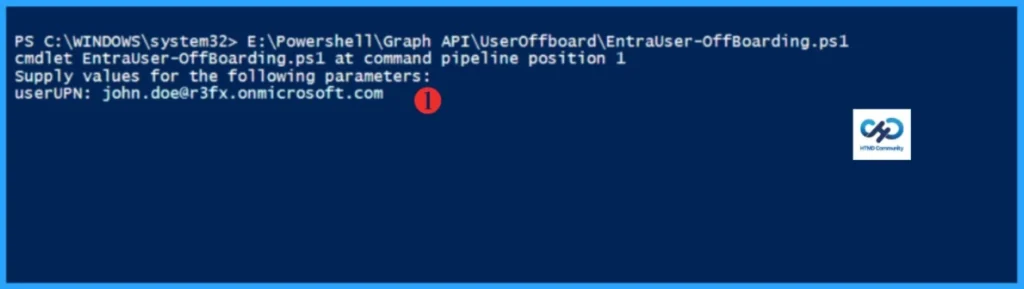
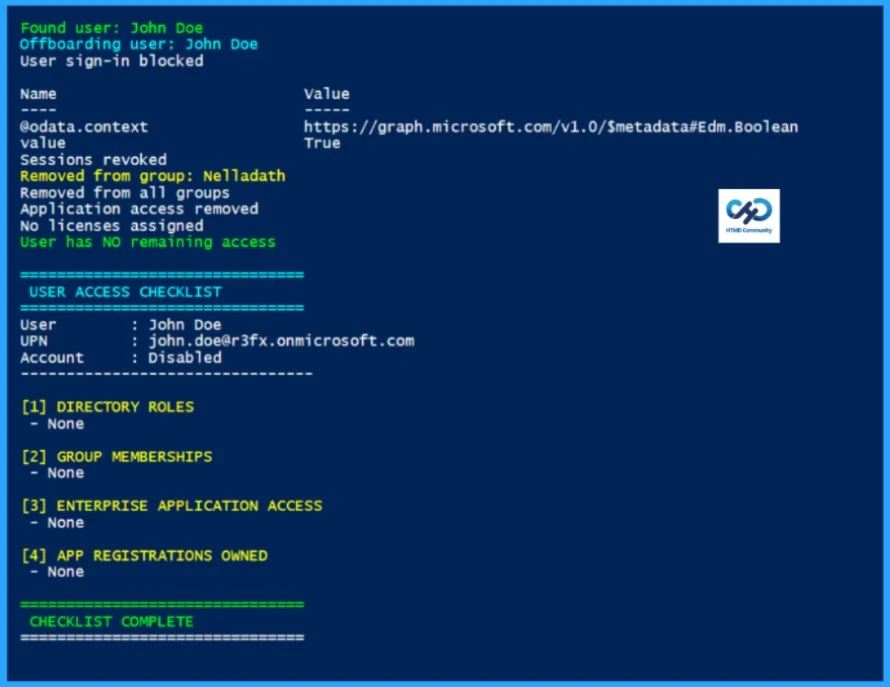
In this example, I am offboarding a test user: john.doe@r3fx.onmicrosoft.com. When prompted, enter the user UPN and press Enter. The script will then execute, performing the complete offboarding process and finishing within seconds. Please refer to the below PowerShell output.
- Best Guide to Restart Intune Devices Remotely using Microsoft Graph API and PowerShell
- Best Guide to Run Intune Device Query with Microsoft Graph API
- Automate Microsoft Intune Device Compliance Report using Graph API
Found user: John Doe
Offboarding user: John Doe
User sign-in blocked

Name                           Value
----                           -----
@odata.context                 https://graph.microsoft.com/v1.0/$metadata#Edm.Boolean
value                          True
Sessions revoked
Removed from group: Nelladath
Removed from all groups
Application access removed
No licenses assigned
User has NO remaining access

===============================
 USER ACCESS CHECKLIST
===============================
User        : John Doe
UPN         : john.doe@r3fx.onmicrosoft.com
Account     : Disabled
--------------------------------

[1] DIRECTORY ROLES
 - None

[2] GROUP MEMBERSHIPS
 - None

[3] ENTERPRISE APPLICATION ACCESS
 - None

[4] APP REGISTRATIONS OWNED
 - None

===============================
 CHECKLIST COMPLETE
===============================
I trust that this article will significantly benefit you and your organisation. I appreciate your patience in reading this post. I look forward to seeing you in the next post. Keep supporting the HTMD Community.
Need Further Assistance or Have Technical Questions?
Join the LinkedIn Page and Telegram group to get the latest step-by-step guides and news updates. Join our Meetup Page to participate in User group meetings. Also, Join the WhatsApp Community to get the latest news on Microsoft Technologies. We are there on Reddit as well.Author
About the Author: Sujin Nelladath, a Microsoft Graph MVP with over 11 years of experience in SCCM device management and Automation solutions, writes and shares his experiences with Microsoft device management technologies, Azure, DevOps and PowerShell automation.