
Key Takeaways:
- It prevents thousands of simultaneous, unnecessary pings to the internet
- Admins can reduce unnecessary network traffic caused by frequent content updates
- Ensuring consistent application across managed devices.
- Provides Smoother device performance and faster access to enterprise resources.
Let’s discuss Enable Search Companion Content File Updates to Reclaim Your Network Bandwidth using Intune. This policy controls whether Windows can automatically download updates for the Search Companion, such as new search features, linguistic updates, or “Character” animations.
Table of Contents
Table of Contents
Enable Search Companion Content File Updates to Reclaim Your Network Bandwidth using Intune
The core purpose of this policy is to enforce a “Local-Only” search experience by preventing Windows from reaching out to Microsoft servers to update the Search Companion’s tools, logic, and interface. Every time a device checks for “content updates” for a search tool, it transmits metadata to a server (e.g., OS version, language, and IP address).
By enabling this policy, organizations ensure that the device remains radio-silent during a search. It guarantees that no “telemetry-lite” data is exchanged with Microsoft just because a user is looking for a file on their own hard drive.
- Require Password when Computer Wakes on Battery using Intune
- How to Remove Assigned Group from Energy Saver Battery Threshold Policy in Intune Settings Catalog
- Improve Windows PC Performance by using New Efficiency Mode
- Manage OneDrive Upload Speed with Windows LEDBAT in Microsoft Intune
How to Start Policy Creation
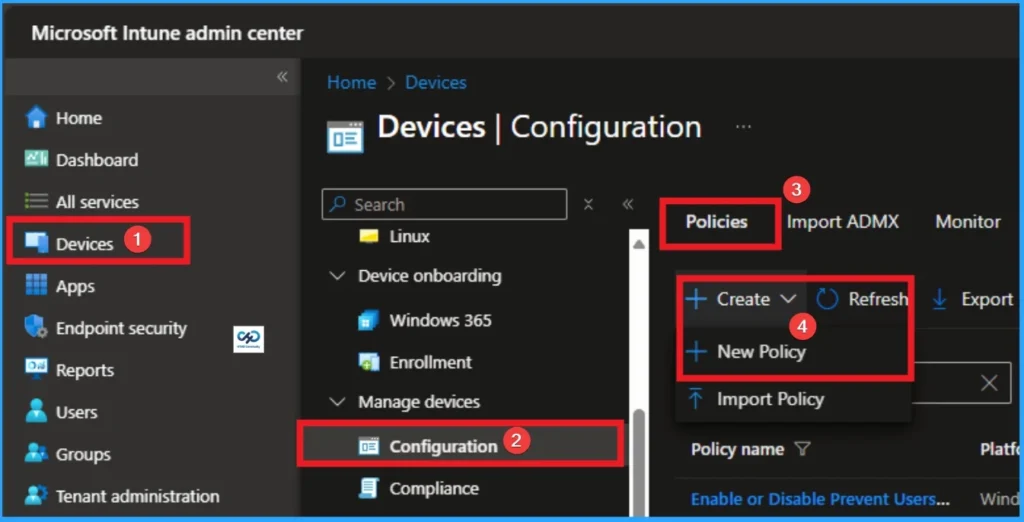
You can quickly configure Search Companion Content File Updates policy on your organisation. To start the Policy Creation, open the Microsoft Intune Admin center. Then go to Devices > Configuration >+ Create > +New Policy.

Creating Profile
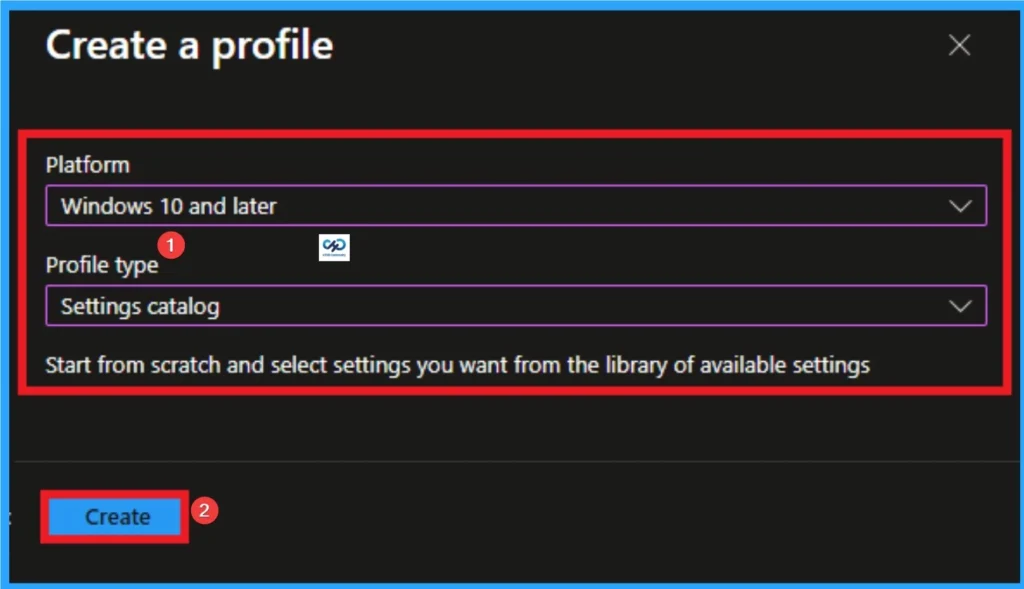
Profile creation is the necessary step that helps you to assign the policy to appropriate platform and Profile. Here I would like to configure the policy to Windows 10 and later platform and settings catalog profile. Then click on the Create button.
Adding Details on Basic Tab
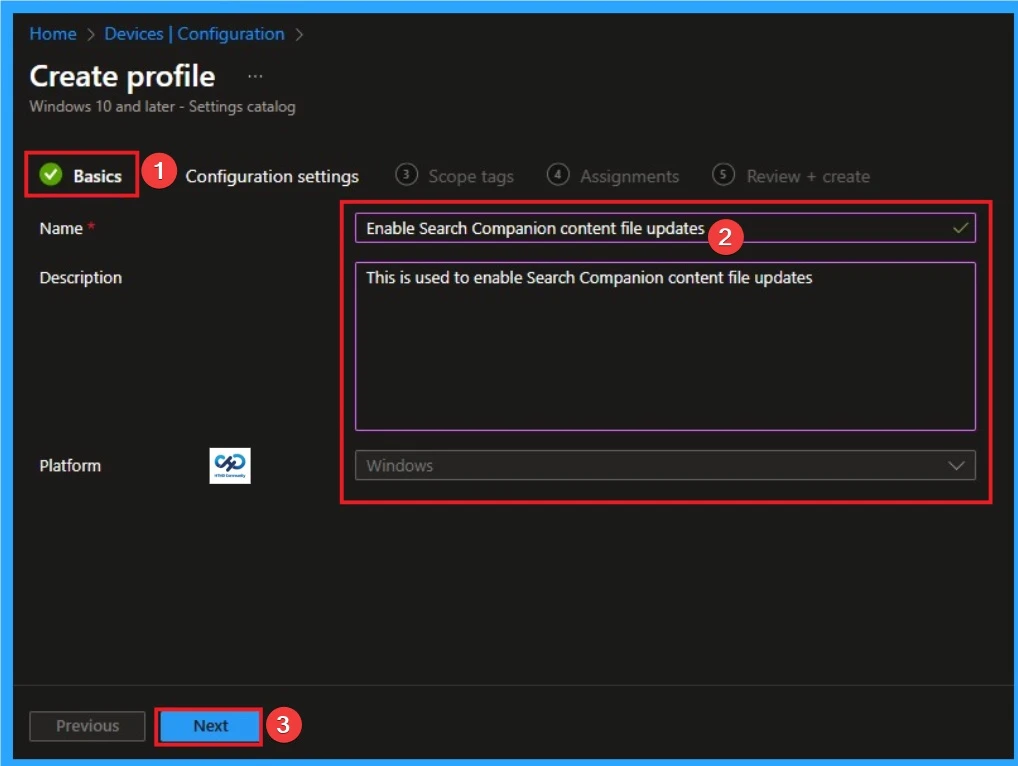
Naming the policy is the primary step that help admins to identify the policy later. This is important and necessary step that allows you to know the purpose of the policy. Here is Name is mandatory and description is optional. After adding this click on the Next button.
Configure Search Companion Content File Updates
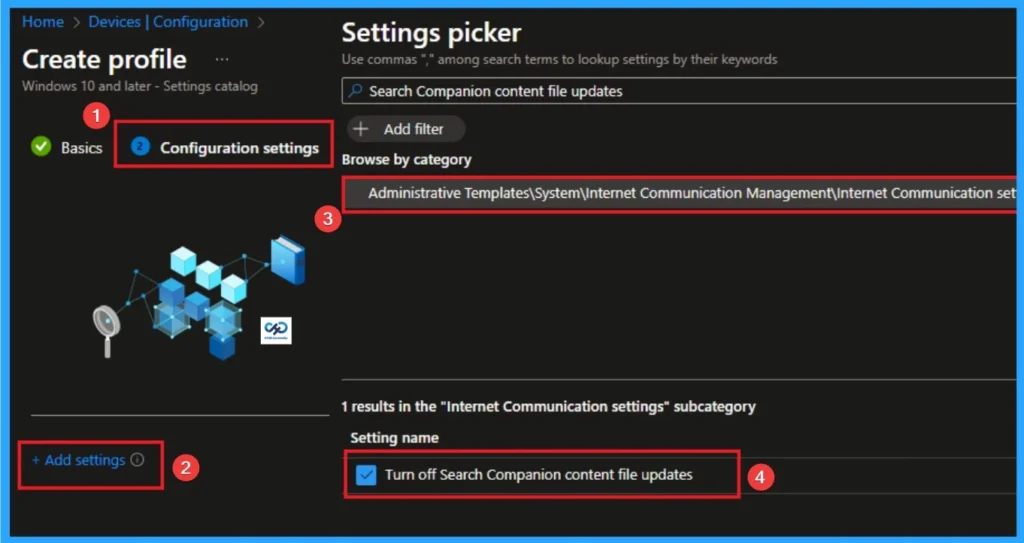
With Settings Picker, you can use the Configuration Settings Tab. On this tab, you can click on the +Add Settings hyperlink to get the Settings Picker. The settings picker shows huge number of settings. Here, I would like to select the settings by browsing by Category. I choose Administrative Templates> System > Internet Communication Management > Internet Communication settings and choose Turn off Search Companion content file updates.
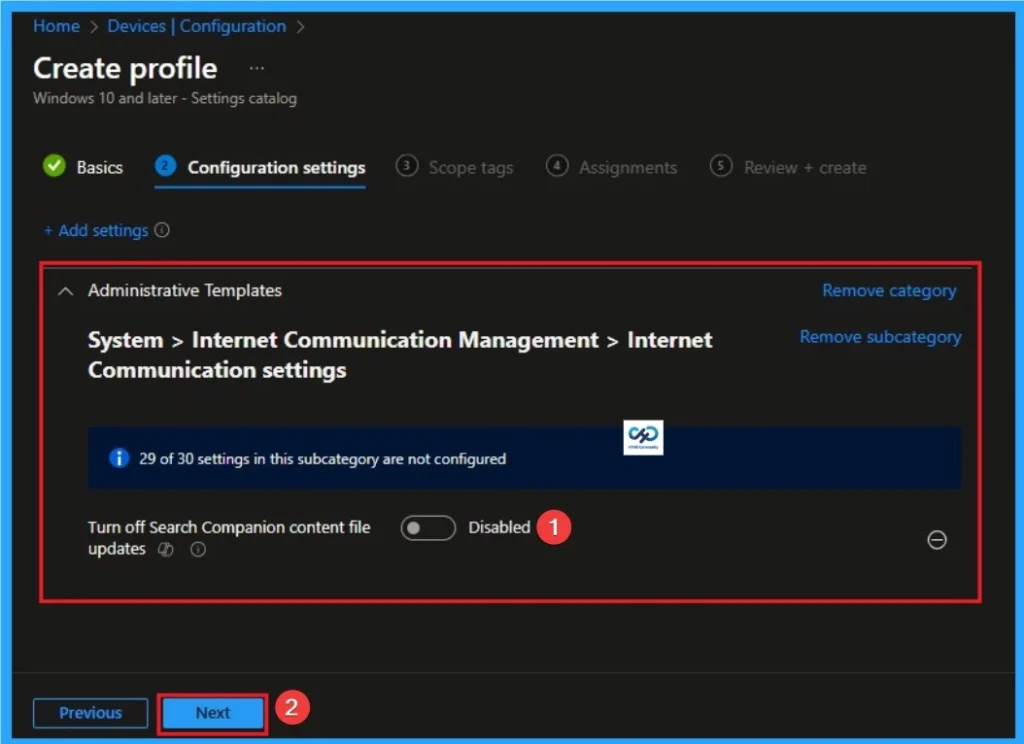
Disable Search Companion Content File Updates
If you disable or do not configure this policy setting, Search Companion downloads content updates unless the user is using Classic Search. Click on the Next button to continue.
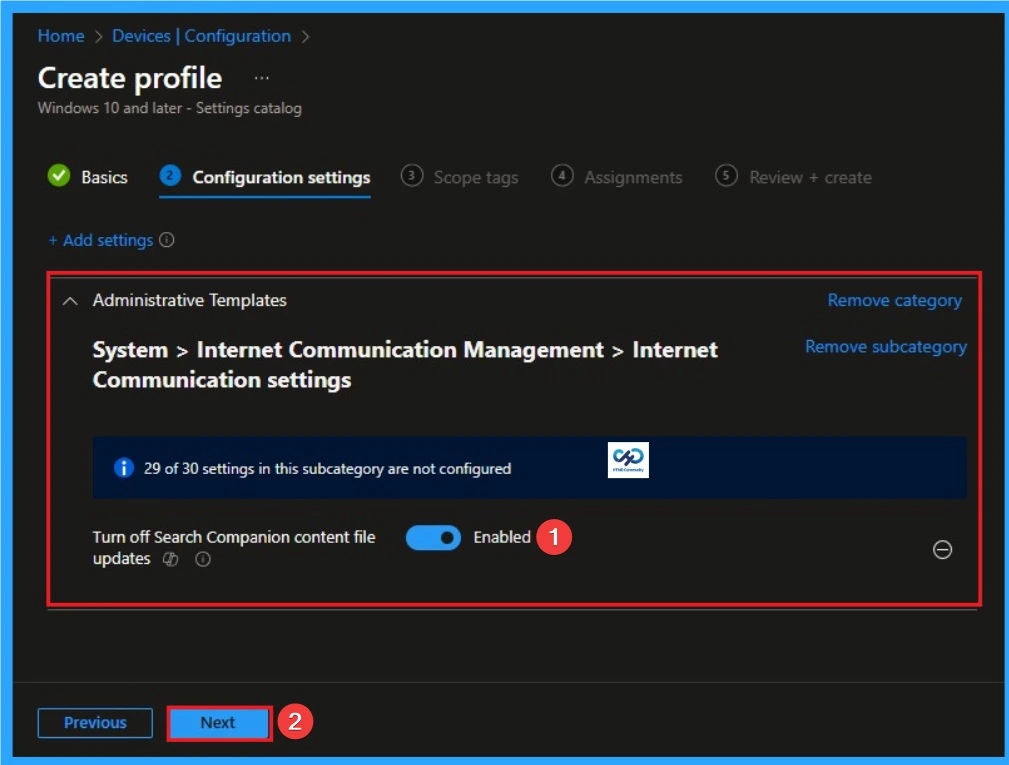
Enable Search Companion Content File Updates
If you enable this policy setting, Search Companion does not download content updates during searches. Here i choose Enable value for this policy. Click on the Next button to continue.
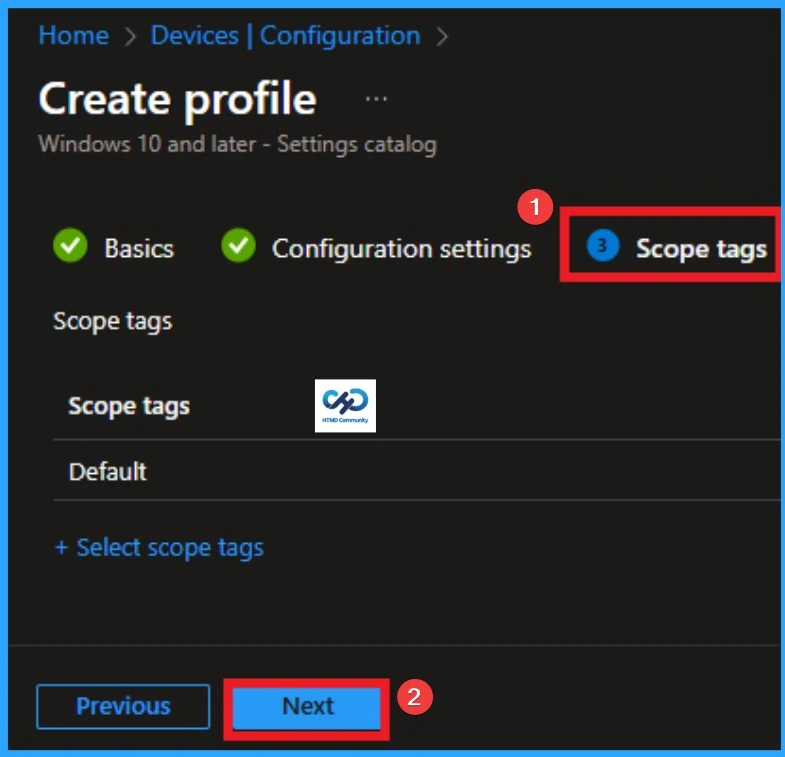
Scope Tags
With scope tags, you create a restriction to the visibility of the Search Companion. It helps to organise resources as well. Here, I would like to skip this section, because it is not mandatory. Click on the Next button
Assignments Tab
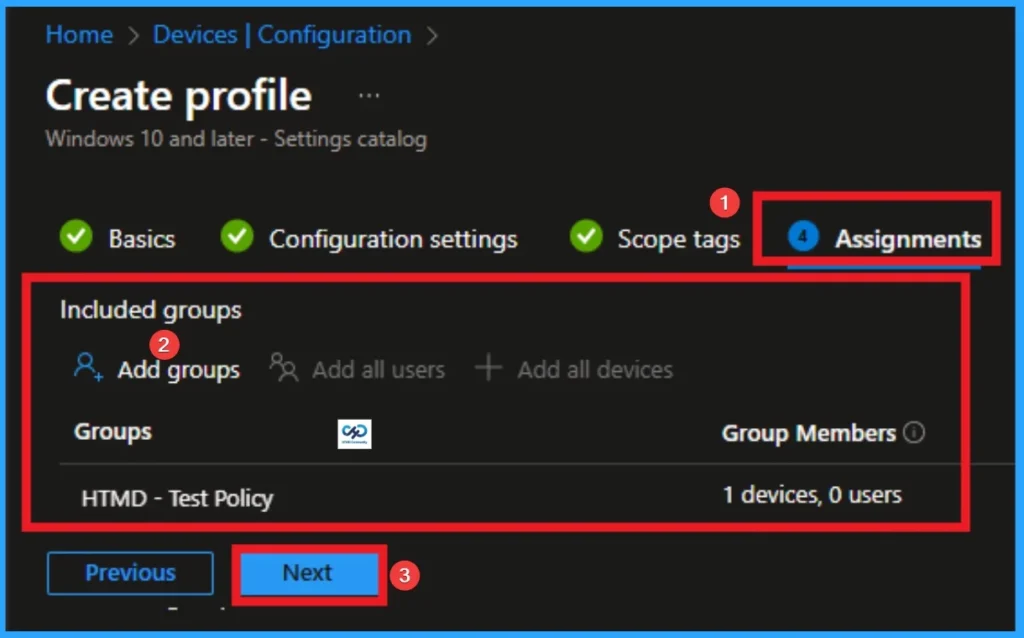
The assignments tab is the crucial step that determines which groups can be selected to assign the policy. Click on the +Add groups option under included groups. Select the group from the list of groups on your tenant.
Click on the Select button. And you can see the selected group on the Assignments tab. Click on the Next button in the window below.
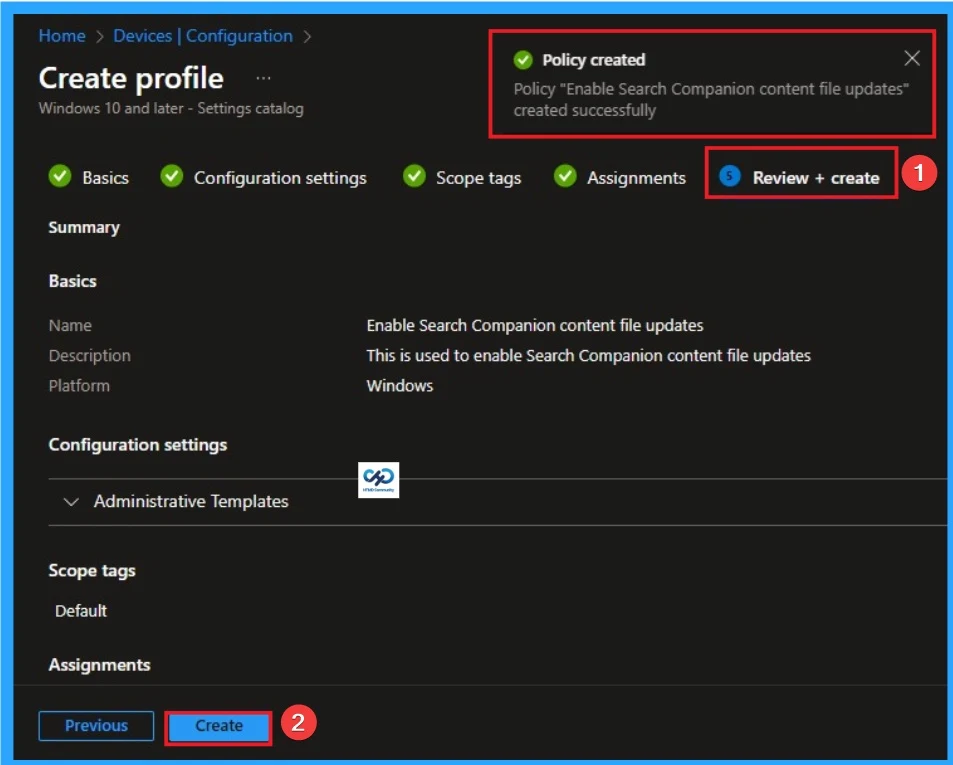
Review + Create
The Review + Create tab is the last step of policy creation. On this tab, you can verify every detail of the policy which are added in the previous steps (basic configuration settings, scope tag assignments s etc). If you want to make any changes, click on the previous button; otherwise, you can click on the Create button.
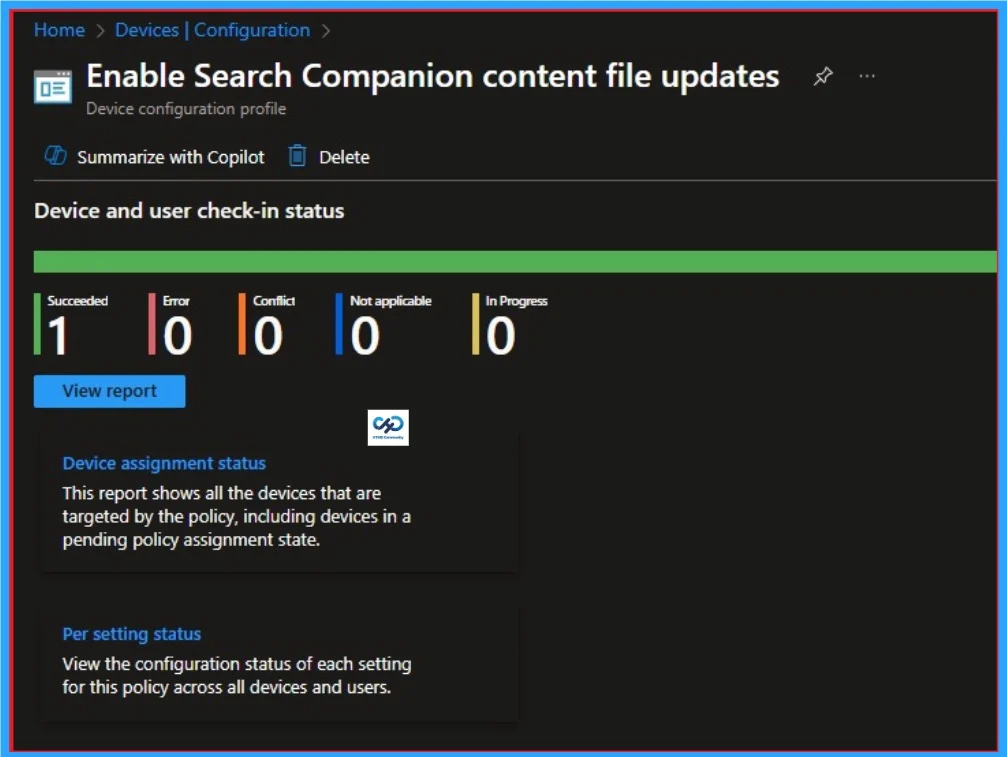
Monitoring Status
When the Policy is created successfully, you can sync the device on the Company portal for faster deployment. After syncing is completed, you can check the status on the Intune Portal. Go to Devices > Configuration and search for the policy.
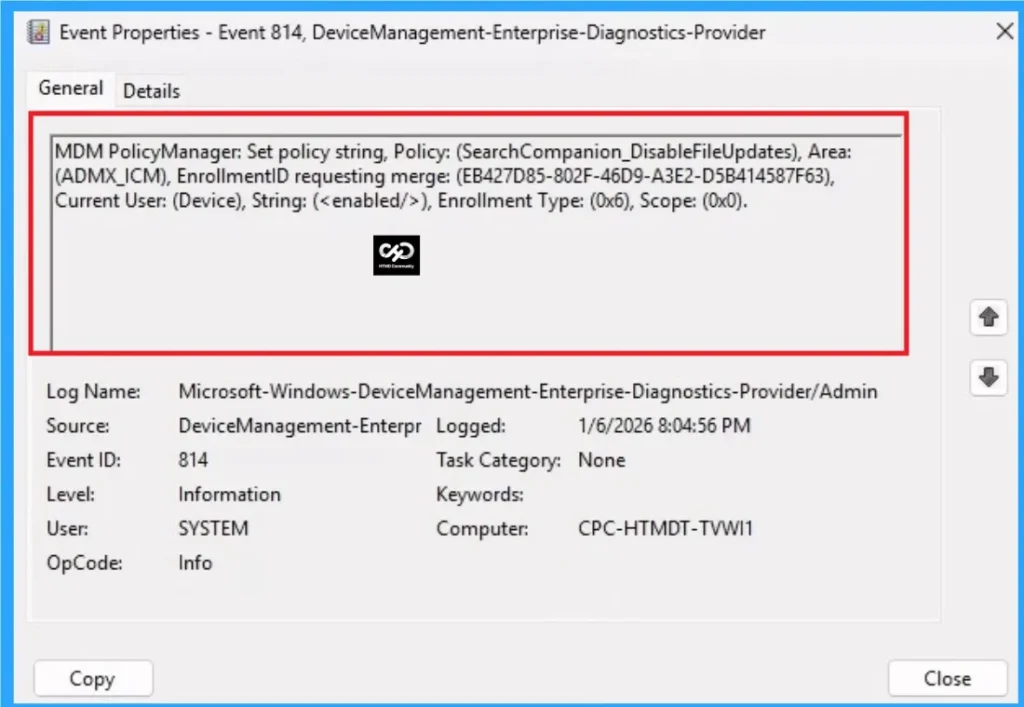
Event Viewer Details
Event Viewer helps you check the client side and verify the policy status. Open the Client device and open the Event Viewer. Go to Start > Event Viewer. Navigate to Logs: In the left pane, go to Application and Services Logs > Microsoft > Windows > Windows Defender> Operational.
| Event Viewer |
|---|
| MDM PolicyManager: Set policy string, Policy: (SearchCompanion_DisableFileUpdates), Area: (ADMX_ICM), EnrollmentID requesting merge: (EB427D85-802F-46D9-A3E2-D5B414587F63), Current User: (Device), String: (), Enrollment Type: (0x6), Scope: (0x0). |
Removing the Assigned Group from Search Companion Content File Updatesl Policy Settings
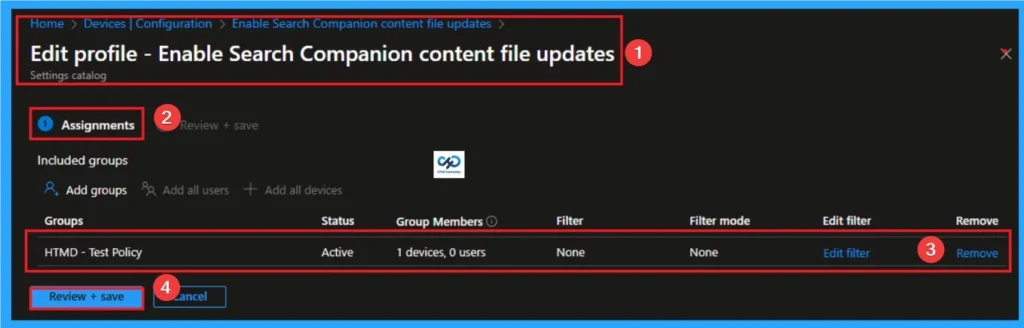
If you want to remove the Assigned group from the policy, it is possible from the Intune Portal. To do this, open the Policy on Intune Portal and edit the Assignments tab and the Remove Policy.
To get more detailed information, you can refer to our previous post – Learn How to Delete or Remove App Assignment from Intune using by Step-by-Step Guide.
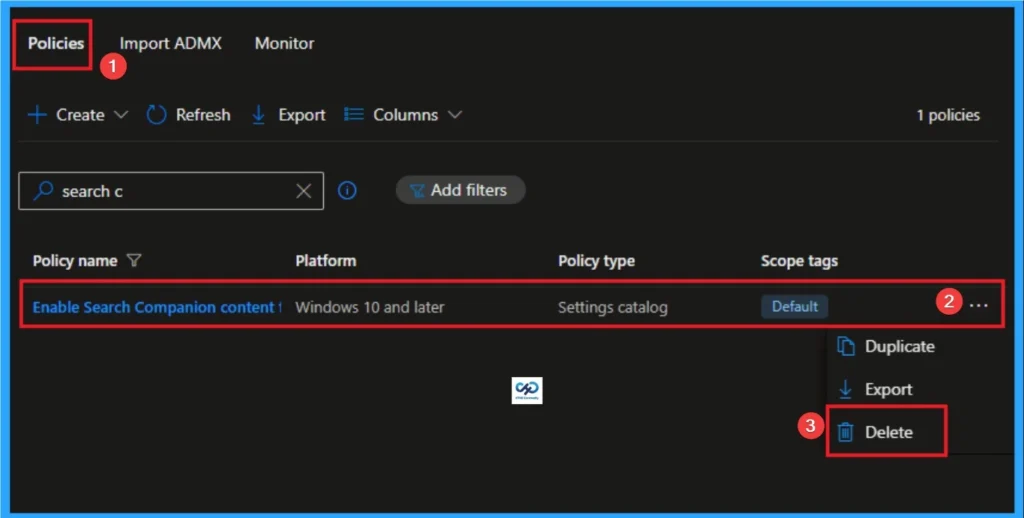
How to Delete Search Companion Content File Updates Policy
You can easily delete the Policy from the Intune Portal. From the Configuration section, you can delete the policy. It will completely remove it from the client devices.
For detailed information, you can refer to our previous post – How to Delete Allow Clipboard History Policy in Intune Step by Step Guide.
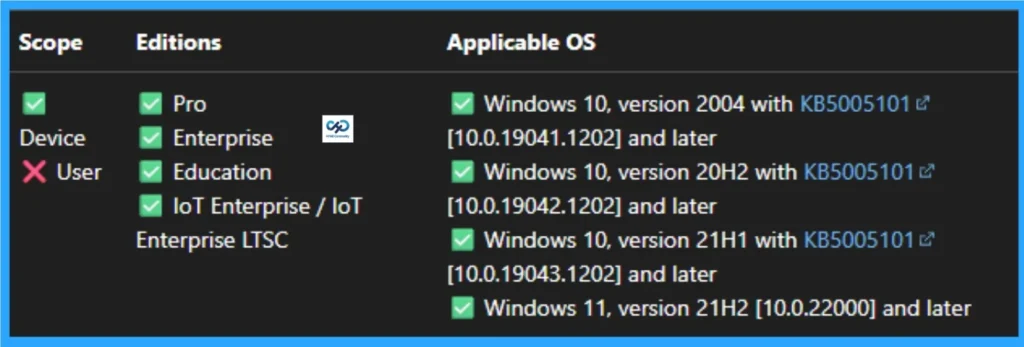
Windows CSP Details
This policy setting specifies whether Search Companion should automatically download content updates during local and Internet searches. This policy is applicable for OS Like Windows 10, version 2004 with KB5005101 [10.0.19041.1202] and later, Windows 10, version 20H2 with KB5005101 [10.0.19042.1202] and later, Windows 10, version 21H1 with KB5005101 [10.0.19043.1202] and later, Windows 11, version 21H2 [10.0.22000] and later.
Need Further Assistance or Have Technical Questions?
Join the LinkedIn Page and Telegram group to get the step-by-step guides and news updates. Join our Meetup Page to participate in User group meetings. Also, Join the WhatsApp Community and WhatsApp Channel to get the latest news on Microsoft Technologies. We are there on Reddit as well.
Author
Anoop C Nair has been Microsoft MVP for 10 consecutive years from 2015 onwards. He is a Workplace Solution Architect with more than 22+ years of experience in Workplace technologies. He is a Blogger, Speaker, and Local User Group Community leader. His primary focus is on Device Management technologies like SCCM and Intune. He writes about technologies like Intune, SCCM, Windows, Cloud PC, Windows, Entra, Microsoft Security, Career, etc.