
Key Takeaways
- This Intune policy allows IT administrators to hide the Device Security section in Windows Security without disabling any security features.
- When the policy is enabled, users cannot see hardware-based security details such as TPM, Secure Boot, and Core Isolation.
- When the policy is disabled or not configured, the Device Security area remains visible to users as usual.
- The policy only controls visibility of the Device Security section; it does not turn security features on or off.
- Hiding the Device Security area helps reduce user confusion caused by complex security information.
- It prevents users from attempting unnecessary troubleshooting or changes to IT-managed security settings.
- The policy supports better control and consistency across managed devices in an organization.
How to Control Device Security Area Visibility in Windows Security using Intune Policy. This policy lets IT administrators hide the Device Security section in the Windows Security. When the policy is enabled, users will not see the Device Security area, which normally shows information about features like Secure Boot, TPM, and Core Isolation.
This helps organizations prevent users from viewing or interacting with device-level security settings that are managed by IT. If this policy is disabled or not configured, the Device Security area will remain visible in Windows Defender Security Center.
In this case, users can see the device security status as usual. This setting does not turn security features on or off; it only controls whether the Device Security section is shown to users. This is an Antivirus policy configured under the Windows Security experience profile in Microsoft Intune. This policy helps IT administrators by reducing user confusion and accidental changes.
When the Device Security section is hidden, users cannot view complex security details like TPM, Secure Boot, etc. This prevents unnecessary questions, users trying to troubleshoot things on their own, etc. It also helps admins maintain better control and consistency across managed devices.

How to Control Device Security Area Visibility in Windows Security using Intune Policy
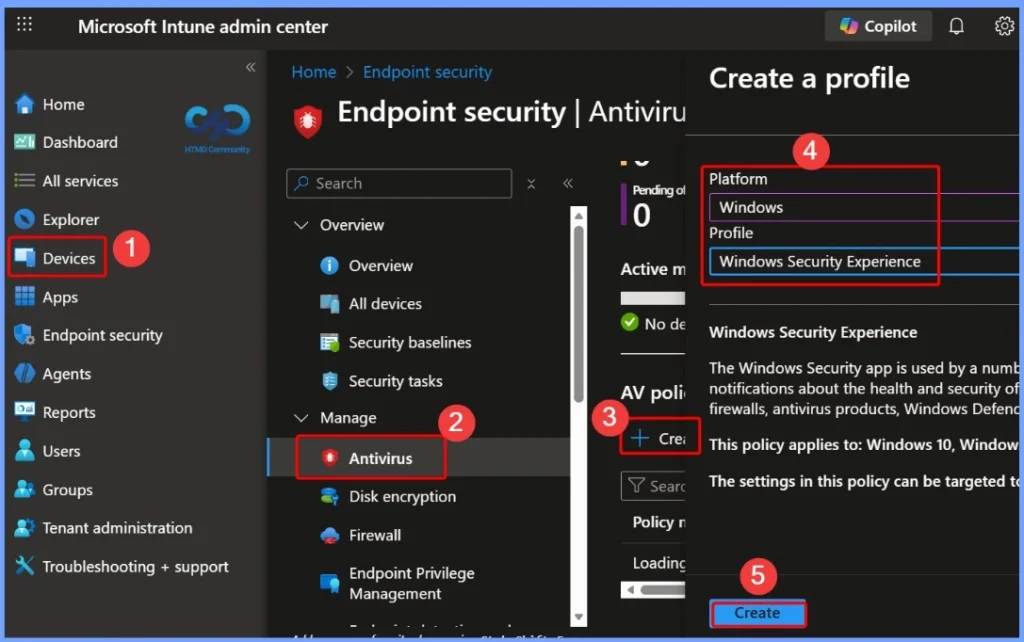
You can easily enable or disable the policy by signing in to the Microsoft Intune admin center, then selecting Endpoint security from the left navigation pane. Under Endpoint security, choose Antivirus and click + Create to begin creating a new policy.
| Platform | Profile |
|---|---|
| Windows | Windows Security Experience |
- 3 Ways to Configure Microsoft Defender Antivirus Policies for Windows 11 using Group Policy Intune Policy
- How to Enable or Disable Tamper Protection for your Organisation using Microsoft Intune Antivirus Policy
- 5 Methods to Enable or Disable Automatic Sample Submission for Microsoft Defender Antivirus in Windows Devices
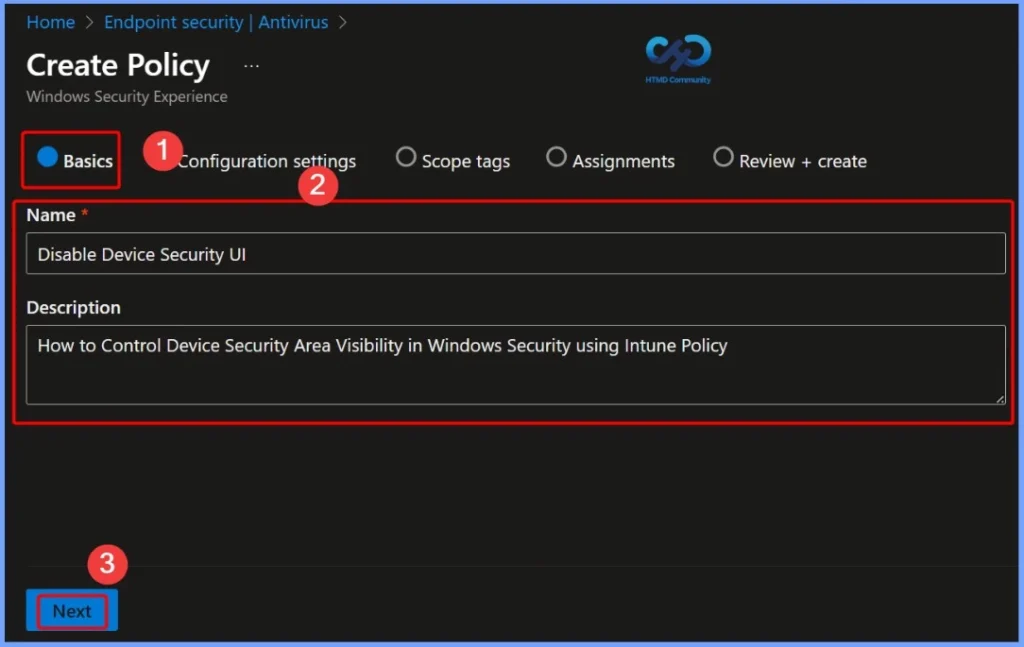
Basics – Policy Details for Disabling Device Security UI
On the Basics settings page, you must provide essential information to identify the policy. Enter Disable Device Security UI as the policy name to clearly indicate its purpose. In the Description field, add How to Control Device Security Area Visibility in Windows Security using Intune Policy to explain what the policy does.
Disable Device Security UI
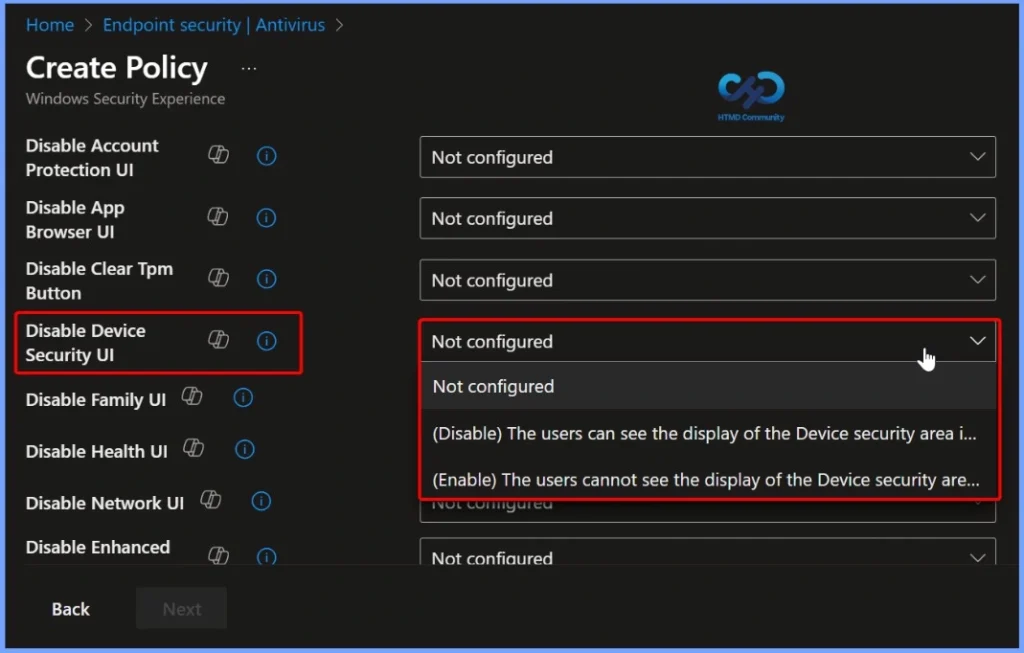
This policy uses simple values to control whether users can see the Device Security area in the Windows Defender Security Center. When the value is set to 0 (Default / Disabled), the Device Security section is visible, allowing users to view device security information.
- When the value is set to 1 (Enabled), the Device Security area is hidden, and users can no longer see this section in Windows Defender Security Center.
- Monitoring Defender Updates using Intune Portal
- What is Microsoft Defender XDR?
- Manage Microsoft Defender Antivirus Updates using Intune
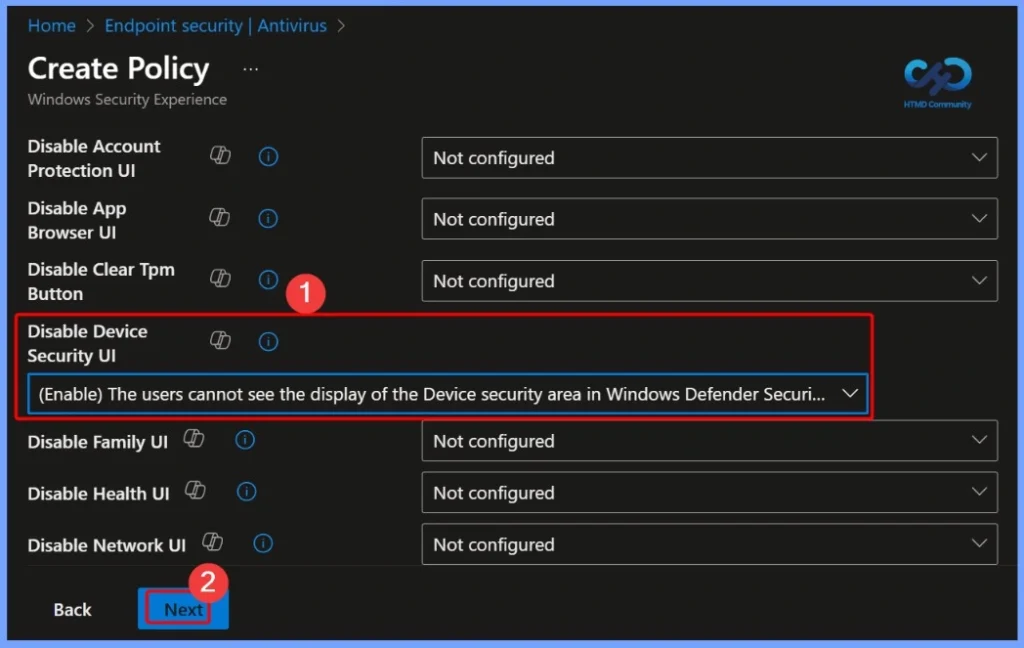
Enabling the Policy to Hide the Device Security Area
Here, the Enable setting is selected to hide the Device Security area in Windows Defender Security Center. When this option is enabled, users will not be able to see the Device Security section, which includes details about hardware-based protections such as TPM, Secure Boot, and Core Isolation.
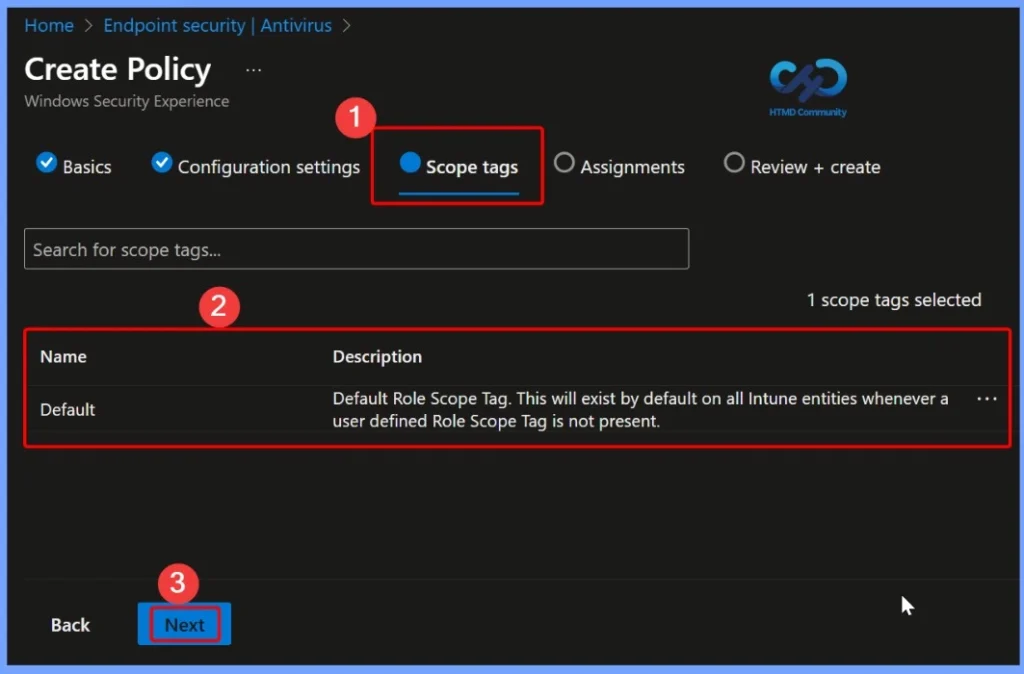
Scope Tags – Controlling Policy Visibility and Access
Using scope tags helps with role-based administration and improves security and organization in large environments. It ensures that regional or departmental IT teams manage only the policies relevant to them, reducing the risk of accidental changes.
- Here, we select the Default scope tag.
- This will exist by default on all Intune entities whenever a user-defined Role scope tag is not present
Which Users or Devices will Receive the Disable Device Security UI Policy
Proper assignment ensures the policy is applied only where needed, helping maintain flexibility and control. Once assigned, the policy will automatically deploy to the selected groups, hiding the Device Security area on those devices while leaving other devices unaffected.

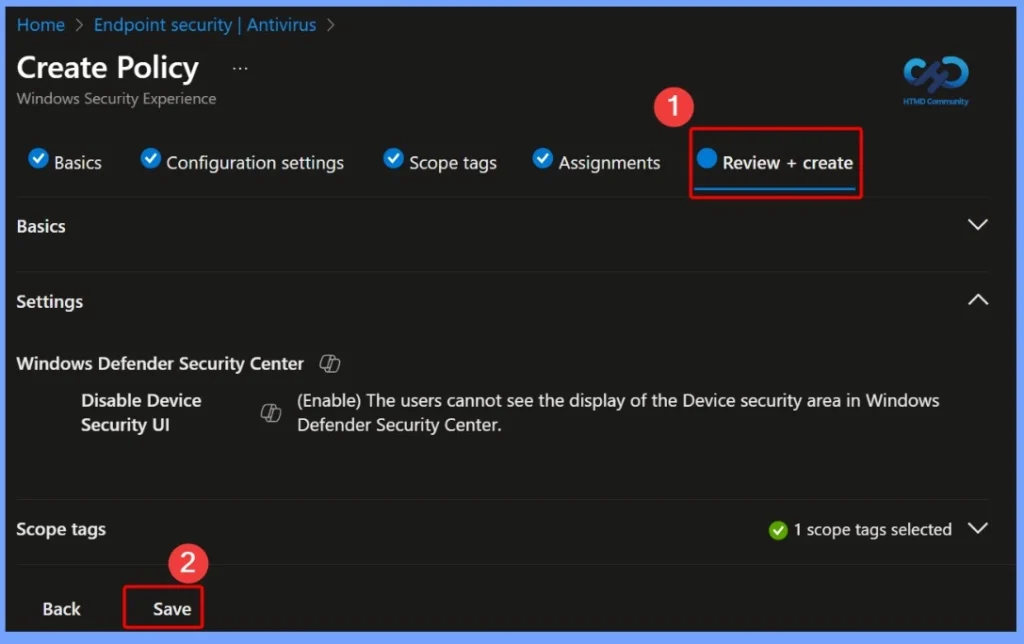
Allows Administrators to Verify All Configured Settings before Deploying the Policy
Here, you can check the policy name, description, configuration settings, scope tags, and assignments to ensure everything is correct. After reviewing the details, click Create to save and deploy the policy. Once created, Intune will apply the policy to the assigned devices, and the Device Security area will be hidden in Windows Defender Security Center as configured.
MDM Policy Applied – Disable Device Security UI
This log entry confirms that the DisableDeviceSecurityUI policy has been successfully applied through MDM Intune. It shows that the policy belongs to the WindowsDefenderSecurityCenter area and is targeted at the device level, not a specific user. The value Int: (0x1) indicates that the policy is enabled, which means the Device Security area is hidden from users.
To get the client-side verification, open the Event Viewer and navigate to Applications and Services Logs > Microsoft> Windows > Device Management > Enterprise Diagnostic Provider > Admin.

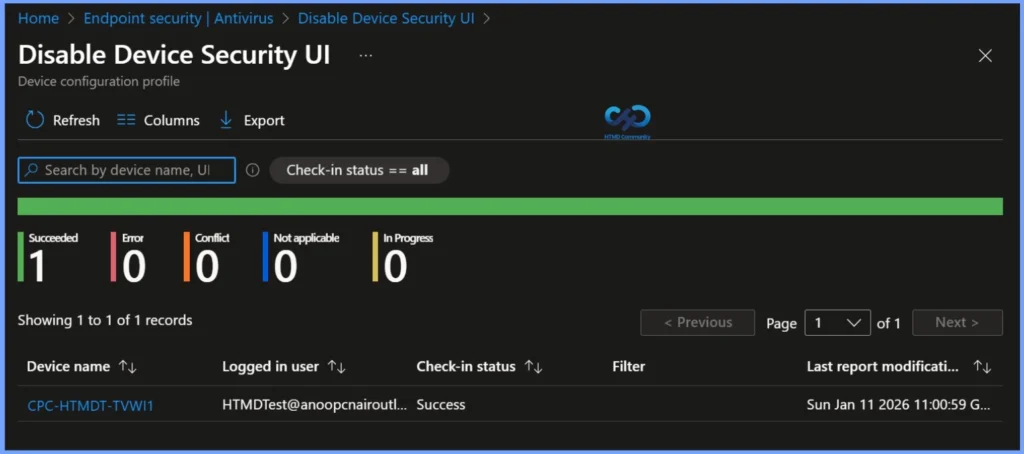
Policy Deployment Status – Disable Device Security UI
The device has checked in successfully, and the latest report time confirms that Intune has processed the policy without issues. This validates that the Device Security area is now hidden on the assigned device, and the policy is working as expected from an Intune management perspective.
Windows CSP Details
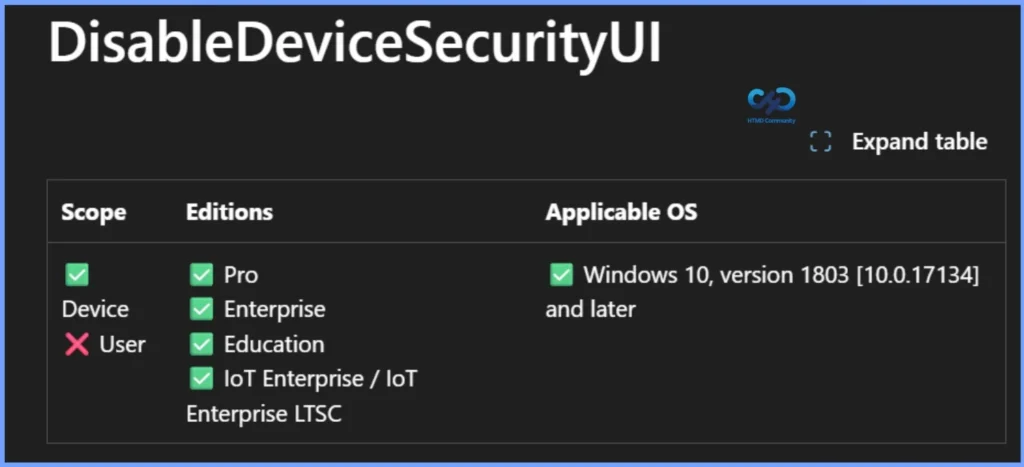
This policy uses an integer (int) format to define its configuration value. It supports multiple access types, including Add, Delete, Get, and Replace, allowing Intune and MDM services to create, update, retrieve, or remove the setting as needed during policy management.
Need Further Assistance or Have Technical Questions?
Join the LinkedIn Page and Telegram group to get the latest step-by-step guides and news updates. Join our Meetup Page to participate in User group meetings. Also, Join the WhatsApp Community to get the latest news on Microsoft Technologies. We are there on Reddit as well.
Author
Anoop C Nair has been Microsoft MVP for 10 consecutive years from 2015 onwards. He is a Workplace Solution Architect with more than 22+ years of experience in Workplace technologies. He is a Blogger, Speaker, and Local User Group Community leader. His primary focus is on Device Management technologies like SCCM and Intune. He writes about technologies like Intune, SCCM, Windows, Cloud PC, Windows, Entra, Microsoft Security, Career, etc.