
Key Takeaways
- This policy helps find where NTLM login is still being used in the organization.
- Determines whether clients use LM, NTLM, or NTLMv2 for authentication.
- It gives clear visibility into old login methods without stopping users or apps.
- The policy is used to understand risk before making any blocking changes.
- It helps IT teams avoid login issues by identifying NTLM dependency early.
Today, in this post we are discussing Supporting Secure Login Practices Through NTLM Auditing using Intune Policy. Network login is a basic part of how Windows systems work in an organization. Many companies still use old login methods without clearly knowing where and how they are used.
Table Of Contents
Table of Contents
Supporting Secure Login Practices Through NTLM Auditing using Intune Policy
One of the benefits of this policy is that it is safe to use in live environments. It does not block users or stop applications from working. Because it only records activity, it can be applied to all devices without fear of breaking anything. This makes it suitable for all types of organizations.
The policy also helps during security incidents. If something suspicious happens, the NTLM logs can show which systems tried to log in and when. This makes it easier to understand what happened and how the issue started. Having this information saves time and improves response efforts.
- Enable Advanced Audit Policy Settings In Windows Using Intune
- Enable Audit Logs For SMB Servers Without Signing Support Using Intune
- Allow Basic Authentication for HTTP Using Setting Catalog in Intune
- Enable Disable Secure DNS over HTTPS in Microsoft Edge
- Policy to Turn Off Downloading of Print Drivers Over HTTP using Intune
Policy Creation in Intune
As systems grow and change over time, it becomes harder to track old settings and old login methods. Some applications or devices may still depend on NTLM, even if no one remembers setting it up. Without proper visibility, these old methods can stay active for years and quietly increase security risk. Knowing what is being used is the first step to improving security.

Thi sauditing policy is important because it shows NTLM usage without stopping it. When the policy is enabled, Windows records when NTLM is used to log in. This helps teams clearly see which systems or services still depend on NTLM. Without this information, removing NTLM later could cause unexpectedlogin problems.
- Previously, we discussed various aspects of enabling and disabling the Screen Saver Lock Timing using Intune Policy.
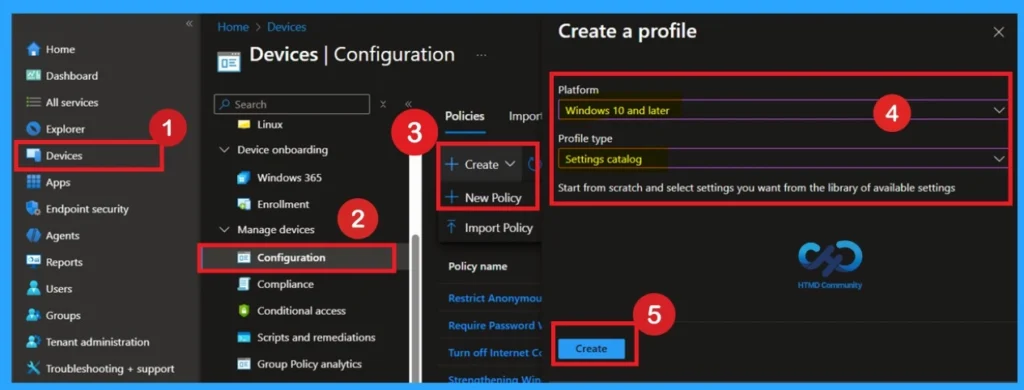
- First, sign in to the Microsoft Intune admin center. Then navigate to Devices > Configuration > + Create. You will see a window titled Create a Profile.
Basics the Identification Process of a Policy
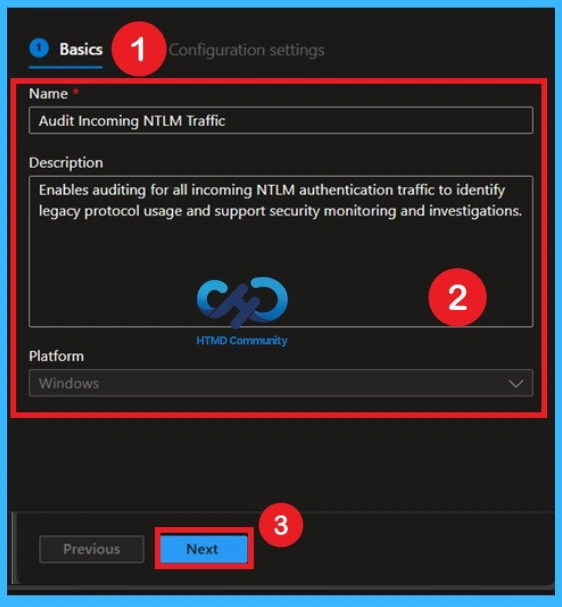
Give your policy a clear name and description that explains it is used to audit incoming NTLM traffic for security monitoring. Adding a name and purpose helps you and your team easily identify the policy later, especially if multiple policies exist. This step ensures you start with a properly organized profile that will be easy to manage.
Configuring the NTLM Audit Setting (Configuration Settings)
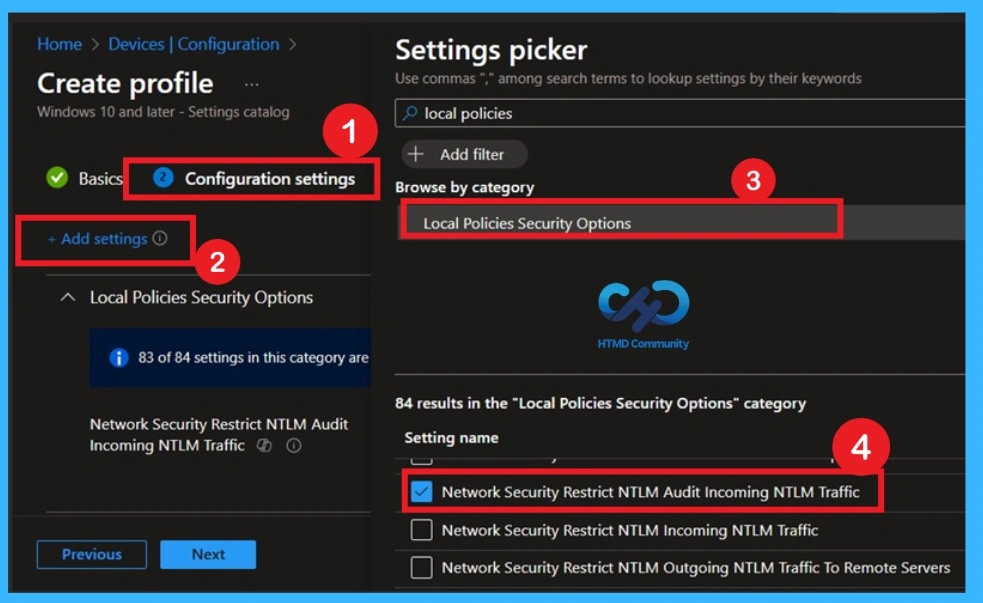
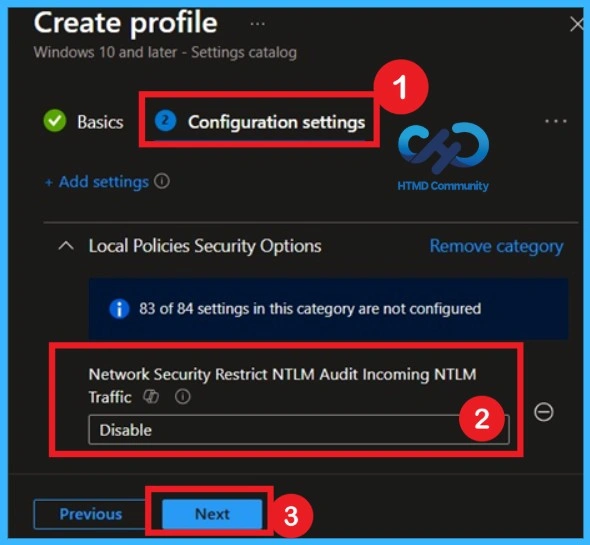
Click Add settings, then search under Local Policies Security Options for NTLM. This ensures NTLM login activity is logged without affecting user access or applications.
Understanding the Default State Before Changing (Default Settings)
By default, this NTLM audit setting is Disabled, meaning NTLM activity is not recorded. Enabling it does not block login attempts or stop applications from working and it only records login attempts to provide visibility. If you want to continue with that go for the Next Button.
Activating the Policy on Devices – How to Enable This Policy
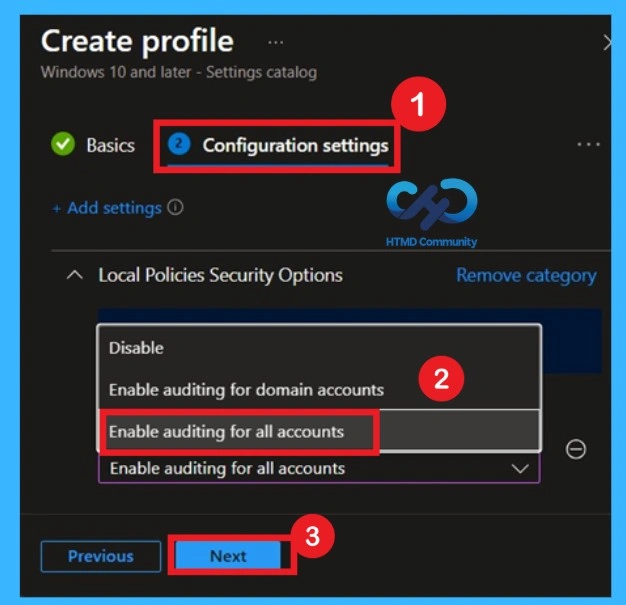
In the Configuration settings, click on the add settings and you will get the Settings Picker window, here you have to search for the Local Policies and security options, and you will get the policy Network Security Restrict NTLM Audit Incoming NTLM Traffic.
Controlling Admin Access with Scope Tags
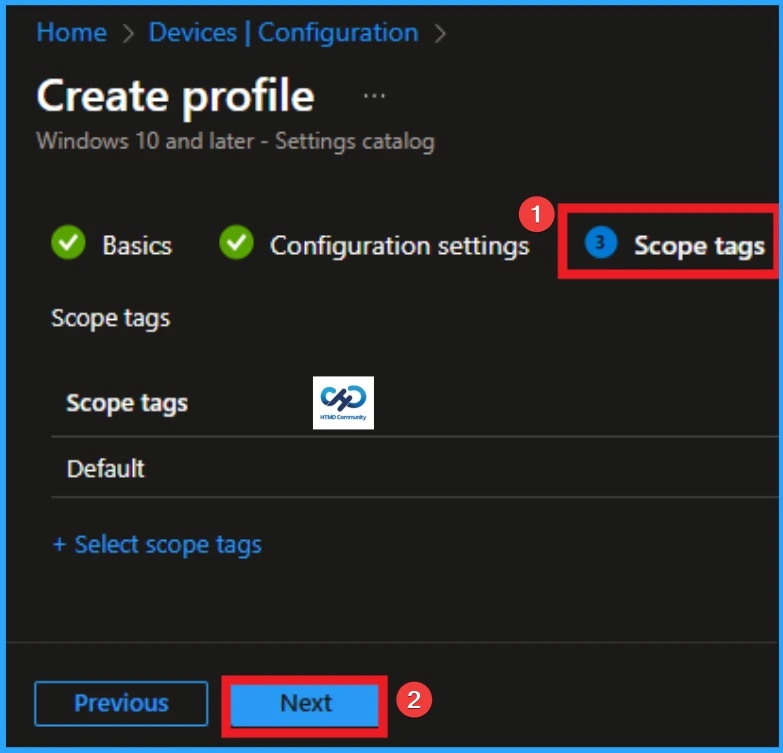
If your organization uses role-based access, you can assign scope tags to limit which administrators can view or manage this policy. If your organization does not use scope tags, this step can be skipped. Scope tags help prevent accidental changes by other admins and make policy management easier in large environments.
Choosing Devices to Apply the Policy by Assignments
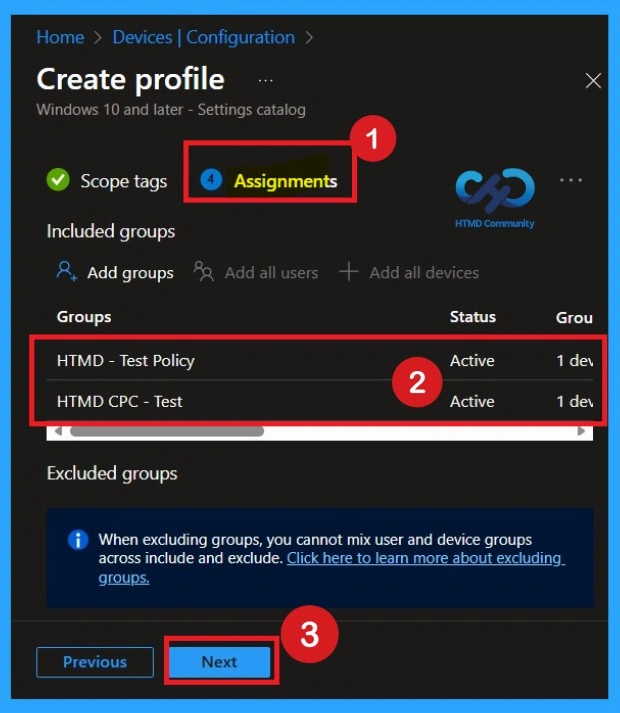
Select the device groups that should receive the policy. It is recommended to start with a test group to ensure it works as expected before assigning it to all devices. You can also exclude groups if needed. Here, you can select the appropriate organizational group. After selecting the group, click Next to proceed. Always remember to add groups only from the “Include” section to ensure the policy is applied correctly.
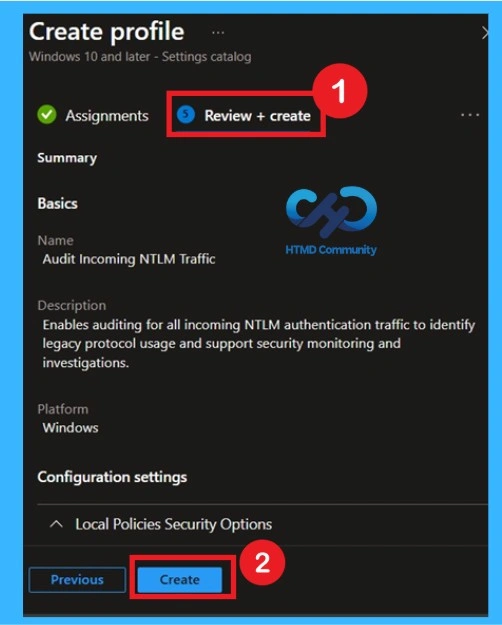
Reviewing all Settings Before Deployment through Review + Create
Carefully check the policy name, description, settings, and assignments. Confirm that Enable auditing for all accounts is selected. Once verified, click Create to deploy the policy. Reviewing all settings reduces the risk of errors and ensures that auditing will work as intended. It is also a good step to document the configuration for future reference or audits.
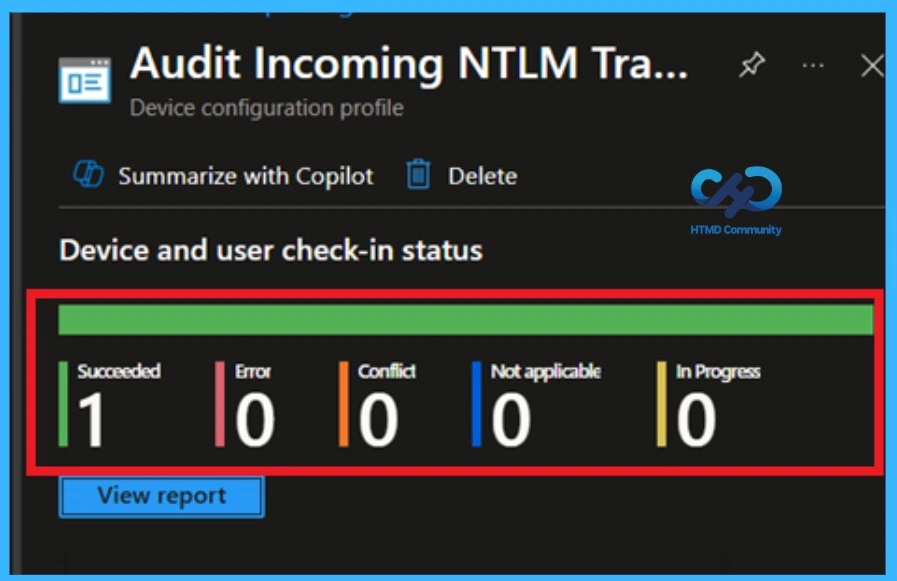
Checking Policy Deployment Status on Devices (Monitoring Status)
Go back to Configuration profiles in Intune and open the policy to view the device and user status. This shows whether the policy was applied successfully and highlights any devices with errors. Regular monitoring helps you ensure compliance and troubleshoot issues quickly. It also provides confidence that NTLM auditing is running across the organization.
- Go to the Configuration page, then search the Policy name that you given.
- In the results you can get the monitoring status and get the information about if the policy succeeded or not, if it succeeded how many devices get deployed.
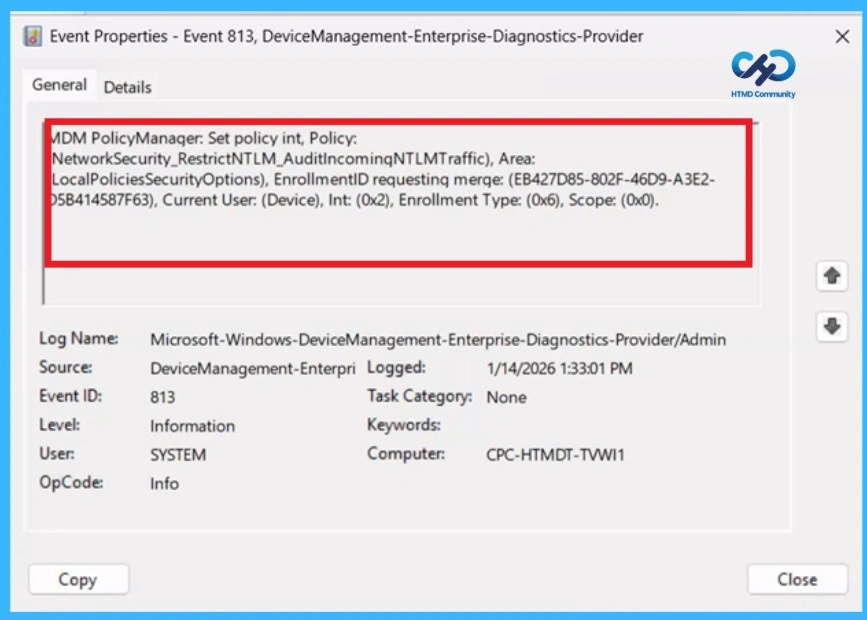
Viewing NTLM Audit Events on a Device – Event Details
A success message alone does not confirm that a policy is fully applied to a client device. To properly verify, administrators should use Event Viewer. Open Event Viewer from the Start menu and navigate to Application and Services Logs > Microsoft > Windows > DeviceManagement-Enterprise-Diagnostics-Provider > Admin.
Within this log, filter for Event ID 813, which provides confirmation that the policy has been successfully processed and applied.
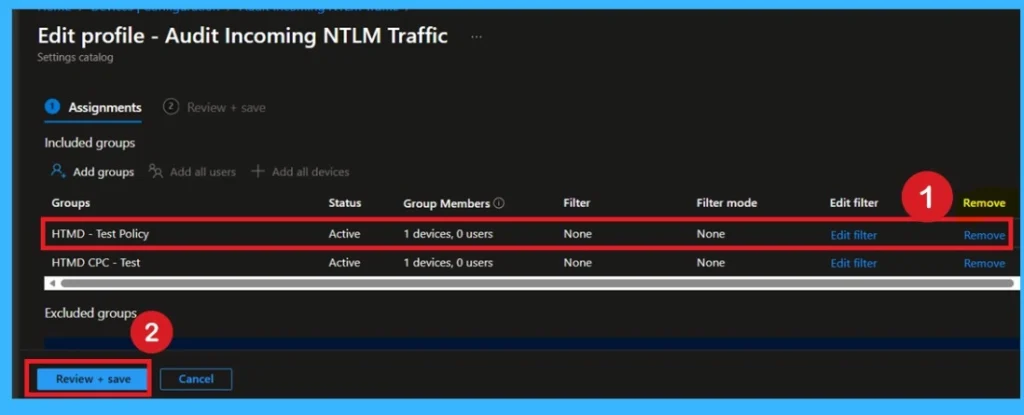
How to Remove Assignment Groups
If you need to stop applying the policy without deleting it, open the policy in Intune and remove the assigned groups. Devices will no longer receive the policy after the next sync. Removing assignments does not delete the policy, so you can reassign it later if needed.
For Removing you have to follow the steps, First go to the Device Configuration then search the policy name and now you get the policy monitoring status page. Here you have to scroll down, and you will get the Assignment section there you will get an edit option.
- In the Assignment page you can see the Remove option Click on that for removing the Policy.
To get more detailed information, you can refer to our previous post – Learn How to Delete or Remove App Assignment from Intune using by Step-by-Step Guide.
Permanently Deleting the Policy from Intune
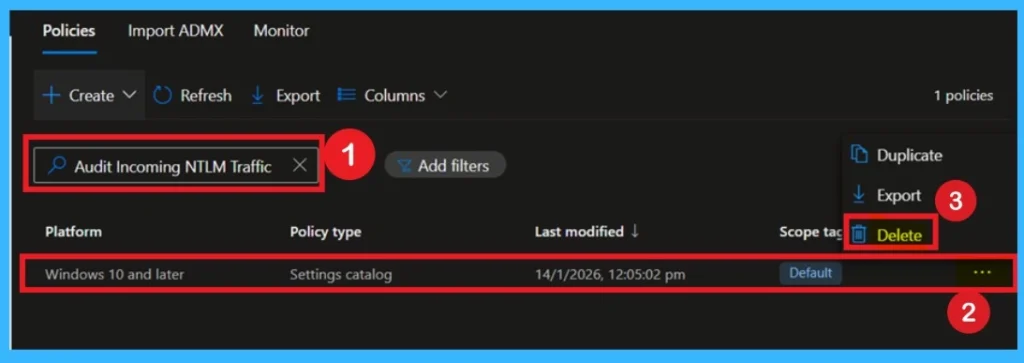
If the policy is no longer needed, go to Configuration profiles, select the policy, and click Delete. This completely removes it from Intune and ensures it is no longer applied to any devices. Deleting the policy should be done carefully, after confirming no devices still require NTLM auditing. Once deleted, all logging from this policy will stop, so make sure any important audit data is saved.
For detailed information, you can refer to our previous post – How to Delete Allow Clipboard History Policy in Intune Step by Step Guide.
Windows CSP Details
This policy enables auditing of incoming NTLM (NT LAN Manager) authentication traffic. NTLM is a legacy authentication protocol still used in some Windows environments. The Network Security: LAN Manager authentication level policy defines which authentication protocol Windows uses for network logons, directly influencing the security of client connections and the types of authentications accepted by servers.
- This path is used in Intune Settings Catalog or custom configuration profiles to deploy the policy via MDM.
./Device/Vendor/MSFT/Policy/Config/LocalPoliciesSecurityOptions/NetworkSecurity_RestrictNTLM_AuditIncomingNTLMTraffic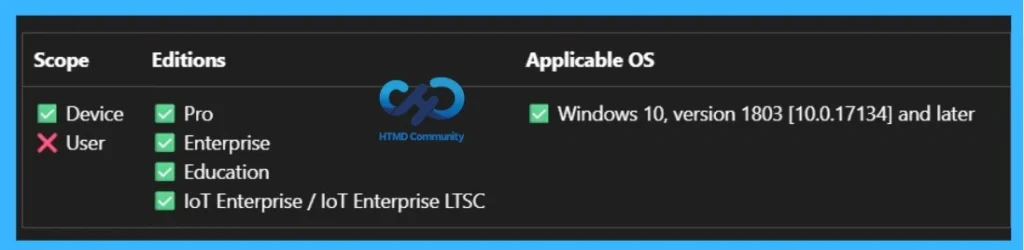
Need Further Assistance or Have Technical Questions?
Join the LinkedIn Page and Telegram group to get the latest step-by-step guides and news updates. Join our Meetup Page to participate in User group meetings. Also, join the WhatsApp Community to get the latest news on Microsoft Technologies. We are there on Reddit as well.
Author
Anoop C Nair has been Microsoft MVP for 10 consecutive years from 2015 onwards. He is a Workplace Solution Architect with more than 22+ years of experience in Workplace technologies. He is a Blogger, Speaker, and Local User Group Community leader. His primary focus is on Device Management technologies like SCCM and Intune. He writes about technologies like Intune, SCCM, Windows, Cloud PC, Windows, Entra, Microsoft Security, Career, etc.