
Key Takeaways
- Use least-privilege roles in Microsoft Intune, so admins only get the permissions needed for their job.
- Protect admin accounts with phishing-resistant authentication using capabilities from Microsoft Entra ID.
- Enable Multi-Admin Approval for sensitive actions to prevent risky or unauthorised changes.
- These practices help secure the Intune environment and reduce security risks.
3 Best Practices to Secure Microsoft Intune Administration! Microsoft Intune helps IT and security teams manage devices by deploying apps, applying security policies, and configuring settings that keep users productive and organisations secure. Since Intune administrators have powerful permissions, it is important to have strong controls so only the right people can make changes.
Table of Content
Table of Contents
3 Best Practices to Secure Microsoft Intune Administration
This post explains 3 simple ways to improve Intune security: use least-privilege roles based on admin responsibilities, protect admin accounts with phishing-resistant authentication using Microsoft Entra ID, and enable Multi-Admin Approval for sensitive actions. These practices help protect the Intune environment and reduce security risks.
- Microsoft Entra Suite Continuous Verification and Least-Privilege Access to Protect Every Identity Across All Locations Platforms and Devices
- New Least Privilege Microsoft Graph Permissions in Entra Strengthen your App Security
- New Entra Phishing Resistant Passwordless Authentication | Zero-Trust Security Strategy | Explicit Verification
Least-Privilege Roles for Microsoft Intune Administration
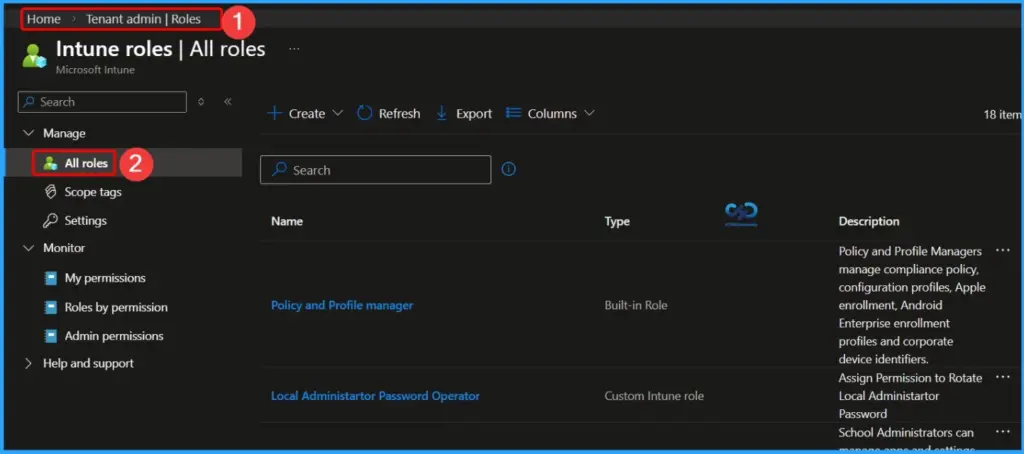
In Microsoft Intune, the least-privilege approach giving administrators only the permissions they need to do their job. Using RBAC (Role-Based Access Control), organizations can assign the right level of access so admins can manage devices and policies without having extra permissions. Powerful roles from Microsoft Entra ID, like Global Administrator or Intune Administrator, should be used carefully and not for everyday tasks.
Least-privilege also limiting what admins can do and which devices or users they can manage. In Intune, scope tags help control this by allowing admins to manage only certain devices or users.

| Least-Privilege Roles for Microsoft Intune Administration |
|---|
| Identify users with Global Administrator, Intune Administrator, or other high-impact roles and remove unnecessary broad access. |
| Assign roles like Help Desk Operator, Application Manager, Endpoint Security Manager, and Read Only Operator based on job responsibilities. |
| Build custom RBAC roles to achieve more precise least-privilege control. |
| Use scope groups and scope tags to limit admin access to specific business units, regions, or device groups. |
| Enable Microsoft Entra Privileged Identity Management (PIM) to provide time-limited admin access and require re-authentication for sensitive actions. |
Use Phishing-Resistant Authentication and Strong Privileged Access Controls
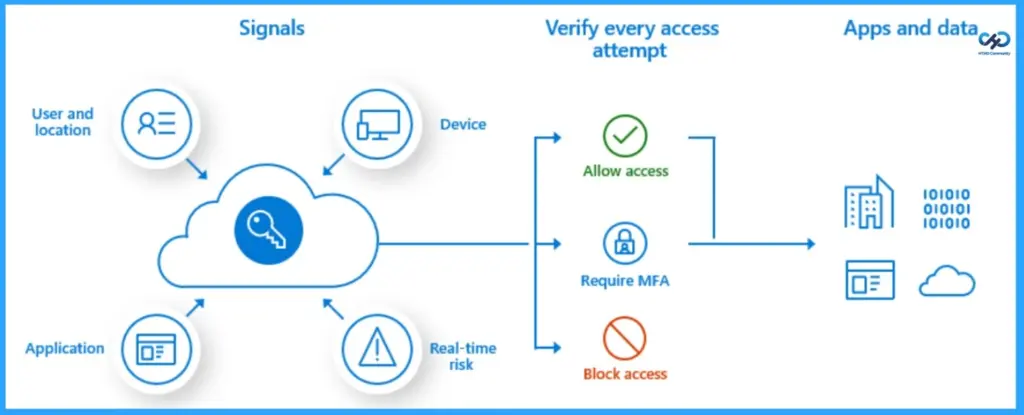
When managing Microsoft Intune, it is important to protect administrator accounts because they have powerful permissions. Access to these accounts should be difficult for attackers to get or misuse. Security features in Microsoft Entra ID, such as Conditional Access and phishing-resistant multi-factor authentication (MFA), help ensure that only trusted admins can sign in and manage Intune.
- Set Conditional Access rules – Require strong MFA, allow access only from safe devices, and limit admin logins by location or trusted networks.
- Use temporary admin roles (PIM) – Give admin access only when needed instead of permanent permissions.
- Enable strong authentication – Move privileged accounts to secure sign-in methods and turn off weaker options.
- Use secure admin computers – Do high-level admin tasks on devices with extra security.
- Monitor admin activity – Watch for risky sign-ins or unusual actions using security tools like Microsoft Defender.
- Layer your security – Use multiple protections to reduce the chance and impact of account or token theft.
Enable Multi-Admin Approval for Sensitive Intune Changes
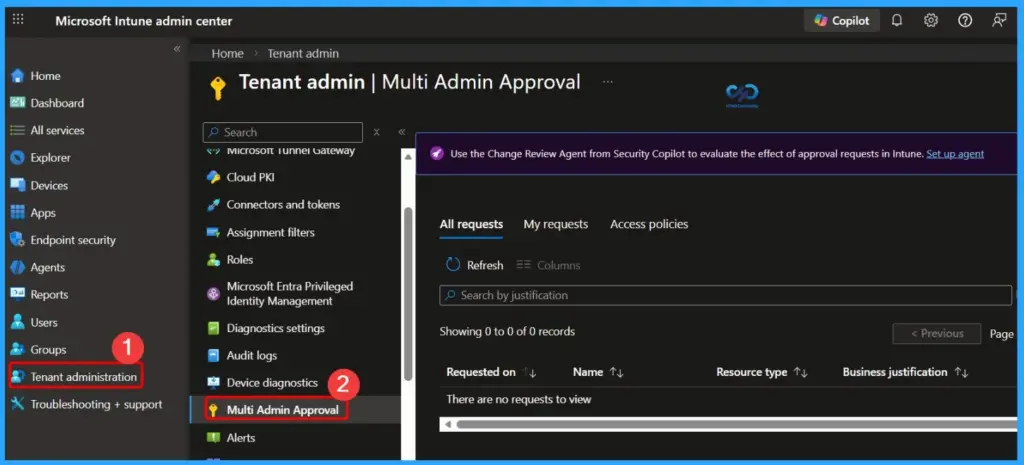
Multi-Admin Approval adds an extra layer of governance in Microsoft Intune by requiring a second authorized admin to review and approve certain changes before they are applied. This applies to actions taken in the Intune admin center as well as through Intune APIs. By requiring two approvals for high-impact changes, organizations reduce the risk that a single action could affect the entire tenant.
| To implement this effectively |
|---|
| Identify high-impact changes – Start with actions like RBAC role management, device wipes, and script deployment, then extend to changes affecting authentication, compliance, security baselines, or broad assignment scopes. |
| Define approvers and coverage – Decide who can approve, set SLAs for approvals, and plan for incident scenarios. |
| Document an emergency “break-glass” process – Ensure urgent changes can be made quickly while maintaining a post-change review to preserve governance. |
Resources
Best practices for securing Microsoft Intune | Microsoft Community Hub
Need Further Assistance or Have Technical Questions?
Join the LinkedIn Page and Telegram group to get the latest step-by-step guides and news updates. Join our Meetup Page to participate in User group meetings. Also, join the WhatsApp Community and the Whatsapp channel to get the latest news on Microsoft Technologies. We are there on Reddit as well.
Author
Anoop C Nair is a Workplace Technology solution architect with 25+ years of experience. Microsoft Certified Trainer. Microsoft MVP from 2015 onwards for consecutive 11+ years! He is a blogger, Speaker, and Founder of HTMD Community and HTMD Conference. His main focus is on Device Management technologies like Intune, Windows, and Cloud PC. He writes about technologies like Intune, SCCM, Windows, Cloud PC, Entra, and Microsoft Security.