
Key Takeaways
- User Experience Sync keeps your settings the same on all Cloud PCs and apps.
- It works well for shared devices and shift workers.
- The server runs quietly in the background.
- It makes it easier for admins to manage and reset user data.
Hey, let’s discuss about Configuring User Experience Sync with Windows 365 Frontline Provisioning Policies. User Experience Sync is a SaaS based solution designed to provide a consistent and seamless user experience across Windows 365 Frontline Cloud PCs and Cloud Apps, especially in shared or pooled environments. It ensures that users can access their personalised settings and app data regardless of which device they log into, making it ideal for organisations with shift workers or shared systems.
Table of Contents
Table of Contents
Configuring User Experience Sync with Windows 365 Frontline Provisioning Policies
This service is fast, always available, and operates transparently in the background. It allows user settings and application data to roam under a unified policy, simplifies management by removing legacy profile complexities, and even enables administrators to clear user storage when troubleshooting application issues.
- How to Create Windows 365 Frontline Dedicated Cloud PCs using Intune
- From Complex VDI to Easy Cloud Desktops with Windows 365 Frontline Shared
- How Windows 365 Frontline Shared Makes Non-Persistent Cloud PCs Easier to Manage
How to create a Provisioning policy
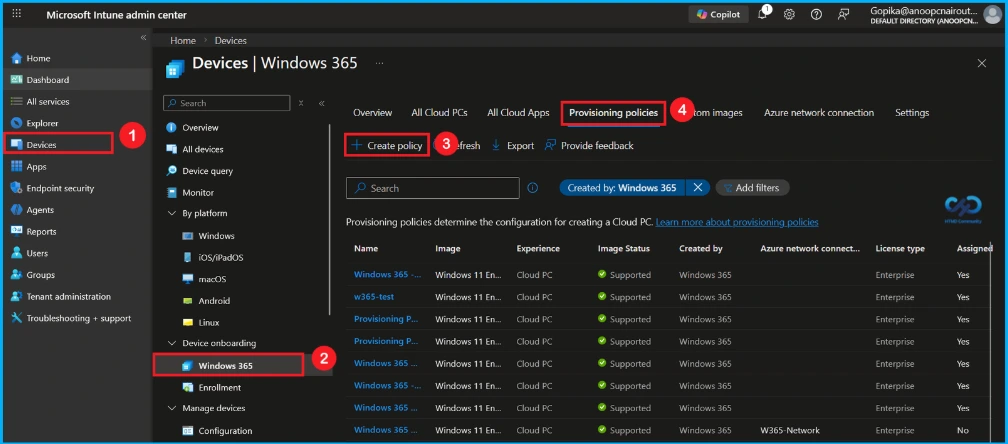
First, sign in to the Microsoft Intune Admin Centre. Go to the devices and select Windows 365. Then click on the provisioning polices, and you can see the already created policies. Click the Create Policy option to create a policy.
Provisioning Policy – General Settings
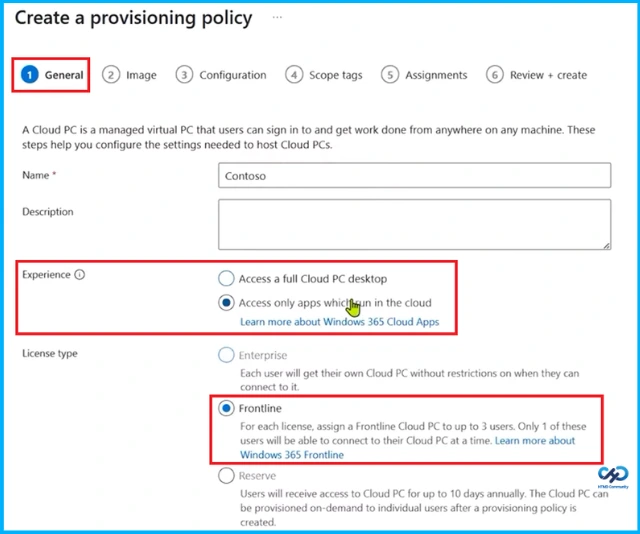
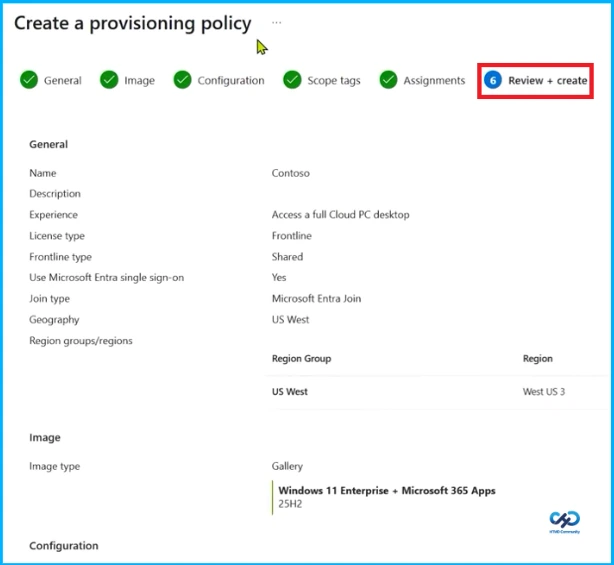
In this step, you define the basic details for creating a Cloud PC provisioning policy. You provide a name(Contoso) and description, then choose the user experience: either a full Cloud PC desktop or access to only cloud-based apps. Additionally, you select the license type, such as Enterprise for dedicated use or Frontline for shared access among multiple users. This setup helps control how users access and use their Cloud PCs.

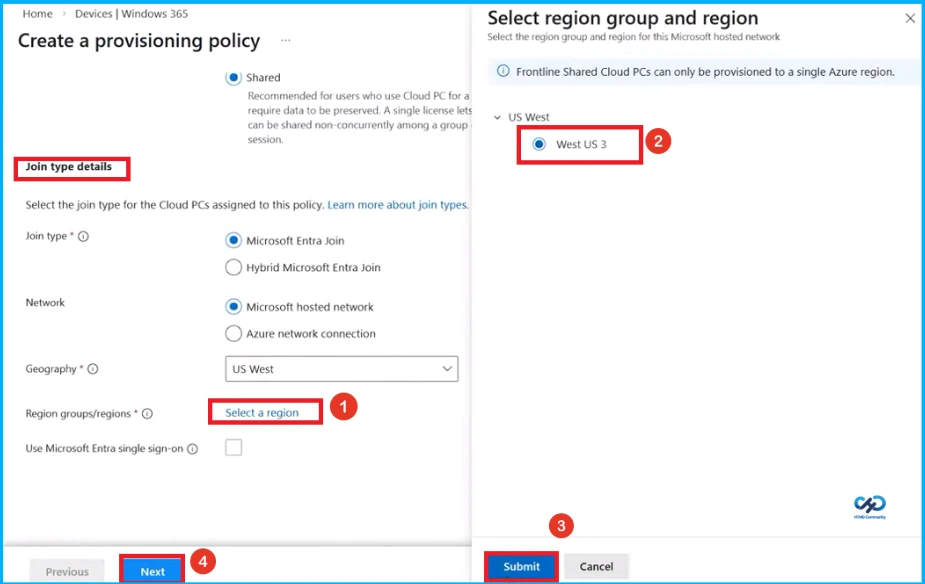
To create a Windows 365 provisioning policy, go to the Join type details section and select Microsoft Entra Join along with a Microsoft-hosted network. Then, under Geography, click Select a region, choose the desired location (West US 3), and click Submit to confirm. Finally, click Next to continue with the remaining Cloud PC configuration steps.
Selecting the Cloud PC Image
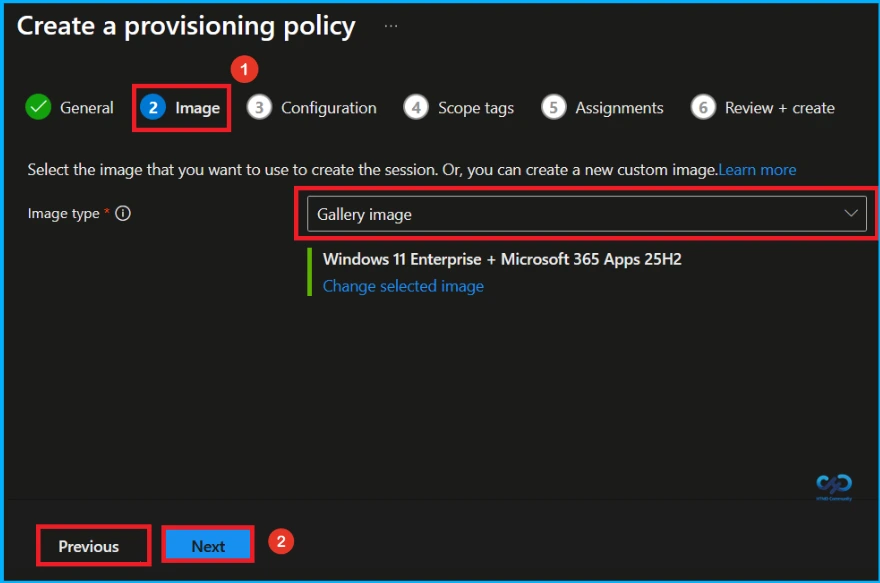
In the second step of creating a provisioning policy, select an Image type from the dropdown Gallery image, like Windows 11 Enterprise with Microsoft 365 Apps. After confirming your selection, click Next to proceed to the configuration settings.
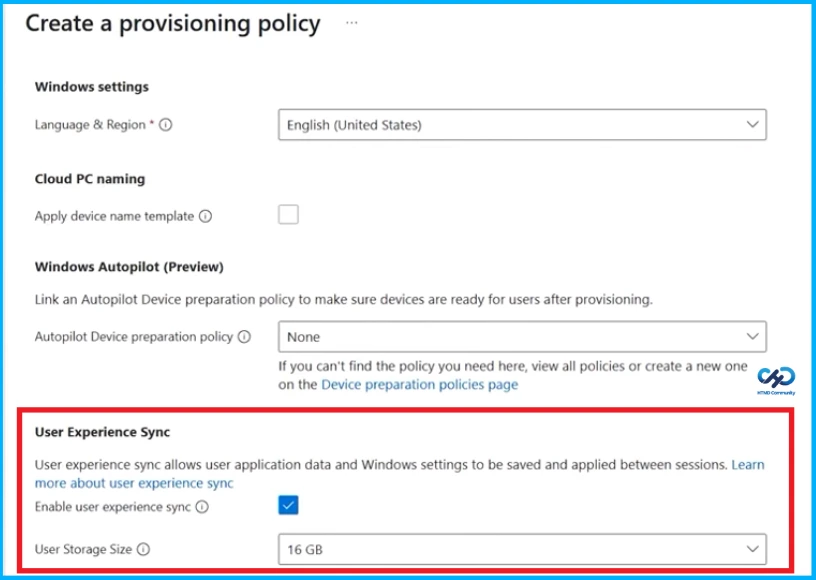
User Experience Sync in Provisioning Policy
User Experience Sync ensures that user application data and Windows settings are saved and carried across sessions. When enabled, it allows users to continue their work seamlessly without losing preferences or data. Administrators can also define storage size (e.g.,16 GB) to manage how much user data is retained, helping provide a consistent and smooth Cloud PC experience.
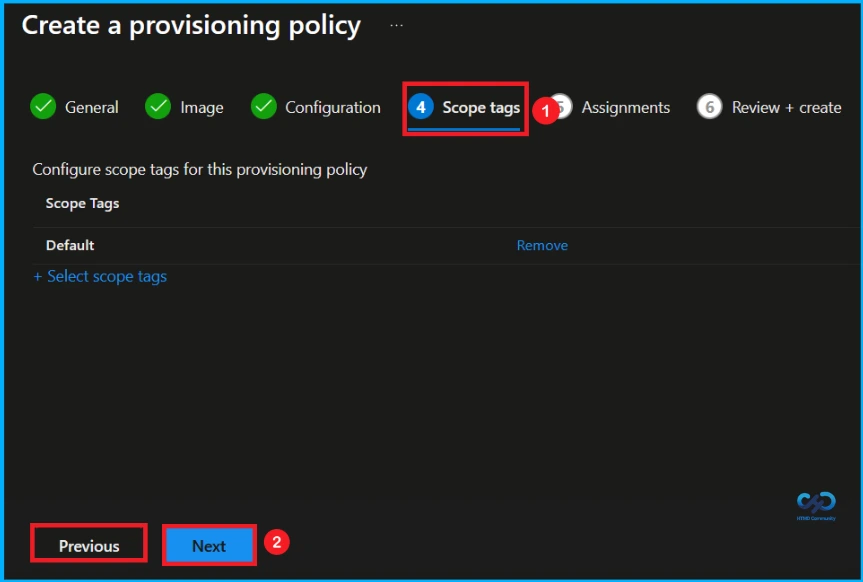
Scope Tags in Provisioning Policy
Scope tags help define and control which administrators can view and manage specific resources within a provisioning policy. In this step, you can assign appropriate scope tags to ensure proper access control and organisation. It’s not mandatory.
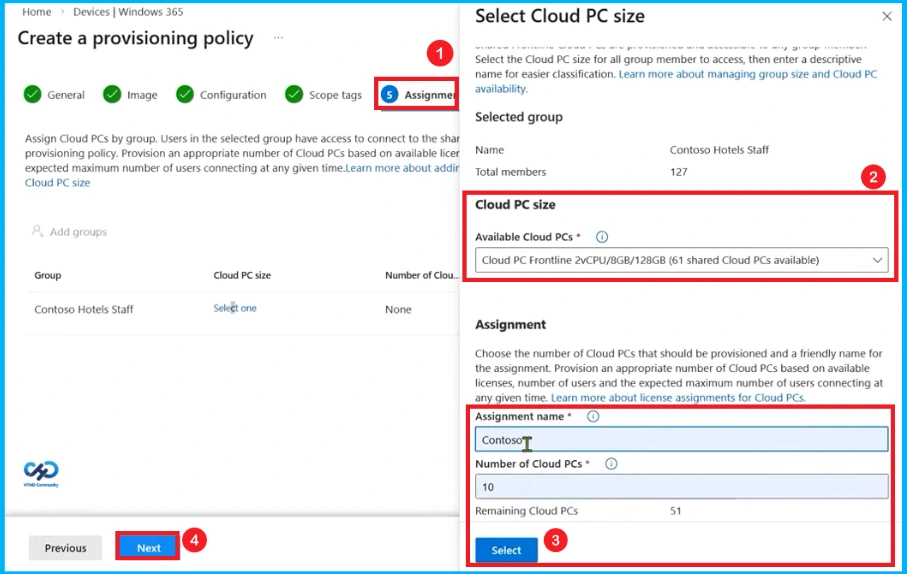
Assigning Cloud PC Size and Group in Provisioning Policy
In this step of creating a provisioning policy in Windows 365, you assign Cloud PCs to a specific user group and define their configuration. First, select the appropriate Cloud PC size based on performance needs and available licenses. Then, provide an assignment name and specify the number of Cloud PCs to be provisioned for the selected group.
| Assignment Name | No of Cloud PCs |
|---|---|
| Contoso | 10 |
Review + Create Step
The Review + Create step is the final stage where all provisioning settings are checked before deployment. It shows key details like configuration, region, and image, allowing admins to verify everything and create the policy using Microsoft Entra ID.
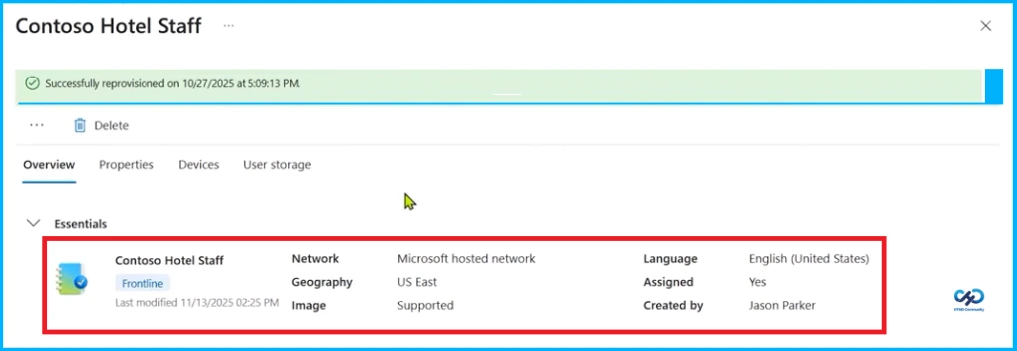
Contoso Hotel Staff Provisioning Overview
The Essentials section of the Contoso Hotel Staff profile in Microsoft Intune highlights key configuration details, including a Frontline license. It shows that the Cloud PC is hosted on a Microsoft-managed network in the US East region, image supported, and the language is English (United States).
Need Further Assistance or Have Technical Questions?
Join the LinkedIn Page and Telegram group to get the latest step-by-step guides and news updates. Join our Meetup Page to participate in User group meetings. Also, join the WhatsApp Community and the Whatsapp channel to get the latest news on Microsoft Technologies. We are there on Reddit as well.
Author
Anoop C Nair is a Workplace Technology solution architect with 25+ years of experience. Microsoft Certified Trainer. Microsoft MVP from 2015 onwards for consecutive 11+ years! He is a blogger, Speaker, and Founder of HTMD Community and HTMD Conference. His main focus is on Device Management technologies like Intune, Windows, and Cloud PC. He writes about technologies like Intune, SCCM, Windows, Cloud PC, Entra, and Microsoft Security.