
Key Takeaways
- Control whether users can sign in to Microsoft Edge using non-Microsoft accounts such as Google and Apple.
- Hide and disable all non-Microsoft account sign-in options while continuing to allow Microsoft account sign-in.
- Help organizations enforce a Microsoft account-only sign-in experience on managed Microsoft Edge browsers.
- Ensure users continue to sign in with Microsoft accounts while restricting alternative account options.
In this post we are discussing, Configure Microsoft Edge Non-Microsoft Account Sign-in to Manage Browser Authentication using Intune. Microsoft recently introduced the ability for users to sign in to Microsoft Edge with supported non-Microsoft accounts, such as Google and Apple accounts, where the feature is available. To help organizations manage this capability, Microsoft provides a policy that allows administrators to control whether non-Microsoft account sign-in is permitted on managed devices.
Table of Contents
Table of Contents
Configure Microsoft Edge Non-Microsoft Account Sign-in to Manage Browser Authentication using Intune
Using Microsoft Intune, administrators can configure this policy to either allow or restrict sign-in with non-Microsoft accounts in Microsoft Edge. When the policy is enabled or left unconfigured, users can sign in with supported Google or Apple accounts, and the corresponding sign-in options are displayed within the browser. This capability provides users with additional sign-in options while using the Microsoft Edge browser.
Organizations that manage Microsoft Edge on corporate devices may want to control whether users can access the browser using non-Microsoft accounts. Restricting these sign-in methods can help ensure a more consistent authentication experience and align with organizational identity management policies.
| What’s New in Microsoft Edge |
|---|
| Microsoft Edge now supports sign-in with non-Microsoft accounts, such as Google and Apple accounts, where the feature is available. Administrators can use this policy to allow or block non-Microsoft account sign-in on managed devices while continuing to support Microsoft account sign-in. |
- Enable Drop Feature in Edge Browser Using Microsoft 365 Admin Center Configuration Policy
- Microsoft Edge Drop to Share files in Windows Android and iOS
- Discover Features in Microsoft Edge Browser
Configure Non-Microsoft Accounts Policy in Intune
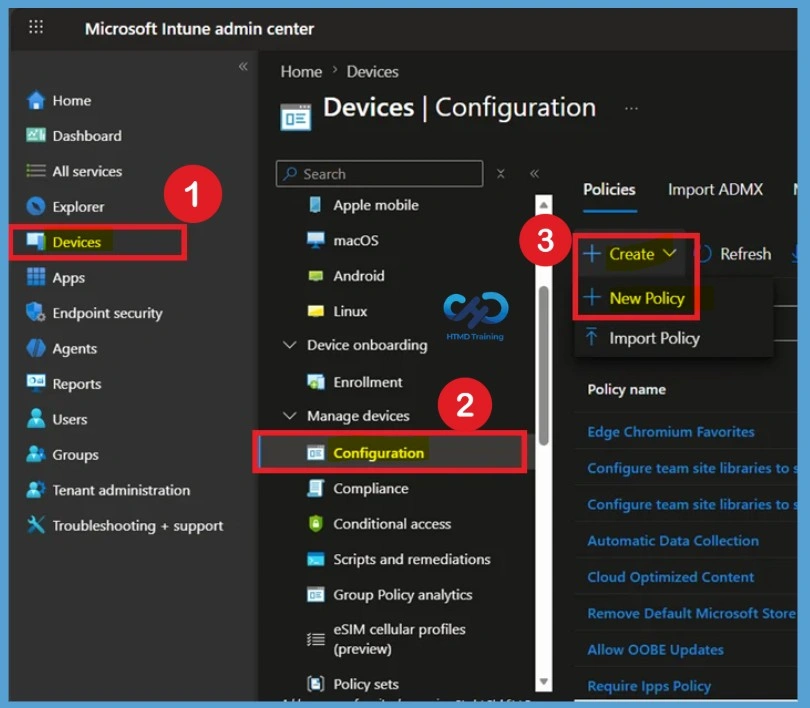
The Configure Non-Microsoft Account Sign-in Policy in Intune setting allows administrators to manage whether users can sign in to Microsoft Edge using supported non-Microsoft accounts, such as Google and Apple accounts. For policy deployment Sign in to the Microsoft Intune Admin Center. Select Devices > Windows > Configuration profiles > Create profile.

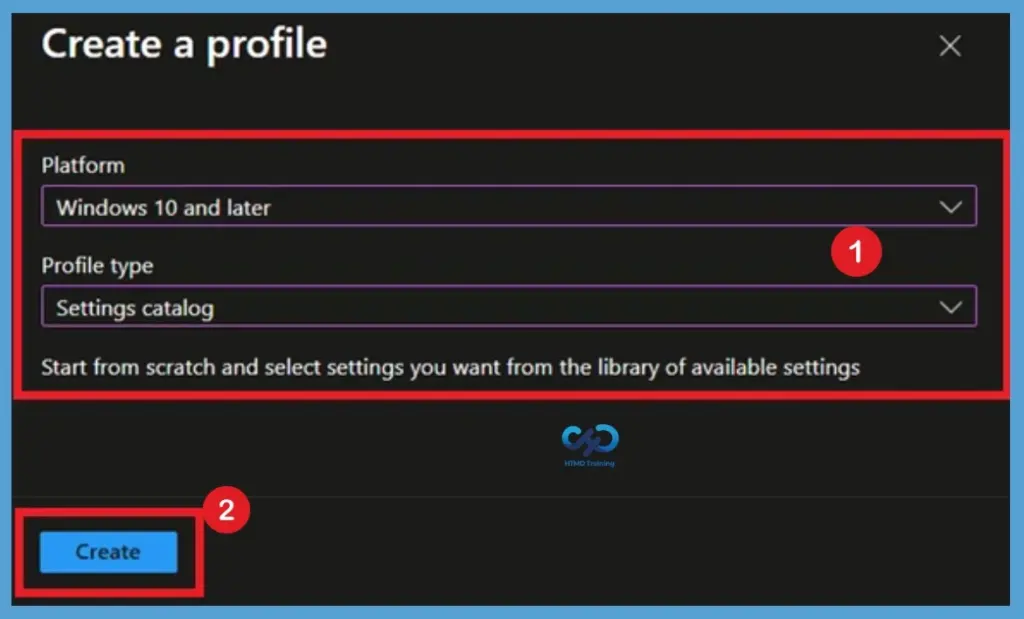
In Create Profile, Select Platform, Windows 10, and later and Profile, Select Profile Type as Settings catalog. Click on Create button.
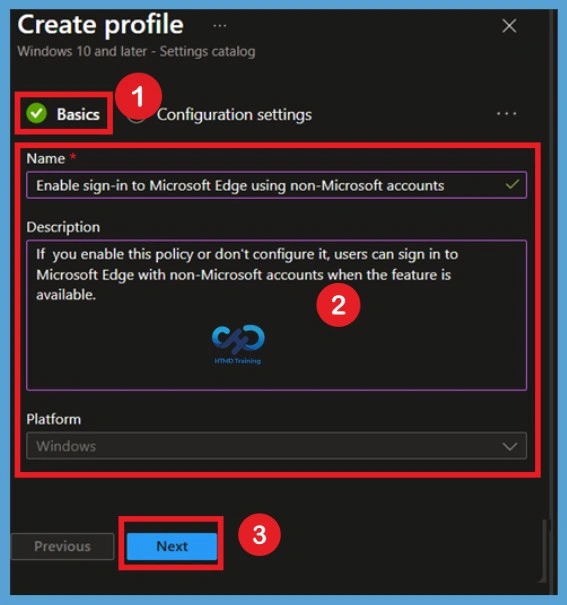
Basic Tab Information
On the Basics page, enter a name for the configuration profile. For example, use Enable sign-in to Microsoft Edge using non-Microsoft accounts so that administrators can easily identify the purpose of the policy. You can also add a description explaining that the Allow Sign-in to Microsoft Edge with Non-Microsoft Accounts policy controls whether users can sign in to Microsoft Edge using supported non-Microsoft accounts, such as Google or Apple accounts. Select Next to continue
Configuration Settings
After filling the basic details now, you have to Configure the Allow Sign in to Microsoft Edge with Non-Microsoft Accounts policy based on your organization’s requirements. For that click on the Add settings option in Configuration settings and search Identity and sign-in and select the Enable sign-in to Microsoft Edge using non-Microsoft accounts policy from Microsoft Edge\ Identity and sign-in the category.
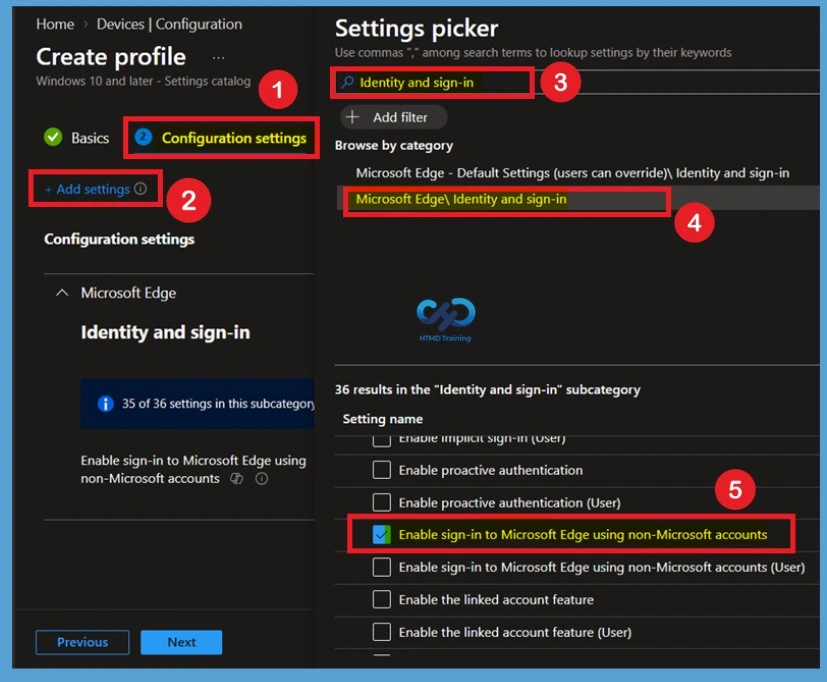
Defaulted state of policy
Close the Settings picker window after selecting the policy. You can then see that the Allow Sign in to Microsoft Edge with Non-Microsoft Accounts policy is Disabled by default. When this policy is set to Disabled, users cannot sign in to Microsoft Edge using supported non-Microsoft accounts, such as Google or Apple accounts. All related non-Microsoft account sign-in options are hidden and disabled, while Microsoft account sign-in continues to remain available.
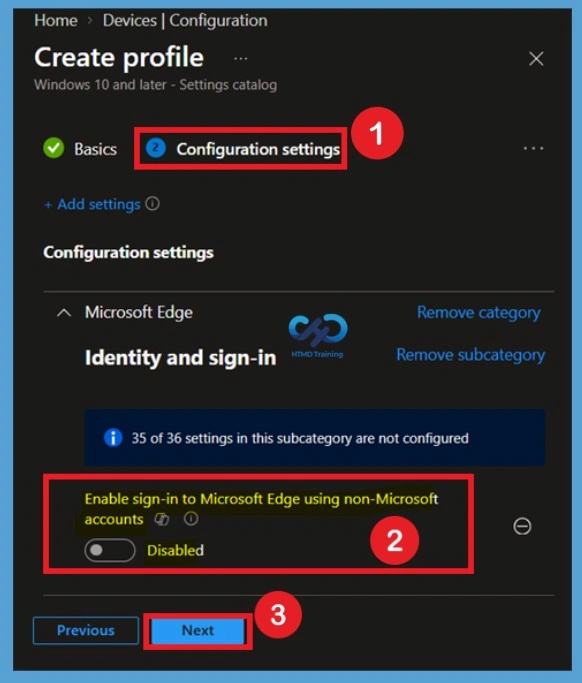
Enable sign-in to Microsoft Edge using non-Microsoft
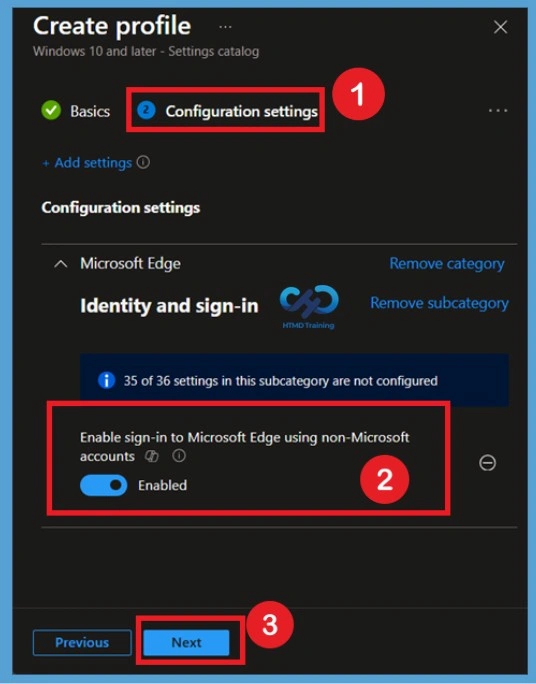
To enable the policy, move the toggle from Disabled to Enabled. Once enabled, the Allow Sign in to Microsoft Edge with Non-Microsoft Accounts policy allows users to sign in to Microsoft Edge using supported non-Microsoft accounts. When this policy is Enabled, users can sign in to Microsoft Edge with supported non-Microsoft accounts, such as Google or Apple accounts, where the feature is available.
- The corresponding non-Microsoft account sign-in options are displayed within the Microsoft Edge interface, allowing users to authenticate using these supported accounts.
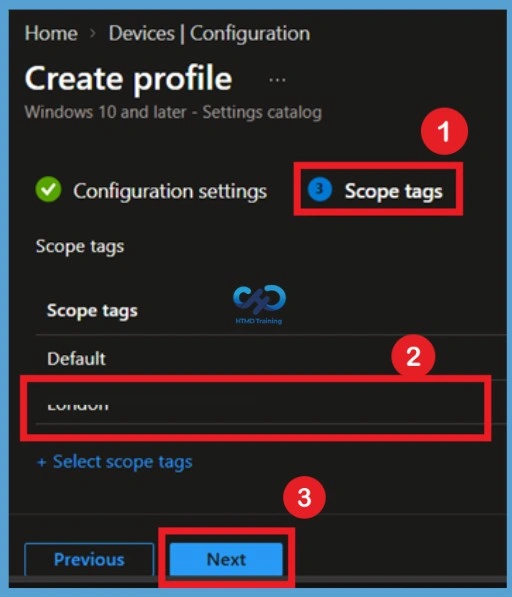
Scope Tag for Microsoft Edge Non-Microsoft Account Sign-in
On the Scope tags page, configure scope tags if your organization uses them to control administrative visibility of Intune resources. Select the appropriate scope tag for the Allow Sign in to Microsoft Edge with Non-Microsoft Accounts policy. If scope tags are not required, you can leave the default configuration and select Next.
Microsoft Edge Non-Microsoft Account Sign-in – Assignments
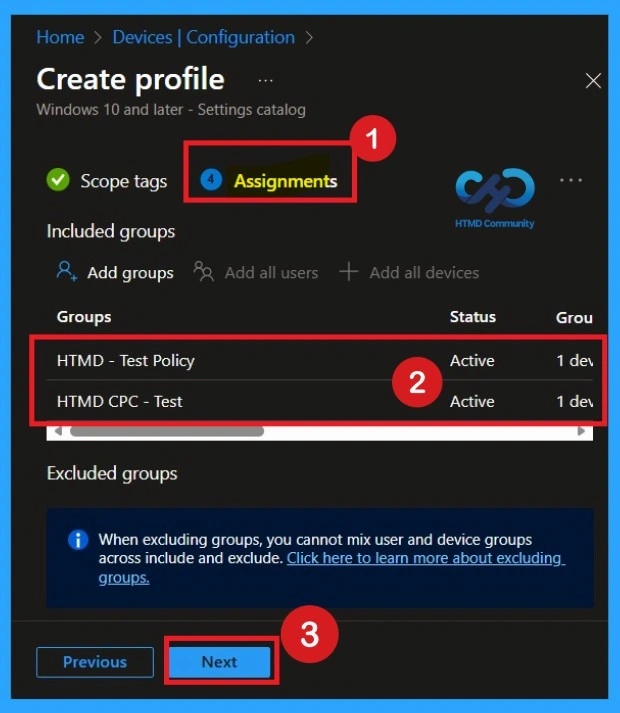
On the Assignments page, select the user or device groups to which you want to apply the Allow Sign in to Microsoft Edge with Non-Microsoft Accounts policy. Add the required groups under Included groups.
Review the selected groups carefully to ensure that the policy is applied only to the intended users or devices. You can also configure Excluded groups when certain users or devices should not receive the policy, and then select Next.
Review+ Create for Microsoft Edge Non-Microsoft Account Sign-in Policy
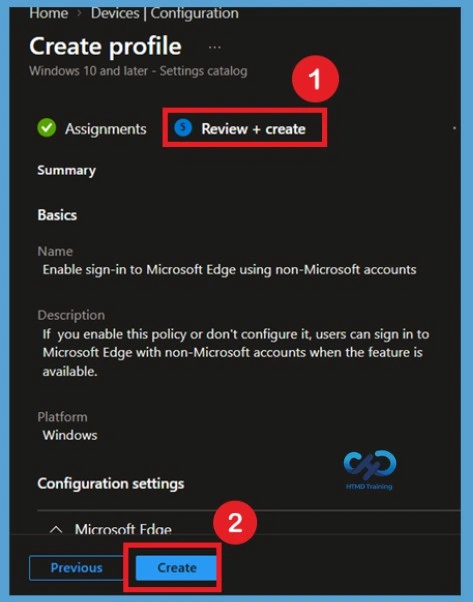
On the Review + create page, verify all configuration details for the Allow Sign in to Microsoft Edge with Non-Microsoft Accounts policy, including the profile name, selected setting, policy state, scope tags, and assignments. After confirming that the configuration is correct, select Create to deploy the policy. The configuration profile is then created in Microsoft Intune and becomes available for deployment to the assigned groups.
Monitoring Status
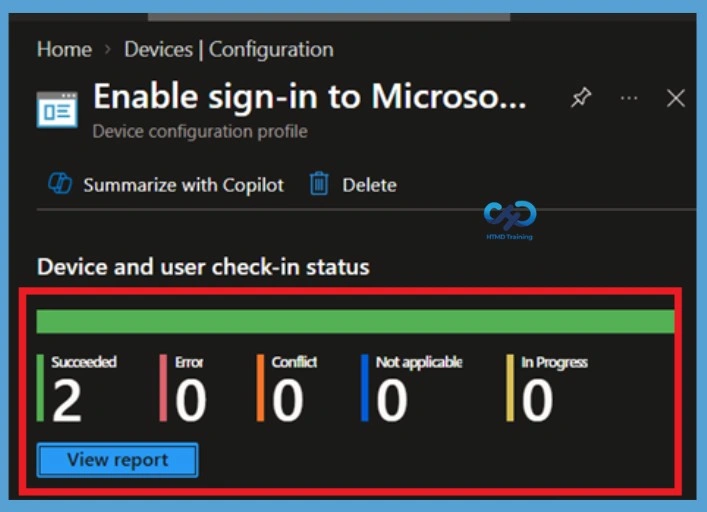
After creating the policy, open the configuration profile from Devices > Configuration. Review the Device status, User status, and Per-setting status reports to verify successful deployment. These reports help identify devices that successfully received the policy and any devices that deployment or compliance issues.
Client Side Verification
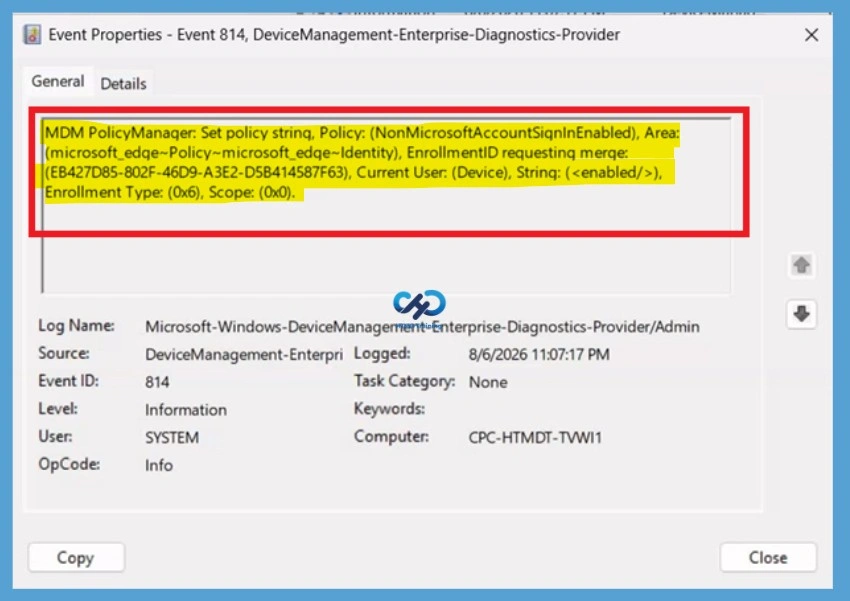
To verify policy application, open Event Viewer and navigate to Applications and Services Logs > Microsoft > Windows > DeviceManagement-Enterprise-Diagnostics-Provider > Admin. Select Filter Current Log from the Actions pane and search for Event ID 814, which indicates that the Intune policy has been processed successfully.
| Policy Details |
|---|
| MDM PolicyManager: Set policy strinq, Policy: (NonMicrosoftAccountSiqninEnabled), Area: (microsoft_edqe~Policy~microsoft_edqe~Identity), EnrollmentID requestinq merqe: (EB427D85-802F-46D9-A3E2-D5B414587F63), Current User: (Device), Strinq: (), Enrollment Type: (0x6), Scope: (0x0). |
Delete Policy Permanently
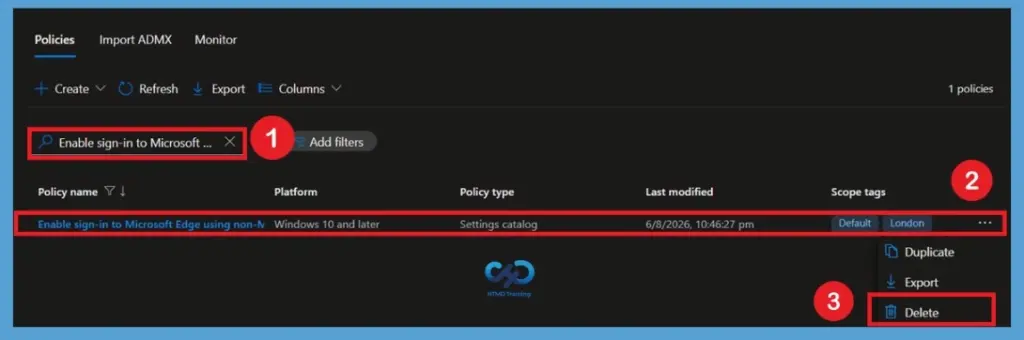
f the Allow Sign in to Microsoft Edge with Non-Microsoft Accounts policy is no longer required, first remove its assigned groups and verify that it is no longer needed by any users or devices. This helps prevent unintended changes when the profile is removed. To permanently delete the configuration profile, open the policy in Intune, select Delete, and confirm the deletion. The Allow Sign in to Microsoft Edge with Non-Microsoft Accounts configuration profile will then be permanently deleted from Intune.
For detailed information, you can refer to our previous post – Learn How to Delete or Remove App Assignment from Intune using by Step-by-Step Guide.
Remove Assigned Groups
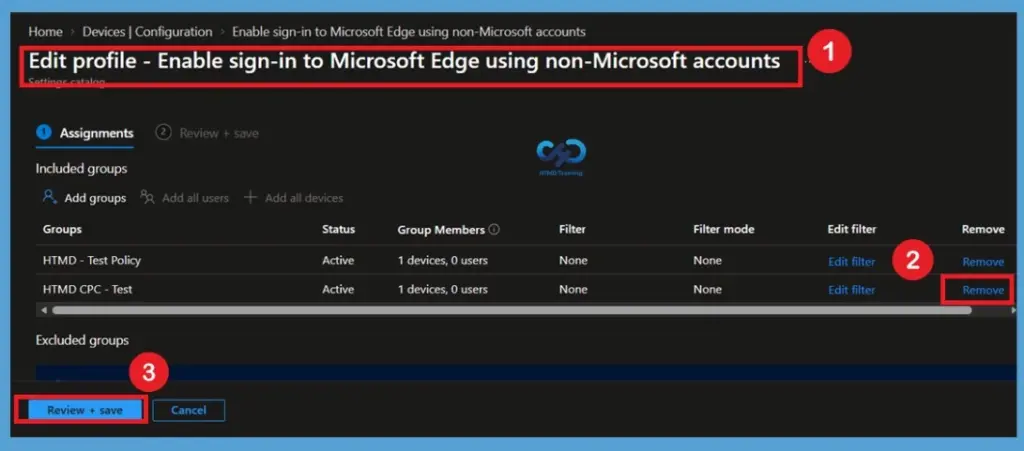
If the Allow Sign in to Microsoft Edge with Non-Microsoft Accounts policy is no longer required for specific users or devices, open the policy’s Assignments section and remove the relevant groups from the assignment.
After removing the groups, review +save the changes and allow the updated policy assignment to synchronize with the affected devices. This prevents the policy from continuing to be targeted to those groups.
For detailed information, you can refer to our previous post – How to Delete Allow Clipboard History Policy in Intune Step by Step Guide.
Need Further Assistance or Have Technical Questions?
Join the LinkedIn Page and Telegram group to get the latest step-by-step guides and news updates. Join our Meetup Page to participate in User group meetings. Also, join the WhatsApp Community and the WhatsApp channel to get the latest news on Microsoft Technologies. We are there on Reddit as well
Author
Anoop C Nair has been Microsoft MVP from 2015 onwards for 10 consecutive years! He is a Workplace Solution Architect with more than 22+ years of experience in Workplace technologies. He is also a Blogger, Speaker, and Local User Group Community leader. His primary focus is on Device Management technologies like SCCM and Intune. He writes about technologies like Intune, SCCM, Windows, Cloud PC, Windows, Entra, Microsoft Security, Career, etc