
Key Takeaways
- Windows 365 Boot makes Cloud PC connections faster and more reliable.
- The new Connection Center helps manage and control Cloud PCs easily.
- It adds secure sign-in and disaster recovery for safety.
- New shortcuts and settings make using Cloud PCs easier.
Hey, let’s discuss about What’s New in Windows 365 Boot for a Smarter and More Resilient Cloud PC Experience. Windows 365 Boot introduces enhancements to the connection experience, along with a new Connection Center that improves visibility and control. It also brings enhanced error handling and diagnostics, making it easier to manage and troubleshoot connections.
Table of Contents
Table of Contents
What’s New in Windows 365 Boot for a Smarter and More Resilient Cloud PC Experience
The update includes secure sign-in to the physical device when needed, built-in disaster recovery with local fallback support, and a like-local display and settings experience. Additionally, it offers Windows 365 Reserve support for business continuity.
| Feature | Description |
|---|---|
| Keyboard Shortcuts | Quick navigation in Connection Center |
| Captive Portal Support | Works in constrained network environments |
- Zero-Touch Deployment and Instant Cloud PC Access with Windows 365 Boot and Reserve using Intune
- How to Create Screen Capture App Protection Policy for Windows 365 App using Intune
- Easy Method to Deploy Windows Cloud Input Protection Driver Setup using Intune
Better and Faster Connection Experience
Windows 365 Boot now offers a more streamlined and consistent connection flow with a modernized look and feel aligned with Windows 365 Link. It also reduces sign-in delays by optimizing performance, helping users connect to their Cloud PC faster and more efficiently.
New Windows 365 Connection Center Experience
The updated Windows 365 Connection Center enhances how users access and manage their Cloud PCs with a more intuitive and centralized interface. It allows users to select from multiple Cloud PCs during sign-in, perform device actions like restart and troubleshooting directly from the dashboard, and seamlessly access the Connection Center via Windows 365 Boot. This improves overall usability and gives users greater control over their cloud-based desktops.

Error Handling Improvements
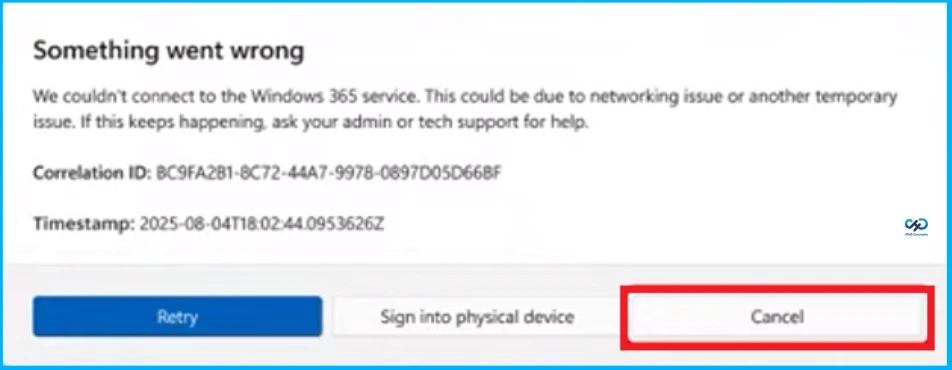
We were unable to connect to the Windows 365 service. This may be caused by a network issue or another temporary problem. Users can now troubleshoot directly from the error message screen. By clicking “Cancel” on the error screen, they can open the Connection Center for further troubleshooting.
Sign-in to Physical Device
This feature allows users to sign in to their physical PC when they cannot access their Cloud PC, such as during internet or Microsoft service outages. Access can be provided from the CTRL + ALT + DEL screen, error screens, or both, based on admin configuration. Users can select “Return to physical PC” to switch to the local device and sign out later to return to the Cloud PC. Administrators can manage this feature using guided scenarios in Windows 365 Boot or CSP policies, and it is supported on Windows 11 version 23H2 (build 22621.4249) and later.
Disaster Recovery Support
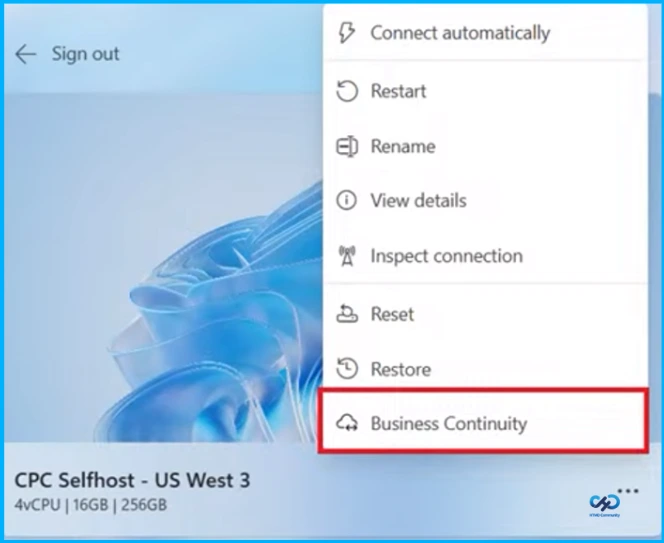
Windows 365 offers cross-region disaster recovery that allows users to reconnect to a backup Cloud PC in another region during outages. Through the Connection Center, access remains seamless, ensuring faster recovery and continuous business operations, provided an eligible cross-region disaster recovery license is in place.
Windows 365 Reserve Support Overview
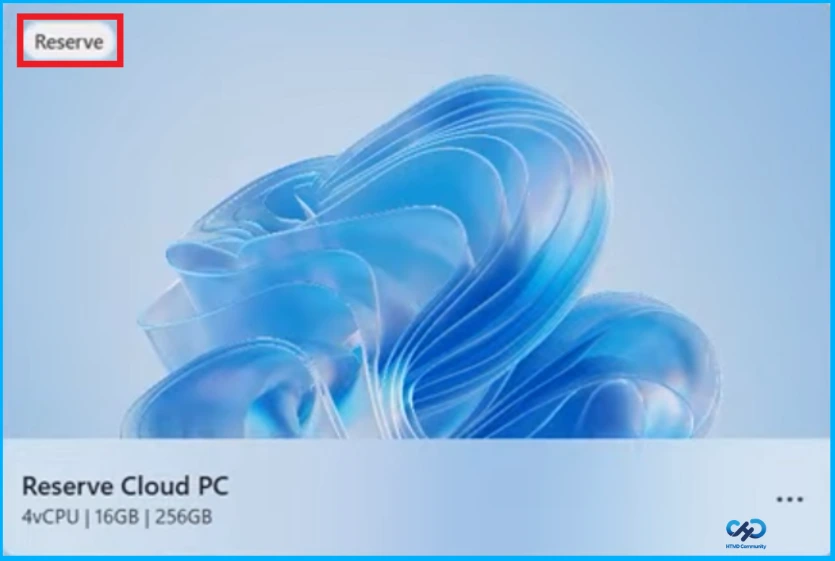
Windows 365 Reserve provides secure, temporary access to a Cloud PC when a user’s primary device is lost, stolen, delayed, or under repair. It offers up to 10 days of usage per year, extendable to 30 days, with pre-configured Microsoft 365 apps and corporate settings. Managed through Microsoft Intune, it ensures quick provisioning, flexible licensing, and built-in security. Organizations can maintain reserve licenses and pre-configured Windows 365 Boot devices, allowing users to quickly sign in via the familiar Windows 11 interface and instantly access their Cloud PC when needed.
Need Further Assistance or Have Technical Questions?
Join the LinkedIn Page and Telegram group to get the latest step-by-step guides and news updates. Join our Meetup Page to participate in User group meetings. Also, join the WhatsApp Community and the Whatsapp channel to get the latest news on Microsoft Technologies. We are there on Reddit as well.
Author
Anoop C Nair is a Workplace Technology solution architect with 25+ years of experience. Microsoft Certified Trainer. Microsoft MVP from 2015 onwards for consecutive 11+ years! He is a blogger, Speaker, and Founder of HTMD Community and HTMD Conference. His main focus is on Device Management technologies like Intune, Windows, and Cloud PC. He writes about technologies like Intune, SCCM, Windows, Cloud PC, Entra, and Microsoft Security.