
Key Takeaways
- Helpers can use their own work credentials to sign in and troubleshoot a device, even when the user is unavailable or not signed in.
- A new Initiate unattended control option allows the helper to take full control of the Windows device during the Remote Help session.
- Intune RBAC controls access to unattended Remote Help, ensuring that only authorized helpdesk can use this capability.
- It simplifies remote troubleshooting and maintenance, especially for remote devices.
In this post, we are discussing Configure Unattended Remote Help for Windows Devices using Intune to Simplify Remote Troubleshooting. Microsoft has introduced Unattended Remote Help with Remote Sign-In in Microsoft Intune Remote Help. This new feature allows helpdesk teams to remotely access and troubleshoot physical Windows devices without requiring the user to be present. Authorized helpers can sign in to the device using their own work credentials.
Table of Contents
Table of Contents
Configure Unattended Remote Help for Windows Devices using Intune to Simplify Remote Troubleshooting
With this new capability, support teams do not have to wait for the user to accept a Remote Help request. They can access an eligible Windows device even when no user is available or signed in. This can be helpful when supporting remote employees, shared devices, or devices that need troubleshooting outside normal working hours. The feature is designed for corporate-owned, Intune-managed Windows devices that meet the required conditions.
- MS Intune Remotely Access Windows Devices without User Interaction using Unattended Remote Help
- Best Guide to Setup Conditional Access for Remote Help with Intune | RemoteAssistanceService
- Android Devices and Intune Remote Help Walkthrough Guide
What’s New
Microsoft has added a new Unattended Remote Help experience for Windows devices in Intune. With this update, IT support teams can connect to a managed Windows device even when the end user is not available. The new experience adds an Initiate unattended control option to Remote Help. When an authorized helper selects this option, they can remotely access the device and perform troubleshooting without waiting for the user to accept the connection.
How to Access Remote Help Settings
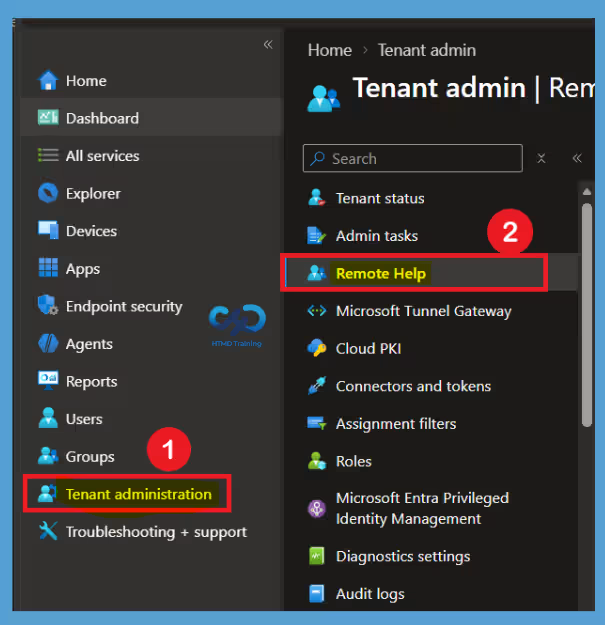
To configure Unattended Remote Help, you first need to open the Remote Help settings in the Microsoft Intune admin center. From here, you can enable Remote Help and review the available settings for your organization. In the Microsoft Intune admin center, navigate to Tenant administration > Remote Help.

Open Remote Help Settings
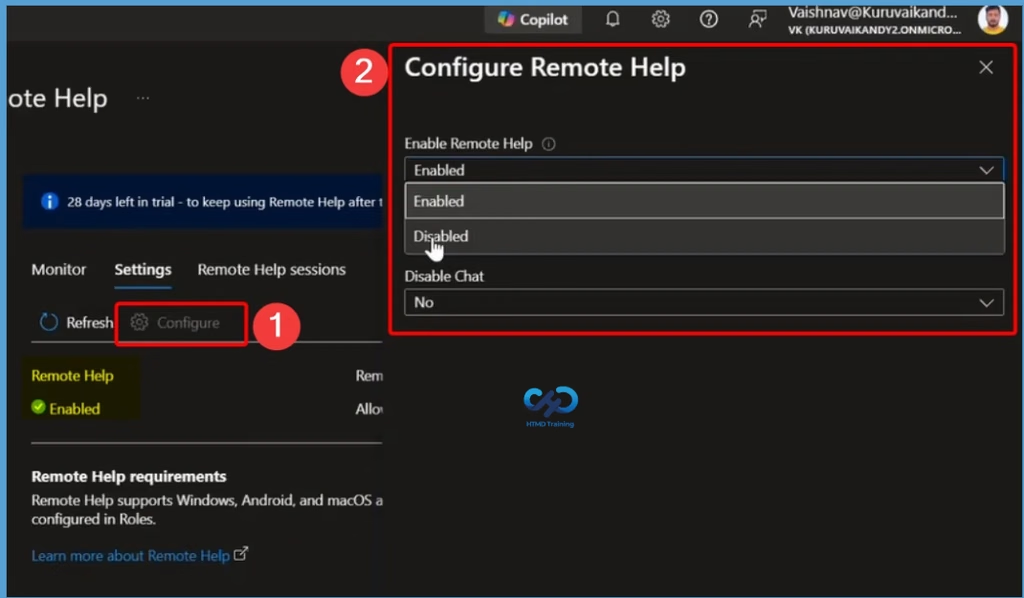
Before configuring the unattended support feature, you need to access the Remote Help settings in Intune. From this section, you can check the current Remote Help status and configure the settings required for your organization. To access the settings, navigate to Tenant administration > Remote Help. Select the Settings tab, and then click Configure to open the available Remote Help configuration options.
- Before making any changes, you can check the current status of Remote Help in your Intune tenant.
- In this case, the Remote Help option is shown as Enabled.
Select Unattended Control
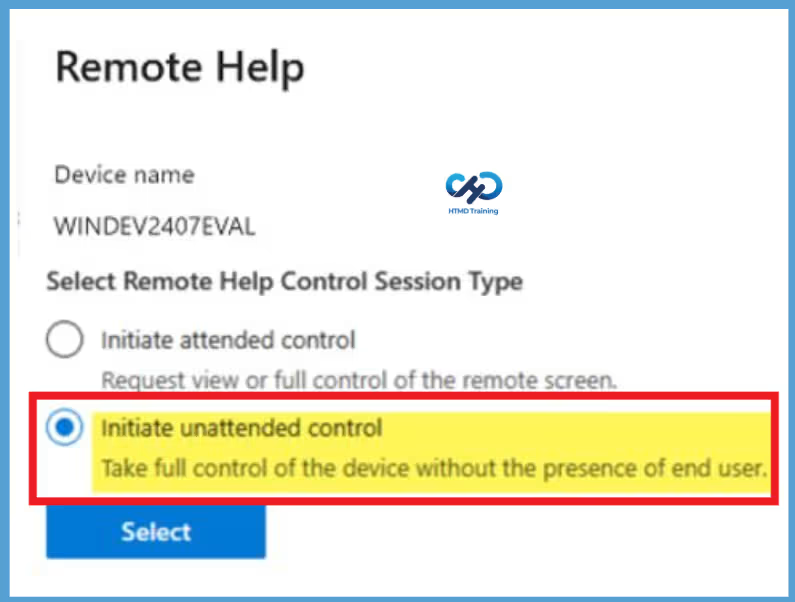
After the required Remote Help configuration is completed, you can start an unattended session from the device that needs support. When you select New remote assistance session and open Remote Help, you will see the available control session types. Select Initiate unattended control to take full control of the Windows device without requiring the end user to be present, and then select to continue with the remote assistance session.
| Select Remote Help Control Session Type | Info |
|---|---|
| Initiate attended control | Request view or full control of the remote screen. |
| Initiate unattended control | Take full control of the device without the presence of end user. |
Need Further Assistance or Have Technical Questions?
Join the LinkedIn Page and Telegram group to get the latest step-by-step guides and news updates. Join our Meetup Page to participate in User group meetings. Also, join the WhatsApp Community and the Whatsapp channel to get the latest news on Microsoft Technologies. We are there on Reddit as well.
Author
Anoop C Nair is Workplace Technology solution architect with 25+ years of experience in global enterprise organizations such as JP Morgan, Capgemini, etc. He is Microsoft Certified Trainer. Microsoft MVP from 2015 onwards for consecutive 11 years! He also conducts Intune and modern workplace tech training for enterprise organizations. He is Blogger, Speaker, and Founder of HTMD Community and HTMD Conference. His focus is on Device Management technologies such as Intune, Windows, Cloud PC. He writes about technologies like Intune, SCCM, Windows, Cloud PC, Windows, Entra, Microsoft Security.