
Key Takeaways
- Windows Backup is enabled by default for eligible devices with the release of Windows 11, version 26H2, unless admins have explicitly configured the policy.
- User settings and Microsoft Store app lists can be restored when users move to a new, replaced, reset, or reimaged Windows 11 device.
- Backup and restore are controlled separately, allowing administrators to manage each experience based on their organization’s requirements.
- Administrators can manage the policies through Microsoft Intune, while restore behavior remains admin-controlled
In this post we are discussing, Windows Backup is Now Enabled by Default for Eligible Intune Managed Devices. Microsoft is introducing an update to Windows Settings Backup with the release of Windows 11, version 26H2. For eligible devices, Settings Backup is now enabled by default when administrators have not explicitly configured the policy. This helps ensure that important user settings and the list of installed Microsoft Store apps are available for recovery when a device is reset, replaced, upgraded.
Table of Contents
Table of Contents
Windows Backup is Now Enabled by Default for Eligible Intune Managed Devices
The feature is designed to make device replacement and Windows 11 migrations easier for users. When a user signs in to a new or reimaged Windows 11 device with their work account, they can choose to restore a backup from their previous device. Their desktop wallpaper and other supported Windows settings, along with their Microsoft Store app list, can then be restored, helping users get back to a familiar working environment more quickly.
The backup and restore experience is available for eligible Windows 11 devices, including Microsoft Entra joined and Microsoft Entra hybrid joined devices and Cloud PCs, depending on the supported Windows edition.
- How to Set Up Multi Admin Approval for Three New Device Actions in Intune
- Best Method to Create Windows 11 System Image Backup
- How to Backup and Restore Windows 365 Cloud PC | Point-in-time Restore Option
- Best Method to Enable and Disable Windows 365 Cloud PCs Redirections using Intune
What’s new
Windows Settings Backup is now enabled by default on eligible Intune‑managed Windows 11 (26H2) devices. 2. When the backup policy is set to Not Configured, supported user settings and the Microsoft Store app list will be backed up automatically.

| Support | Details |
|---|---|
| Supported devices | Microsoft Entra joined, Microsoft Entra hybrid joined devices, and Cloud PCs |
| Windows editions | Windows 11 Enterprise, Windows 11 Education, and Windows 11 Pro for domain-joined devices |
Configure Windows Backup and Restore using Intune
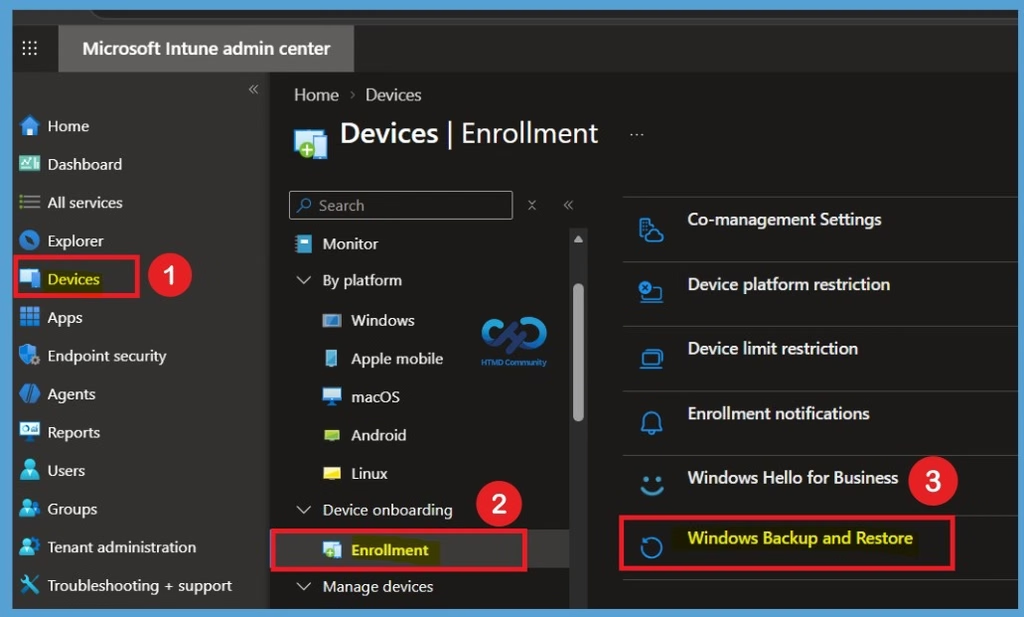
Administrators can configure the Windows Backup and Restore experience from the Microsoft Intune admin center. The backup and restore functions are managed separately, allowing IT teams to control the restore experience while the new default-on backup behavior applies to eligible devices. The first method Open Windows Backup and Restore.
- In the Microsoft Intune admin center, go to Devices > Enrollment.
- Under the Device onboarding section, select Enrollment, and then choose Windows Backup and Restore.
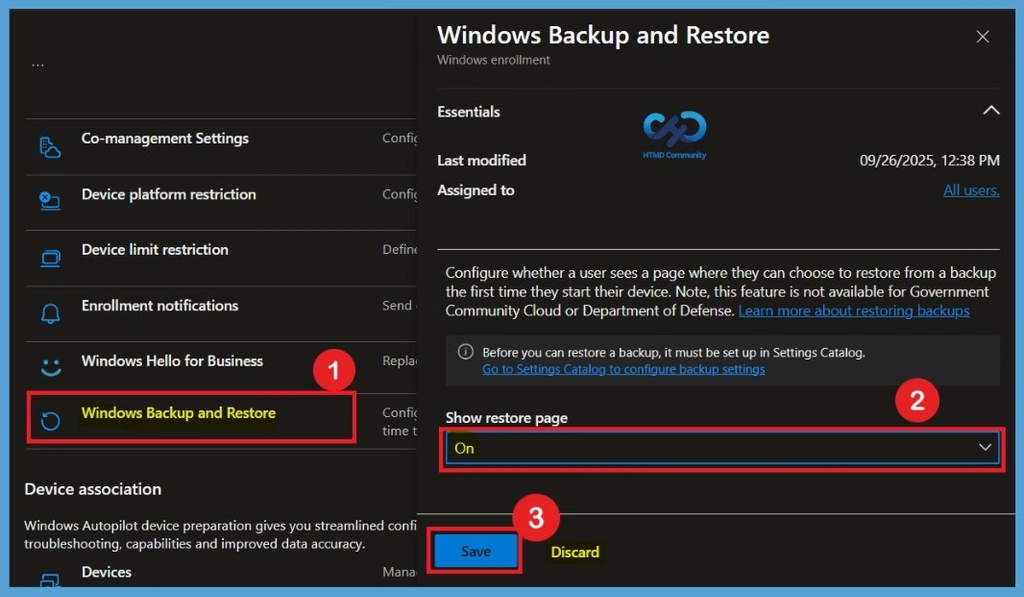
After opening Windows Backup and Restore, configure the restore option for users. Under Show restore page, select On to allow users to see the restore page and choose a backup when they start their device. Here, you can see that the Show restore page option is already set to On in the Intune portal. Click Save to apply the setting. With the Windows 11 version 26H2 update, backup is enabled by default for eligible devices, while the restore experience remains separately controlled by the administrator.
Configure Windows Backup using Intune
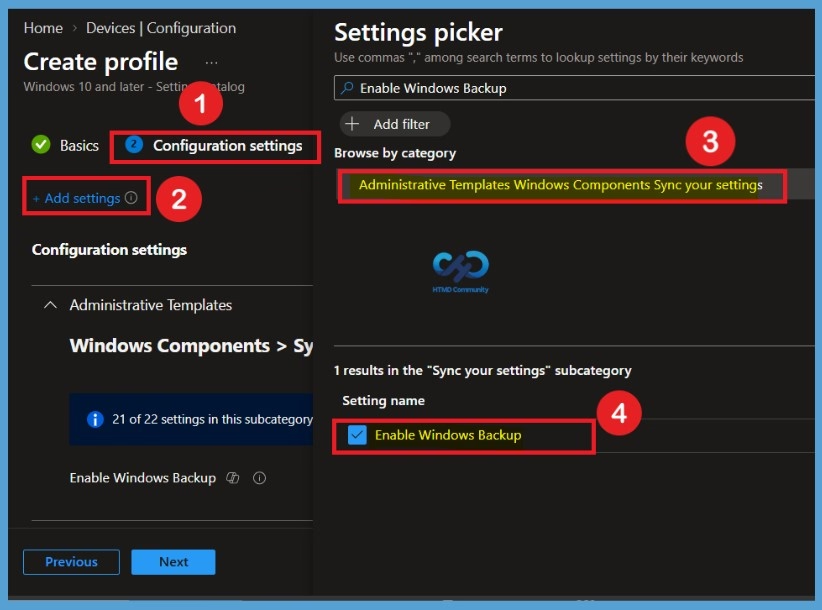
To configure Windows Backup through Intune through Windows 10 and later under the Settings catalog profile. Then go to Configuration settings > Add settings. Search for Enable Windows Backup, then select Administrative Templates > Windows Components > Sync your settings and choose Enable Windows Backup. This setting allows administrators to explicitly enable the backup policy for targeted devices. For eligible Windows 11 version 26H2 devices, leaving the backup policy Not Configured also allows the new default-on behavior to apply.
| Policy Info |
|---|
| This policy setting allows administrators to configure and manage windows backup for their organization. If you enable this policy setting, windows backup will occur periodically. If you disable or do not configure this policy setting, windows backup will not take place. |
Need Further Assistance or Have Technical Questions?
Join the LinkedIn Page and Telegram group to get the latest step-by-step guides and news updates. Join our Meetup Page to participate in User group meetings. Also, join the WhatsApp Community and the Whatsapp channel to get the latest news on Microsoft Technologies. We are there on Reddit as well.
Author
Anoop C Nair is Workplace Technology solution architect with 25+ years of experience in global enterprise organizations such as JP Morgan, Capgemini, etc. He is Microsoft Certified Trainer. Microsoft MVP from 2015 onwards for consecutive 11 years! He also conducts Intune and modern workplace tech training for enterprise organizations. He is Blogger, Speaker, and Founder of HTMD Community and HTMD Conference. His focus is on Device Management technologies such as Intune, Windows, Cloud PC. He writes about technologies like Intune, SCCM, Windows, Cloud PC, Windows, Entra, Microsoft Security.