
Key Takeaways
- Securing AI Agents with Runtime Protection using Microsoft Defender and Intune
- AI Agent Runtime Protection is disabled by default in Defender for Endpoint.
- Use an Intune Endpoint Security Antivirus policy to deploy AI agent event inspection to enrolled Windows devices.
- No runtime inspection or blocking of agent actions.
- Detects and reports prompt injection but allows the agent action to continue.
- Detects prompt injection and blocks supported agent actions before execution.
- Devices must be onboarded to Microsoft Defender for Endpoint.
To use AI Agent Runtime Protection, onboard devices to Microsoft Defender for Endpoint, with Microsoft Defender Antivirus running in active mode and real-time protection enabled. During the public preview, test devices should also receive Microsoft Defender platform and engine updates through the Beta Channel.
Table of Content
Table of Contents
Securing AI Agents with Runtime Protection using Microsoft Defender and Intune
Microsoft recommends starting with Audit mode and assigning the policy to a small group of test devices. Monitor the detections and review how the policy behaves. Once you are comfortable with the results, switch to Block mode to enforce protection. Finally, complete the policy configuration, assign it to the required device groups, and create the policy.
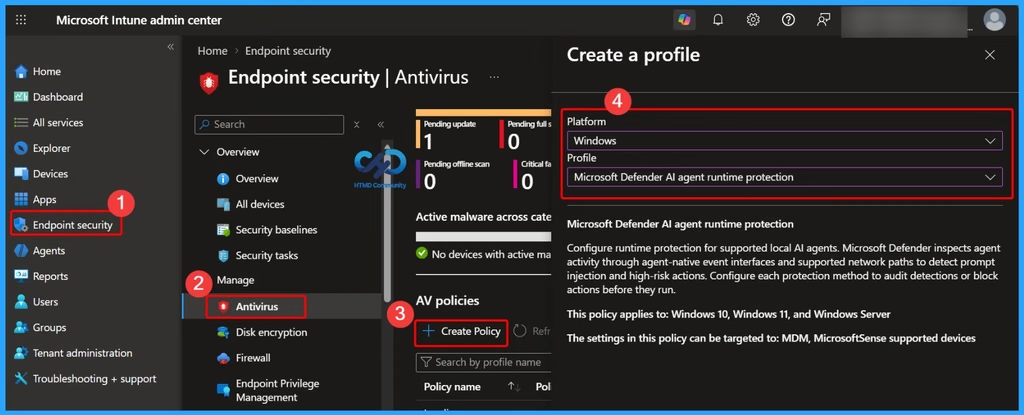
- Open Microsoft Intune Admin Center and go to Endpoint security.
- Select Antivirus under Manage.
- Click Create Policy.
- Select:
- Platform: Windows
- Profile: Microsoft Defender AI agent runtime protection
- Turn on Real-time Monitoring Antivirus policy for Microsoft Defender in Intune
- Protect Security Settings with Tamper Protection in Windows
- Manage Microsoft Defender Antivirus Updates using Intune
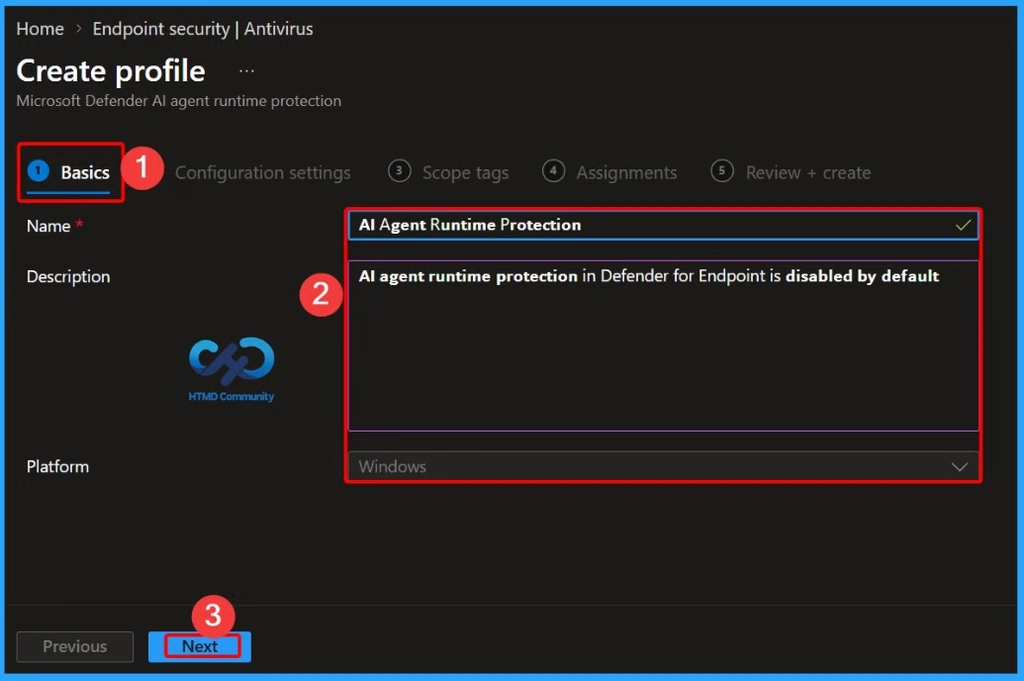
Basic Details of the AI Agents with Runtime Protection
In the Basics tab, you provide details such as the name of the policy as AI Agent Runtime Protection and the description of the policy stating that AI agent runtime protection in Defender for Endpoint is disabled by default.
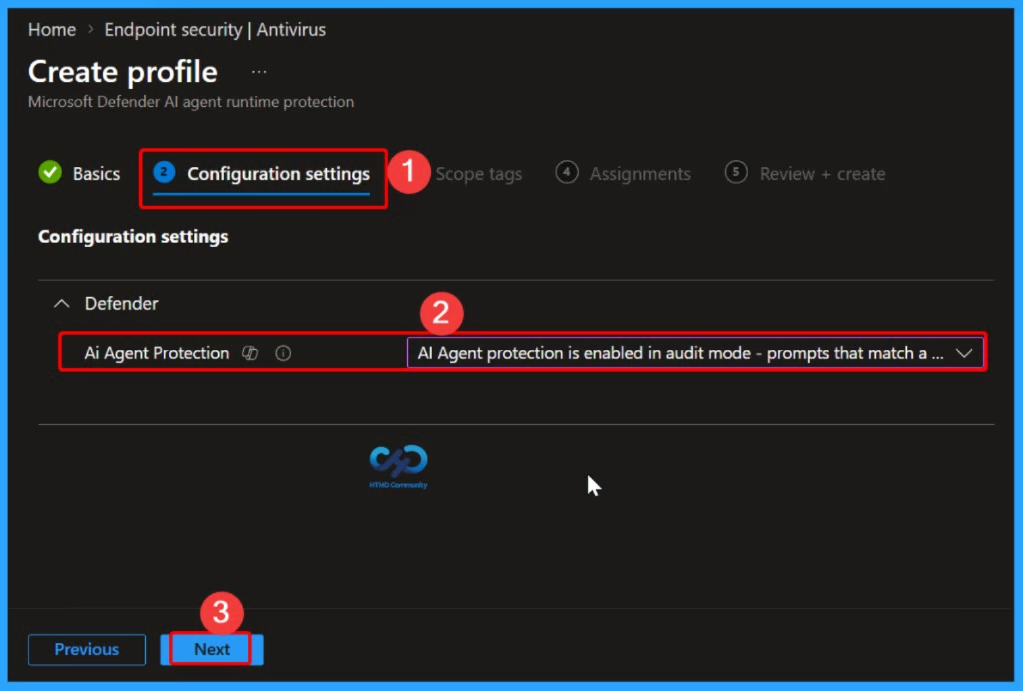
Configure AI Agent Protection Settings
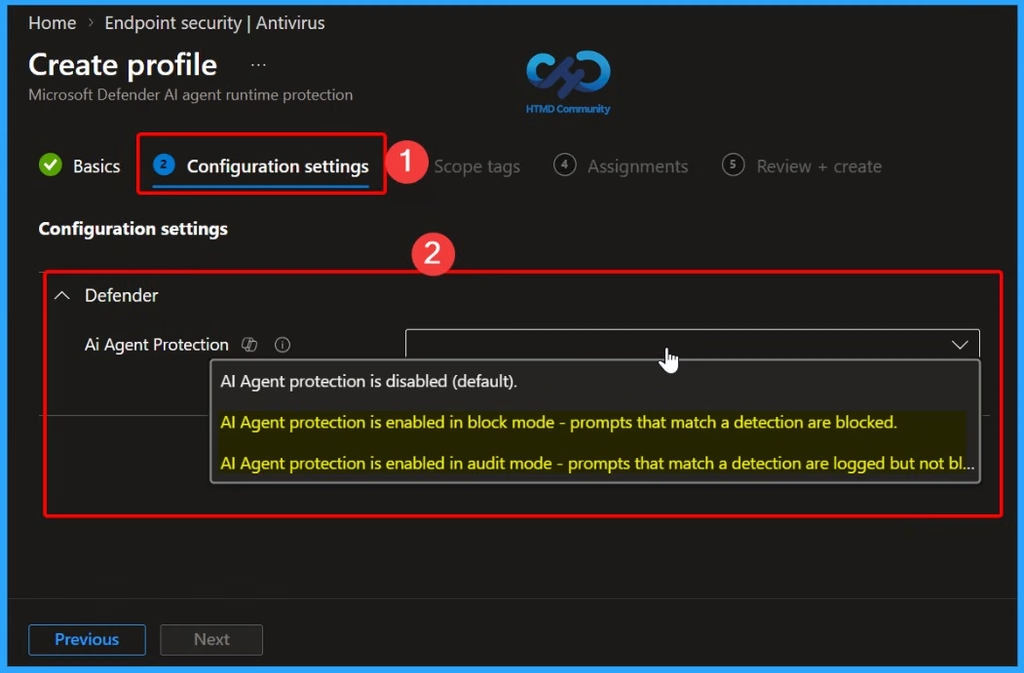
Click Create and proceed to the Configuration settings page. Locate AI Agent Protection and select the appropriate protection level based on your organization’s requirements.

- Default: Protection is disabled.
- Audit: Detects and reports prompt injection but does not block the agent.
- Block: Detects prompt injection and blocks supported agent actions.
Recommended Deployment Approach
Microsoft recommends starting with Audit mode on a limited group of test devices. This allows administrators to monitor detections and understand the policy’s impact without blocking agent actions. After reviewing the results and confirming that the configuration works as expected, switch to Block mode to enforce AI agent runtime protection.
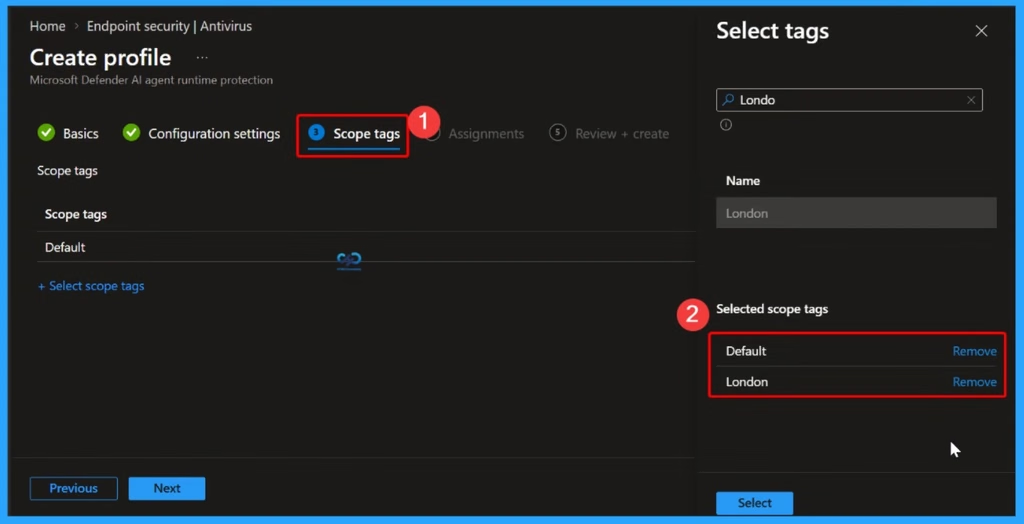
Scope Tags Configuration
In the Scope tags tab, you can manage and assign tags to control access to the profile. By default, the Default scope tag is applied, and you can select additional tags (such as London) from the side panel to include them in the selected scope tags list.
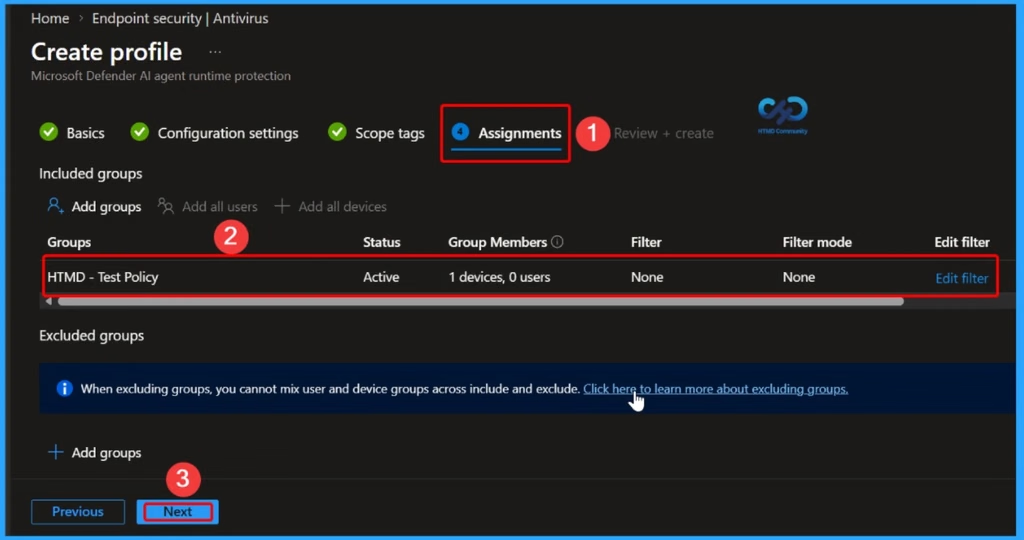
Assignments Configuration
In the Assignments tab, you configure which user or device groups are included or excluded under the policy settings. You can add groups like HTMD – Test Policy, view their status, member counts, filter options, and manage any group-specific exclusions as needed.
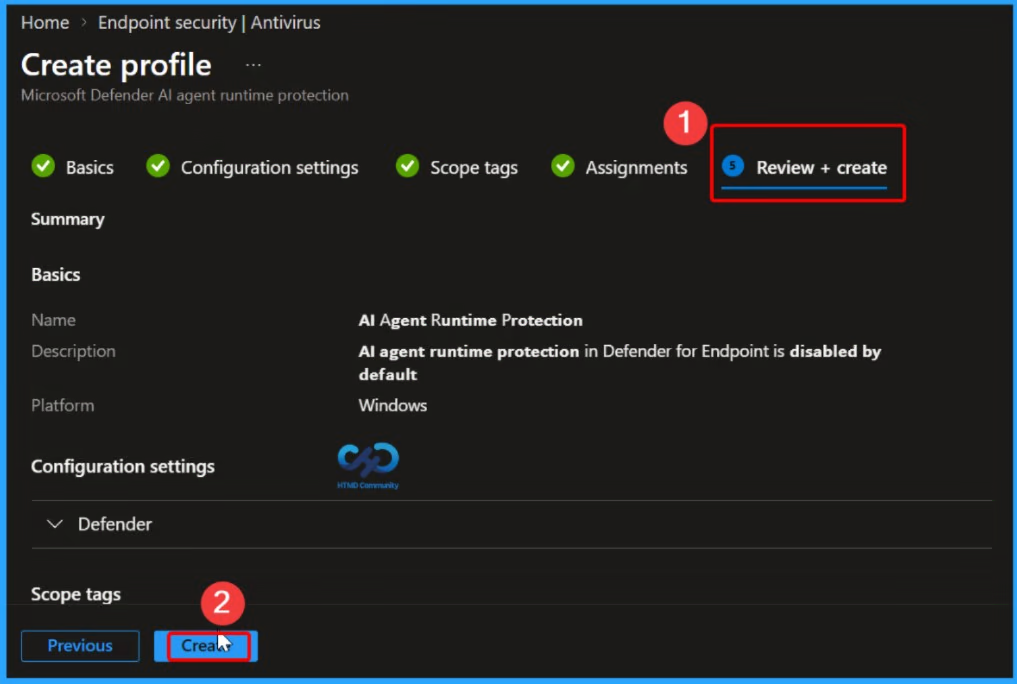
inspect a complete summary of all your configured settings
In the Review + create tab, you can inspect a complete summary of all your configured settings before finalizing the profile. This includes verifying the name (AI Agent Runtime Protection), description (AI agent runtime protection in Defender for Endpoint is disabled by default), platform, and other configured parameters.
Policy Creation Confirmation
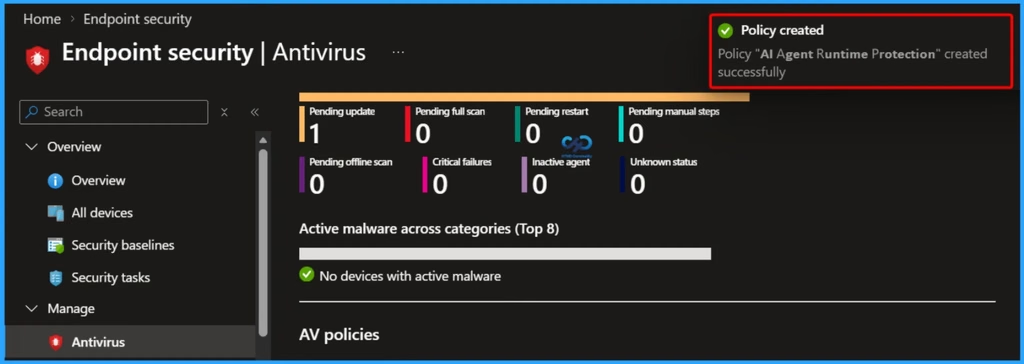
Once the configuration is reviewed and finalized, a notification confirms that the policy “AI Agent Runtime Protection” has been created successfully. You are then redirected back to the Endpoint security | Antivirus dashboard where the new policy takes effect.
Verify AI Agent Runtime Protection on the Enrolled Device
After the policy is deployed, verify that the setting has been successfully applied to the enrolled Windows device. Open the device in the Microsoft Defender portal, go to Configuration management > Effective settings, and check AI Agent Protection.
| Steps |
|---|
| Open the Microsoft Defender portal and select the enrolled device |
| Go to Configuration management > Effective settings |
| Find AI Agent Protection |
| Check the Configuration source |
| Close existing agent/terminal windows |
| Open a new terminal window |
| Run the AI Agent Runtime Protection demonstration |
| Review the result |
Resources
Need Further Assistance or Have Technical Questions?
Join the LinkedIn Page and Telegram group to get the latest step-by-step guides and news updates. Join our Meetup Page to participate in User group meetings. Also, join the WhatsApp Community and the Whatsapp channel to get the latest news on Microsoft Technologies. We are there on Reddit as well.
Author
Anoop C Nair is Workplace Technology solution architect with 25+ years of experience in global enterprise organizations such as JP Morgan, Capgemini, etc. He is Microsoft Certified Trainer. Microsoft MVP from 2015 onwards for consecutive 11 years! He also conducts Intune and modern workplace tech training for enterprise organizations. He is Blogger, Speaker, and Founder of HTMD Community and HTMD Conference. His focus is on Device Management technologies such as Intune, Windows, Cloud PC. He writes about technologies like Intune, SCCM, Windows, Cloud PC, Windows, Entra, Microsoft Security.