
Key Takeaways
- Windows 11 26H2 Gallery Images are now available in Microsoft Intune for provisioning new Windows 365 Cloud PCs.
- Choose from three 26H2 images: Windows 11 Enterprise, Enterprise + Microsoft 365 Apps, or Enterprise Developer Configuration + M365 Apps.
- Update Windows 365 Provisioning Policies in Intune to use the latest 26H2 gallery images for new Cloud PC deployments.
- Simplify Cloud PC provisioning with ready-to-use Microsoft images, reducing the effort required to build and maintain custom images.
In this article, I am going to explain how to create a new Windows 11 26H2 Cloud PC using Intune. Create a new Windows 11 26H2 Windows 365 Cloud PC using Microsoft Intune and provision it with the latest Windows 11 26H2 gallery images. This provides users with the latest Windows features, security enhancements, and management capabilities while allowing administrators to centrally manage the Cloud PC through Intune. If you mean Windows 11 26H2 Windows 365 Cloud PC gallery images, Microsoft made them available during the week of September 28, 2026. The Windows 11 26H2 OS itself reached General Availability on September 29, 2026.
Table of Contents
PC OS Image Gallery
The following Windows 365 images are available in the Intune Admin Center.
| Image | Version |
|---|---|
| Windows 11 Enterprise + Microsoft 365 Apps | 26H2 |
| Windows 11 Enterprise | 26H2 |
| Windows 11 Enterprise Developer Configuration + Microsoft 365 Apps | 26H2 |
| Windows 11 Enterprise Developer Configuration + Microsoft 365 Apps | 25H2 |
| Windows 11 Enterprise + Microsoft 365 Apps | 25H2 |
| Windows 11 Enterprise | 25H2 |
| Windows 11 Enterprise + Microsoft 365 Apps | 24H2 |
| Windows 11 Enterprise | 24H2 |
| Windows 11 Enterprise | 23H2 |
| Windows 11 Enterprise + Microsoft 365 Apps | 23H2 |
- Provision Windows 365 Newly Introduced 32 vCPU Cloud PC using Intune
- Guide to Prepare Windows 365 Cloud Apps using file paths of Any Application
- Reduce onboarding time simplifies environment setup for developers experience across Cloud PC
Create a Provisioning Policy for Windows 11 Enterprise 26H2 Cloud PC
To create a Windows 365 Provisioning Policy for Windows 11 Enterprise Developer Configuration Cloud PC, login to the Microsoft Intune Admin Center using your administrator credentials.
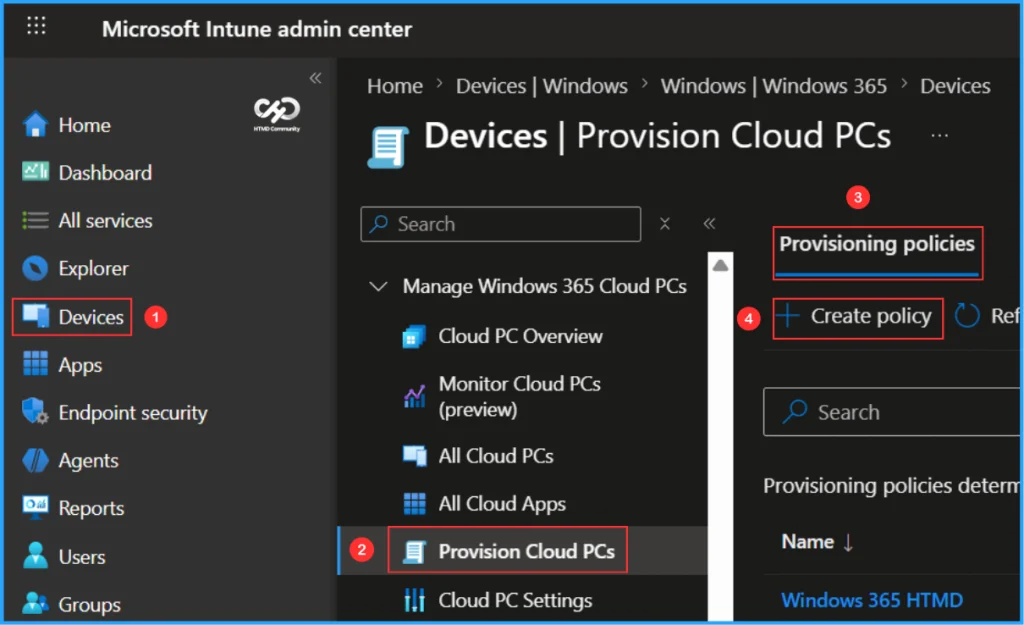
- Navigate to > Devices > Manage Windows 365 Cloud PCs > Provision Cloud PCs
- Click on Provisioning policies > +Create policy
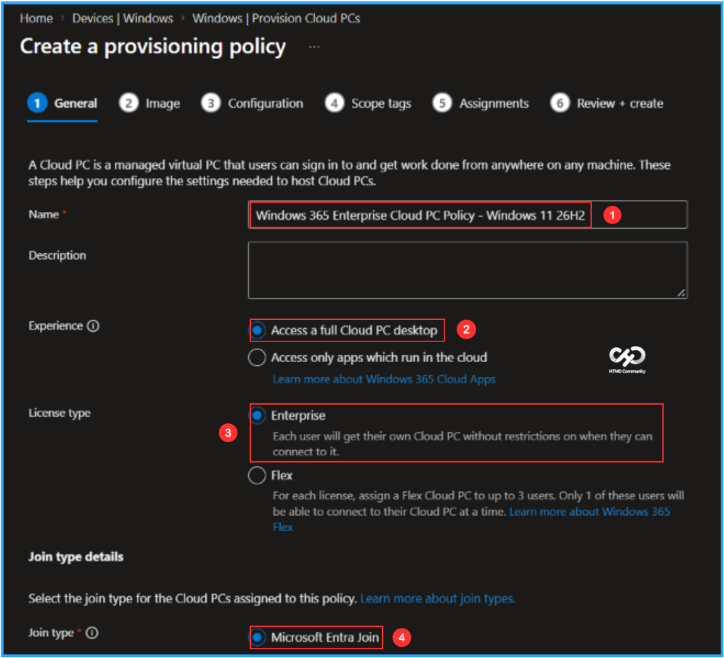
In the General tab, you can now add the following settings. Keep in mind that a Cloud PC is a managed virtual PC that users can sign in to get work done from anywhere on any machine. These steps help you configure the settings needed to host Cloud PCs.

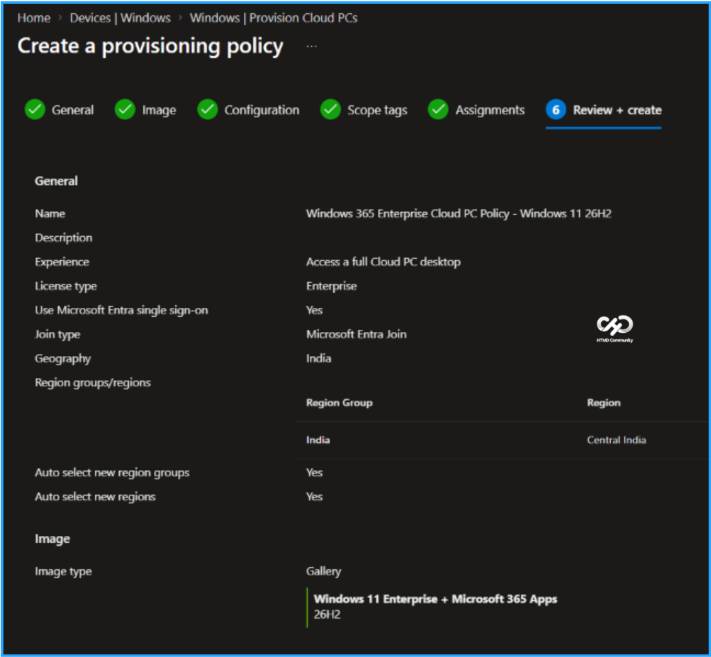
- Name: Windows 365 Enterprise Cloud PC Policy – Windows 11 26H2
- Description: Optional
- Experience: Access a full Cloud PC desktop
- License type: Enterprise
- Join type: Microsoft Entra Join
- Network: Microsoft hosted network
- Geography: India
- Region groups/regions: India/Central India (Select all)
- Use Microsoft Entra single sign-on: Yes (Check the box)
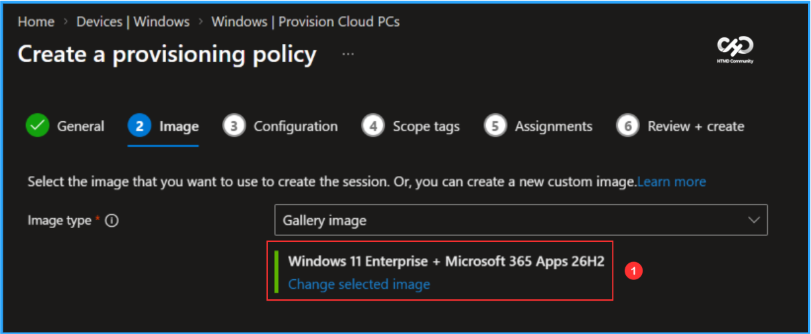
In the Image tab, keep the Image type as Gallery image. Click on Change selected image and select the new Image type, “Windows 11 Enterprise + Microsoft 365 Apps,” which corresponds to Windows 11 version 26H2.
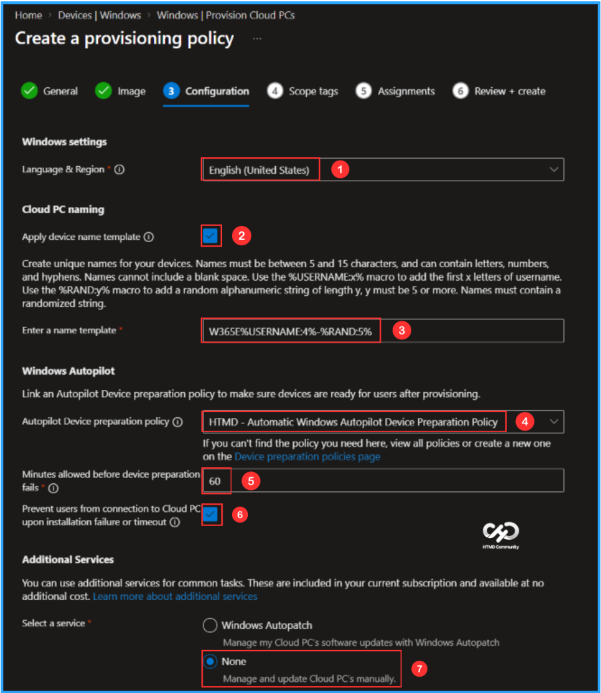
The next tab focuses on Windows settings, Cloud PC naming, Windows Autopilot and Additional Services configuration. You can select the options listed below.
- Language & Region: English (United States)
- Apply device name template: Yes (Check the box)
- Enter a name template: W365E%USERNAME:4%-%RAND:5%
- Autopilot Device preparation policy: HTMD – Automatic Windows Autopilot Device Preparation Policy
- Minutes allowed before device preparation fails: 60
- Prevent users from connection to Cloud PC upon installation failure or timeout: Yes (Check the box)
- Select a service: None (Manage and update Cloud PC’s manually)
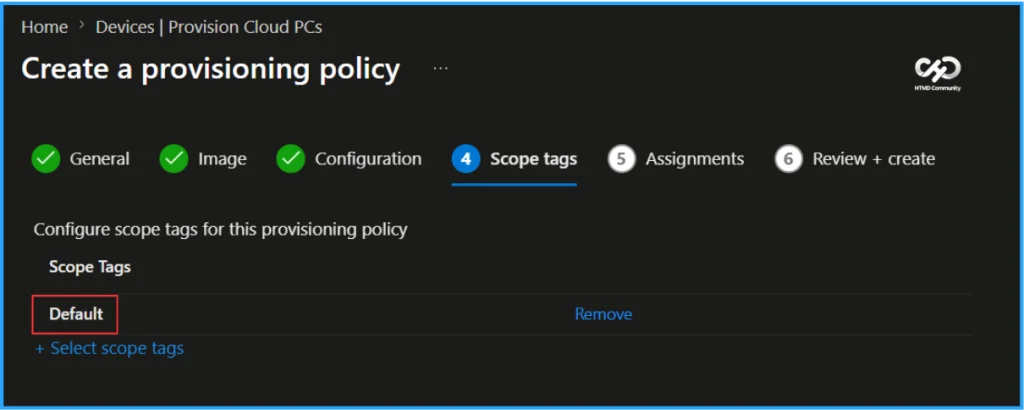
On the next page, keep the Scope tags set to Default. If your tenant has custom scope tags, select them based on your policy needs, and then click Next.
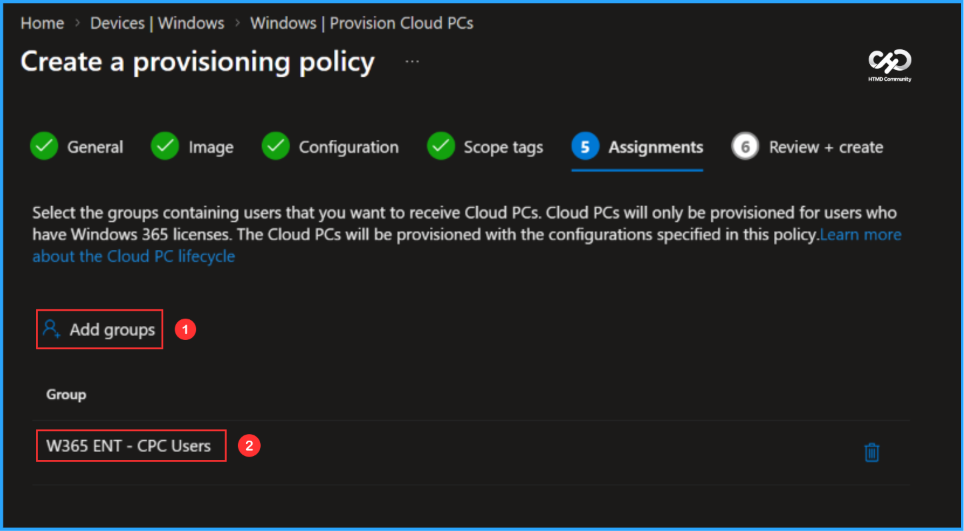
In this section, select the group that will receive Cloud PCs. I will assign the policy to the W365 ENT – CPC Users group. Ensure you have assigned a Windows 365 Enterprise Cloud PC license from the Microsoft 365 Admin Center to the same user who will be assigned this provisioning policy. To do this, click on Add groups and choose the appropriate user group.
On the Review + create page, review all settings for the Windows 365 Enterprise Cloud PC Policy – Windows 11 26H2 Provisioning Policy. After confirming, click Create to deploy the policy.
- Pre-Associate Devices for Windows Autopilot Device Preparation using Intune
- Microsoft Intune Expands Windows Quality Update Management with New Approval Settings
- Bulk Reprovisioning of Windows 365 Cloud PCs in Grace Period using Intune
Monitor the Windows 365 Enterprise Cloud PC Windows 11 26H2 Provisioning Policy Deployment
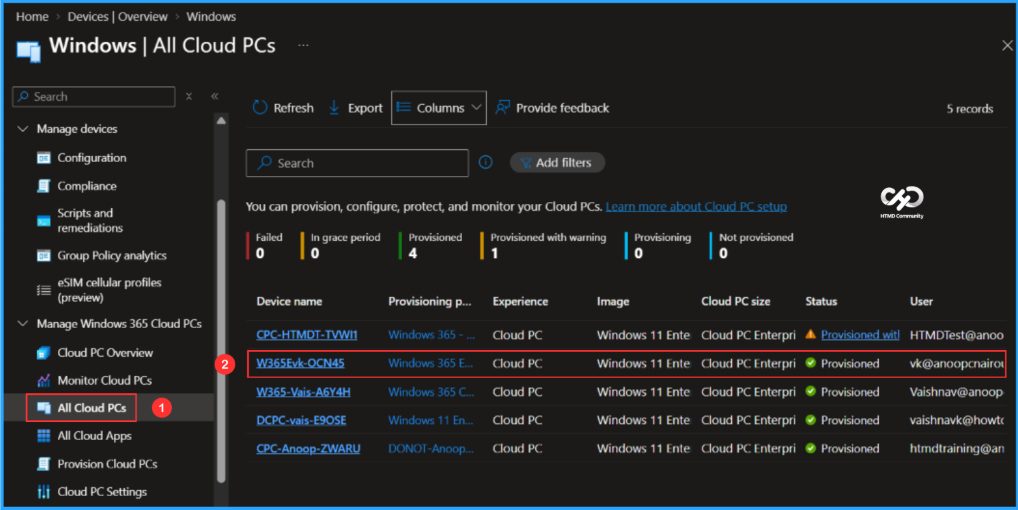
The newly created Windows 11 Enterprise Configuration Provisioning Policy has been deployed to the W365 ENT – CPC Users group. Allow about 15-20 minutes for the policy to provision a new Cloud PC with preinstalled Windows 365 Apps and settings. To monitor the policy deployment status, follow the steps below in the Intune Portal.
User Experience of Windows 11 26H2 Cloud PC with Windows App
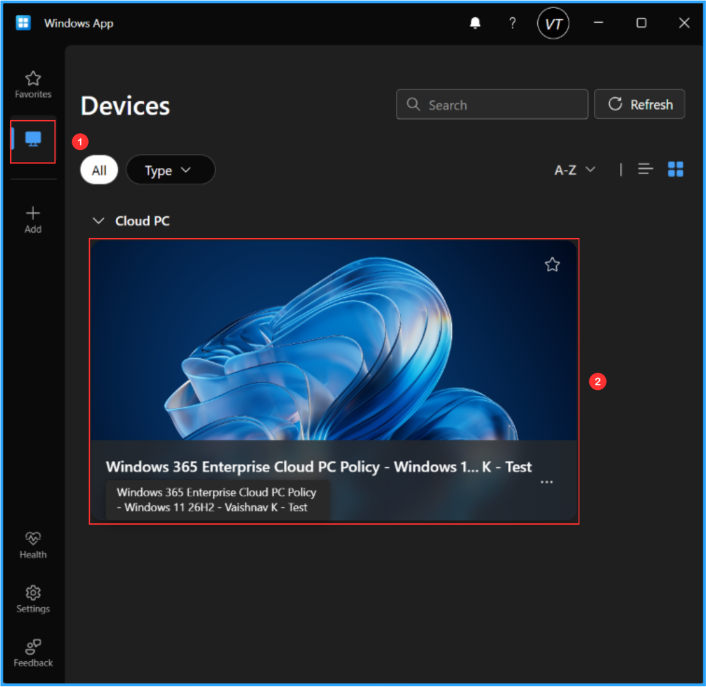
It’s time to evaluate the end-user experience of the newly provisioned Windows 11 26H2 Cloud PC. Start by opening the Windows App and signing in using the credentials assigned to the Cloud PC user. In the left pane, click on Devices. The assigned Cloud PC should appear in the list. Double-click on the Cloud PC.
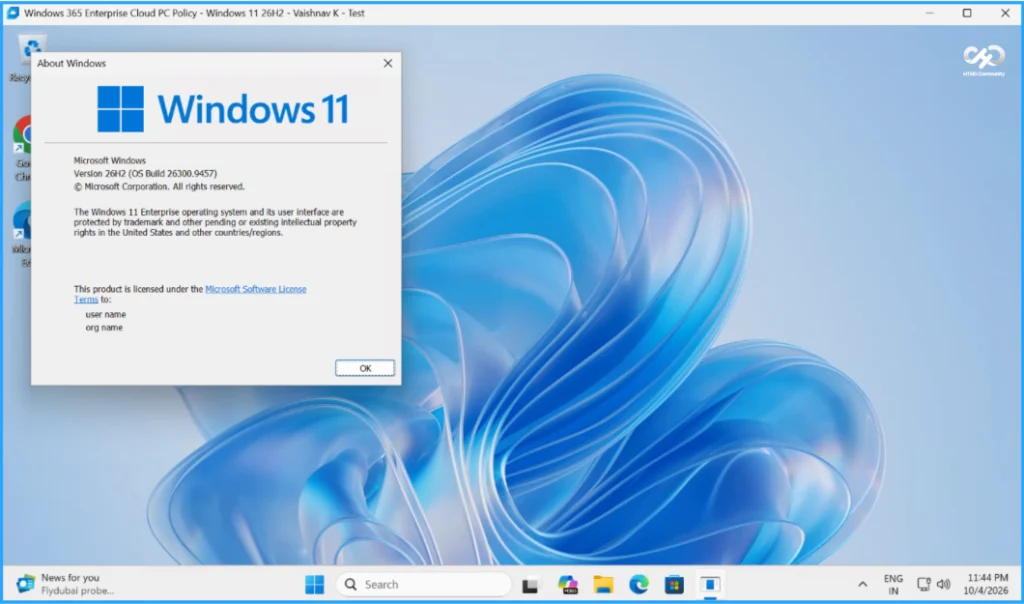
This will open the desktop experience of the new Windows 11 Enterprise Cloud PC Policy – Windows 11 26H2 – Vaishnav K – Test. Now it’s ready to use.
Need Further Assistance or Have Technical Questions?
Join the LinkedIn Page and Telegram group to get the latest step-by-step guides and news updates. Join our Meetup Page to participate in User group meetings. Also, join the WhatsApp Community to get the latest news on Microsoft Technologies. We are there on Reddit as well.
Author
Vaishnav K has over 12 years of experience in SCCM, Intune, Modern Device Management, and Automation Solutions. He writes and shares knowledge about Microsoft Intune, Windows 365, Azure, Entra, PowerShell Scripting, and Automation. Check out his profile on LinkedIn.