
Key Takeaways
- Microsoft Entra Security Defaults Adds Individual Controls for MFA
- Administrators can manage four security rules separately.
- The update helps administrators manage security protections without disabling the entire Security Defaults configuration.
- The new experience is currently in private preview for selected Microsoft Entra ID Free tenants.
In this post, we are discussing the Microsoft is introducing a new experience for Security Defaults in Microsoft Entra ID. This update allows administrators to manage individual security protections instead of enabling or disabling all protections together. Security Defaults help organizations protect user accounts from identity-related attacks, such as password spray attacks, phishing, and attempts to use stolen credentials. These settings provide basic security protection, especially for organizations using the free version of Microsoft Entra ID.
Table of Contents
Microsoft Entra Security Defaults Adds Individual Controls for MFA and Authentication Protection
In this new Experience, Microsoft is introducing four individually configurable security rules. Administrators can manage each rule separately while keeping the other security protections enabled. This provides more flexibility when managing security settings in Microsoft Entra ID. Also, this change provides more flexibility in managing security protections while helping organizations protect user accounts from identity-based attacks.
- Microsoft Enables Entra Writeback For Cloud-Managed Remote Mailboxes To Help Remove Last Exchange Server
- Optimize Conditional Access Agent in Entra to Fix Security Blind Spots
- Non-Human Identities and Agent Identities Gain Access Package Support with Entra Identity Governance for AI Agents
What’s New in Microsoft Entra Security Defaults
Microsoft is introducing four individually configurable security rules in Microsoft Entra ID Security Defaults. These rules cover requiring multifactor authentication (MFA) for administrators, requiring MFA for all users, blocking legacy authentication, and blocking device code flow. Previously, administrators had to manage Security Defaults as a single setting. With this update, they can manage each security rule separately without affecting the other rules.
Note: The updated experience is currently in private preview for selected Microsoft Entra ID Free tenants. Eligible tenants will receive an invitation to participate.

| What’s Changing? |
|---|
| Administrators can enable or disable Require MFA for administrators |
| Require MFA for all users |
| Block legacy authentication |
| Block device code flow |
Existing Security Defaults Configuration in Microsoft Entra ID
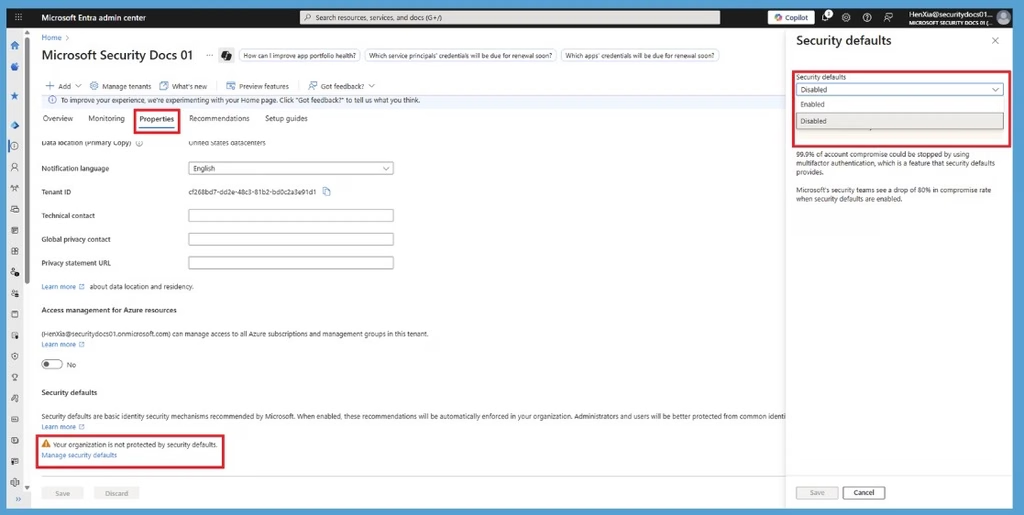
Administrators can access Security Defaults in the Microsoft Entra admin center by navigating to Entra ID > Overview > Properties. The Security Defaults section displays the current configuration and allows administrators to review whether the setting is enabled or disabled. Administrators to review whether the setting is enabled or disabled. As shown in the screenshot, administrators can select the available option to manage Security Defaults. This is the existing configuration, where security protections are managed together rather than individually.
Managing Security Defaults When Conditional Access Policies are Enabled
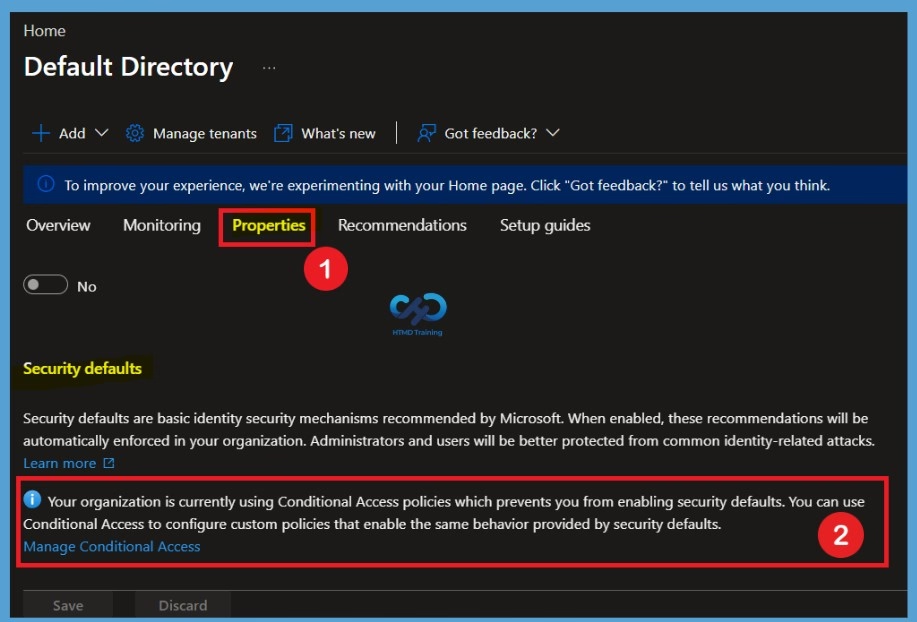
When an organization is already using Conditional Access policies, Microsoft Entra ID displays a message explaining that Security Defaults cannot be enabled in the current configuration. Administrators can use Conditional Access to configure custom policies that provide the same security protections as Security Defaults. This helps organizations manage their security requirements through Conditional Access instead of enabling both configurations together.
Need Further Assistance or Have Technical Questions?
Join the LinkedIn Page and Telegram group to get the latest step-by-step guides and news updates. Join our Meetup Page to participate in User group meetings. Also, join the WhatsApp Community and the Whatsapp channel to get the latest news on Microsoft Technologies. We are there on Reddit as well.
Author
Anoop C Nair is Workplace Technology solution architect with 25+ years of experience in global enterprise organizations such as JP Morgan, Capgemini, etc. He is Microsoft Certified Trainer. Microsoft MVP from 2015 onwards for consecutive 11 years! He also conducts Intune and modern workplace tech training for enterprise organizations. He is Blogger, Speaker, and Founder of HTMD Community and HTMD Conference. His focus is on Device Management technologies such as Intune, Windows, Cloud PC. He writes about technologies like Intune, SCCM, Windows, Cloud PC, Windows, Entra, Microsoft Security.