
Key Takeaways
- Microsoft has confirmed a Windows 11 Remote Desktop issue with error 0xC000000D.
- The issue occurs after installing KB5124010 or later updates.
- Windows 11 versions 24H2, 25H2, 26H1, and 26H2 are affected.
- The issue mainly affects company-managed Remote Desktop hosts with Administrator protection enabled.
In this post, we are discussing on Windows 11 Update Causes Remote Desktop Connection Issues for Non-Admin Users Error 0xC000000D. Microsoft has confirmed a new Windows 11 Remote Desktop issue that can prevent non-administrator users from connecting to remote computers. The issue mainly affects company-managed computers with Administrator protection enabled. This issue occurs after installing the September 22, 2026, non-security preview update KB5124010 or later updates.
Table of Contents
Table of Contents
Windows 11 Update Causes Remote Desktop Connection Issues for Non-Admin Users Error 0xC000000D
You know when this issue occurs: Windows 11 Update Causes Remote Desktop Connection Issues for Non-Admin Users Error 0xC000000D. Recently, Microsoft confirmed the issue on October 13, 2026, and marked it as mitigated. The company has provided a temporary workaround for affected organizations while it works on a permanent fix. Windows Server is not affected by this specific issue. Microsoft has identified the following Windows 11 versions as affected.
| Identified Windows Version |
|---|
| Windows 11 version 24H2 |
| Windows 11 version 25H2 |
| Windows 11 version 26H1 |
| Windows 11 version 26H2 |
- Microsoft Fixes 1411 Security Vulnerabilities and 3 Zero-Day Vulnerabilities in October 2026 Patch Tuesday
- Microsoft Fixes 973 Security Vulnerabilities and 2 Zero-Day Vulnerabilities in September 2026 Patch Tuesday
- Windows 11 Version Numbers Build Numbers Major Minor Build Rev
Temporary Workaround
Microsoft recommends temporarily turning off Administrator protection on affected Remote Desktop computers to fix the connection problem. Administrators can do this using Microsoft Intune or Group Policy by resetting the User Account Control Type of Admin Approval Mode policy. The following sections explain how to apply this workaround using each method.
Workaround using Microsoft Intune
Administrators can use Microsoft Intune to manage this setting on affected Windows devices. First, sign in to the Microsoft Intune admin center and navigate to Devices > Configuration. Create a new configuration profile or open an existing profile that manages User Account Control settings. In the Settings Catalog, find User Account Control Type Of Admin Approval Mode and reset the setting as Microsoft recommends.

On the Configuration settings page, search for User Account Control Type of Admin Approval Mode. Select the Local Policies Security Options category from the search results. You will then see the User Account Control Type of Admin Approval Mode setting. Select this setting and click Close to close the Settings Picker window.
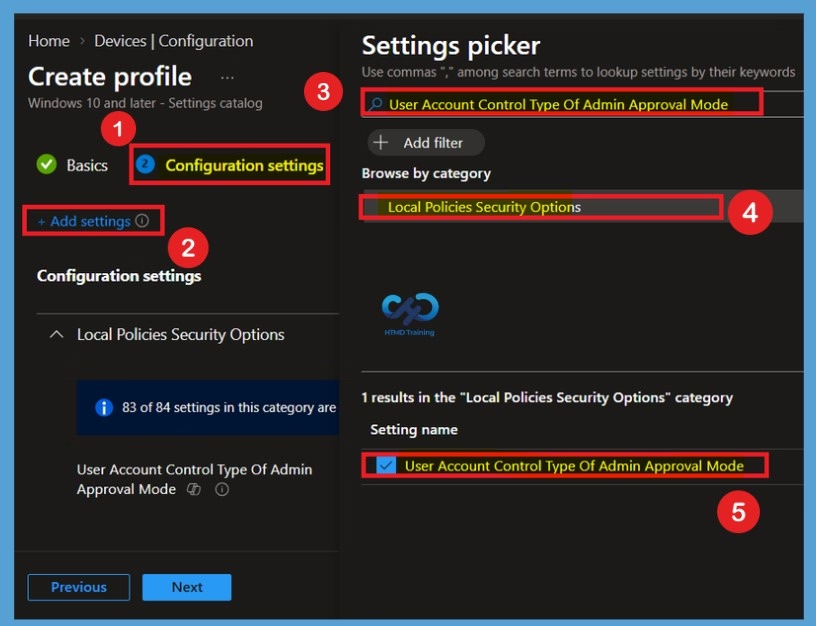
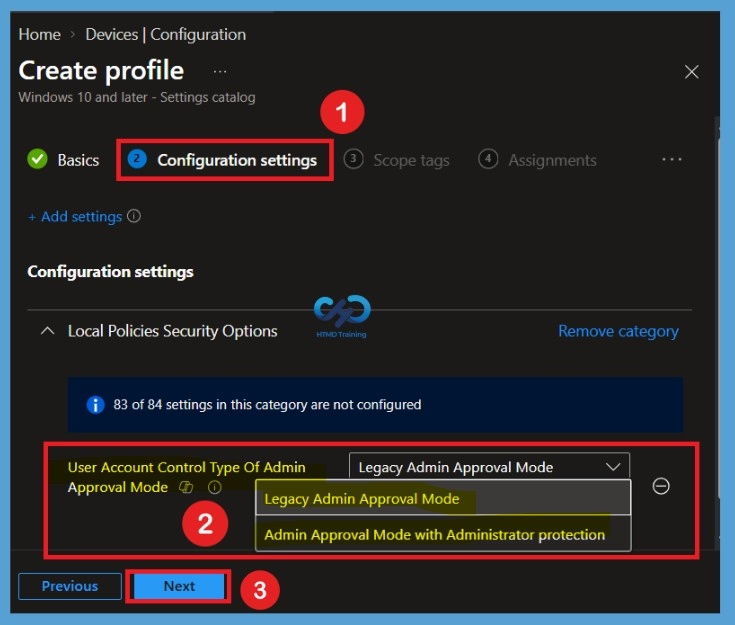
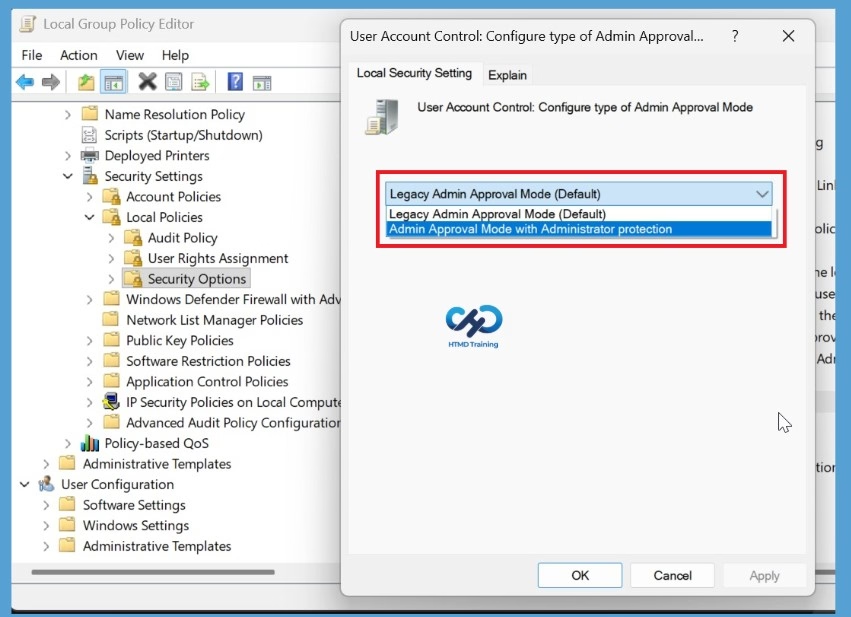
After closing the Settings Picker window, you will return to the Configuration settings page, where the selected policy is displayed. The setting provides two options, Legacy Admin Approval Mode and Admin Approval Mode with Administrator protection. To follow Microsoft’s temporary workaround, reset the User Account Control Type Of Admin Approval Mode policy rather than selecting either option.
This policy helps to User Account Control: Configure type of Admin Approval Mode. This policy setting controls whether Administrator protection is applied to admin approval mode elevations. If you change this policy setting, you must restart your computer. This policy is only supported on Windows Desktop, not Server. The options are Admin Approval Mode is running in legacy mode (default).
- Admin Approval Mode is running with Administrator protection.
- This helps administrators apply the workaround without manually choosing a different setting value.
Workaround using Group Policy
Administrators can also use Group Policy to apply this workaround to affected computers. Open the Group Policy Management Console and edit the Group Policy (GPO) that applies to the Remote Desktop host devices. Go to Computer Configuration > Windows Settings > Security Settings > Local Policies > Security Options.
Find the User Account Control and Configure type of Admin Approval Mode policy and reset it as Microsoft recommends. Apply the updated policy to the affected computers and check whether the changes have taken effect. Then, test the Remote Desktop connection using a non-admin account to see whether the issue is resolved.
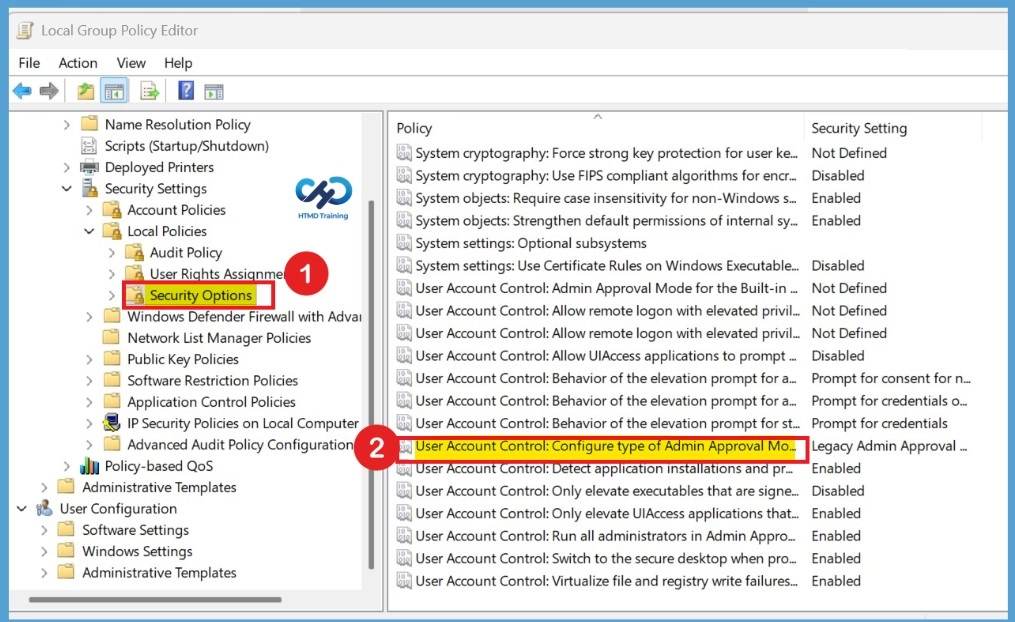
This policy setting controls whether Administrator protection is applied to admin approval mode elevations. If you change this policy setting, you must restart your computer. This policy is only supported on Windows Desktop, not Server. The options are:
- Admin Approval Mode is running in legacy mode (Default)
- Admin Approval Mode is running with Administrator protection
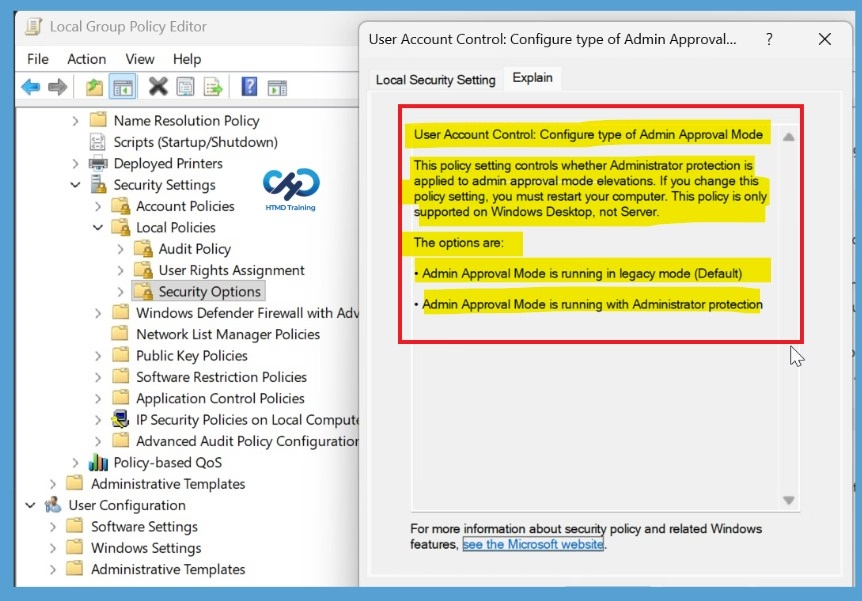
User Account Control: Configure type of Admin Approval Mode policy in the Local Group Policy Editor. Under this setting, two options are available: Legacy Admin Approval Mode (Default) and Admin Approval Mode with Administrator protection. Administrators can use this policy to configure the type of Admin Approval Mode on Windows devices. For the Remote Desktop connection issue, Microsoft recommends resetting the policy as a temporary workaround rather than manually selecting an option.
Permanent Fix for the 0xC000000D Issue
Microsoft is working on a permanent fix for this Remote Desktop connection problem. The issue can occur after installing the September 22, 2026, preview update KB5124010 or a later update on affected Windows 11 devices. Until Microsoft releases a fix through a future Windows update, administrators can use the temporary workaround to help restore Remote Desktop connections. Microsoft will share more information about the permanent fix when it becomes available.
Need Further Assistance or Have Technical Questions?
Join the LinkedIn Page and Telegram group to get the latest step-by-step guides and news updates. Join our Meetup Page to participate in User group meetings. Also, join the WhatsApp Community and the Whatsapp channel to get the latest news on Microsoft Technologies. We are there on Reddit as well.
Author
Anoop C Nair is Workplace Technology solution architect with 25+ years of experience in global enterprise organizations such as JP Morgan, Capgemini, etc. He is Microsoft Certified Trainer. Microsoft MVP from 2015 onwards for consecutive 11 years! He also conducts Intune and modern workplace tech training for enterprise organizations. He is Blogger, Speaker, and Founder of HTMD Community and HTMD Conference. His focus is on Device Management technologies such as Intune, Windows, Cloud PC. He writes about technologies like Intune, SCCM, Windows, Cloud PC, Windows, Entra, Microsoft Security.