
Key Takeaways
- Hard Deletion Protection in Microsoft Entra ID to Prevent Accidental and Malicious Deletions
- Protects critical objects from malicious or accidental hard deletions.
- Protected objects cannot be permanently deleted for 7 days after soft deletion.
- Provides time to investigate deletion activities and recover important objects.
- Once enabled, you cannot remove or disable protection.
- The protection setting cannot be undone for objects that are protected.
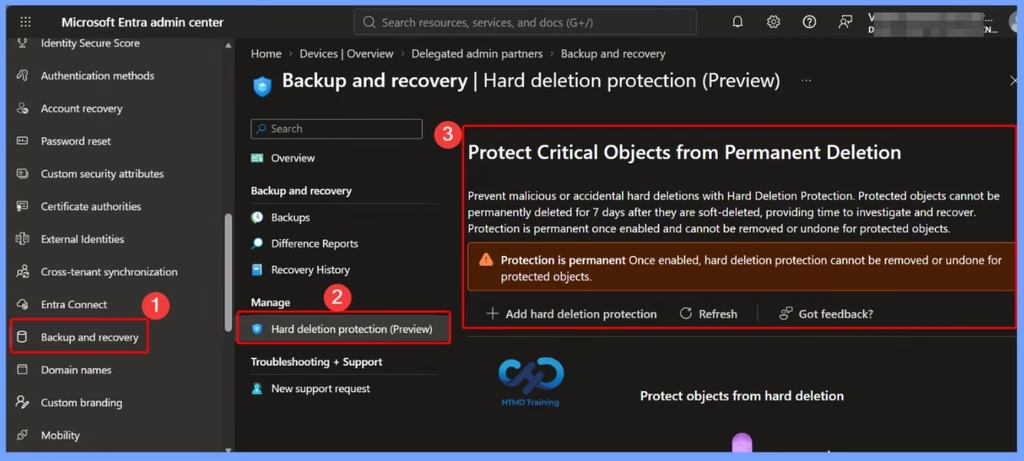
Hard Deletion Protection helps organisations protect critical objects from permanent deletion caused by malicious activities or accidental administrative actions. When enabled, this protection prevents any soft-deleted protected object from being permanently deleted for 7 days.
Table of Content
Table of Contents
Prevent Accidental and Malicious Deletions with Hard Deletion Protection in Microsoft Entra ID
This 7-day protection period gives administrators sufficient time to investigate unexpected deletion activities, verify whether the deletion was intentional, and recover important objects if required. It adds an extra layer of security by reducing the risk of losing critical objects permanently.
- One important consideration is that Hard Deletion Protection is permanent once enabled.
- Administrators cannot disable, remove, or undo this protection for objects that are already protected.
- This means organisations should carefully review their requirements before enabling the feature.
- By enabling Hard Deletion Protection, administrators can improve data protection, reduce the impact of accidental or malicious deletions, and provide additional time to respond to unexpected deletion incidents.
| Hard Deletion Protection in Microsoft Entra |
|---|
| Protection is permanentOnce enabled, hard deletion protection cannot be removed or undone for protected objects. |
- Restore Deleted Microsoft Entra Devices Without Losing BitLocker or LAPS Data using Device Soft Delete
- How to Restore Deleted Cloud Security Groups in Microsoft Entra ID
- Track All Intune Policy and App Assignments for Users Devices and Entra ID Groups with Assignment Checker
- How to Assign Custom Intune Role Based Access to Azure AD Groups using Microsoft Entra PIM
- Create AAD Dynamic Groups based on Domain Join Type Hybrid Azure AD and Azure AD
- Best Practices for Creating Entra ID Dynamic Groups for Intune
Need Further Assistance or Have Technical Questions?
Join the LinkedIn Page and Telegram group to get the latest step-by-step guides and news updates. Join our Meetup Page to participate in User group meetings. Also, join the WhatsApp Community and the Whatsapp channel to get the latest news on Microsoft Technologies. We are there on Reddit as well.
Author
Anoop C Nair is Workplace Technology solution architect with 25+ years of experience in global enterprise organizations such as JP Morgan, Capgemini, etc. He is Microsoft Certified Trainer. Microsoft MVP from 2015 onwards for consecutive 11 years! He also conducts Intune and modern workplace tech training for enterprise organizations. He is Blogger, Speaker, and Founder of HTMD Community and HTMD Conference. His focus is on Device Management technologies such as Intune, Windows, Cloud PC. He writes about technologies like Intune, SCCM, Windows, Cloud PC, Windows, Entra, Microsoft Security.