
Key Takeaways
- Microsoft Intune Remote Lock is currently available in Preview.
- Administrators can remotely lock Windows devices without wiping organizational or user data.
- Administrators can configure the LockState setting through a custom OMA-URI configuration profile.
- The lock remains effective across device restarts and while the device is offline.
In this post we are discussing Protect Windows Devices from Unauthorized Access with Remote Lock using Microsoft Intune. Microsoft has introduced the Remote Lock feature in Microsoft Intune (Preview), allowing administrators to remotely lock Windows devices without performing a factory reset or wiping device data. This feature is useful when an organization needs to protect a lost, stolen, or potentially compromised Windows device. Previously, administrators had to use on other device management and security actions to protect organizational data on missing devices. With Remote Lock, admins can now prevent unauthorized access by remotely locking a managed Windows device through an Intune configuration policy.
Table of Contents
Table of Contents
Protect Windows Devices from Unauthorized Access with Remote Lock using Microsoft Intune
When the device receives the remote lock policy, Windows automatically signs out all active user sessions, hides the available sign-in options, and displays an organization-specific locked screen. The device remains enrolled and managed in Intune, and existing user data is not erased. The Remote Lock feature provides an additional security option between leaving a missing device accessible and performing a complete device wipe. Administrators can also remotely unlock the device by deploying a separate configuration policy, allowing the device to return to its normal operating state.
- Configure Exchange Web Services (EWS) Retirement Alerts on macOS Devices using Intune
- How to Allow Adding Non Microsoft Accounts Manually Using Intune Setting Catalog
- How to Allow Importing of Autofill Form Data in Microsoft Edge Via Setting Catalog in Intune
Configure Windows Remote Lock using Microsoft Intune
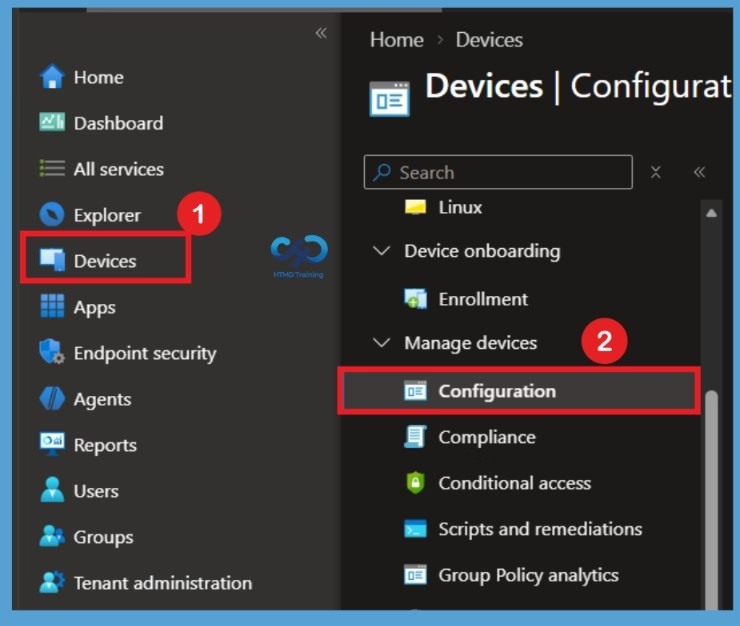
IT admins can configure Windows Remote Lock by creating a custom configuration profile in the Microsoft Intune admin center. The profile uses the RemoteDeviceLock Configuration Service Provider to remotely lock Windows devices without wiping their data. For that first sign in to the MS Intune Admin Center and navigate to Devices > Windows > Configuration.
Create a Profile
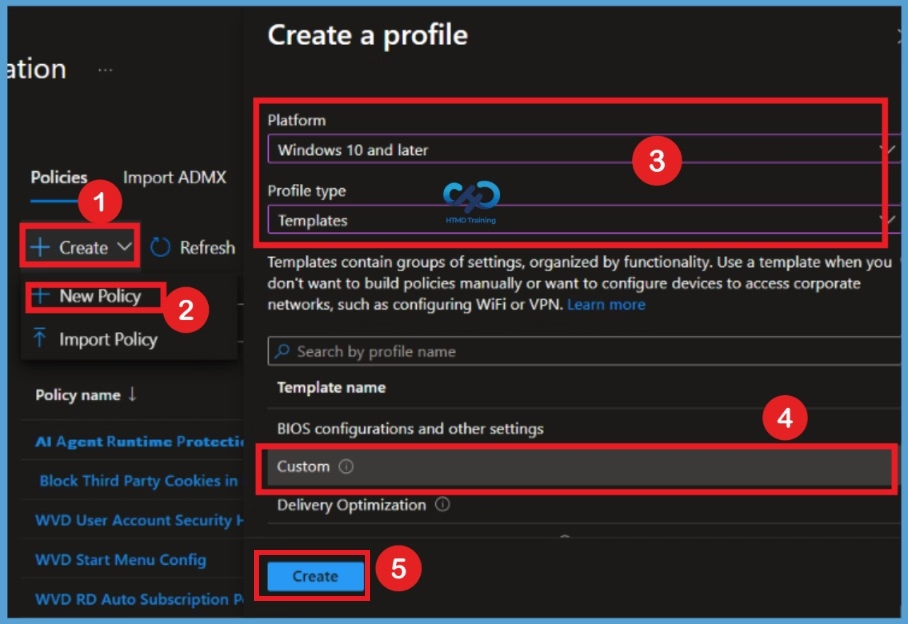
rom the Configuration profiles page, select Create and then choose New policy to start creating a new configuration profile. Under the Platform dropdown, select Windows 10 and later. For the Profile type, select Templates, and then choose Custom. This profile type allows administrators to configure custom OMA-URI settings using the RemoteDeviceLock Configuration Service Provider (CSP). After selecting the required options, click Create to open the configuration profile wizard.

Basic Tab
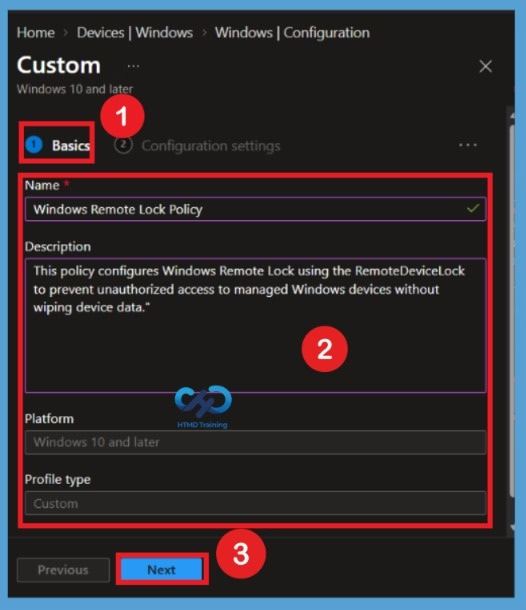
On the Basics page, enter the configuration profile details. Provide a suitable name, such as Windows Remote Lock Policy, in the Name field. In the Description field, enter an explanation, such as “This policy configures Windows Remote Lock using the RemoteDeviceLock to prevent unauthorized access to managed Windows devices without wiping device data.” After entering the name and description, click Next to continue.
Configuration Settings
After entering the required details on the Basics page, click Next to proceed to the Configuration settings page. Here, you can see the Add option, which allows you to add custom OMA-URI settings for the Windows Remote Lock configuration. On the Configuration settings page, you need to add the custom OMA-URI settings required to enable Remote Lock. Select Add to configure the settings.
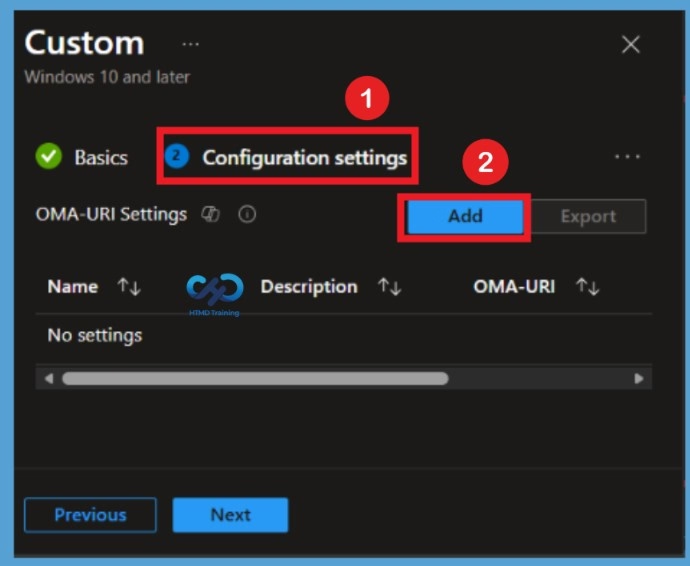
Configuration Settings – Add a Row
When you click Add, an Add Row section appears where you need to enter the custom OMA-URI setting details, including Name, Description, OMA-URI, Data type, and Value. Enter Windows Remote Lock Policy as the Name and provide a suitable description explaining the purpose of the configuration. You can use the same name and description that you entered on the Basics page.
In the OMA-URI field, enter “./Device/Vendor/MSFT/RemoteDeviceLock/LockState”. Select Integer as the Data type and enter 1 as the Value to enable the remote lock state. After entering all the required details, click Save to add the OMA-URI setting to the configuration profile.
| OMA-URI Details | Info |
|---|---|
| Name | Windows Remote Lock Policy |
| Description | This policy configures Windows Remote Lock using the RemoteDeviceLock to prevent unauthorized access to managed Windows devices without wiping device data |
| OMA-URI | ./Device/Vendor/MSFT/RemoteDeviceLock/LockState |
| Data type | Integer |
| Value | Value 1 |
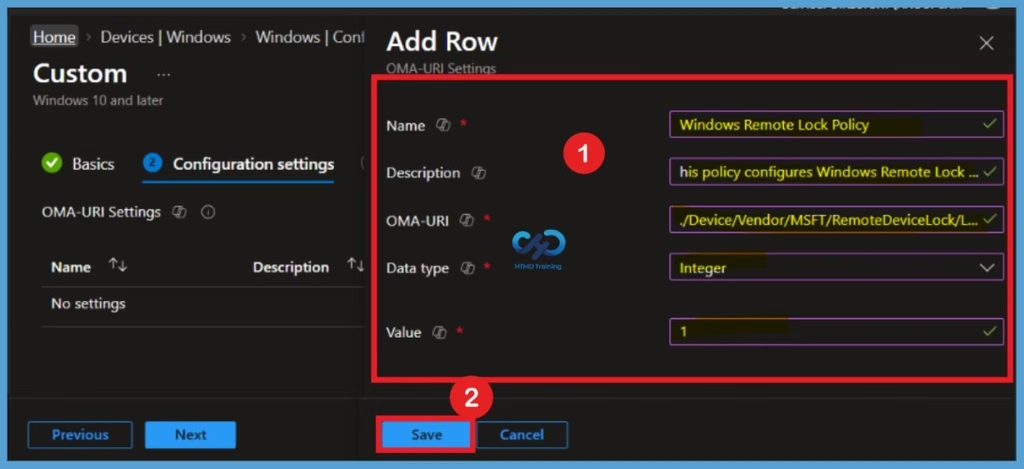
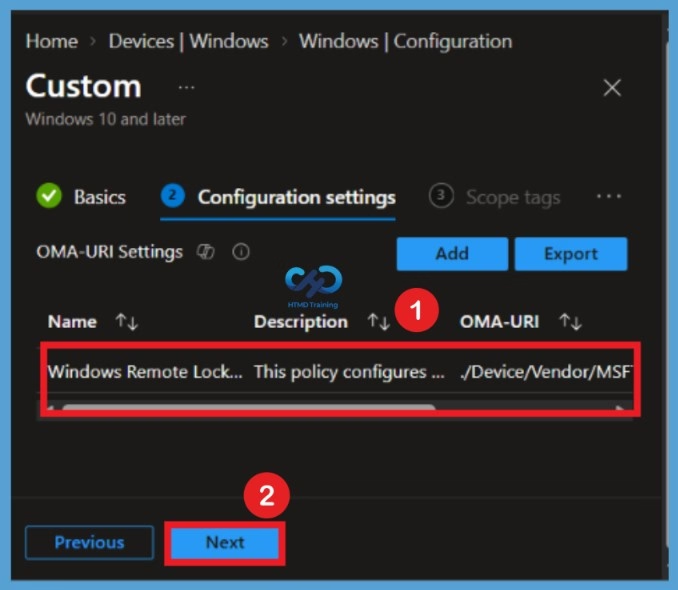
After entering all the required details for the OMA-URI setting, click Save to add the configuration to the profile. Once saved, you can see the newly added OMA-URI setting listed on the Configuration settings page. If you need to make any changes, select the 3-dot menu next to the configured setting and choose the Edit option to update its details.
- After verifying that the OMA-URI setting has been added successfully, click Next to continue to the Scope tags page.
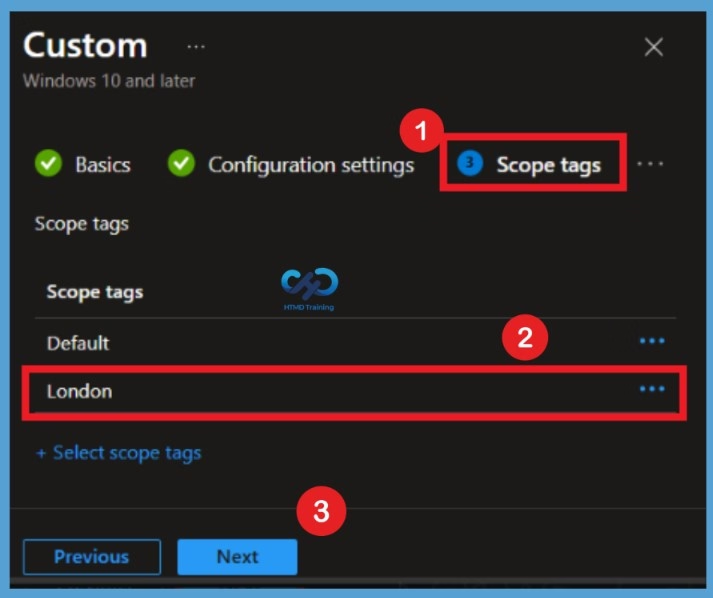
Scope Tag
On the Scope tags page, you can assign scope tags to control which Intune administrators can view and manage the configuration profile. Here, select the London scope tag from the available list. This helps associate the configuration profile with the appropriate administrative scope. After selecting the scope tag, click Next to continue to the Assignments page.
Assignment Section
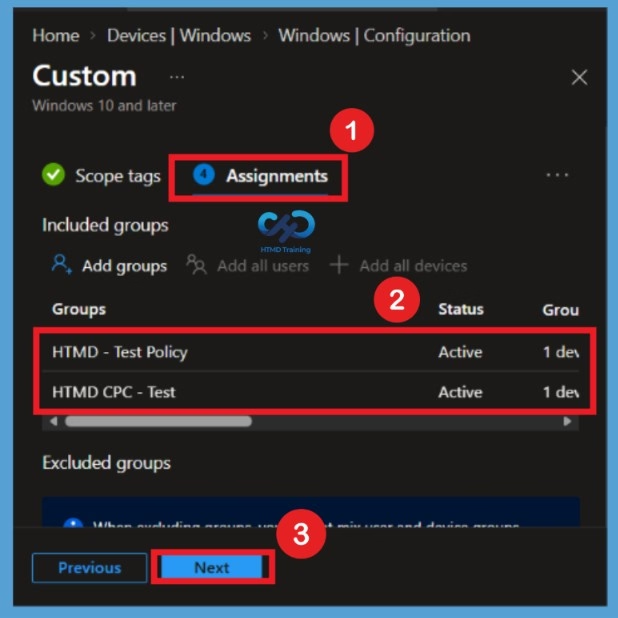
On the Assignments page, you can select the device groups that should receive the Windows Remote Lock configuration profile. Here, select HTMD Test Policy and HTMD CPC Test under Included groups. These groups are used to assign the configuration profile to the test devices.
Applicability Rules
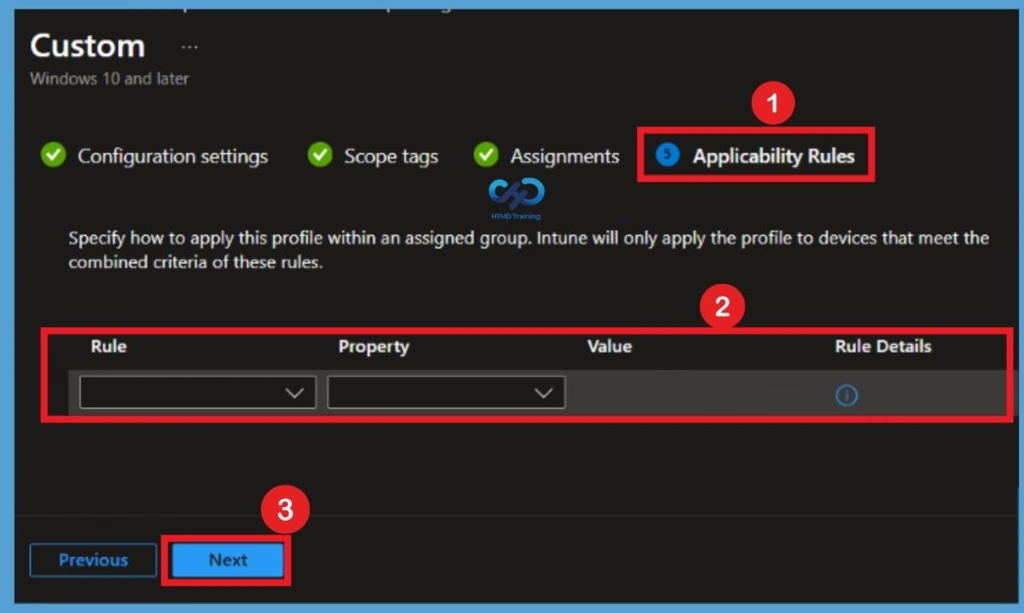
On the Applicability rules page, you can set additional conditions to decide which devices should receive the configuration profile. These rules help you filter devices based on their operating system version or edition. For this configuration, we don’t need to add any applicability rules. Leave the default settings unchanged and click Next.
Review + Create
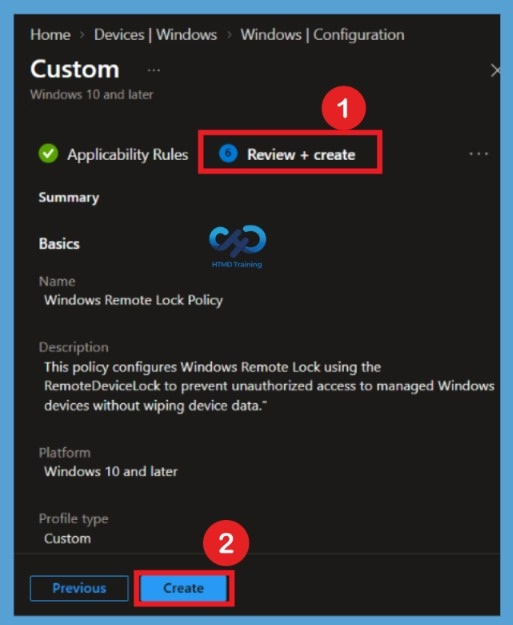
On the Review + create page, you can review all the configuration details before creating the policy. Verify the profile name and description, custom OMA-URI settings. Make sure that the LockState setting is configured with an Integer value of 1 to enable the remote lock functionality. Once you have confirmed that all the settings are correct, click Create to complete the configuration profile creation process. The Windows Remote Lock configuration profile will be created successfully in the Microsoft Intune admin center.
What the User Sees
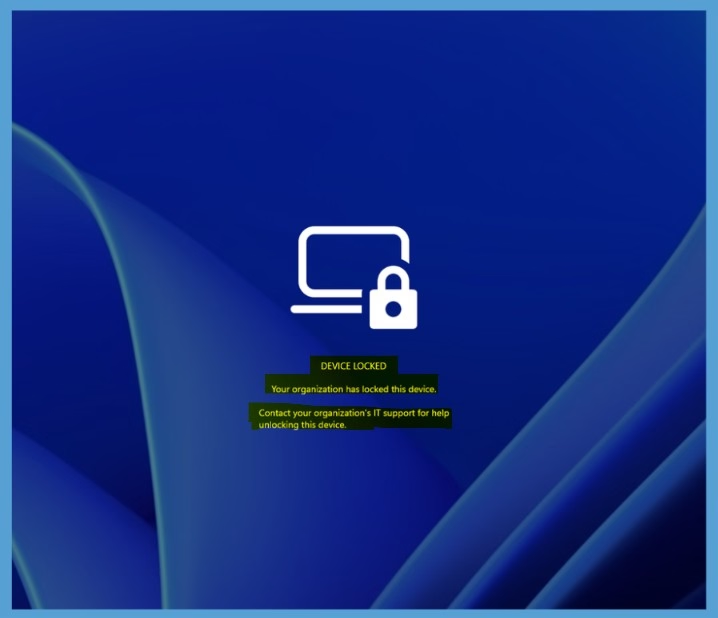
When the Windows device receives the Remote Lock policy, users will see a locked screen with a laptop-and-lock icon and a message stating that their organization has locked the device. The screen also instructs users to contact their organization’s IT support team for help unlocking the device.
- LockReason and RecoveryHint add your own reason and help desk contact.
Need Further Assistance or Have Technical Questions?
Join the LinkedIn Page and Telegram group to get the latest step-by-step guides and news updates. Join our Meetup Page to participate in User group meetings. Also, join the WhatsApp Community and the Whatsapp channel to get the latest news on Microsoft Technologies. We are there on Reddit as well.
Author
Anoop C Nair is Workplace Technology solution architect with 25+ years of experience in global enterprise organizations such as JP Morgan, Capgemini, etc. He is Microsoft Certified Trainer. Microsoft MVP from 2015 onwards for consecutive 11 years! He also conducts Intune and modern workplace tech training for enterprise organizations. He is Blogger, Speaker, and Founder of HTMD Community and HTMD Conference. His focus is on Device Management technologies such as Intune, Windows, Cloud PC. He writes about technologies like Intune, SCCM, Windows, Cloud PC, Windows, Entra, Microsoft Security.