
Key Takeaways
- Microsoft Intune introduces management support for eligible Windows Server Insider Preview builds.
- Apply supported configuration policies and evaluate server compliance using Microsoft Intune.
- Deploy supported Win32 applications and monitor their installation status.
- Manage supported Windows Server update settings using Windows Autopatch.
- Use Microsoft Entra Conditional Access to require compliant devices for supported access to organizational resources.
In this post we are discussing the Microsoft Intune Extends Device Management to Windows Servers with Policy App and Update Management. Microsoft has introduced Windows Server management support in Microsoft Intune, allowing organizations to manage eligible Windows Server devices alongside their existing Windows PCs. This new capability was announced at Microsoft Ignite 2026 and is currently available as an Insider Preview for testing. Many organizations continue to use Windows Servers for important business operations, including remote desktop sessions, branch-office services, development environments, and privileged access workstations.
Table of Contents
Table of Contents
Microsoft Intune Extends Device Management to Windows Servers with Policy App and Update Management
These servers are often managed separately using traditional tools such as Group Policy, Configuration Manager, and PowerShell scripts. Microsoft is now extending familiar endpoint management capabilities to eligible Windows Servers through Intune. With this preview, IT administrators can use Microsoft Intune to configure supported server settings, manage device compliance, deploy applications, and manage updates.
Administrators can also use device compliance with Microsoft Entra Conditional Access to help control access to organizational resources. These capabilities bring Windows Server management closer to the existing Windows endpoint management experience.
- 8 New Windows 365 Capabilities | Intune MAM Support for Windows App on Unmanaged Devices
- Supporting Secure Login Practices Through NTLM Auditing using Intune Policy
- How to Create Intune Audit Credential Validation Policy
- Securing SMB Communication with Intune using Digitally Sign Communications Policy
What’s New in this Update
Microsoft is bringing Windows Server management to Microsoft Intune, allowing administrators to manage eligible servers alongside Windows PCs. With this preview, administrators can configure server settings, check device compliance, deploy applications, and manage updates using Intune. They can also use assignment filters, roles, and scope tags to control which servers are managed and who can access them. This makes it easier for IT teams to manage both Windows Servers and PCs from the same Intune admin center.

| Update | Info |
|---|---|
| Announcement | Microsoft Intune now supports managing eligible Windows Server devices alongside Windows PCs through a Windows Server Insider Preview. |
| Management Capabilities | Deploy Settings Catalog policies, compliance policies, Win32 apps, Windows updates, and Conditional Access policies to Windows Servers. |
| Azure Arc Relationship | Intune and Azure Arc are complementary. Intune focuses on endpoint-style management, while Azure Arc remains the primary platform for infrastructure, governance, and hybrid server management. |
Identify Windows Server Devices in the Intune Admin Center
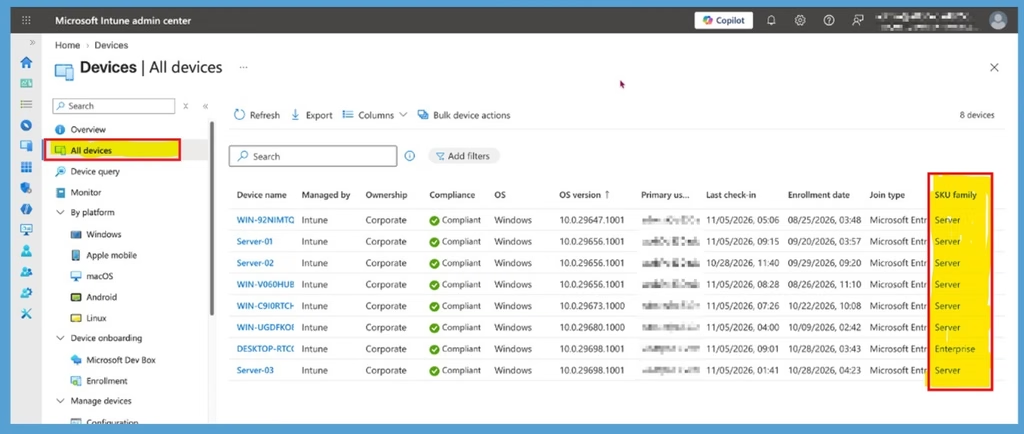
After enrolling eligible Windows Server devices, administrators can find them under Devices > All devices in the Microsoft Intune admin center. The device list displays a SKU family column that helps identify the device type. Windows Server devices appear with the Server SKU family, while Windows client devices can appear with the Enterprise SKU family. This makes it easier for administrators to identify and manage enrolled servers alongside their existing Windows devices.
Check Windows Server Operating System Details
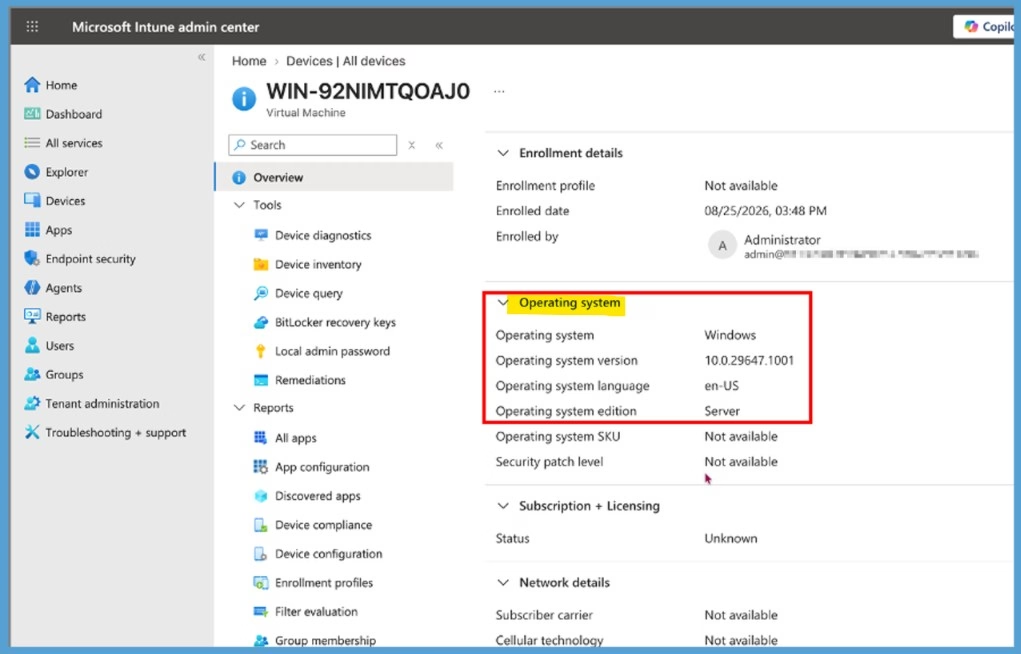
Administrators can select an enrolled Windows Server device from the All devices page to view its details. Under the Overview section, expand Operating system to check information such as the operating system name, version, language, and edition. The Operating system edition field identifies the device as Server, helping administrators distinguish Windows Server devices from Windows client devices.
Allow Windows Server Enrollment using Intune Enrollment Restrictions
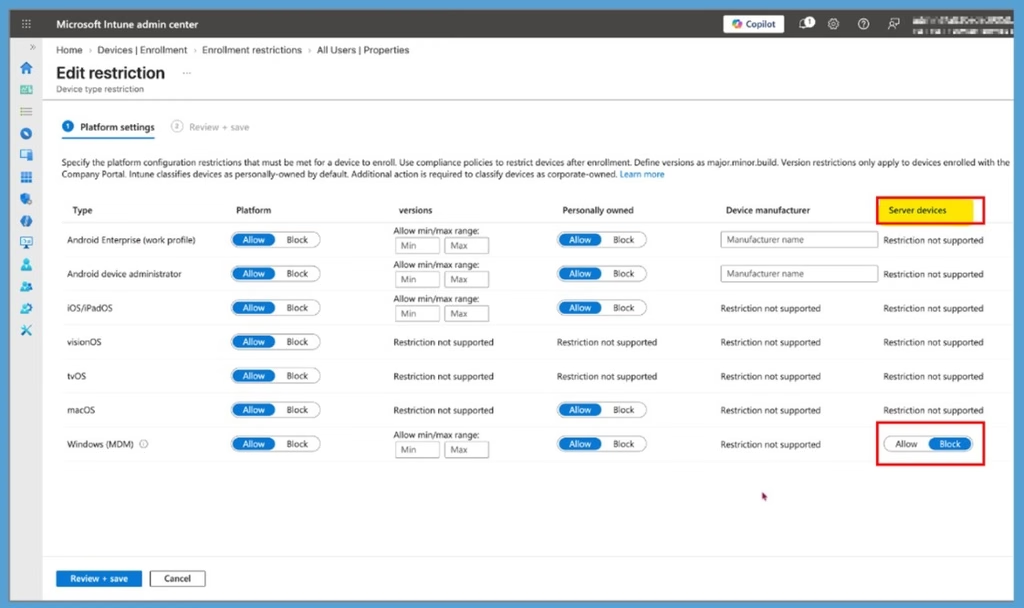
Windows Server enrollment is disabled by default in Intune. Administrators must explicitly allow server enrollment through enrollment restrictions before eligible servers can enroll. Navigate to Devices > Enrollment > Enrollment restrictions and edit the required device type restriction. Under Platform settings, locate the Server devices column for Windows (MDM) and change the setting from Block to Allow. Existing custom Windows enrollment restrictions must also be updated if they are configured to block server devices.
Intune Assignment Filter
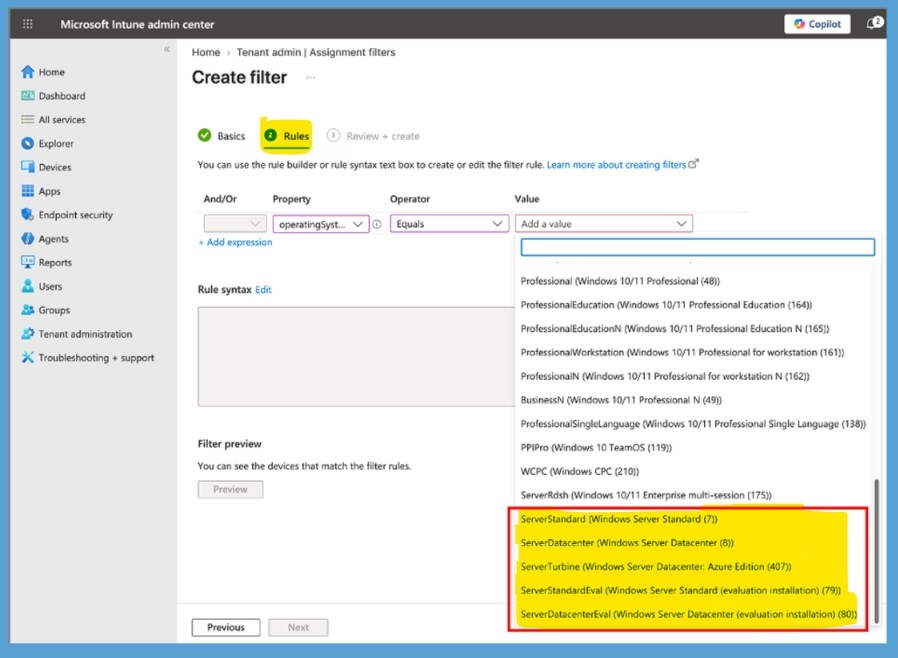
Intune assignment filter using the operatingSystemSKU property to identify and target specific Windows Server editions separately from Windows client devices. The highlighted values, such as ServerStandard, ServerDatacenter, ServerTurbine (Azure Edition), and evaluation versions, allow administrators to create server-specific filters and assign policies, applications, updates, or compliance settings only to Windows Servers.
This capability is important with Intune’s new server management support because it helps organizations prevent servers from accidentally receiving device policies intended for Windows PCs, enabling a clear separation between server and endpoint management within the same Intune environment.
- Identity and compliance improve security. Enrolled Windows Servers connect to Microsoft Entra ID, allowing organizations to check compliance and control access to company apps and resources.
- Roles and scope tags control server management. Existing Intune permissions and scope tags apply to servers, helping organizations ensure the right administrators can view and manage them.
- Filters help target the right devices. Using the operatingSystemSKU property, administrators can create server-specific filters so server policies apply only to Windows Servers and not to Windows PCs.
Need Further Assistance or Have Technical Questions?
Join the LinkedIn Page and Telegram group to get the latest step-by-step guides and news updates. Join our Meetup Page to participate in User group meetings. Also, join the WhatsApp Community and the Whatsapp channel to get the latest news on Microsoft Technologies. We are there on Reddit as well.
Author
Anoop C Nair is Workplace Technology solution architect with 25+ years of experience in global enterprise organizations such as JP Morgan, Capgemini, etc. He is Microsoft Certified Trainer. Microsoft MVP from 2015 onwards for consecutive 11 years! He also conducts Intune and modern workplace tech training for enterprise organizations. He is Blogger, Speaker, and Founder of HTMD Community and HTMD Conference. His focus is on Device Management technologies such as Intune, Windows, Cloud PC. He writes about technologies like Intune, SCCM, Windows, Cloud PC, Windows, Entra, Microsoft Security.