
Key Takeaways
- The policy is part of Intune’s Defender settings catalog for Windows 10 and later devices.
- Its purpose is to protect against ransomware by controlling how Microsoft Defender reacts to suspicious file‑locking or encryption activity.
- Admins can choose between Off, Audit, Warn, or Block depending on the level of protection needed.
- Block is the strongest option, automatically stopping ransomware‑like actions without user input.
Let’s discuss about How to Enable Advanced Protection Against Ransomware Rule for Security using Intune. This rule provides an extra layer of protection against ransomware. It scans executable files entering the system to determine whether they’re trustworthy. If the files closely resemble ransomware, this rule blocks them from running, unless they’re in a trusted list or an exclusion list.
Table of Contents
Table of Contents
How to Enable Advanced Protection Against Ransomware Rule for Security using Intune
This rule provides an extra layer of protection against ransomware. It uses both client and cloud heuristics to determine whether a file resembles ransomware. By configuring this policy, admins have many advantages.
- Enable Disable Prevent Adding New Printers Policy using Intune
- How to Fix Printer Connection Printing Problems in Windows 11
- How to Prevent Mapping of Client Printers in Remote Desktop Services Sessions using Intune
How to Start Policy Creation
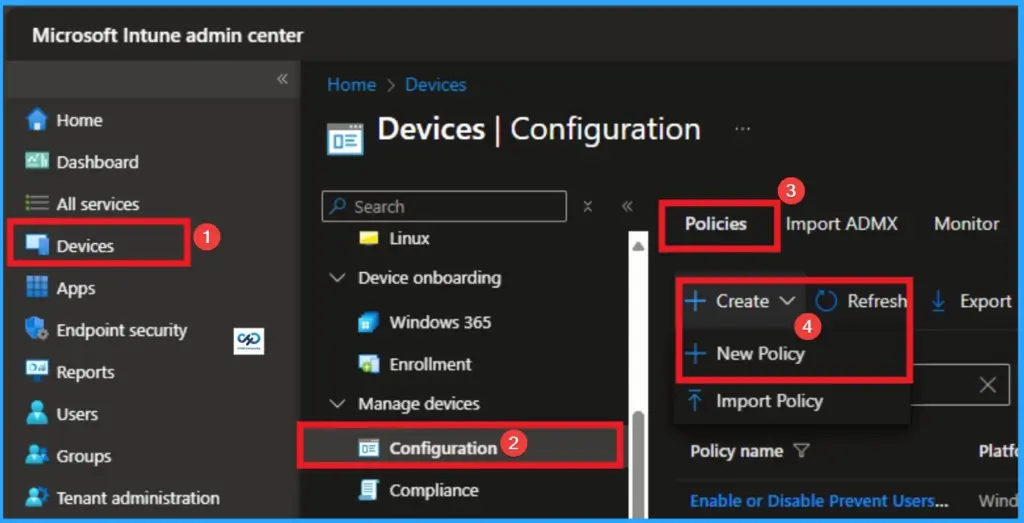
As an Admin, you can quickly configure this policy on your organisation. To start the Policy Creation, open the Microsoft Intune Admin center. Then go to Devices > Configuration >+ Create > +New Policy.
Profile Creation
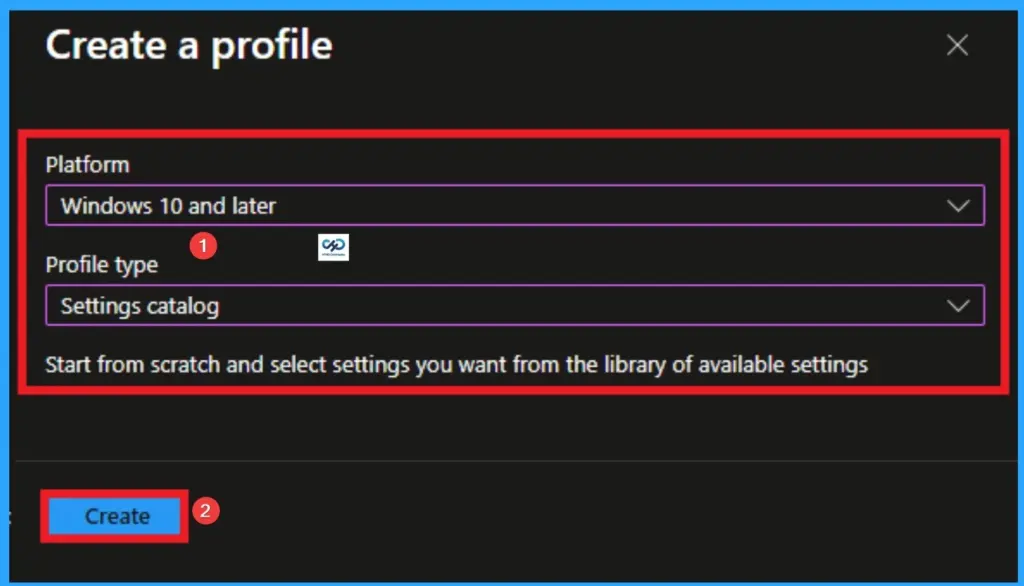
Profile creation is the necessary step that helps you to assign the policy to appropriate platform and Profile. Here I would like to configure the policy to Windows 10 and later platform and settings catalog profile. Then click on the Create button.

Filling the Basic Tab
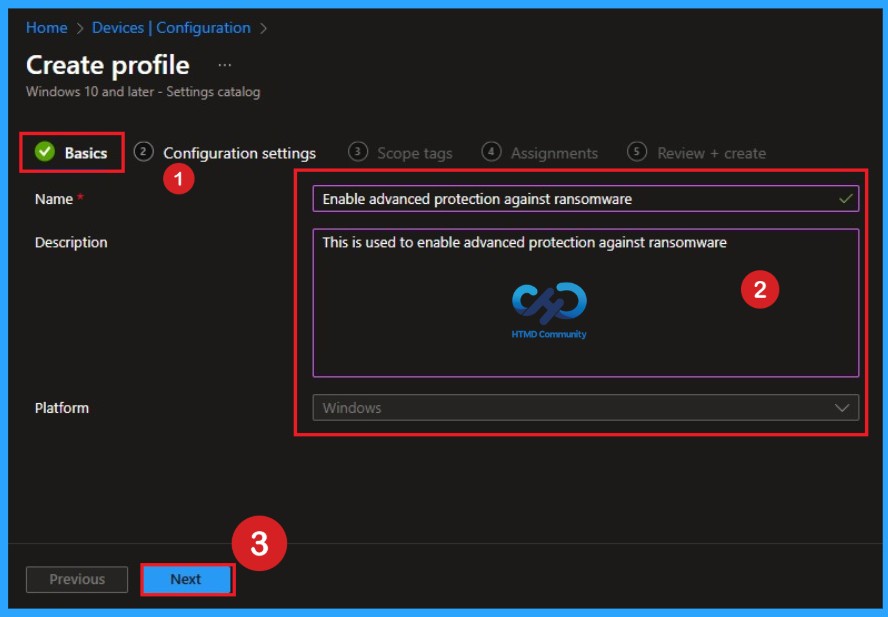
Naming the policy is the primary step that help admins to identify the policy later. This is important and necessary step that allows you to know the purpose of the policy. Here is Name is mandatory and description is optional. After adding this click on the Next button.
Configure Remote Host Allows Delegation of Non-Exportable Credentials
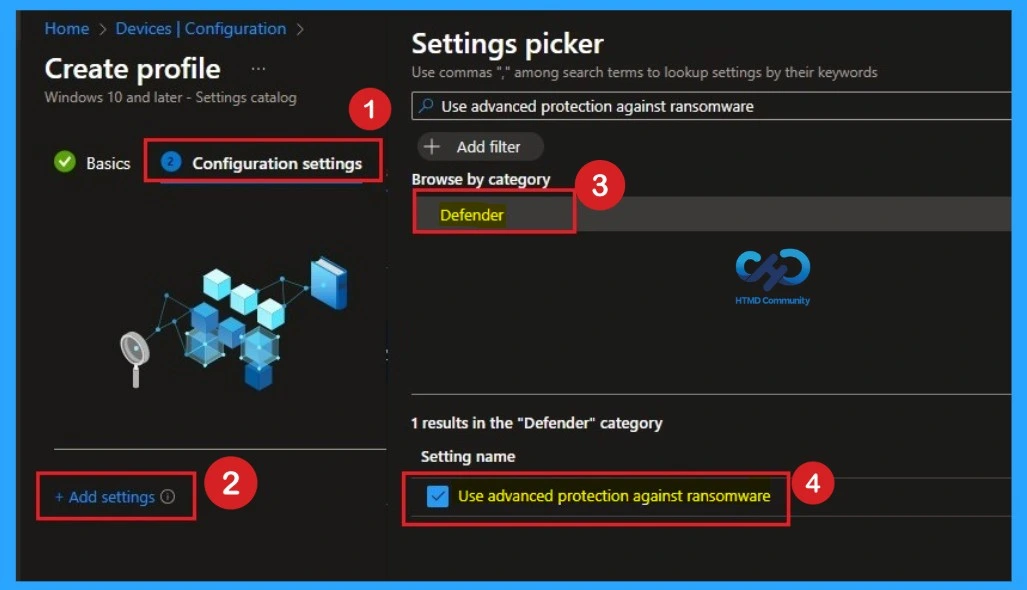
With Settings Picker, you can use the Configuration Settings Tab. On this tab, you can click on the +Add Settings hyperlink to get the Settings Picker. The settings picker shows huge number of settings. Here, I would like to select the settings by browsing by Category. I choose Defender > Use advanced protection against ransomware.
Activate Advanced Protection Against Ransomware
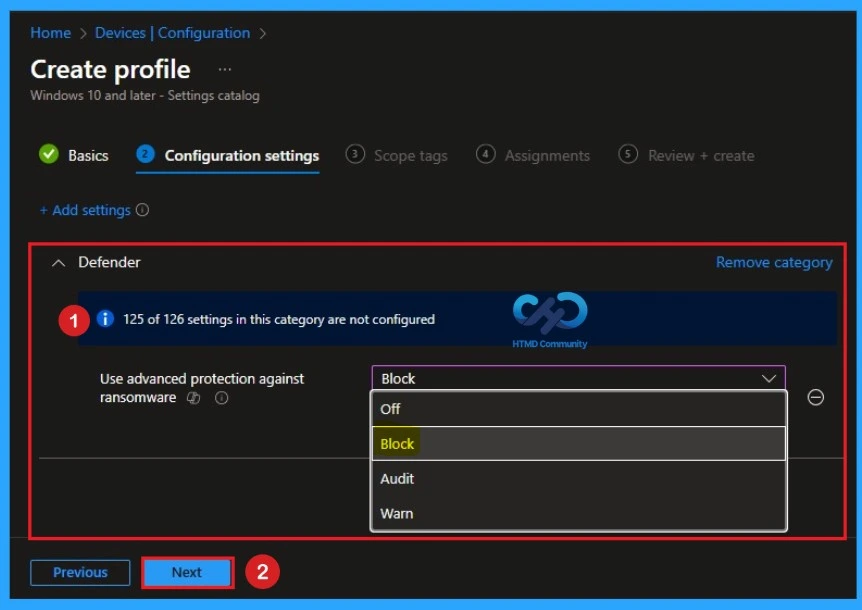
Microsoft Defender’s advanced protection against ransomware through Intune, this option lets you decide how Defender reacts when it detects ransomware‑like behavior on a Windows device. When you select Block, Intune pushes a policy that tells Defender to immediately prevent ransomware attempts, giving devices the highest level of protection.
| Policy Settings | Info |
|---|---|
| Off | No protection is applied. |
| Audit | Logs suspicious activity but doesn’t block it. |
| Warn | Alerts the user but allows them to choose what to do |
| Block | Automatically stops ransomware‑style actions without asking the user. |
Scope Tags
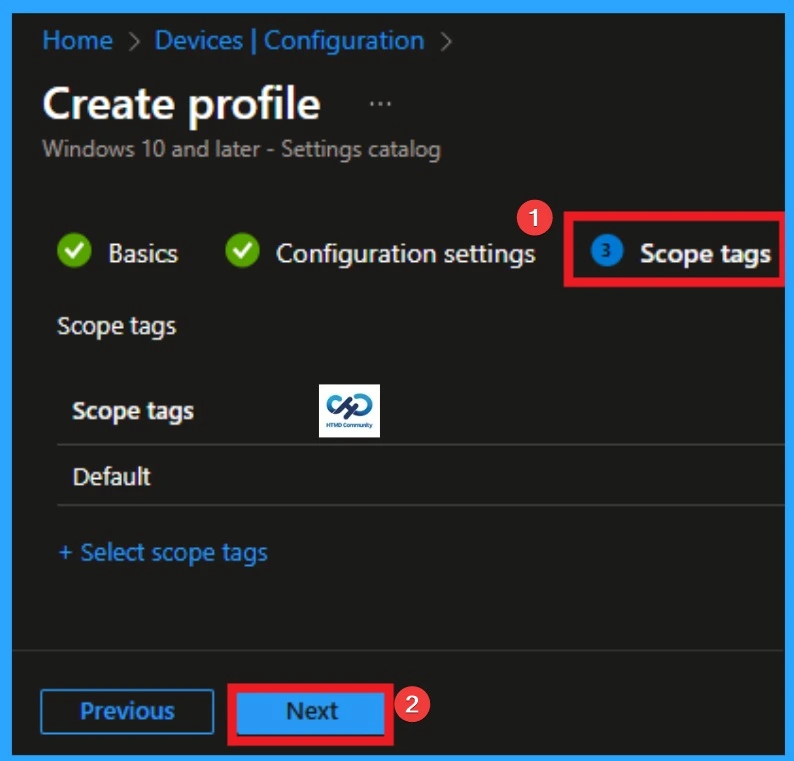
With scope tags, you create a restriction to the visibility of the MPR Notifications. It helps to organise resources as well. Here, I would like to skip this section, because it is not mandatory. Click on the Next button.
Assignments Tab for Selecting Group
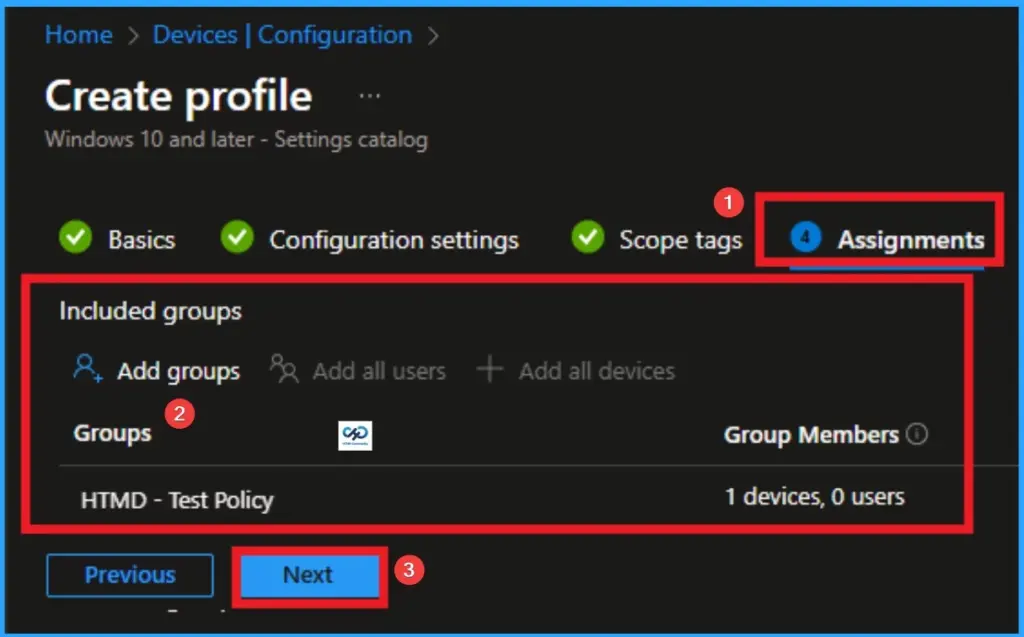
To assign the policy to specific groups, you can use the Assignment Tab. Here I click, +Add groups option under Included groups. I choose a group from the list of groups and click on the Select button. Again, I click on the Select button to continue.
Review + Create Tab
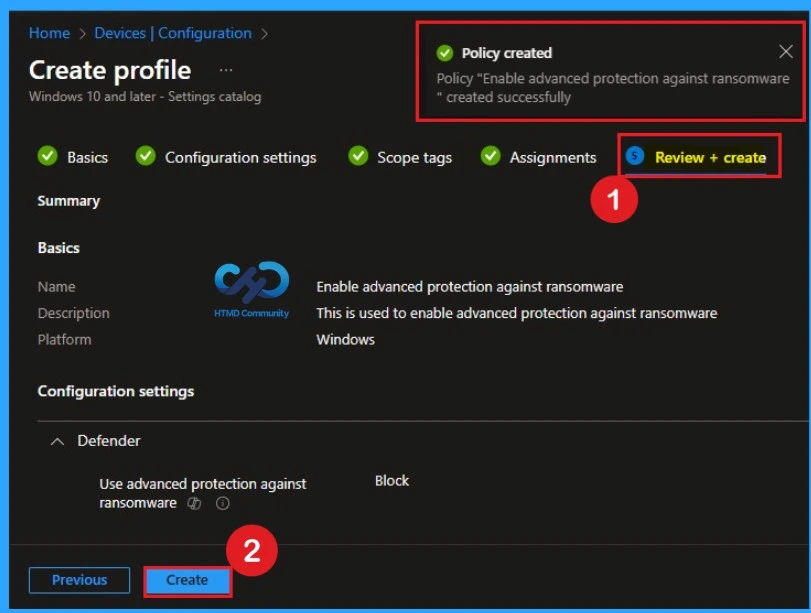
Before completing the policy creation, you can review each tab to avoid misconfiguration or policy failure. After verifying all the details, click on the Create Button. After creating the policy, you will get a success message.
Monitoring Status
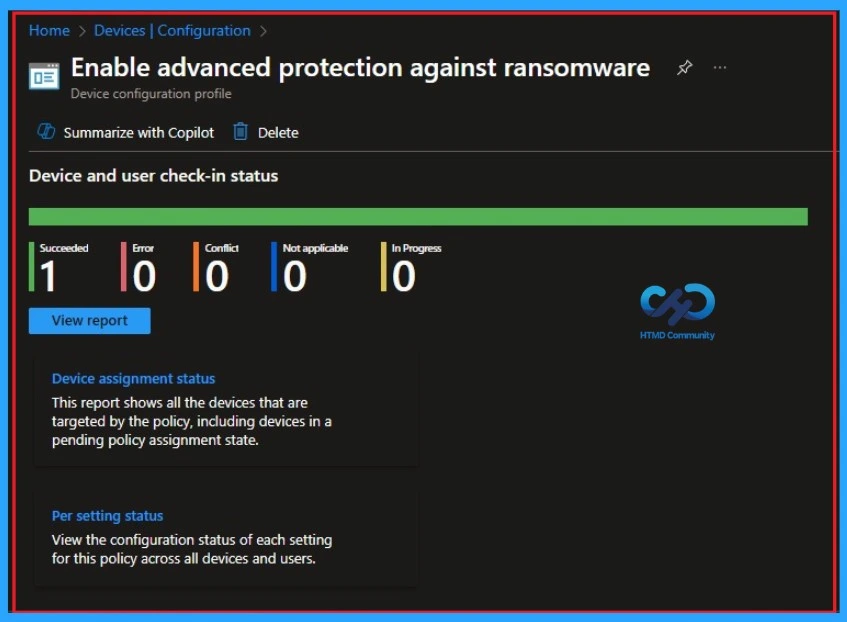
The Monitoring Status page shows whether the policy has succeeded or not. To quickly configure the policy and take advantage of the policy sync the assigned device on Company Portal. Open the Intune Portal. Go to Devices > Configuration > Search for the Policy. Here, the policy shows as successful.
Event Viewer Details
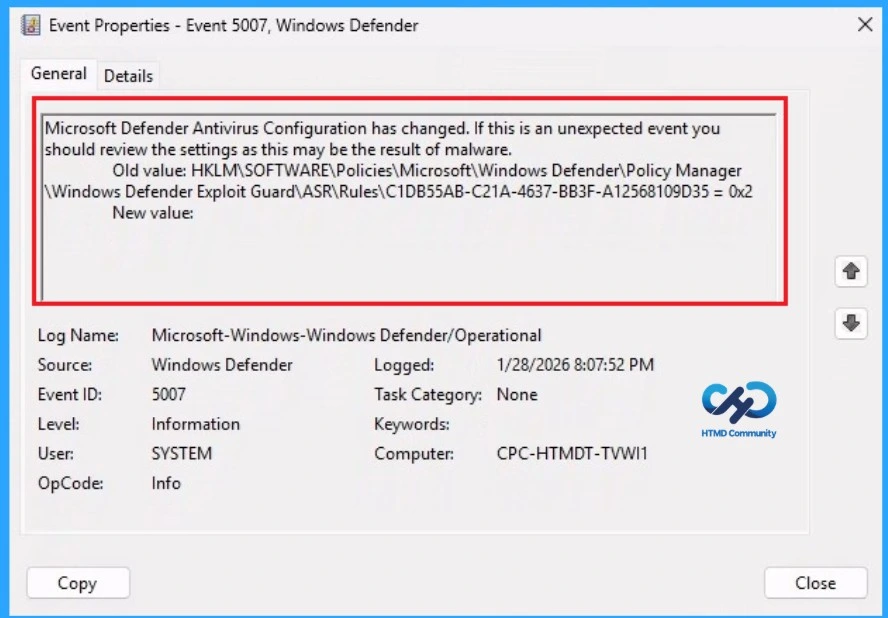
Event Viewer helps you check the client side and verify the policy status. Open the Client device and open the Event Viewer. Go to Start > Event Viewer. Navigate to Logs: In the left pane, go to Application and Services Logs > Microsoft > Windows > DeviceManagement-Enterprise-Diagnostics-Provider > Admin.
Removing the Assigned Group from Prevent Hackers from Stealing Credentials Settings
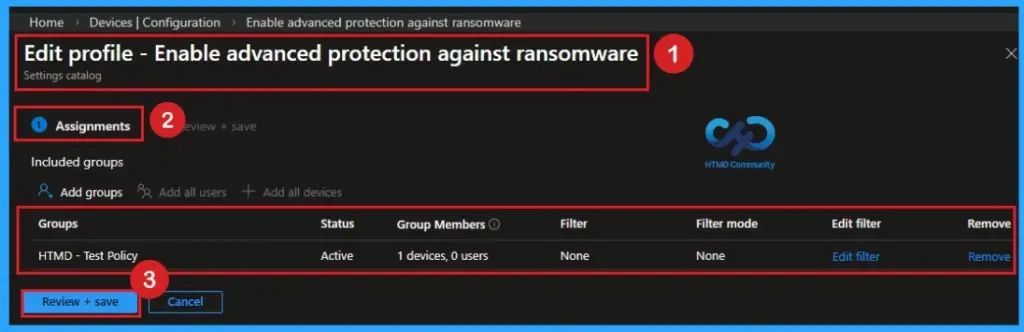
If you want to remove the Assigned group from the policy, it is possible from the Intune Portal. To do this, open the Policy on Intune Portal and edit the Assignments tab and the Remove Policy.
To get more detailed information, you can refer to our previous post – Learn How to Delete or Remove App Assignment from Intune using by Step-by-Step Guide.
How to Delete Prevent Hackers from Stealing Credentials
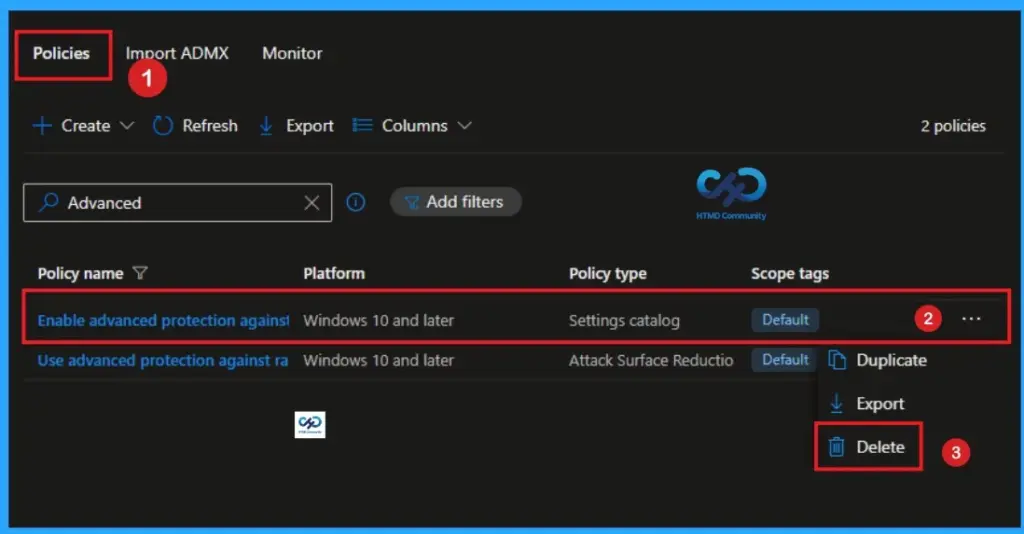
You can easily delete the Policy from the Intune Portal. From the Configuration section, you can delete the policy. It will completely remove it from the client devices.
For detailed information, you can refer to our previous post – How to Delete Allow Clipboard History Policy in Intune Step by Step Guide.
Need Further Assistance or Have Technical Questions?
Join the LinkedIn Page and Telegram group to get the latest step-by-step guides and news updates. Join our Meetup Page to participate in User group meetings. Also, join the WhatsApp Community and the WhatAapp channel to get the latest news on Microsoft Technologies. We are there on Reddit as well.
Author
Anoop C Nair is a Workplace Technology solution architect with 25+ years of experience. Microsoft Certified Trainer. Microsoft MVP from 2015 onwards for consecutive 11+ years! He is a blogger, Speaker, and Founder of HTMD Community and HTMD Conference. His main focus is on Device Management technologies like Intune, Windows, and Cloud PC. He writes about technologies like Intune, SCCM, Windows, Cloud PC, Entra, and Microsoft Security.