
Key Takeaways
- Users get an automatic email when their Cloud PC is ready.
- This is done using Power Automate or Azure Logic Apps.
- The process starts when a Cloud PC is created.
- The system finds the user and sends their email notification.
- It saves time and removes the need for manual IT emails.
Automated Email Notification for Windows 365 Cloud PC Provisioning using Power Automate and Azure Logic Apps! When a Windows 365 Cloud PC is created for a user, the system can automatically send them an email saying their Cloud PC is ready. This means IT staff do not need to send emails manually. This is done using Power Automate or Azure Logic Apps. These can monitor events such as when a new Cloud PC is created and then automatically perform a series of actions without any manual effort.
Table of Contents
Table of Contents
Automated Email Notification for Windows 365 Cloud PC Provisioning using Power Automate and Azure Logic Apps
To set up this flow, the user must have the right admin permissions. They should be a Global Administrator, Intune Service Administrator, or Windows 365 Administrator. They can also use a custom role, but it must include Windows 365 permissions like webhook create and delete. These permissions are needed to allow the flow to work with Cloud PC events.
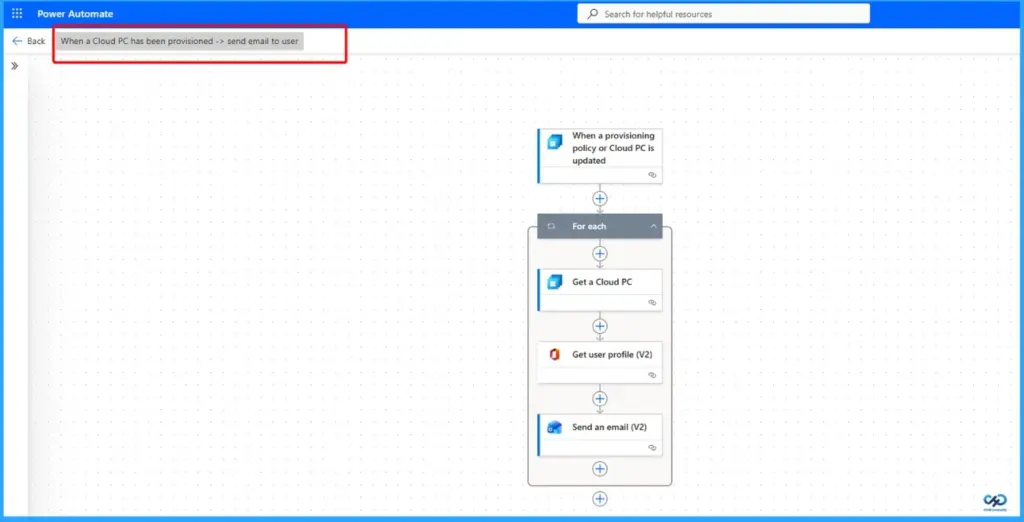
- When a cloud PC has been provisioned > Send email to user
- When a provisioning policy or cloud pc is updated
- For each
- Get a Cloud PC
- Get user profile v2
- Send an Email v2
- How to Create Remote Connection Experience Settings for Windows 365 Cloud PCs
- How to Configure AI-Enabled Features for Windows 365 Cloud PCs
- How to Configure New Windows App Settings for Windows 365 using Intune
- Easy Method to Deploy Windows App Mob for iOS and iPadOS using Intune
How to Build an Email Notification for Windows 365 Cloud PC in Power Automate
You can create a flow in Power Automate that automatically sends an email when a Windows 365 Cloud PC is created. This setup uses a trigger and a few simple actions to get user details and send the message.
| Steps |
|---|
| 1. Sign in to Power Automate 2. Click New > choose Automated cloud flow 3. Give your flow a name 4. Select the trigger “When a Cloud PC is created or updated” 5. Choose “When a Cloud PC is created” from the dropdown 6. Add the “Get Cloud PC” action 7. Use the Cloud PC ID from the trigger 8. Add “Get user profile (V2)” action 9. Use User Principal Name from Cloud PC details 10. Add “Send an email (V2)” action 11. Set the user email (UPN) in the To field 12. Add a subject and email content (like Cloud PC ready message) 13. Click Save to activate the flow 14. Once done, users will automatically get an email when their Cloud PC is ready, without any manual work from IT. |
Recommended Approach to Test Your Flow Before Full Rollout
It is best to validate this capability with a limited audience before enabling it broadly. Start by configuring the email action’s “To” field with an IT admin or a small test group. This allows you to monitor the flow’s behavior, verify outputs, and catch any issues early.

Improve Notifications and Cloud PC Readiness with Teams and Device Preparation
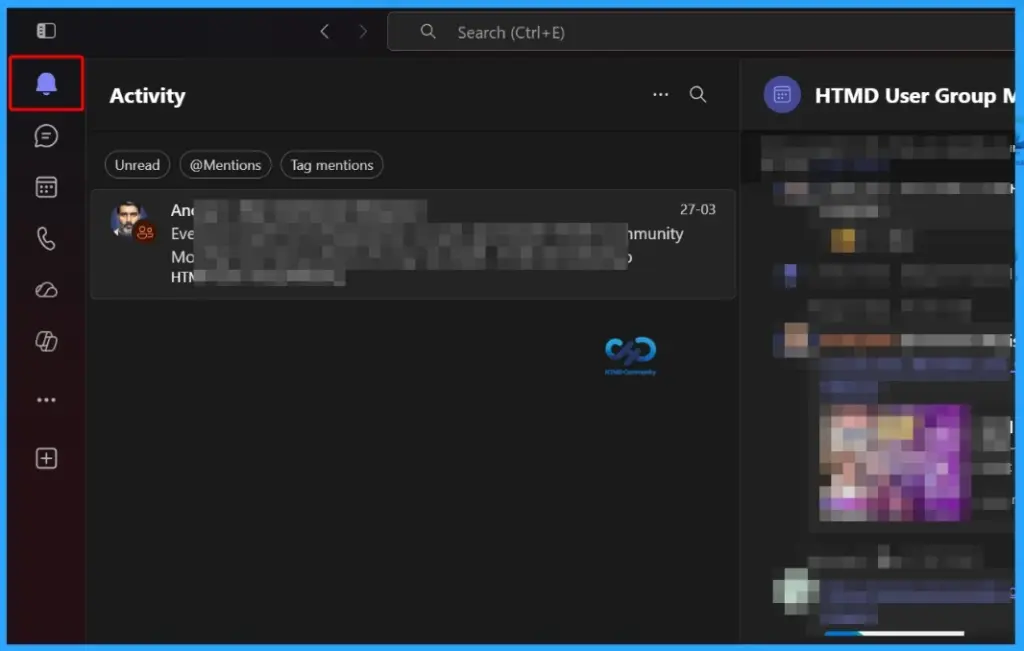
You can make your workflow more effective by sending notifications through Microsoft Teams instead of email using the Teams connector. This helps users get real-time updates directly where they already communicate. You can also use Adaptive Cards along with the Adaptive Card Designer to create clear, structured notifications with the right information.
Resources
Need Further Assistance or Have Technical Questions?
Join the LinkedIn Page and Telegram group to get the latest step-by-step guides and news updates. Join our Meetup Page to participate in User group meetings. Also, join the WhatsApp Community and the Whatsapp channel to get the latest news on Microsoft Technologies. We are there on Reddit as well.
Author
Anoop C Nair is a Workplace Technology solution architect with 25+ years of experience. Microsoft Certified Trainer. Microsoft MVP from 2015 onwards for consecutive 11+ years! He is a blogger, Speaker, and Founder of HTMD Community and HTMD Conference. His main focus is on Device Management technologies like Intune, Windows, and Cloud PC. He writes about technologies like Intune, SCCM, Windows, Cloud PC, Entra, and Microsoft Security.