
Key Takeaways
- Create and deploy a BitLocker Endpoint Security policy from the Microsoft Intune admin center.
- Enable Require Device Encryption to enforce BitLocker protection on Windows devices.
- Configure Recovery Password Rotation for Entra ID-joined and hybrid-joined devices to improve recovery key security.
- Apply XTS-AES 256-bit encryption for operating system drives to provide strong data protection.
Let’s Deploy BitLocker Encryption to Protect Data on Windows Devices using Microsoft Intune. This post explains the configuration settings for BitLocker Encryption that can help protect data on devices running Windows 11 and the deployment of BitLocker using Intune. BitLocker is a built-in Windows data protection feature, capable of encrypting entire hard drives, including both system and data drives. BitLocker pre-provisioning can drastically reduce the time required to provision new PCs with BitLocker enabled.
Deploy BitLocker Encryption to Protect Data on Windows Devices using Microsoft Intune
BitLocker is available on devices that run Windows11. Some settings for BitLocker require the device have a supported TPM. It is important to understand that BitLocker has specific hardware requirements and that some methods of enabling BitLocker are dependent on those conditions.
Joy has well explained the working mechanism of Bitlocker encryption, the internal OS components involved, and most importantly, Take a look at the blog post here if you have not seen it yet – why it is necessary and how it helps secure the OS platform from cold boot attacks. There are already Bitlocker series providing you in depth details on Bitlocker policies and working mechanisms. Links to the posts are mentioned below. Give them a read if you have not yet.
- Bitlocker Unlocked with Joy – Behind the Scenes Windows 10
- Device Encryption – Bitlocker made Effortlessly
- Deciphering Intune’s Scope w.r.t Bitlocker Drive Encryption
- Intune and Silent Encryption – A Deeper Dive to Explore the Internal
Enable BitLocker using Intune
Let’s follow the steps to use Intune to configure BitLocker Drive Encryption on Windows devices. Here are recommended processes for deploying BitLocker using Intune.

- Sign in to Microsoft Intune Admin Center
- Navigate to the Endpoint Security node. Select Endpoint security > Disk encryption.
- In the Disk Encryption click on the +Create Policy
Note – This is the most recent method of deploying BitLocker settings. If you are currently using a device configuration profile, consider migrating to an Endpoint security policy.
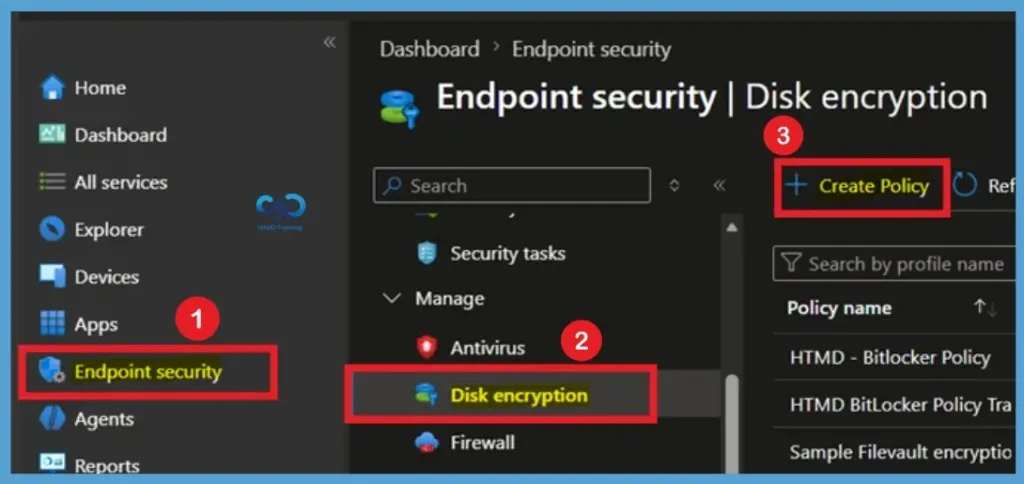
Create a BitLocker Policy Profile
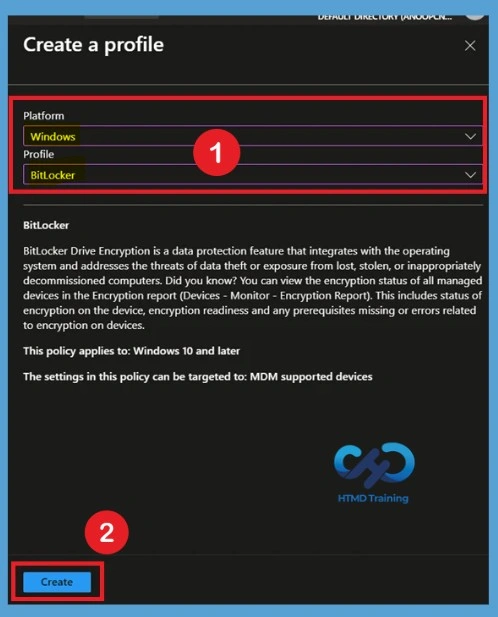
In the Create a profile window, select Windows as the platform and BitLocker as the profile type. These selections ensure that the policy targets Windows devices and provides access to BitLocker-specific encryption settings. After confirming the selections, click Create to continue.
Creating a dedicated BitLocker profile allows administrators to centrally manage encryption settings for Windows devices. This profile serves as the foundation for configuring encryption requirements, recovery options, and drive protection settings that help secure organizational data.
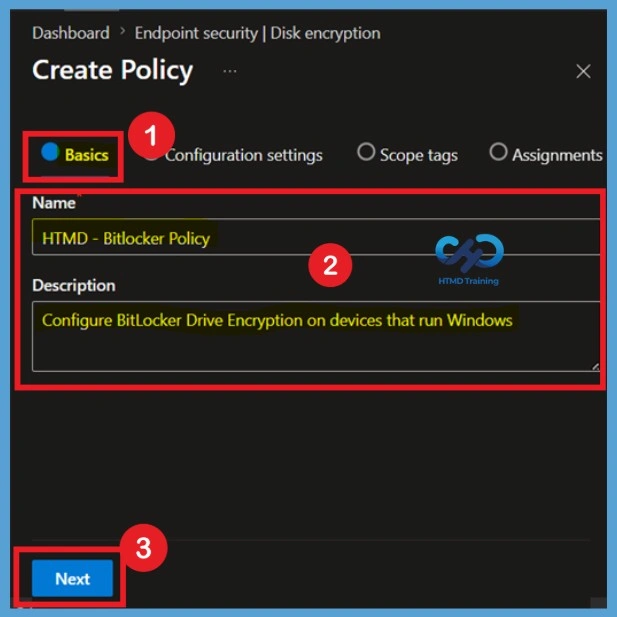
On the Basics page, enter a Name and Description for the BitLocker policy. Using a clear policy name helps administrators quickly identify its purpose, especially when managing multiple security policies within the Intune environment. Once the required information is entered, click Next to proceed to the configuration settings page.
- Name– HTMD – Bitlocker Policy
- Description– Configure BitLocker Drive Encryption on devices that run Windows
Access BitLocker Configuration Settings
In Configuration settings, Scroll down and configure the policy you want to configure for your environment. Depending on the type of policy that you use to silently enable BitLocker, configure the following settings. There is no user interaction when enabling BitLocker on a device in this scenario. If BitLocker silent enable features are required, the third-party encryption warning must be hidden as any required prompt breaks silent enablement workflows.
First, ensure that the Hide prompt about third-party encryption setting is set to Yes. This is important because there should be no user interaction to complete the encryption silently.
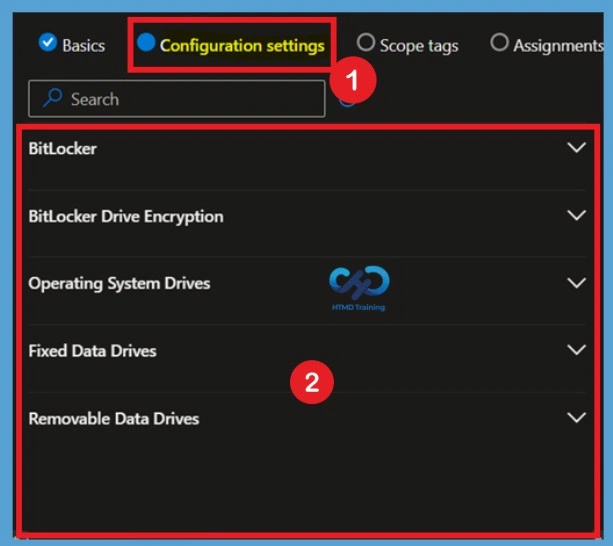
In the Configuration settings page, you will find separate categories for configuring BitLocker protection, including BitLocker, BitLocker Drive Encryption, Operating System Drives, Fixed Data Drives, and Removable Data Drives. These categories allow administrators to manage encryption settings for different drive types from a single policy.
- Reviewing these sections before configuration helps ensure that all required security settings are applied consistently.
- Each category contains options that control encryption behavior, recovery methods, and access restrictions for protected drives.
Configure BitLocker Base Settings
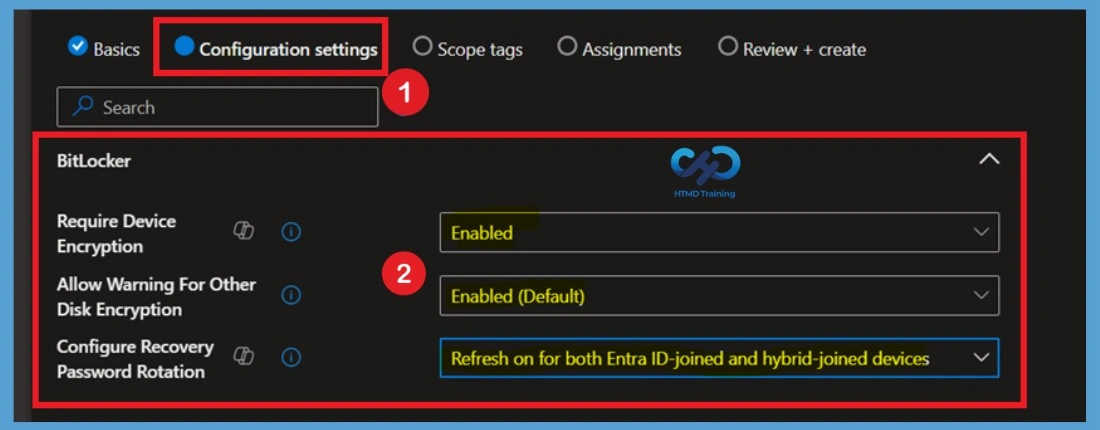
Under the BitLocker section, enable Require Device Encryption to enforce encryption on managed devices. You can also configure recovery password rotation to automatically refresh recovery passwords for Entra ID-joined and hybrid-joined devices, improving security and recovery management.
These settings help ensure that devices remain protected while maintaining secure recovery options. Enabling password rotation reduces the risk associated with long-term use of the same recovery password and supports compliance with security best practices.
| Setting | Purpose | Value |
|---|---|---|
| Require Device Encryption | Enabled | Ensures all supported devices are encrypted automatically with BitLocker. |
| Allow Warning For Other Disk Encryption | Enabled (Default) | Displays a warning if another encryption product is detected, preventing conflicts. |
| Configure Recovery Password Rotation | Refresh on for both Entra ID‑joined and hybrid‑joined devices | Automatically rotates recovery passwords for all managed devices, maintaining compliance and security. |
Configure Drive Encryption Methods
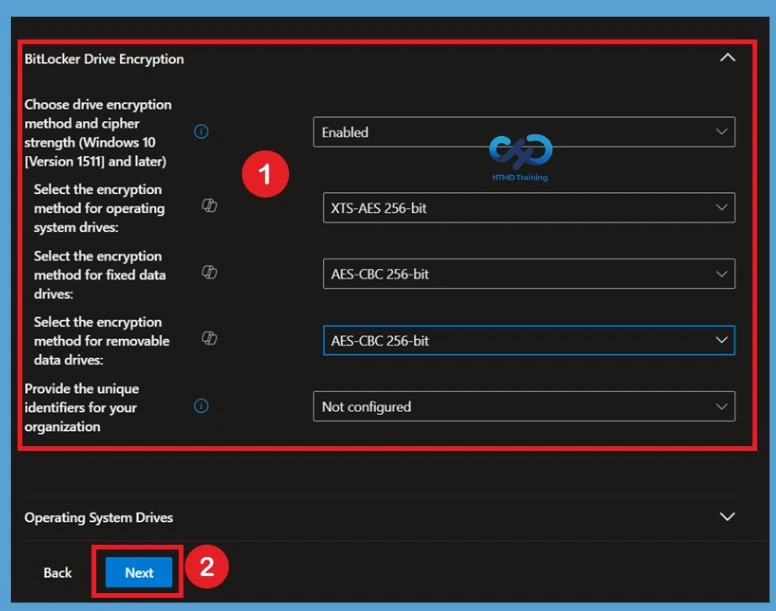
In the BitLocker Drive Encryption section, enable the setting to choose drive encryption methods and cipher strengths. Configure the required encryption algorithms for operating system drives, fixed data drives, and removable data drives based on your organization’s security requirements.
Selecting strong encryption methods helps protect sensitive data from unauthorized access. After reviewing and configuring the encryption settings, click Next to continue with the remaining policy configuration and deployment steps.
- Choose drive encryption method and cipher strength- Enables BitLocker encryption policy for Windows
- Encryption method for operating system drives – XTS-AES 256-bit the most secure and modern algorithm for OS drives, offering better protection against attacks that target disk sectors.
- Encryption method for fixed data drives – AES-CBC 256-bit
- Encryption method for removable data drives – AES-CBC 256-bit
- Provide unique identifiers for your organization – Currently Not configured
Configure Scope Tags
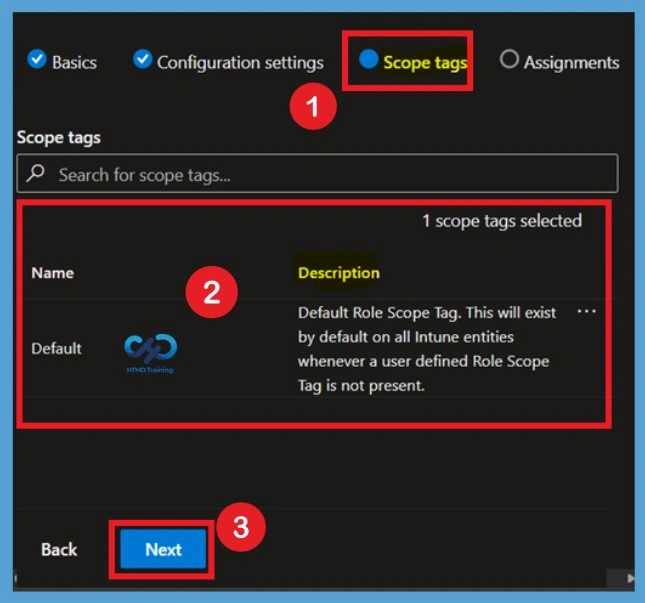
Go to the Scope tags page in the policy wizard. Scope tags help control which administrators can view and manage the policy within Microsoft Intune. By default, the Default scope tag is assigned automatically. If your organization uses custom scope tags, select the appropriate tag based on your administrative requirements. After reviewing the scope tag settings, click Next to continue.
Assign the Policy to Groups
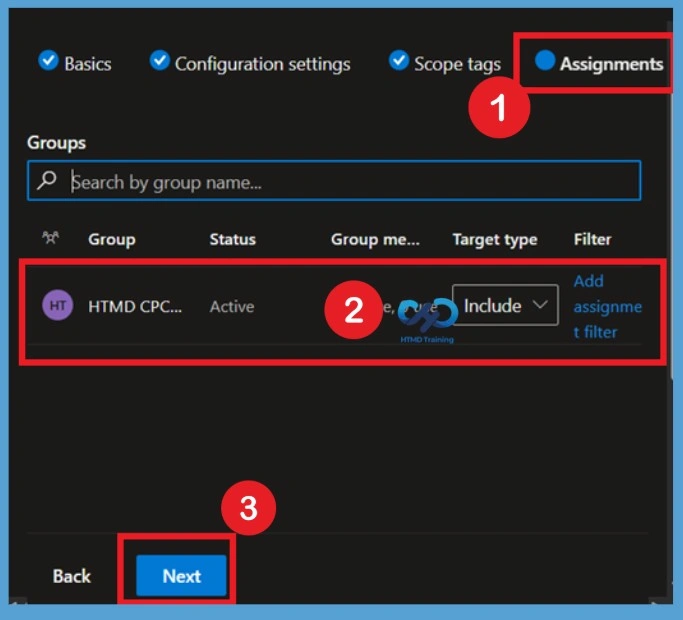
On the Assignments page, select the user or device groups that should receive the BitLocker policy. Click Add groups and choose the required Microsoft Entra ID group for deployment. Assignments determine which devices will receive the BitLocker configuration. Once the correct group is selected and included in the assignment, click Next to move to the final review page.
Review and Create the Policy
The Review + Create page displays a summary of all configured settings, including policy details, BitLocker configurations, scope tags, and assignments. Review the settings carefully to ensure everything is configured correctly. Verify important settings such as device encryption requirements and recovery password configuration. Once you confirm the policy settings, click Create to save and deploy the BitLocker policy to the assigned devices.
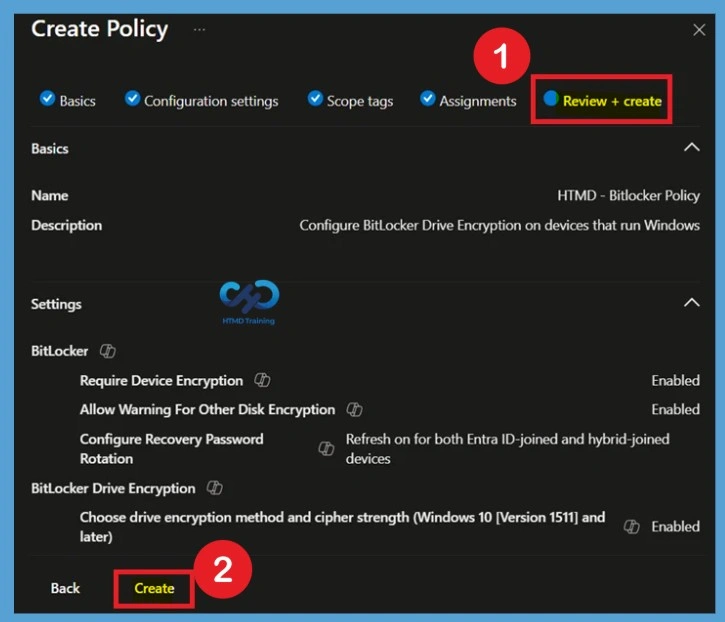
A notification will automatically appear in the top-right corner with a message. You can see the message “Profile created successfully”. Once you create the profile, it’s pushed to the assigned group, and you are ready to enable BitLocker using Intune silently.
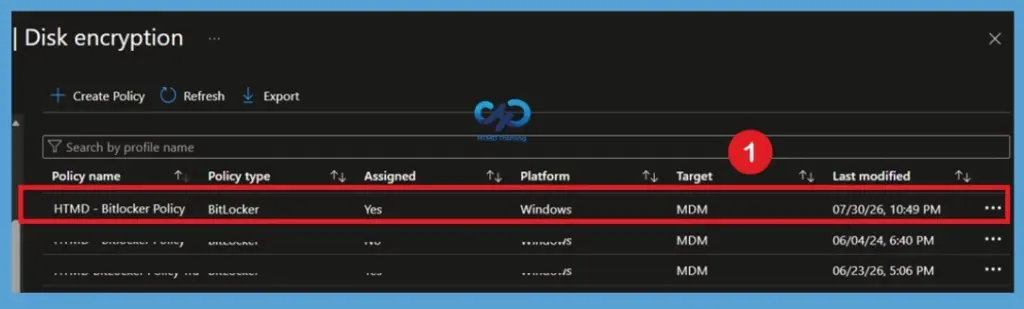
Monitor Bitlocker Encryption Status with Intune
Intune provides a built-in encryption report that presents details about the encryption status of devices, across all your managed devices. The encryption report shows common details across the supported devices you manage. Intune Device Encryption Status Report for deploying BitLocker using Intune.
If BitLocker is not enabled on a device after deploying a policy, check the encryption report to see if the device meets the prerequisites.
Read More: If you want more details on how to manage Windows Bitlocker compliance policy using Intune and MS Graph by Mark Thomas, Managing Windows Bitlocker Compliance Policy Using Intune | MS Graph | Grace Period.
Need Further Assistance or Have Technical Questions?
Join the LinkedIn Page and Telegram group to get the latest step-by-step guides and news updates. Join our Meetup Page to participate in User group meetings. Also, join the WhatsApp Community and the Whatsapp channel to get the latest news on Microsoft Technologies. We are there on Reddit as well.
Author
Anoop C Nair has been Microsoft MVP from 2015 onwards for 10 consecutive years! He is a Workplace Solution Architect with more than 22+ years of experience in Workplace technologies. He is also a Blogger, Speaker, and Local User Group Community leader. His primary focus is on Device Management technologies like SCCM and Intune. He writes about technologies like Intune, SCCM, Windows, Cloud PC, Windows, Entra, Microsoft Security, Career, etc
Hi, we have deployed bitlocker from intune in our office systems. now we need to enforce users to set pre boot pin authentication. we need to deploy it from Intune, how to configure the same.
The preboot authentication option Require startup PIN with TPM of the Require additional authentication at startup policy, You can specify it under BitLocker – OS Drive Settings!!
We also want to enable bitlocker silently using Autopilot but at the same time want our users to set TPM startup PIN also. If we enable this setting in policy then silent encryption is not supported. How can we achieve this requirement ?
Hi,
I wanted to see if you had an updated version of these instructions with the most recent Intune options?
Thanks
Nat