
Key Takeaways
- Displays all policies, apps, and configuration profiles where a specific Intune filter is applied.
- Helps administrators see which Azure AD or Entra ID groups are targeted by the filter.
- Clearly indicates whether the filter is applied as Include or Exclude for each assignment.
- Provides a single place to review all assignments related to a filter instead of checking each policy or app individually.
How to Check Associated Assignments for Intune Filters. Intune filters and the Associated Assignments feature in the Intune admin portal provide administrators with clear visibility into how filters are being used across policies, apps, and configuration profiles. This can be useful for troubleshooting and auditing purposes.
Starting with Intune Service Release 2302, the Associated Assignments tab feature in Intune filters that allows administrators to view the list of all assignments associated with a particular policy, profile, or app.
When you assign an app or policy, you can filter the assignment using different device properties, such as device manufacturer, model, ownership, and more, by creating and associating a filter object with the assignment.
After you create and use an Intune filter, the Associated Assignments tab becomes available within the filter configuration. This tab provides a consolidated view of all policy, app, and profile assignments where the filter is applied. It clearly shows the target Entra ID groups and indicates whether the filter is used as Include or Exclude, making it easier to understand how the filter impacts device targeting across the tenant. Here you will see how to use Intune filters for assigning Apps Policies and Profiles In Intune Portal.

Table of Contents
How to View and Use Associated Assignments for Filters in Microsoft Intune
When an administrator creates a policy or deploys an app or profile using Intune, they can assign it to one or more groups of users or devices. To check the associated assignments for Intune filters, follow these steps.
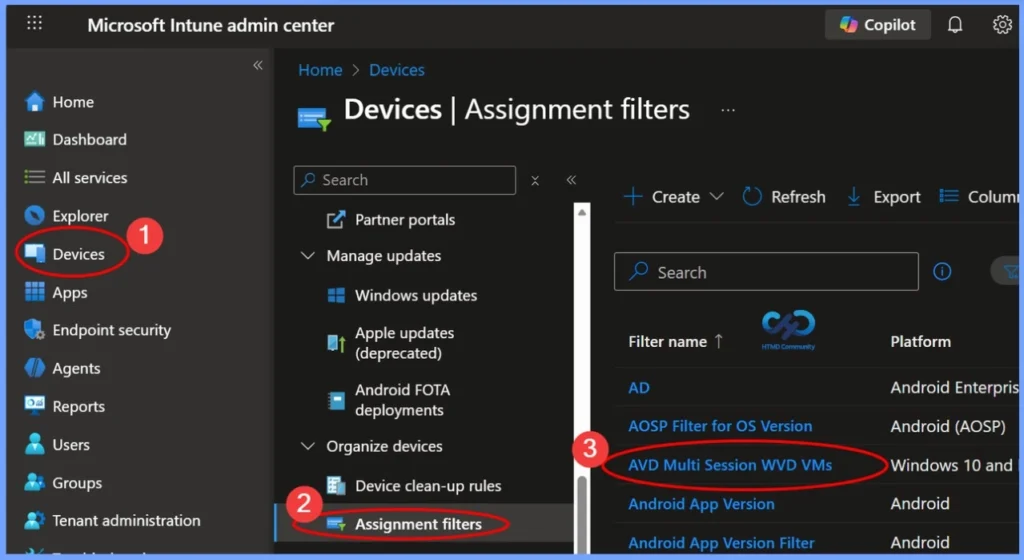
- Sign in to the Microsoft Intune admin center.
- Go to Devices > Assignment Filters.
- Select an existing filter you want to review
- For Example, I selected the AVD Multi Session WVD VMs.
- New Feature In Intune Service Release 2302 February Update Intune Brand Change
- Filter Intune App Policy Assignments Based On Domain Join Type
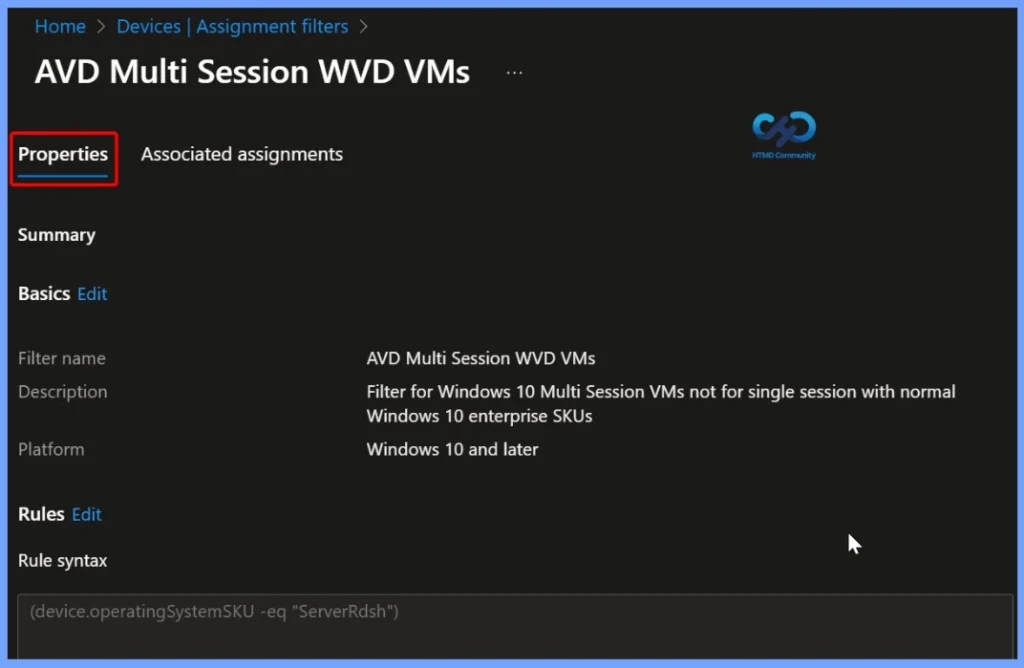
In Microsoft Intune filters, both the Properties tab and the Associated Assignments tab serve different purposes.The Properties tab displays the complete definition and configuration of an Intune filter. It provides details such as the filter name and description, the supported platform (Windows, Android, iOS/iPadOS, or macOS), and the rule syntax used to build the filter.
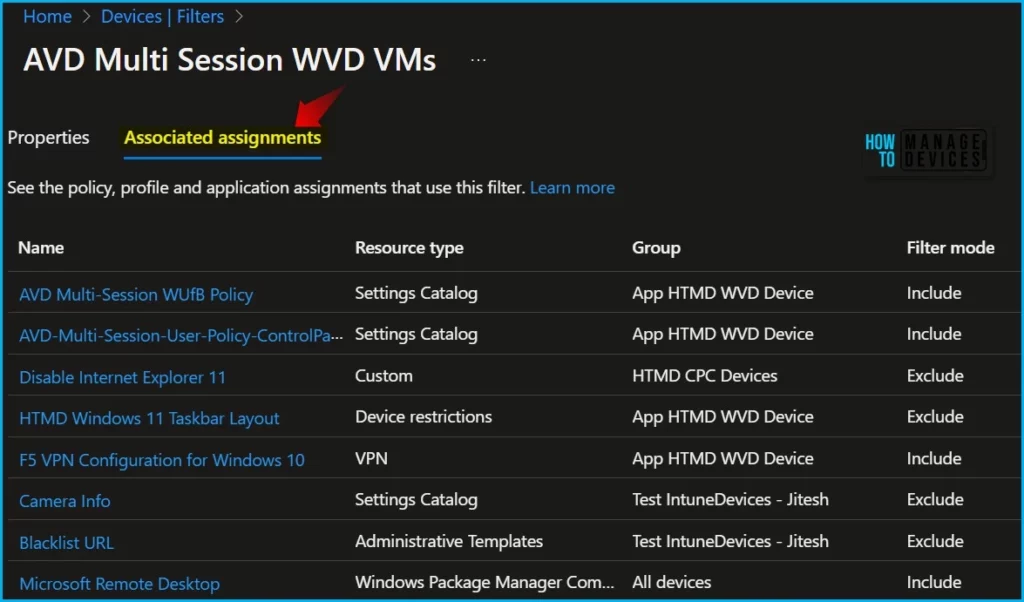
To view the associated assignments of the group, select the following Associated assignment tab inside the filters. Here you will see the policy, profile, and application assignments that use this filter.
The page shows all the apps and policies that use the filter, the groups that receive the filter assignments, and the filter mode (Include or Exclude).
Overall, the Associated Assignments tab is useful for administrators using Intune. It provides a clear and comprehensive view of all assignments associated with a policy, profile, or app, and allows administrators to manage assignments easily and efficiently.
The Associated Assignments report provides details about the different categories using the filter. The report provides the following columns:
| Associated Assignments Tab Details |
|---|
| Name |
| Resource type |
| Group |
| Filter mode |
Video Guide – Intune Assignment Filters Decoded | Associated Assignments
This video covers topics related to Intune assignment filters, Assignment Filters Decoded, Associated Assignments, and AAD Groups Vs Filters. By watching this video, you will better understand how these features work and how they can be used to manage mobile devices and apps in your organization.
Need Further Assistance or Have Technical Questions?
Join the LinkedIn Page and Telegram group to get the latest step-by-step guides and news updates. Join our Meetup Page to participate in User group meetings. Also, join the WhatsApp Community to get the latest news on Microsoft Technologies. We are there on Reddit as well.
Author
About Author – Jitesh, Microsoft MVP, has over six years of working experience in the IT Industry. He writes and shares his experiences related to Microsoft device management technologies and IT Infrastructure management. His primary focus is Windows 10/11 Deployment solution with Configuration Manager, Microsoft Deployment Toolkit (MDT), and Microsoft Intune.
This is great advice, but If you have lots of filters, it is a lot of clicks to gather how all the filters are used.
It would be really good if there was some scripted method to return this data, e.g. PowerShell and maybe the Microsoft.Graph PowerShell module.