

key Takeaways
- New configuration settings were introduced in Microsoft Intune for managing Windows 365 Cloud PCs and Windows App behavior.
- Centralised control for administrators to manage Cloud PC user actions and advanced features from the Intune Settings section.
- User self-service actions allow admins to decide whether users can reset their Cloud PC or initiate a restore directly from the Windows App.
- Restore functionality control helps organisations decide if users can restore their Cloud PC to a previous state or if the action should be limited to IT administrators.
New Windows 365 Cloud PC Configurations and Windows App Settings are available under Settings in Microsoft Intune. Microsoft has introduced new Windows 365 Cloud PC configuration and Windows App settings in Microsoft Intune, making it easier for administrators to control user actions and advanced features from a centralized location.
Table of Content
Table of Contents
New Windows 365 Cloud PC Configurations and Windows App Settings available under Settings in Microsoft Intune
These settings are available under the Settings section and allow IT admins to manage how users interact with their Cloud PCs through the Windows App. The update improves flexibility and provides better administrative control for organisations using Windows 365.
- Sign in to the Microsoft Intune Admin center
- Go to Devices > Windows 365 > Settings > Create
- Cloud PC Configuration preview
- Windows App settings preview

- New Dedicated Mode Experience in Windows 365 Frontline
- Windows 365 Cloud PC Frontline Provisioning Policy Creation Process | 3 Cloud PC with One License
- Configure Idle Session Time Limits for Windows 365 Cloud PC Frontline
- Most Asked 54 Windows 365 Cloud PC Interview Questions and Answers
User Self-Service Actions Setting in Microsoft Intune
The User self-service actions setting in Microsoft Intune lets administrators control which actions users can perform on their Windows 365 Cloud PCs when accessing them through the Windows App. There are two main options in this setting.
If these options are enabled, users can resolve their Cloud PC issues independently without contacting IT support. If they are disabled, only the IT administrator can perform reset or restore actions.

| Enable Users to Reset their Cloud PC | Allow Users to Initiate a Restore |
|---|---|
| If this is enabled, users can reset their Cloud PC themselves if something goes wrong | If this is enabled, users can restore their Cloud PC to an earlier saved state. |

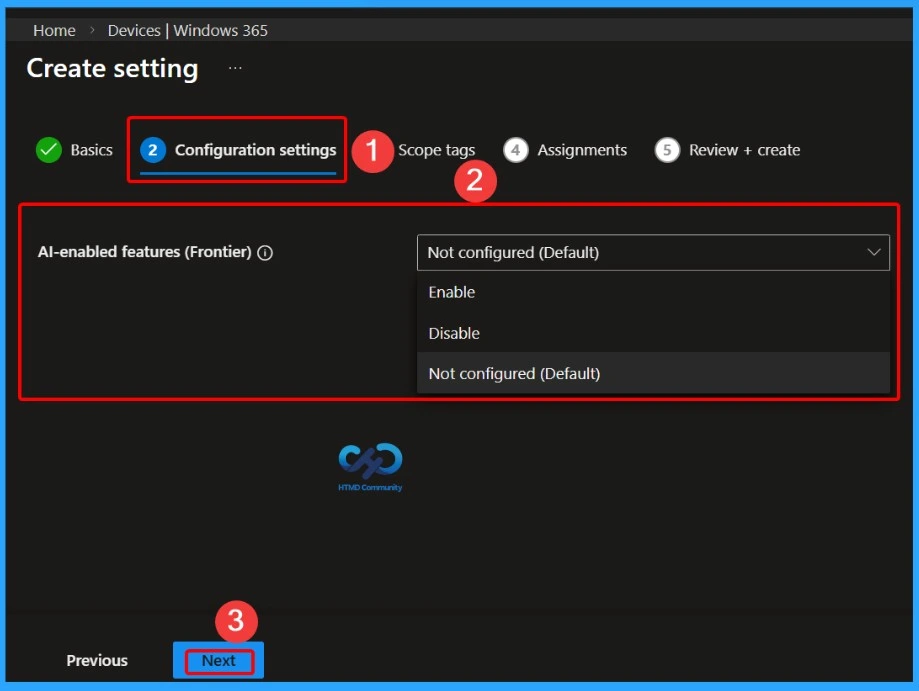
Enable or Disable AI-Enabled Features (Frontier) in Windows App using Intune
The AI-enabled features (Frontier) setting in Microsoft Intune allows administrators to control whether advanced AI capabilities are available in the Windows App environment for users accessing Windows 365 Cloud PCs. This setting provides three options: Enable, Disable, or Not configured (Default).
- When enabled, users can access the latest AI-powered features that enhance productivity and user experience within the Windows App.
- If disabled, these AI features will be restricted for users.
- When the setting remains Not configured, the system follows the default behavior defined by the platform.
- This gives IT administrators the flexibility to control the rollout of AI capabilities based on organizational policies and security requirements.
- How to Set Up Windows 365 Cloud Apps Using Microsoft Intune
- Seamless Provisioning of Windows 365 Cloud PCs for External Identities with Intune
- How to Enhance Windows365 AI-Enabled Endpoint Management using Copilot in Intune
- Explore the Windows 365 Cloud PC Overview Reports in Intune
Need Further Assistance or Have Technical Questions?
Join the LinkedIn Page and Telegram group to get the latest step-by-step guides and news updates. Join our Meetup Page to participate in User group meetings. Also, join the WhatsApp Community and the Whatsapp channel to get the latest news on Microsoft Technologies. We are there on Reddit as well
Author
Anoop C Nair has been Microsoft MVP for 10 consecutive years from 2015 onwards. He is a Workplace Solution Architect with more than 22+ years of experience in Workplace technologies. He is a Blogger, Speaker, and Local User Group Community leader. His primary focus is on Device Management technologies like SCCM and Intune. He writes about technologies like Intune, SCCM, Windows, Cloud PC, Windows, Entra, Microsoft Security, Career, etc.