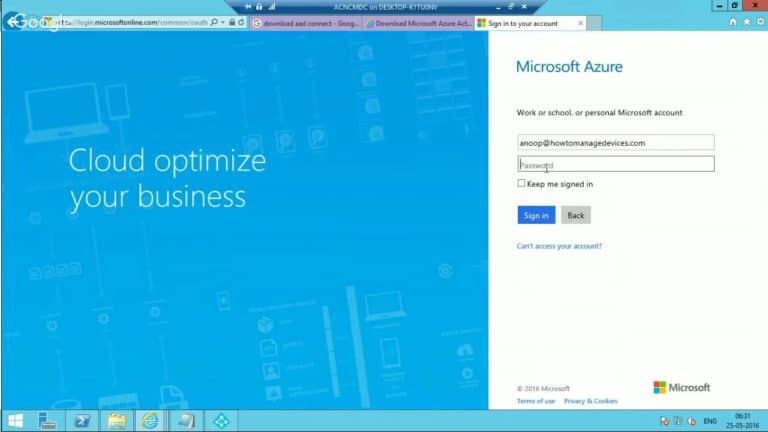
Let’s discuss how to Sync On-Prem AD Users with Azure AD Intune ConfigMgr. Using Azure AD Connect, you can sync on-prem AD users identities/attributes and passwords to Azure AD. Azure AD connect installation and configuration is very straightforward if we use (express settings 🙂 ).
I have a video tutorial here that helps you understand the AAD connect configuration, How to enable MFA for Azure AD to join Windows 10 devices and Twitter app integration with Azure AD.
In this post, I will cover two other Azure AD (AAD) Sync topics.
- Where is the Scheduled Task used to create Azure AD?
- How do you create a service connection point in the on-premises Active Directory?
- Video Tutorial – How to Sync On-Prem AD User Accounts with Azure AD
Windows 10 MDM devices can write back to on-prem AD. More details are available here. AAD Connect is mandatory for the write-back feature of Windows 10 devices.
Earlier versions of Azure AD Connect used a Windows task scheduler to schedule the Azure AD sync of on-prem objects and attributes. The latest version of Azure AD Connect has an inbuilt sync engine. Hence, we won’t find a scheduled task for AAD Connect.
| Index |
|---|
| How to Sync On-Prem AD Users with Azure AD Intune ConfigMgr |
| How to Sync On-Prem AD Users Accounts With Azure AD |
- Azure AD AAD Connect Setup User Password Sync Tool to Sync On-prem AD Domain to Azure AD
- Top 31 Azure Interview Questions and Answers 2023 for System Admins
- Restore Deleted AAD User from Azure Active Directory Portal
- AAD Groups based on Intune Device Categories
- Create Nested AAD Dynamic Groups based on MDM Feature
- Create AAD Dynamic Groups Based On MDM Intune SCCM Management
How to Sync On-Prem AD Users with Azure AD Intune ConfigMgr
The new default synchronization frequency is 30 minutes. We can change the AD Sync Schedule using the PowerShell command “Get-ADSyncScheduler” and other parameters documented here.
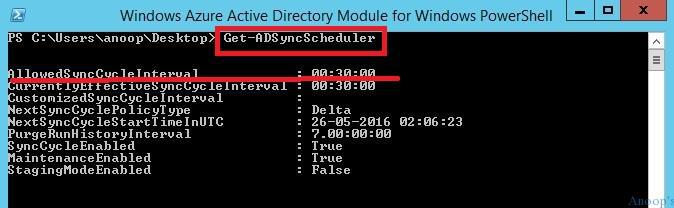
PS C:\Users\anoop\Desktop> Get-ADSyncSchedulerAllowedSyncCycleInterval : 00:30:00
CurrentlyEffectiveSyncCycleInterval : 00:30:00
CustomizedSyncCycleInterval :
NextSyncCyclePolicyType : Delta
NextSyncCycleStartTimeInUTC : 26-05-2016 02:06:23
PurgeRunHistoryInterval : 7.00:00:00
SyncCycleEnabled : True
MaintenanceEnabled : True
StagingModeEnabled : False
I had trouble creating a service connection point in the on-premises Active Directory. This service connection point is used to “Connect domain-joined devices to Azure AD for Windows 10 experiences.” I followed the documentation to configure the service connection points in on-premises AD but was getting stuck with PowerShell Commands. I ran the PowerShell commands per the above documentation but with no luck.
After that, I installed the appropriate version of the Windows Azure Active Directory Module for Windows PowerShell. Then I tried to run the following PowerShell commands, which worked like a champ!
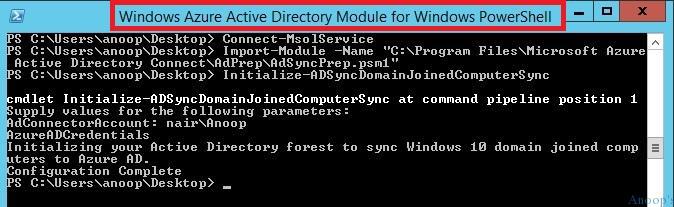
PS C:\Users\anoop\Desktop> Connect-MsolService

PS C:\Users\anoop\Desktop> Import-Module -Name "C:\Program Files\Microsoft Azure Active Directory Connect\AdPrep\AdSyncPrep.psm1"

PS C:\Users\anoop\Desktop> Initialize-ADSyncDomainJoinedComputerSync

cmdlet Initialize-ADSyncDomainJoinedComputerSync at command pipeline position 1
Supply values for the following parameters:
AdConnectorAccount: nair\Anoop
AzureADCredentials
Initializing your Active Directory forest to sync Windows 10 domain joined computers to Azure AD.
Configuration Complete
How to Sync On-Prem AD Users Accounts With Azure AD
This video helps you to understand the AAD connect configuration, how to enable MFA for Azure AD to join Windows 10 devices, and how to integrate the Twitter app with Azure AD. In this post, I will cover two other Azure AD (AAD) Sync topics.
I’ve already downloaded and installed the AAD connect tool, and I can show you how to configure it and start syncing it. How to enable MFA for AAD Join Machines How to integrate Twitter with Azure AD to get SSO.
We are on WhatsApp now. To get the latest step-by-step guides, news, and updates, Join our Channel. Click here. HTMD WhatsApp.
Author
Anoop C Nair is Microsoft MVP! He is a Device Management Admin with more than 20 years of experience (calculation done in 2021) in IT. He is a Blogger, Speaker, and Local User Group HTMD Community leader. His main focus is on Device Management technologies like SCCM 2012, Current Branch, and Intune. He writes about ConfigMgr, Windows 11, Windows 10, Azure AD, Microsoft Intune, Windows 365, AVD, etc.