
Key Takeaways
- Intune RBAC enables secure delegation of administrative tasks.
- Built-in roles cannot be modified but can be duplicated.
- Duplicating roles significantly reduces administrative effort.
- Custom roles should follow the principle of least privilege.
- Combine RBAC with Scope Tags and Scope Groups for granular administration
In the post, Create a Custom Built-in Role for More Granular Intune RBAC. Microsoft Intune uses Role-Based Access Control (RBAC) to delegate administrative tasks securely. RBAC allows organizations to grant administrators only the permissions they require, following the principle of least privilege. Role-based access control (RBAC) helps Intune Admins to control who can perform various Intune tasks within your enterprise. There are seven (7) built-in Intune roles (RBAC roles).
Table of Contents
Table of Contents
Create a Custom Built-in Role for More Granular Intune RBAC
Duplicating a role saves time, preserves existing permissions, and makes it easier to customize access for specific job functions. You can create custom Intune roles if none of the provided roles supports your scenario. By assigning roles to your Intune users, you can limit what they can see and change. Each role has a set of permissions that determine what users with that role can access and change within your organization.
Note: You can assign built-in roles to groups without further configuration. You can’t delete or edit the name, description, type, or permissions of a built-in role.
| Permissions | Information |
|---|---|
| Application Manager | Manages mobile and managed applications, can read device information, and view device configuration profiles. |
| Endpoint Security Manager | Manages security and compliance features, such as security baselines, device compliance, conditional access, and Microsoft Defender for Endpoint. |
| Help Desk Operator | Performs remote tasks on users and devices and can assign applications or policies to users or devices. |
| Intune Role Administrator | Manages custom Intune roles and adds assignments for built-in Intune roles. It’s the only Intune role that can assign permissions to Administrators. |
| Policy and Profile Manager | Manages compliance policy, configuration profiles, Apple enrollment, corporate device identifiers, and security baselines |
| Read Only Operator | Views user, device, enrollment, configuration, and application information. Can’t make changes to Intune. |
- Intune Role-Based Administration RBAC In Endpoint Manager Portal
- Intune Read-Only Experience Learn to Create Read-Only Operators Roles Admin Access
- Create Custom Intune Helpdesk Operator Role
How to Get Start Duplicate Intune RBAC Roles
You can duplicate both custom and built-in roles. Your account must have Global Administrator or Intune Service Administrator permissions in Intune to create, edit, or assign Intune roles. Here’s how you can duplicate Intune RBAC Roles –

- Login to the Intune Admin Center
- Navigate to Tenant administration > Roles
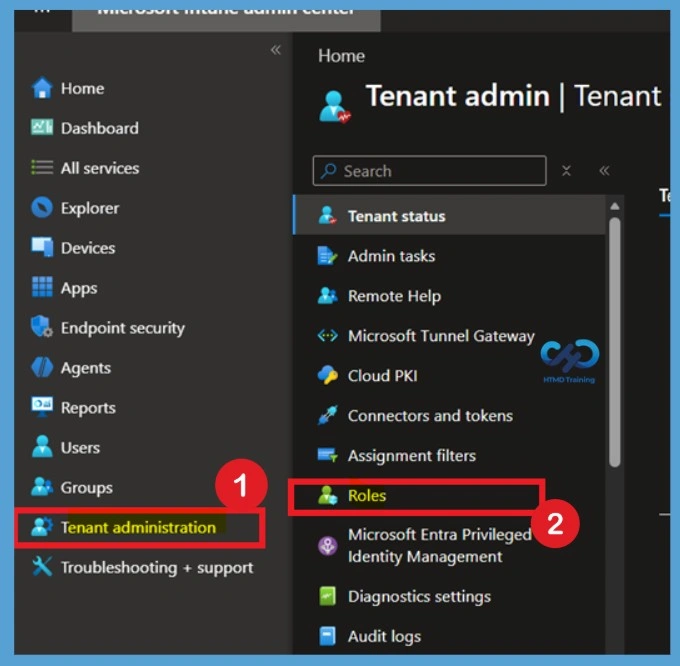
When you click the Role, you can See the All-role page. On the All-roles page, you will find a complete list of both built-in and custom Intune RBAC roles available in your tenant. This page is the central location for creating, managing, assigning, and duplicating Intune administrator roles.
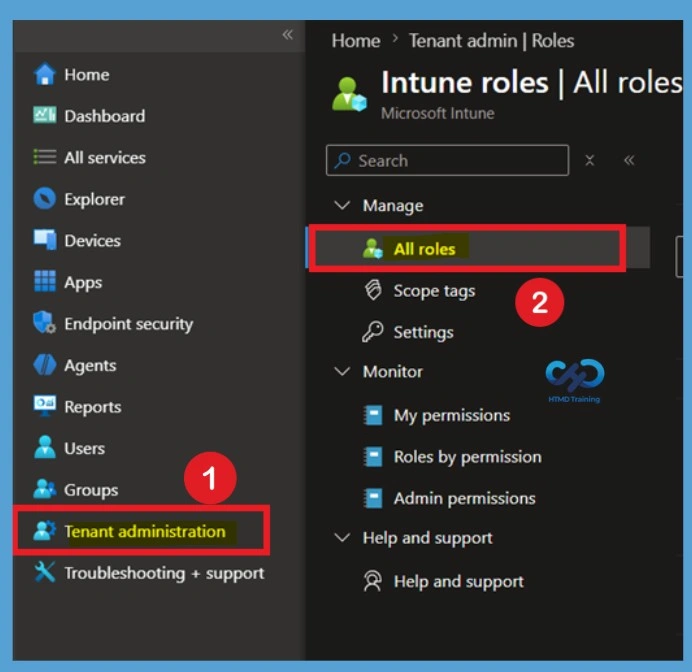
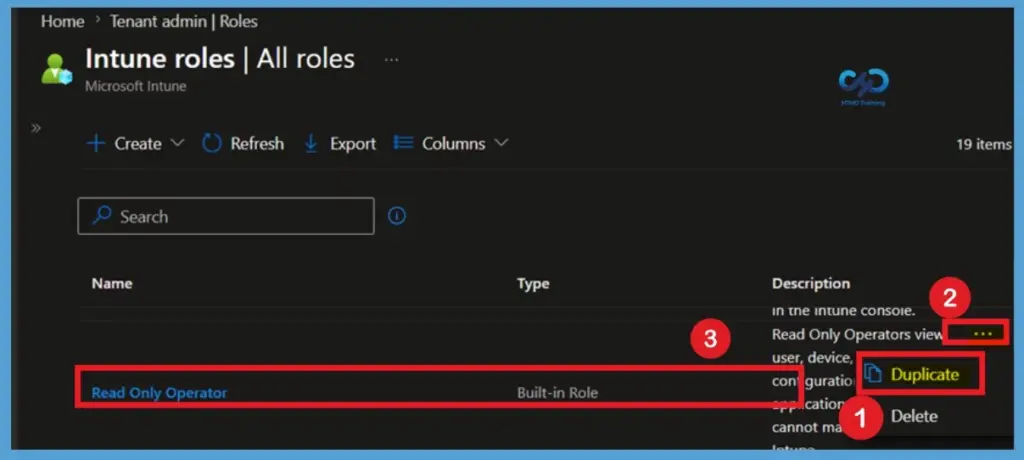
After selecting the role, click the Duplicate option from the top command bar. Alternatively, click the three-dot (⋯) menu next to the selected role and choose Duplicate. Since built-in roles cannot be modified directly, duplicating them creates a copy that you can fully customize without affecting the original role.
Note – You can’t delete or edit the name, description, type, or permissions of a built-in role. By duplicating existing built-in roles, You can create your roles with custom permissions.
Basic Tab
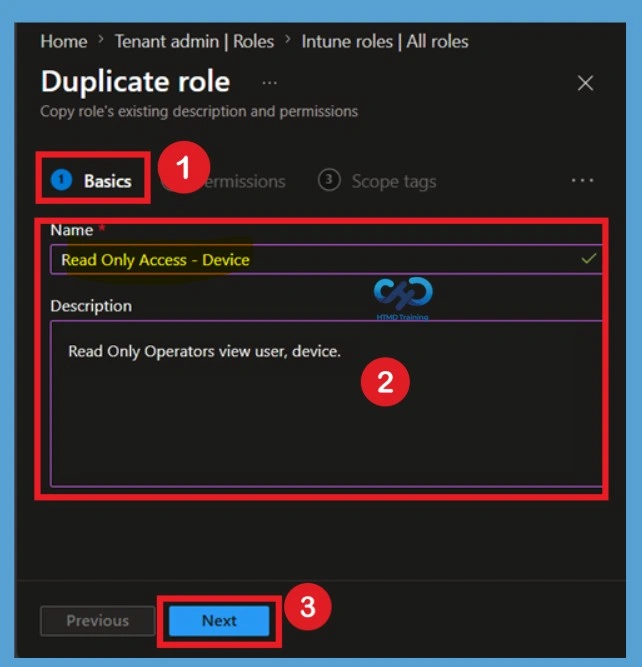
The Duplicate role wizard opens and displays the Basics page. Enter a unique and descriptive Role name that clearly identifies the purpose of the custom role. Adding a meaningful description is recommended, as it helps other administrators understand when and why the role should be used.
Choose a naming convention that matches your organization’s administrative standards, such as including the department or job function in the role name. Once you have entered the required information, verify the details and click Next to continue to the permissions configuration page.
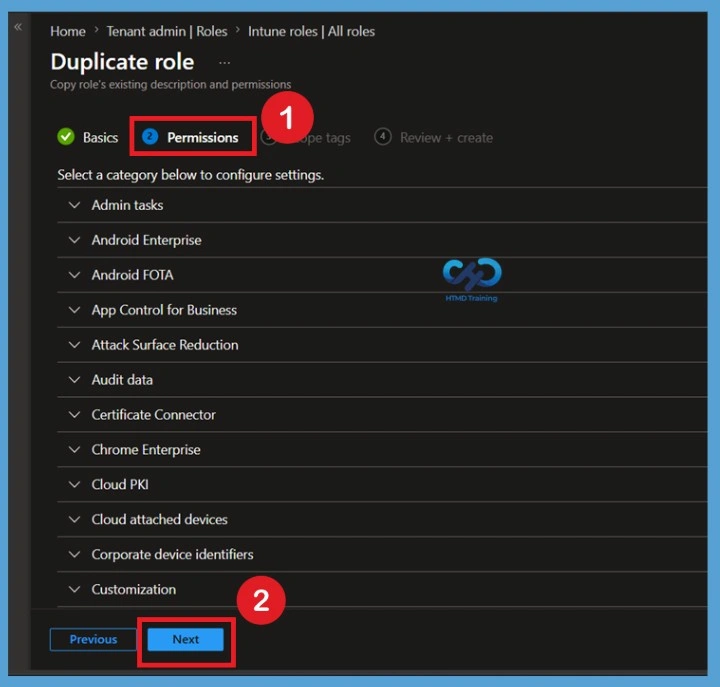
All the permissions and scope tags from the original role will already be selected. You can change the roles for the available category. The following permissions are available when creating custom roles (You dont need to change the permission it’s not compulsory.
| Permissions |
|---|
| Admin tasks |
| Android Enterprise |
| Android FOTA |
| App Control for Business |
| Attack Surface Reduction |
| Audit data |
| Chrome Enterprise |
| Cloud PKI |
| Cloud attached devices |
| Corporate device identifiers |
Review or Modify Role Permissions
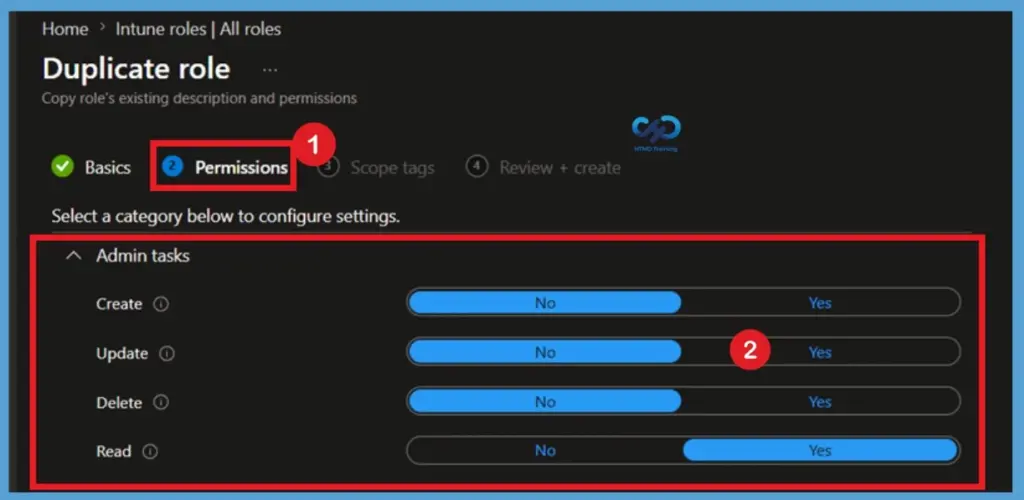
The Permissions page displays all the permissions from the original role. Permissions are organized into categories such as Admin tasks, Android Enterprise, Attack Surface Reduction, Cloud PKI, and others. Expand a category to review the available permissions for the duplicated role.
If necessary, you can customize the role by changing individual permissions from Yes to No or vice versa, depending on your organization’s requirements.
- In this example, no permission changes were made, so the duplicated role retained all the permissions from the original role. After reviewing the permissions, click Next to continue.
Importants Of Scope Tags
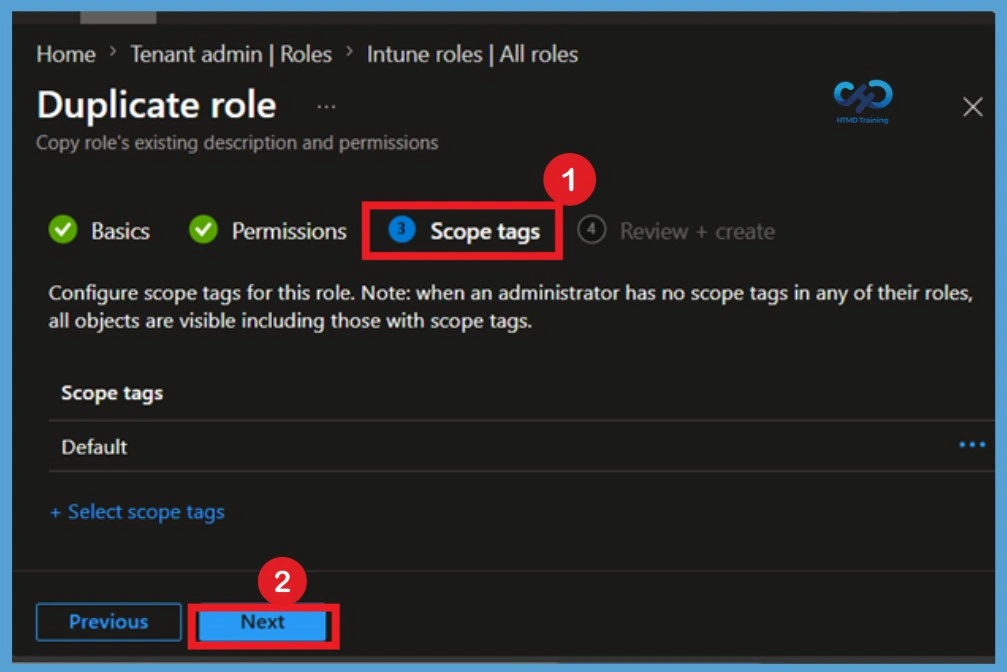
On the Scope tags page, assign one or more scope tags if your organization uses delegated administration. Click Add, select the required scope tags, and then choose Select to add them to the role. If your organization does not use scope tags, you can leave the default configuration unchanged. After verifying the selected scope tags, click Next to proceed to the review page.
Review + Create
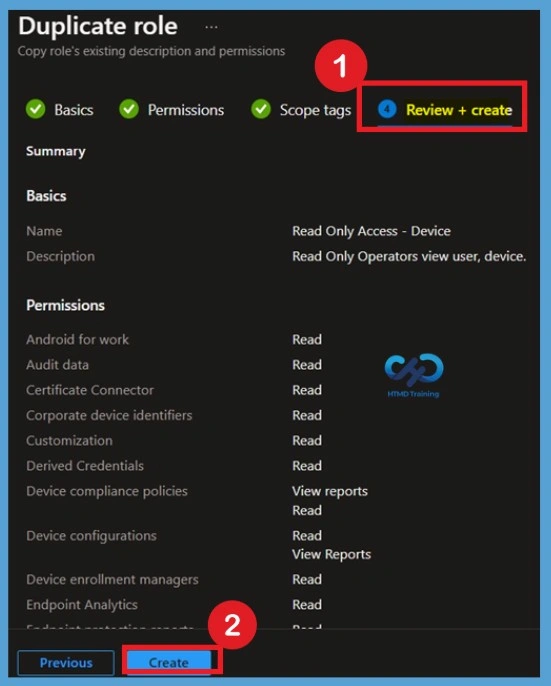
The Review + create page displays a summary of the configuration, including the role name, description, selected permissions, and assigned scope tags. Carefully review all the settings to ensure they accurately reflect the level of administrative access you intend to provide.
If you need to make changes, use the Previous button to return to the earlier pages of the wizard. Once you are satisfied with the configuration, click Create. Microsoft Intune validates the settings and creates the new custom RBAC role based on the duplicated role.
- A notification will appear automatically in the top right-hand corner with a message. Here you can see, Read Only Access – Device successfully created.
Verify the Duplicated Custom Role
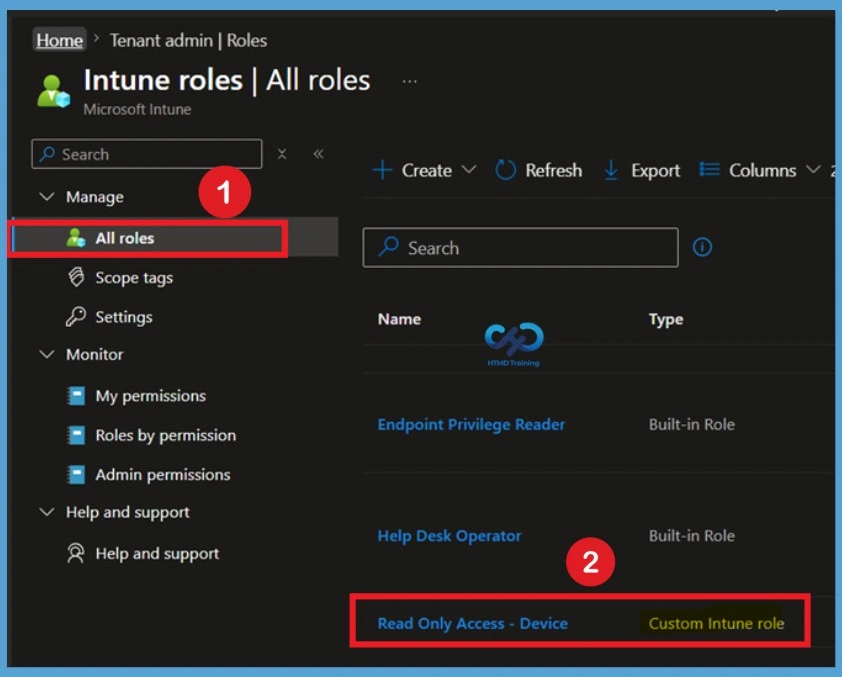
Click the Refresh button at the top to quickly see the roles. You will be able to see the Custom Intune role duplicated in the roles list. In this example, the Read Only Access – Device role is displayed with the Custom Intune role type, confirming that the role was successfully created and is ready to be assigned to users or groups based on your organization’s requirements.
- You can create a custom Intune role that includes any permissions required for a specific job function. After creating a custom role, you can assign it to any users that need those permissions.
Delete a Custom Intune Role
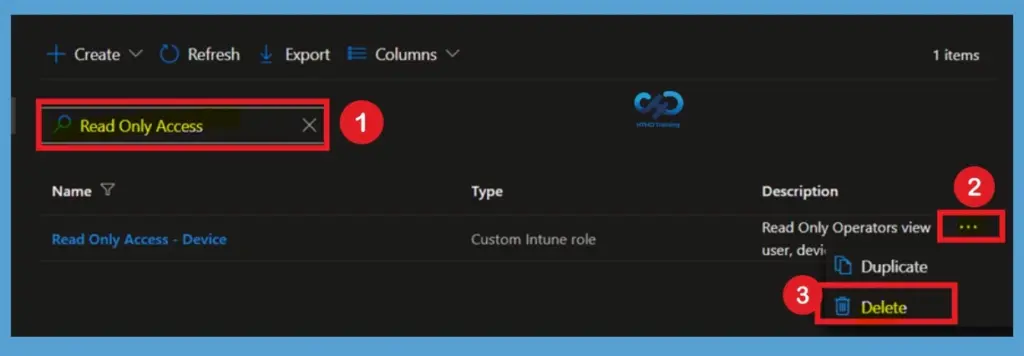
On the All-roles page, use the Search box to locate the custom Intune role that you want to remove. Once the role appears in the list, click the 3-dot (⋯) menu next to the role and select Delete. Confirm the deletion when prompted to permanently remove the custom role from your Intune tenant. Only custom Intune roles can be deleted; built-in roles cannot be deleted or modified.
Create a New Intune Role (Just for Information)
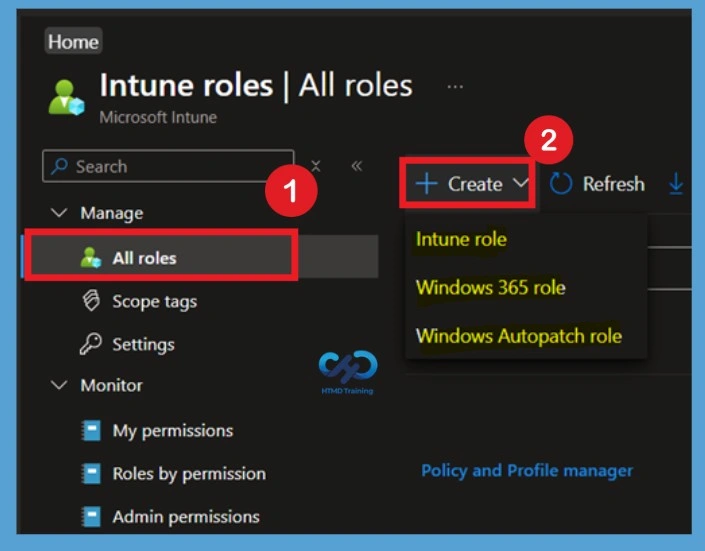
The All roles page also provides the + Create option for creating new administrator roles. Click the + Create drop-down menu to choose between Intune role, Windows 365 role, or Windows Autopatch role, depending on your administrative requirements. For this guide, the Duplicate option is used instead of creating a new role from scratch. Duplicating an existing role copies its permissions and scope tags, allowing you to quickly create a customized RBAC role.
Video Tutorial – Intune RBAC Roles
🎥Explore Video Guide From HTMD Free Intune Training to Create Intune Custom RBAC Role, and understand more about Custom role permissions.
Intune RBAC Strategic options – Video
In this video, we will explain Intune RBAC Strategic options | Role-Based Access Controls | Scope Groups | Intune Objects | Roles.
Need Further Assistance or Have Technical Questions?
Join the LinkedIn Page and Telegram group to get the latest step-by-step guides and news updates. Join our Meetup Page to participate in User group meetings. Also, join the WhatsApp Community and the WhatsApp channel to get the latest news on Microsoft Technologies. We are there on Reddit as well
Author
About Author – Jitesh, Microsoft MVP, has over six years of working experience in the IT Industry. He writes and shares his experiences related to Microsoft device management technologies and IT Infrastructure management. His primary focus is Windows 10/11 Deployment solution with Configuration Manager, Microsoft Deployment Toolkit (MDT), and Microsoft Intune.